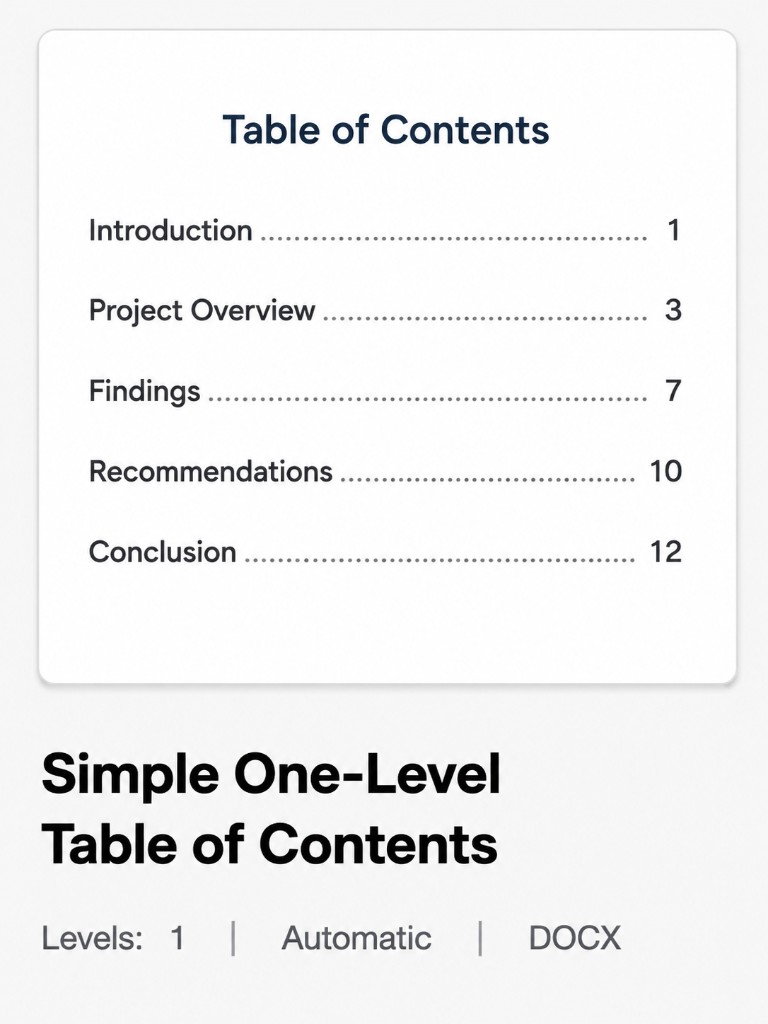
Automatic TOC
Simple One-Level Table of Contents
Short reports, essays, simple proposals, and small projects
Heading levels: 1
Word-compatible layout
Preview simple, professional, academic, book, manual, and creative contents layouts. Compare heading levels and TOC behavior, then choose the closest structure for your document.
Start by viewing the structures. Compare document type, heading depth, and whether the layout should update automatically or be edited manually.
Short reports, essays, simple proposals, and small projects
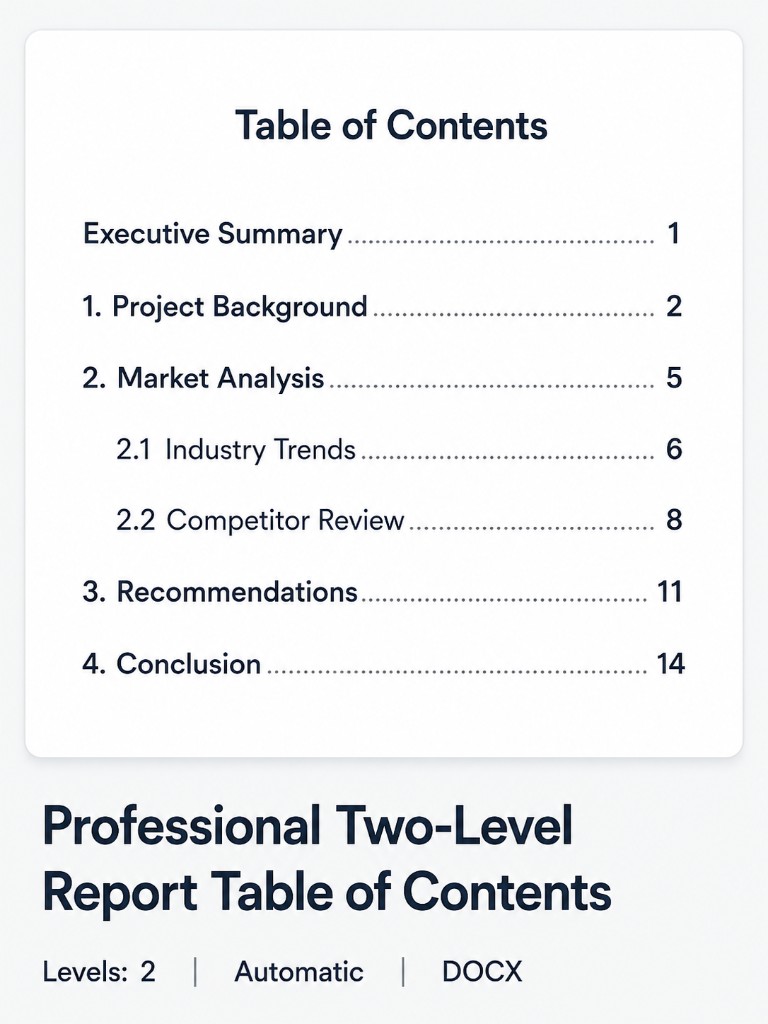
Business reports, annual reports, client deliverables, and project documentation
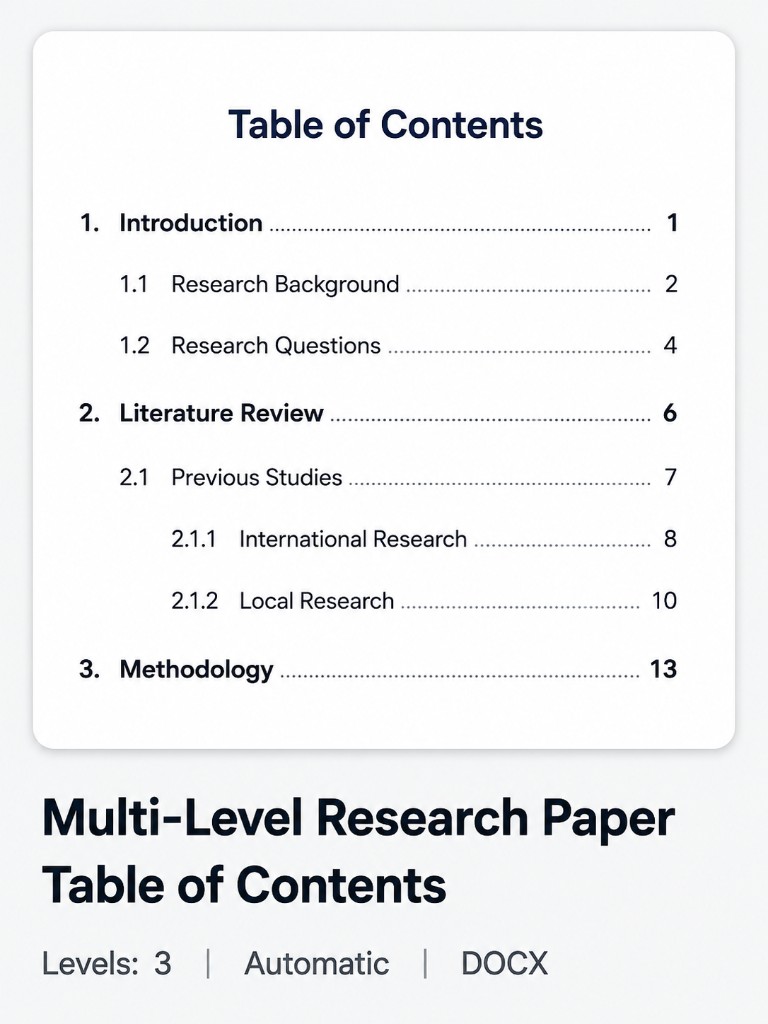
Research papers, technical papers, and detailed academic assignments
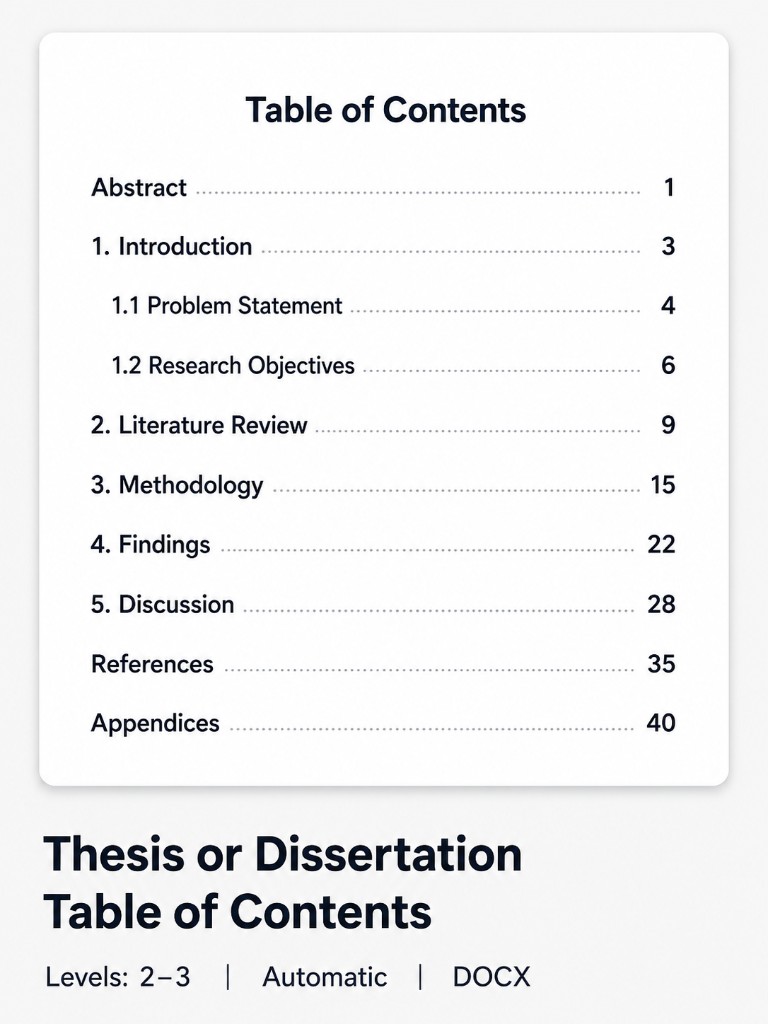
Bachelor’s theses, master’s theses, dissertations, and long academic projects
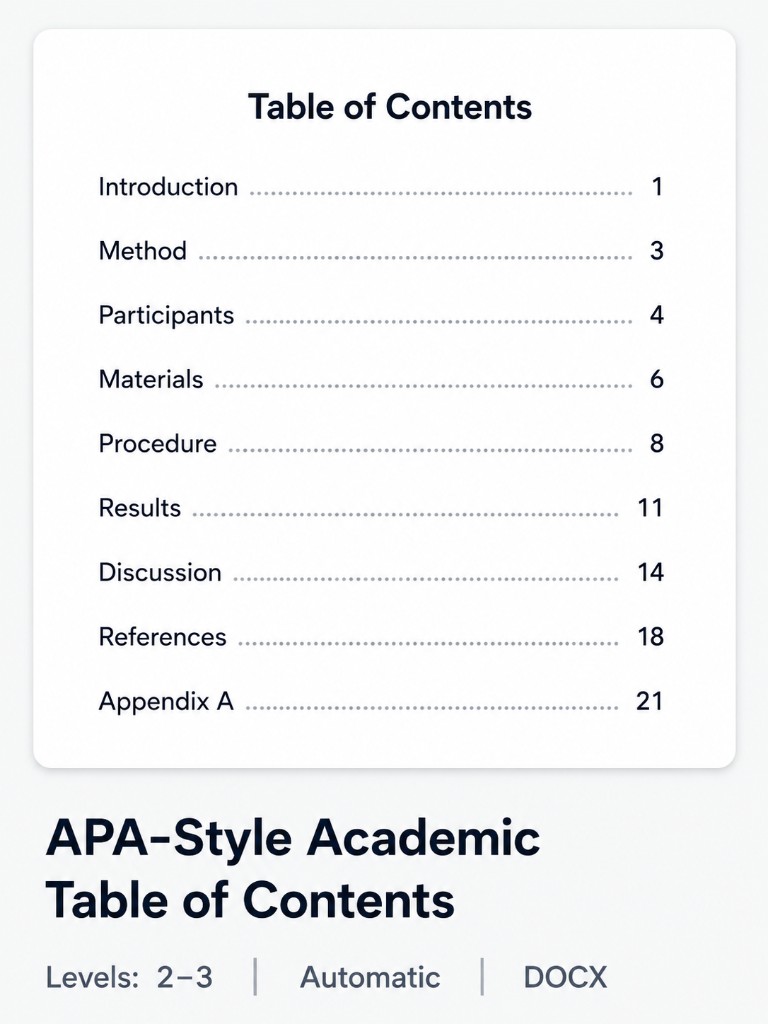
APA-style papers, psychology assignments, education research, and social-science documents
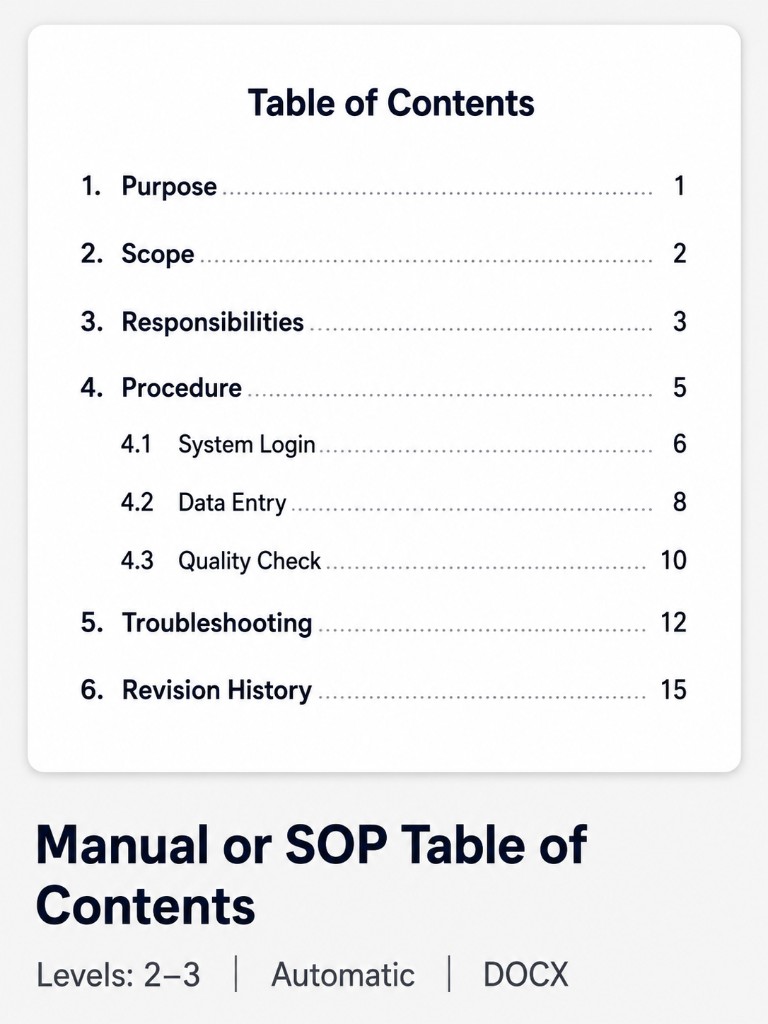
SOPs, employee handbooks, training manuals, and product documentation
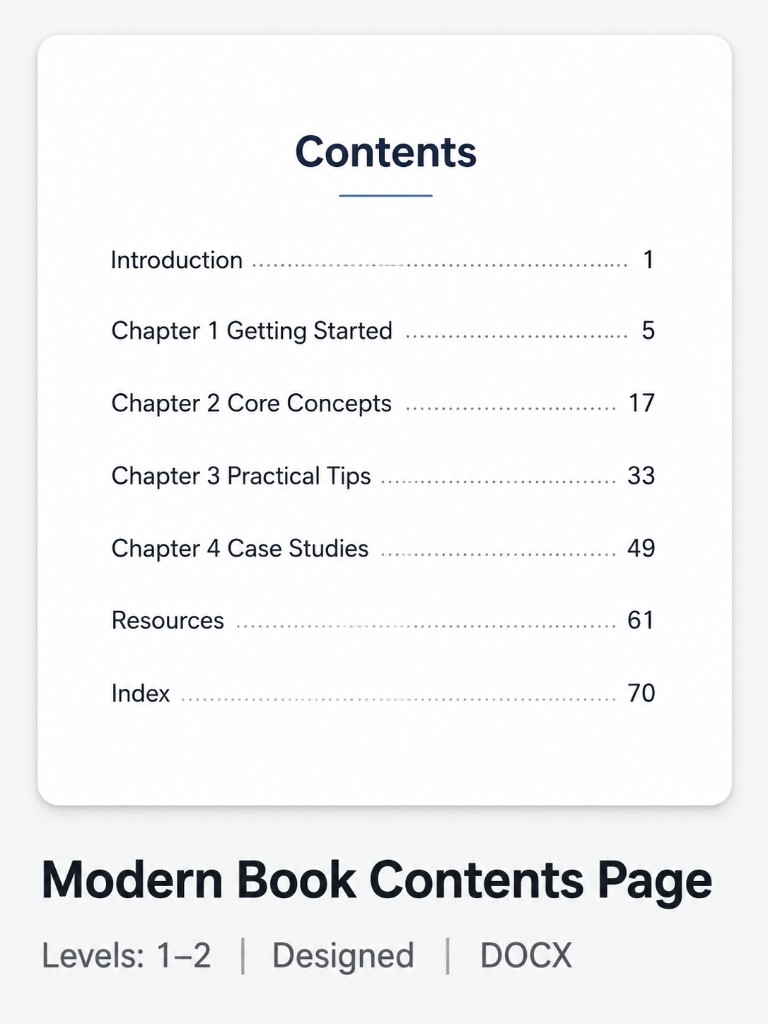
Nonfiction books, e-books, guides, workbooks, and digital publications
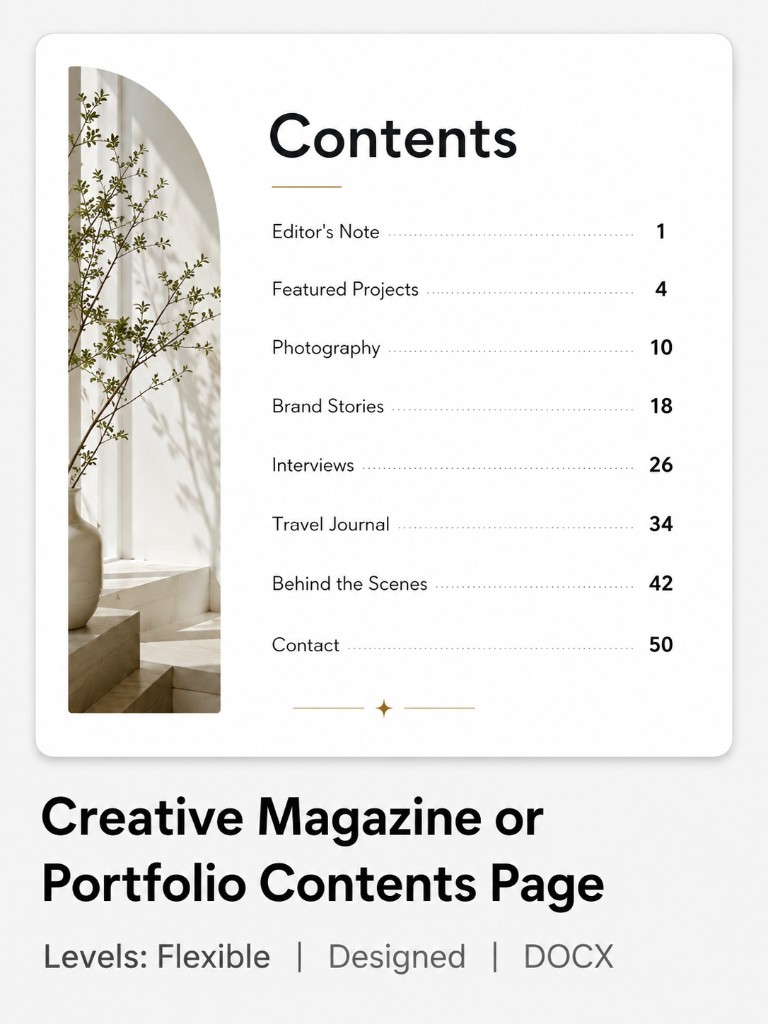
Magazines, portfolios, brochures, lookbooks, and creative reports
Choose by behavior, not appearance alone
Automatic TOCs are better for reports, papers, theses, and manuals that will continue changing. Designed layouts are better for books, magazines, and portfolios where visual presentation matters more than automatic updating.
Start with the document type, compare heading depth, and choose whether the contents page should update automatically or work as a fixed visual layout.
The eight examples above cover common structures for short reports, business documents, research papers, theses, manuals, books, and creative publications. You may be preparing a short report, organizing a thesis, planning a manual, laying out a nonfiction book, or designing a magazine contents page. This page shows practical examples first, then explains how to choose and edit the right one.
A table of contents can solve two different jobs. An automatic TOC is connected to Heading 1, Heading 2, and Heading 3, so headings and page numbers can be refreshed after editing. A designed contents layout prioritizes visual presentation and may require manual text and page-number changes.
Use this section to understand why the examples differ by document type, number of levels, and template behavior. When you choose a structure, follow the editing workflow to replace sample headings, update the table, and export the finished document.
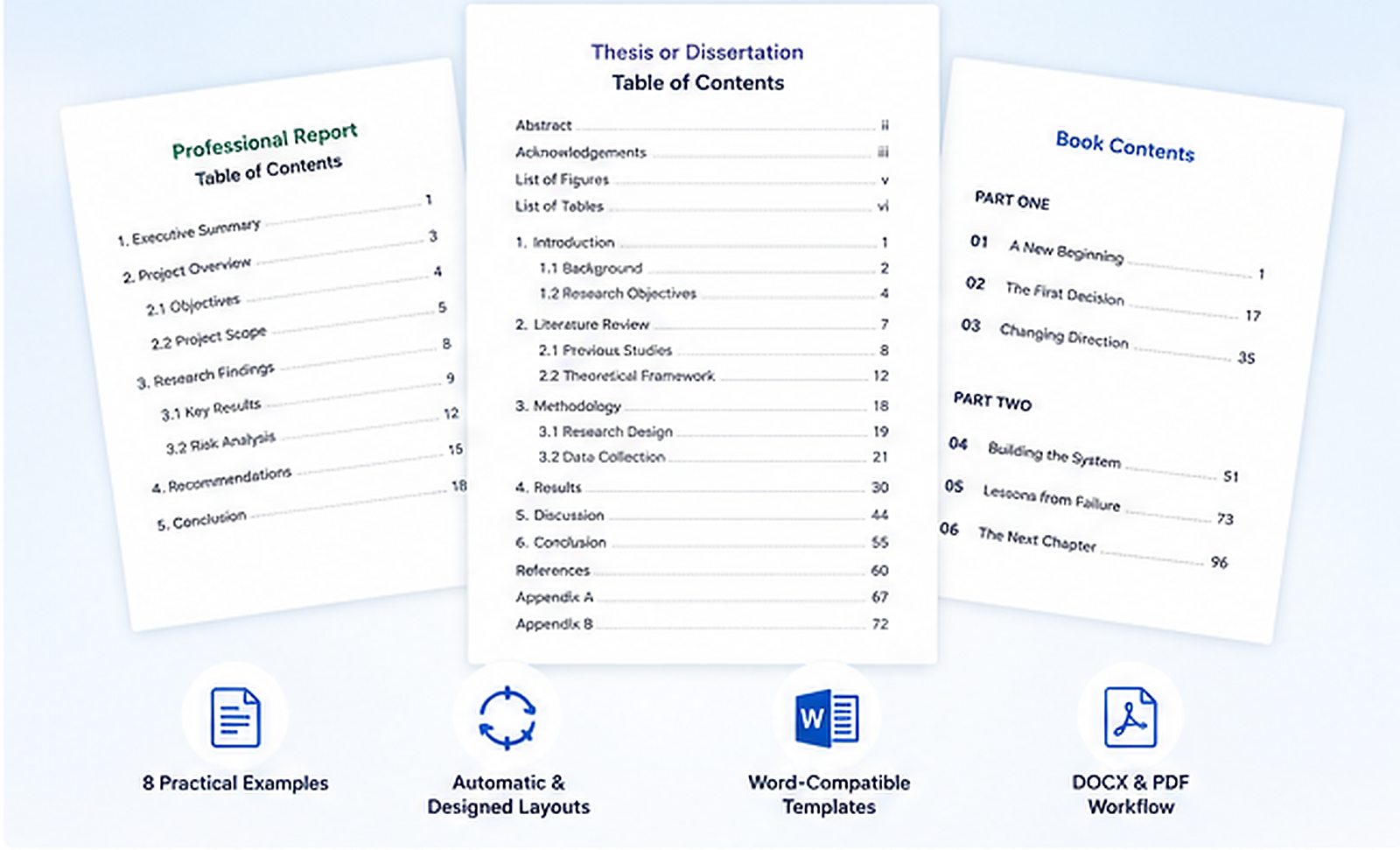
Table of contents examples at a glance
By the end, you should know which example fits your document, how many heading levels to display, whether the layout can update automatically, and how to complete the DOCX-to-PDF workflow.
Use this selection map to find the closest example, then open the detailed template section.
| Document type | Quick choice | When to open a deeper example |
|---|---|---|
| Short essay or report | Use a one-level automatic TOC. | Open the report example when the document contains subsections. |
| Business or project report | Use two levels with aligned page numbers. | Use three levels only when technical sections require extra depth. |
| Research paper or thesis | Use two or three levels and an automatic TOC. | Check institutional requirements for front matter, references, and appendices. |
| Manual or SOP | Use a numbered multi-level automatic TOC. | Open the manual example for procedures, safety, and troubleshooting sections. |
| Book, magazine, or portfolio | Choose between a chapter-based TOC and a designed contents page. | Use a designed layout when visual presentation matters more than automatic updating. |
Need more detail?
Most documents need one to three heading levels. Adding every minor heading makes the contents page harder to scan and maintain.
Use a designed layout when visual presentation matters more than automatic heading and page-number updates.
Modern Book Contents Page
A chapter-based layout for nonfiction books, e-books, guides, and workbooks.
Creative Magazine or Portfolio Contents Page
A visual layout using large numbers, flexible spacing, and decorative elements.
These layouts can use large page numbers, color blocks, images, and asymmetrical spacing. They are useful for magazines, portfolios, brochures, and books with a fixed page plan, but the entries may not be connected to document headings.
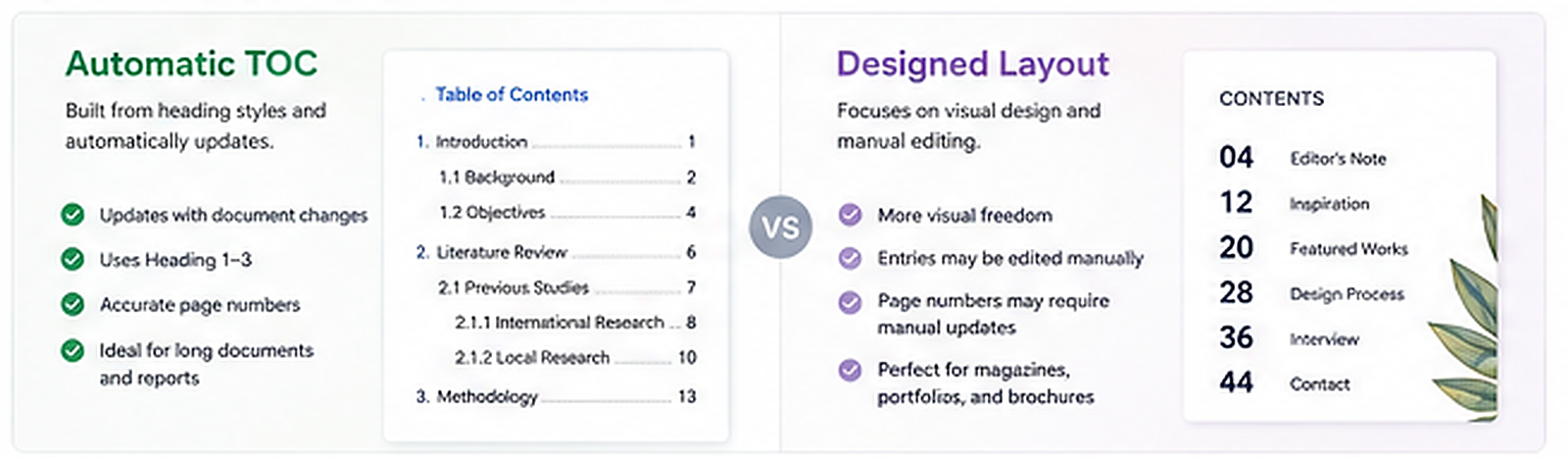
Automatic TOC
Designed layout
Check before choosing
A template can look like a table of contents without being an automatic TOC. Check whether the entries are connected to headings before expecting them to update.
Choose the closest structure, replace the sample headings, update the table, and verify the final DOCX or PDF.
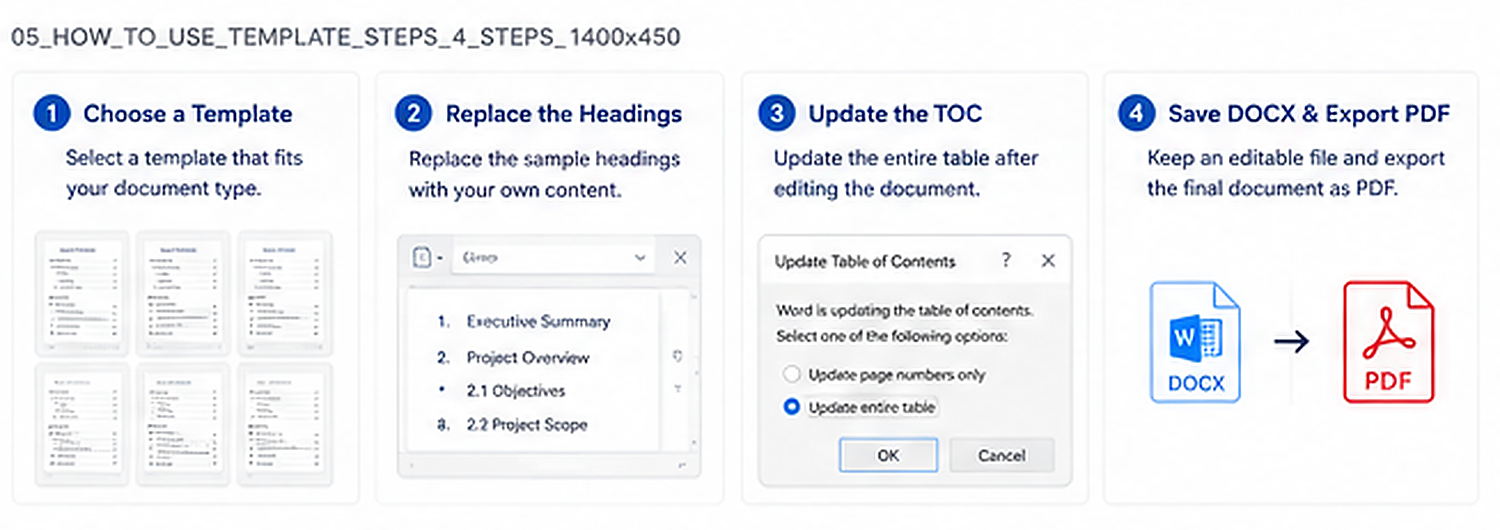
Match the template to the document type, number of sections, heading depth, and update requirements. A short report may need only one level, while a thesis or manual may require two or three.
For an automatic template, edit the actual headings in the document rather than typing directly into the generated TOC. Keep main sections as Heading 1, subsections as Heading 2, and lower-level sections as Heading 3.
Update the entire TOC after adding, deleting, renaming, or moving sections. Updating only page numbers will not add a new heading or reflect renamed section text.
Review section order, indentation, numbering, dot leaders, page numbers, and clickable entries. Export the PDF and check it again because page flow can change during conversion.
Open the template
Save a working copy before editing the sample content.
Replace headings
Preserve the correct Heading 1–3 hierarchy.
Update the TOC
Choose the entire-table update after structural changes.
Save and verify
Keep the editable DOCX and review the exported PDF.
Choose a template, replace sample headings, update entries and page numbers, and keep both an editable DOCX and final PDF.
1. Choose a template
Match the structure to your document type.
2. Replace headings
Keep Heading 1–3 levels consistent.
3. Update the TOC
Refresh headings and page numbers.
4. Save and review
Keep DOCX and verify the exported PDF.
Keep the structure clear, consistent, and appropriate for the document rather than listing every minor label.
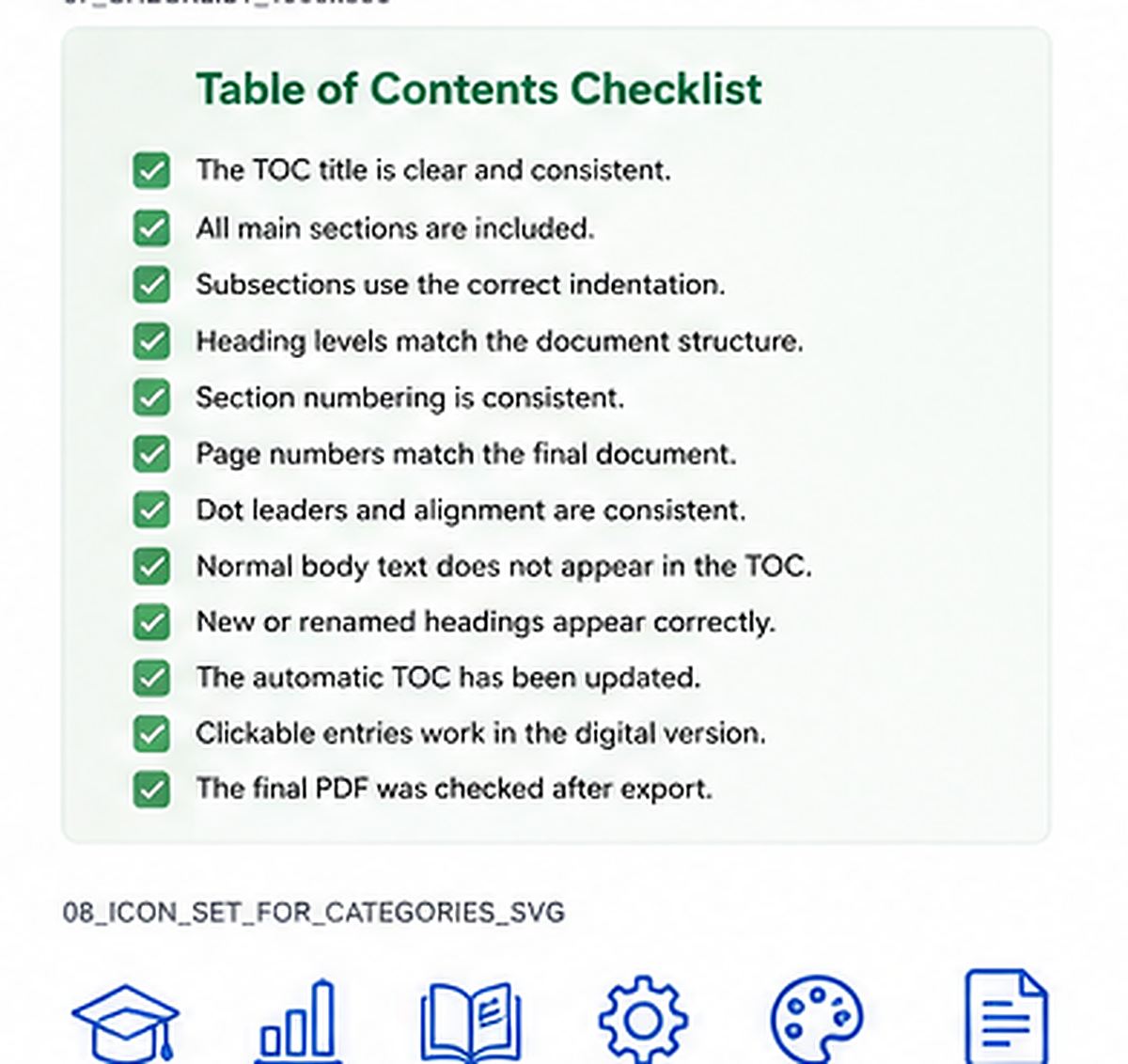
A useful contents page should include a clear title, main sections, relevant subsections, consistent numbering, accurate page numbers, and logical indentation. Digital documents may also use clickable entries.
Academic papers, theses, and manuals may include references, appendices, lists of figures, or lists of tables. Books may use parts and chapters, while creative publications may use a flexible visual hierarchy.
| Element | Good practice | Common mistake |
|---|---|---|
| Heading depth | Use only the levels readers need. | Including every minor heading. |
| Indentation | Keep equal levels aligned consistently. | Mixing level spacing and alignment. |
| Page numbers | Update after layout changes. | Submitting stale page numbers. |
| Document match | Keep wording and order identical to the body. | Typing a separate, inconsistent TOC. |
Formal document note
Academic institutions, publishers, and organizations may set specific rules for front matter, numbering, heading depth, and appendices. Confirm those requirements before final submission.
Use templates to speed up setup, but verify the heading structure and final page numbers before sharing the document.
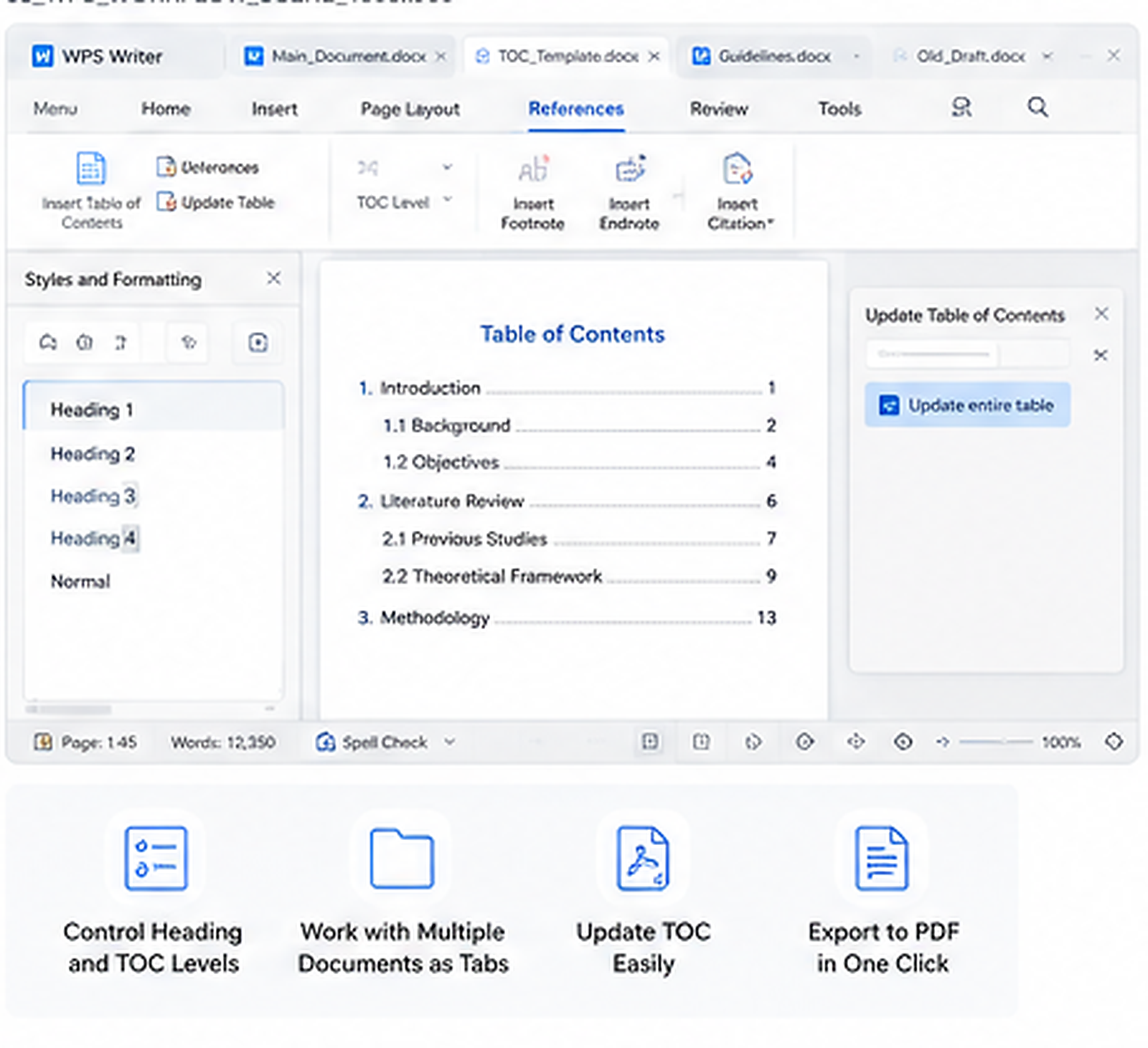
WPS Writer can support the complete table of contents workflow: open common DOCX templates, apply Heading 1–3, assign TOC levels, update the table, keep supporting files open as tabs, and export the completed document as PDF.
This becomes especially useful when you are restructuring a long report, thesis, manual, or book and need to compare the document with requirements, comments, templates, or earlier versions.
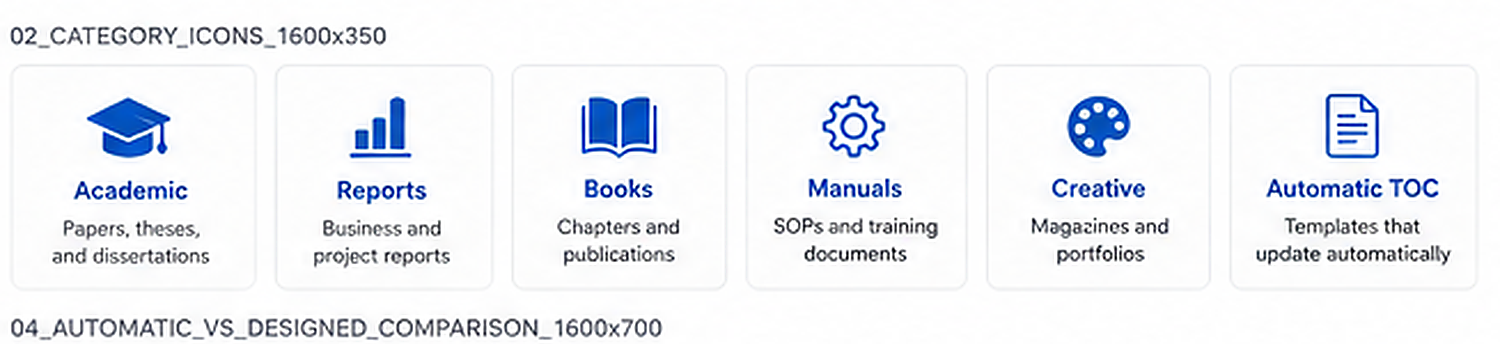
Download or open a template
Start from the closest structure instead of a blank page.
Set heading levels once
Keep Heading 1–3 and body text consistent.
Update after editing
Refresh the entire table after structural changes.
Verify before delivery
Check the DOCX and exported PDF against the final document.
When Word is still the direct choice
Continue in Microsoft Word when the document already belongs to a managed Microsoft 365 workflow, depends on Word-specific macros, or only needs a basic TOC update in an existing file.
Use this checklist after editing the template and before submitting, printing, or sharing the document.
Structure and formatting
Updates and delivery
This checklist is intentionally short. Return to the examples when the document structure is unclear, or use the editing workflow when the headings and page numbers need to be refreshed.
Next step
Use the FAQ section for quick decisions, or open WPS Writer when your template structure is ready.
These answers cover document structure, heading depth, template behavior, and editing in Word-compatible document tools.


