Keep files on your device
Local open and Save As does not send customer lists or payroll exports to an upload box.
Open a CSV in WPS Spreadsheets, clean the columns if you need to, then Save As an Excel workbook. Free download. Conversion stays on your device.
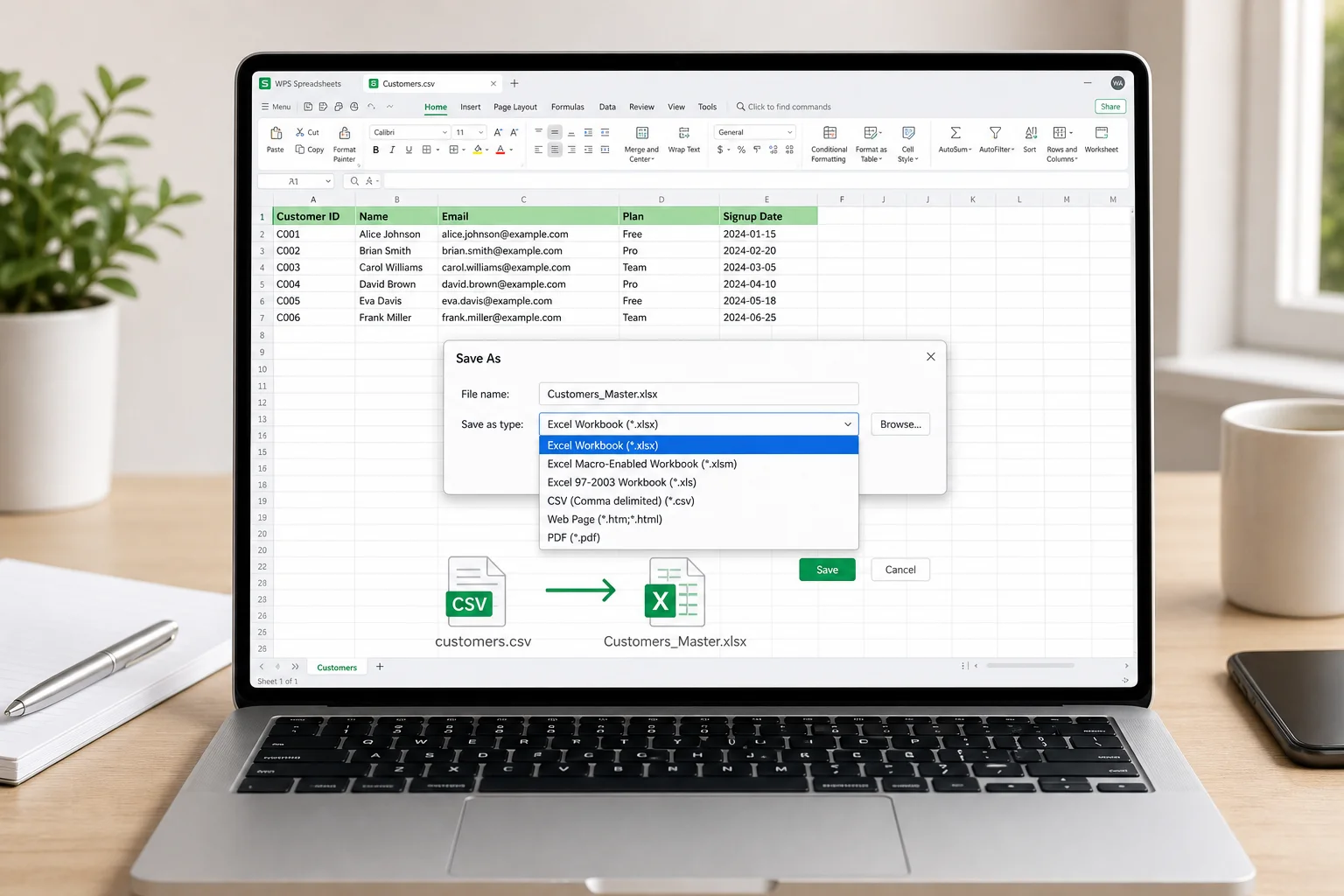
Browser converters are fine for tiny public files. WPS is better when the CSV is private, oddly delimited, or needs cleanup before it becomes a real workbook.
Local open and Save As does not send customer lists or payroll exports to an upload box.
Split columns, set the delimiter, sort and filter, then save as XLSX in the same app.
After conversion you can use formulas, charts, filters, and multiple sheets in one workbook.
WPS Spreadsheets opens CSV files as a table, then lets you save the result as a modern Excel workbook or a legacy XLS file when an older system still needs it.
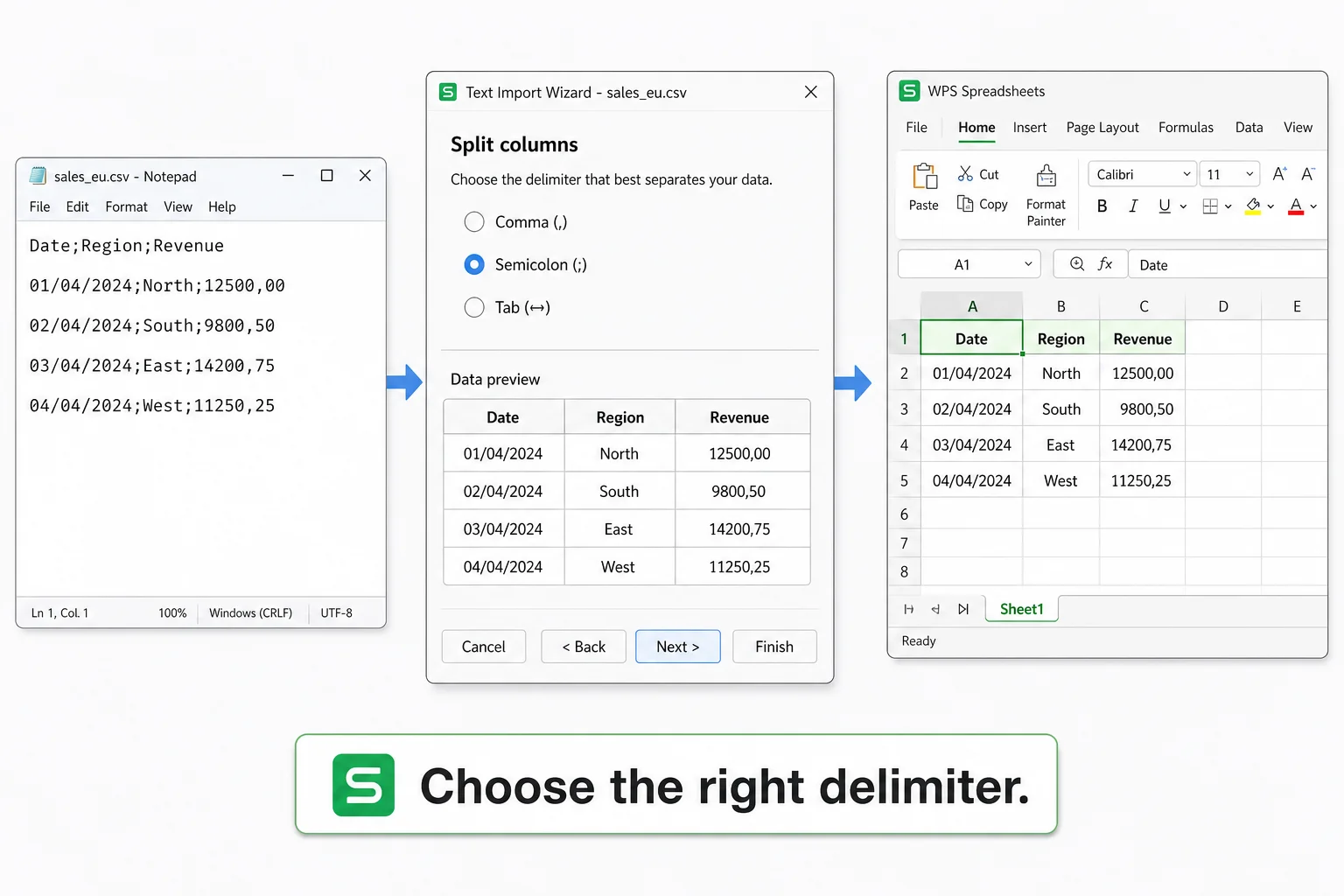
If every value lands in column A, the delimiter is wrong. Many exports use commas. Others use semicolons or tabs. Preview the split, then continue so your Excel sheet starts clean.
Install WPS Office where your CSV exports already land. Open campaign or inventory files on a PC, tidy a few rows on a laptop, or check the sheet on mobile when you need a quick look.
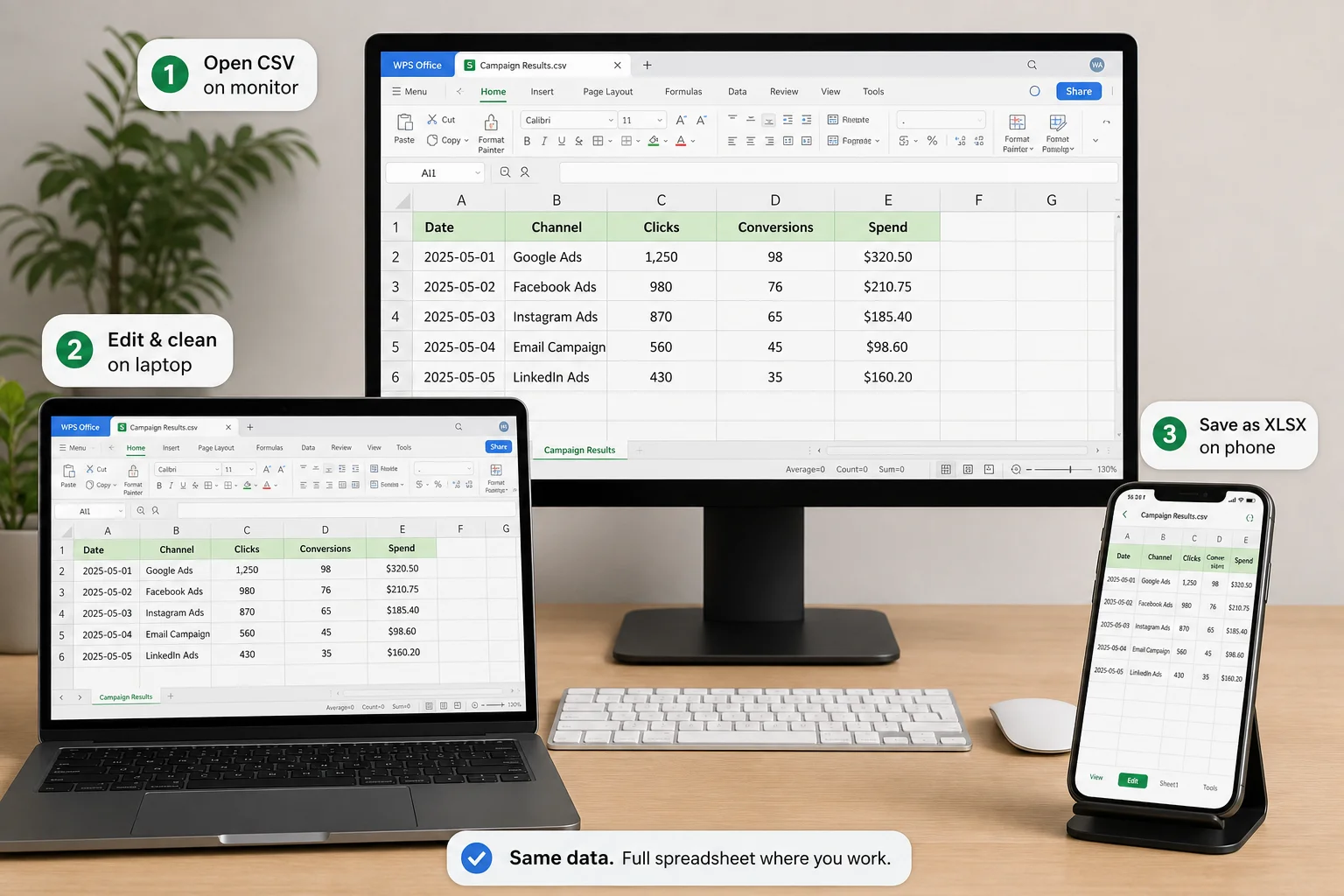
Three steps. Usually under two minutes once WPS is installed.
Launch WPS Spreadsheets and open the .csv file. Or right-click the file and open it with WPS Office.
Check that fields split into separate columns. If not, re-import and pick comma, semicolon, or tab. Sort or filter before saving.
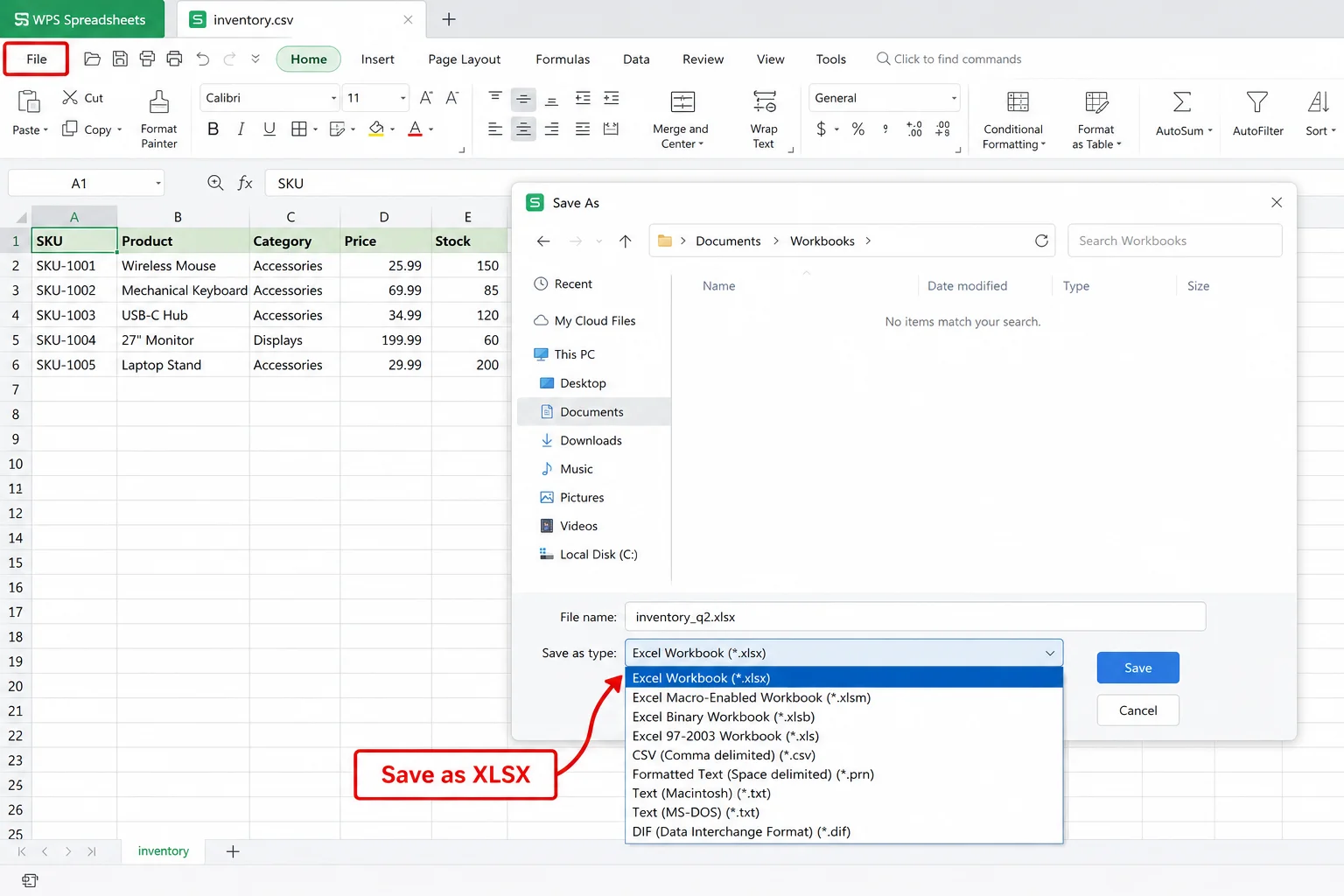
Go to File > Save As, choose Excel Workbook (*.xlsx) or XLS if required, then save. Add formulas and sheets after that.
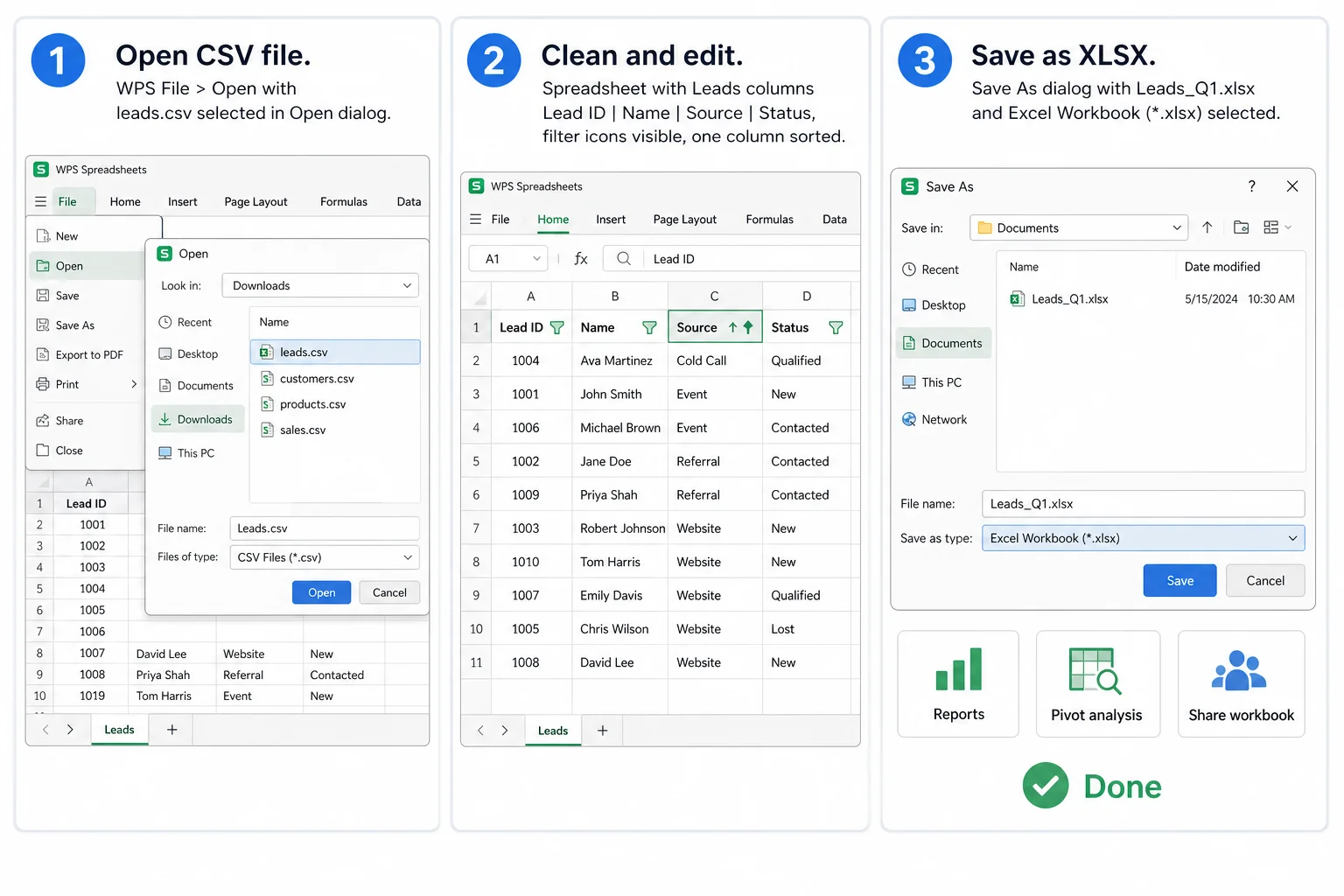
CSV is a flat text table. XLSX is a full workbook. Conversion unlocks spreadsheet features; it does not invent formatting that never existed in the CSV.
| Topic | CSV file | After Save As XLSX in WPS |
|---|---|---|
| Structure | One flat table | Workbook; you can add more sheets |
| Formulas | Plain values only | You can add formulas and calculations |
| Formatting | No colors, merges, or charts | You can format, chart, and style after import |
| Best use | Exports, imports, data exchange | Analysis, reports, ongoing spreadsheet work |
| Privacy path | Often shared as raw text | Convert offline on your device with WPS |
Pick the path that matches privacy, file size, and whether you still need to edit first.
| Need | WPS Spreadsheets | Browser “no install” converters |
|---|---|---|
| Private or sensitive CSVs | Open and convert offline | Usually requires upload |
| Wrong delimiter / encoding | Fix import settings, then Save As XLSX | May force one-click guess only |
| Edit before final workbook | Full spreadsheet editing in the same app | Often convert only |
| Large files | Open locally and save the workbook you need | May hit upload size or timeout limits |
| Quick public sample file | Works, but install first | Can be faster for a tiny one-time file |
Straight answers people ask before they turn a CSV into a workbook.
Download WPS Office for free, open the CSV in WPS Spreadsheets, then use File > Save As and choose XLSX or XLS. You do not need to upload the file to a website.
Values are preserved when columns parse correctly. CSV has no Excel formatting or formulas to keep. After you Save As XLSX, you can add those in the workbook.
The delimiter is probably wrong. Try comma, semicolon, or tab in the import / Text to Columns options, preview the split, then continue.
Use XLSX for modern work. Choose XLS only when an older system specifically requires it.
Local open and Save As stays on your device. Prefer that path for customer lists, payroll exports, and other sensitive files.
Yes. Open the workbook and Save As CSV when another system needs a flat file. See Excel to CSV for the reverse workflow.
Stay inside WPS when your next step is exporting CSV, viewing XLSX, or working online.
Install WPS Spreadsheets, open your CSV, and Save As XLSX without uploading sensitive data to a converter site.