Edit Text in Image: Modify Embedded Text Directly with WPS
January 28, 2026
2.7K
Views
52
In everyday work and study, users frequently encounter images containing embedded text, such as scanned forms, screenshot instructions, or annotated diagrams. Modifying this text typically requires separate image editing software or manual retyping—both time-consuming and prone to errors. WPS addresses this common pain point with its in-image text editing feature, enabling direct and accurate text modification within the document workflow.
How to Edit Text in an Image in WPS Office?
Step 1: Access the Image Editing Tool
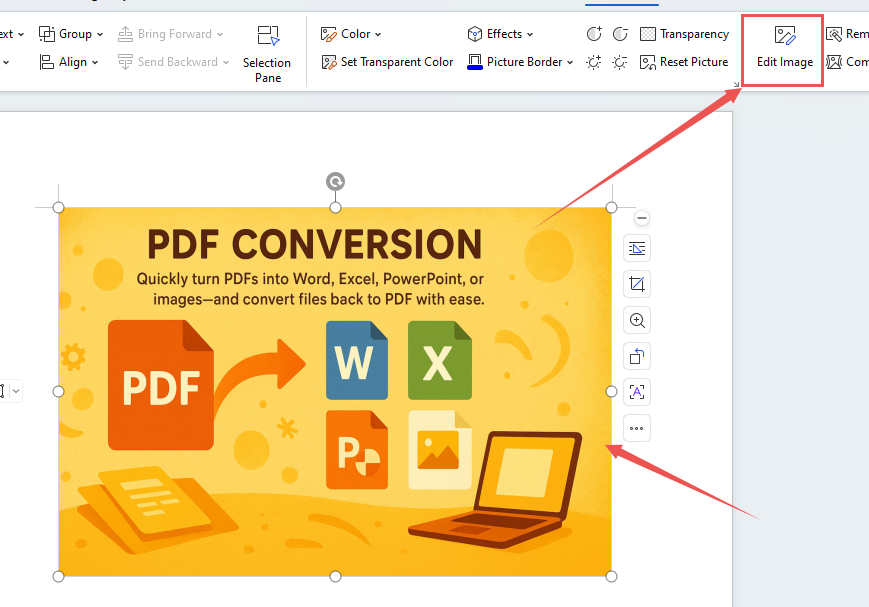
In your WPS document, select the image containing the text you wish to edit. Then, go to the Picture Tools tab in the top menu and click Edit image.
edit image
Step 2: Enable AI Text Editing
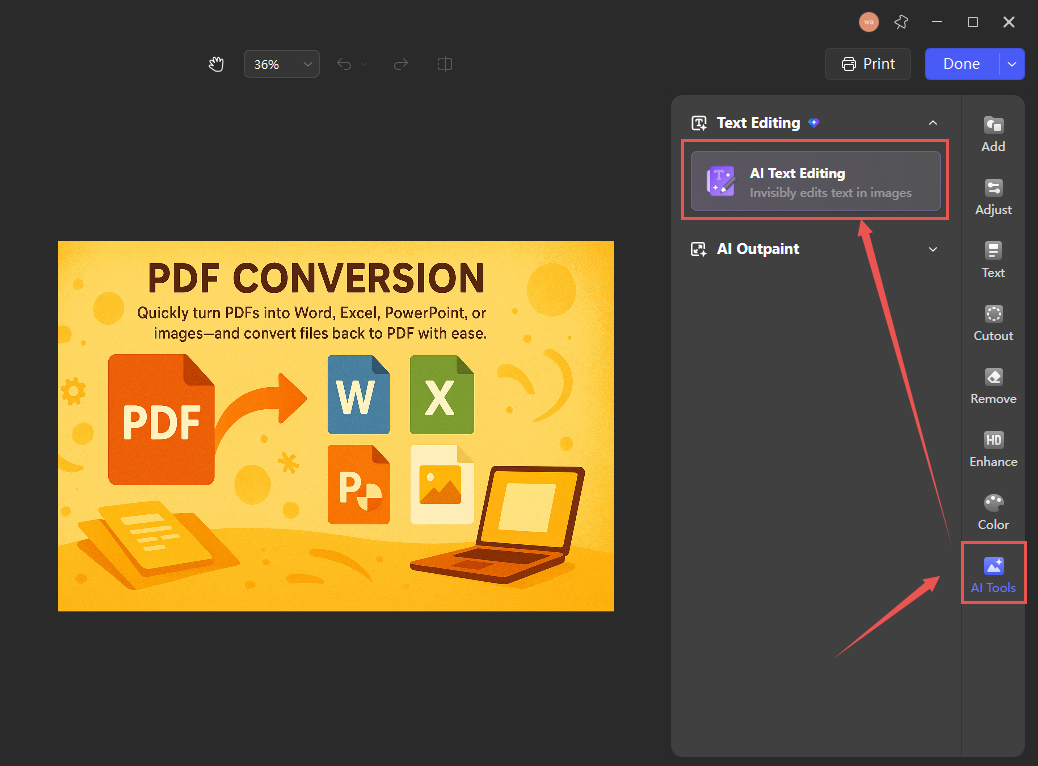
Click Text Editing in the AI Tools menu to activate the AI-powered text recognition function.
AI Text Editing
Step 3: Edit and Save
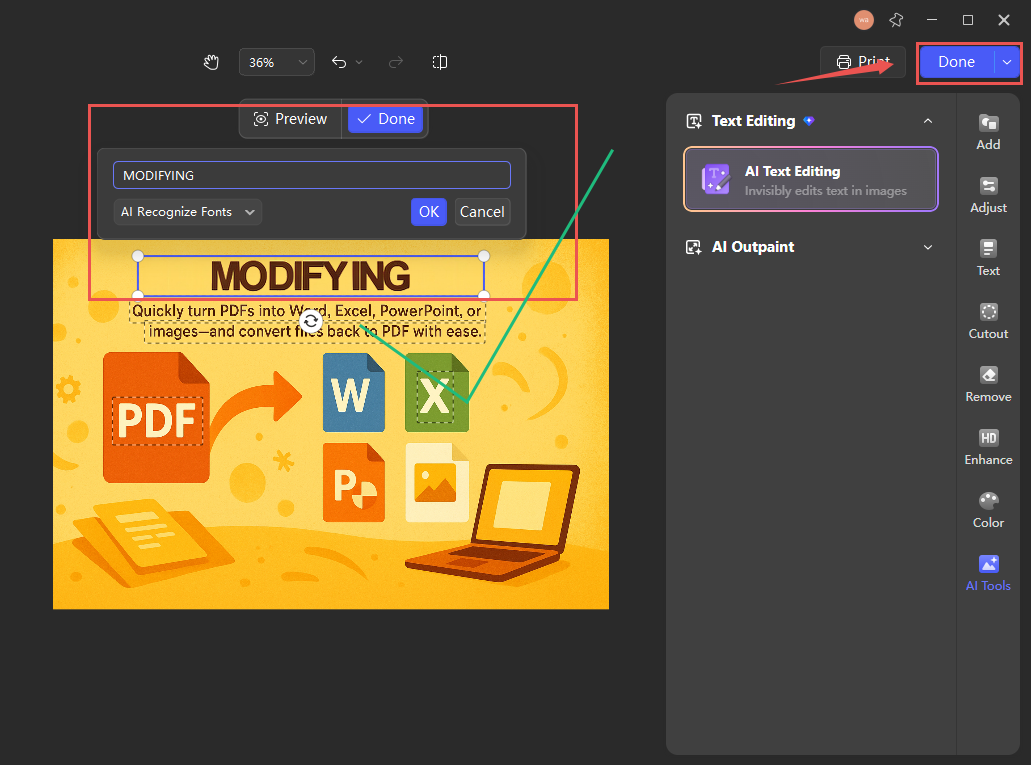
Select the text you want to modify, make your edits, then click Done to apply the changes to the image. Then select Save As and choose your preferred format and location.
modifying text
Unlike traditional image editors that overlay text or require manual adjustments to background and layout, WPS enables non-destructive, in-place text editing. Edits blend seamlessly into the original image—preserving fonts, alignment, and background—without leaving visible traces or requiring redesign. This makes it distinctly more efficient than conventional methods for quick, professional-looking text updates in embedded graphics.
15 years of office industry experience, tech lover and copywriter. Follow me for product reviews, comparisons, and recommendations for new apps and software.