Free Al Office Suite with PDF Editor

Edit Word, Excel, and PPT for FREE.
Read, edit, and convert PDFs with the powerful PDF toolkit.
Microsoft-like interface, easy to use.
Windows • MacOS • Linux • iOS • Android

Catalog
How to Apply Background Blur in WPS Office
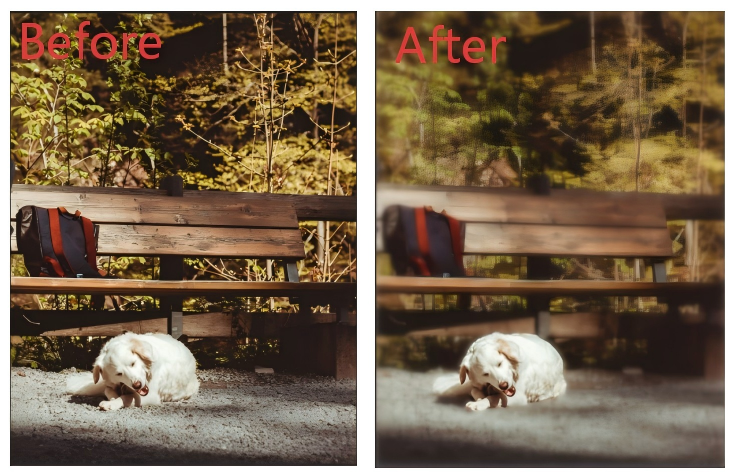
When editing images, users often need to highlight specific subjects. Cluttered or distracting backgrounds can divert attention and reduce visual clarity. Manually creating a background blur effect typically requires specialized photo editing software, adding unnecessary steps to your workflow. WPS Office integrates this functionality directly into its image tools.
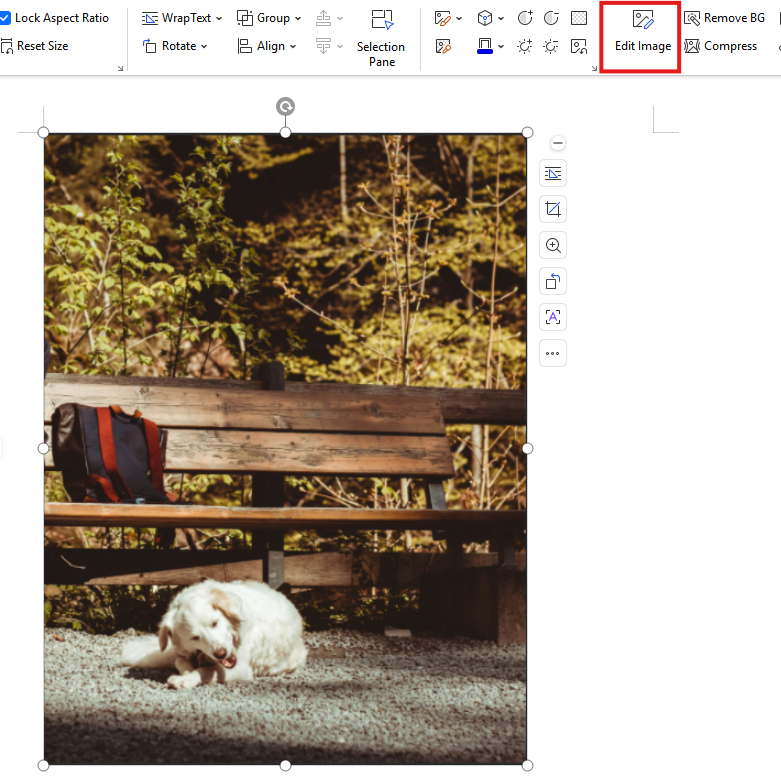
Step 1: Open Image Editing Tools
Open your image in WPS Office to access the picture editing interface.
Step 2: Access Removal Tools
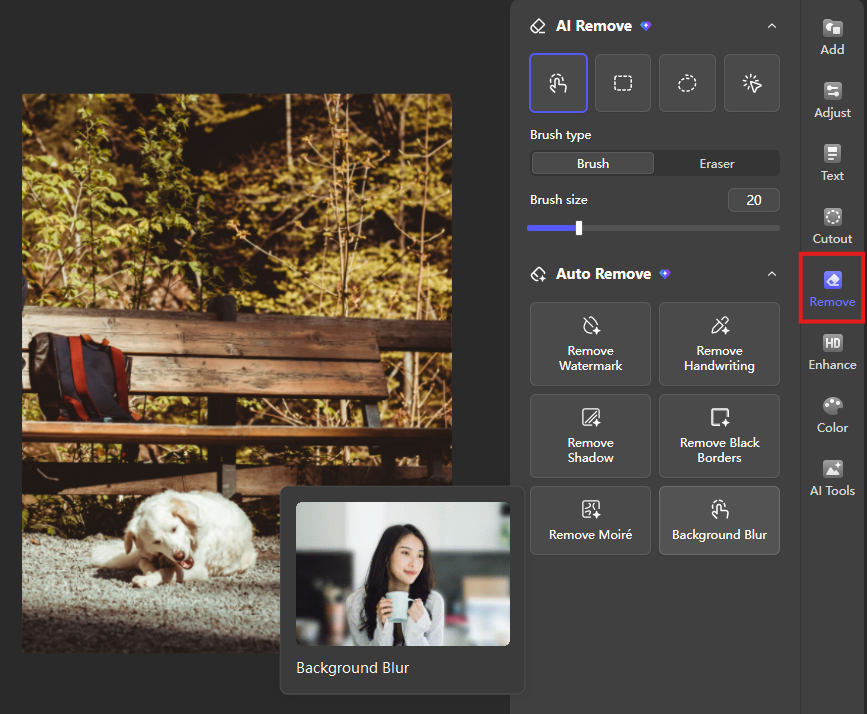
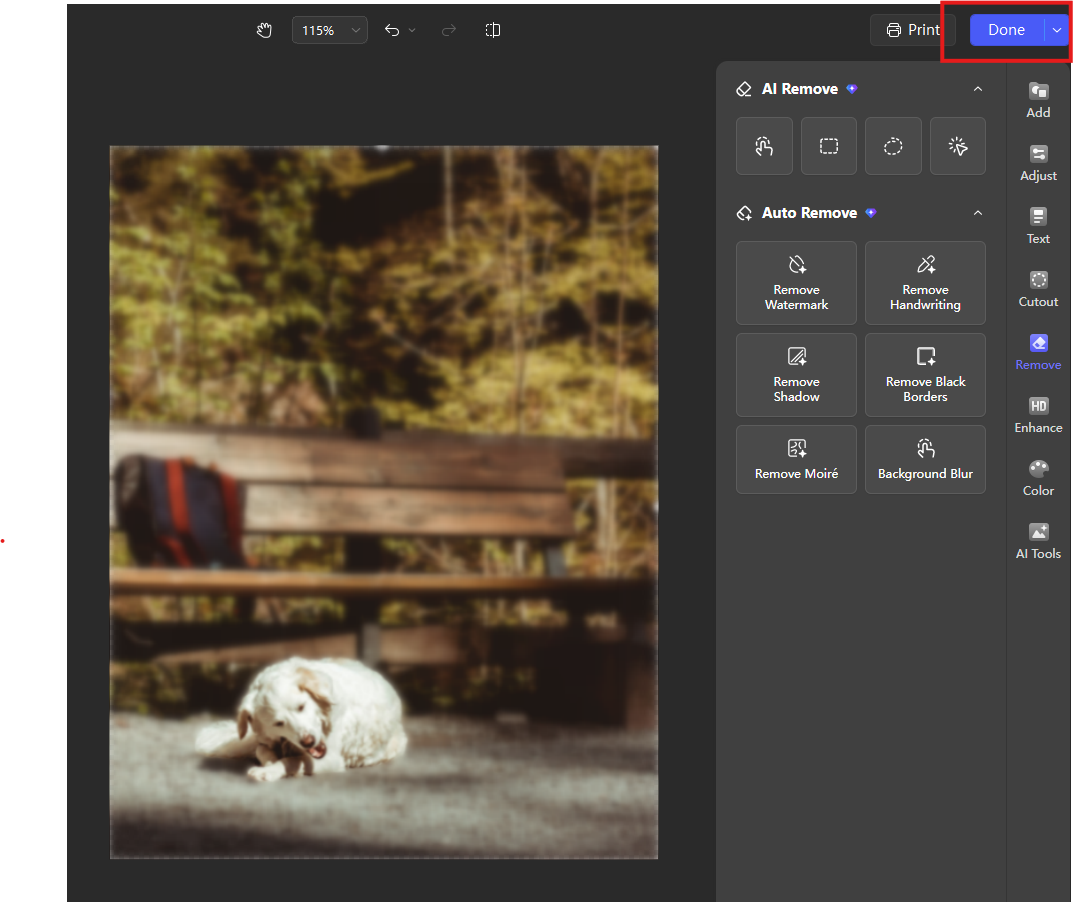
On the right-side editing panel, locate and click the "Remove" button.
Step 3: Apply Background Blur
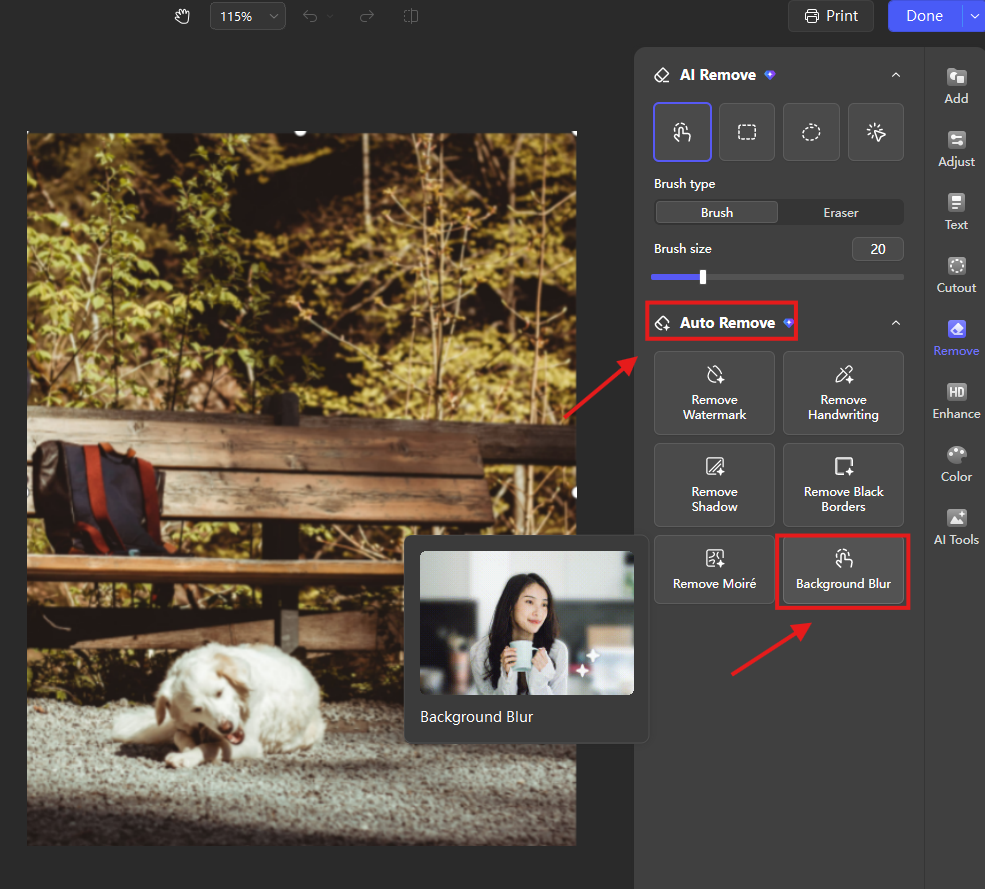
Within the Remove menu, find and select the "Background Blur" option. The tool will automatically process the image to blur the background areas.
The image below shows the background blur effect.
Step 4: Save Your Edited Image
After applying the blur effect, click the "Done" button to export the final image to your device.
Why Choose WPS for Background Editing:
WPS Office allows you to apply background blur and other essential image adjustments directly within the application, eliminating the need to export files to standalone photo editing software. This integrated approach maintains workflow efficiency for office and academic tasks.



15 years of office industry experience, tech lover and copywriter. Follow me for product reviews, comparisons, and recommendations for new apps and software.


