Free Al Office Suite with PDF Editor

Edit Word, Excel, and PPT for FREE.
Read, edit, and convert PDFs with the powerful PDF toolkit.
Microsoft-like interface, easy to use.
Windows • MacOS • Linux • iOS • Android

Catalog
How to Clean Up Picture Using WPS
Office users and students often need to clean up photos for reports, portfolios, or social media posts, but free online tools can leave visible artifacts, require file uploads, or lack precision. Manual editing in advanced software is time-consuming and requires technical skills, making it hard to achieve quick, high-quality results.
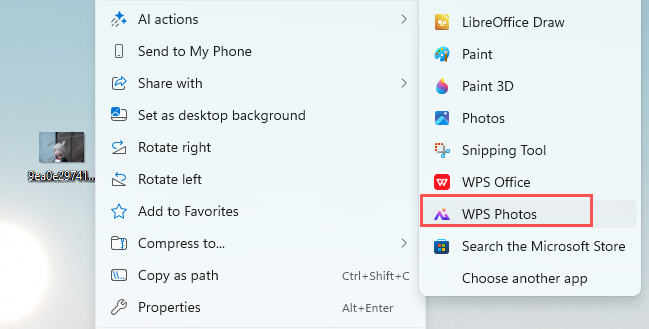
Step 1: Open Your Image with WPS Photos
Right-click your target image, hover over "Open with", and select WPS Photos from the app list.
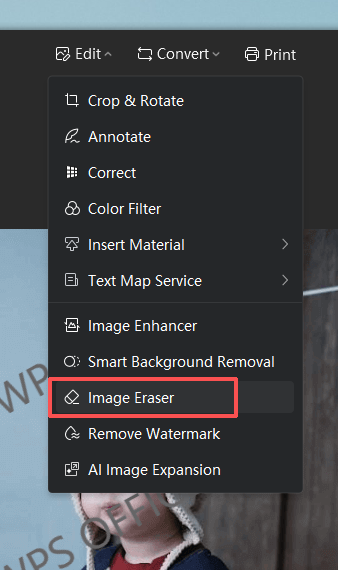
Step 2: Access Image Eraser
Click the Edit dropdown in the top menu, then select Image Eraser.
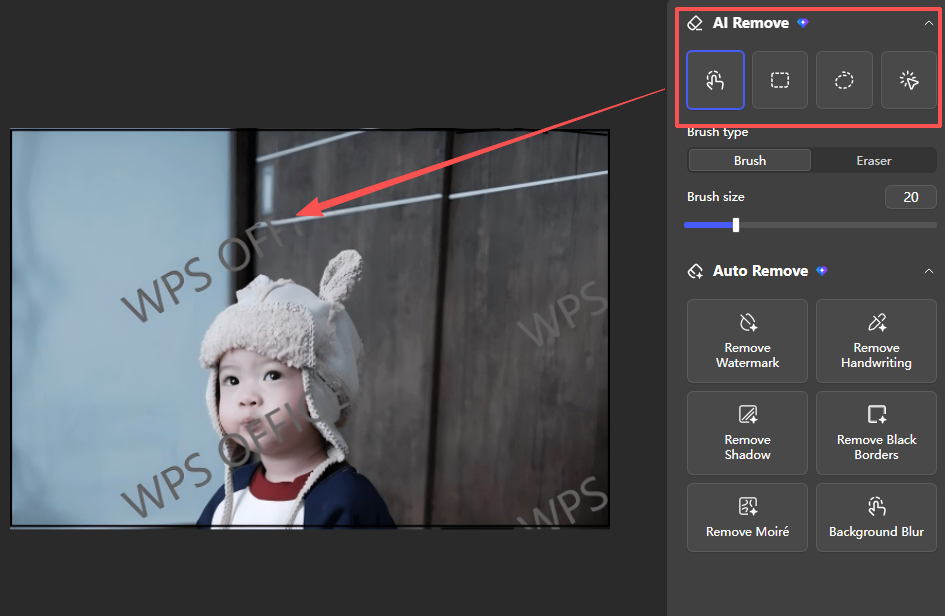
Step 3: Manual Cleanup
In the right-side AI Remove panel, use the Brush tool to paint over specific areas you want to erase, adjusting brush size for precision.
Step 4: Auto Cleanup Options
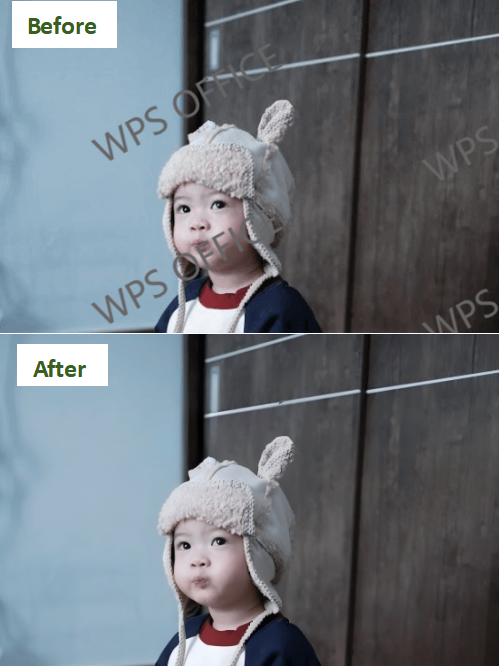
To remove watermarks: Under "Auto Remove", click Remove Watermark to automatically detect and erase watermarks.
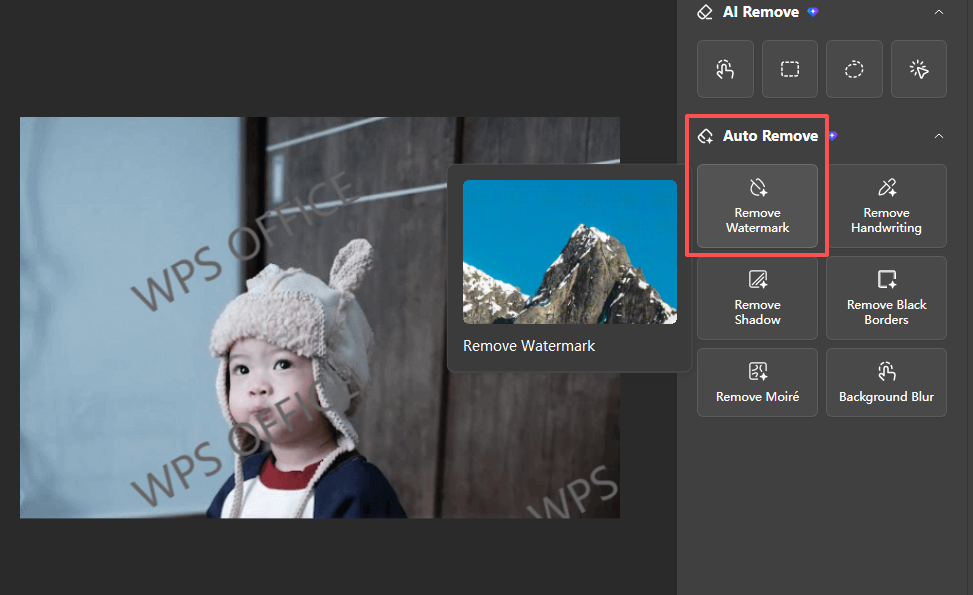
click Remove Watermark
To remove text: Click Remove Handwriting to eliminate unwanted text from your image.
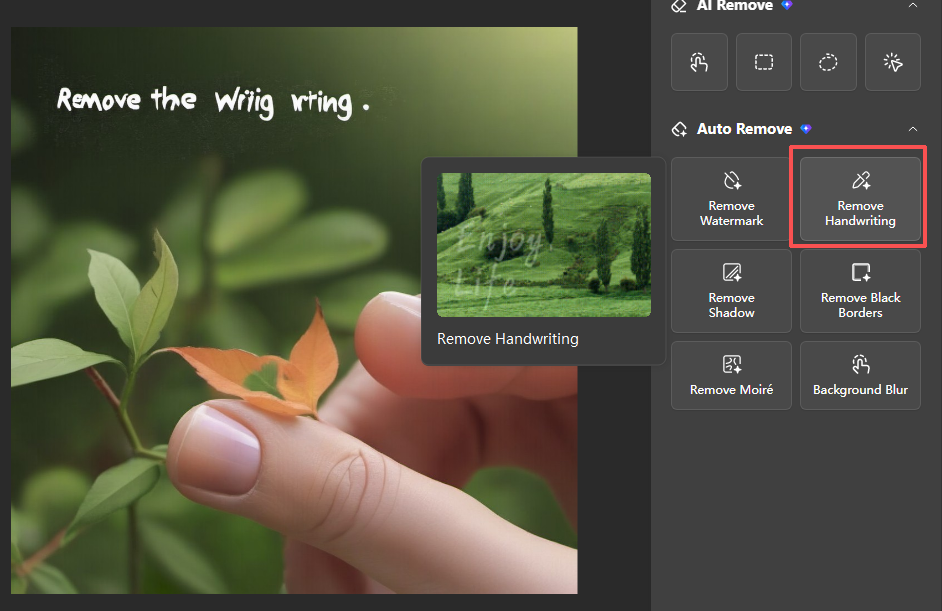
Click Remove Handwriting 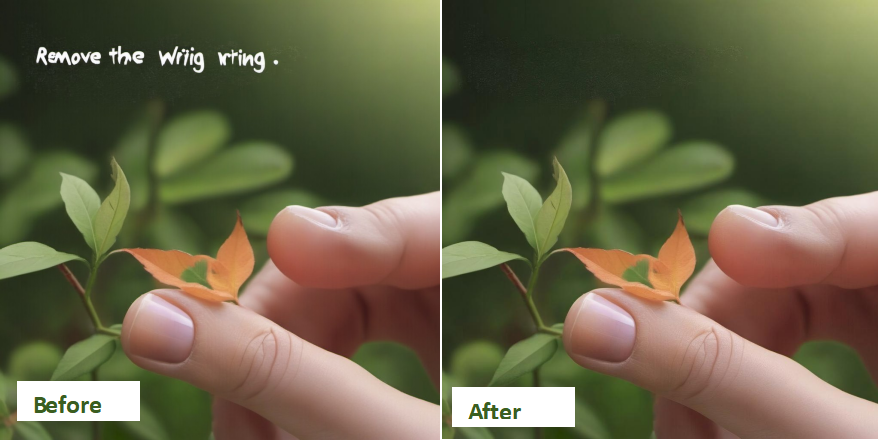
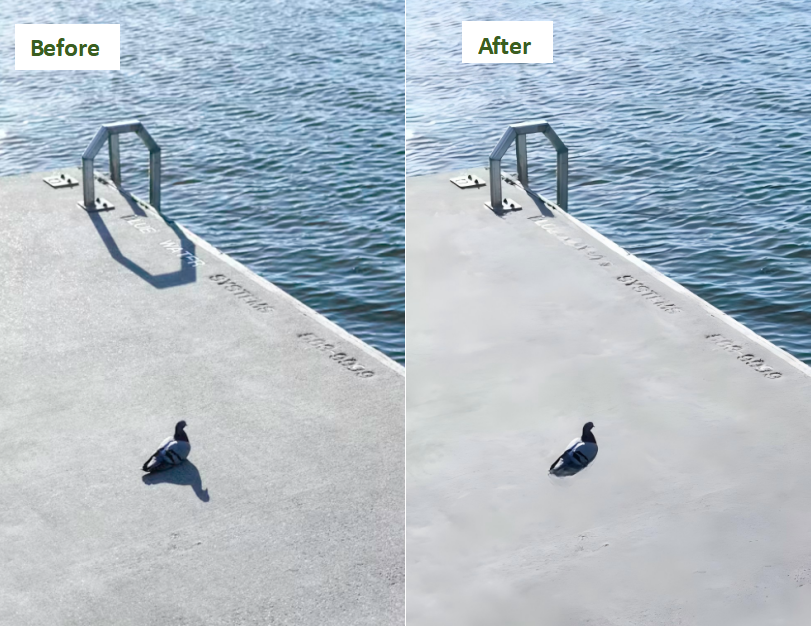
Before/After To remove shadows: Click Remove Shadow to smooth out shadow areas.
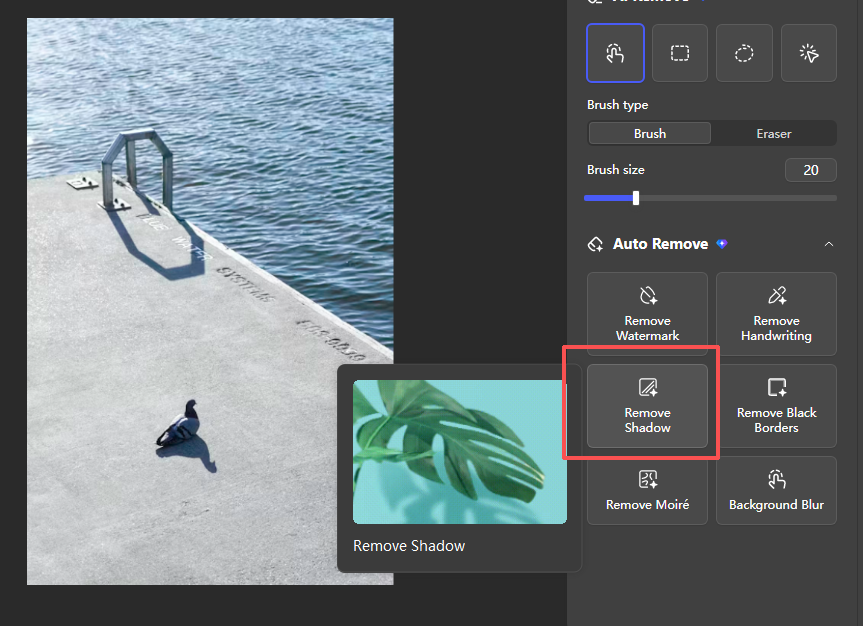
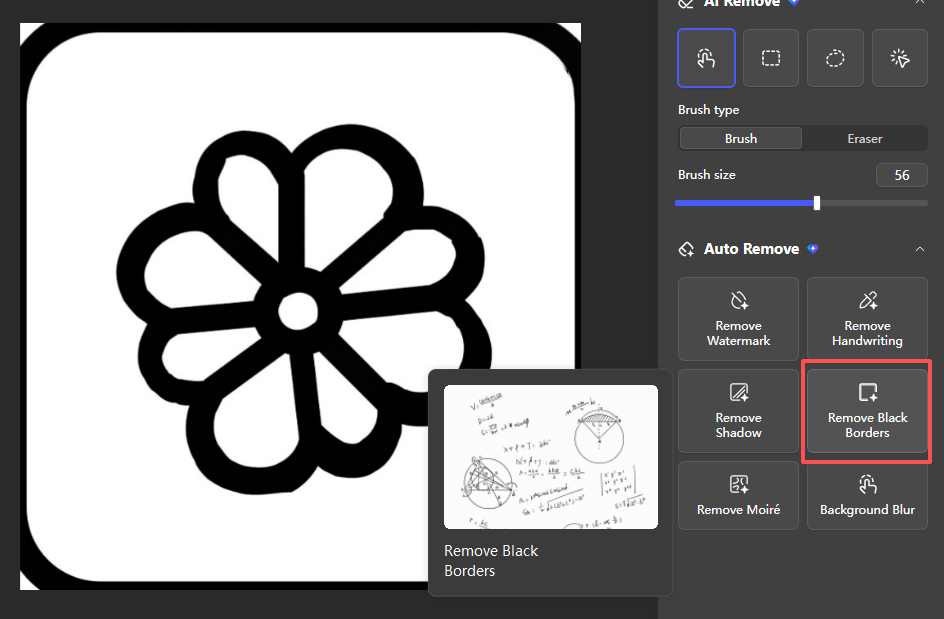
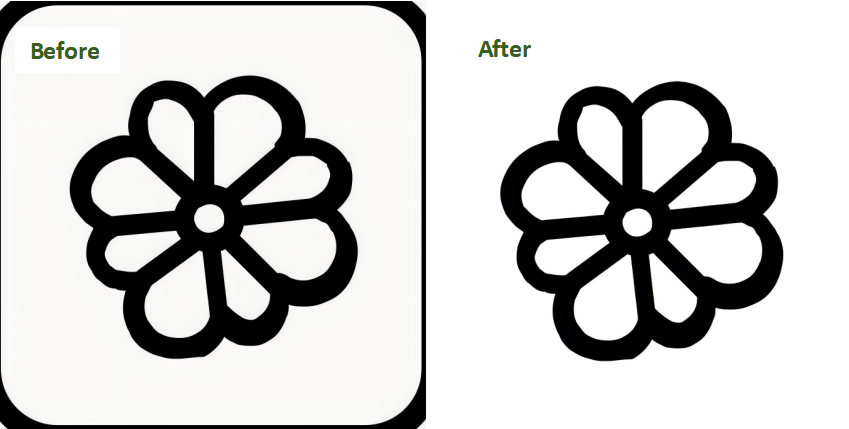
To remove borders: Click Remove Black Borders to crop or erase unwanted black edges from graphics.
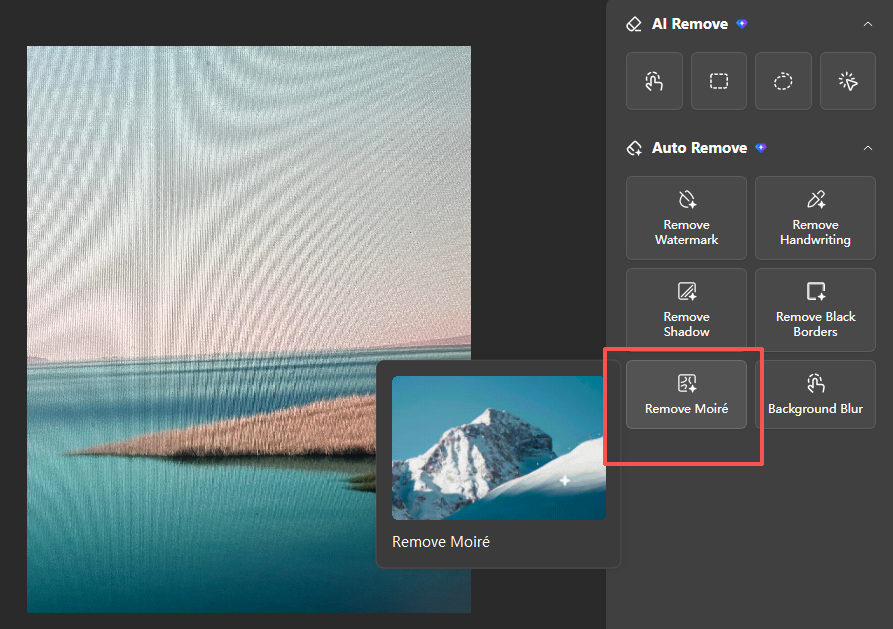
To remove Moire: Click Remove Moire to erase moire from image.
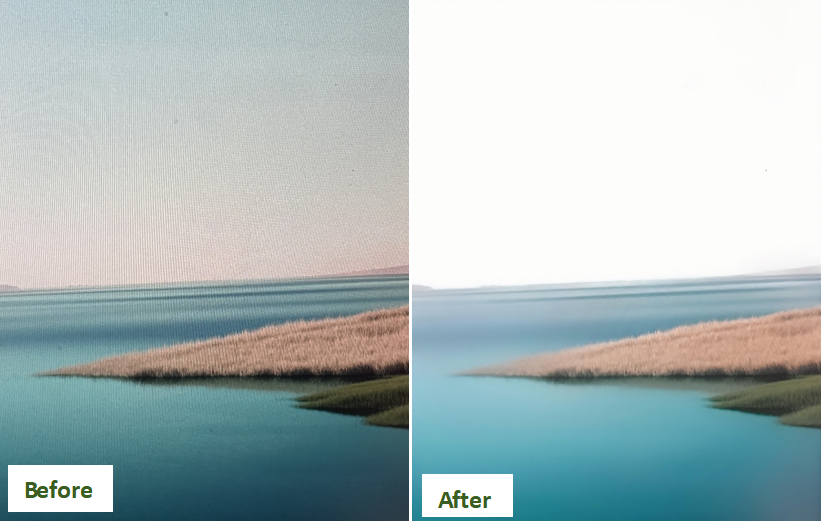
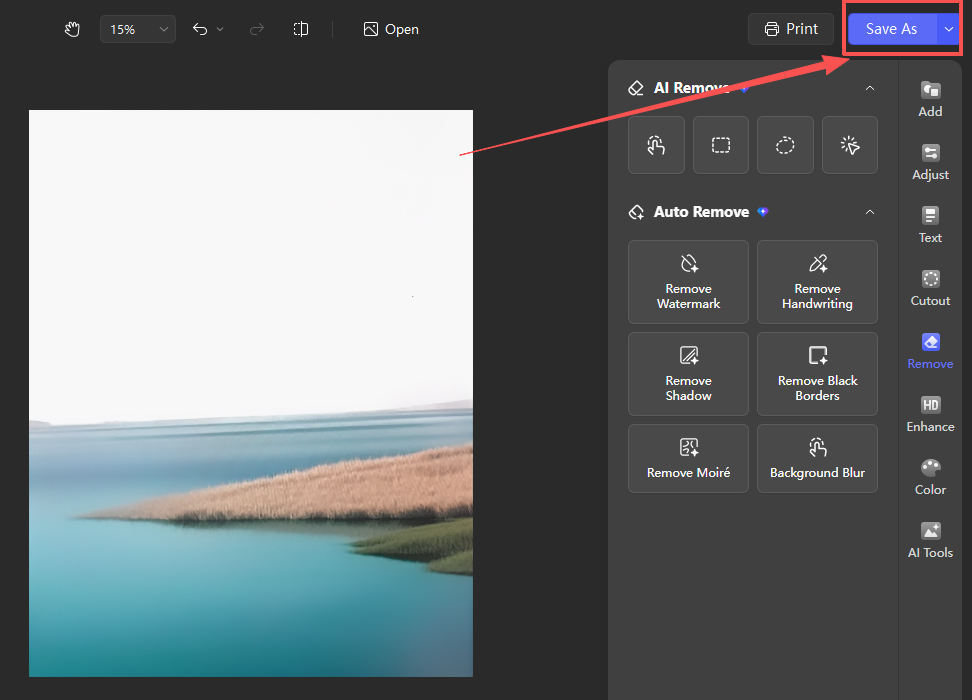
Step 5: Save the Image
Click "Save As" to save your image.
Why WPS?



15 years of office industry experience, tech lover and copywriter. Follow me for product reviews, comparisons, and recommendations for new apps and software.


