Free Al Office Suite with PDF Editor

Edit Word, Excel, and PPT for FREE.
Read, edit, and convert PDFs with the powerful PDF toolkit.
Microsoft-like interface, easy to use.
Windows • MacOS • Linux • iOS • Android

Catalog
How to Copy Text from Images with WPS Office AI
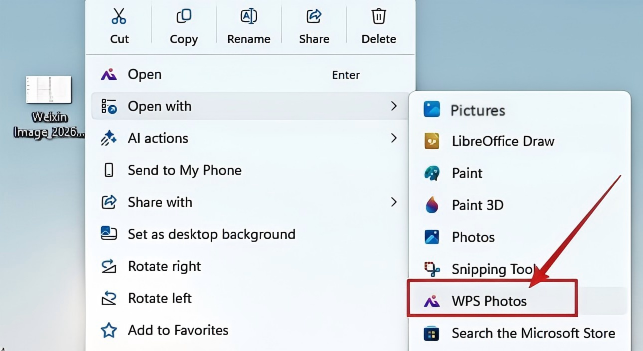
Step 1:Open photos with WPS Photos
Right-click your image file and select Open with > WPS Photos.
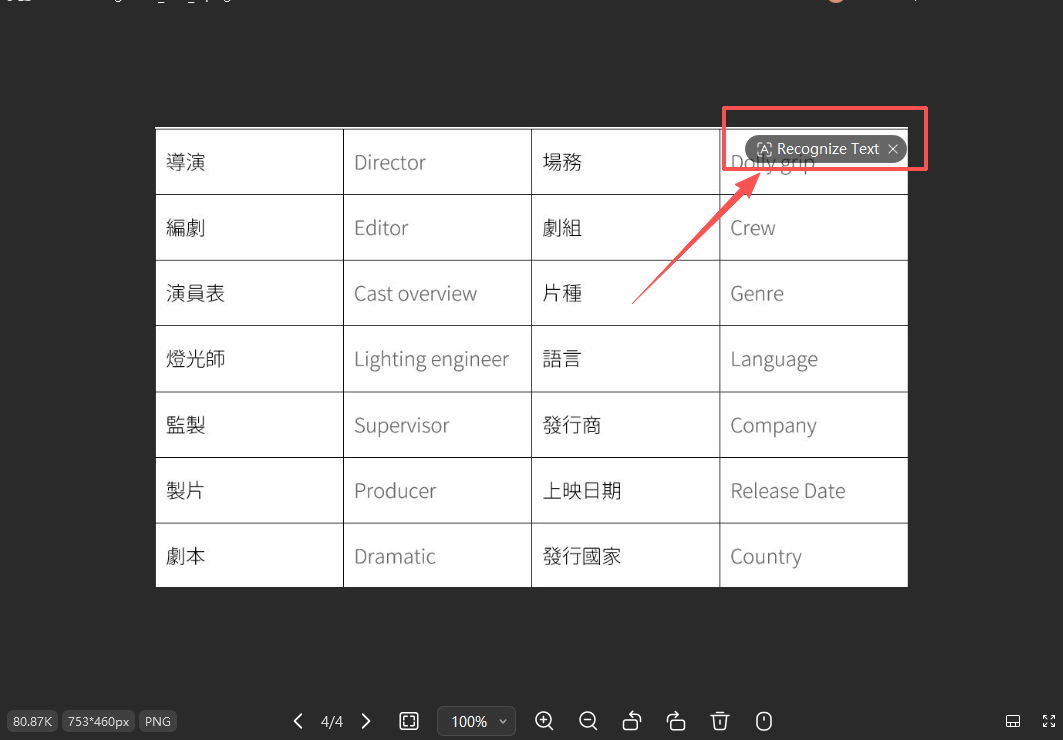
Step 2: Click the Recognize Text Icon
Click the Recognize Text icon located at the top right corner of the image viewer.
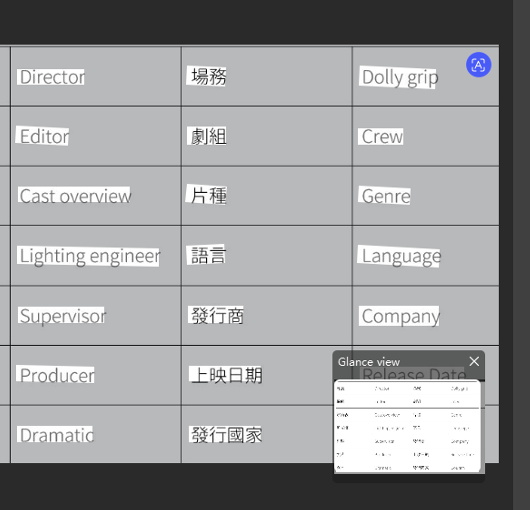
Step 3:Wait for the AI
Wait for the AI to highlight the detected text blocks within the side panel.
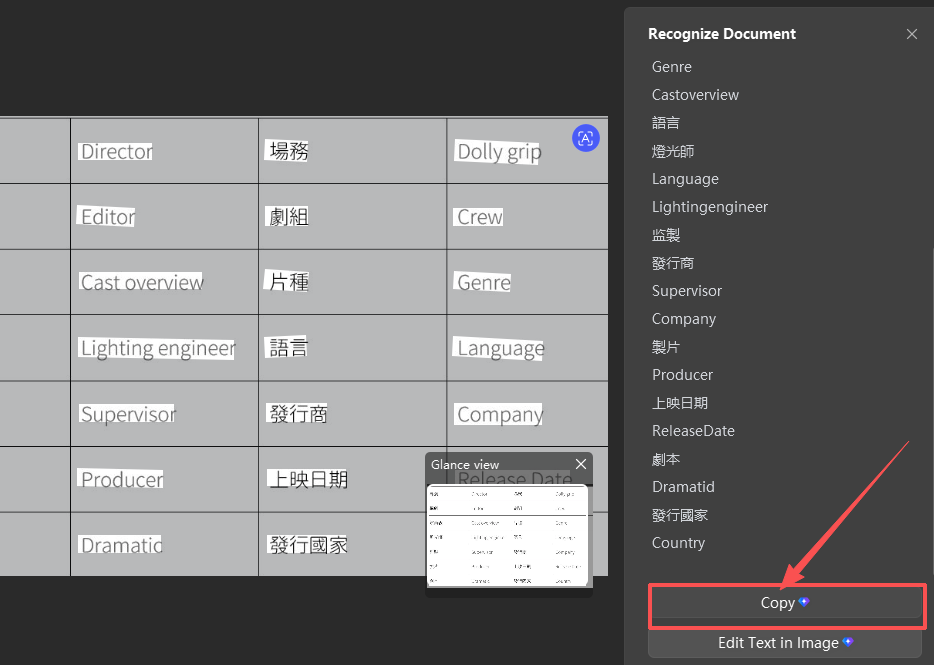
Step 4: Click the Copy Button
Click the Copy button at the bottom of the "Recognize Document" pane to save the text to your clipboard.
Extra Tips
Multilingual Support: The OCR engine automatically detects and processes both English and localized characters (such as Chinese, Japanese, or French) simultaneously.
Direct Editing: Beyond simple copying, you can select Edit Text in Image to modify the content directly within the original visual layout.
Why WPS Office?
WPS Office offers a seamless, all-in-one ecosystem where you can extract text and immediately paste it into a Document, Spreadsheet, or Presentation without ever leaving the application or uploading sensitive files to third-party websites.



15 years of office industry experience, tech lover and copywriter. Follow me for product reviews, comparisons, and recommendations for new apps and software.


