Free Al Office Suite with PDF Editor

Edit Word, Excel, and PPT for FREE.
Read, edit, and convert PDFs with the powerful PDF toolkit.
Microsoft-like interface, easy to use.
Windows • MacOS • Linux • iOS • Android

Catalog
How to Extract Text from Screenshots with WPS AI
For students and office professionals, information is often locked within non-selectable formats such as flattened PDFs, presentation slides, or web images. Manually transcribing this data is time-consuming and prone to human error. WPS Office addresses this inefficiency by integrating an AI-powered OCR (Optical Character Recognition) engine directly into the workspace, allowing users to transform visual information into editable text without leaving their document.
Step 1:Insert Your Image
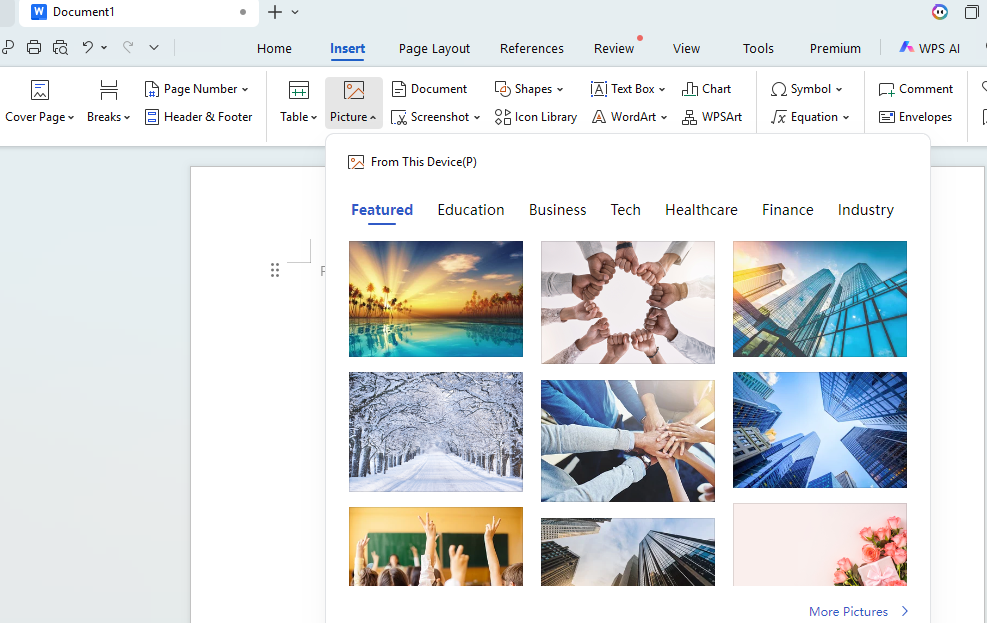
Go to the Insert tab, click Picture, and select the image or screenshot containing the text you need to extract.
Step 2: Access Image Tools
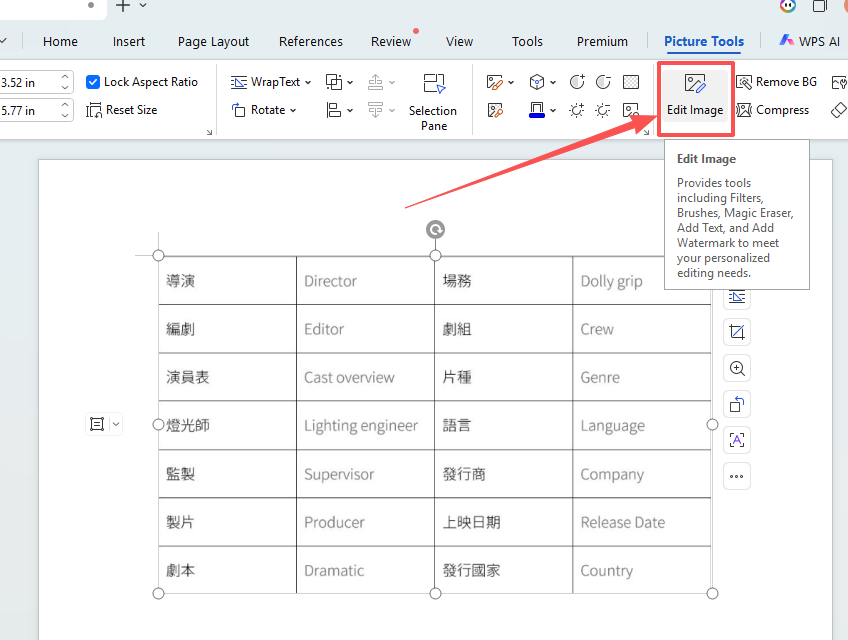
Click on the inserted image to activate the Picture Tools tab, then select the Edit Image button from the ribbon.
Step 3: Initiate AI Extraction
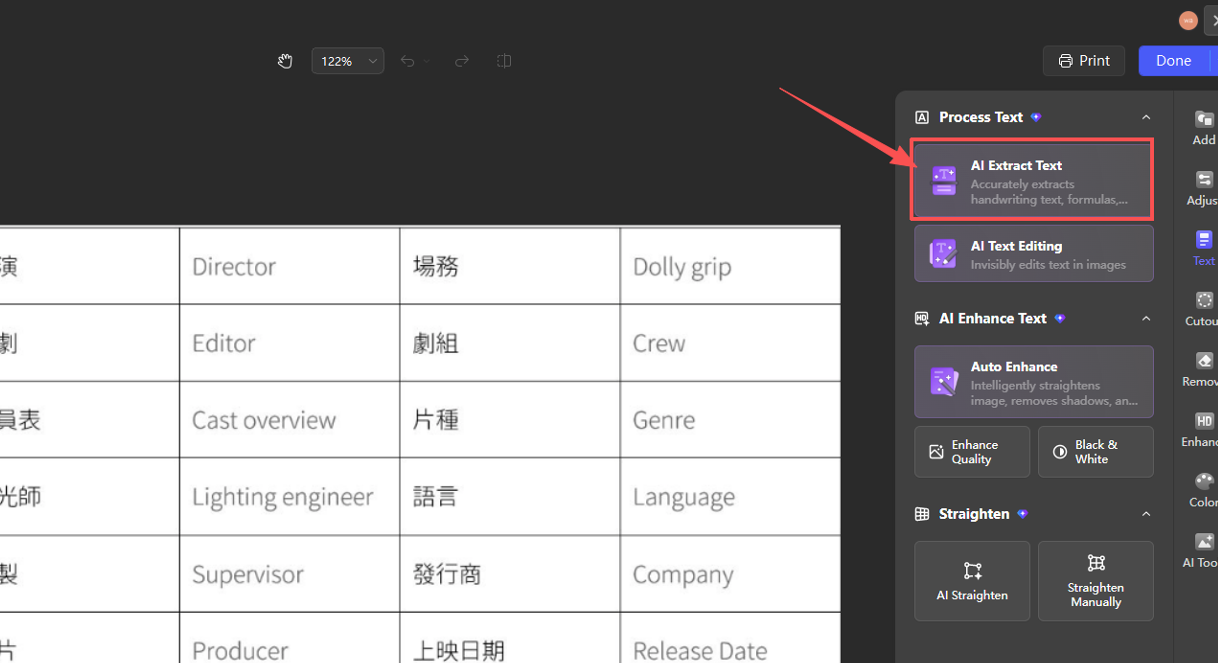
In the side panel that appears, navigate to the Process Text section and click on AI Extract Text.
Step 4: Copy and Use
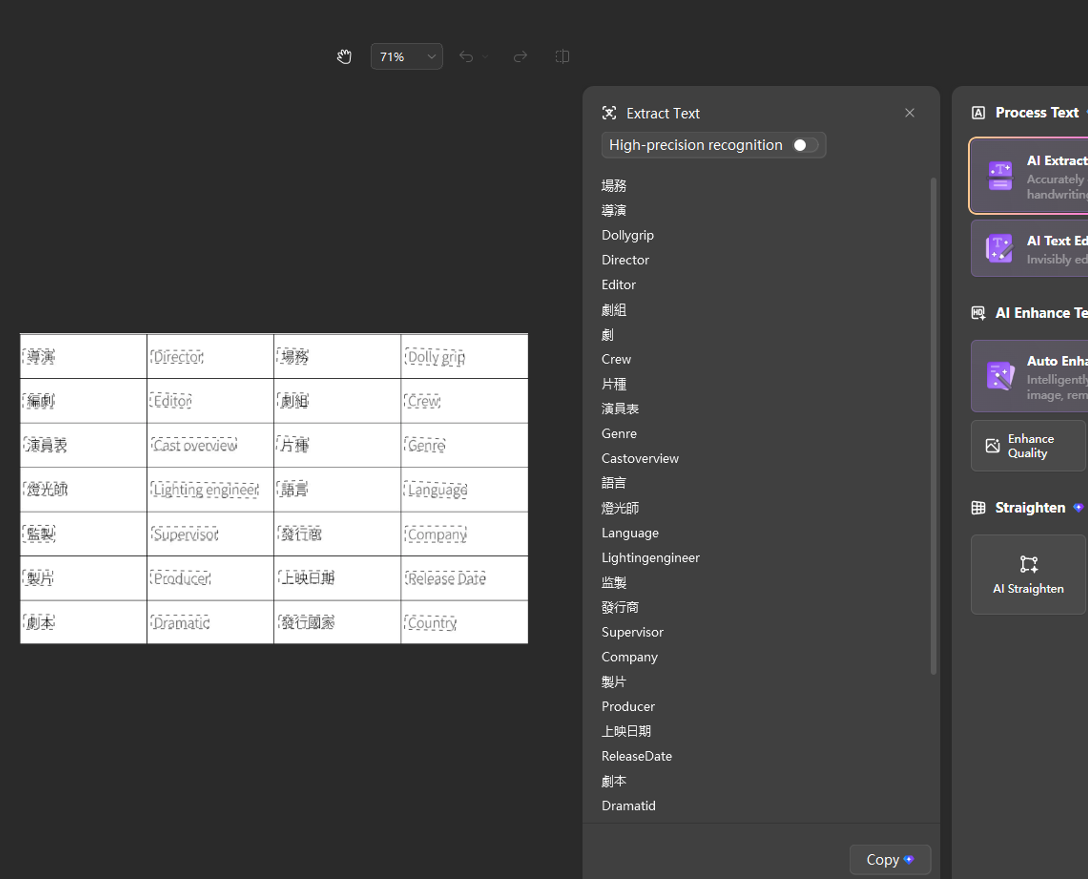
Once the AI identifies the text, a list of recognized content will appear in the panel; click Copy to transfer the text to your clipboard or document.
Extra Tips
High-Precision Mode: For complex layouts or technical terminology, toggle the "High-precision recognition" switch within the extraction window to improve accuracy.
Direct Image Editing: Beyond extraction, the "Edit Image" panel allows you to use "AI Text Editing" to modify text directly within the image while maintaining the original background.
Why Use WPS for Text Extraction?
Unlike standalone OCR websites that require you to upload files to external servers, WPS Office provides an all-in-one environment where you can capture, recognize, and format text within a single interface, ensuring better data privacy and a seamless transition from raw image to finished document.



15 years of office industry experience, tech lover and copywriter. Follow me for product reviews, comparisons, and recommendations for new apps and software.


