Free Al Office Suite with PDF Editor

Edit Word, Excel, and PPT for FREE.
Read, edit, and convert PDFs with the powerful PDF toolkit.
Microsoft-like interface, easy to use.
Windows • MacOS • Linux • iOS • Android

Catalog
How to Use Image Upscaler in WPS
Office users and students frequently need to enlarge low-resolution images for reports, posters, slideshows, and printed materials, yet traditional resizing leads to blurriness and pixelation that diminishes visual professionalism. Online upscaling tools require uploading sensitive files to third-party servers, and dedicated desktop software has a steep learning curve, making quick, high-quality image enlargement a challenge for non-design users.
Step 1: Open Your Image with WPS Photos
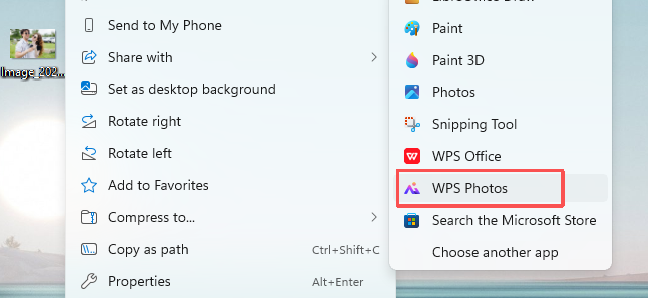
Right-click your target image, hover over "Open with", and select WPS Photos from the app list.
Step 2: Access the Image Enhancer
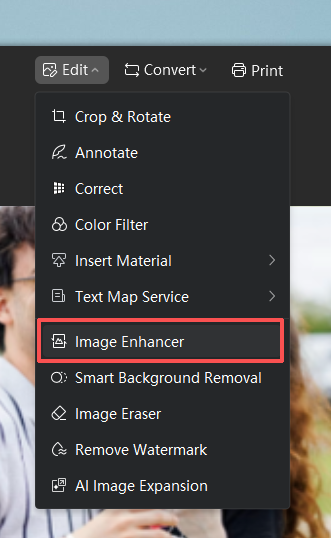
Click the Edit dropdown in the top menu, then select Image Enhancer.
Step 3: Upscale Your Image
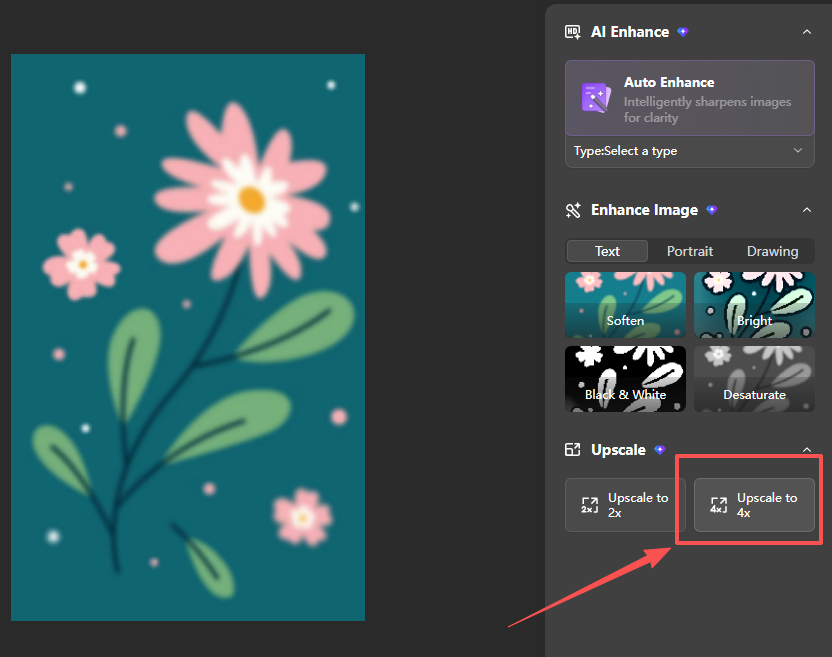
In the right-side panel, under "Upscale", choose Upscale to 2x for moderate enlargement.


Or Upscale to 4x for maximum resolution boost, depending on your needs.

Step 4: Save the Upscaled Image
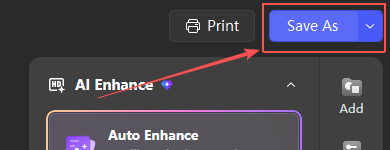
Click Save As in the top-right corner to export your high-resolution image.
Why WPS?



15 years of office industry experience, tech lover and copywriter. Follow me for product reviews, comparisons, and recommendations for new apps and software.


