Catalog
How to Use Text Summarizer in WPS
September 14, 2026
3.4K
Views
52
Office users and students often need to distill lengthy reports, research papers, or meeting notes into concise summaries for presentations, reviews, or study. Manual summarization is time-consuming and risks omitting key details, while online tools require uploading sensitive documents to third-party servers, raising data security concerns.
Step 1: Open Your Document with WPS Office
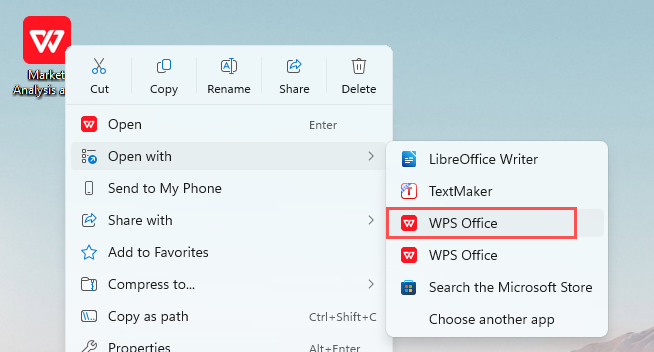
Right-click your target document, hover over "Open with", and select WPS Office to launch the file.
Step 2: Access WPS AI Tools
In the top menu bar, click the WPS AI tab to open the AI-powered editing panel.

Step 3: Select Text for Summarization
Highlight the full text or specific sections of your document that you want to summarize.

Step 4: Generate a Concise Summary
In the WPS AI toolbar, click the Shorten button to condense the selected text into a concise summary.

Step 5: Accept the Summary
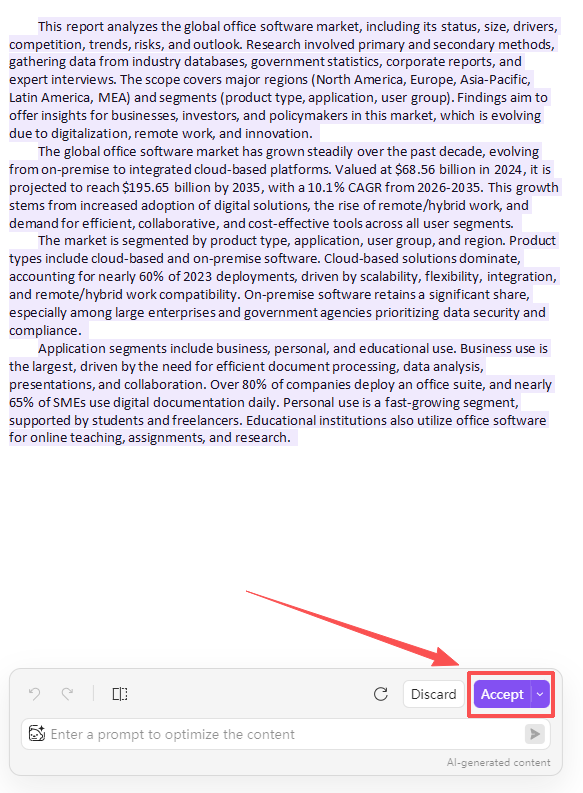
Once the AI-generated summary appears, review it for accuracy, then click Accept to insert it into your document.
Why WPS?
Unlike standalone text summarizer tools that require cloud uploads or subscriptions, WPS Text Summarizer works offline within the WPS ecosystem, ensuring data security and seamless integration with your existing documents, all without leaving your workflow.



15 years of office industry experience, tech lover and copywriter. Follow me for product reviews, comparisons, and recommendations for new apps and software.


