Free Al Office Suite with PDF Editor

Edit Word, Excel, and PPT for FREE.
Read, edit, and convert PDFs with the powerful PDF toolkit.
Microsoft-like interface, easy to use.
Windows • MacOS • Linux • iOS • Android

Catalog
How to Use the Sentence Expander in WPS AI
Whether you're drafting a report, polishing an essay, or composing a professional email, you often need to elaborate on a core idea. Manually expanding sentences can be time-consuming and may lead to writer's block. The sentence expander tool in WPS AI addresses this by instantly generating more nuanced and detailed versions of your text, helping you overcome brevity and improve clarity directly within your workflow.
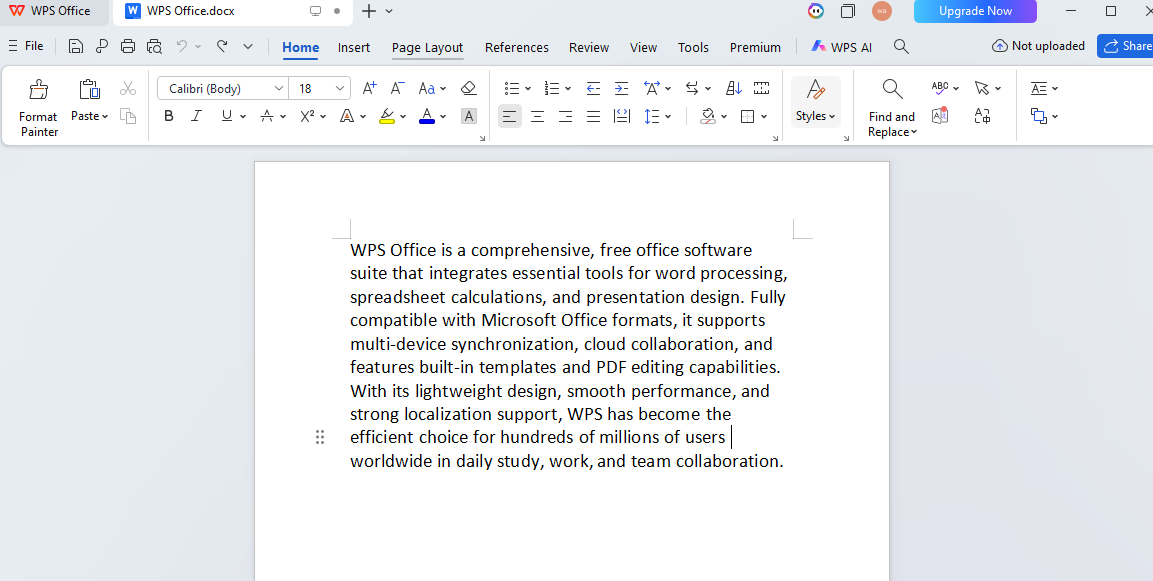
Step 1: Prepare Your Text
Open your WPS document and paste or type the sentence you wish to expand. For best results, ensure the original sentence clearly conveys the core idea you want to develop.
Step 2: Select and Access AI Tools
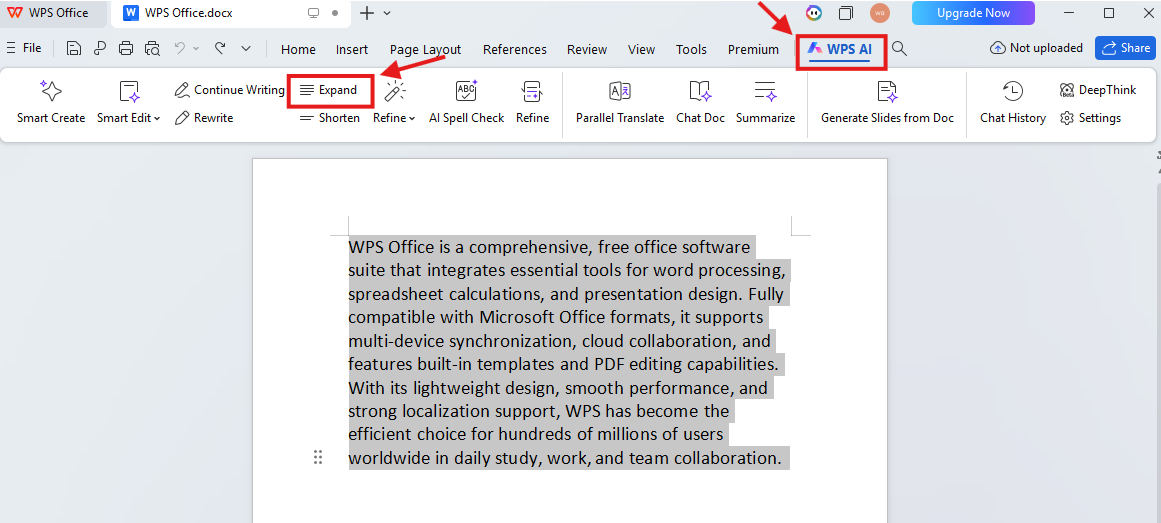
Highlight the target sentence. Then, navigate to and click on the "WPS AI" button in the top menu bar. From the dropdown menu, select the "Expand" option.
Step 3: Review and Apply AI Suggestions
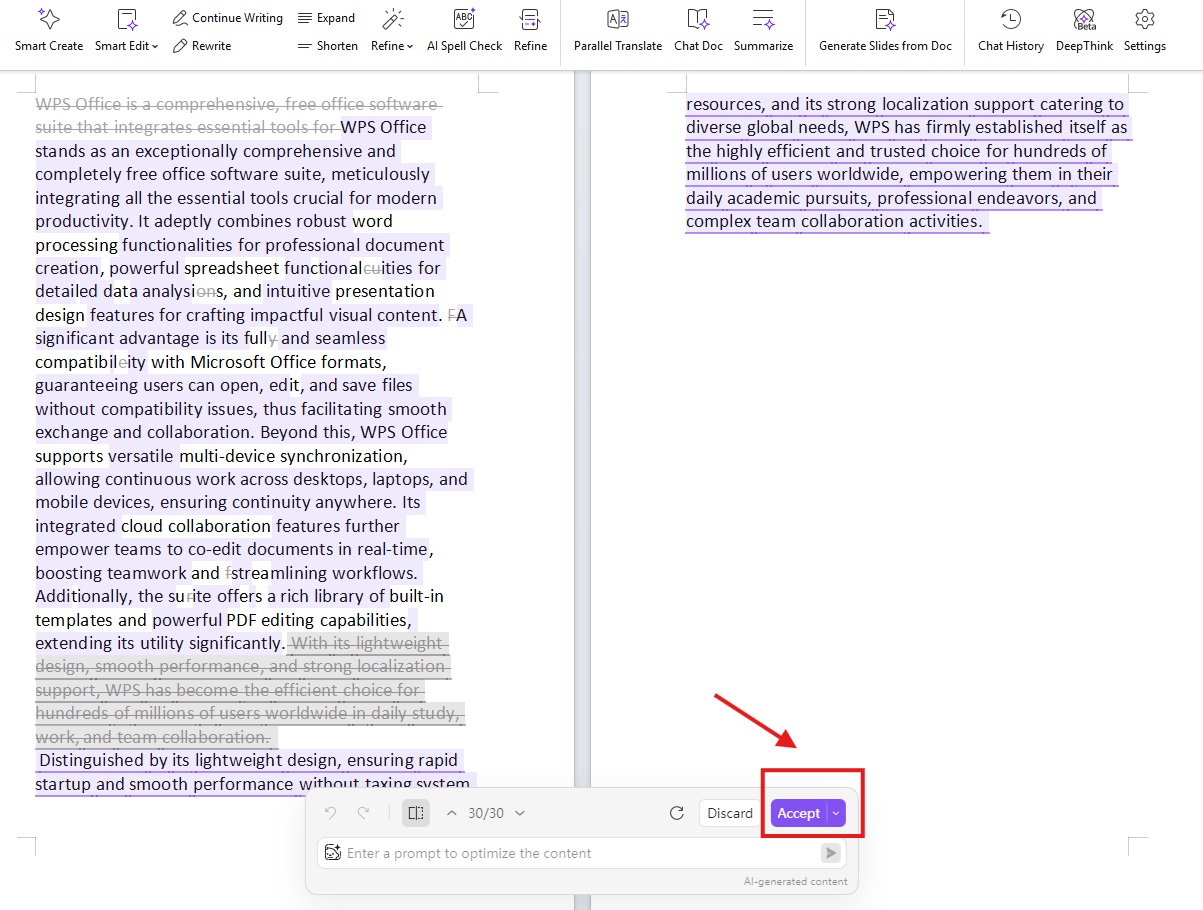
WPS AI will process your sentence and generate an expanded version directly in your document. Newly added or modified text will be highlighted in purple. Click on any purple segment to accept or reject the specific change.
Step 4: Finalize Your Document
Once you have reviewed and accepted all desired expansions, your text is ready. You can continue editing or save your document as usual.
Why Choose WPS AI?
The integrated sentence expander is part of WPS AI's suite of smart writing tools, allowing you to enhance text without switching between different applications or platforms. Unlike standalone tools that require copying and pasting content externally, WPS AI operates seamlessly within your document, maintaining your formatting and workflow. For similar text-enhancement actions, also explore the "Rewrite" and "Make Longer" features in the same WPS AI menu.



15 years of office industry experience, tech lover and copywriter. Follow me for product reviews, comparisons, and recommendations for new apps and software.


