Free Al Office Suite with PDF Editor

Edit Word, Excel, and PPT for FREE.
Read, edit, and convert PDFs with the powerful PDF toolkit.
Microsoft-like interface, easy to use.
Windows • MacOS • Linux • iOS • Android

Catalog
How to Use Tracked Changes in Word with WPS Office
Office users and students often collaborate on documents where tracking and recovering previous versions is critical for accountability, compliance, and error correction. Native Word tools can be cumbersome to navigate, and cloud-based version control requires file uploads, which raises data security concerns for sensitive documents.
Step 1: Open Your Document with WPS Office
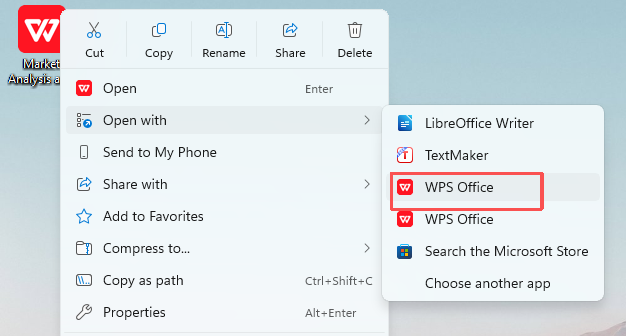
Right-click your target Word document, hover over "Open with", and select WPS Office to launch the file.
Step 2: Access Version History
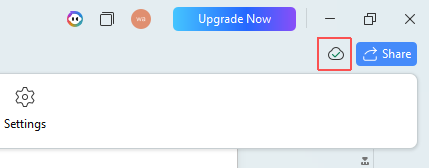
Click the Version History icon (cloud with an upward arrow) in the top-right corner to view all saved versions of your document.
Step 3: Name Your Current Version (for Clear Tracking)
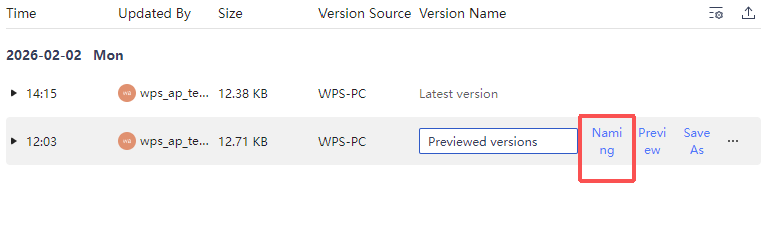
In the Version History panel, find the latest version, click the Naming icon next to it, enter a descriptive name (e.g., "Draft 2 - Client Feedback" or "Revised by John 02/02"), and save to confirm the naming.
Step 4: Preview a Historical Version
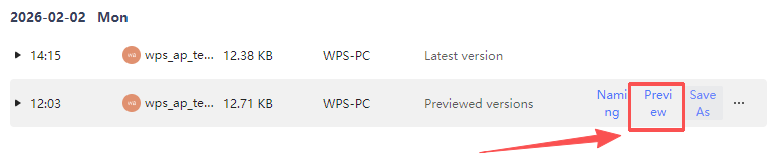
In the version list, find the earlier version you want to review and click Preview to open it in read-only mode.
Step 5: Restore or Save As a New File
To revert your document to the previewed version, click restore.
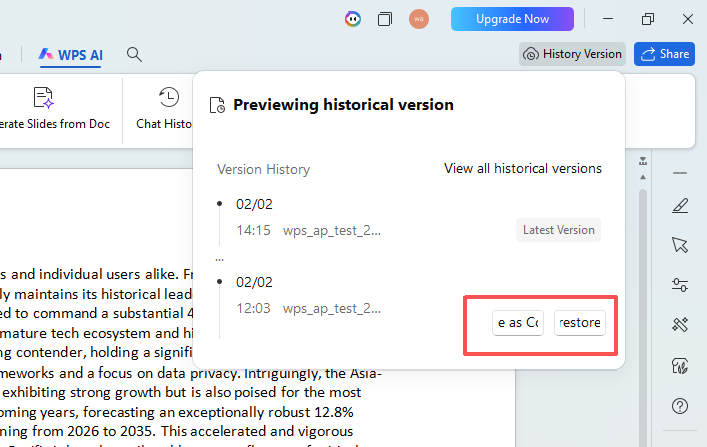
To save the historical version as a separate file, click Save As, choose your destination folder, and click Save.

click Save As 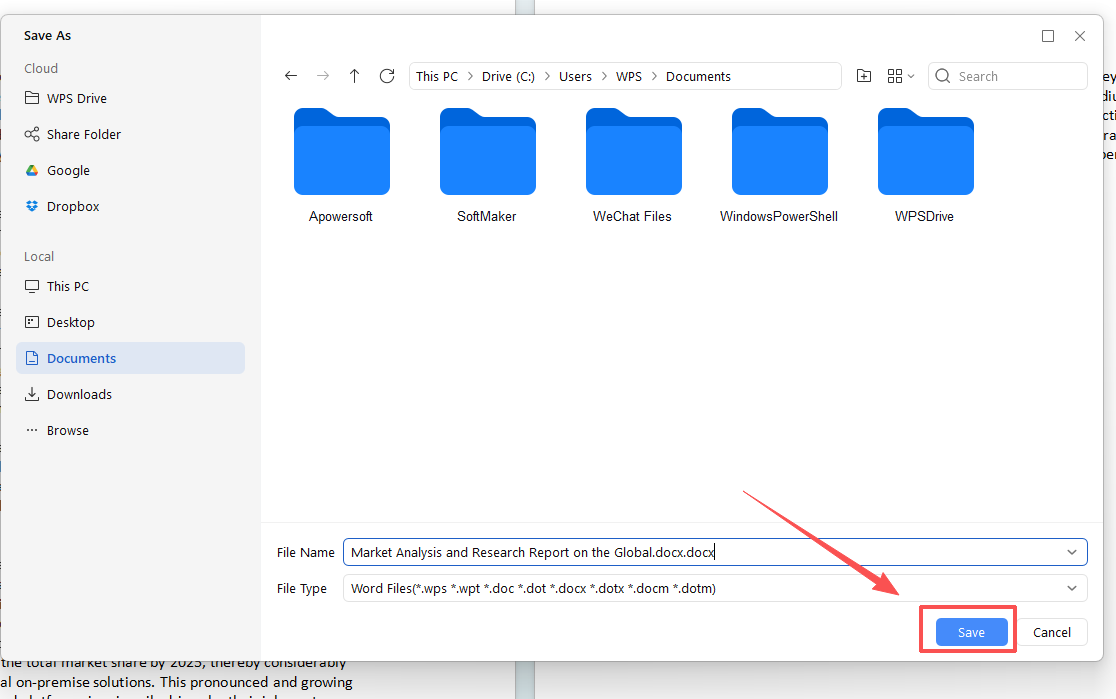
click save
Step 6: Access AI Chat History
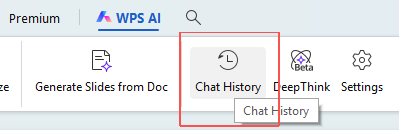
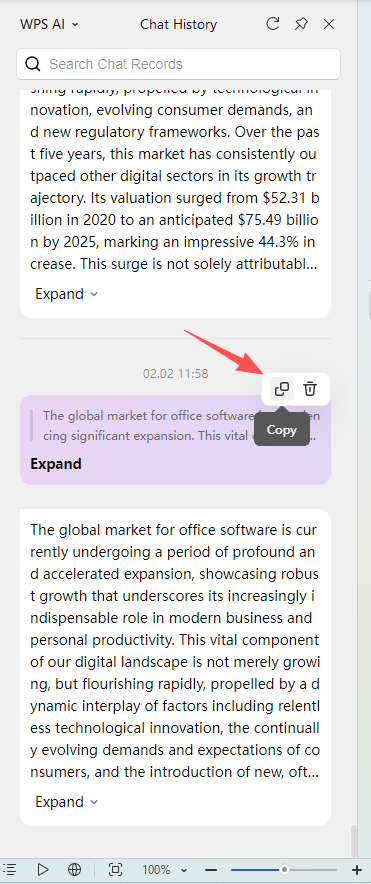
Why WPS?
Unlike native Word tools that require manual version saving or cloud-based platforms that rely on third-party servers, WPS Office lets you manage tracked changes and version history offline within its all-in-one ecosystem, ensuring data security and seamless integration with your existing workflow.



15 years of office industry experience, tech lover and copywriter. Follow me for product reviews, comparisons, and recommendations for new apps and software.


