Free Al Office Suite with PDF Editor

Edit Word, Excel, and PPT for FREE.
Read, edit, and convert PDFs with the powerful PDF toolkit.
Microsoft-like interface, easy to use.
Windows • MacOS • Linux • iOS • Android

Catalog
How to Use WPS Photo Enhancer
Office users and students often work with photos that are low-resolution, poorly lit, or black-and-white, which can undermine the professionalism of reports, resumes, and projects. Online enhancement tools require uploading sensitive files, while desktop editors demand technical expertise, making it challenging to achieve quick, polished results.
Step 1: Open Your Image with WPS Photos
Right-click your target image, hover over "Open with", and select WPS Photos from the app list.
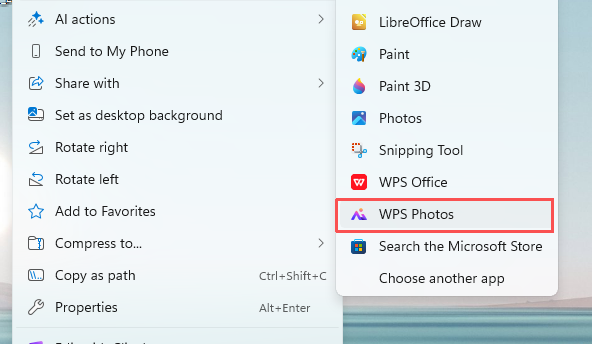
Step 2: Access the Photo Enhancer
Click the Edit dropdown in the top menu, then select Image Enhancer.
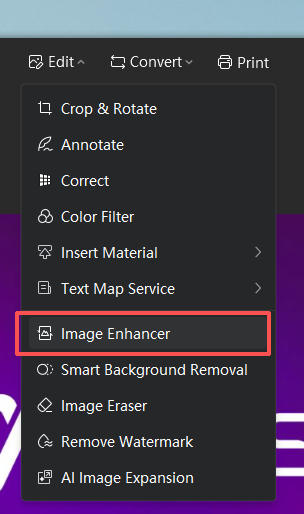
Step 3: Auto-Enhance Your Image
In the right-side AI Enhance panel, click Auto Enhance to let the tool intelligently sharpen and clarify your image, and select the appropriate type (General, Text, Portrait, Drawing) for optimal results.
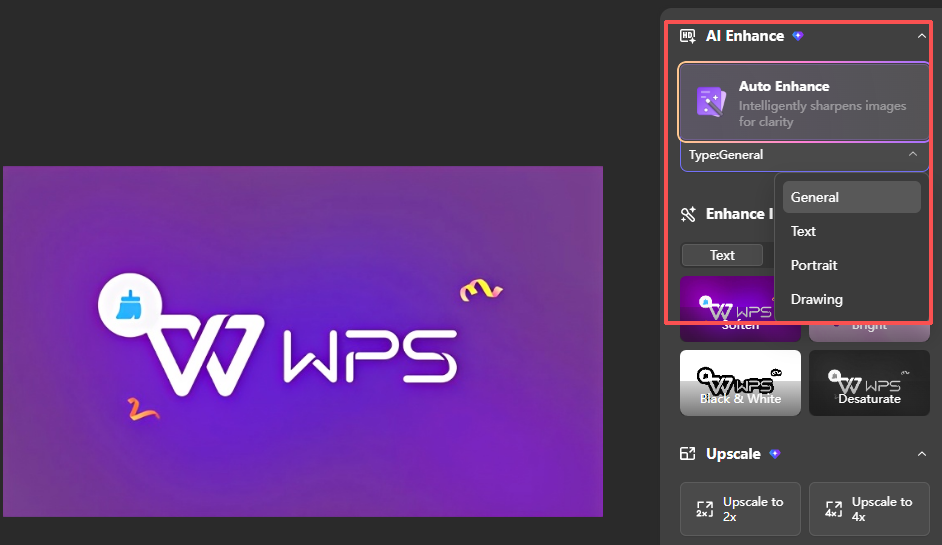
Step 4: Apply Manual Enhancement Presets
General Images: Use presets like Desaturate to reduce color intensity for a more muted look.
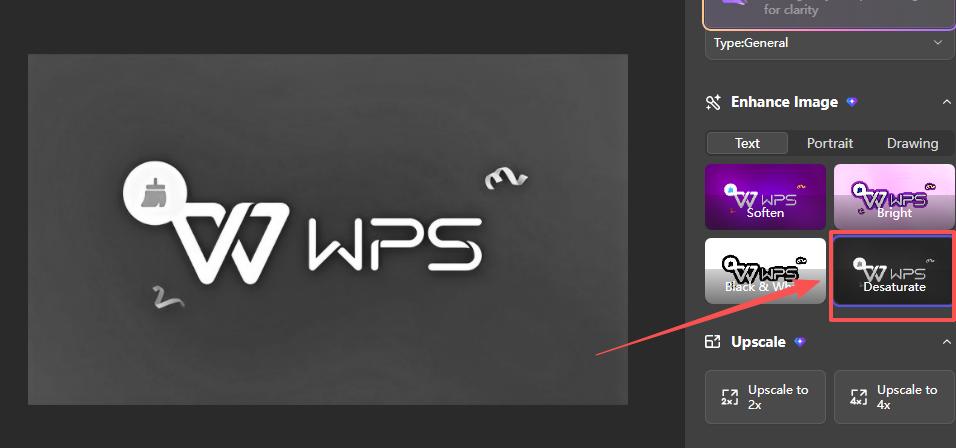
Portraits: Click Retouch Portrait to smooth skin and refine facial details
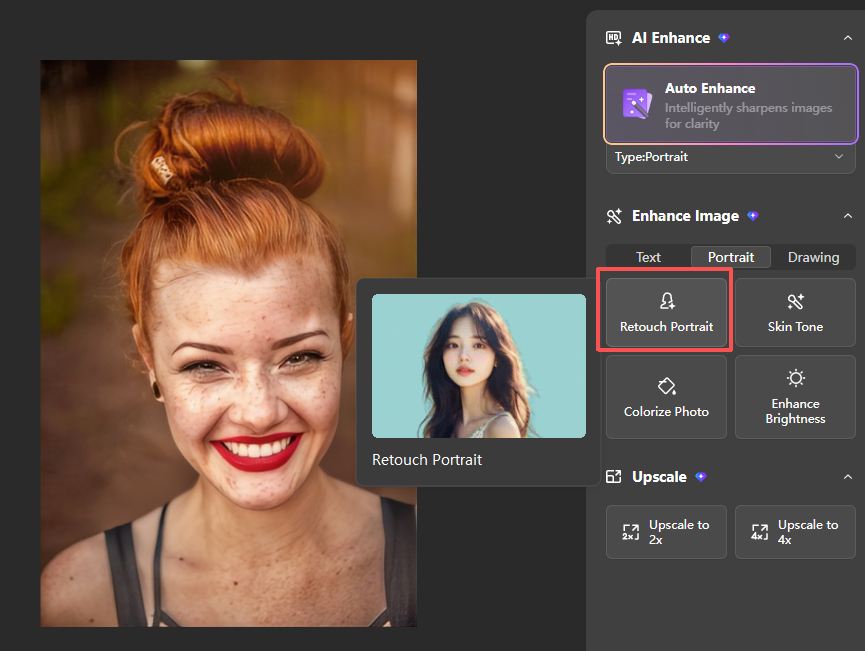
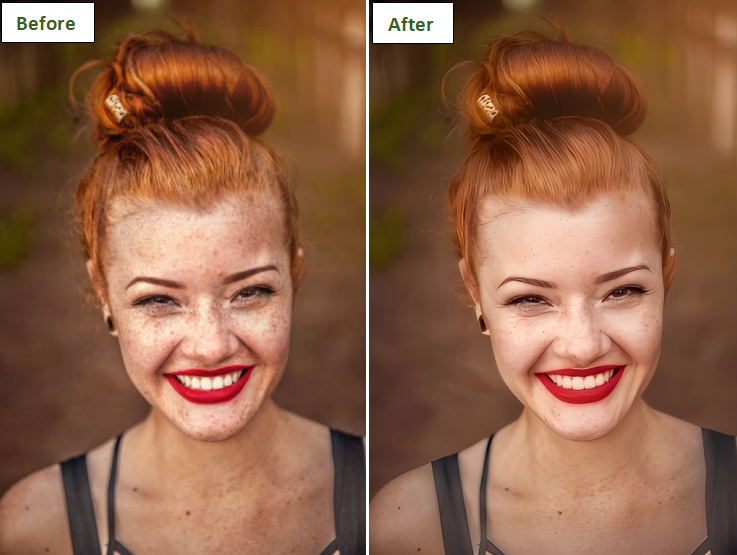
Or Skin Tone to adjust and balance skin color.
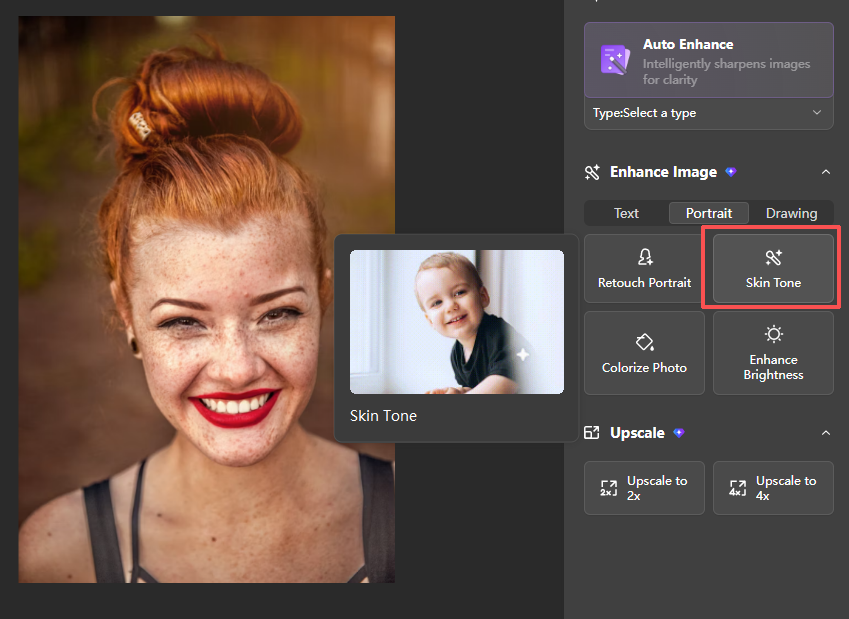
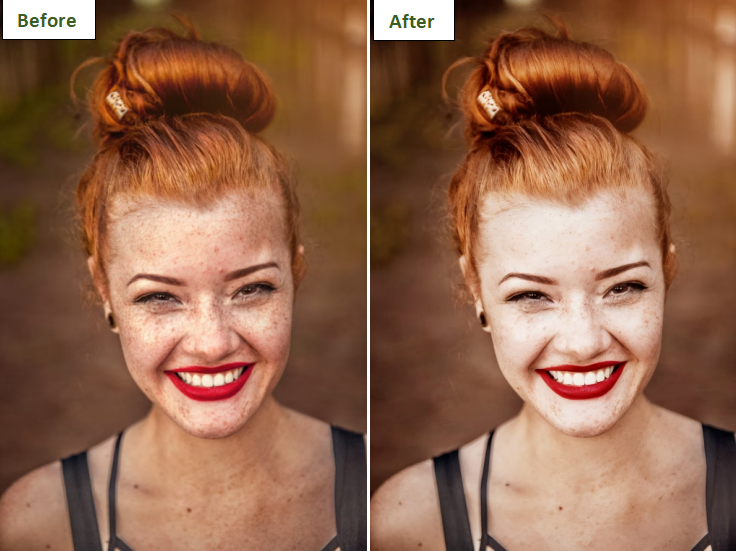
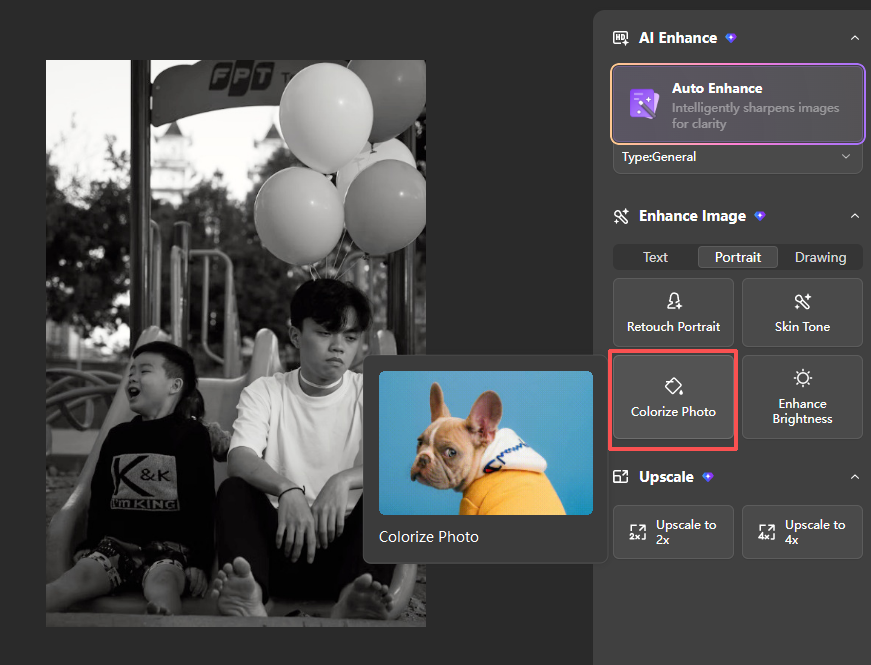
Black-and-White Photos: Select Colorize Photo to automatically add natural color to monochrome images.

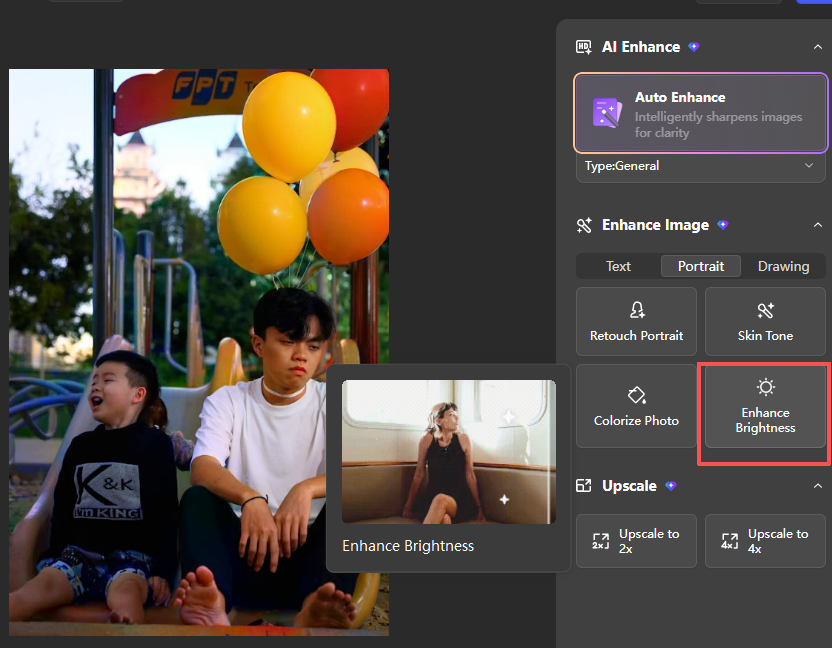
Brightness Adjustment: Under "Enhance Image", click Enhance Brightness to automatically lift shadows and improve overall exposure in underexposed photos.

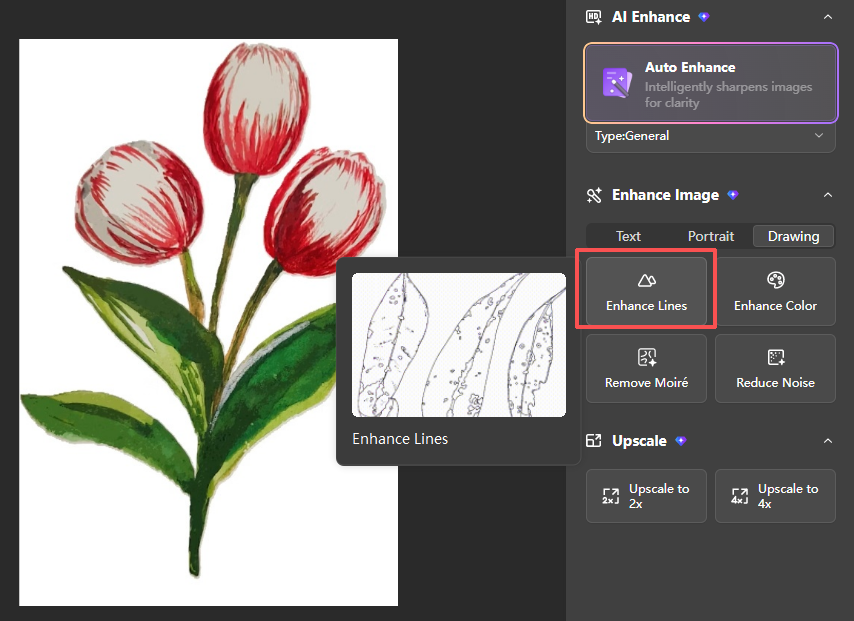
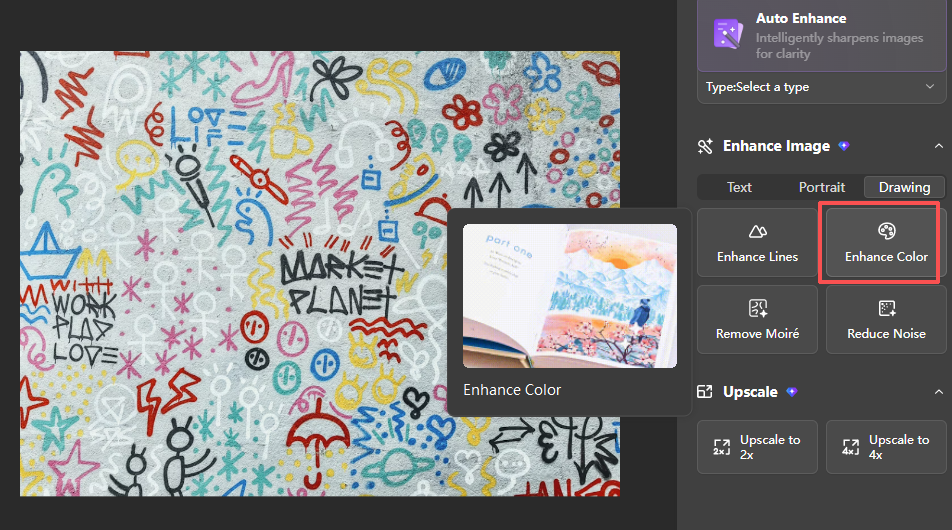
Artwork Refinement: Click Enhance Lines to sharpen the outlines of illustrations.
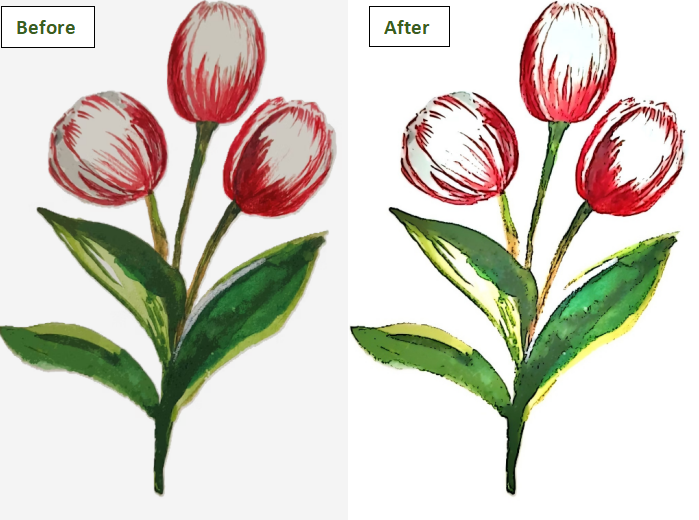
And Enhance Color to boost vibrancy in colorful artwork.

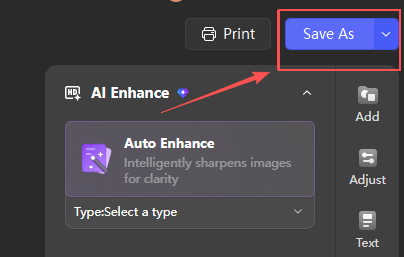
Step 5: Save the Enhanced Image
Why WPS?



15 years of office industry experience, tech lover and copywriter. Follow me for product reviews, comparisons, and recommendations for new apps and software.


