Free Al Office Suite with PDF Editor

Edit Word, Excel, and PPT for FREE.
Read, edit, and convert PDFs with the powerful PDF toolkit.
Microsoft-like interface, easy to use.
Windows • MacOS • Linux • iOS • Android

Catalog
Remove Shadow from Photo: How to Correct Image Lighting Using WPS Photos
Users frequently encounter photos with distracting shadows—such as document scans with uneven lighting, portrait photos with harsh facial shadows, or product images with background shading—that reduce visual clarity and professionalism. Basic photo editors often lack dedicated shadow removal tools or require complex layer adjustments, while advanced software may be unnecessarily complicated for simple corrections. An intuitive, effective solution would help users enhance photo quality efficiently for presentations, reports, or personal projects.
How to Remove Shadows with WPS Photos?
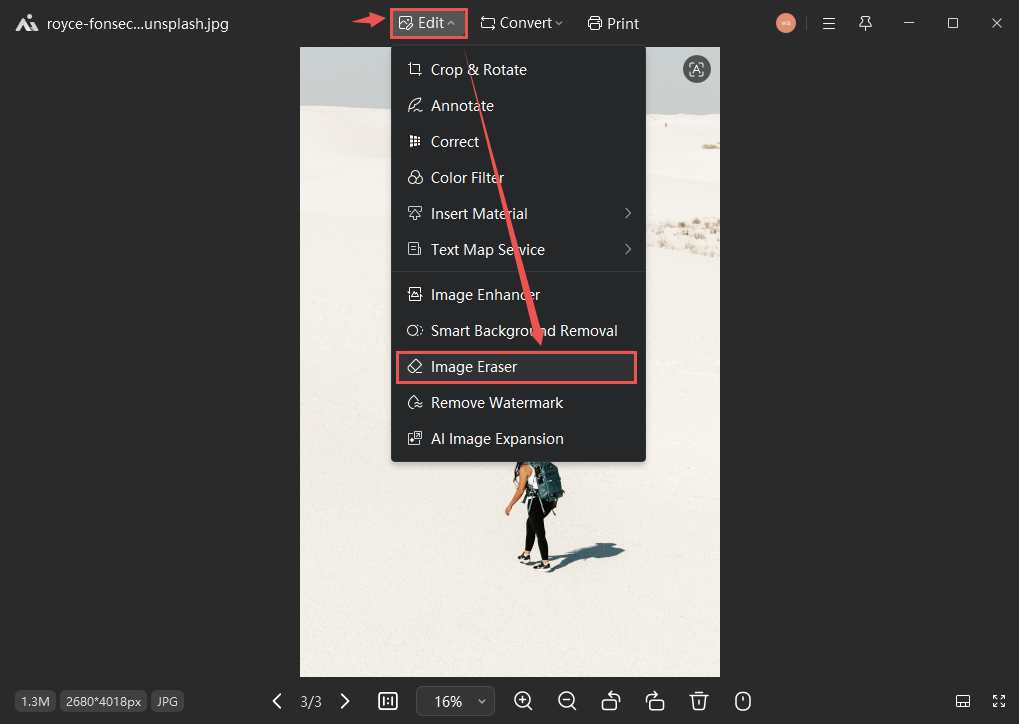
Step 1: Open and Access Editing Tools
Open your image in WPS Photos, click Edit in the top toolbar, and select Image Eraser from the editing options.
Step 2: Activate Shadow Removal
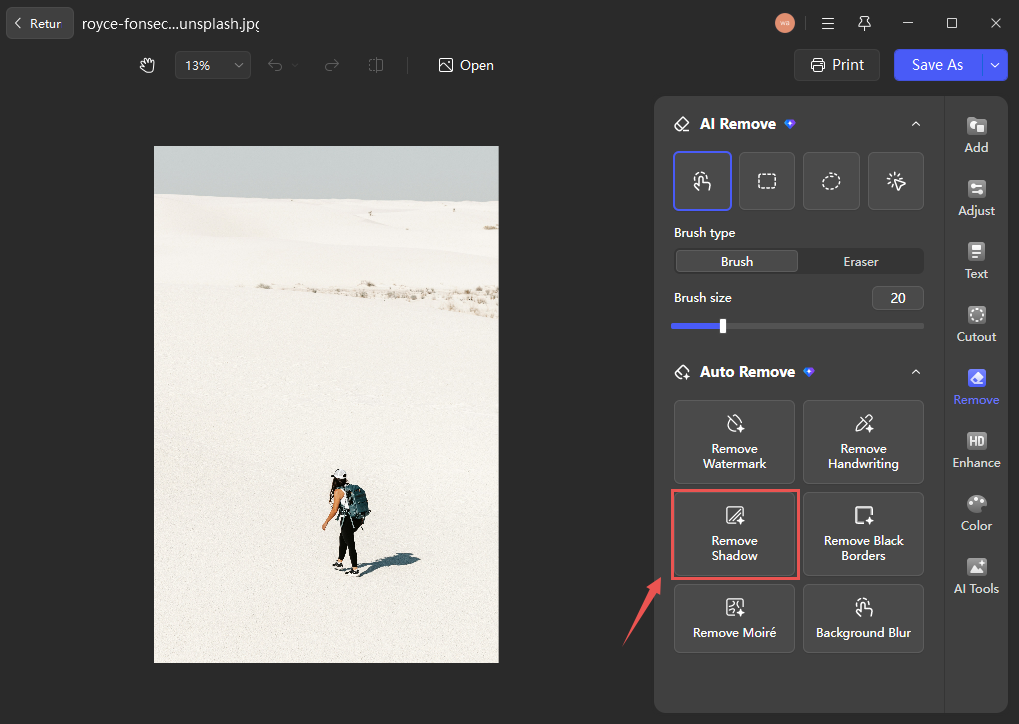
In the right sidebar toolbar, choose Remove Shadow to enable the specialized correction function.
Step 3: Save Your Edited Image
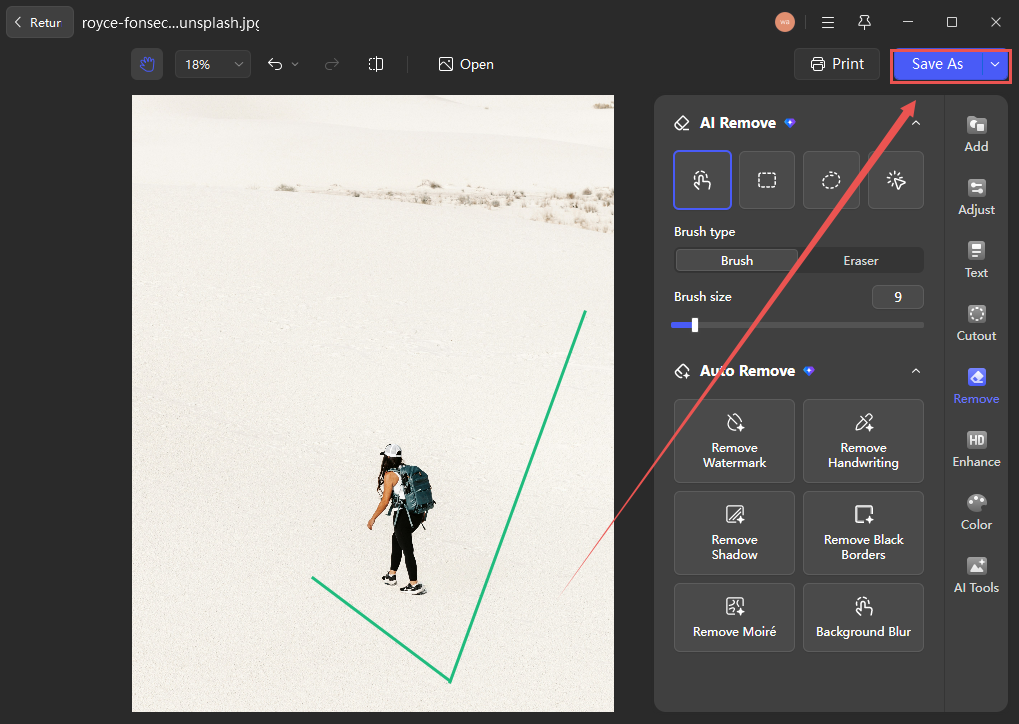
Review the edited image to ensure shadows are adequately reduced, then select Save As and choose your preferred format and location.
Conclusion
Unlike basic editing tools that often struggle with selective shadow correction or require manual brushwork, WPS Photos integrates intelligent shadow removal directly into its editing interface—enabling users to correct lighting issues while preserving image details and texture, all within a single application and without needing to master complex editing techniques.



15 years of office industry experience, tech lover and copywriter. Follow me for product reviews, comparisons, and recommendations for new apps and software.


