Free Al Office Suite with PDF Editor

Edit Word, Excel, and PPT for FREE.
Read, edit, and convert PDFs with the powerful PDF toolkit.
Microsoft-like interface, easy to use.
Windows • MacOS • Linux • iOS • Android

Catalog
Watermark Remover: How to Erase Watermarks from Images Using WPS
Users often encounter images or documents containing intrusive watermarks—such as stock photo labels, presentation template branding, or copyright marks—that can detract from professional use or visual clarity. Basic editing tools typically leave visible artifacts or degrade image quality when removing watermarks, while specialized software often requires complex workflows or paid subscriptions. A straightforward, quality-preserving solution would help users prepare clean visuals efficiently.
How to Remove Watermarks with WPS Photos?
Step 1: Open and Access Editing Tools
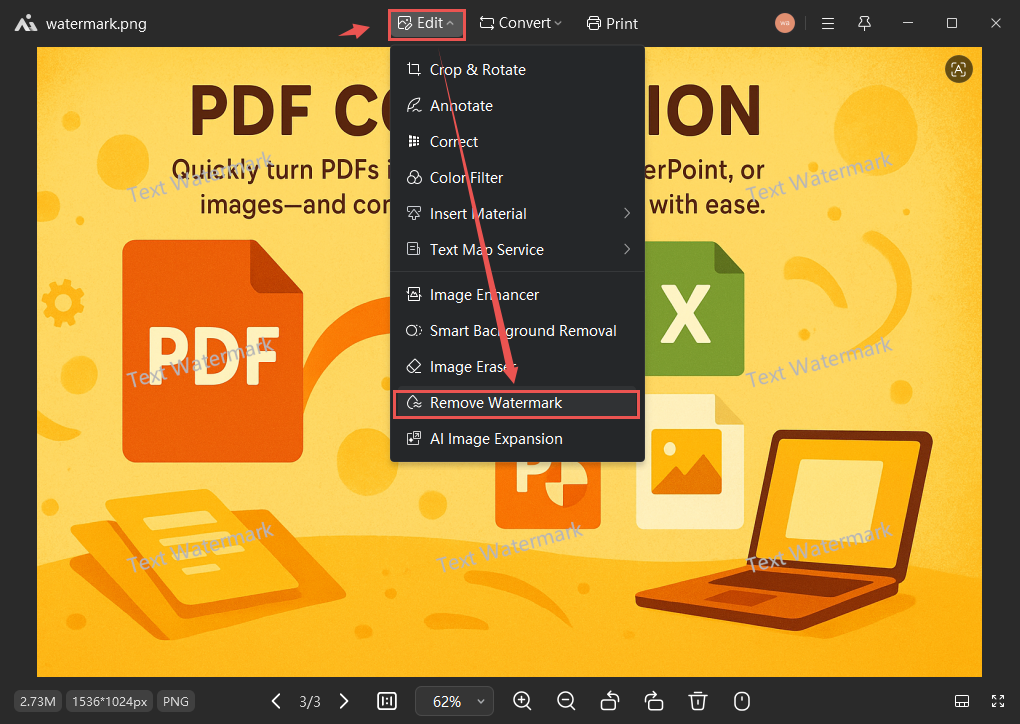
Open your image in WPS Photos, click Edit in the top toolbar, and select Remove Watermark from the editing options.
Step 2: Activate Watermark Removal
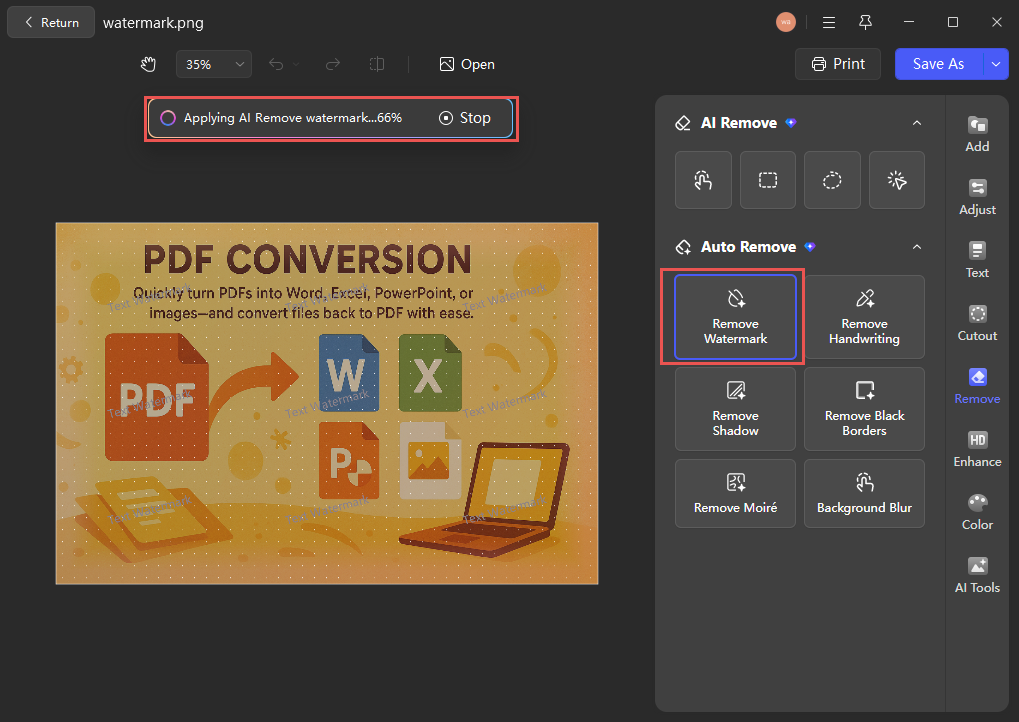
After clicking the Remove Watermark button, the AI will automatically initiate the process.
Step 3: Save Your Edited Image
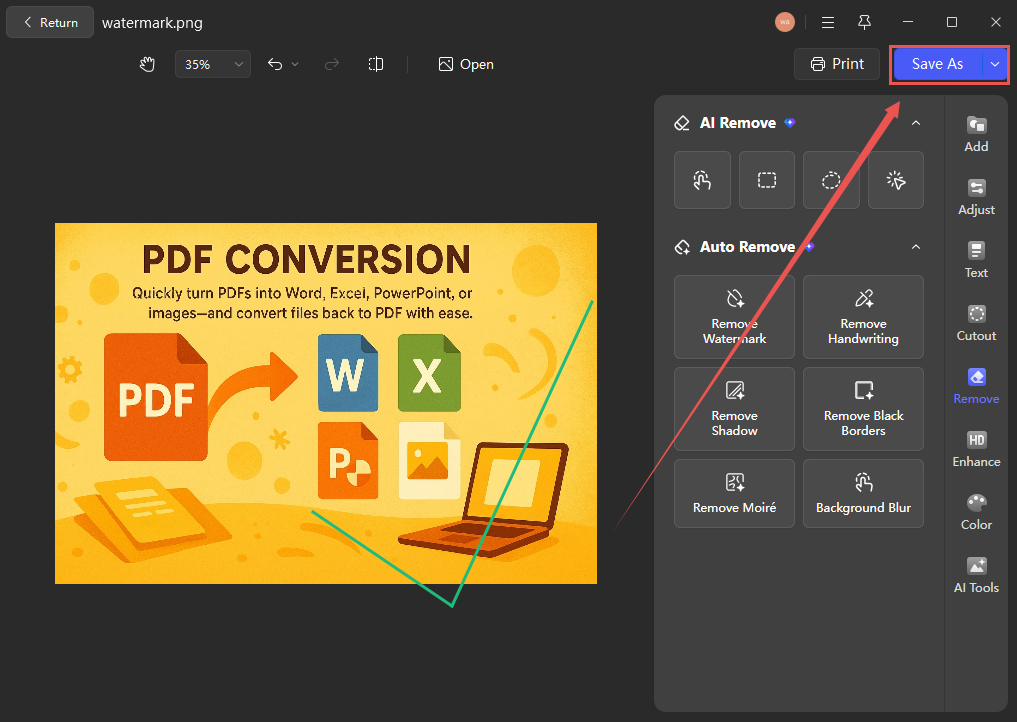
Review the edited image to ensure watermark removal is complete, then select Save As and choose your desired format and location.
Conclusion
Unlike standalone watermark removers that often require separate uploads and produce noticeable editing traces, WPS integrates this function directly into its photo editing workflow—allowing users to remove watermarks while preserving original image quality, all within a unified interface and without relying on external applications.



15 years of office industry experience, tech lover and copywriter. Follow me for product reviews, comparisons, and recommendations for new apps and software.


