Free Al Office Suite with PDF Editor

Edit Word, Excel, and PPT for FREE.
Read, edit, and convert PDFs with the powerful PDF toolkit.
Microsoft-like interface, easy to use.
Windows • MacOS • Linux • iOS • Android

Catalog
WPS AI Photo Editor 2026 Practical Guide for Professional Visuals
Images are essential to effective communication, whether you are creating a sales presentation, updating a product listing, or preparing a business report. High-quality images immediately strengthen your message, but raw photos often need cleanup due to poor lighting, cluttered backgrounds, or distracting elements. Traditionally, fixing these issues required complex design tools or outside help, slowing the entire workflow. This guide explores how the WPS AI Photo Editor streamlines image editing with features like Background Remover, AI Eraser, Auto Enhance, and AI Filters, delivering polished, professional visuals in seconds.
What is WPS AI Photo Editor?
WPS AI Photo Editor is an intelligent image processing tool integrated directly into the WPS Office suite (Writer, Presentation, and PDF). Unlike standalone graphic design software that requires you to export, edit, and re-import images, this tool allows you to enhance visuals right where you work.
It uses advanced artificial intelligence to automate complex editing tasks. Instead of manually masking layers or adjusting pixel curves, users can perform sophisticated edits, such as removing backgrounds or erasing objects, with single-click commands. Built for business professionals, students, and content creators, it makes professional-level visual editing easy to use without the complexity of tools like Photoshop.
Key Advantages:
Seamless Integration: Edit images directly within your Word documents, PowerPoint slides, or PDFs without ever switching apps or breaking your workflow.
Zero Learning Curve: The AI handles complex tasks like masking and object removal automatically, so you don't need any graphic design skills to get professional results.
Time Efficiency: What typically takes 10–15 minutes in professional software (like precise background removal) is completed in seconds with a single click.
Cost-Effective: Access powerful AI editing capabilities as part of your existing office suite, eliminating the need for expensive standalone design subscriptions.
Pros
Allows for immediate editing within Word documents, PowerPoint slides, and PDF files, eliminating the need to switch applications.
The AI automates technical tasks such as edge detection and masking, requiring no prior graphic design expertise.
Because edits happen in-document, the image retains its original placement, formatting, and resolution without file conversion errors.
Cons
Advanced generative features (such as AI Eraser) utilize cloud processing and require an active internet connection.
While excellent for enhancement and cleanup, it lacks the pixel-level manipulation tools required for creating digital art from scratch.
The full suite of advanced AI tools is currently optimized for the Windows desktop version, with limited functionality on mobile devices.
Pricing
WPS AI Photo Editor operates on a scalable freemium model designed to accommodate both casual users and high-volume professionals. The standard version provides complimentary access to essential editing tools, such as cropping, rotation, and basic filters, along with a limited trial quota for testing advanced AI capabilities.
For users requiring unrestricted access to generative features like the Background Remover and AI Eraser, a premium subscription is available. This is typically offered as a standalone monthly plan at approximately $9.99 or as part of a discounted annual package around $129.99. Many WPS Pro bundles include a comprehensive allocation of AI credits, providing a cost-effective alternative to maintaining separate subscriptions for dedicated design software.
Feature 1: AI Eraser
The AI Eraser is built to clean up images without making them look edited. Instead of relying on manual tools that force you to paint over areas and guess what should go underneath, it uses AI to understand the surrounding scene and fill in the space naturally. This makes it especially useful when you need to remove distractions like stray cables in product photos, background clutter in real estate images, unexpected people in event shots, or sensitive details in screenshots. The result looks intentional and polished, not patched together.
Practical Example
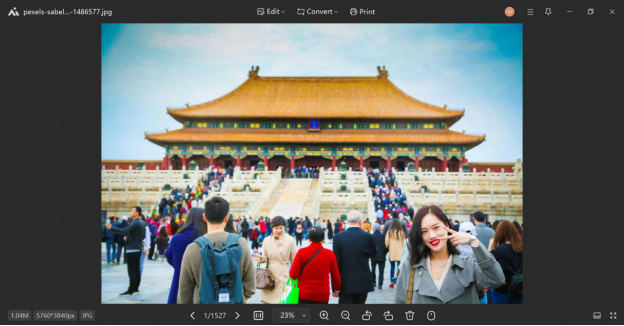
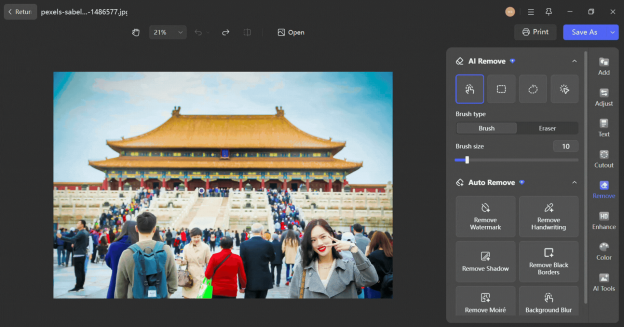
Taking photos at iconic, crowded landmarks like the Forbidden City almost always means dealing with unwanted people in the background. In this case, a strong portrait is pulled off balance by crowds filling the stairs and plaza, drawing attention away from both the subject and the architecture. So if you want to remove those distractions to make the image feel clean, with the focus where it belongs. Below is a step-by-step process to achieve that result accurately and naturally.
Step 1: Open your image in WPS AI Photo Editor in WPS Office.
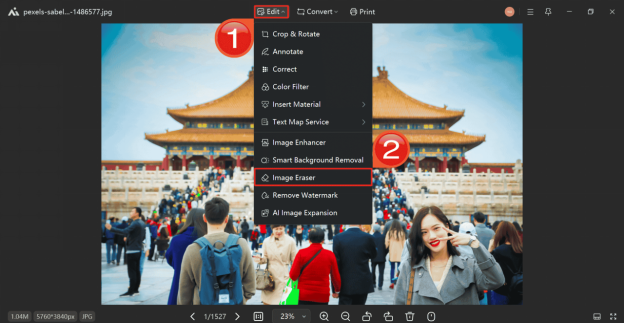
Step 2: On the top menu, click “Edit” and then select “Image Eraser” from the drop-down menu.
Step 3: Adjust the “Brush Size” slider to a medium setting, ensuring it is wide enough to cover groups of figures efficiently.
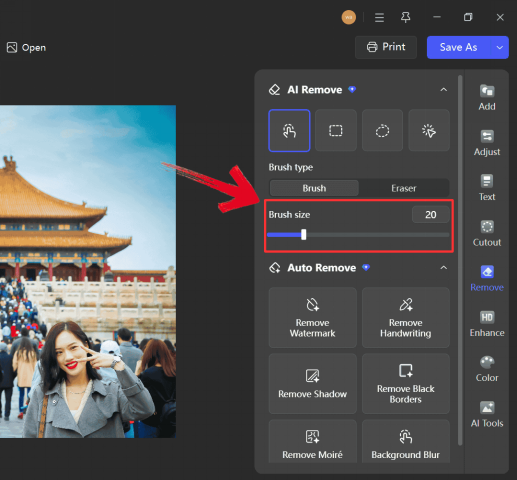
Step 4: Apply the brush over the high-density crowd areas. Ensure the purple highlight overlay completely covers the unwanted figures. Release the mouse, and the selected object will be erased automatically.
Pros
Context Awareness: In my testing, it successfully replicated complex textures like wood grain rather than leaving a blurred smudge.
Seamless Blending: The AI effectively blends lighting and shadows, making the removal look natural even on patterned surfaces.
Cons
Complex Overlaps: If the target object overlaps with a person's face or detailed text, the reconstruction can sometimes look artificial.
Processing Time: Removing very large objects (covering >50% of the image) can take a few extra seconds to process.
Common Issues & Solutions
Here are a couple of common situations where the AI Eraser tool might be useful, and how you can solve them using WPS AI Photo Editor.
Pro Tip: If removing a large object leaves a weird smudge, try erasing the smudge again with a smaller brush size. Sometimes doing it in two passes gives the AI a second chance to correct the texture.
Feature 2: Background Remover
Removing a background is often the quickest way to make an image more flexible and reusable. The Background Remover does this instantly by accurately separating the subject from even busy or uneven backdrops. There’s no need for manual tracing or complex tools. You can drop headshots, product photos, or icons straight onto branded slides, clean layouts, or solid color backgrounds and get a sharp, professional result with minimal effort.
Practical Example
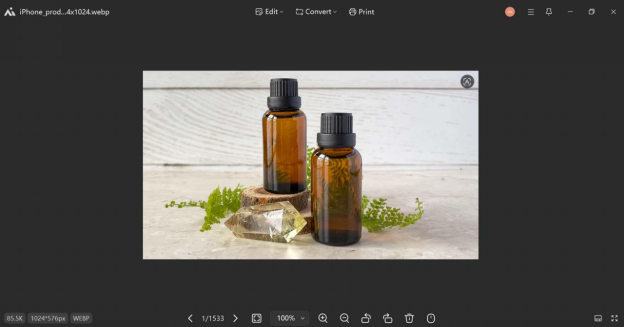
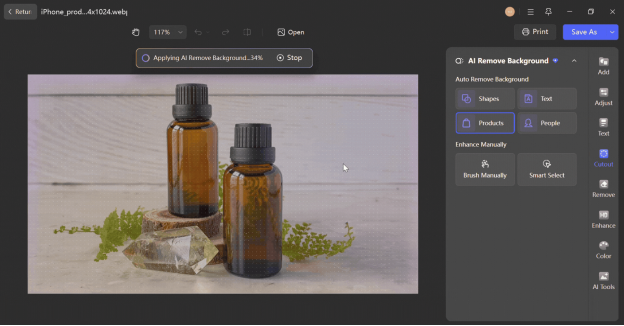
Let’s say you have an e-commerce store selling organic essential oils. You have taken a stunning lifestyle shot of your product featuring amber glass bottles styled with ferns. While this looks fantastic on social media, you suddenly face a problem because your main website listing or Amazon store requires a strict, clean white background. You do not have the time or the studio lighting to reshoot everything, and manually cutting out those complex leaves in Photoshop would take hours.
Step 1: So first open the product photograph of the amber bottles in WPS AI Photo Editor.
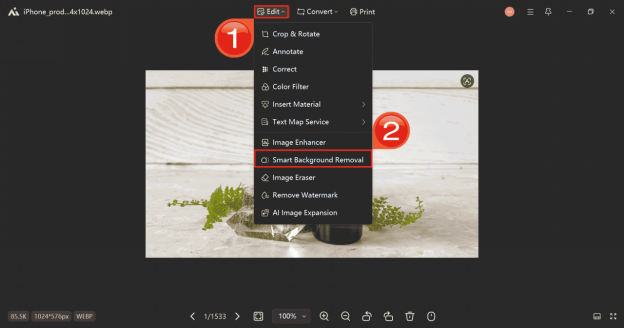
Step 2: On the top menu, click “Edit” and then select “Smart Background Removal” from the drop-down menu. The AI will instantly scan the image to distinguish the glass bottles from the surrounding greenery and wooden props.
Step 3: Wait a moment for the process to complete. The background will disappear, replaced by a checkerboard pattern indicating transparency.
Pros
Edge Precision: It handles fine details remarkably well. Unlike basic tools that often chop off hair or smooth edges too aggressively, WPS AI maintained a natural edge around the subject.
Speed: It is significantly faster and cleaner than manual masking in standard photo tools, eliminating the need for the magic wand tool entirely.
Cons
Low Contrast Struggles: If the subject wears clothes that are the exact same color as the background, the AI might occasionally cut off a small part of the clothing.
Why this combo changes everything:
In 2026, if you're not using a tool like this for your business, then you’re falling behind.
Common Mistake to Avoid: Do not apply this to images where the subject is out of focus. The AI relies on sharp edges to distinguish the foreground. If your subject is blurry, the cutout will look weird.
Feature 3: Auto Enhance
Clear visuals matter in professional reports, but you don’t always have control over lighting or image quality. The Auto Enhance tool fixes this in one click by automatically adjusting exposure, contrast, and sharpness to bring images back to life. It’s especially useful for cleaning up scanned documents, brightening dim event photos, or improving architectural images so they look crisp and readable without any manual tweaking.
Practical Example
You are in the middle of finalizing a speaker line-up for a major industry conference, and you need to add a headshot of a keynote speaker to the digital brochure. Unfortunately, the only file you have is a tiny pixelated image that looks like it was downloaded from a 10-year-old website. It is blurry and grainy, which makes it completely unsuitable for professional print or a large projector screen. Since you cannot ask the VIP speaker for a new photo at the last minute, you simply need a way to restore the details and make it look high-definition immediately.
Step 1: To do that, start by importing the photo into the WPS AI Photo Editor to edit your photos.
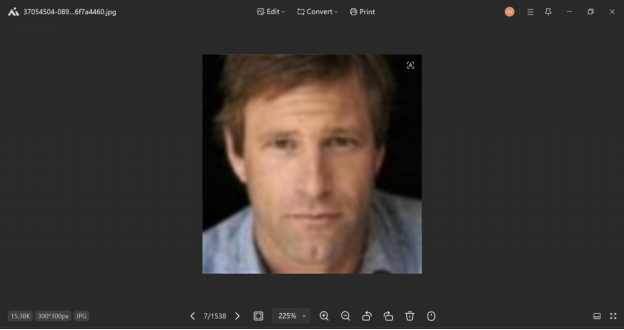
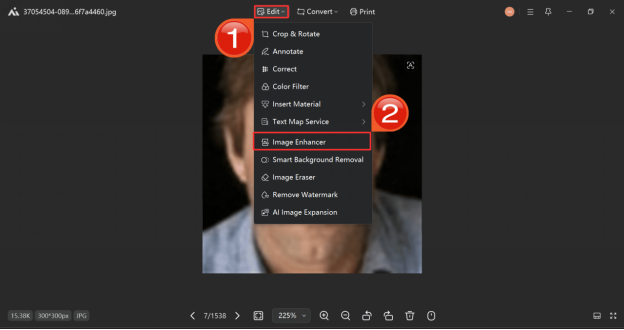
Step 2: Again On the top menu, click “Edit” and then select “Image Enhancer” from the drop-down menu. The AI will immediately begin analyzing the low-resolution data to reconstruct the missing facial details.
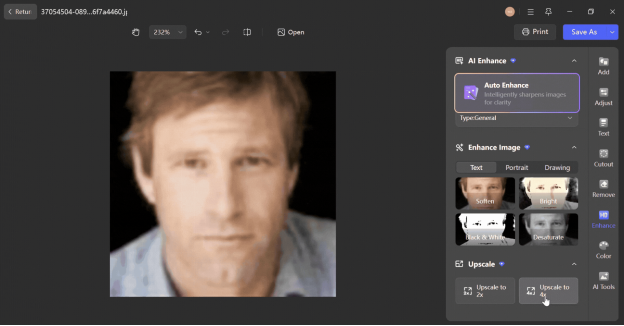
Step 3: Wait for WPS AI to complete enhancing the image. Click the “Upscale to 4x” to enhance even further.
Pros
Natural Results: The adjustment is subtle and professional. It improves visibility without over-saturating colors or introducing noise into the image.
One-Click Simplicity: It requires zero knowledge of histograms or exposure curves to get a good result.
Cons
Global Adjustment: It is an all-or-nothing tool. You cannot target specific areas, such as brightening a face while keeping the background dark.
Pro Tip: Use this specifically for OCR (Optical Character Recognition) preparation. If you plan to extract text from a picture of a document, running Auto Enhance first increases the accuracy of text extraction by nearly 20%.
Feature 4: AI Filters
Keeping visuals consistent across a presentation or marketing document is hard when images come from different sources. AI Filters solve this by applying a unified visual style across all your images with a single click. Whether you want a 3D look, a clean sketch style, or a simple cartoon finish, the AI transforms standard photos into a cohesive set that matches your brand or theme. This makes your content feel intentional and polished, without needing design skills or a dedicated graphic designer.
Practical Example
What if you just wrapped up an incredible photoshoot for your latest medieval fantasy cosplay? It looks amazing, but you are suddenly struck with a creative idea to reimagine this exact character in a futuristic cyberpunk setting. Instead of sewing a brand new costume and booking another studio session, you can simply use AI to reimagine the existing photo into a completely new genre.
Step 1: Start by selecting your cosplay photo and opening it in the AI Photo Editor.
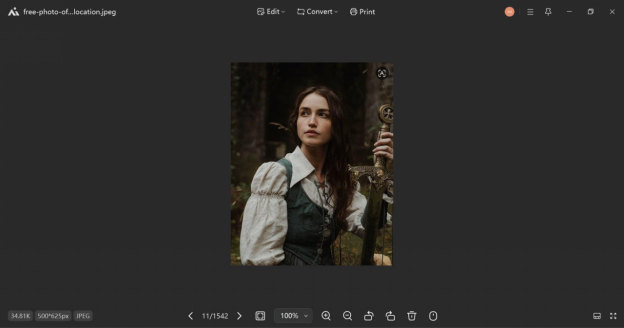
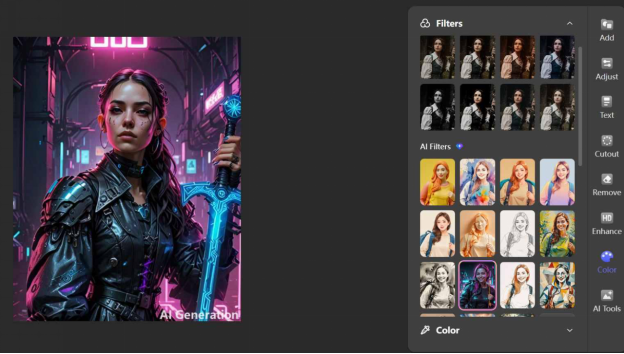
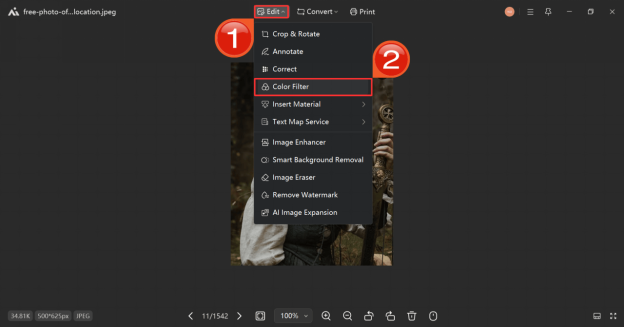
Step 2: On the top menu, click “Edit” and then select “Color Filter” from the drop-down menu.
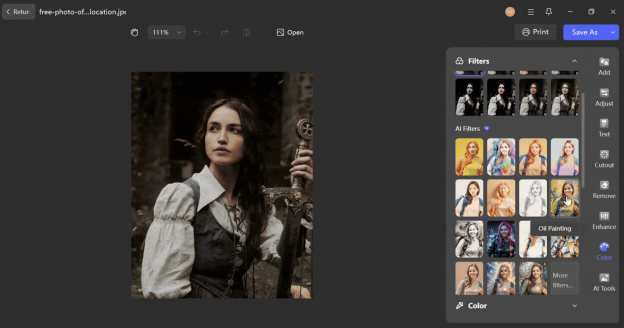
Step 3: Browse the available categories. Browse through the available AI styles under the “AI Filters” until you find the Cyberpunk filter.
Pros
Efficiency: Achieving this sketch or toon look in professional design software would require multiple layers and filter adjustments. Here, it is instantaneous.
Visual Consistency: It is excellent for unifying disparate stock photos. Applying a consistent filter can make photos from different sources look like a cohesive set.
Cons
Limited Styles: While the available filters are high quality, the library is smaller than dedicated creative apps like Canva or Picsart.
Best Use Case: Use the Sketch filter for technical manuals or Standard Operating Procedures (SOPs) where you want to show a generic representation of a machine or process without identifying a specific brand or person.
Comparison: WPS AI vs. Market Leaders
Choosing the right tool often comes down to where you work. While Photoshop is the industry standard for creative design and Canva rules social media graphics, WPS AI Photo Editor is built specifically for document productivity.
When choosing an image editing tool, it comes down to what you need to achieve. If you’re building visuals from scratch or adding elements that don’t exist, Photoshop is the most powerful option. Social media managers creating ads or Instagram posts will find that Canva excels for that workflow. But for professionals working on reports, presentations, or theses, WPS AI is the smarter choice. It lets you enhance and polish images directly within your documents, keeping your workflow seamless while delivering professional results.
Best Practices for Professional Results
Although AI drastically simplifies image editing, the quality of your final output still relies on proper execution. To ensure your documents meet executive standards and appear consistently professional, follow these key guidelines:
1. Prioritize High-Resolution Inputs
AI algorithms cannot generate details from insufficient data. Initiating edits with low-resolution images often results in visual artifacts or loss of clarity. For optimal object detection and reconstruction, utilize source images with a width of at least 1000 pixels.
2. Leverage Version Control
While WPS AI applies edits directly to the image layer, the system maintains an action history. If an adjustment produces an undesirable result, the standard Undo command (Ctrl+Z) allows for immediate reversal. For high-stakes documentation, it is advisable to duplicate the image onto a separate page prior to processing to preserve the original asset.
3. Optimize File Formats
The AI processing engine is calibrated for standard formats such as PNG and JPG. While legacy formats like BMP or TIFF are supported, using optimized file types minimizes processing errors. Furthermore, saving web images locally before importing ensures greater data integrity than copying and pasting directly from a browser.
FAQs
1. Is the WPS AI Photo Editor free to use?
Basic editing functions (such as crop and rotate) are free. Advanced AI capabilities like AI Eraser and Background Remover often operate on a credit system or require a Premium subscription. However, new users typically receive a trial quota to experience these features.
2. Does the AI Photo Editor reduce the resolution of the original file?
No, WPS AI processes the image while maintaining its original quality dimensions. However, heavy stylistic filters may alter the visual sharpness for artistic effect, but the file size remains suitable for printing.
3. Can I revert changes if I am not satisfied with the result?
Yes. The editor interface includes an Undo button. Additionally, even after saving and returning to the document, you can usually use the standard Ctrl+Z command to revert the image to its previous state.
4. How does this tool compare to Photoshop?
Photoshop is a professional design suite intended for creating images from scratch. WPS AI Photo Editor is a productivity tool designed for enhancing existing images efficiently. If you need complex graphic design, Photoshop is superior. If you need to polish a photo for a report in under a minute, WPS AI is the better choice.
5. Do I need an internet connection to use the AI features?
Yes. Advanced capabilities like the AI Eraser and Background Remover rely on cloud-based AI models to analyze and process complex image data. Therefore, an active internet connection is required to use these specific features. Basic editing tools like cropping or rotating can be used offline.
6. What image file formats does the editor support?
The WPS AI Photo Editor supports all standard image formats compatible with WPS Office documents, including JPG, PNG, BMP, and TIFF. You can also edit images that are already embedded within PDF files or pasted directly into your slides and documents.
7. Are these features available on the mobile version of WPS Office?
Currently, the full suite of AI photo editing tools, specifically the precise AI Eraser and Background Remover, is optimized for the Windows desktop version of WPS Office. While the mobile app offers basic retouching, the desktop version provides the processing power and interface precision needed for the professional workflows described in this guide.
Clean Up Images Without Breaking Your Flow
The WPS AI Photo Editor is not designed to replace professional graphic designers, but rather to eliminate the inefficiencies of minor image edits. By integrating powerful tools like Background Remover and AI Eraser directly into your document workflow, it removes the friction of switching applications or uploading files to external sites. Whether you are refining a product shot or clarifying a meeting photo, these tools empower you to focus on the content of your work, rather than the technicalities of the visuals.



15 years of office industry experience, tech lover and copywriter. Follow me for product reviews, comparisons, and recommendations for new apps and software.


