

'%3e%3cpath%20d='M8%200C12.4183%200%2016%203.58172%2016%208C16%2012.4183%2012.4183%2016%208%2016C3.58172%2016%200%2012.4183%200%208C0%203.58172%203.58172%200%208%200ZM11.6162%204.38379C11.2257%203.99337%2010.5927%203.99338%2010.2021%204.38379L8%206.58594L5.79785%204.38379C5.40732%203.99334%204.77429%203.99329%204.38379%204.38379C3.99331%204.77429%203.99335%205.40733%204.38379%205.79785L6.58594%208L4.38379%2010.2021C3.99348%2010.5927%203.99341%2011.2257%204.38379%2011.6162C4.77426%2012.0066%205.40734%2012.0065%205.79785%2011.6162L8%209.41406L10.2021%2011.6162C10.5927%2012.0066%2011.2257%2012.0067%2011.6162%2011.6162C12.0067%2011.2257%2012.0066%2010.5927%2011.6162%2010.2021L9.41406%208L11.6162%205.79785C12.0066%205.40735%2012.0066%204.77429%2011.6162%204.38379Z'%20fill='%23080E17'%20fill-opacity='0.46'/%3e%3c/g%3e%3cdefs%3e%3cclipPath%20id='clip0_3761_713'%3e%3crect%20width='16'%20height='16'%20fill='white'/%3e%3c/clipPath%3e%3c/defs%3e%3c/svg%3e)



'%3e%3cpath%20fill-rule='evenodd'%20clip-rule='evenodd'%20d='M21.4999%2010.9993C21.4999%205.20009%2016.7986%200.498901%2010.9993%200.498901C5.19994%200.498901%200.498657%205.20009%200.498657%2010.9993C0.498657%2016.2404%204.33858%2020.5844%209.35855%2021.3722V14.0346H6.69238V10.9993H9.35855V8.68594C9.35855%206.05427%2010.9262%204.60062%2013.3248%204.60062C14.4736%204.60062%2015.6753%204.80571%2015.6753%204.80571V7.38979H14.3512C13.0468%207.38979%2012.64%208.19921%2012.64%209.0296V10.9993H15.5523L15.0867%2014.0346H12.64V21.3722C17.66%2020.5844%2021.4999%2016.2404%2021.4999%2010.9993Z'%20fill='%231568EA'/%3e%3c/g%3e%3c/svg%3e)


'%3e%3cpath%20d='M2.42045%2022.1876H6.31818V12.7217L0.75%208.54553V20.5171C0.75%2021.4414%201.49892%2022.1876%202.42045%2022.1876Z'%20fill='%234285F4'/%3e%3cpath%20d='M19.682%2022.1876H23.5797C24.5041%2022.1876%2025.2502%2021.4387%2025.2502%2020.5171V8.54553L19.682%2012.7217'%20fill='%2334A853'/%3e%3cpath%20d='M19.682%205.48293V12.7216L25.2502%208.54543V6.31816C25.2502%204.25236%2022.8921%203.07469%2021.2411%204.31361'%20fill='%23FBBC04'/%3e%3cpath%20d='M6.31824%2012.7217V5.48303L13.0001%2010.4944L19.6819%205.48303V12.7217L13.0001%2017.733'%20fill='%23EA4335'/%3e%3cpath%20d='M0.75%206.31816V8.54543L6.31818%2012.7216V5.48293L4.75909%204.31361C3.10534%203.07469%200.75%204.25236%200.75%206.31816Z'%20fill='%23C5221F'/%3e%3c/g%3e%3cdefs%3e%3cclipPath%20id='clip0_2954_7305'%3e%3crect%20width='24.5'%20height='18.375'%20fill='white'%20transform='translate(0.75%203.8125)'/%3e%3c/clipPath%3e%3c/defs%3e%3c/svg%3e)


If you have a column of numeric values in your worksheet, and you need to convert them to their equivalent English words, you may be wondering how to do it. Excel doesn't have a formula that can do this directly, but there are a few workarounds that you can use, including WPS AI which converts numbers to words with a simple prompt. In this article, we will show you how to convert numbers to words in Excel.
Part 1: How to Convert Numbers to Words In Excel Using VBA

Your Excel sheet is filled with numbers, and now envision these numbers magically transforming into words. That's the power of the SpellNumber macro in Excel's enchanting world. Let's take a simple peek at how to add this macro, setting the stage for the forthcoming enchantment.
Example: Transforming Numbers to Words
You have a column of numbers in column A, ranging from 1 to 10. You wish to convert these numbers into words, adding an elegant touch to your data. Let's take a look at how to add the SpellNumber macro to achieve this in preparation for the next step.
Step 1. Open Excel and navigate to the "Developer" tab. If you don't see this tab, fear not! It can be easily enabled in the Excel options.


Step 2. Click on "Visual Basic" to open the VBA editor.

Step 3. In the VBA editor, navigate to "Insert" and select "Module." This is where the magic will unfold.

Step 4. Copy and paste the SpellNumber macro code from our reference links below into the module.
Function SpellNumber(ByVal MyNumber) 'Update by Extendoffice Dim xStr As String Dim xFNum As Integer Dim xStrPoint Dim xStrNumber Dim xPoint As String Dim xNumber As String Dim xP() As Variant Dim xDP Dim xCnt As Integer Dim xResult, xT As String Dim xLen As Integer On Error Resume Next xP = Array("", "Thousand ", "Million ", "Billion ", "Trillion ", " ", " ", " ", " ") xNumber = Trim(str(MyNumber)) xDP = InStr(xNumber, ".") xPoint = "" xStrNumber = "" If xDP > 0 Then xPoint = " point " xStr = Mid(xNumber, xDP + 1) xStrPoint = Left(xStr, Len(xNumber) - xDP) For xFNum = 1 To Len(xStrPoint) xStr = Mid(xStrPoint, xFNum, 1) xPoint = xPoint & GetDigits(xStr) & " " Next xFNum xNumber = Trim(Left(xNumber, xDP - 1)) End If xCnt = 0 xResult = "" xT = "" xLen = 0 xLen = Int(Len(str(xNumber)) / 3) If (Len(str(xNumber)) Mod 3) = 0 Then xLen = xLen - 1 Do While xNumber <> "" If xLen = xCnt Then xT = GetHundredsDigits(Right(xNumber, 3), False) Else If xCnt = 0 Then xT = GetHundredsDigits(Right(xNumber, 3), True) Else xT = GetHundredsDigits(Right(xNumber, 3), False) End If End If If xT <> "" Then xResult = xT & xP(xCnt) & xResult End If If Len(xNumber) > 3 Then xNumber = Left(xNumber, Len(xNumber) - 3) Else xNumber = "" End If xCnt = xCnt + 1 Loop xResult = xResult & xPoint SpellNumber = xResult End Function Function GetHundredsDigits(xHDgt, xB As Boolean) Dim xRStr As String Dim xStrNum As String Dim xStr As String Dim xI As Integer Dim xBB As Boolean xStrNum = xHDgt xRStr = "" On Error Resume Next xBB = True If Val(xStrNum) = 0 Then Exit Function xStrNum = Right("000" & xStrNum, 3) xStr = Mid(xStrNum, 1, 1) If xStr <> "0" Then xRStr = GetDigits(Mid(xStrNum, 1, 1)) & "Hundred " Else If xB Then xRStr = "and " xBB = False Else xRStr = " " xBB = False End If End If If Mid(xStrNum, 2, 2) <> "00" Then xRStr = xRStr & GetTenDigits(Mid(xStrNum, 2, 2), xBB) End If GetHundredsDigits = xRStr End Function Function GetTenDigits(xTDgt, xB As Boolean) Dim xStr As String Dim xI As Integer Dim xArr_1() As Variant Dim xArr_2() As Variant Dim xT As Boolean xArr_1 = Array("Ten ", "Eleven ", "Twelve ", "Thirteen ", "Fourteen ", "Fifteen ", "Sixteen ", "Seventeen ", "Eighteen ", "Nineteen ") xArr_2 = Array("", "", "Twenty ", "Thirty ", "Forty ", "Fifty ", "Sixty ", "Seventy ", "Eighty ", "Ninety ") xStr = "" xT = True On Error Resume Next If Val(Left(xTDgt, 1)) = 1 Then xI = Val(Right(xTDgt, 1)) If xB Then xStr = "and " xStr = xStr & xArr_1(xI) Else xI = Val(Left(xTDgt, 1)) If Val(Left(xTDgt, 1)) > 1 Then If xB Then xStr = "and " xStr = xStr & xArr_2(Val(Left(xTDgt, 1))) xT = False End If If xStr = "" Then If xB Then xStr = "and " End If End If If Right(xTDgt, 1) <> "0" Then xStr = xStr & GetDigits(Right(xTDgt, 1)) End If End If GetTenDigits = xStr End Function Function GetDigits(xDgt) Dim xStr As String Dim xArr_1() As Variant xArr_1 = Array("Zero ", "One ", "Two ", "Three ", "Four ", "Five ", "Six ", "Seven ", "Eight ", "Nine ") xStr = "" On Error Resume Next xStr = xArr_1(Val(xDgt)) GetDigits = xStr End Function |
|---|
Step 5. Close the VBA editor and return to your Excel worksheet.

My Experience with Adding the SpellNumber Macro:
Integrating the SpellNumber macro in Excel was surprisingly easy. I followed steps to the Developer tab and the VBA editor, where I added the macro code for amount wording used in bookkeeping. It intrigued me how numbers could turn into text. Still, I learned to be cautious; macros need accuracy to avoid disrupting the spreadsheet. Having a backup and understanding VBA's structure helped. This experience opens the door to more Excel possibilities, mixing logic with creativity.
Your Excel worksheets become a canvas for linguistic magic. In Part 2, we hand you the key to unlock the SpellNumber macro, a potent tool that elevates your numeric data into an eloquent symphony of words. Navigate through practical examples that illuminate the path to mastery, and watch as your data transforms before your very eyes, guided by the artistry of this remarkable macro.
Example: Transforming Numeric Data into Words
Step 1. Open your Excel worksheet with the numeric data you want to transform.
Step 2. Select a nearby column. Let's use column B for the transformed words.
Step 3. In the first cell of column B, enter =SpellNumber(A1).

Step 4. Press Enter, and watch the number in cell A1 elegantly transform into words in cell B1.
Step 5. To transform more numbers, drag the formula down, letting the SpellNumber macro work its charm.

My Experience Using the SpellNumber Macro:
Trying out the SpellNumber macro brought a fresh perspective as numbers transformed into words, lending a novel touch to my data. The process was straightforward, revealing its potential to enhance communication. However, a word of caution is in order; precision matters. A minor misstep could lead to unexpected outcomes. Familiarity with the macro and careful input validation are essential for a seamless experience.
Part 2: How to Convert Numbers to Words In Excel without VBA
Navigating the intricate landscape of VBA might seem daunting, but fear not—for there exists a simpler route to achieve the enchanting feat of converting numbers into words. This alternative approach, utilizing a user-defined function, offers a streamlined method that retains the same alluring transformation. By delving into the following steps, we uncover this innovative technique, allowing you to seamlessly infuse your data with the lyrical charm of words while sidestepping the complexities of VBA.
Benefits of Using the SpellNumber Macro:
1. Ease of Use: The user-defined function offers simplicity. No VBA knowledge is required, making it accessible to a wider audience.
2. Universal Accessibility: Unlike macros that need to be integrated into each workbook, the function travels with the worksheet, ensuring seamless sharing.
3. Zero Macro Alerts: Bid farewell to pesky macro alerts when sharing your workbooks. The function operates in the background, elegantly transforming numbers to words.
Disadvantages of Using Macro to SpellNumber in Excel:
1. VBA Proficiency: Macros require VBA skills for customization, potentially limiting those unfamiliar with programming.
2. Workbook Specific: Macros must be copied or built into each workbook, adding complexity and maintenance efforts.
3. Macro Alerts: Sharing a workbook with macros may trigger alerts, potentially raising security concerns.
Now, let's take the scenic route and witness the artistry of this method(Use combinations of formula available in Excel) through a practical example.
How to Convert Numbers to Words In Excel without VBA
Example: Transforming Numbers into Words Using a Formula
Step 1. Open your Excel worksheet with the numeric data you wish to transform.

Step 2. Select a column adjacent to the numbers. Let's use column B for the transformed words.
Step 3. In the first cell of column B, enter the formula
=IF(OR(LEN(FLOOR(A1,1))=13,FLOOR(A1,1)<=0),"out of="" range="">1,CHOOSE(MID(TEXT(INT(A1),REPT(0,12)),3,1)+1,""," one"," two"," three"," four"," five"," six"," seven"," eight"," nine"),IF(VALUE(MID(TEXT(INT(A1),REPT(0,12)),2,1))=0,CHOOSE(MID(TEXT(INT(A1),REPT(0,12)),3,1)+1,"","one","two","three","four","five","six","seven","eight","nine"),"")),IF(A1>=10^9," billion ",""),CHOOSE(MID(TEXT(INT(A1),REPT(0,12)),4,1)+1,"","one hundred ","two hundred ","three hundred ","four hundred ","five hundred ","six hundred ","seven hundred ","eight hundred ","nine hundred "),CHOOSE(MID(TEXT(INT(A1),REPT(0,12)),5,1)+1,"",CHOOSE(MID(TEXT(INT(A1),REPT(0,12)),6,1)+1,"ten","eleven","twelve","thirteen","fourteen","fifteen","sixteen","seventeen","eighteen","nineteen"),"twenty","thirty","forty","fifty","sixty","seventy","eighty","ninety"),IF(VALUE(MID(TEXT(INT(A1),REPT(0,12)),5,1))>1,CHOOSE(MID(TEXT(INT(A1),REPT(0,12)),6,1)+1,""," one"," two"," three"," four"," five"," six"," seven"," eight"," nine"),IF(VALUE(MID(TEXT(INT(A1),REPT(0,12)),5,1))=0,CHOOSE(MID(TEXT(INT(A1),REPT(0,12)),6,1)+1,"","one","two","three","four","five","six","seven","eight","nine"),"")),IF(VALUE(MID(TEXT(INT(A1),REPT(0,12)),4,3))>0," million ",""),CHOOSE(MID(TEXT(INT(A1),REPT(0,12)),7,1)+1,"","one hundred ","two hundred ","three hundred ","four hundred ","five hundred ","six hundred ","seven hundred ","eight hundred ","nine hundred "),CHOOSE(MID(TEXT(INT(A1),REPT(0,12)),8,1)+1,"",CHOOSE(MID(TEXT(INT(A1),REPT(0,12)),9,1)+1,"ten","eleven","twelve","thirteen","fourteen","fifteen","sixteen","seventeen","eighteen","nineteen"),"twenty","thirty","forty","fifty","sixty","seventy","eighty","ninety"),IF(VALUE(MID(TEXT(INT(A1),REPT(0,12)),8,1))>1,CHOOSE(MID(TEXT(INT(A1),REPT(0,12)),9,1)+1,""," one"," two"," three"," four"," five"," six"," seven"," eight"," nine"),IF(VALUE(MID(TEXT(INT(A1),REPT(0,12)),8,1))=0,CHOOSE(MID(TEXT(INT(A1),REPT(0,12)),9,1)+1,"","one","two","three","four","five","six","seven","eight","nine"),"")),IF(VALUE(MID(TEXT(INT(A1),REPT(0,12)),7,3))," thousand ",""),CHOOSE(MID(TEXT(INT(A1),REPT(0,12)),10,1)+1,"","one hundred ","two hundred ","three hundred ","four hundred ","five hundred ","six hundred ","seven hundred ","eight hundred ","nine hundred "),CHOOSE(MID(TEXT(INT(A1),REPT(0,12)),11,1)+1,"",CHOOSE(MID(TEXT(INT(A1),REPT(0,12)),12,1)+1,"ten","eleven","twelve","thirteen","fourteen","fifteen","sixteen","seventeen","eighteen","nineteen"),"twenty","thirty","forty","fifty","sixty","seventy","eighty","ninety"),IF(VALUE(MID(TEXT(INT(A1),REPT(0,12)),11,1))>1,CHOOSE(MID(TEXT(INT(A1),REPT(0,12)),12,1)+1,""," one"," two"," three"," four"," five"," six"," seven"," eight"," nine"),IF(VALUE(MID(TEXT(INT(A1),REPT(0,12)),11,1))=0,CHOOSE(MID(TEXT(INT(A1),REPT(0,12)),12,1)+1,"","one","two","three","four","five","six","seven","eight","nine"),"")))," "," ")&IF(FLOOR(A1,1)>1," "," "))&IF(ISERROR(FIND(".",A1,1)),""," point "&PROPER(IF(LEN(LEFT(TRIM(MID(SUBSTITUTE('Number to Word Without VBA'!A1,".",REPT(" ",255)),255,200)),2))=1,CHOOSE(1*LEFT(TRIM(MID(SUBSTITUTE('Number to Word Without VBA'!A1,".",REPT(" ",255)),255,200)),2),"One","Two","Three","Four","Five","Six","Seven","Eight","Nine")&" ","")&CONCATENATE(CHOOSE(MID(TEXT(INT(LEFT(TRIM(MID(SUBSTITUTE('Number to Word Without VBA'!A1,".",REPT(" ",255)),255,200)),2)),REPT(0,12)),11,1)+1,"",CHOOSE(MID(TEXT(INT(LEFT(TRIM(MID(SUBSTITUTE('Number to Word Without VBA'!A1,".",REPT(" ",255)),255,200)),2)),REPT(0,12)),12,1)+1,"One","One One","One Two","One Three","One Four","One Five","One Six","One Seven","One Eight","One Nine")&" ","Two","Three","Four","Five","Six","Seven","Eight","Nine"),IF(VALUE(MID(TEXT(INT(LEFT(TRIM(MID(SUBSTITUTE('Number to Word Without VBA'!A1,".",REPT(" ",255)),255,200)),2)),REPT(0,12)),11,1))>1,CHOOSE(MID(TEXT(INT(LEFT(TRIM(MID(SUBSTITUTE('Number to Word Without VBA'!A1,".",REPT(" ",255)),255,200)),2)),REPT(0,12)),12,1)+1,""," One"," Two"," Three"," Four"," Five"," Six"," Seven"," Eight"," Nine")&" ",IF(LEFT(TRIM(MID(SUBSTITUTE('Number to Word Without VBA'!A1,".",REPT(" ",255)),255,200)),2)="01","one ",IF(LEFT(TRIM(MID(SUBSTITUTE('Number to Word Without VBA'!A1,".",REPT(" ",255)),255,200)),1)="0",CHOOSE(MID(TEXT(INT(LEFT(TRIM(MID(SUBSTITUTE('Number to Word Without VBA'!A1,".",REPT(" ",255)),255,200)),2)),REPT(0,12)),12,1)+1,"","One","Two","Three","Four","Five","Six","Seven","Eight","Nine")&" ",""))))))) |
|---|
Step 4. Press Enter, and observe as the number in cell A2 gracefully evolves into words in cell B2.

Step 5. To transform additional numbers, drag the formula down, unveiling the magical metamorphosis.

My Experience Using the User-Defined Function:
Exploring user-defined functions, I appreciated the simplicity they brought—no intricate VBA coding or complex setups. Just a straightforward formula to transform numbers into words, adding a unique touch to Excel. Yet, a heads-up: understanding the function well is key. Test it across scenarios to ensure accuracy. This practical insight underlines the function's value while highlighting the importance of careful usage for the best results.
Part 3: Why Use WPS Office?

It's important to note that the methods we've explored thus far are applicable not only to Microsoft Excel but also to WPS Office Spreadsheet. However, we invite you to explore the distinct advantages that WPS Office brings to the table. Here's why we recommend you consider WPS Office for your transformative Excel undertakings:
1. Price: WPS Office offers an affordable alternative without compromising on features, making it a cost-effective choice for both personal and professional use.
2. Compatibility: Seamlessly exchange documents between WPS Office and Microsoft Office, ensuring smooth collaboration and document sharing.
3. Features: WPS Office boasts a comprehensive suite of features, rivaling industry standards and enabling you to accomplish diverse tasks with ease. It also has the AI features such as AI writer and Ai document tranlator.
4. User-Friendly Interface: Navigating WPS Office is a breeze, even for newcomers. The intuitive interface ensures a smooth learning curve and efficient workflow.
5. Unveil Hidden Gems: Delve into the WPS Blog to unearth hidden gems that will amplify your skills. From advanced techniques to innovative solutions, each tutorial is a step towards mastery.
6. Rapid format conversion: To enhance your work efficiency, wps office can also quickly convert excel to pdf.
7. AI-Powered Productivity Boost:WPS AI supercharges your daily tasks—from converting numbers to words in Excel with a simple prompt, to auto-generating formulas, summarizing documents, and translating text in real time.


Part 4: How to Convert Numbers to Words In Excel with WPS AI
Building on the no-VBA methods we just explored, WPS AI offers an even more intuitive way to convert numbers to words—with zero manual formula building. This AI-powered approach streamlines the process further, making it accessible to users of all skill levels.
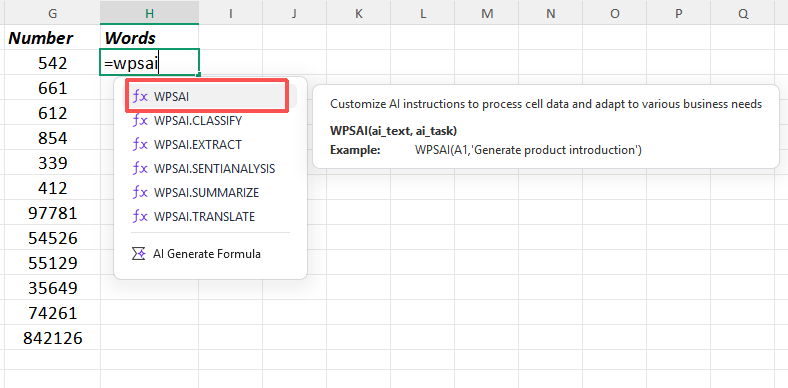
Step 1. In an empty cell, start typing =WPSAI and double click WPSAI function from the dropdown menu.
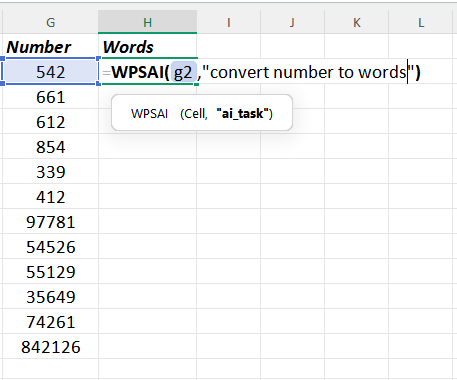
Step 2. Inside the function parentheses, reference the cell containing your target number, then add the prompt.
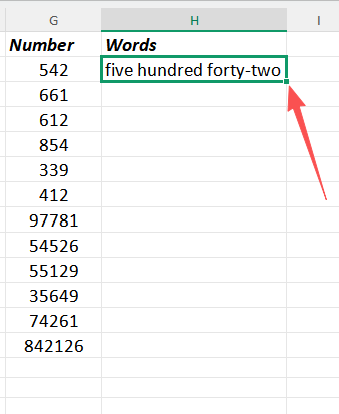
Step 3. Press Enter, and the AI will instantly generate the number’s word equivalent in that cell.
Step 4. Drag the fill handle down from the first converted cell to apply the same AI conversion to all remaining numbers in your column.
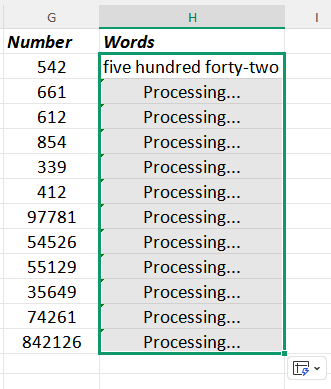
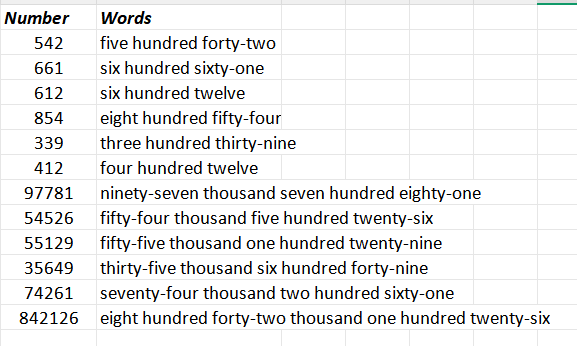
The numbers in the selected cells will be converted to text.
Unlike static no-VBA formulas that are tied to one specific conversion rule, the AI can understand natural language prompts—so if I ever need to switch to a different style, I just tweak the prompt instead of rebuilding a formula. It also eliminates the need to memorize complex syntax or troubleshoot nested functions; the AI handles the heavy lifting, so I can focus on my data rather than the mechanics.After the statistics are completed, you can also use the conversion function of WPSoffice, including excel to pdf.
FAQs About How to Convert Number to Words in Excel
Can I Turn Words to Numbers Reversely?
Absolutely! Reversing the conversion, from words to numbers, is indeed possible in WPS Office by using VBA code. While the focus of this discussion has been on transforming numbers to words, it's important to note that WPS Office provides versatile tools to handle both directions of conversion.
Can I Turn Numbers to Words with One Click?
Absolutely, turning numbers to words with just one click is a breeze with the remarkable capabilities of WPS Office(using VBA or combinations of formulas available). This streamlined process simplifies your tasks, saving you valuable time and effort.
What Is VBA and How to Quickly Learn It?
VBA is a programming language by Microsoft used to automate tasks and create custom solutions in Office applications like Excel, Word, and PowerPoint.
Quickly Learning VBA:
Basics: Understand programming concepts like variables and loops.
VBA Editor: Open it in Office apps to write code.
Examples: Study simple code examples.
Record Macros: Learn by recording actions.
Online Resources: Use tutorials and courses.
Practice: Regularly code small projects.
Documentation: Explore Microsoft's VBA documentation.
Communities: Engage in online forums.
Build: Create your macros for real tasks.
Debugging: Learn to fix code errors.
Curiosity: Keep exploring and experimenting.
Mastering VBA enhances productivity and offers tailored solutions.
What should I do if the file gets corrupted during the conversion process?
Generally, file corruption issues do not occur. However, if file corruption does occur during the conversion process, please don’t worry either—you can use the WPS File Repair Tool to recover excel file.
Summary
In this guide, we explored different ways to convert numbers to words in Excel, focusing on both VBA macros and user-defined functions. We provided clear step-by-step instructions and examples for each method. Emphasizing the benefits of WPS Office, we highlighted its compatibility with Excel, user-friendly features, and affordability plus its powerful WPS AI that simplifies number-to-word conversion with one quick prompt. WPS also provides you with a xlsx viewer to help you open and view excel files instantly. Whether you choose VBA or user-defined functions, this guide equips you to seamlessly achieve number-to-word conversion while recognizing the advantages of using WPS Office for enhanced office tasks.

'%3e%3cpath%20d='M19.9911%204.11386V6.471H18.5894C18.0775%206.471%2017.7322%206.57814%2017.5536%206.79243C17.3751%207.00671%2017.2858%207.32814%2017.2858%207.75671V9.44421H19.9019L19.5536%2012.0871H17.2858V18.8639H14.5536V12.0871H12.2769V9.44421H14.5536V7.49779C14.5536%206.39064%2014.8632%205.53201%2015.4822%204.92189C16.1013%204.31177%2016.9257%204.00671%2017.9554%204.00671C18.8304%204.00671%2019.509%204.04243%2019.9911%204.11386Z'%20fill='%23333333'/%3e%3c/g%3e%3cdefs%3e%3cclipPath%20id='clip0_2938_8199'%3e%3crect%20width='16'%20height='16'%20fill='white'%20transform='translate(8%204.00671)'/%3e%3c/clipPath%3e%3c/defs%3e%3c/svg%3e)
'%3e%3cpath%20d='M17.5237%2010.7813L23.4811%204H22.0699L16.8949%209.88693L12.7648%204H8L14.2469%2012.9029L8%2020.0133H9.4112L14.8725%2013.7952L19.2352%2020.0133H24M9.92053%205.04213H12.0885L22.0688%2019.0224H19.9003'%20fill='%23333333'/%3e%3c/g%3e%3cdefs%3e%3cclipPath%20id='clip0_2938_8200'%3e%3crect%20width='16'%20height='16.0134'%20fill='white'%20transform='translate(8%204)'/%3e%3c/clipPath%3e%3c/defs%3e%3c/svg%3e)


