Free Al Office Suite with PDF Editor

Edit Word, Excel, and PPT for FREE.
Read, edit, and convert PDFs with the powerful PDF toolkit.
Microsoft-like interface, easy to use.
Windows • MacOS • Linux • iOS • Android

Catalog
AI Document Generator: Writing, OCR, and Editing Explained [2026]
People once relied on typewriters to create documents, which made the entire process completely manual. Then word processing software came along and made writing and organizing documents much easier. Now, as we continue to see how AI is improving everyday tools, it has also found its way into simple word processing, making these tools far more capable than before. While exploring the WPS AI Document Generator, I noticed how AI can make simple tools more efficient, better, and more effective. In this guide, I will be discussing everything I discovered while trying out the tool.
What are AI Document Generators?
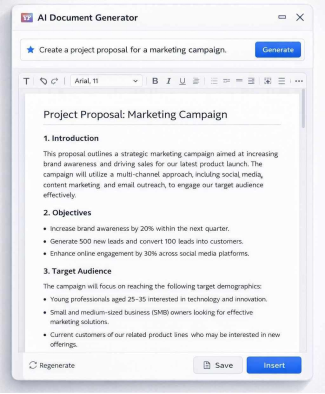
AI document generators are tools designed to simplify the process of creating documents. For a long time, people relied on manual writing or basic templates to prepare reports, proposals, and other files. With the help of AI, it has now become possible to generate well-structured documents with much less effort.
These tools rely on generative AI, particularly natural language processing (NLP), to understand written instructions and turn them into complete documents. Instead of starting with a blank page, users can simply describe what they need, and the system produces a draft that already includes structure, formatting, and relevant content. Some tools can even work with raw inputs such as images or scanned files, converting them into editable text that can be organized into a proper document.
It is also important to clarify how these tools differ from traditional automation. Earlier systems usually worked with fixed templates where users filled in predefined fields. AI document generators operate differently. They interpret context, tone, and intent, allowing them to produce original content rather than repeating a preset format.
Some common capabilities you will usually find in AI document generators include:
Prompt-to-Document Creation: Users can describe the type of document they want, such as a project proposal or report, and the AI generates a structured draft within seconds.
Data-Driven Document Creation: Many tools can process raw data sources like spreadsheets, PDFs, or other documents and turn that information into organized summaries or reports.
Automatic Formatting: The system can apply headings, bullet points, sections, and layouts automatically, helping produce documents that are structured and ready to edit or share.
WPS AI Writer: An AI Document Generator Inside Your Editor
WPS Writer has evolved quite a bit since I first started using it, and I found it to be much more efficient after the introduction of the WPS AI assistant. Having a helper around that can take over mundane tasks definitely makes the writing process easier, especially when you are dealing with repetitive formatting, editing, or drafting work.
WPS AI Writer is designed to function as an AI document generator directly inside the WPS Writer editor. Instead of starting every document from scratch, users can rely on AI tools to assist with common writing tasks that would otherwise take time to complete manually.
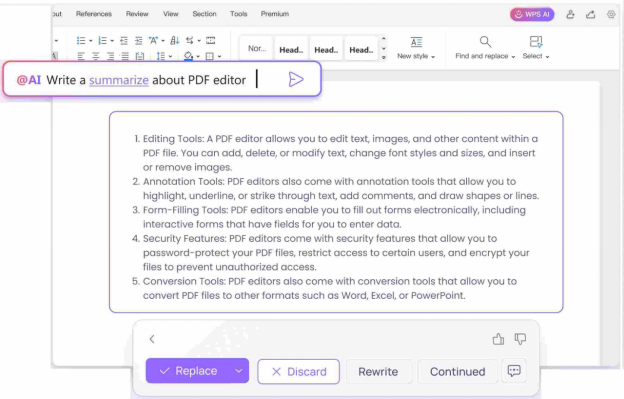
These tools can generate structured drafts, convert image text into editable content, correct spelling errors, and translate documents when working across multiple languages. Because these capabilities are built directly into the writing environment, documents can be created, edited, and refined without switching between different tools.
To understand how this works in practice, the following sections walk through some of the core features available in WPS AI Writer and demonstrate how they can be used in everyday document tasks.
Core Feature 1: AI Document Generator
AI Document Generation in WPS AI Writer helps users create structured drafts without starting from scratch. Instead of manually outlining and writing every section, users can simply describe the document they need, and the AI generates a formatted draft that includes headings, paragraphs, and basic structure. The generated content can then be edited or expanded directly inside the document.
Example: Suppose you need to prepare a short project proposal for a meeting. Instead of writing everything manually, we will be using WPS AI to draft a project proposal. Here is how.
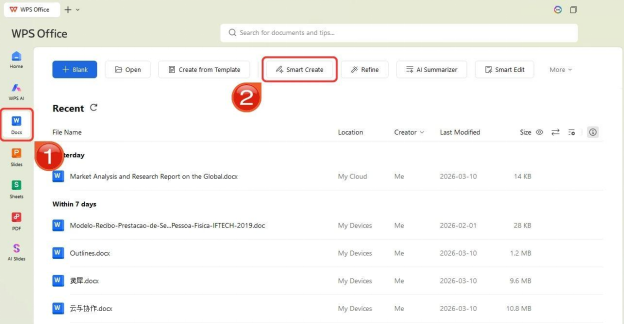
Step 1: First, open WPS Office on your system. Click on the “Docs” tab located in the left panel, and then click on “Smart Create”.
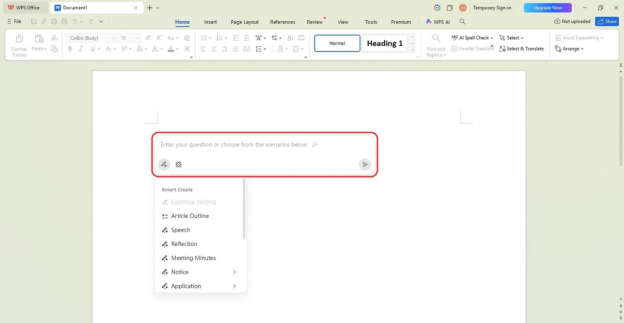
Step 2: A new document will open with an AI prompt box, along with a few preset AI instructions that you can choose from.
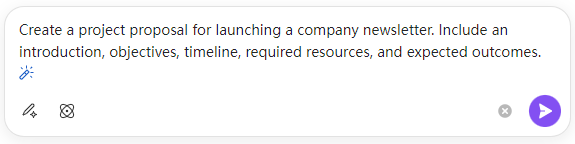
Step 3: Let’s try creating the project proposal with a prompt. You can type something like:
Prompt: "Create a project proposal for launching a company newsletter. Include an introduction, objectives, timeline, required resources, and expected outcomes."
Tip: You will usually get better results when your prompt is more detailed, so try to include the key points you want the proposal to cover.
Step 4: WPS AI will process your prompt and generate a complete project proposal based on the instructions you provided.
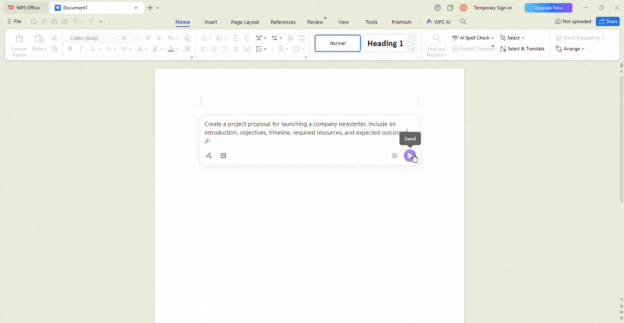
Step 5: Once the draft is generated, you can choose how to proceed. You may discard the draft, ask WPS AI to generate a new version using the “Redo” icon, or click “Accept” to insert the proposal into your document.
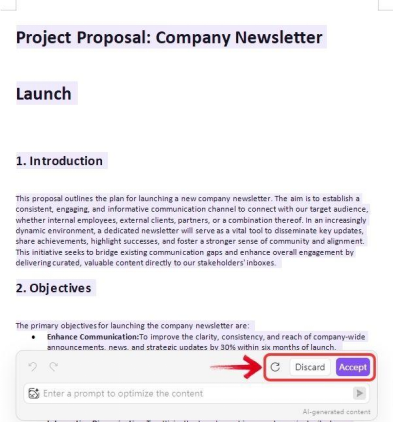
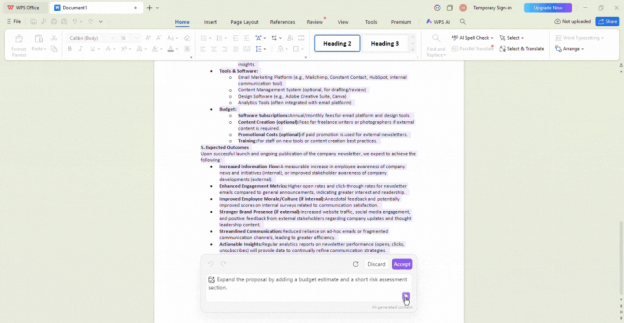
Step 6: You can also ask WPS AI to optimize or expand the content if you feel some details are missing. Simply enter another instruction in the WPS AI prompt box.
Prompt: "Expand the proposal by adding a budget estimate and a short risk assessment section."
Step 8: With the draft created, you can now start filling in the placeholders such as Company Name, project details, and other required fields.
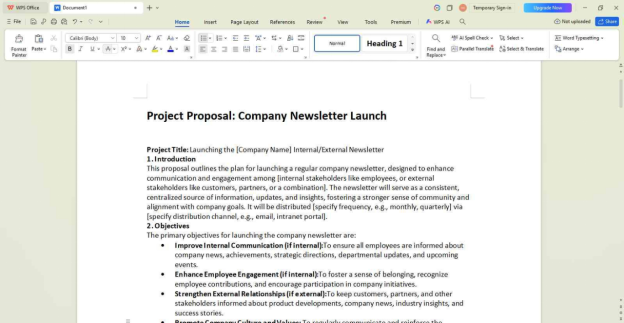
Bonus Tip: To quickly fill repeated placeholders, use the Find and Replace feature. Press Ctrl + H, enter the placeholder text (for example, “Company Name”), and replace all instances at once instead of editing them manually.
Common Issues & Solutions
Using AI to write not only saves the time it takes to come up with an entire draft, but with tools to further optimize it, users can refine the content, consolidate information into tables, and organize the document much faster. Tasks that could normally take more than 45 minutes, especially for someone just starting out, can often be completed in just a few minutes.
Best Practice Tip:
Take time to refine your prompts and make them detailed enough for the AI to understand what you need. You can also use the Optimize feature to further improve or expand the generated draft if some details are missing.
Core Feature 2: Image Text Conversion
Image Text Conversion in WPS AI Writer is one of the most versatile and useful tools I’ve used, helping users like me extract the content of physical documents while completely eliminating the need to manually format the little details every single time. All you need to do is upload the picture you want to use, and the AI scans the text to generate a fully formatted text, document, or even a table-based output for you to use.
Example: Suppose you’re trying to make digital versions of the hard copies of your work. Instead of typing out everything manually and making sure it aligns with the original document, you can use WPS AI to scan it for you and get accurate and reliable results every single time.
Step 1: Launch WPS Office on your computer and navigate to the WPS AI Tab.
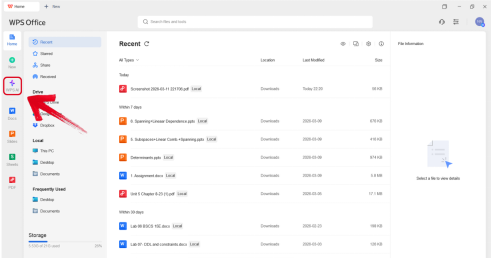
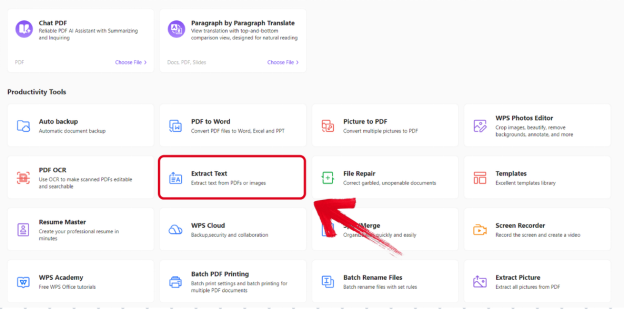
Step 2: Scroll down to the Productivity Tools section, then select Extract Text to get started.
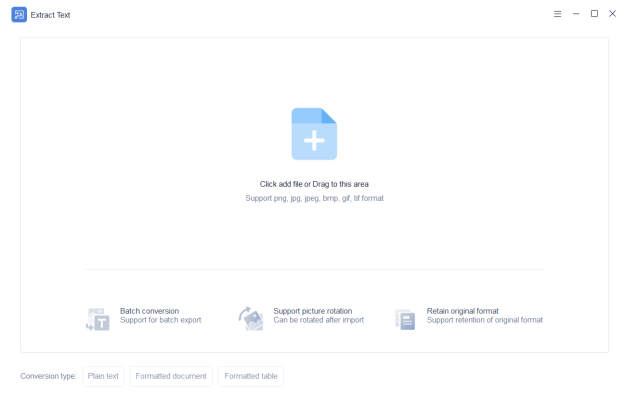
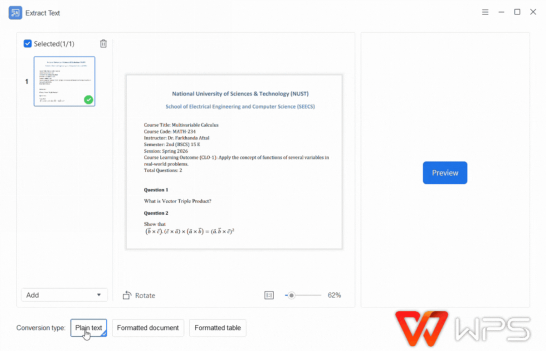
Step 3: Once you’re there, simply drag and drop the image you want to use into the space provided to continue.
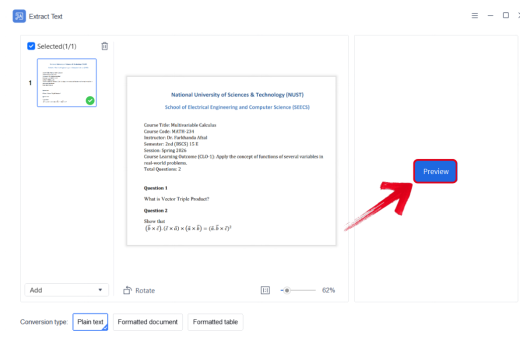
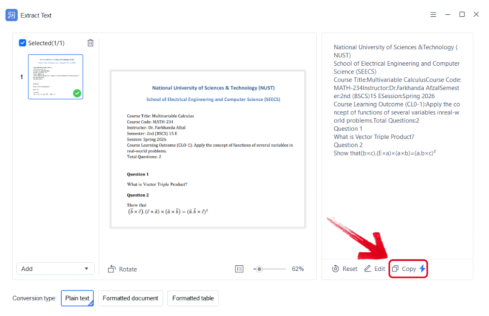
Step 4: After the image has been uploaded, simply press Preview to start extracting your text.
Step 5: Your results will now be displayed in the preview section. Make any changes if you want, then press Copy to add the extracted text to your clipboard.
Bonus Tip:
To ensure your original formatting stays preserved, you can change the conversion type to Formatted document or Formatted table and get the results in the format you want.
Utilizing AI-powered OCR scanning to extract text from your images can be a great way to save a lot of time, especially if you’re dealing with conversions and document editing on a regular basis. Digitizing documents that would otherwise take hours of manual typing and formatting could now take just a few minutes, even if you’re a complete beginner using the tool for the first time.
Core Feature 3: AI Spell Check
The AI Spell Check feature offered by WPS AI Writer is a small yet incredibly effective way to make sure your content stays grammatically and syntactically correct. It fully removes the need to review your content every single time you make a change, double-checking every single part of your document to look for mistakes. If you do make a mistake, your text will be highlighted instantly, and a suggestion tab will appear to help you figure out how to correct it easily.
Example: If you’re writing an essay or assignment for your school and you’re running low on time, manually proofreading everything multiple times is incredibly impractical. With the spelling and grammar check tool offered by WPS AI, you can make sure your content stays correct and polished without any manual hassle.
Step 1: Open WPS Office on your computer and navigate to the WPS AI Tab.
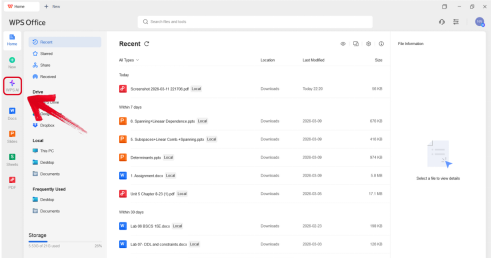
Step 2: Look for the AI Spell Check tool and press Choose File to get started.
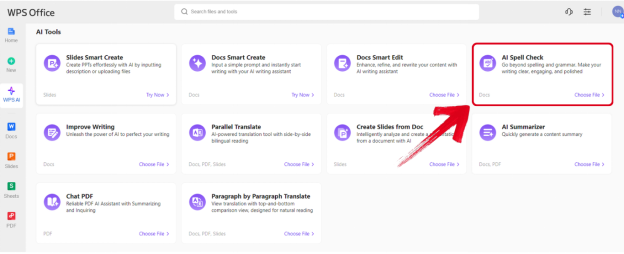
Step 3: Using the file selection window, click on the file you want to spellcheck and press Open.
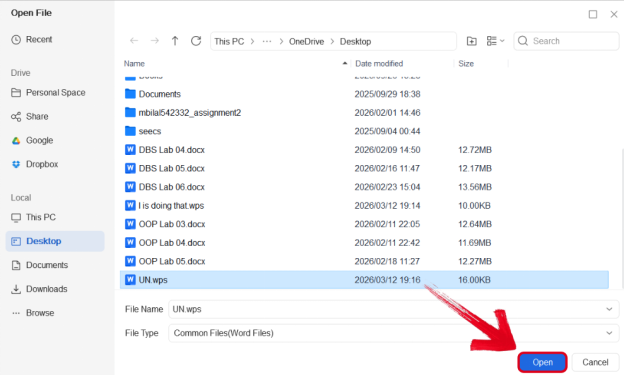
Step 4: The AI Spell Check window will now appear on the right side of your document, listing out all the errors in your content. Simply press Accept All to correct them.
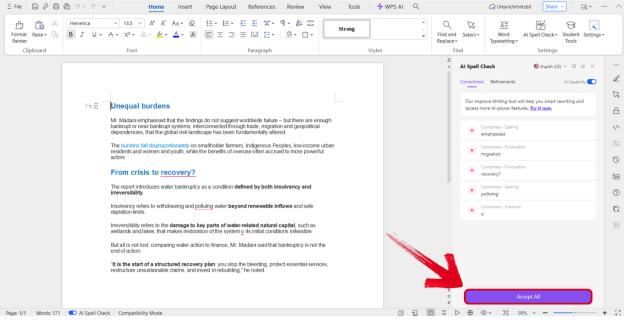
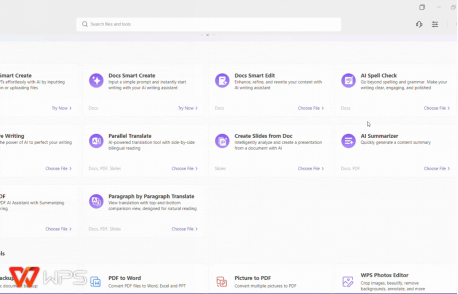
Step 5: Your content will now be polished to correct all the mistakes made in the original version.
Core Feature 4: AI Refine
AI Refine is an incredibly powerful enhancement feature offered by WPS AI Writer as part of its AI tool suite. It reviews your content and further enhances it to improve its general structure and professionalism in each section. All you need to do is upload the initial draft of your document into the tool and wait for it to enhance it, making it ready for professional use.
Example: If you’re writing a script for your YouTube video or simply drafting a blog for your site, having polished text is essential to bring in more viewers to your content. Instead of dealing with any guesswork, you could simply use the AI enhancement features offered by WPS Office to instantly boost your content with just a single click. Its advanced algorithms scan your content and improve on every aspect to make the final result much more professional and presentable.
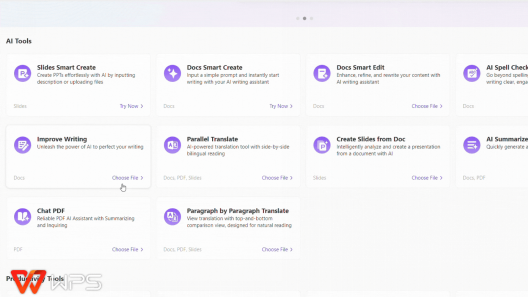
Step 1: Open WPS Office on your computer and open the WPS AI Tab.
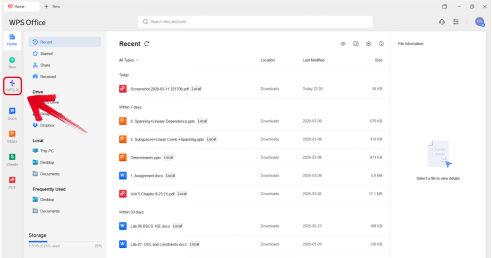
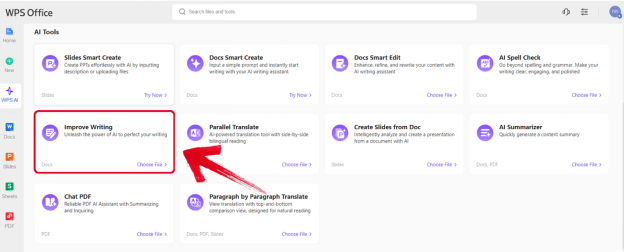
Step 2: Once you’re there, look for the Improve Writing option and press Choose File to get started.
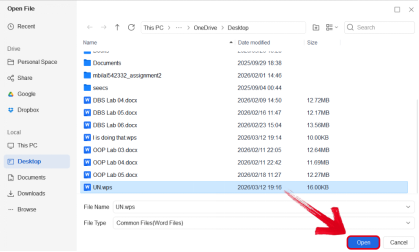
Step 3: Next, select the file you want to use and then press Open to start processing.
Step 4: Select the sentence you want to refine, then look for the tone you want your content to have and press Accept.
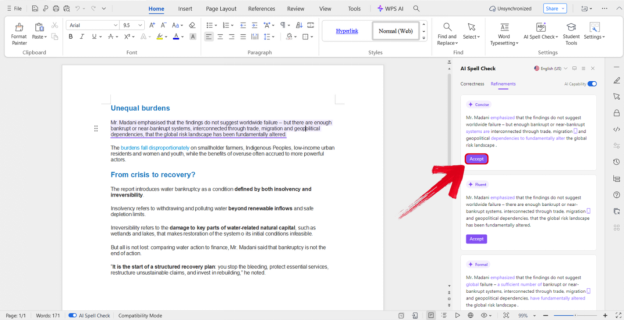
Step 5: Your document will now update to reflect the enhancements made by WPS AI, making it more polished and well-organized for you to use.
Bonus Tip: Make sure to select the enhancement suggestion that matches the tone of your overall content for the best results.
Using AI Refine, you can seamlessly polish all of your documents and save a lot of time that would otherwise be wasted on manual editing and formatting. It’s incredibly efficient and delivers reliable results every single time, making it ideal for professionals looking for quick content enhancements without much hassle.
Pros and Cons of WPS AI Writer
AI tools are still evolving, so while WPS AI Writer can make document work much easier, there are also a few limitations users may come across while using it.
Pros
Quick document drafts using simple prompts
Image text conversion directly inside the editor
Built-in spell check and translation tools
Works within the familiar WPS Writer interface
Supports common formats like DOC and DOCX
Cons
AI results may still require manual editing
An internet connection is needed for AI processing
Competitor Comparison
Each of these tools serves a slightly different type of user. WPS AI Writer makes the most sense for students, freelancers, and everyday users who want AI tools directly inside a familiar document editor without needing extra software.
Microsoft Copilot, on the other hand, fits organizations that are already deeply integrated into the Microsoft 365 ecosystem and want AI features built into their existing workflow.
Google Gemini is usually better suited for teams that prefer working entirely in the browser and rely heavily on real-time collaboration when creating or editing documents.
FAQs
1. Does WPS AI Writer support Microsoft Word files?
Yes. The software fully supports DOC and DOCX formats while preserving formatting and layout.
2. Can WPS AI Writer create a full document from a prompt?
Yes. WPS AI Writer can generate a structured document from a prompt. Users can describe the type of document they need, and the AI will produce a draft with headings and sections that can later be edited or expanded.
3. Do I still need to edit documents generated by AI?
AI can create a good starting draft, but it is still recommended to review and edit the content to ensure accuracy, tone, and formatting match your needs.
Document Generation Made Easy
AI document generators have changed the way people approach writing and document preparation. Tasks that once required outlining, drafting, formatting, and editing separately can now be handled much more efficiently with the help of AI tools. With tools like WPS AI Writer becoming easily accessible, users can generate drafts, convert image text into editable content, and more without leaving the editor. Instead of spending long periods building documents from scratch, the process becomes much more focused on reviewing, refining, and organizing the content. If you are curious to see how these tools work in practice, trying out WPS AI Writer can be a good way to experience how AI can simplify everyday document tasks.



15 years of office industry experience, tech lover and copywriter. Follow me for product reviews, comparisons, and recommendations for new apps and software.


