Free All-in-One Office Suite with PDF Editor

Edit Word, Excel, and PPT for FREE.
Read, edit, and convert PDFs with the powerful PDF toolkit.
Microsoft-like interface, easy to use.
Windows • MacOS • Linux • iOS • Android

Catalog
How to Add Color to Images in WPS Office
Users working with historical documents, academic presentations, or archival reports often encounter grayscale or faded images that need revitalization. Manually colorizing these images typically requires advanced photo editing software and significant time. WPS Office provides an integrated "Colorize Photo" tool to address this need efficiently without leaving the application.
Step1:Open the Image Editor
Select the image in your WPS document. In the "Picture Tools" tab, click the "Edit Image" button.
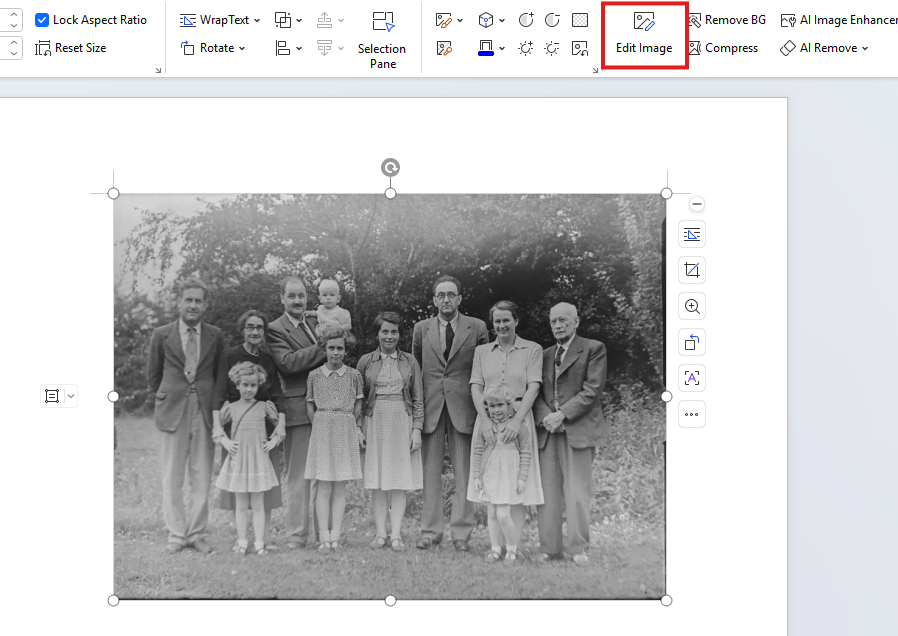
Step2:Navigate to Enhance Options
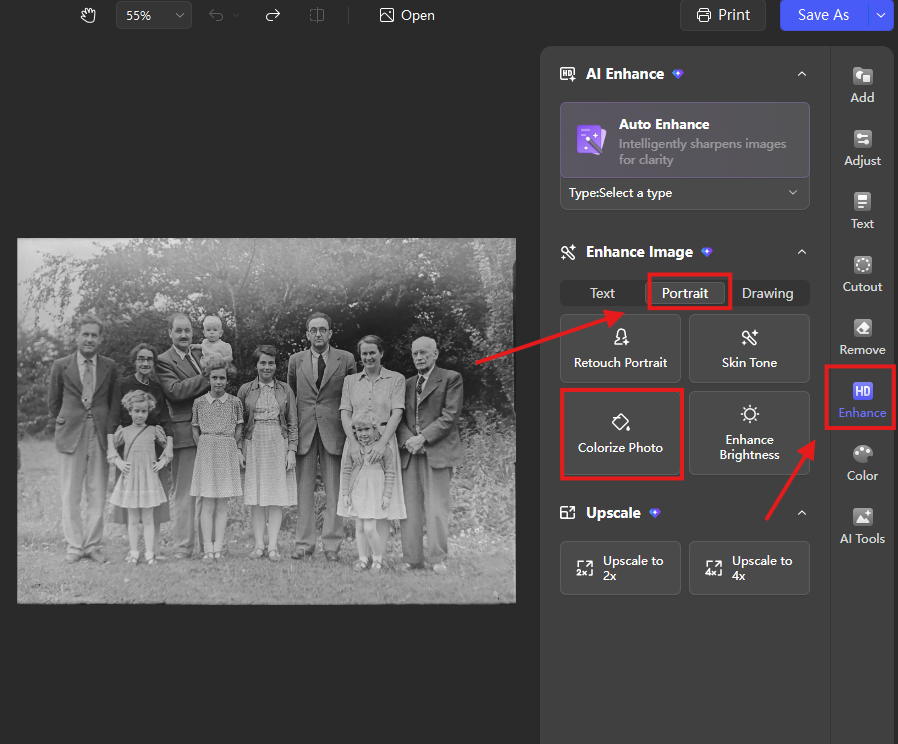
In the editing panel on the right, click the "Enhance" option, then select "Enhance Image".Under the "Portrait" category, choose the "Colorize Photo" tool to automatically apply realistic color to the image.
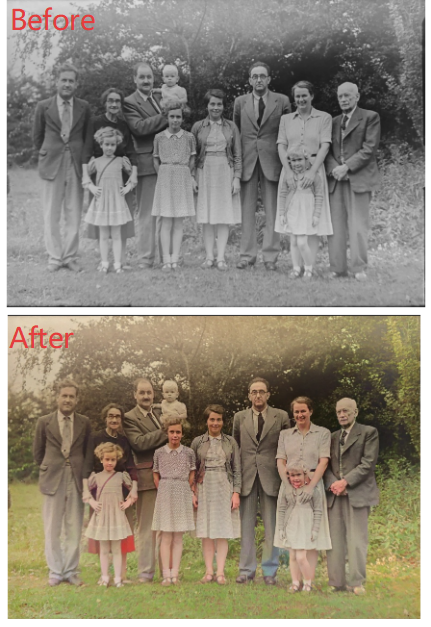
You can see the effect in the example below.
Step3:Save Changes
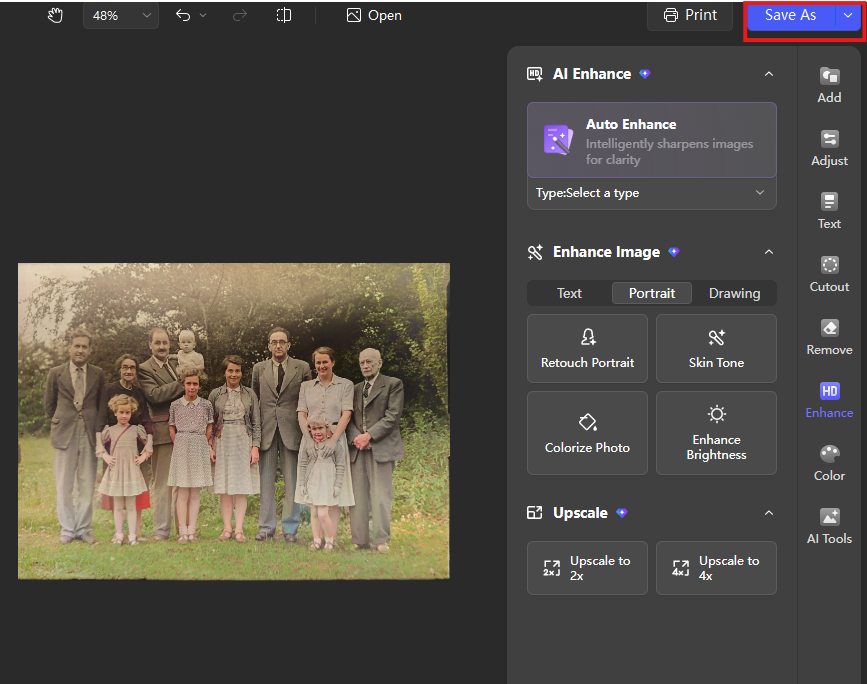
Click the "Save as" button at the top of the panel to apply the colorization and update the image in your document.
conclusion:
Unlike workflows that require exporting images to standalone editing software, WPS Office integrates AI-powered colorization directly into the document environment, enabling quick visual enhancements without disrupting your creative or editorial process.



15 years of office industry experience, tech lover and copywriter. Follow me for product reviews, comparisons, and recommendations for new apps and software.


