Free All-in-One Office Suite with PDF Editor

Edit Word, Excel, and PPT for FREE.
Read, edit, and convert PDFs with the powerful PDF toolkit.
Microsoft-like interface, easy to use.
Windows • MacOS • Linux • iOS • Android

How to insert footer in WPS Presentation
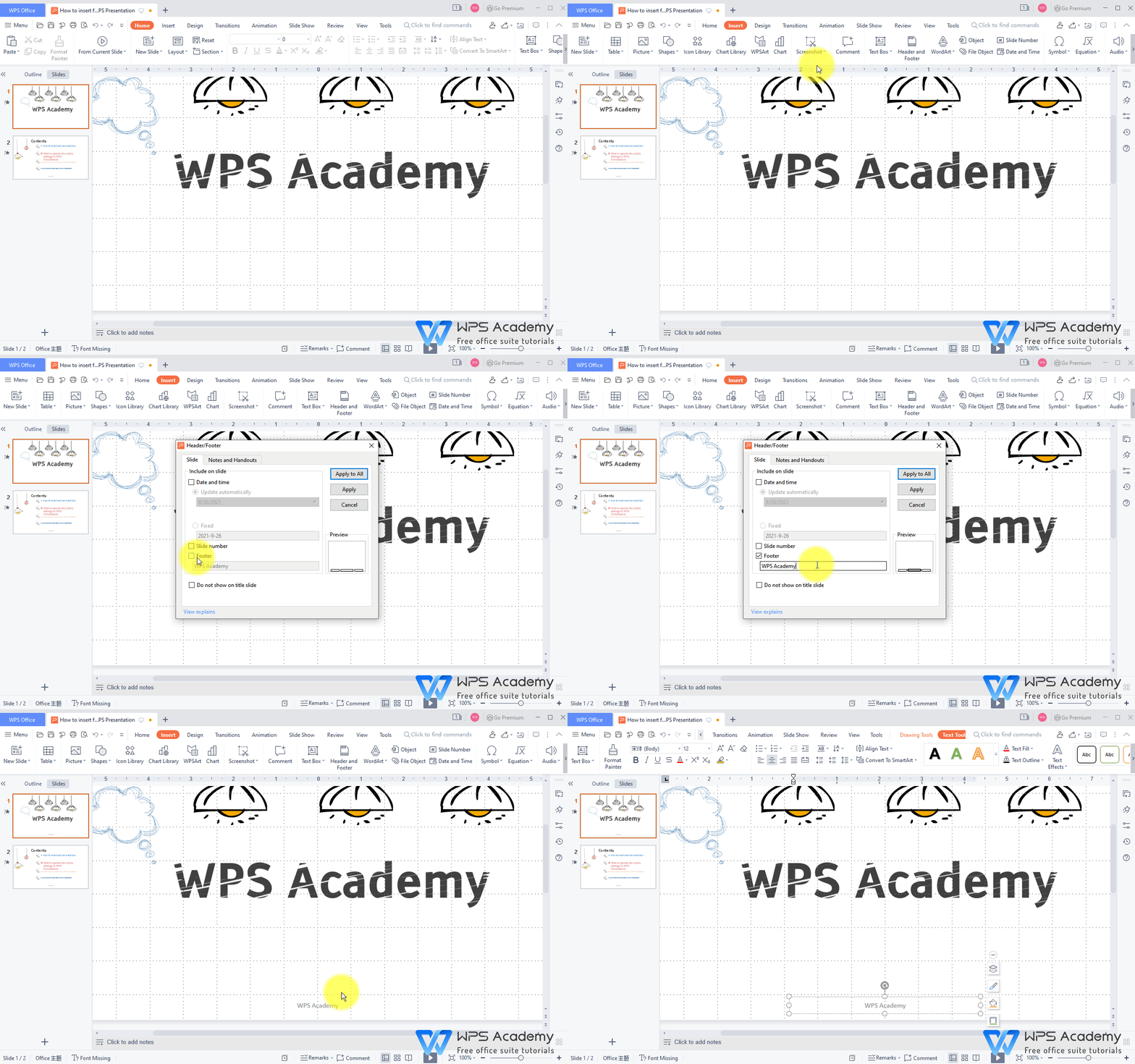
1. Use WPS Office to open the slide.
2. Click the Insert tab → the Header and Footer button.
3. In the popup dialog box, click the Slide tab or the Notes and Handouts tab. Check Footer, and enter the corresponding contents in the input box.
4. Finally, click Apply to All or Apply.
You will be the amazing reporter with WPS Presentation, which could be an alternative to Microsoft PowerPoint.
Also Read:
- 1. How to Insert a Timer in WPS Presentation(Step by Step)
- 2. How to set text effects in WPS Presentation?
- 3. How to group multiple shapes in WPS Presentation?
- 4. How to set fonts in bulk in WPS Presentation
- 5. How to ungroup multiple shapes in WPS Presentation?
- 6. How to insert the file in WPS Presentation



15 years of office industry experience, tech lover and copywriter. Follow me for product reviews, comparisons, and recommendations for new apps and software.


