How to play the animation in a continuous loop in WPS Presentation
1. Use WPS Office to open the PPT file.
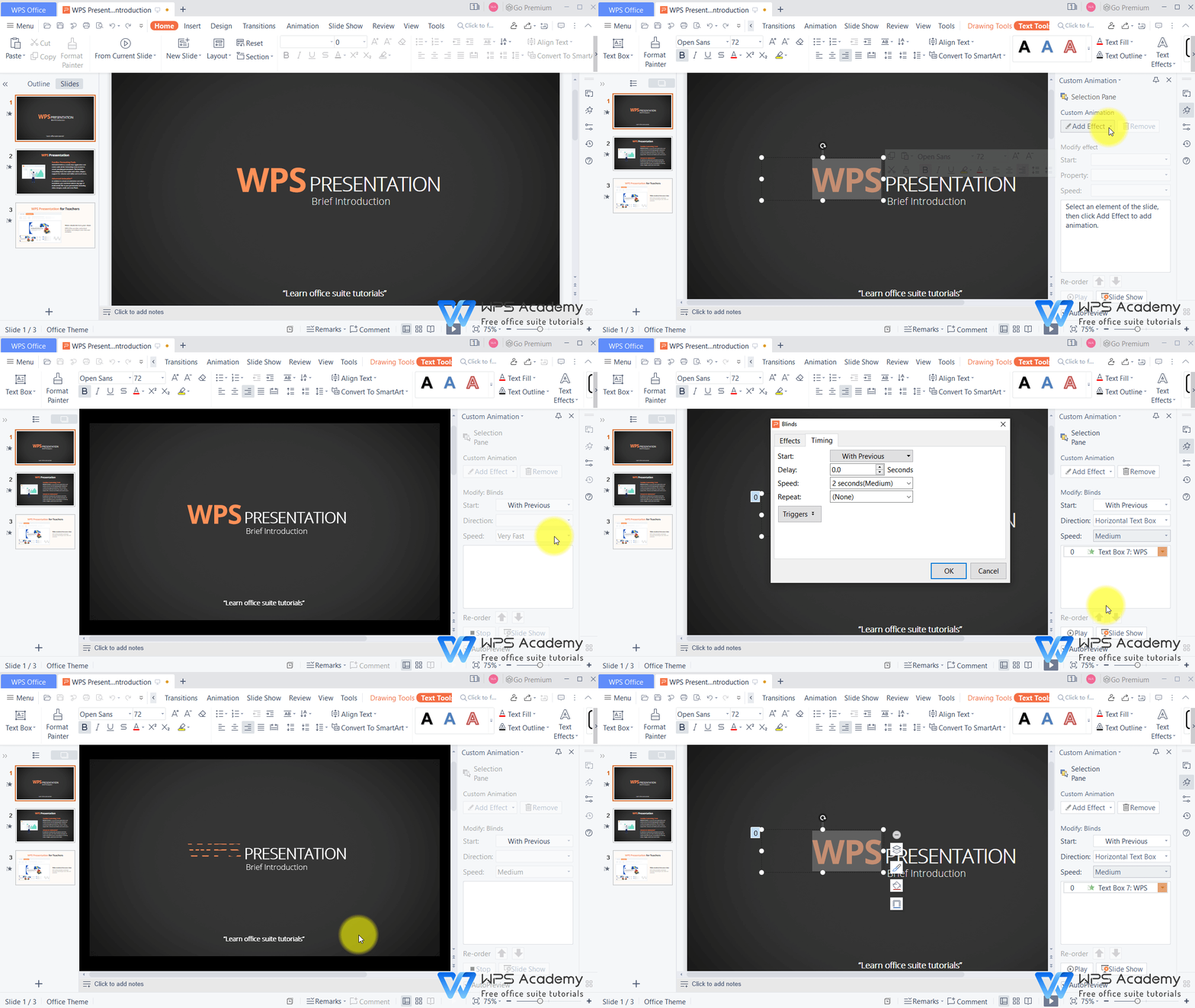
2. Click the Animation tab → the Custom Animation button.
3.A right toolbar will pop up. Select an element of the slide, then click Add Effect button to add an animation effect we want.
4. We can set Start, Direction, and Speed to modify the animation. For example, we can choose With Previous in the Start box, choose Horizontal Text Box in the Direction box, choose Medium in the Speed box.
5. Right-click an animationitem in the right toolbar and choose the Timing option in the shortcut menu.
6. In the pop-up dialog, select Until End of Slide in the Repeat box and click the OK button. Then, we can play the animation in a continuous loop.
You will be the amazing reporter with WPS Presentation, which could be an alternative to Microsoft PowerPoint.
Also Read:
- 1. How to set a trigger for animation in slides show
- 2. Remove animation of slide show
- 3. How to preview the animation effects in PPT
- 4. How to make an object disappear after animation in WPS Office Powerpoint
- 5. How to add a motion path animation effect
- 6. How to adjust the “spin” animation in Presentation



15 years of office industry experience, tech lover and copywriter. Follow me for product reviews, comparisons, and recommendations for new apps and software.


