Free All-in-One Office Suite with PDF Editor

Edit Word, Excel, and PPT for FREE.
Read, edit, and convert PDFs with the powerful PDF toolkit.
Microsoft-like interface, easy to use.
Windows • MacOS • Linux • iOS • Android

Catalog
How to Unblur Image and Enhance Clarity with WPS AI
Blurry screenshots, charts, or old scans in your documents can detract from your work's credibility and make information hard to decipher. Switching to external tools to unblur an image is time-consuming and breaks your concentration. WPS Office integrates a native AI feature that allows you to enhance image clarity without leaving your document.
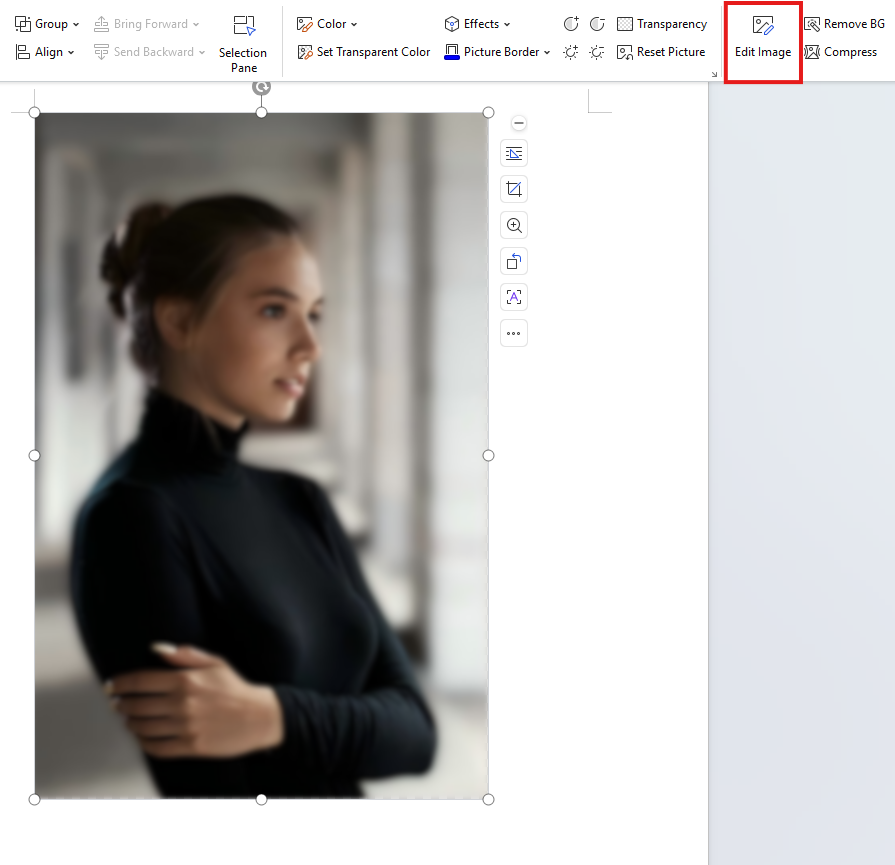
Step 1:Insert and Select
Insert your image into a WPS Document and click on it. The “Edit Image” option will appear in the floating toolbar above the picture. Click “Edit Image” to enter the dedicated image editing page.
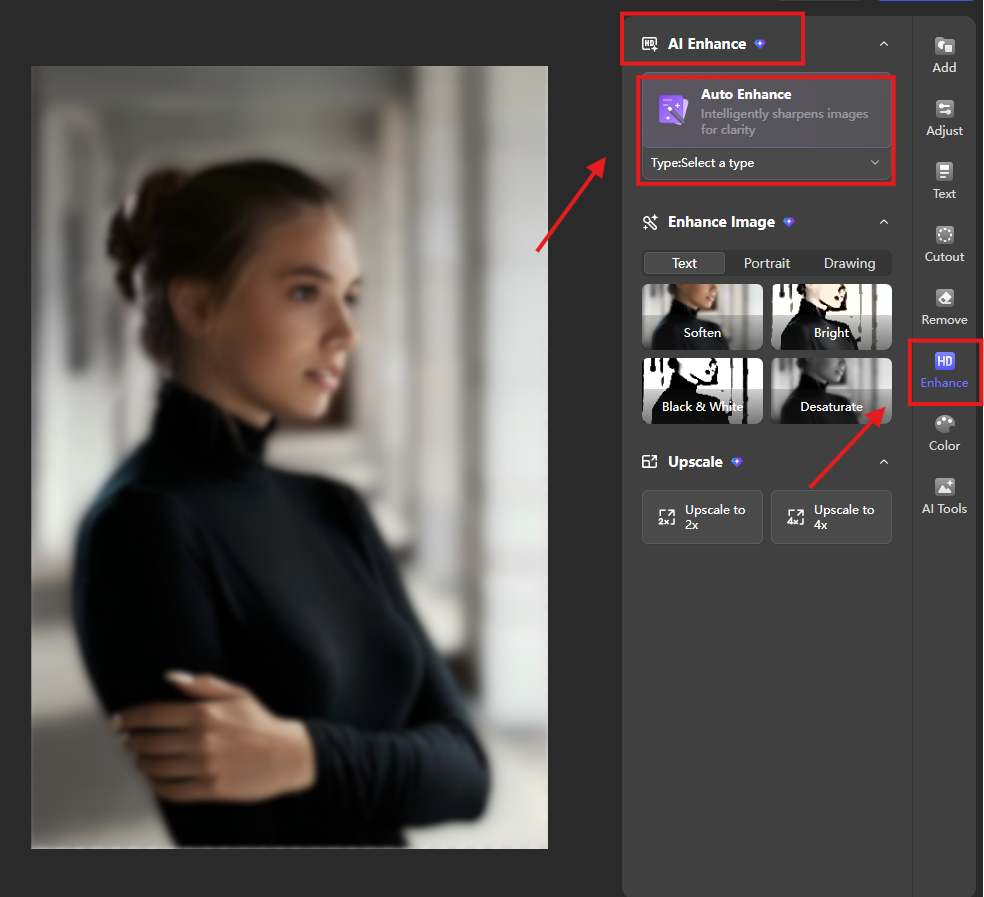
Step 2:Initiate AI Enhance
On the right sidebar of the image editing page, locate and click the “Enhance” button, then select “AI Enhance” from the dropdown menu.
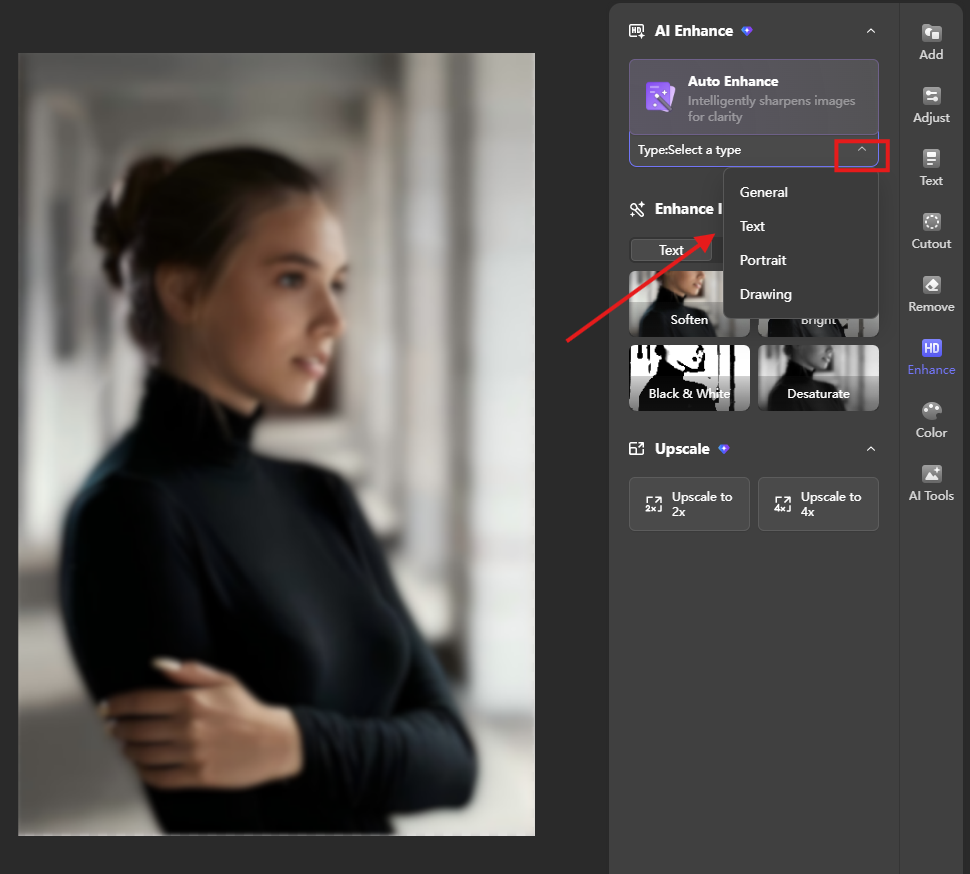
Step 3:Select Image Type
A “Type” dropdown menu will appear below. Choose the category that best matches your image: General, Text, Portrait, or Drawing. The AI will process the image based on your selection.
The effect of applying the portrait style is shown in the figure below.
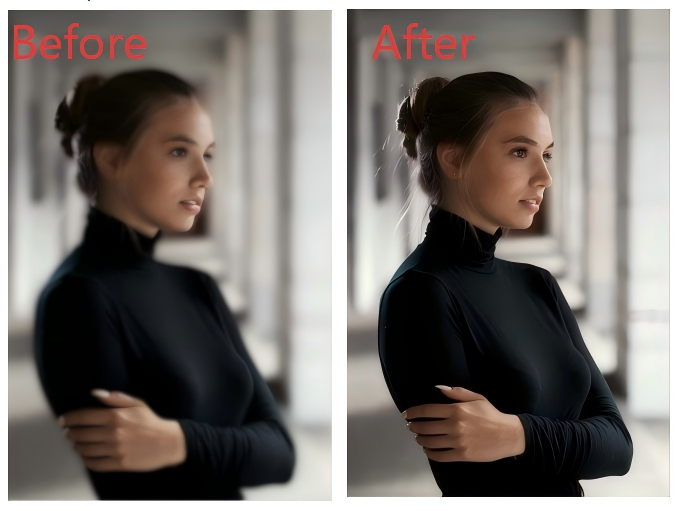
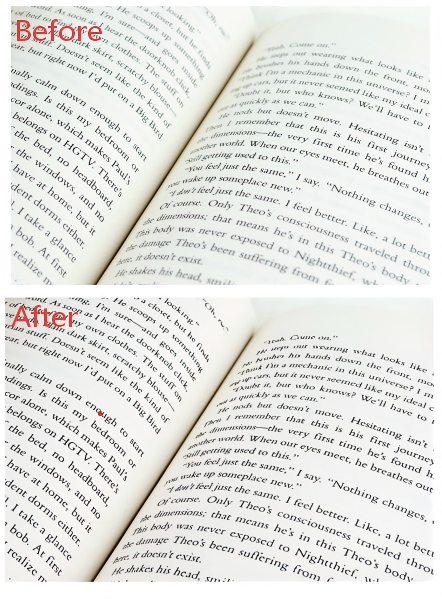
The effect of applying the text style is shown in the figure below.
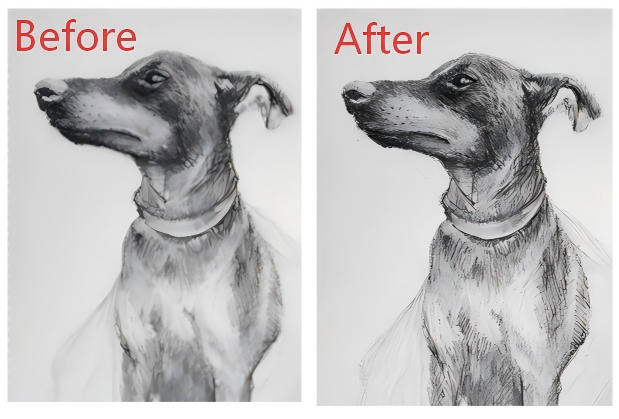
The effect of applying the drawing style is shown in the figure below.
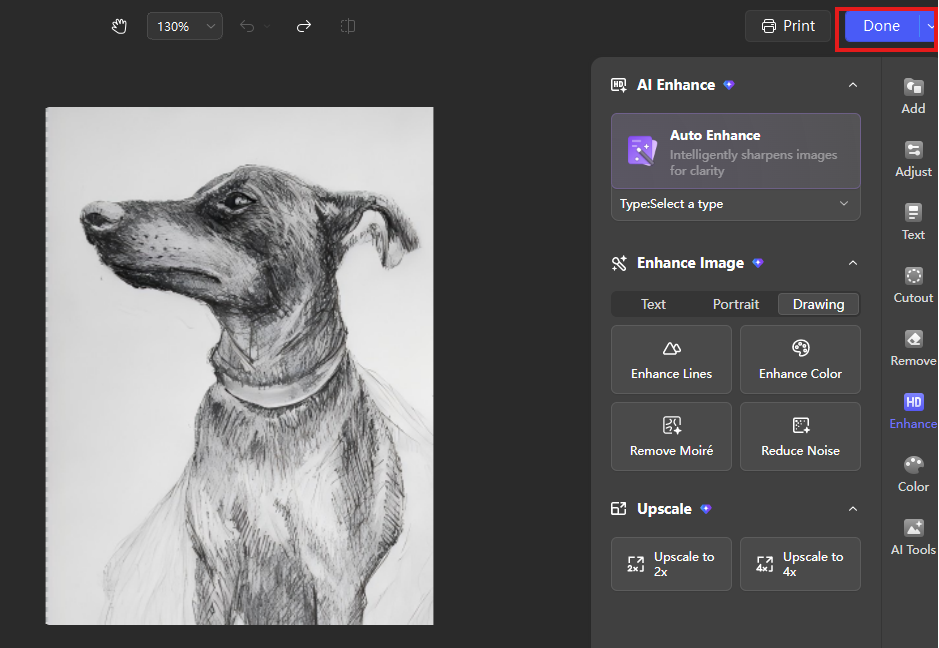
Step 4:Save Changes
Click the “Done” button at the top of the sidebar. The enhanced, clear image will replace the original directly in your document.
Why WPS
This unblur image functionality is part of WPS Office’s integrated toolkit, enabling professional-grade edits within the document itself. Unlike online tools that require uploading and downloading, WPS keeps your workflow secure and seamless, combining this capability with other native features like background removal and basic cropping for a comprehensive, all-in-one solution.
Also Read:
- 1. Insert SVG image without loss of quality in WPS
- 2. Quickly change the background transparency of image in WPS Office Word
- 3. How to Enhance Images with AI Filter in WPS Office
- 4. Enhance your work experience using one 1-1 meeting template Excel
- 5. How to Use Image Upscaler in WPS
- 6. AI Image Extender: How to Expand Image Borders Intelligently with WPS



15 years of office industry experience, tech lover and copywriter. Follow me for product reviews, comparisons, and recommendations for new apps and software.


