Catalog
How to Use Excel IF-THEN (A Comprehensive Guide)
Excel is essential in the field of data analysis and decision-making. However, users frequently have difficulties when comparing values and applying conditional commands.
Are there any useful Excel tools for dealing with this problem? Enter the IF-THEN formula, which is a wonderful way to simplify difficult logical operations.
This comprehensive guide will help you interact with and gain command over Microsoft Excel's IF-THEN function, enabling users to learn this important tool for spreadsheet calculations.
What is Excel IF-THEN function?
The IF-THEN function in Excel is a useful tool for evaluating a condition and making decisions depending on the results. The IF statement allows you to test a condition and specify the value or action to be taken if the condition is true, as well as an alternative value or action if the condition is false.
This tool allows you to develop dynamic formulas that adapt to changing conditions, making it a must-have for data analysis and logical calculations in Excel.
Where is Excel IF-THEN function useful?
Example 1
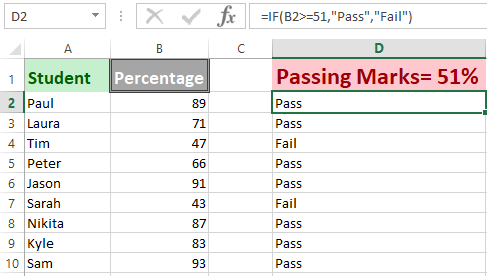
Let’s suppose you’re a teacher at an elementary school and you need to check whether a student has achieved passing percentage.
Using the IF-THEN function, if a student has passed, then we want to return some text stating “Pass”, and if it’s not true, then we want to display “Fail”.
Example 2
In Column A, we included Job Description. The date of completion is included in the remarks. In Column B, we will apply a formula to determine whether or not the cells in Column C are empty.
If a cell is left blank, the formula will set its state to "open." If a cell has a date, the formula will assign the status "closed." The formula is as follows:

How to Use Microsoft Excel IF-THEN Function
Way 1. How to use Simple IF-THEN Function
Step 1: To use the IF-THEN function on an excel file, simply open Microsoft Excel.
Step 2: Let's look into Example 1 stated above, we will be checking whether a student has passed the test or not.
Step 3: Simply enter the following formula “=IF(logical_test,”value_if_true”,”value_if_false”)
Step 4: You can also call-up the IF-THEN function by clicking on the cell where you want the results and click on “fx”.

Way 2. How to Use If-Then Excel Equations to Color Cells
Step 1: Open the excel file and select the cell where IF-THEN- function is to be used.
Step 2: On the toolbar, click on ‘Conditional Formatting’

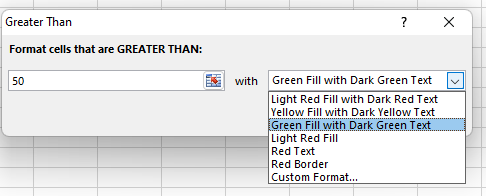
Step 3: Select ‘Highlighted Cell Rules’ and for this example we want the values to be greater than 50%, therefore, we will select ‘Greater Than’

Step 4: When the dialog box appears, type ‘50’ and select color for ‘if value is true’, we select ‘Green’.
Step 5: In the results you could see all values ‘greater than 50’ in green cells.
Way 3. How to use Nested-IF function on Microsoft Excel
Step 1: Let’s revisit our Example 1, as a teacher, you want to grade your student according to the percentages obtained.

Step 2: Next, start entering the IF Function, if the value in the cell is less than or equal to 50, then the grade should be “F”

Step 3: If the marks are greater than 50, we will continue the IF function. Now, if the value is less than or equal to 65 the, the grade will appear as “D”.

Step 4: We will continue the IF function, our last IF function will state if the marks are less than 85 then the result will be “B” and if greater than 85 the grade will be “A”.

Step 5: The Nested IF Function is to be followed as listed down.

Step 6: Press enter and each grade will be posted for each student.

How to Use WPS Excel IF-THE Function
WPS Spreadsheet is a powerful tool that offers a range of features, including the ability to use the IF-THEN function. With the IF-THEN function in WPS Spreadsheet, you can perform conditional calculations and automate decision-making processes in your spreadsheets, all this with an easy to use interface. By setting up logical conditions, you can instruct the spreadsheet to perform specific actions based on the evaluation of those conditions.
IF-THEN function could be confusing and extremely difficult to use without understanding the basic syntax.
=IF(Logical_test, Value_if_true, [Value_if_false]
Looking at the basic syntax, we can see that there 3 important factors of an IF-THEN function:
Logical Test: It is the criteria set-up by the user to differentiate the results
Value if True: If the value selected passes the logical test, what should be the output?
Value if False: If the value selected fails the logical test, what should be the output?
Let’s look into an example to understand how and why IF-THEN function can be used on WPS Spreadsheets.
Let’s revisit our previous example where you were a teacher at an elementary school and you need to check whether a student has achieved passing percentage.
We will be using the IF-THEN function in this case to avoid all the manual calculations and simply tabulate the results of all the students who have “passed” or “failed” an exam.
Step 1: Open the sheet on the WPS Spreadsheet that contains students' results.

Step 2: We will enter “=IF(“ followed by our logical test. In this case, we want to check if our students have achieved passing marks or not. So, we will select the cell containing the mark and check if it is greater than 50; “=IF(B2>50,”

Step 3: if the marks are greater than 50, we want our result to be “Pass”, therefore we continue with formula; =IF(B2>50,”Pass”

Step 4: However, if the student has unfortunately failed to score the passing marks, we want our result to be “Fail”, therefore, our final formula will turn out to be (=IF(B2>50,”Pass”, “Fail”)

Step 5: Finally, users can simply drag and drop which will automatically copy the function for the rest of the students

Important Variation: IF-THEN-ELSE
Syntax of IF-THEN-ELSE
The syntax of IF-THEN-ELSE is as follow

Confusing? Let’s make it easier by breaking it down into simpler parts.
IF(Condition): The first part refers to the condition; IF the condition stated is…
Then(Value_if_true): IF the condition stated is true, THEN print the “True”
ELSE(Value_if_false): ELSE print “False”
In simpler words, IF the condition entered is true THEN print the specified result ELSE print the other specified result.
Usual Reasons for a #VALUE! Error and How to Correct
1. The argument refers to error values
Building IF statements can be pretty complex in some situations where multiple criteria are required, and can sometimes return a #VALUE! Error. One common issue that can give this error is when the arguments within the function relate to cells having error values, such as #DIV/0!, #N/A, or #REF!, this can result in a "#VALUE!" error.
Additional functions, such as IFERROR or ISERROR, can be used to manage potential mistakes and provide alternate values or actions which can help us clear out these errors.
2. Problem: The syntax is incorrect
Another reason for the #VALUE! Error is incorrect syntax. Following the syntax can be confusing and a single mistake can cause an error. Therefore, the syntax following has to be followed:
=IF(CONDITION, “Value_if_true”, “Value_if_false)
FAQ
How many IF statements can I nest in Excel?
You can nest up to 64 levels of IF statements in Excel. It is crucial to note, however, that utilizing a large number of nested IF statements might make your formulas complex and difficult to manage.
Can an if statement have multiple conditions?
Managing several true and false conditions and closing brackets in one sentence might be tricky with multiple IFs. As a result, if several IF's are difficult to maintain in Excel, it is always a good idea to use alternative functions such as the IFS function or VLOOKUP.
Can I use the IF-THEN function to display a blank cell if a condition is not met in Excel?
Yes, you can use the IF-THEN function to display a blank cell if a condition is not met in Excel. To do this, you can leave the value_if_false argument empty in the formula.
Unleash the Power of IF-THEN Logic
Mastering the IF-THEN Function is essential for simplifying complex logic and making data driven decisions easier for users. The IF-THEN function proves to be an invaluable tool, from grading students to automating calculations.
However, understanding and using the IF-THEN function can be daunting, especially for beginners. That's where WPS Spreadsheet comes in. With its user-friendly interface and powerful features, including the IF-THEN function, WPS Spreadsheet makes conditional calculations and decision-making processes a breeze. By following the basic syntax and utilizing logical tests, users can achieve accurate results with ease.



15 years of office industry experience, tech lover and copywriter. Follow me for product reviews, comparisons, and recommendations for new apps and software.


