Resize width of columns and rows in a table
This tutorial will show you hot to resize width of columns and rows in a table in the following three methods.
ption 1: AutoFit function
ption 2: Adjust columns / rows manually
ption 3: Adjust row / column widths accurately
· Option 1: Adjust rows / columns manually
Tips: drag the cell border to adjust columns
· Option 2: Adjust row/column widths accurately
Select the cell range for operation. Then, enter an accurate value in ‘Width’ or ‘Height’ input box.
· Option 3: AutoFit function
1. Select the table for operation → go to the Table Tools tab → click AutoFit.
2. Choose one of the default options from the drop-down list regarding your situation.
In WPS Writer, there are five default methods to resize the table. Here are the illustrations.
o AutoFit to Window
o AutoFit to Content
 o Switch Row / Column
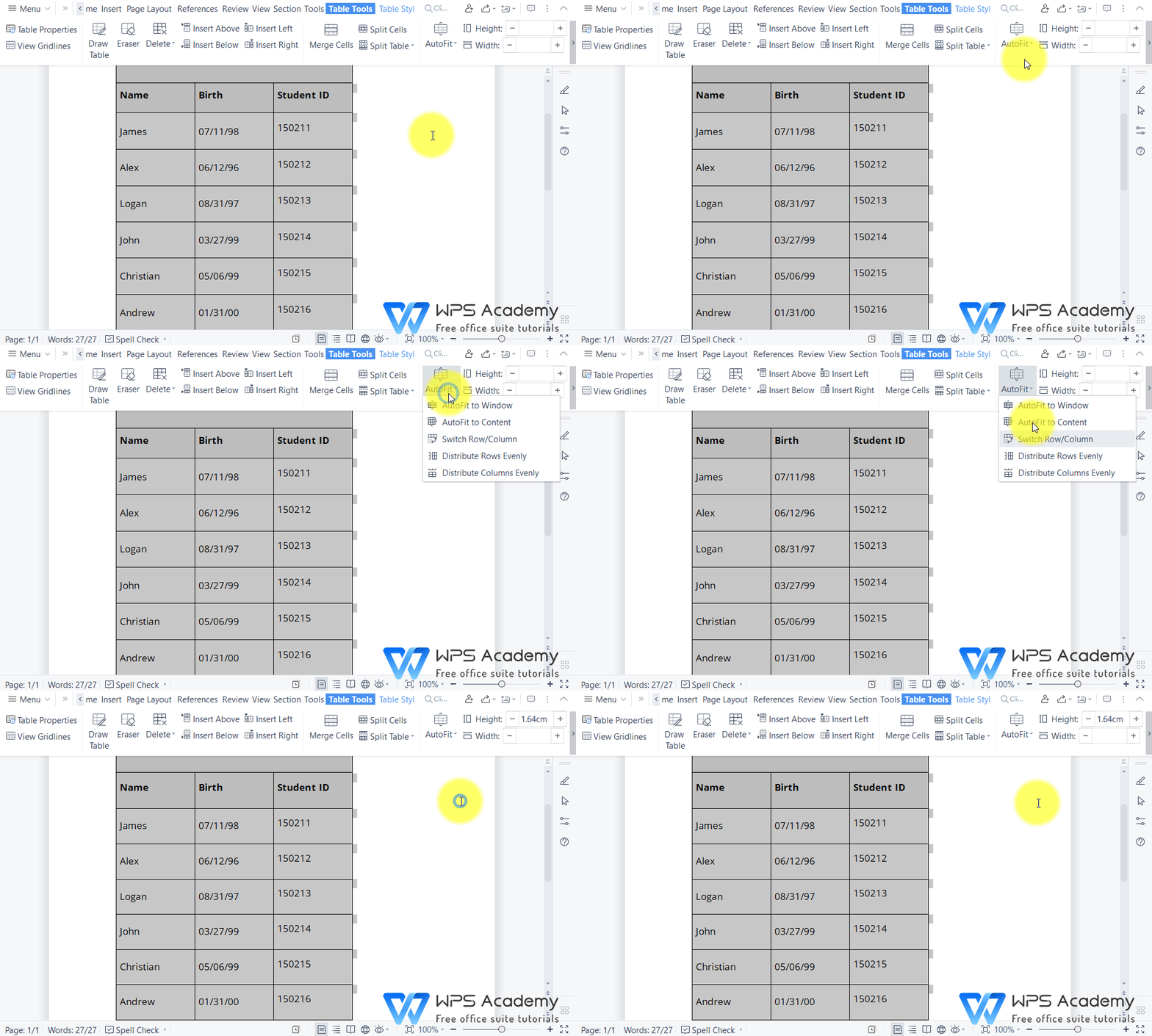 o Distribute Rows Evenly
 o Distribute Columns Evenly
No matter you are a student, teacher, or business professionals can create and edit documents efficiently by WPS Writer as text editors. Easy to use as Microsoft Word.
Keywords
WPS, WPS Writer, Writer, Word, doc, docx, table, width, height, columns, rows, adjust row, adjust column
Also Read:
- 1. How to split cells of table in WPS Writer
- 2. Quickly change the background transparency of image in WPS Office Word
- 3. Desktop publishing (DTP) using a table
- 4. How to view the table properties in WPS Writer
- 5. How to insert table of contents in Word
- 6. How to repeat the table header on subsequent pages in WPS Writer



15 years of office industry experience, tech lover and copywriter. Follow me for product reviews, comparisons, and recommendations for new apps and software.


