
7 Best PDF Readers in 2026
Looking for the best PDF reader? We ranked the top free and freemium PDF reader apps for speed, annotations, forms, signing, and everyday document work.
Selection Criteria
How We Selected These PDF Readers
To keep this ranking practical, we tested each best PDF reader against the reading workflows people actually use every day:
- Launch speed and large-file performance
- Annotation, markup, and comment quality
- Form filling and e-sign support
- Compatibility with complex PDFs and fonts
- Windows, Mac, mobile, and web coverage
- Free-tier value beyond basic viewing
Our goal is to recommend the best PDF reader options that balance pure reading speed with useful free tools—not just the most downloaded brand names.
Scenario picks
Best PDF readers by use case
No single app wins every workflow. Use this scenario guide to jump to the detailed review that matches how you actually work with PDFs.
Detailed Analysis
Full reviews of each best PDF reader, including strengths, trade-offs, and who should choose it.
WPS Office PDF
Best when PDF work sits inside an all-in-one office suite.
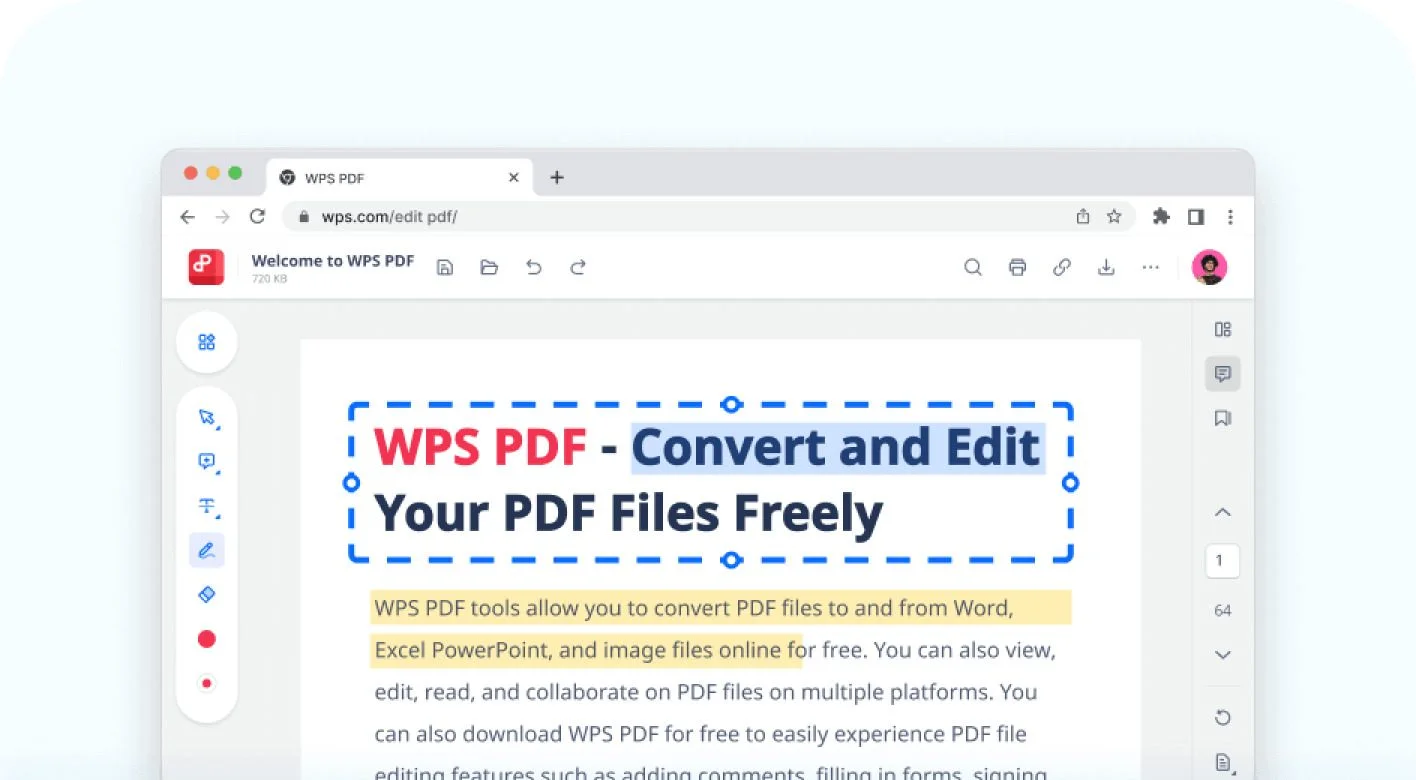
WPS Office includes a polished PDF reader beside Writer, Spreadsheet, and Presentation—so you can open files quickly, annotate pages, fill forms, convert formats, and even edit text without buying a separate PDF product. It is our top pick for best PDF reader when you want free value, offline access, and tools that grow with your workflow.
Best For
Anyone who needs a free PDF reader for daily contracts, study notes, forms, and conversions—especially students, freelancers, and teams who want reading plus light editing in one suite.
Pros
- Fast PDF viewing inside a free all-in-one office suite
- Annotate, fill forms, convert, merge, split, and compress
- Works across Windows, Mac, Linux, mobile, and web
Cons
- Some advanced AI or batch tools may need Premium
- Enterprise compliance depth trails Adobe Acrobat
Our Verdict
WPS Office PDF delivers the strongest balance of reading speed, annotation tools, conversion power, and free-tier value. If you want one download that covers PDF plus docs, sheets, and slides, start here.
Adobe Acrobat Reader
Best overall free PDF reader for forms, signatures, and complex documents.
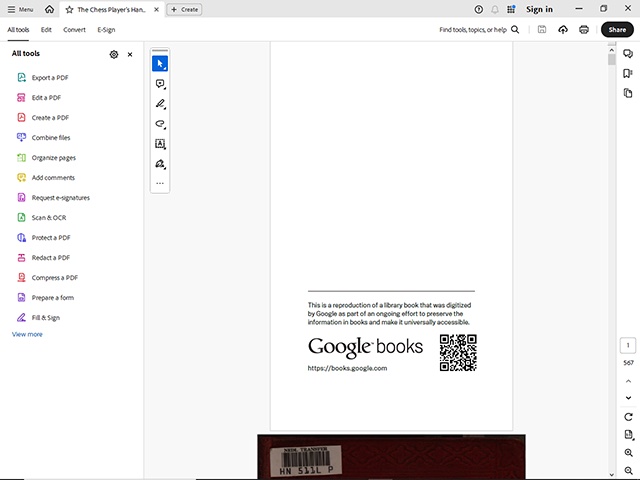
Adobe Acrobat Reader remains the free industry standard for opening almost any PDF correctly—including interactive forms, JavaScript-powered files, and high-stakes signing workflows. It is still a strong best PDF reader choice for professionals who need maximum compatibility, even if the install is heavier than lighter alternatives.
Best For
Professionals and enterprise users who need rock-solid form filling, commenting, and signature support with broad PDF standards coverage.
Pros
- Excellent compatibility with complex PDFs
- Mature annotation, form, and e-sign tools
- Trusted free reader across desktop and mobile
Cons
- Heavier install and more upsell prompts
- True editing requires Acrobat Pro
Our Verdict
Acrobat Reader is the safe pick when compatibility and signatures come first. For lighter installs and broader free productivity value, WPS or Foxit usually feels more practical day to day.
Foxit PDF Reader
A faster, lighter Acrobat-style PDF reader with strong annotation tools.
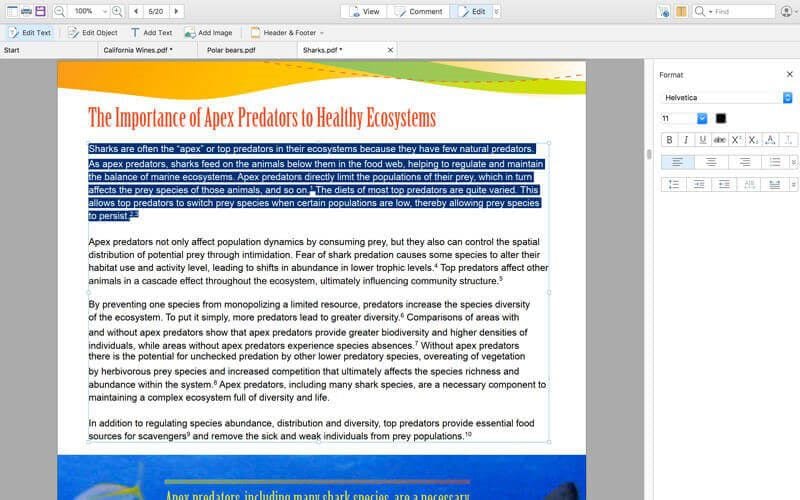
Foxit PDF Reader is a popular free reader for users who want Adobe-like annotation, forms, and signing without Adobe's heavier footprint. It opens large files quickly and keeps a clean tabbed workflow—making it a strong dedicated best PDF reader for business reading sessions.
Best For
Business users who want a dedicated free PDF reader with solid markup tools and better performance than Acrobat Reader.
Pros
- Faster and lighter than Acrobat Reader
- Strong free annotation and form tools
- Tabbed interface for multi-document work
Cons
- Installer may include optional offers
- Deep editing sits behind paid Foxit plans
Our Verdict
Foxit is an excellent dedicated reader for teams that live in PDFs all day. If you also need Word/Excel/PPT and conversion in one suite, WPS remains the broader package.
Sumatra PDF
The ultra-fast open-source PDF reader for pure viewing with zero bloat.
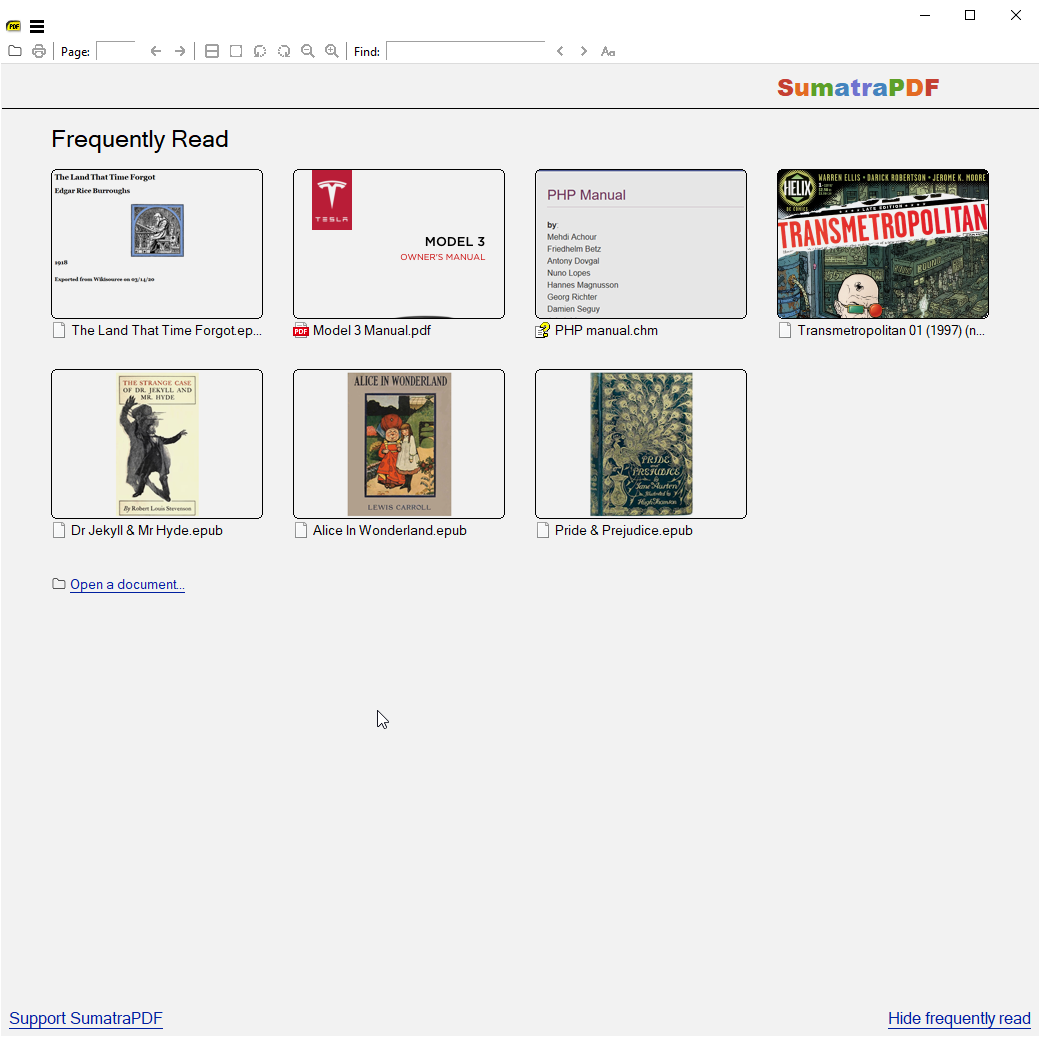
Sumatra PDF is the classic answer when you only want to open a file instantly. It is tiny, open-source, and deliberately minimal—no cloud account, no heavy ribbon, no editing suite. As a pure best PDF reader for speed, it still sets the bar on Windows.
Best For
Windows users who want the fastest free PDF reader for viewing ebooks, papers, and large files without extra features.
Pros
- Extremely fast launch and page rendering
- Tiny install size and open-source privacy stance
- Supports PDF plus XPS, DjVu, and eBook formats
Cons
- No annotation or form filling
- Windows-focused and read-only by design
Our Verdict
Choose Sumatra when speed is everything. Choose WPS when your PDF workflow also includes highlighting, forms, conversion, or edits.
PDF-XChange Editor
A Windows favorite with one of the strongest free annotation baselines.
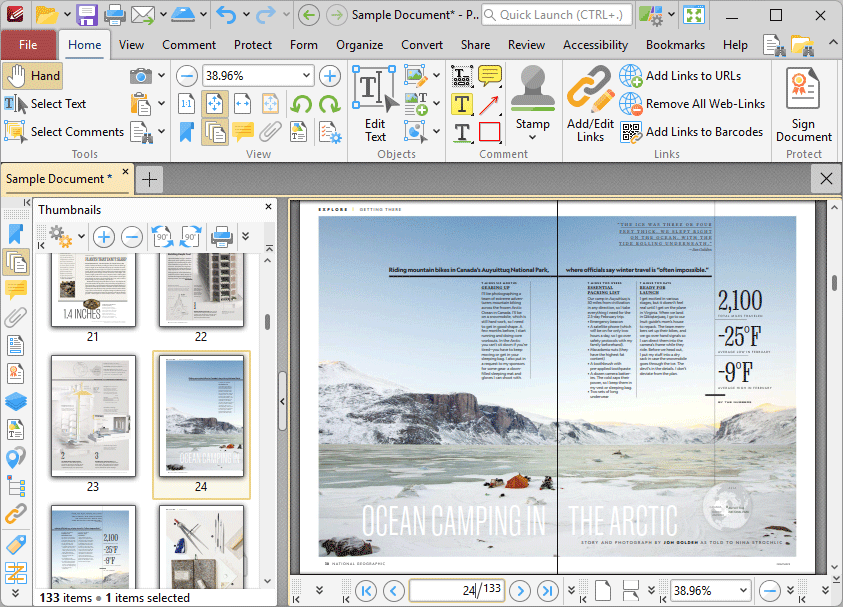
PDF-XChange Editor blurs the line between reader and light editor. The free tier is especially strong for markup, stamps, bookmarks, and review tools—making it a favorite Windows pick for people who annotate more than they rewrite.
Best For
Windows power users who need a free PDF reader packed with markup, measuring, and review tools.
Pros
- Excellent free annotation and review toolkit
- Fast performance on Windows desktops
- Flexible licensing if you later upgrade
Cons
- Less ideal for multi-platform teams
- Advanced OCR and editing need paid features
Our Verdict
A sharp specialist for Windows markup workflows. For cross-device reading plus office docs and conversion, WPS is still the more complete answer.
Microsoft Edge
The no-install Windows PDF reader already on most PCs.
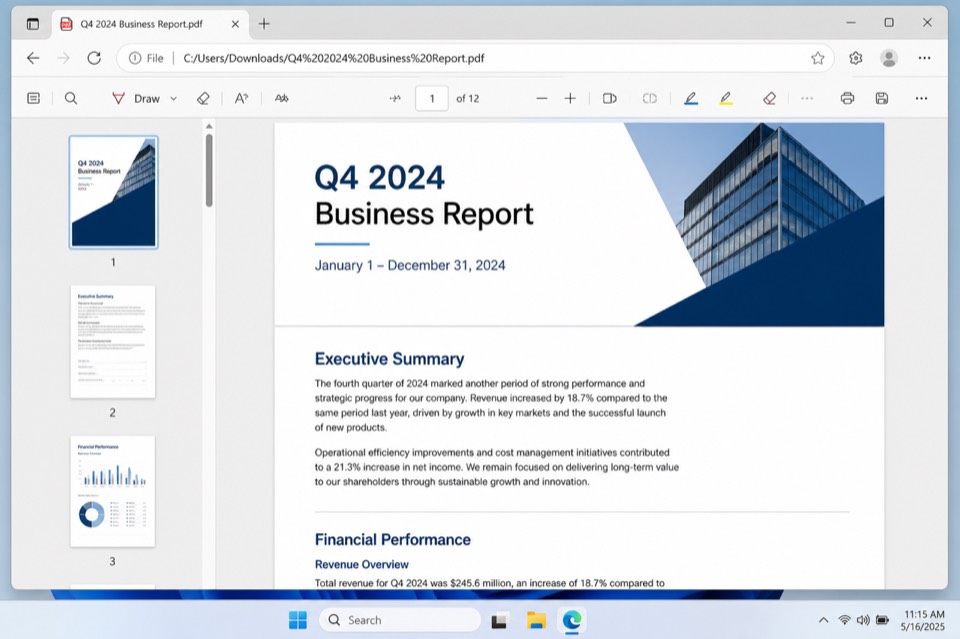
Microsoft Edge is good enough for quick opens, basic highlights, and light form tasks without installing anything. It will not replace a dedicated best PDF reader for heavy markup or conversion, but it is a smart default for casual Windows reading.
Best For
Casual Windows users who mainly need quick PDF viewing and light markup without another installer.
Pros
- Already installed on modern Windows PCs
- Basic highlight, draw, and form tools
- Convenient for web-linked PDF opens
Cons
- Limited depth versus dedicated PDF apps
- Not ideal for advanced conversion or editing
Our Verdict
Keep Edge for quick peeks. Make WPS your default when PDFs are part of weekly work and you need more than basic viewing.
Apple Preview
The clean built-in Mac PDF reader for viewing, signing, and light markup.
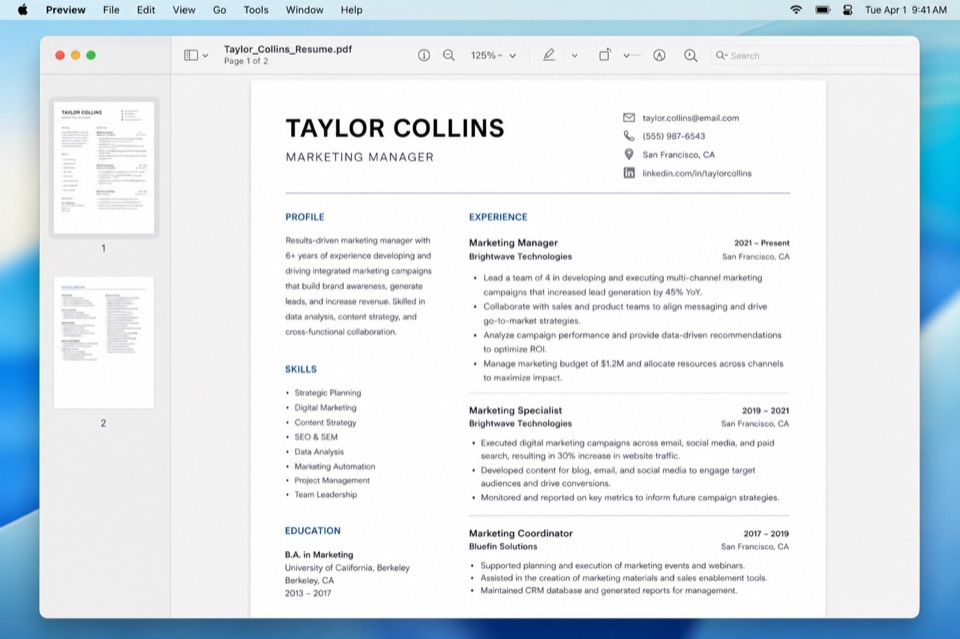
Apple Preview remains the simplest Mac PDF reader for opening files, filling basic forms, adding signatures, and exporting lightly edited docs. It is polished and free—but Mac-only, and lighter than cross-platform suites when you also need Word/Excel/PPT and deeper PDF conversion.
Best For
Mac users who want a free built-in PDF reader for viewing, signing, and simple markup without extra software.
Pros
- Native Mac experience with no extra install
- Useful markup, form, and signature tools
- Fast and familiar for everyday Mac workflows
Cons
- Mac only
- Deeper editing and conversion need another app
Our Verdict
Preview is excellent as a Mac default. Cross-platform teams and value seekers who also need office docs should still shortlist WPS PDF.
Feature Comparison
| PDF Reader | Speed | Annotations | Forms / Sign | Free Value | Platforms |
|---|---|---|---|---|---|
| WPS Office PDF | Excellent | Excellent | Excellent | Excellent | Win/Mac/Linux/Mobile/Web |
| Adobe Acrobat Reader | Good | Excellent | Excellent | Strong free | Desktop/Web/Mobile |
| Foxit PDF Reader | Excellent | Excellent | Good | Strong free | Desktop/Mobile |
| Sumatra PDF | Excellent | None | None | Pure free | Windows |
| PDF-XChange | Excellent | Excellent | Good | Strong free | Windows |
| Microsoft Edge | Good | Basic | Basic | Built-in | Windows / Web |
| Apple Preview | Excellent | Good | Good | Built-in | macOS |
Frequently Asked Questions
Browse by scenario or search. Answers stay objective—pick the reader that fits your platform and workflow.
There is no single winner for every user. Choose Adobe Acrobat Reader for maximum compatibility with complex forms and signatures; Sumatra PDF for the lightest Windows viewing; WPS Office PDF when you also need conversion and light editing inside an office suite; Foxit as a faster Adobe-style dedicated reader; and Edge or Preview when a built-in default is enough.
Pick by scenario: Adobe Acrobat Reader for overall reliability and standards coverage; Sumatra PDF for speed and minimal footprint; WPS Office PDF for PDF plus Word/Excel/PPT tools; Foxit for a dedicated free business reader; PDF-XChange for deep Windows markup; Edge or Preview for no-extra-install defaults.
For software you install, Adobe Acrobat Reader is the safest overall free reader, Foxit is a strong dedicated alternative, Sumatra is best when you only view files, and WPS Office PDF is best when PDF work overlaps with an office suite. Built-in Edge and Preview are fine for light use.
Adobe Acrobat Reader is the best free choice for forms and signatures. Sumatra PDF is the best free choice for pure speed on Windows. WPS Office PDF and Foxit are strong free options when you also want annotations and everyday productivity tools.
Top freeware PDF readers include Adobe Acrobat Reader (compatibility), Sumatra PDF (open-source lightweight viewing), Foxit PDF Reader (dedicated markup), and the free tier of WPS Office PDF (reader plus conversion and light editing).
On Windows, Sumatra PDF is best for ultra-light free viewing, Adobe Acrobat Reader is best for complex free forms/signing, and WPS Office PDF or Foxit are better when free annotations and extra PDF tools matter.
For Windows 10, Adobe Acrobat Reader is the most compatible overall free reader, Sumatra PDF is the fastest slim option, Foxit and PDF-XChange excel at markup, WPS Office PDF fits office-suite workflows, and Microsoft Edge works for quick no-install opens.
On PC, start with Adobe Acrobat Reader for reliability, Sumatra PDF for lightweight viewing, Foxit or PDF-XChange for annotation-heavy work, and WPS Office PDF if you also edit docs/sheets/slides. Edge covers basic opens without installing another app.
Windows 10 PC users should choose Adobe Acrobat Reader for forms and compatibility, Sumatra PDF for the lightest free viewer, Foxit/PDF-XChange for markup, WPS Office PDF for suite + PDF tools, or Edge when you want zero extra install.
Sumatra PDF is usually the fastest free PDF reader on Windows 10 for pure viewing. Foxit PDF Reader and PDF-XChange are also quick for markup sessions. Edge is convenient for casual opens already installed on the PC.
Sumatra PDF is the best lightweight PDF reader for Windows: tiny install, open source, and optimized for instant viewing. It intentionally skips annotation and forms—choose Foxit, Adobe, or WPS if you need those tools.
Sumatra PDF is the best light PDF reader when speed and a minimal UI matter most. Microsoft Edge is another light option if you prefer a built-in Windows browser reader without a separate download.
Sumatra PDF is the best slim PDF reader for Windows thanks to its small footprint and fast rendering. It is view-only, so pair it with another tool if you need highlighting, forms, or conversion.
Sumatra PDF is widely regarded as the lightest practical free PDF reader on Windows. For Mac, Apple Preview is already built in and stays light for everyday viewing and simple markup.
In slim-reader reviews, Sumatra PDF usually leads for launch speed, install size, and distraction-free viewing on Windows. Trade-off: no annotations or form filling—switch to Foxit, Adobe, PDF-XChange, or WPS when tools beyond viewing are required.
Sumatra PDF is the best-known open-source PDF reader for Windows end users who want fast, private, view-only reading. It also opens XPS, DjVu, and common ebook formats.
Apple Preview is the best built-in Mac PDF reader for viewing, light markup, forms, and signatures. Cross-platform teams that also need Word/Excel/PPT and deeper PDF conversion should compare WPS Office PDF or Adobe Acrobat Reader.
On Mac, start with Apple Preview for everyday free reading and signing. Choose Adobe Acrobat Reader when compatibility with complex PDFs matters most, or WPS Office PDF when you want PDF tools plus an office suite on Mac.
On iPhone, Adobe Acrobat Reader and WPS Office are strong free apps for viewing and markup; Apple Files/Books cover basic opens. Pick Adobe for form-heavy work and WPS when you also handle office documents on mobile.
Top iPhone PDF reader apps include Adobe Acrobat Reader for compatibility and signing, WPS Office for PDF plus office files, and Apple’s built-in Files app for simple viewing. Choose based on whether you need forms, annotations, or document editing.
Free iPhone options include Adobe Acrobat Reader (view/comment/sign), WPS Office (PDF + office suite free tier), and Apple Files for basic opens. Paid unlocks usually cover advanced editing or premium cloud features.
Adobe Acrobat Reader is a solid free iPhone PDF reader for forms and signatures. WPS Office is a strong free alternative if you also open Word, Excel, and PowerPoint files on the same device.
On Android, Adobe Acrobat Reader leads for professional forms and signatures, Foxit offers a capable dedicated reader with markup, and WPS Office adds PDF tools plus office editing. Choose Adobe for compliance-heavy PDFs and WPS/Foxit for everyday productivity.
For reading PDFs in a browser, Microsoft Edge and Google Chrome’s built-in viewers handle most files. For online tools beyond viewing (compress, convert, merge), WPS Online PDF tools are a practical free starting point.
Free online PDF reading usually means your browser viewer (Chrome or Edge) or Google Drive preview. For free online utilities like convert/compress/merge after viewing, use a reputable web toolkit such as WPS Online PDF tools.
Google Chrome’s built-in PDF viewer is the default best option for most Chrome users. For richer annotation or offline suite tools, install a desktop reader such as Adobe Acrobat Reader, Foxit, or WPS Office PDF.
Inside Google Chrome, the built-in PDF viewer is usually enough for opening and printing files. If you need professional comments, forms, or conversion, use Adobe Acrobat Reader or WPS Office PDF as a companion app.
Most users do not need a Chrome extension—Chrome’s native PDF viewer is reliable. If you need advanced markup, prefer a dedicated desktop/mobile app (Adobe, Foxit, WPS) over a lightweight extension that cannot match full reader features.
There is no single “best” Chrome PDF extension for every task. For security and capability, rely on Chrome’s built-in viewer for opens, then a trusted desktop reader (Adobe Acrobat Reader, Foxit, or WPS) for annotations, forms, and editing.
On Chromebook, start with the built-in Chrome PDF viewer or Google Drive preview. For more professional markup and cross-device work, use Adobe Acrobat web/mobile workflows or a cloud-friendly suite such as WPS Office where available.
Google’s own PDF experience is mainly the Chrome built-in viewer and Google Drive preview. They are best for quick opens in Google’s ecosystem; use Adobe or WPS when you need advanced annotation, forms, or conversion.
Google Drive’s built-in preview is the best native reader for files stored in Drive. For heavier annotation or offline editing, download the file into Adobe Acrobat Reader, Foxit, or WPS Office PDF.
Use Google Drive preview for quick reading of Drive-hosted PDFs. When you need markup, signatures, or conversion, open the file in Adobe Acrobat Reader or WPS Office PDF and save changes back to Drive if needed.
For free annotation, Foxit PDF Reader and PDF-XChange Editor are excellent dedicated choices on desktop, Adobe Acrobat Reader is strong for review/sign workflows, and WPS Office PDF is ideal when annotation sits next to office-document work.
Nuance’s PDF products are now part of the Kofax / Power PDF family—an enterprise-oriented commercial editor rather than a simple free reader. For free everyday reading, prefer Adobe Acrobat Reader, Sumatra PDF, Foxit, or WPS Office PDF instead.
Reviews of Nuance-era PDF tools generally place them with paid Power PDF / Kofax workflows for business editing. Home and student users usually get better free value from Adobe Acrobat Reader, Foxit, Sumatra, or WPS Office PDF.
Kofax Power PDF is aimed at business PDF editing and process workflows, not as a free lightweight viewer. If you need a free reader, choose Adobe Acrobat Reader, Sumatra PDF, Foxit, or WPS Office PDF based on compatibility, speed, or suite features.
Strong Foxit alternatives include Adobe Acrobat Reader (compatibility and forms), Sumatra PDF (lightweight viewing), PDF-XChange Editor (Windows markup), WPS Office PDF (suite + conversion), and Microsoft Edge for basic built-in reading.
Foxit PDF Reader remains a strong dedicated free reader on supported Windows versions for fast viewing and annotation. Always download from Foxit’s official site and check current OS support notes before installing on older Windows builds.
Yes. Adobe Acrobat Reader is free for viewing, commenting, filling forms, and signing. Advanced editing, OCR, and PDF creation tools require Acrobat Pro.
Sumatra PDF is usually the fastest for pure viewing on Windows. Foxit PDF Reader and PDF-XChange are also quick for markup. Browser-built-in readers (Edge/Chrome) feel fast for casual opens without a separate install.
If you mainly open, highlight, fill forms, and sign files, a PDF reader is enough. If you rewrite text, convert to Word/Excel, merge, split, or compress often, choose a reader-plus toolkit such as WPS Office PDF or a paid editor.
Final Verdict & Our Recommendation
The best PDF reader in 2026 depends on the job. For overall compatibility, start with Adobe Acrobat Reader. For the lightest Windows viewing, choose Sumatra PDF. Choose WPS Office PDF when you also need conversion and office docs in one suite.
Foxit and PDF-XChange suit markup-heavy desktops; Edge and Preview remain the best built-in defaults when you do not want another installer.
Sumatra PDF
Adobe Acrobat Reader
Best overall free reader for forms, signatures, and complex PDFs.
Visit Website