If you’ve ever downloaded texture files from a game or worked on 3D
models, you’ve likely encountered DDS (DirectDraw Surface) files. These
files are efficient for storing high-quality textures, but the problem
is that most image editors can’t open or edit them directly. That’s
where DDS to PNG tools come in. In this guide, we’ll explore the best
free DDS to PNG converters you can use in 2025.
Best Free & Online DDS to PNG Converters
Part 1:
Overview of the Best Free DDS to PNG Converters
When you search for DDS to PNG tools, you’ll find dozens of
converters online, but not all deliver consistent results. The following
options were tested for speed, quality, and ease of use. Each one
supports DDS to PNG conversion free of charge and works across common
browsers and systems.
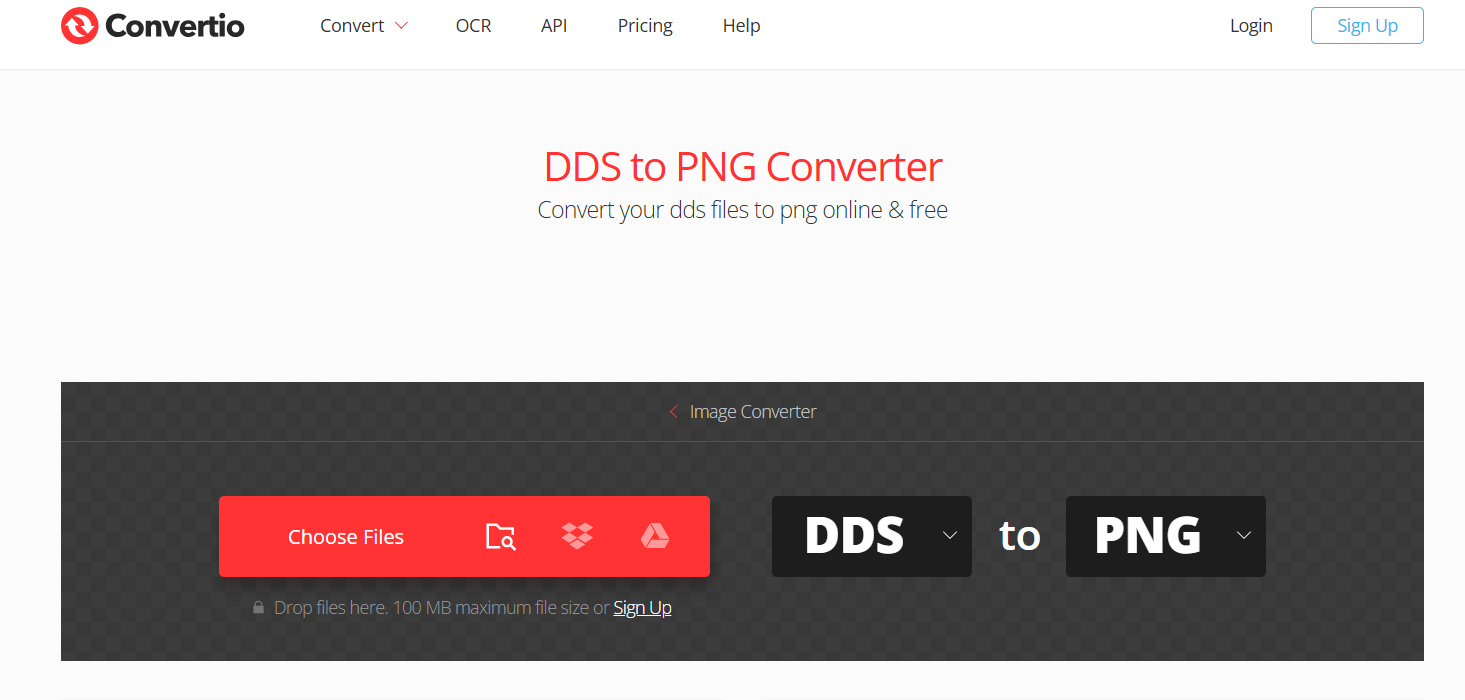
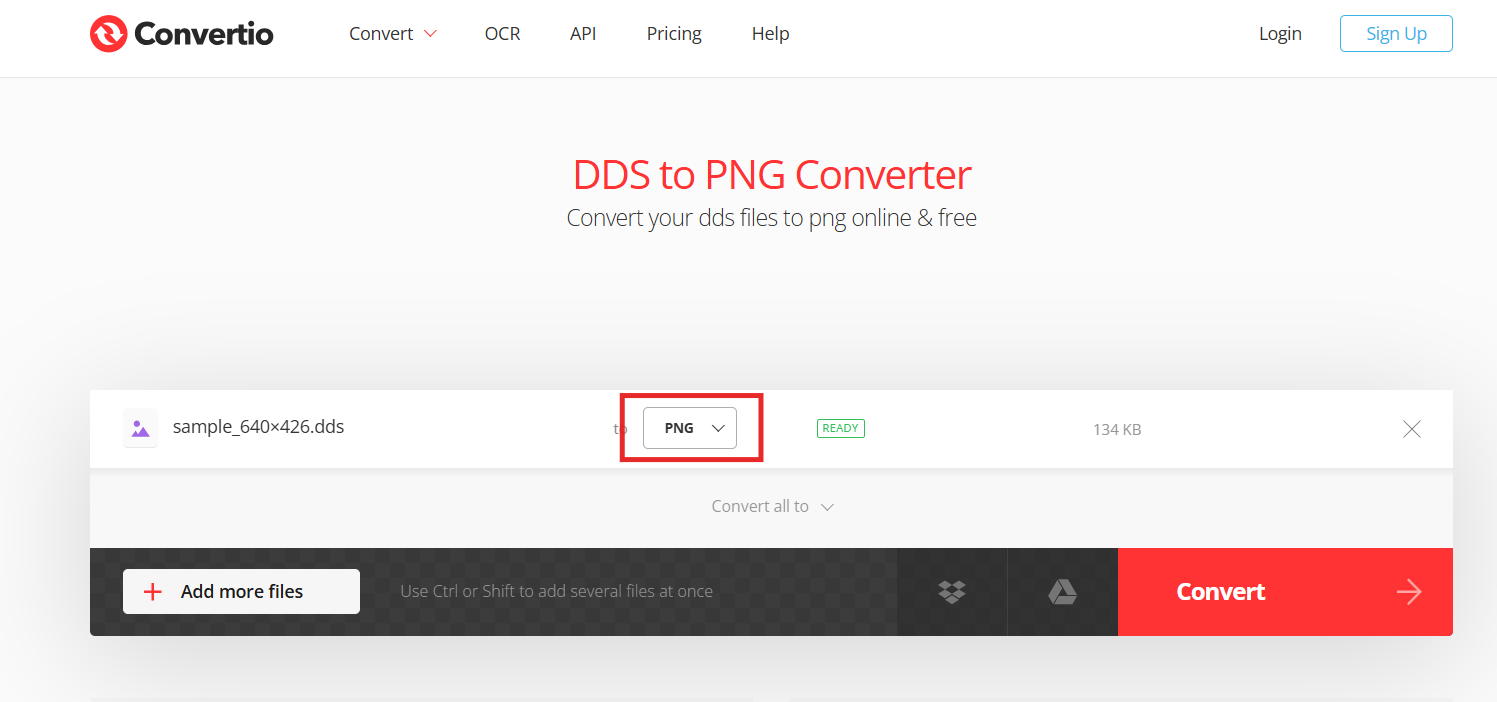
Convertio
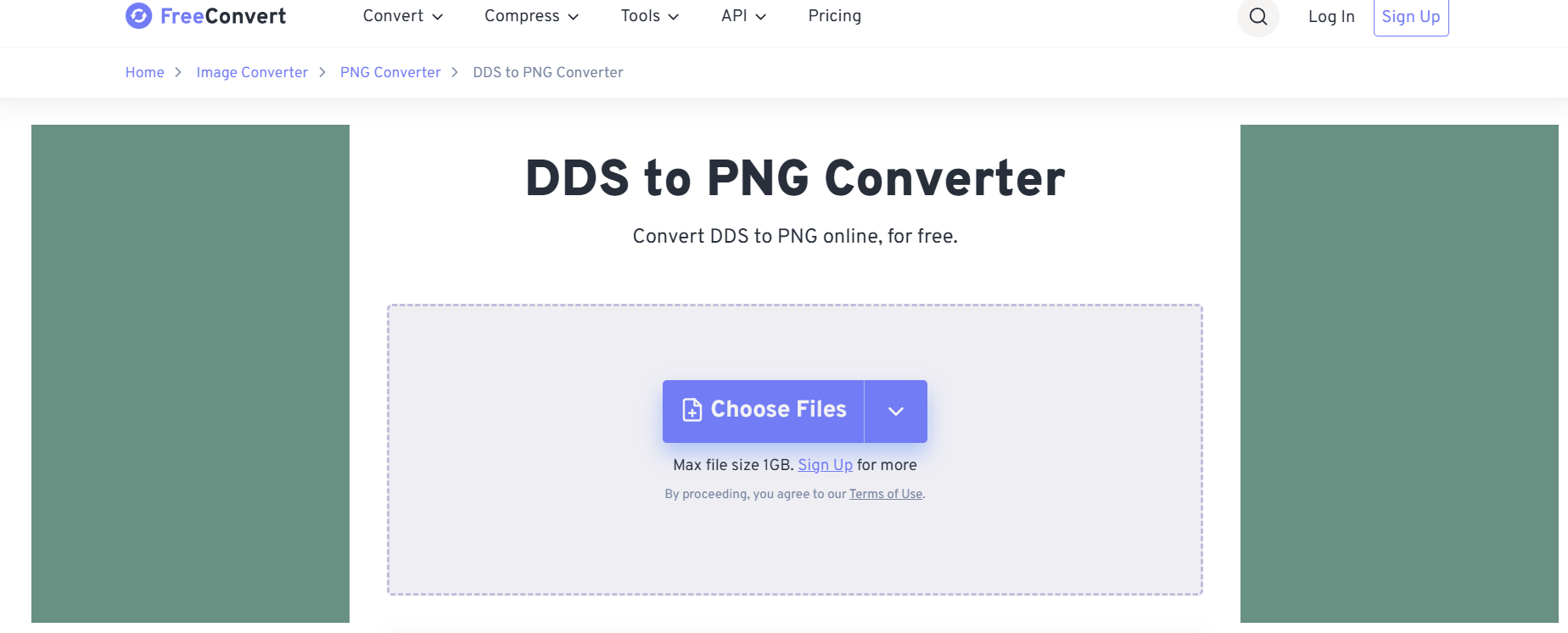
convert DDS to PNG online using Convertio
Features:
Converts DDS files to PNG, JPG, and over 300 formats.
Works directly in the browser, no installation needed.
Supports drag-and-drop uploads from Google Drive, Dropbox, or
local storage.
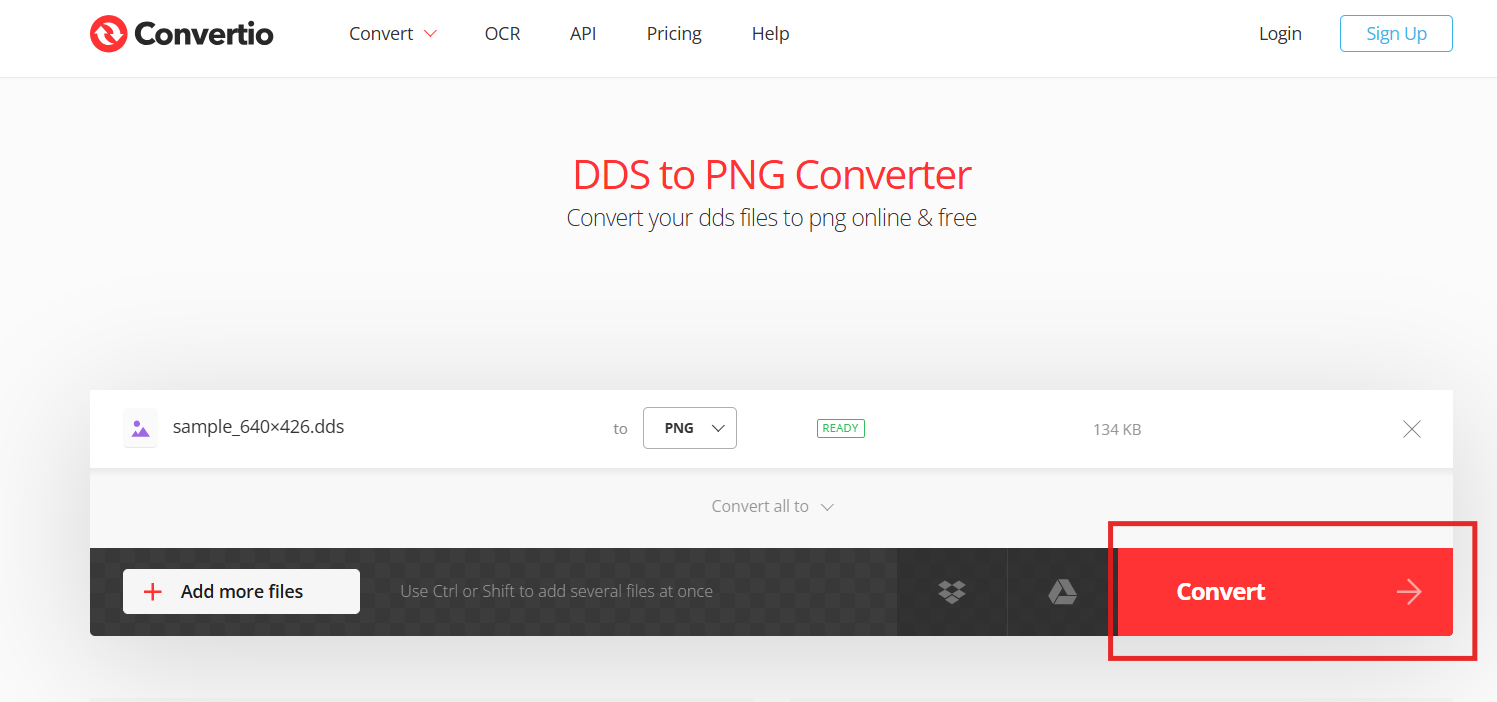
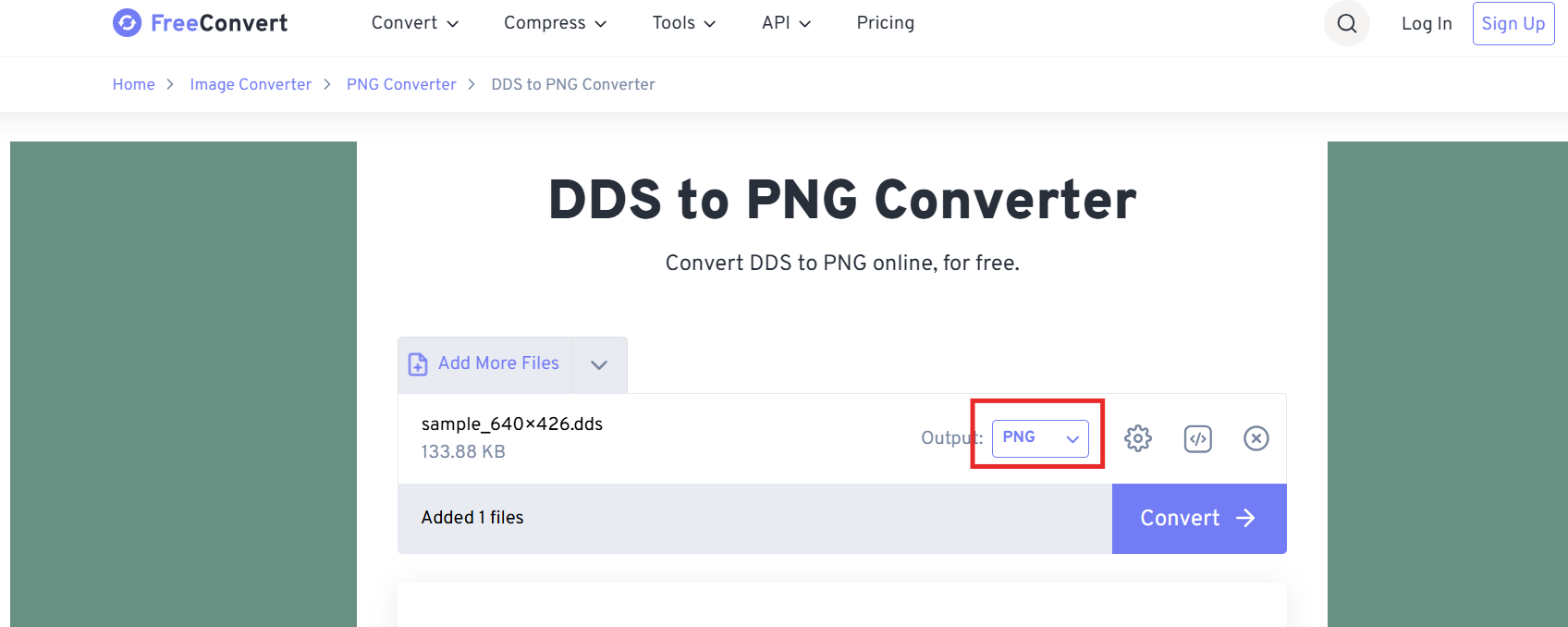
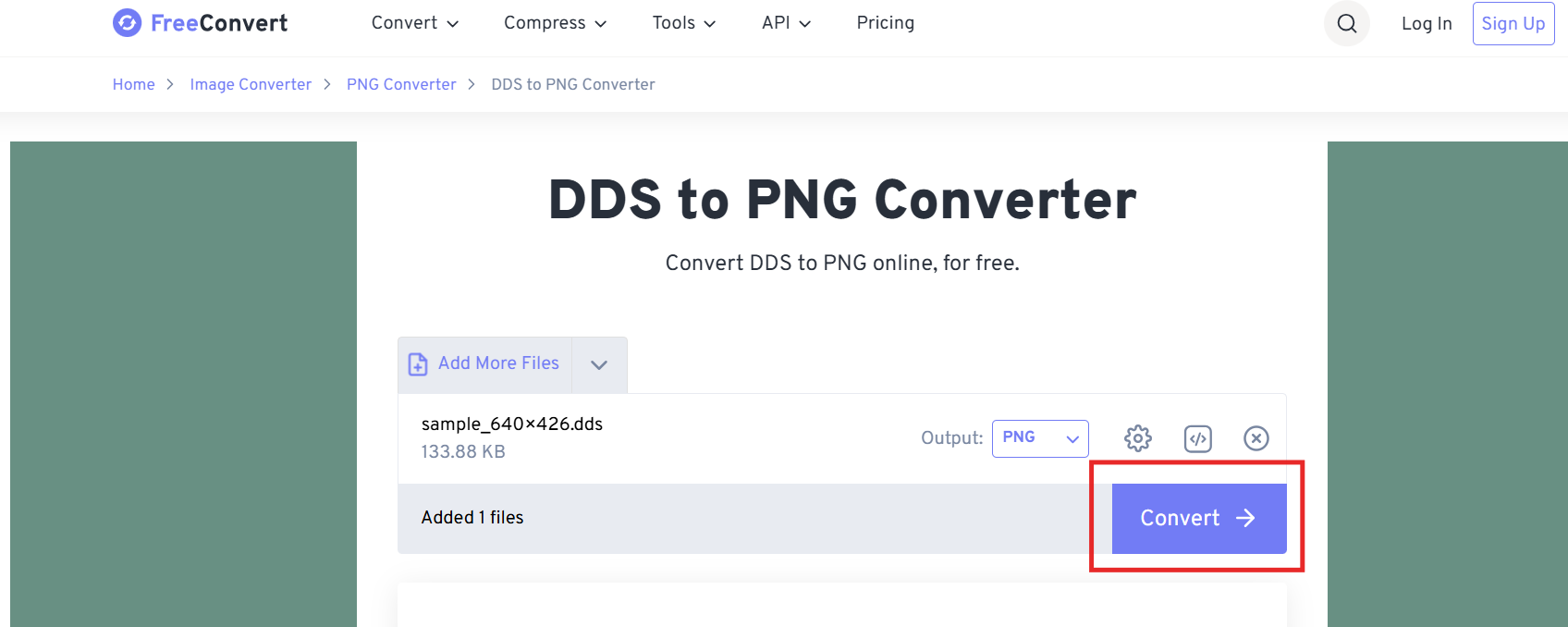
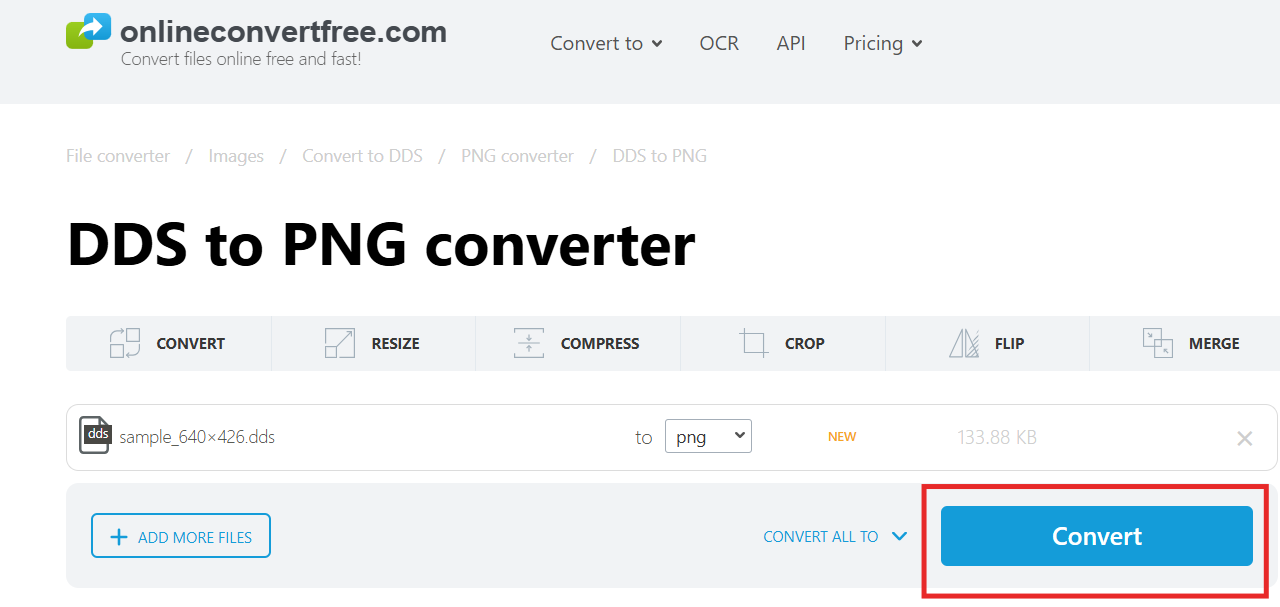
Step 4: Click “Convert” and download the image
once finished.
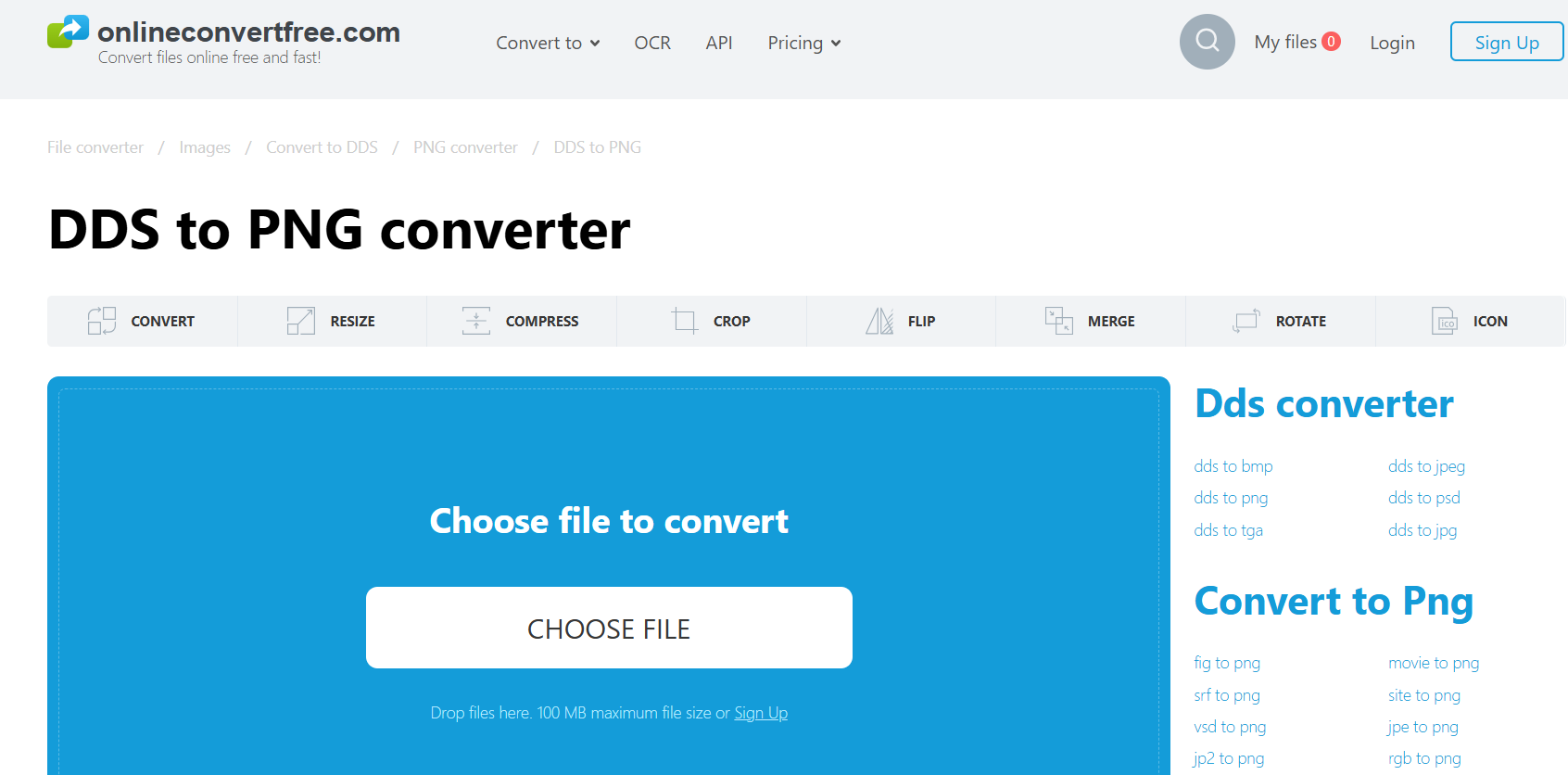
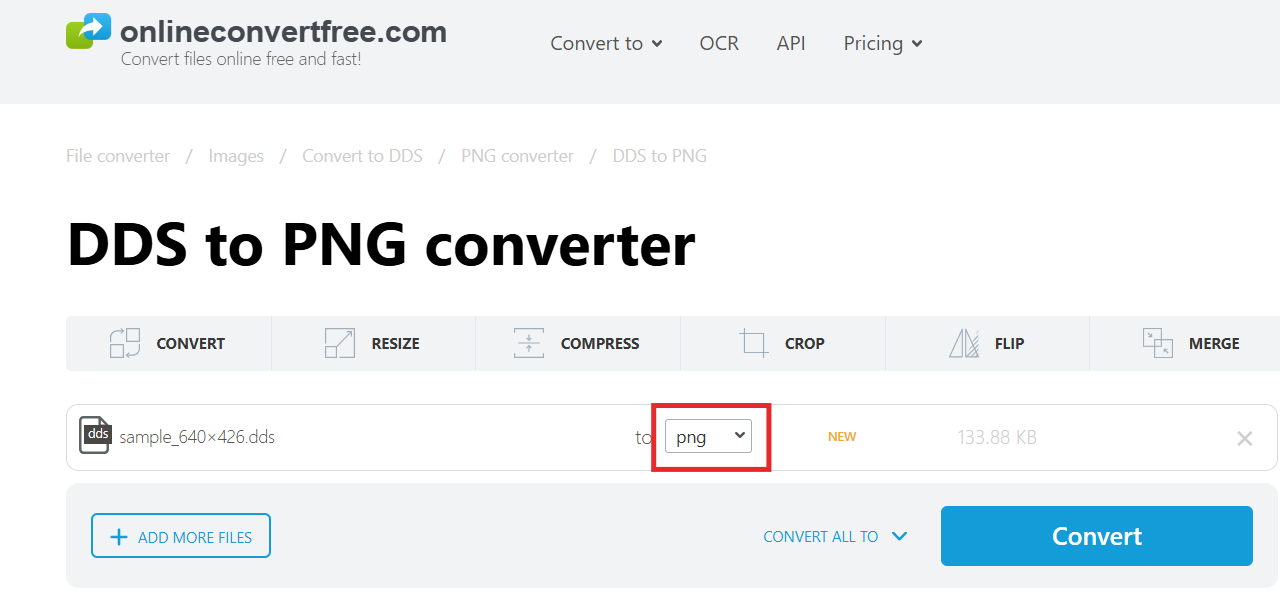
Click Convert in OnlineConvertFree
Personal Insight:
After testing these DDS to PNG conversion tools, I found that
CloudConvert and XnConvert are excellent for high-volume projects
because they handle batch operations with minimal loss of quality.
Meanwhile, Convertio and OnlineConvertFree are ideal for users who
prefer quick browser-based conversion without software installation. All
four options provide DDS to PNG conversion free of charge and deliver
clean, editable PNG files ready for further enhancement in WPS
Photos.
Part 2:
Comparison Between Free DDS to PNG Tools
If you’re still unsure which DDS to PNG converter fits your workflow,
here’s a detailed comparison. The table below summarizes the core
features of each tool, helping you identify the best balance between
usability, output quality, and supported options.
Tool
Platform Type
Ease of Use
Batch Support
Output Quality
Registration
Required
Best For
Convertio
Online
Very Easy
Yes
Excellent
No
Quick single or small batch
conversions
CloudConvert
Online
Easy
Yes
High
Yes (for large tasks)
Users who need flexible conversion
settings
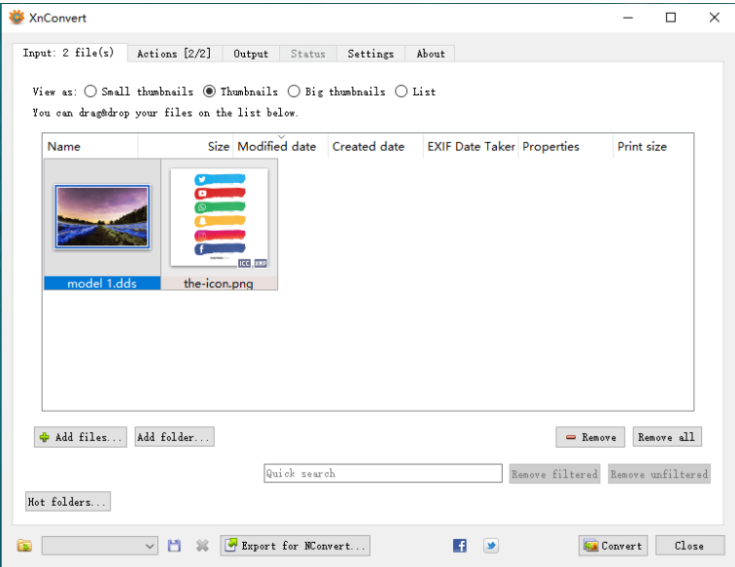
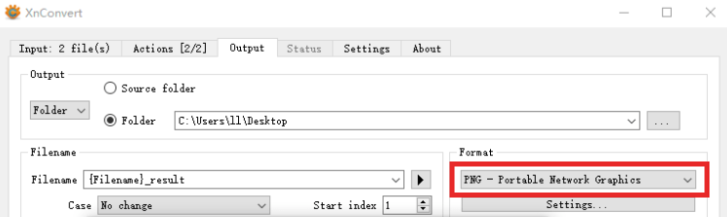
XnConvert
Software
Moderate
Yes
Excellent
No
Offline users and bulk file
conversions
OnlineConvertFree
Online
Very Easy
Limited
Good
No
Beginners needing fast browser-based
conversion
Each DDS to PNG conversion tool has its own advantages:
Convertio and OnlineConvertFree provide the fastest experience
for small-scale tasks.
CloudConvert offers advanced compression and file customization
for professional users.
XnConvert remains the most reliable DDS to PNG converter software
for heavy users who prefer working offline.
When comparing output quality, both CloudConvert and XnConvert
maintain image clarity close to the original DDS textures, which is
crucial for 3D artists and mod developers. If you prioritize simplicity
and accessibility, Convertio and OnlineConvertFree are the better
options.
No matter which option you choose, all four tools offer DDS to PNG
conversion, making them excellent choices for anyone managing texture
files in 2025.
Part 3: Enhance Your
PNG with WPS Photos
Converting DDS textures to PNG is only the first step. After you’ve
used one of the above DDS to PNG tools, you might still need to adjust
color balance, remove backgrounds, or enhance texture clarity. That’s
where WPS Photos becomes a powerful companion.
WPS Photos
Unlike a DDS to PNG converter, which focuses purely on file
transformation, WPS Photos is an AI-powered image enhancement tool that
refines your converted PNG files for professional results.
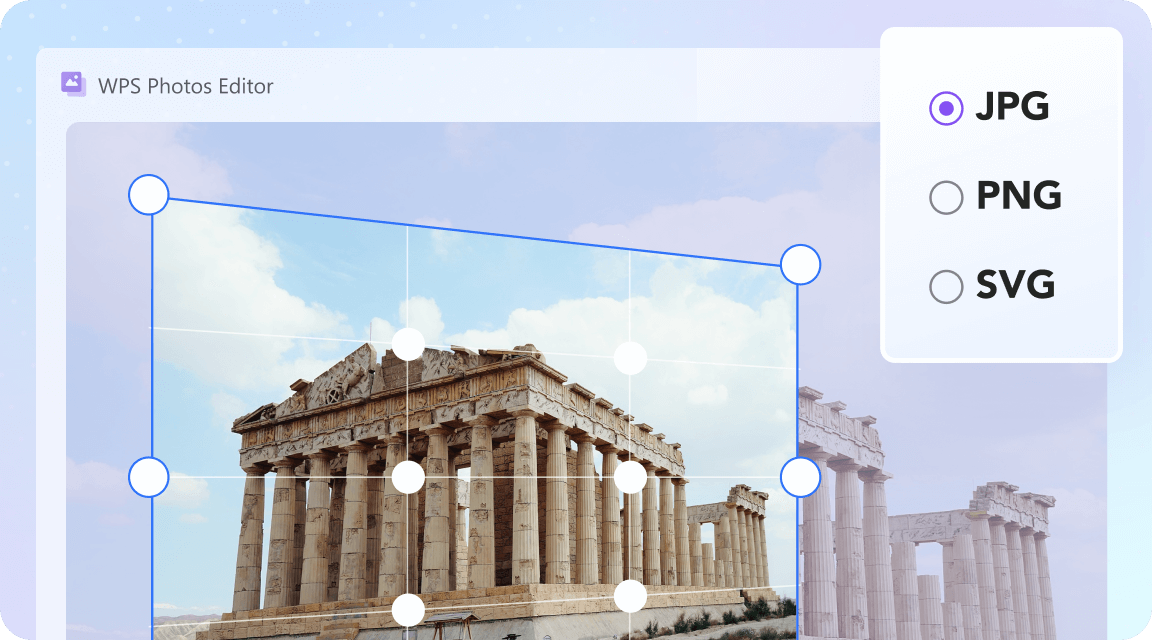
WPS
Photos is a free, lightweight image editor that
combines AI-based enhancement with simple, user-friendly controls.
Whether you’re working with converted game textures or digital artwork,
it provides quick adjustments that improve lighting, sharpness, and
tone, no technical expertise required.
Key Features
AI-based photo enhancement: Automatically
improves contrast, lighting, and texture details.
Auto retouching and tone correction: Perfects
image balance for a natural, polished look.
One-click background removal: Removes unwanted
elements instantly with clean edges.
Batch editing for multiple PNGs: Ideal for users
who convert and enhance images in bulk.
These features make WPS Photos more than just another DDS to PNG
conversion tool; it’s a complete editor for anyone who wants their
images to look professional after format conversion.
Step 2: Open WPS Photos and import your
converted PNG files.
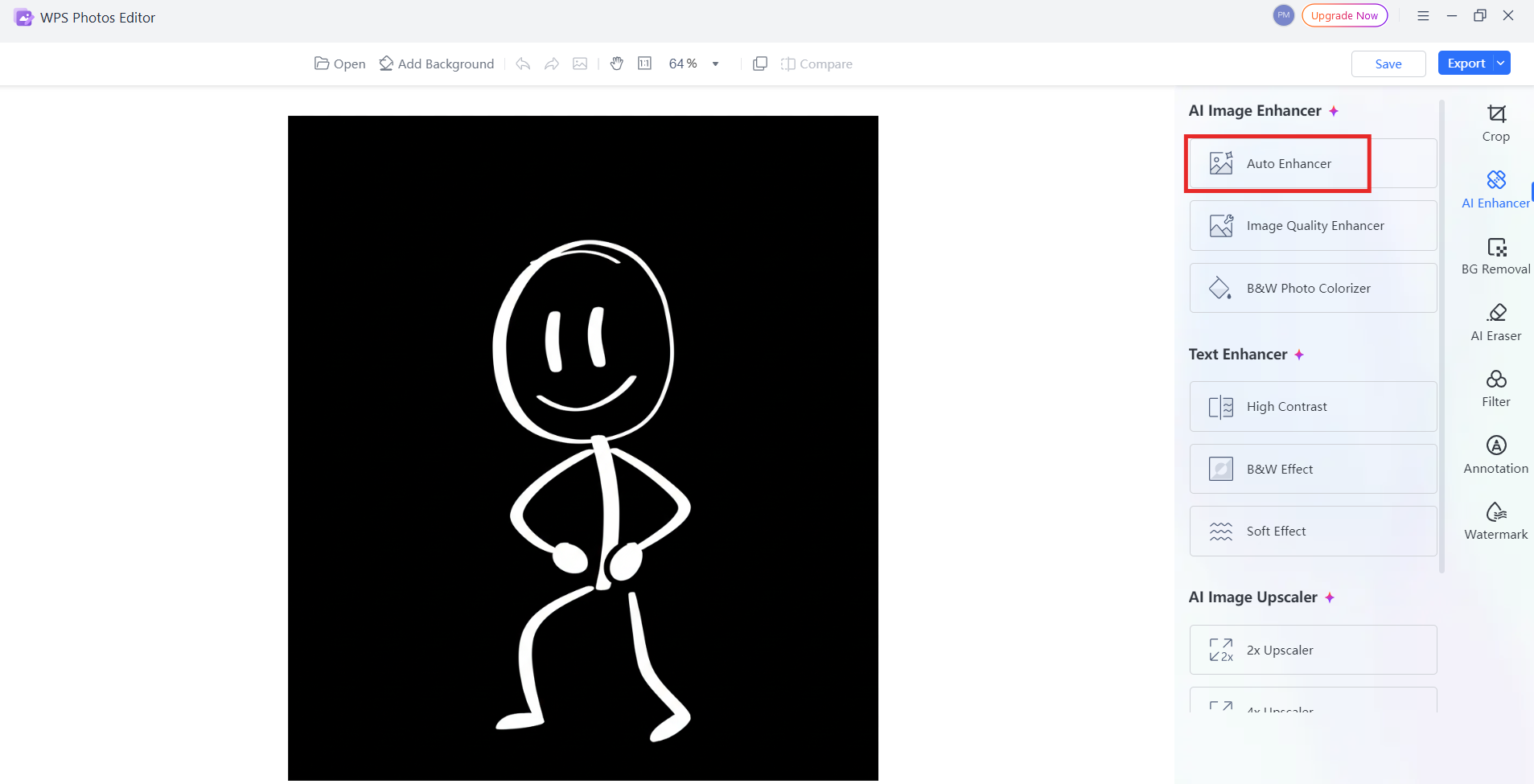
Step 3: Choose the AI Enhanceoption to improve image clarity automatically.
Step 4: Use Auto Tone to
correct lighting and color.
Auto Enhancer in WPS Photos
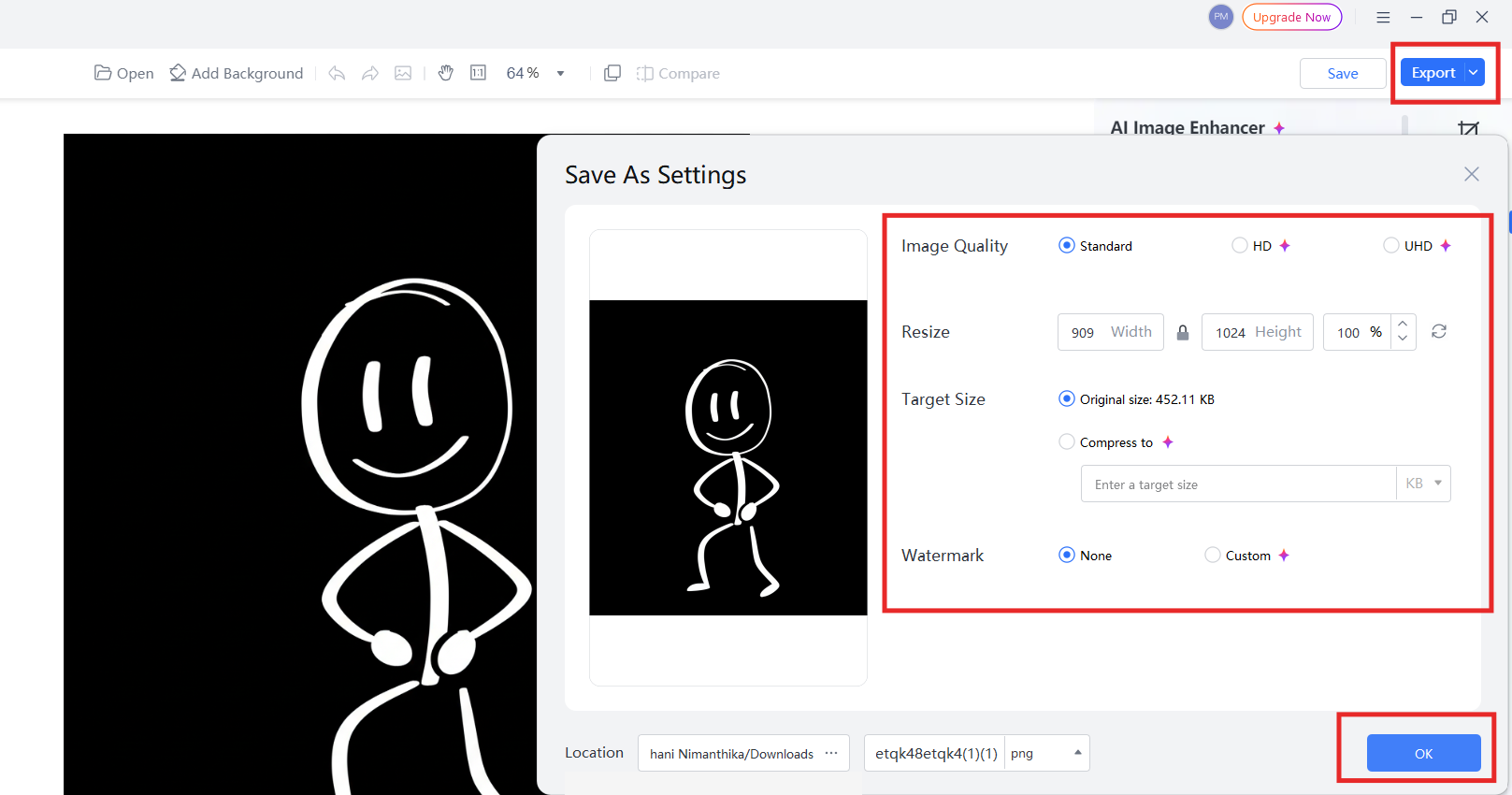
Step 5: Save your edited PNGs or continue
refining with background removal or batch processing.
Export enhanced PNG in WPS Photos
Personal Insight
After testing these tools, I found that combining a free DDS to PNG
converter with WPS Photos produces the best workflow. Convert the
texture files first, then refine them using WPS’s AI-based filters and
tone adjustments. This two-step process ensures both accuracy and visual
appeal, perfect for designers, gamers, or modders who want high-quality
results without expensive software.
FAQs
Q1: Are these DDS to PNG tools completely free?
Most DDS to PNG converter options listed above offer free versions,
allowing users to convert files without registration. However, some
online tools like CloudConvert may limit daily conversions or file sizes
for non-premium users.
Q2: Which DDS converter is best for beginners?
If you’re new to DDS to PNG conversion, Convertio and
OnlineConvertFree are the easiest to use. Both require no installation,
offer drag-and-drop uploads, and complete conversions within
seconds.
Q3: Can I convert DDS files in bulk?
Yes. Tools such as XnConvert and CloudConvert support batch DDS to
PNG conversion free of charge, which is ideal for 3D artists or
designers handling large texture libraries.
Q4: How is WPS Photos different from these
converters?
A DDS to PNG converter software focuses only on changing file
formats. In contrast, WPS Photos enhances, edits, and optimizes the
converted PNG images with AI-powered tools like auto-retouching, tone
correction, and background removal, perfect for users who need
professional finishing touches.
Summary
Converting DDS files to PNG is an essential step for anyone working
with gaming textures or 3D graphics. The tools reviewed, Convertio,
CloudConvert, XnConvert, and OnlineConvertFree, are among the best DDS
to PNG tools available in 2025. Each offers free, high-quality
conversion, whether you prefer quick online methods or offline batch
processing. Choosing the right DDS to PNG converter depends on your
workflow, file volume, and need for customization.
After conversion, refining your PNGs with WPS Photos ensures that
your images look polished and professional. With AI-powered enhancement,
automatic tone correction, and one-click background removal, WPS
Photos goes beyond simple format conversion. It’s the ideal
companion for creators who want to turn ordinary converted files into
visually impressive results, quickly, easily, and without cost.
With over 13 years of hands-on experience in office software and tech, I help users navigate the digital world with ease. From mastering Excel to exploring cutting-edge productivity tools, I break down complex features into simple, actionable steps.


'%3e%3cpath%20d='M8%200C12.4183%200%2016%203.58172%2016%208C16%2012.4183%2012.4183%2016%208%2016C3.58172%2016%200%2012.4183%200%208C0%203.58172%203.58172%200%208%200ZM11.6162%204.38379C11.2257%203.99337%2010.5927%203.99338%2010.2021%204.38379L8%206.58594L5.79785%204.38379C5.40732%203.99334%204.77429%203.99329%204.38379%204.38379C3.99331%204.77429%203.99335%205.40733%204.38379%205.79785L6.58594%208L4.38379%2010.2021C3.99348%2010.5927%203.99341%2011.2257%204.38379%2011.6162C4.77426%2012.0066%205.40734%2012.0065%205.79785%2011.6162L8%209.41406L10.2021%2011.6162C10.5927%2012.0066%2011.2257%2012.0067%2011.6162%2011.6162C12.0067%2011.2257%2012.0066%2010.5927%2011.6162%2010.2021L9.41406%208L11.6162%205.79785C12.0066%205.40735%2012.0066%204.77429%2011.6162%204.38379Z'%20fill='%23080E17'%20fill-opacity='0.46'/%3e%3c/g%3e%3cdefs%3e%3cclipPath%20id='clip0_3761_713'%3e%3crect%20width='16'%20height='16'%20fill='white'/%3e%3c/clipPath%3e%3c/defs%3e%3c/svg%3e)


'%3e%3cpath%20fill-rule='evenodd'%20clip-rule='evenodd'%20d='M21.4999%2010.9993C21.4999%205.20009%2016.7986%200.498901%2010.9993%200.498901C5.19994%200.498901%200.498657%205.20009%200.498657%2010.9993C0.498657%2016.2404%204.33858%2020.5844%209.35855%2021.3722V14.0346H6.69238V10.9993H9.35855V8.68594C9.35855%206.05427%2010.9262%204.60062%2013.3248%204.60062C14.4736%204.60062%2015.6753%204.80571%2015.6753%204.80571V7.38979H14.3512C13.0468%207.38979%2012.64%208.19921%2012.64%209.0296V10.9993H15.5523L15.0867%2014.0346H12.64V21.3722C17.66%2020.5844%2021.4999%2016.2404%2021.4999%2010.9993Z'%20fill='%231568EA'/%3e%3c/g%3e%3c/svg%3e)


'%3e%3cpath%20d='M2.42045%2022.1876H6.31818V12.7217L0.75%208.54553V20.5171C0.75%2021.4414%201.49892%2022.1876%202.42045%2022.1876Z'%20fill='%234285F4'/%3e%3cpath%20d='M19.682%2022.1876H23.5797C24.5041%2022.1876%2025.2502%2021.4387%2025.2502%2020.5171V8.54553L19.682%2012.7217'%20fill='%2334A853'/%3e%3cpath%20d='M19.682%205.48293V12.7216L25.2502%208.54543V6.31816C25.2502%204.25236%2022.8921%203.07469%2021.2411%204.31361'%20fill='%23FBBC04'/%3e%3cpath%20d='M6.31824%2012.7217V5.48303L13.0001%2010.4944L19.6819%205.48303V12.7217L13.0001%2017.733'%20fill='%23EA4335'/%3e%3cpath%20d='M0.75%206.31816V8.54543L6.31818%2012.7216V5.48293L4.75909%204.31361C3.10534%203.07469%200.75%204.25236%200.75%206.31816Z'%20fill='%23C5221F'/%3e%3c/g%3e%3cdefs%3e%3cclipPath%20id='clip0_2954_7305'%3e%3crect%20width='24.5'%20height='18.375'%20fill='white'%20transform='translate(0.75%203.8125)'/%3e%3c/clipPath%3e%3c/defs%3e%3c/svg%3e)




'%3e%3cpath%20d='M19.9911%204.11386V6.471H18.5894C18.0775%206.471%2017.7322%206.57814%2017.5536%206.79243C17.3751%207.00671%2017.2858%207.32814%2017.2858%207.75671V9.44421H19.9019L19.5536%2012.0871H17.2858V18.8639H14.5536V12.0871H12.2769V9.44421H14.5536V7.49779C14.5536%206.39064%2014.8632%205.53201%2015.4822%204.92189C16.1013%204.31177%2016.9257%204.00671%2017.9554%204.00671C18.8304%204.00671%2019.509%204.04243%2019.9911%204.11386Z'%20fill='%23333333'/%3e%3c/g%3e%3cdefs%3e%3cclipPath%20id='clip0_2938_8199'%3e%3crect%20width='16'%20height='16'%20fill='white'%20transform='translate(8%204.00671)'/%3e%3c/clipPath%3e%3c/defs%3e%3c/svg%3e)
'%3e%3cpath%20d='M17.5237%2010.7813L23.4811%204H22.0699L16.8949%209.88693L12.7648%204H8L14.2469%2012.9029L8%2020.0133H9.4112L14.8725%2013.7952L19.2352%2020.0133H24M9.92053%205.04213H12.0885L22.0688%2019.0224H19.9003'%20fill='%23333333'/%3e%3c/g%3e%3cdefs%3e%3cclipPath%20id='clip0_2938_8200'%3e%3crect%20width='16'%20height='16.0134'%20fill='white'%20transform='translate(8%204)'/%3e%3c/clipPath%3e%3c/defs%3e%3c/svg%3e)


