

'%3e%3cpath%20d='M8%200C12.4183%200%2016%203.58172%2016%208C16%2012.4183%2012.4183%2016%208%2016C3.58172%2016%200%2012.4183%200%208C0%203.58172%203.58172%200%208%200ZM11.6162%204.38379C11.2257%203.99337%2010.5927%203.99338%2010.2021%204.38379L8%206.58594L5.79785%204.38379C5.40732%203.99334%204.77429%203.99329%204.38379%204.38379C3.99331%204.77429%203.99335%205.40733%204.38379%205.79785L6.58594%208L4.38379%2010.2021C3.99348%2010.5927%203.99341%2011.2257%204.38379%2011.6162C4.77426%2012.0066%205.40734%2012.0065%205.79785%2011.6162L8%209.41406L10.2021%2011.6162C10.5927%2012.0066%2011.2257%2012.0067%2011.6162%2011.6162C12.0067%2011.2257%2012.0066%2010.5927%2011.6162%2010.2021L9.41406%208L11.6162%205.79785C12.0066%205.40735%2012.0066%204.77429%2011.6162%204.38379Z'%20fill='%23080E17'%20fill-opacity='0.46'/%3e%3c/g%3e%3cdefs%3e%3cclipPath%20id='clip0_3761_713'%3e%3crect%20width='16'%20height='16'%20fill='white'/%3e%3c/clipPath%3e%3c/defs%3e%3c/svg%3e)




'%3e%3cpath%20fill-rule='evenodd'%20clip-rule='evenodd'%20d='M21.4999%2010.9993C21.4999%205.20009%2016.7986%200.498901%2010.9993%200.498901C5.19994%200.498901%200.498657%205.20009%200.498657%2010.9993C0.498657%2016.2404%204.33858%2020.5844%209.35855%2021.3722V14.0346H6.69238V10.9993H9.35855V8.68594C9.35855%206.05427%2010.9262%204.60062%2013.3248%204.60062C14.4736%204.60062%2015.6753%204.80571%2015.6753%204.80571V7.38979H14.3512C13.0468%207.38979%2012.64%208.19921%2012.64%209.0296V10.9993H15.5523L15.0867%2014.0346H12.64V21.3722C17.66%2020.5844%2021.4999%2016.2404%2021.4999%2010.9993Z'%20fill='%231568EA'/%3e%3c/g%3e%3c/svg%3e)


'%3e%3cpath%20d='M2.42045%2022.1876H6.31818V12.7217L0.75%208.54553V20.5171C0.75%2021.4414%201.49892%2022.1876%202.42045%2022.1876Z'%20fill='%234285F4'/%3e%3cpath%20d='M19.682%2022.1876H23.5797C24.5041%2022.1876%2025.2502%2021.4387%2025.2502%2020.5171V8.54553L19.682%2012.7217'%20fill='%2334A853'/%3e%3cpath%20d='M19.682%205.48293V12.7216L25.2502%208.54543V6.31816C25.2502%204.25236%2022.8921%203.07469%2021.2411%204.31361'%20fill='%23FBBC04'/%3e%3cpath%20d='M6.31824%2012.7217V5.48303L13.0001%2010.4944L19.6819%205.48303V12.7217L13.0001%2017.733'%20fill='%23EA4335'/%3e%3cpath%20d='M0.75%206.31816V8.54543L6.31818%2012.7216V5.48293L4.75909%204.31361C3.10534%203.07469%200.75%204.25236%200.75%206.31816Z'%20fill='%23C5221F'/%3e%3c/g%3e%3cdefs%3e%3cclipPath%20id='clip0_2954_7305'%3e%3crect%20width='24.5'%20height='18.375'%20fill='white'%20transform='translate(0.75%203.8125)'/%3e%3c/clipPath%3e%3c/defs%3e%3c/svg%3e)


Cross-platform document editing is now a routine part of work and school. Microsoft Word remains the go-to choice for creating documents locally, while Google Docs leads in cloud-based collaboration. With real-time co-editing, automatic cloud saving, and one-click sharing, Google Docs offers workflows that are hard to match in Word alone.
If you've finished a report, essay, or work draft in Word and want to edit it online—or invite others to collaborate—converting your file to Google Docs is the simplest path forward. In this guide, you'll learn two official methods to convert Word files, practical tips to preserve formatting, and fixes for common conversion issues.
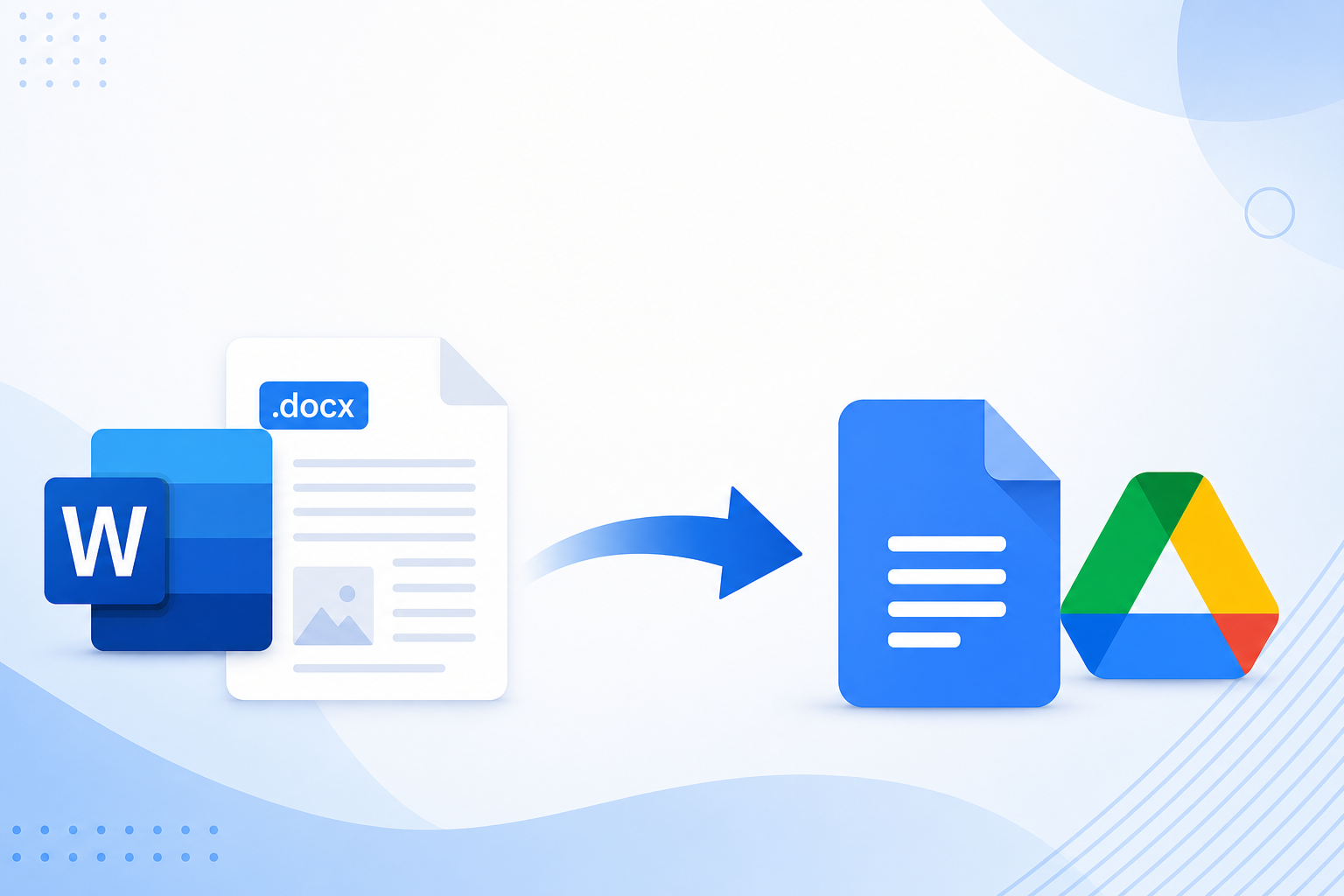
Quick answer: Upload your .docx file to Google Drive → right-click → Open with → Google Docs → File → Save as Google Docs.
Why Convert Word to Google Docs?
Before you start, here are the main advantages Google Docs has over local Word files:
| Advantage | What It Means for You |
|---|---|
| Automatic cloud backup | No more lost work from crashes or missing local files |
| Real-time collaboration | Multiple people edit at once with flexible permission controls |
| Access from any device | Edit on phone, tablet, or any computer with internet |
| Free built-in tools | Comments, revision history, and templates—no Office subscription needed |
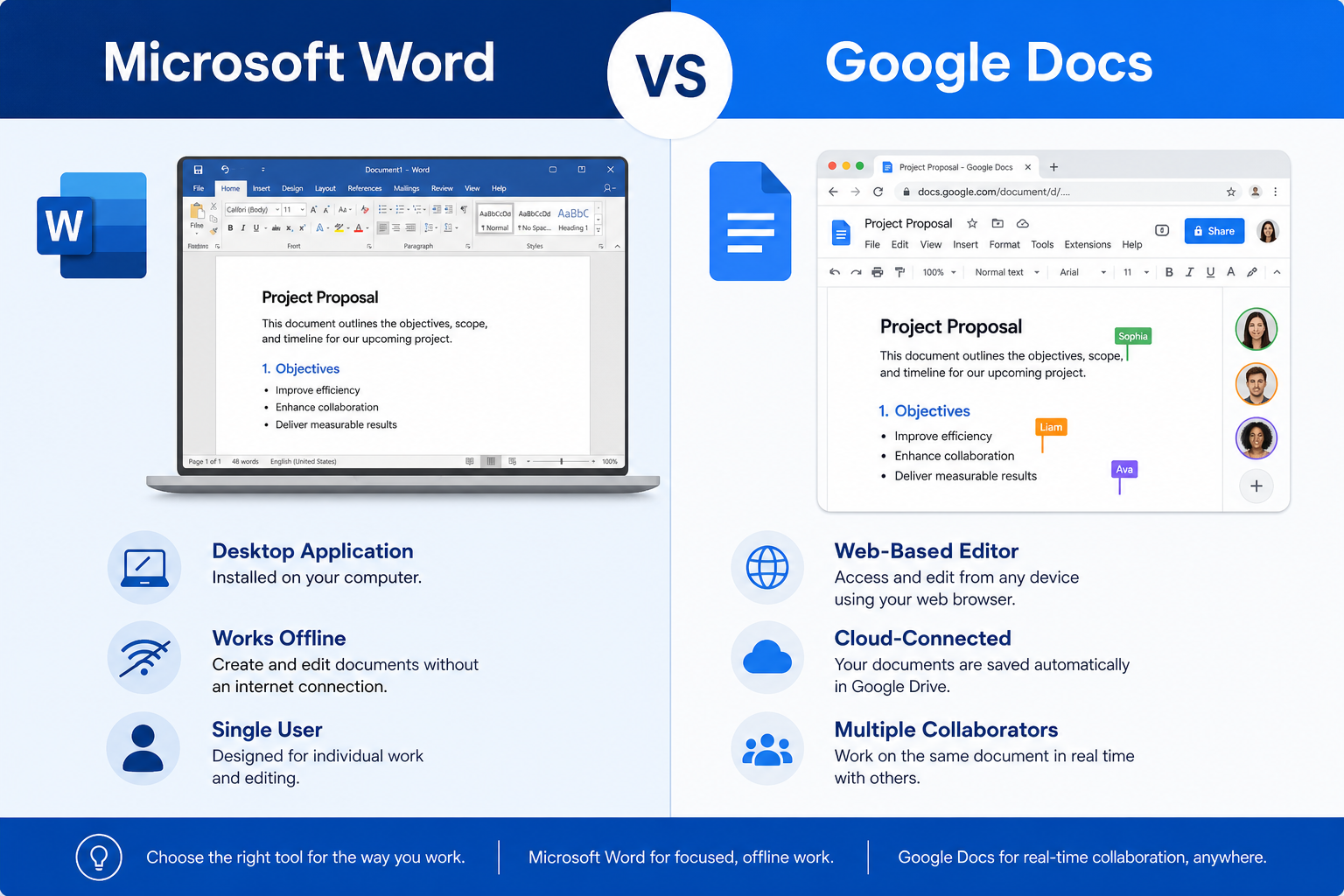
Method 1: Manual One-Click Conversion (Most Common)
This approach works well for beginners and doesn't require advanced setup.
Step 1: Log In to Google Drive
Open your browser and go to drive.google.com. Sign in with your Google account. Don't have one? You can create a free account in about two minutes.
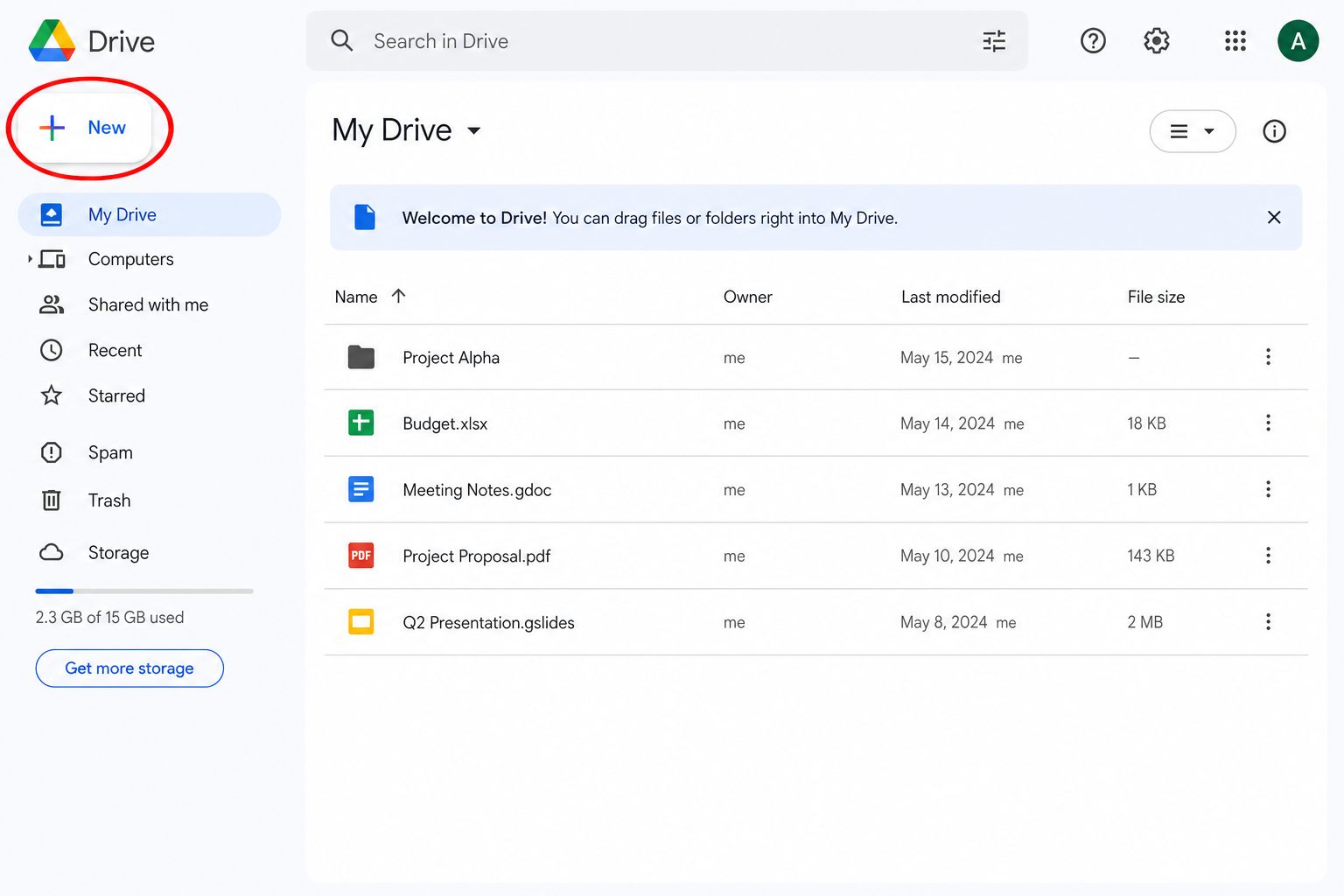
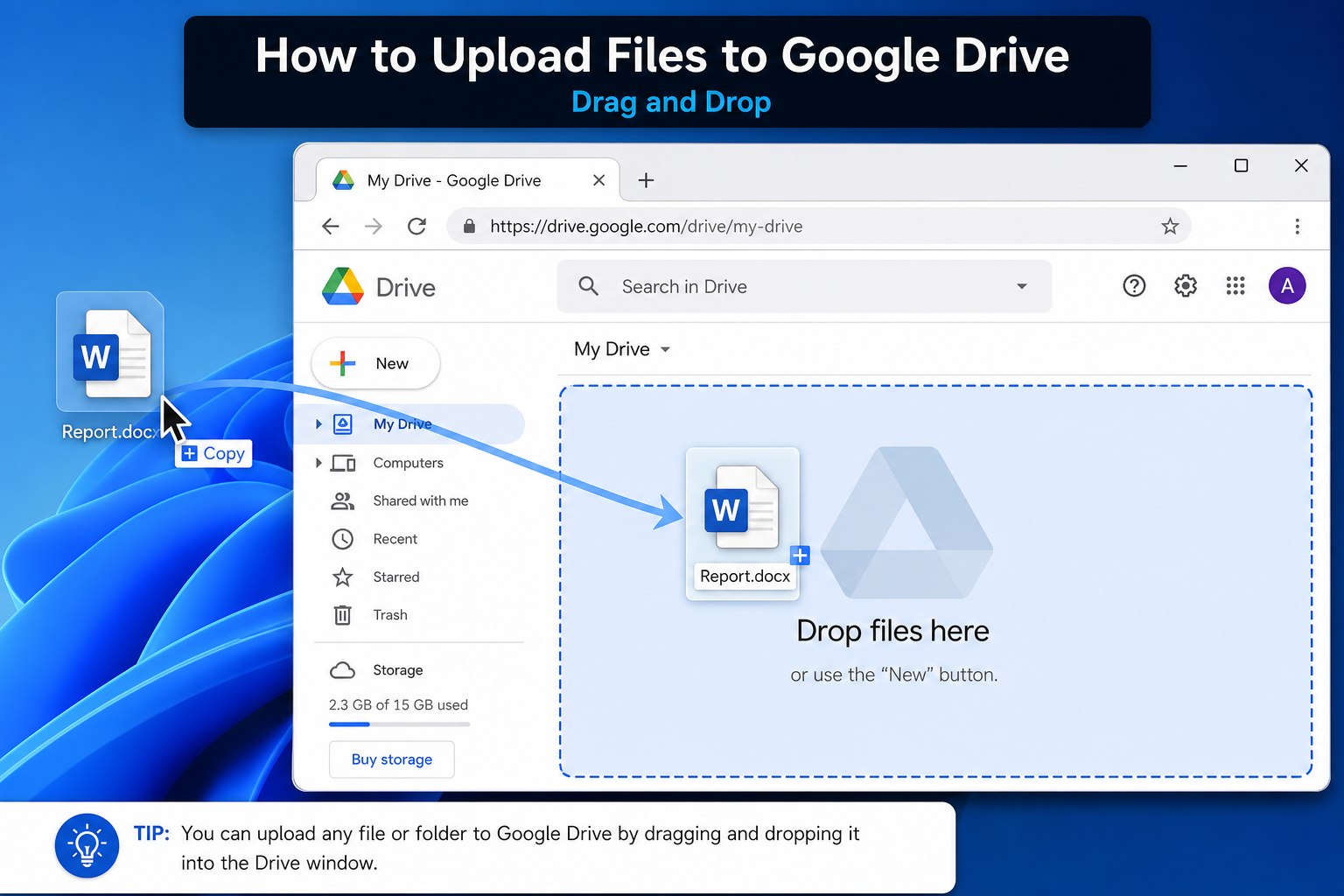
Step 2: Upload Your Word File
Click the + New button in the top-left corner of Google Drive.
Select File upload from the dropdown menu.
Choose your
.docor.docxfile from your computer, then click Open.
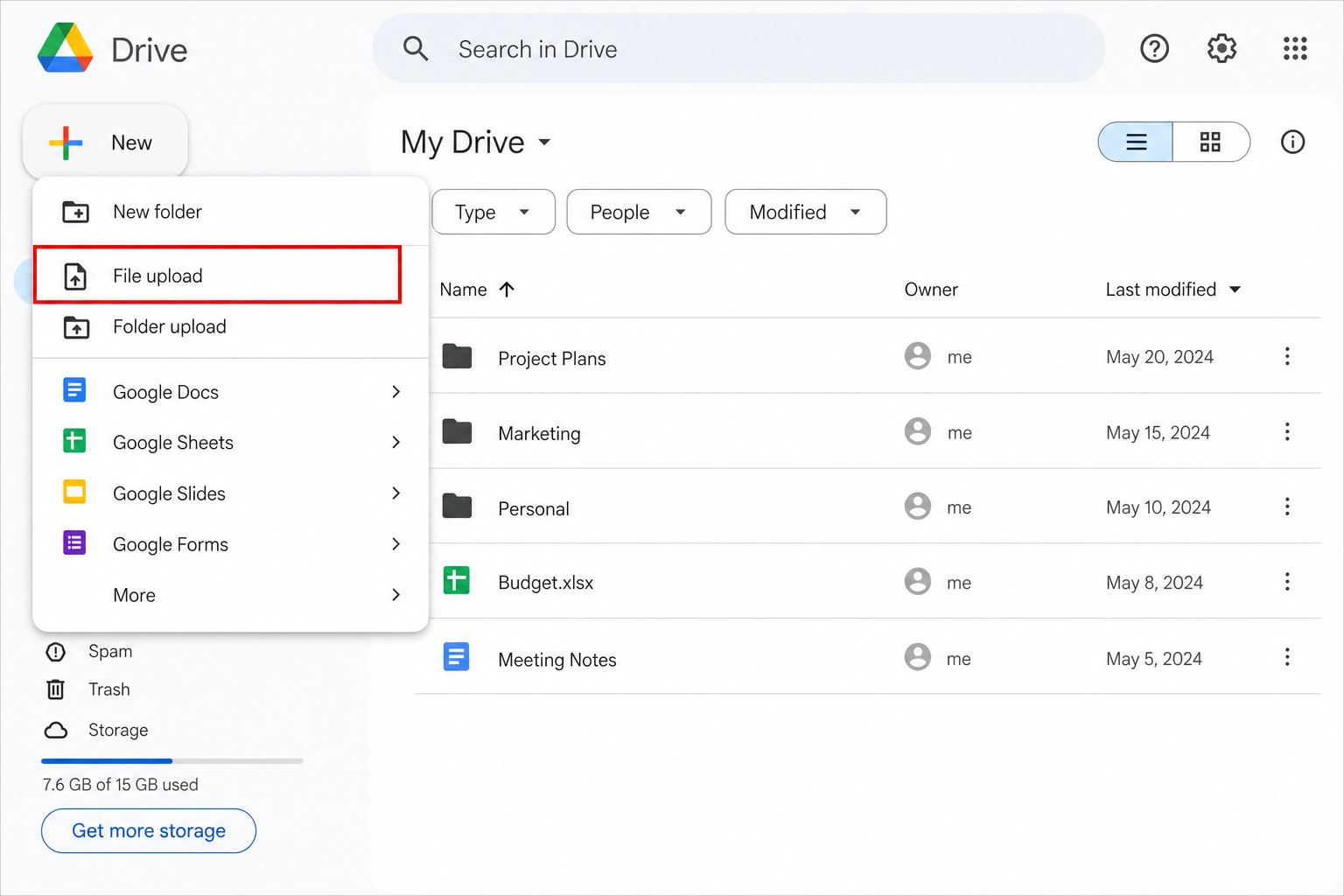
Quick tip: Drag and drop your Word file directly onto the Google Drive page for a faster upload.
Step 3: Open and Convert to Google Docs Format
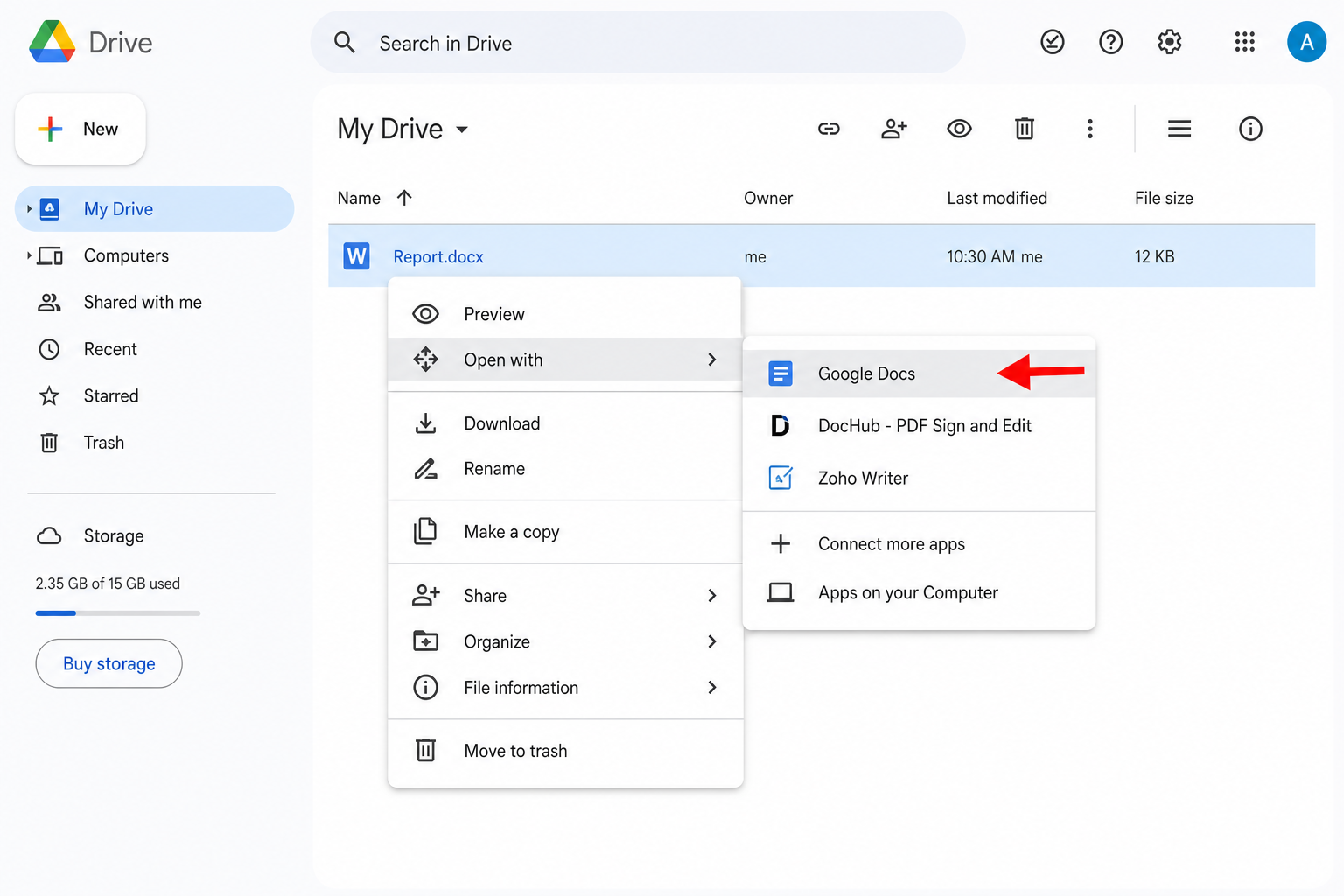
Wait for the upload to finish. Right-click the uploaded Word file.
Hover over Open with, then select Google Docs.
Important: The file opens in Google Docs but is still stored as a Word file. To complete the conversion, click File → Save as Google Docs in the top menu bar.
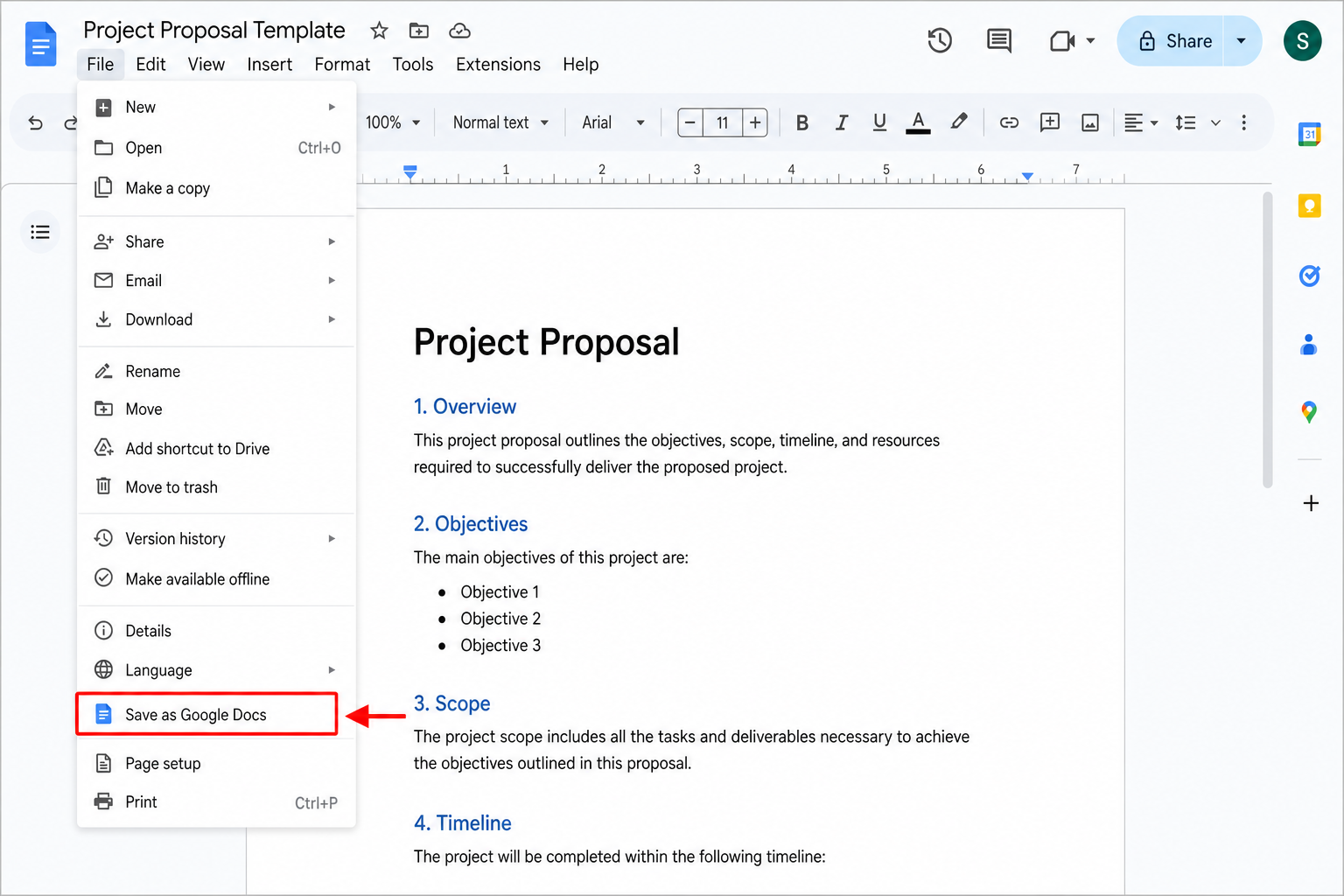
Don't skip Step 3. Opening a Word file in Google Docs is not the same as converting it. You must click Save as Google Docs to get a true Google-native file.
Method 2: Automatic Batch Conversion (Best for Multiple Files)
If you need to convert many Word files at once, turn on automatic conversion in your Drive settings:
On the Google Drive homepage, click the Settings gear icon in the top-right corner.
Select Settings, then scroll to the General section.
Check Convert uploaded files to Google Docs editor format.
Click Done to save your settings.
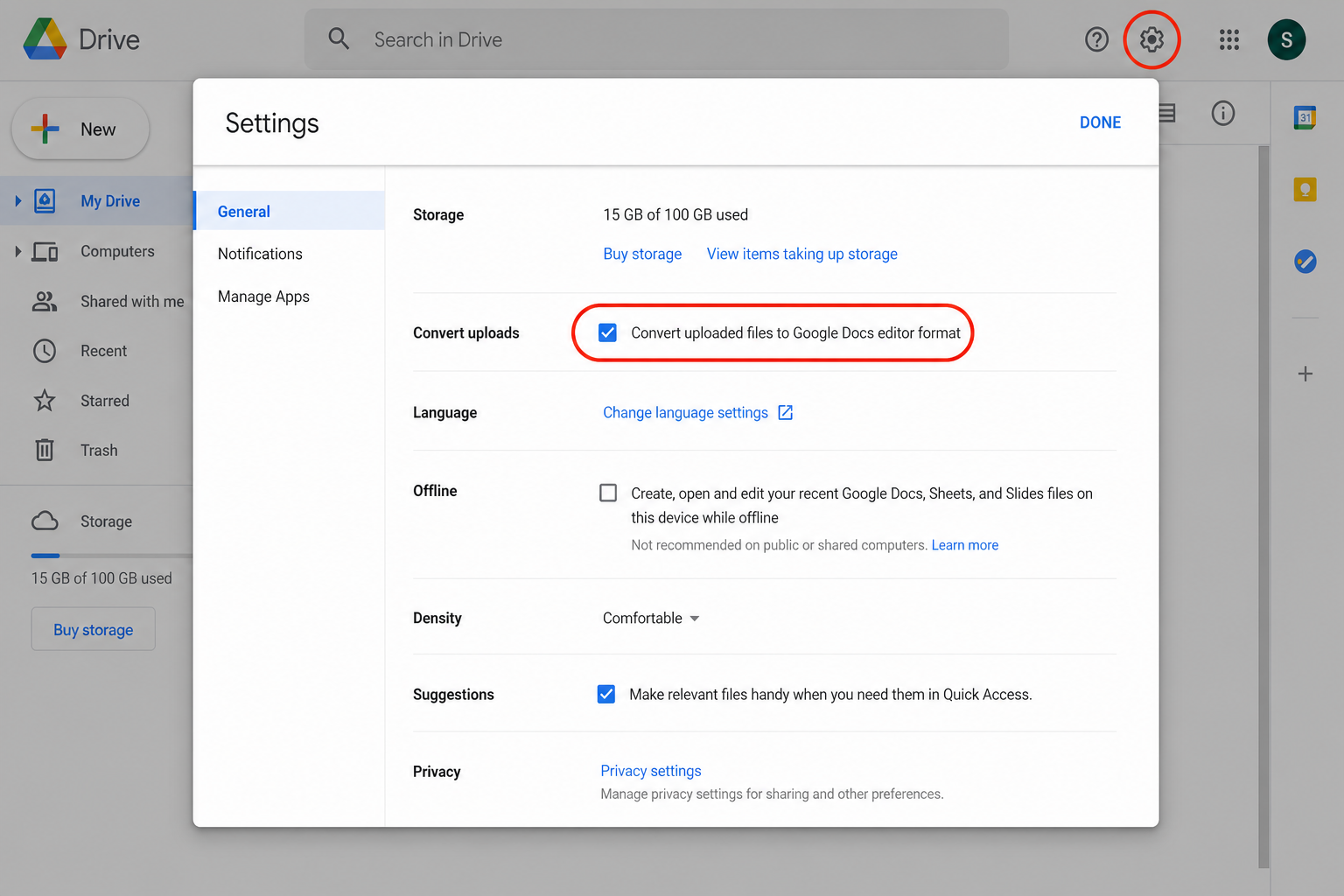
After this is enabled, every Word file you upload will automatically convert to an editable Google Doc—no extra steps required.
Top Tips to Avoid Formatting Issues
Many users notice that tables, fonts, images, and bullet points look off after conversion. These tips can help:
| Issue | Prevention Tip |
|---|---|
| Messy layouts | Remove text boxes, WordArt, and custom macros before uploading |
| Wrong fonts | Stick to Arial, Times New Roman, or Calibri |
| Broken tables | Re-adjust cell sizes and alignment after conversion |
| Missing images | Re-insert images manually if they don't appear |
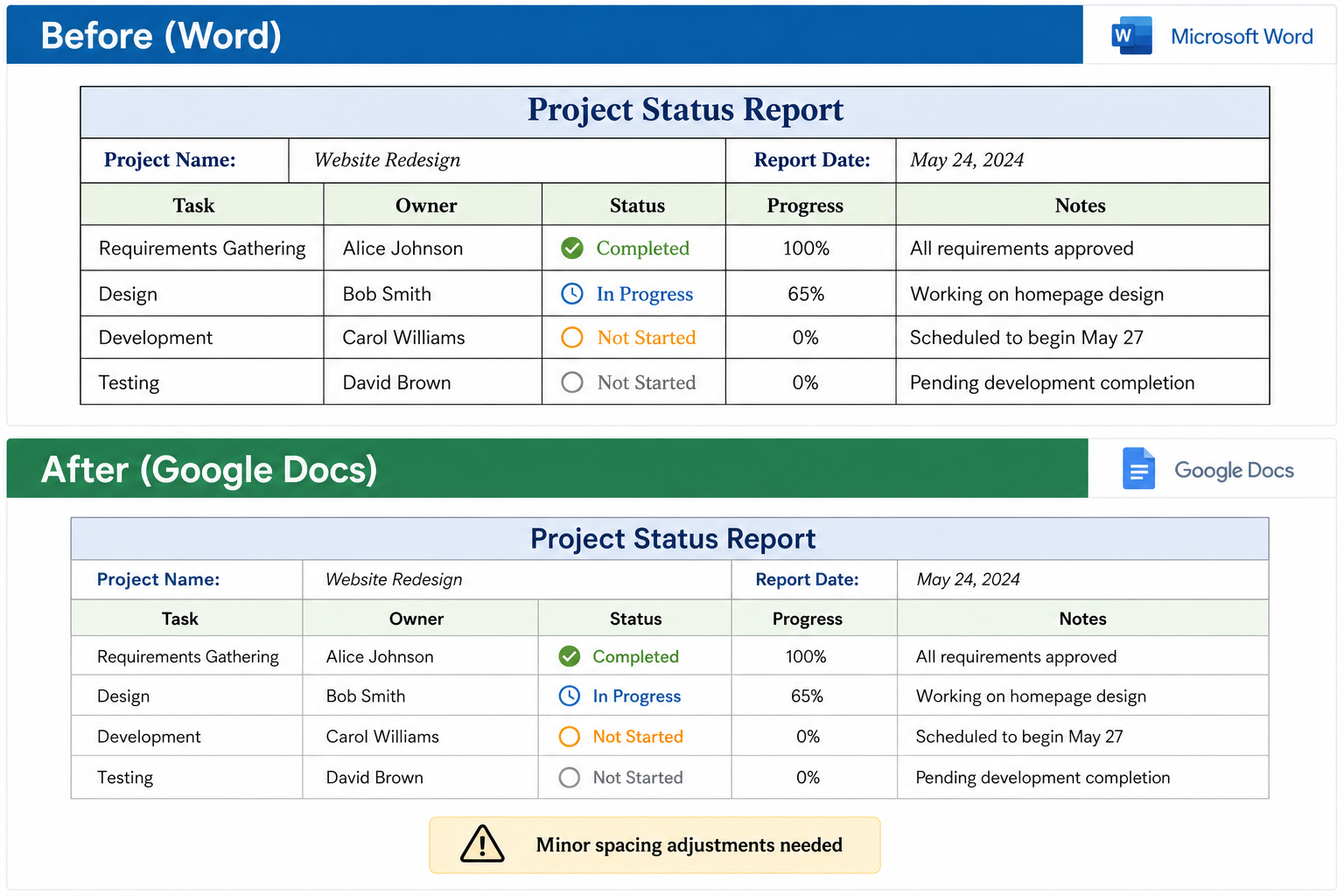
Simplify complex layouts before uploading — Google Docs may not handle text boxes or embedded Office objects perfectly.
Stick to standard fonts — Uncommon custom fonts often revert to defaults.
Adjust tables after conversion — Google Docs handles table spacing differently than Word.
Keep the original file — Your
.docxstays in Drive until you delete it; the Google Doc is a separate copy.


Common Issues and Troubleshooting
| Problem | Likely Cause | Fix |
|---|---|---|
| Conversion button grayed out | Unstable internet | Refresh page, check connection, re-upload |
| Large file won't upload | File exceeds Drive limit | Compress images inside Word first |
| Can't edit the document | Still in Word preview mode | File → Save as Google Docs |
| Blank document after opening | Browser cache issue | Refresh tab or try incognito mode |
| Formatting looks broken | Complex Word features | Simplify layout, re-insert images manually |
Frequently Asked Questions (FAQ)
How do I convert a Word document to Google Docs?
Upload your .docx file to Google Drive, right-click it, and select Open with → Google Docs. Then click File → Save as Google Docs to create a native Google Doc.
Does converting Word to Google Docs keep the formatting?
Most formatting is preserved, including fonts, headers, tables, and images. However, advanced Word features—macros, custom fonts, text boxes, and complex layouts—may not transfer perfectly. Simplify your document before uploading for best results.
Can I edit a Word file in Google Docs without converting it?
Yes. Google Docs supports "Office Editing Mode," which lets you open and edit .docx files directly. Changes save back to the Word format. However, for long-term collaboration and full Google Docs features, converting to a native Google Doc is recommended.If you don't need in-doc editing at all and just want to embed the file for download, use how to attach a Word document to Google Docs instead.
What's the difference between "Open with Google Docs" and "Save as Google Docs"?
| Action | Result |
|---|---|
| Open with Google Docs | Opens the Word file in compatibility mode; file remains .docx |
| Save as Google Docs | Creates a new, native Google Doc; fully editable with all Docs features |
How do I automatically convert all Word uploads to Google Docs?
In Google Drive, click the gear icon → Settings. Under General, check Convert uploaded files to Google Docs editor format. Click Done. All future Word uploads will auto-convert.
Can I convert older .doc files (Word 97–2003)?
Yes. Google Docs supports both .doc (older) and .docx (newer) formats. The upload and conversion process is identical for both.
What happens to my original Word file after conversion?
It stays in Google Drive. "Save as Google Docs" creates a new file—the original .docx is not deleted. You'll have both files until you manually remove one.
How do I convert a Google Doc back to Word?
Open your Google Doc → File → Download → Microsoft Word (.docx). The file downloads to your computer in Word format.
Can I convert Word to Google Docs on my phone?
Yes. Use the Google Drive app: tap + → Upload, select your Word file, then tap the file → Open with → Google Docs. For full editing, ensure the Google Docs app is installed on your device.Yes. For a detailed mobile walkthrough—including opening without converting—see how to open a Word doc in Google Docs on mobile app
Why does my converted document look different from the original?
Google Docs and Word use different rendering engines. Page breaks, margins, floating objects, and custom styles may shift slightly. Use standard fonts and simplified layouts to minimize differences.
How do I convert my Google Doc to PDF after converting from Word?
Open your converted Google Doc, click File → Download → PDF Document (.pdf). For a full walkthrough—including quick export without editing—see our guide: https://www.wps.com/blog/how-to-convert-word-to-pdf-on-google-docs/
Conclusion
Converting a Word document to Google Docs takes just a couple of minutes. Use the manual method for one-off conversions, and enable automatic conversion if you work with Word files regularly.
Moving from local Word files to cloud-based Google Docs is an easy way to modernize your workflow. It removes the limits of offline editing and makes team collaboration smoother. Try converting your next draft today.
Not ready to convert? If you only need to embed the original Word file for download, learn how to attach a Word document to Google Docs.

'%3e%3cpath%20d='M19.9911%204.11386V6.471H18.5894C18.0775%206.471%2017.7322%206.57814%2017.5536%206.79243C17.3751%207.00671%2017.2858%207.32814%2017.2858%207.75671V9.44421H19.9019L19.5536%2012.0871H17.2858V18.8639H14.5536V12.0871H12.2769V9.44421H14.5536V7.49779C14.5536%206.39064%2014.8632%205.53201%2015.4822%204.92189C16.1013%204.31177%2016.9257%204.00671%2017.9554%204.00671C18.8304%204.00671%2019.509%204.04243%2019.9911%204.11386Z'%20fill='%23333333'/%3e%3c/g%3e%3cdefs%3e%3cclipPath%20id='clip0_2938_8199'%3e%3crect%20width='16'%20height='16'%20fill='white'%20transform='translate(8%204.00671)'/%3e%3c/clipPath%3e%3c/defs%3e%3c/svg%3e)
'%3e%3cpath%20d='M17.5237%2010.7813L23.4811%204H22.0699L16.8949%209.88693L12.7648%204H8L14.2469%2012.9029L8%2020.0133H9.4112L14.8725%2013.7952L19.2352%2020.0133H24M9.92053%205.04213H12.0885L22.0688%2019.0224H19.9003'%20fill='%23333333'/%3e%3c/g%3e%3cdefs%3e%3cclipPath%20id='clip0_2938_8200'%3e%3crect%20width='16'%20height='16.0134'%20fill='white'%20transform='translate(8%204)'/%3e%3c/clipPath%3e%3c/defs%3e%3c/svg%3e)


