

'%3e%3cpath%20d='M8%200C12.4183%200%2016%203.58172%2016%208C16%2012.4183%2012.4183%2016%208%2016C3.58172%2016%200%2012.4183%200%208C0%203.58172%203.58172%200%208%200ZM11.6162%204.38379C11.2257%203.99337%2010.5927%203.99338%2010.2021%204.38379L8%206.58594L5.79785%204.38379C5.40732%203.99334%204.77429%203.99329%204.38379%204.38379C3.99331%204.77429%203.99335%205.40733%204.38379%205.79785L6.58594%208L4.38379%2010.2021C3.99348%2010.5927%203.99341%2011.2257%204.38379%2011.6162C4.77426%2012.0066%205.40734%2012.0065%205.79785%2011.6162L8%209.41406L10.2021%2011.6162C10.5927%2012.0066%2011.2257%2012.0067%2011.6162%2011.6162C12.0067%2011.2257%2012.0066%2010.5927%2011.6162%2010.2021L9.41406%208L11.6162%205.79785C12.0066%205.40735%2012.0066%204.77429%2011.6162%204.38379Z'%20fill='%23080E17'%20fill-opacity='0.46'/%3e%3c/g%3e%3cdefs%3e%3cclipPath%20id='clip0_3761_713'%3e%3crect%20width='16'%20height='16'%20fill='white'/%3e%3c/clipPath%3e%3c/defs%3e%3c/svg%3e)



'%3e%3cpath%20fill-rule='evenodd'%20clip-rule='evenodd'%20d='M21.4999%2010.9993C21.4999%205.20009%2016.7986%200.498901%2010.9993%200.498901C5.19994%200.498901%200.498657%205.20009%200.498657%2010.9993C0.498657%2016.2404%204.33858%2020.5844%209.35855%2021.3722V14.0346H6.69238V10.9993H9.35855V8.68594C9.35855%206.05427%2010.9262%204.60062%2013.3248%204.60062C14.4736%204.60062%2015.6753%204.80571%2015.6753%204.80571V7.38979H14.3512C13.0468%207.38979%2012.64%208.19921%2012.64%209.0296V10.9993H15.5523L15.0867%2014.0346H12.64V21.3722C17.66%2020.5844%2021.4999%2016.2404%2021.4999%2010.9993Z'%20fill='%231568EA'/%3e%3c/g%3e%3c/svg%3e)


'%3e%3cpath%20d='M2.42045%2022.1876H6.31818V12.7217L0.75%208.54553V20.5171C0.75%2021.4414%201.49892%2022.1876%202.42045%2022.1876Z'%20fill='%234285F4'/%3e%3cpath%20d='M19.682%2022.1876H23.5797C24.5041%2022.1876%2025.2502%2021.4387%2025.2502%2020.5171V8.54553L19.682%2012.7217'%20fill='%2334A853'/%3e%3cpath%20d='M19.682%205.48293V12.7216L25.2502%208.54543V6.31816C25.2502%204.25236%2022.8921%203.07469%2021.2411%204.31361'%20fill='%23FBBC04'/%3e%3cpath%20d='M6.31824%2012.7217V5.48303L13.0001%2010.4944L19.6819%205.48303V12.7217L13.0001%2017.733'%20fill='%23EA4335'/%3e%3cpath%20d='M0.75%206.31816V8.54543L6.31818%2012.7216V5.48293L4.75909%204.31361C3.10534%203.07469%200.75%204.25236%200.75%206.31816Z'%20fill='%23C5221F'/%3e%3c/g%3e%3cdefs%3e%3cclipPath%20id='clip0_2954_7305'%3e%3crect%20width='24.5'%20height='18.375'%20fill='white'%20transform='translate(0.75%203.8125)'/%3e%3c/clipPath%3e%3c/defs%3e%3c/svg%3e)


If an Office installer stops with “Error 1935. An error occurred during the installation of assembly component,” the setup usually rolls back before the app is ready. The message can appear with Microsoft Office, older MSI packages, Visual C++ runtimes, or software that depends on .NET Framework.
This guide starts with the safest checks, then moves to Windows component repair and dependency troubleshooting. If you need to keep working while the Microsoft installer is being repaired, the final section shows a separate WPS Office option.
Why Error 1935 appears
Error 1935 is a Windows Installer assembly failure, not a single diagnosis. Common triggers include damaged or disabled .NET Framework components, a Windows Installer transaction left behind by an interrupted setup, security software blocking writes to protected folders, or damaged Windows system files.
How to Fix Error 1935 During Software Installation
Error 1935: Check the installer and restart Windows
Start with the error details instead of changing the registry. Note the assembly name, HRESULT, Windows version, and the application you were installing. These details can point to a missing runtime, pending update, damaged component store, or permissions problem.
Close the installer and any other setup programs.
Restart Windows to finish pending updates and release locked installer resources.
Download the installer again from the software publisher, save it locally, and right-click it to choose Run as administrator.
Temporarily disconnect unnecessary external drives and close security tools only if your organization allows it.
Do not download random DLL files or delete the contents of the Windows Installer folder. Those shortcuts can create a second problem while leaving the original dependency issue unresolved.
Reset a stuck Windows installation transaction
If the installer repeatedly fails after an interrupted setup and the error points to transaction or assembly metadata, open Command Prompt (Admin) and run:
fsutil resource setautoreset true C:\
Restart Windows after the command completes, then retry the installer. This command tells the default Transactional Resource Manager to clean transactional metadata on the next mount; it is a targeted troubleshooting step, not a general registry reset. If the command returns an error, stop and check the exact message before changing system settings.
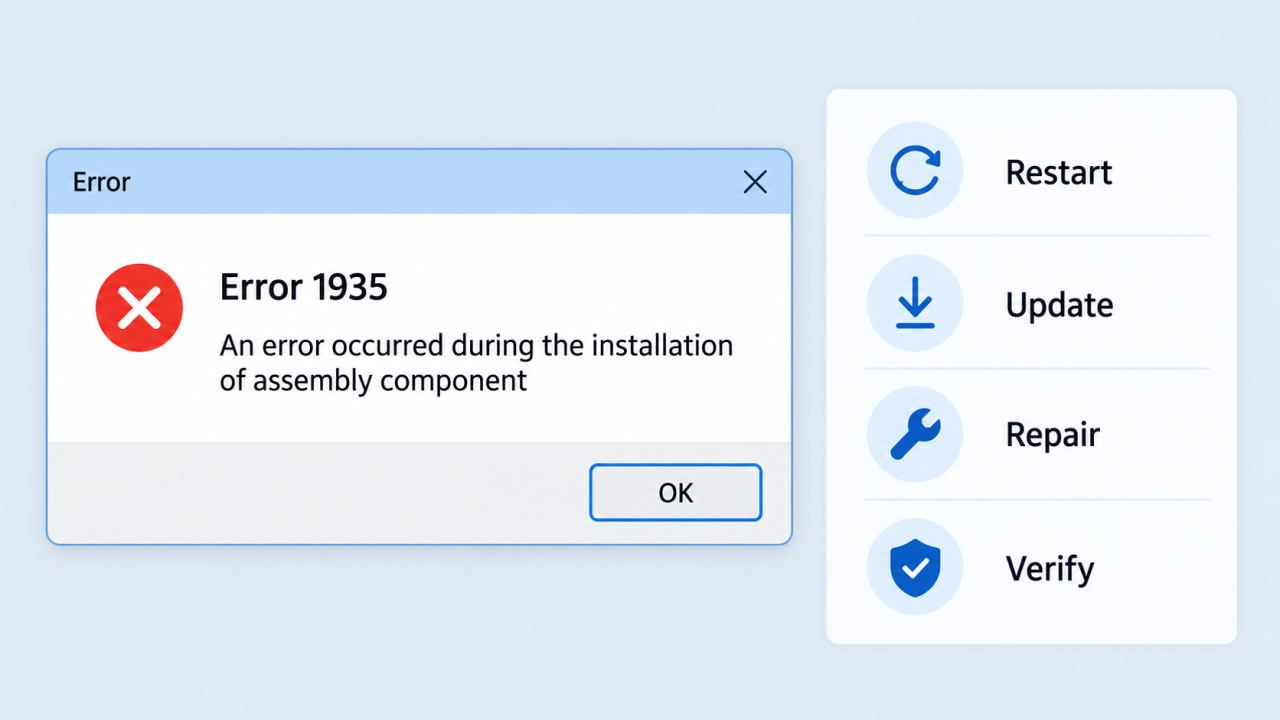
Error 1935 assembly component dialog
Error 1935: Update Windows and repair required components
Older installers often depend on Windows servicing components, .NET Framework, or Visual C++ runtime files. Install updates from Windows Settings first, then repair the dependency named in the installer log or error message.
Open Settings > Windows Update, install available updates, and restart the PC.
For a .NET-related message, use Microsoft’s official .NET Framework installation guidance and choose the version supported by the application.
For a Visual C++ message, use Microsoft’s latest supported Visual C++ Redistributable downloads. Match x86 or x64 to the application requirements.
Run the installer again from a local folder with administrator permissions.
Repair or re-enable .NET Framework
If the installer or its log points to .NET Framework, check the Windows feature before reinstalling anything:
Press Win + R, enter
appwiz.cpl, and press Enter.Select Turn Windows features on or off.
On supported Windows versions, enable .NET Framework 3.5 (includes .NET 2.0 and 3.0), select OK, and restart if Windows asks.
If the feature is already enabled, use Microsoft’s supported repair or installation guidance rather than repeatedly toggling it. On newer Windows 11 releases, .NET Framework 3.5 may require the version-specific standalone installer instead of Windows Features.
Check your Windows version with winver first. Microsoft notes that the availability of .NET Framework 3.5 through Windows Features depends on the Windows 11 release, so do not assume the same checkbox exists on every PC.
Do not install every available runtime blindly. The assembly name and the application’s documentation should determine which dependency you repair.
Error 1935 repair checklist workflow
Error 1935: Repair Windows system files with DISM and SFC
If updates and dependency repair do not help, Windows component servicing may be inconsistent. Microsoft’s Windows Installer message identifies Error 1935 as an assembly installation failure; the exact HRESULT and assembly name still matter, so treat DISM and SFC as system-repair steps rather than a guaranteed one-click fix.
Open Windows Terminal (Admin) or Command Prompt (Admin).
Run
DISM /Online /Cleanup-Image /RestoreHealthand wait for it to finish.Run
sfc /scannowafter DISM completes.Restart Windows, then retry the installer from a fresh local copy.
Keep the command window open until each scan reaches 100%. If either command reports that it cannot complete, save the result and check Windows Update or Microsoft support before attempting more advanced repairs.
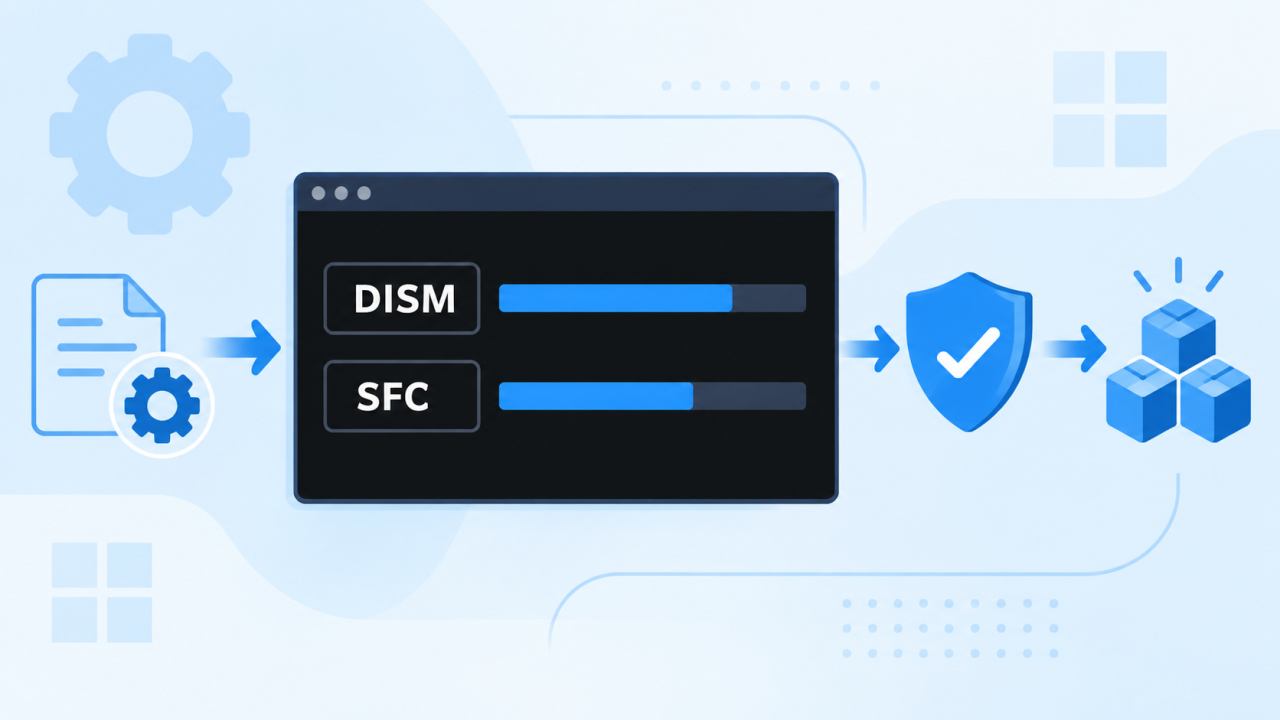
DISM SFC Windows component repair
The Best Free Office Alternative: WPS Office
If Error 1935 is blocking an Office installation and you need to edit documents immediately, WPS Office offers a separate productivity suite with Writer, Spreadsheet, Presentation, and PDF tools. It does not repair Microsoft’s installer, but it can give you a practical workspace while you continue troubleshooting.
Open and edit common document, spreadsheet, presentation, and PDF files.
Keep the workflow in one lightweight office suite instead of waiting for the failed setup to finish.
Review file compatibility and fonts before sharing documents with users on other office software.
For Microsoft Office-specific add-ins, macros, or enterprise deployment rules, keep following your organization’s approved Microsoft installation process. Use WPS Office as a separate productivity option, not as a claim that the underlying Error 1935 has been repaired.
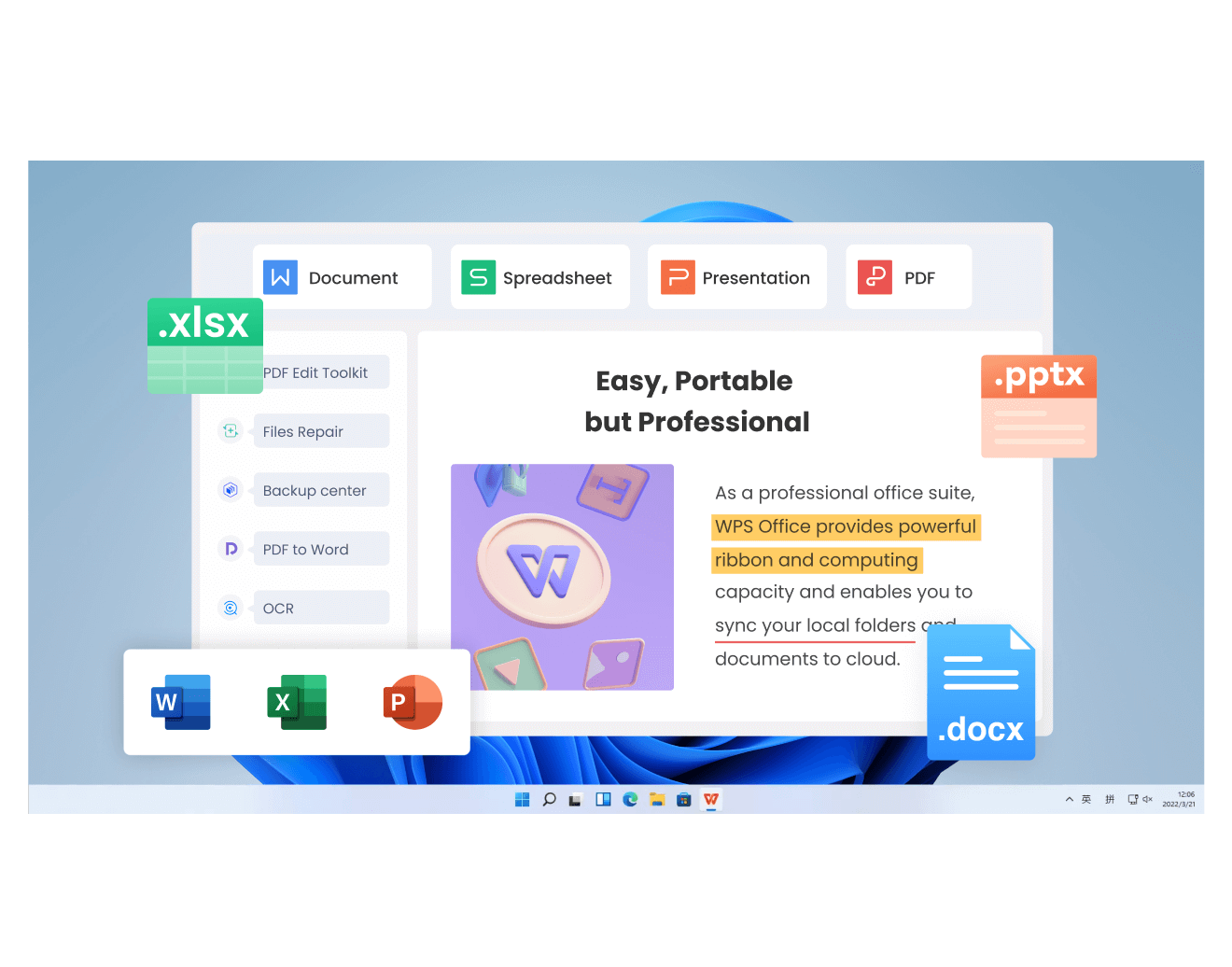
WPS Office productivity suite interface
FAQs
Can Error 1935 happen when installing Microsoft Office?
Yes. It can appear when Office or another MSI package cannot install an assembly component. The component named in the message and the HRESULT help narrow the cause.
Will restarting Windows fix Error 1935?
Sometimes. A restart can finish pending servicing work or release installer resources. If the error returns, continue with Windows Update, component repair, and system checks.
Should I reinstall .NET Framework to fix Error 1935?
Only when the installer or event log points to .NET. Repair or update the supported .NET Framework version first, and avoid removing framework components blindly.
What do DISM and SFC do for Error 1935?
DISM repairs the Windows component store, while SFC checks protected system files. Run them from an elevated Terminal, restart Windows, and try the installer again.
Can I use WPS Office if Microsoft Office will not install?
Yes. WPS Office can provide Writer, Spreadsheet, Presentation, and PDF tools without requiring the failed Microsoft Office installation to complete.

'%3e%3cpath%20d='M19.9911%204.11386V6.471H18.5894C18.0775%206.471%2017.7322%206.57814%2017.5536%206.79243C17.3751%207.00671%2017.2858%207.32814%2017.2858%207.75671V9.44421H19.9019L19.5536%2012.0871H17.2858V18.8639H14.5536V12.0871H12.2769V9.44421H14.5536V7.49779C14.5536%206.39064%2014.8632%205.53201%2015.4822%204.92189C16.1013%204.31177%2016.9257%204.00671%2017.9554%204.00671C18.8304%204.00671%2019.509%204.04243%2019.9911%204.11386Z'%20fill='%23333333'/%3e%3c/g%3e%3cdefs%3e%3cclipPath%20id='clip0_2938_8199'%3e%3crect%20width='16'%20height='16'%20fill='white'%20transform='translate(8%204.00671)'/%3e%3c/clipPath%3e%3c/defs%3e%3c/svg%3e)
'%3e%3cpath%20d='M17.5237%2010.7813L23.4811%204H22.0699L16.8949%209.88693L12.7648%204H8L14.2469%2012.9029L8%2020.0133H9.4112L14.8725%2013.7952L19.2352%2020.0133H24M9.92053%205.04213H12.0885L22.0688%2019.0224H19.9003'%20fill='%23333333'/%3e%3c/g%3e%3cdefs%3e%3cclipPath%20id='clip0_2938_8200'%3e%3crect%20width='16'%20height='16.0134'%20fill='white'%20transform='translate(8%204)'/%3e%3c/clipPath%3e%3c/defs%3e%3c/svg%3e)


