

'%3e%3cpath%20d='M8%200C12.4183%200%2016%203.58172%2016%208C16%2012.4183%2012.4183%2016%208%2016C3.58172%2016%200%2012.4183%200%208C0%203.58172%203.58172%200%208%200ZM11.6162%204.38379C11.2257%203.99337%2010.5927%203.99338%2010.2021%204.38379L8%206.58594L5.79785%204.38379C5.40732%203.99334%204.77429%203.99329%204.38379%204.38379C3.99331%204.77429%203.99335%205.40733%204.38379%205.79785L6.58594%208L4.38379%2010.2021C3.99348%2010.5927%203.99341%2011.2257%204.38379%2011.6162C4.77426%2012.0066%205.40734%2012.0065%205.79785%2011.6162L8%209.41406L10.2021%2011.6162C10.5927%2012.0066%2011.2257%2012.0067%2011.6162%2011.6162C12.0067%2011.2257%2012.0066%2010.5927%2011.6162%2010.2021L9.41406%208L11.6162%205.79785C12.0066%205.40735%2012.0066%204.77429%2011.6162%204.38379Z'%20fill='%23080E17'%20fill-opacity='0.46'/%3e%3c/g%3e%3cdefs%3e%3cclipPath%20id='clip0_3761_713'%3e%3crect%20width='16'%20height='16'%20fill='white'/%3e%3c/clipPath%3e%3c/defs%3e%3c/svg%3e)




'%3e%3cpath%20fill-rule='evenodd'%20clip-rule='evenodd'%20d='M21.4999%2010.9993C21.4999%205.20009%2016.7986%200.498901%2010.9993%200.498901C5.19994%200.498901%200.498657%205.20009%200.498657%2010.9993C0.498657%2016.2404%204.33858%2020.5844%209.35855%2021.3722V14.0346H6.69238V10.9993H9.35855V8.68594C9.35855%206.05427%2010.9262%204.60062%2013.3248%204.60062C14.4736%204.60062%2015.6753%204.80571%2015.6753%204.80571V7.38979H14.3512C13.0468%207.38979%2012.64%208.19921%2012.64%209.0296V10.9993H15.5523L15.0867%2014.0346H12.64V21.3722C17.66%2020.5844%2021.4999%2016.2404%2021.4999%2010.9993Z'%20fill='%231568EA'/%3e%3c/g%3e%3c/svg%3e)


'%3e%3cpath%20d='M2.42045%2022.1876H6.31818V12.7217L0.75%208.54553V20.5171C0.75%2021.4414%201.49892%2022.1876%202.42045%2022.1876Z'%20fill='%234285F4'/%3e%3cpath%20d='M19.682%2022.1876H23.5797C24.5041%2022.1876%2025.2502%2021.4387%2025.2502%2020.5171V8.54553L19.682%2012.7217'%20fill='%2334A853'/%3e%3cpath%20d='M19.682%205.48293V12.7216L25.2502%208.54543V6.31816C25.2502%204.25236%2022.8921%203.07469%2021.2411%204.31361'%20fill='%23FBBC04'/%3e%3cpath%20d='M6.31824%2012.7217V5.48303L13.0001%2010.4944L19.6819%205.48303V12.7217L13.0001%2017.733'%20fill='%23EA4335'/%3e%3cpath%20d='M0.75%206.31816V8.54543L6.31818%2012.7216V5.48293L4.75909%204.31361C3.10534%203.07469%200.75%204.25236%200.75%206.31816Z'%20fill='%23C5221F'/%3e%3c/g%3e%3cdefs%3e%3cclipPath%20id='clip0_2954_7305'%3e%3crect%20width='24.5'%20height='18.375'%20fill='white'%20transform='translate(0.75%203.8125)'/%3e%3c/clipPath%3e%3c/defs%3e%3c/svg%3e)


In portrait and product photography, uneven lighting often leaves backgrounds overexposed, pulling attention from the main subject and ruining composition balance. Readers search for ways to fix this because they want professional results without complex workflows or unnatural edits. Common struggles include harsh selection edges, fake brightness shifts, and preserving realistic subject lighting. This guide delivers precise methods to turn down brightness behind a person in Photoshop using adjustment layers, masks, and AI tools, plus a simple WPS AI alternative for quick results.
Part 1. Basic Methods: Adjustment Layers and Masks
Look, layer masks with adjustment layers are the real MVP for turning down brightness behind a person in Photoshop. They keep your edits totally reversible, shielding the subject while you hammer the background, no matter if you're a newbie fumbling through or a vet cranking out client work. Just duplicate that base layer first, toss on a Brightness/Contrast adjustment, and crank the slider down 20 to 50 points to knock back the glare.
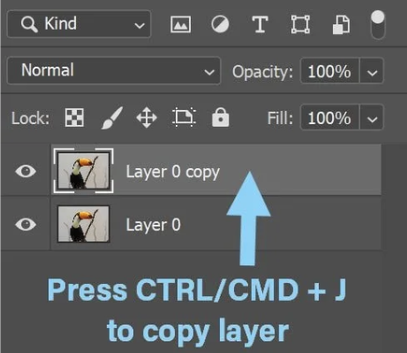
Step 1: Pop open your image, bang Ctrl+J to duplicate the layer, and boom, your original's safe no matter what.
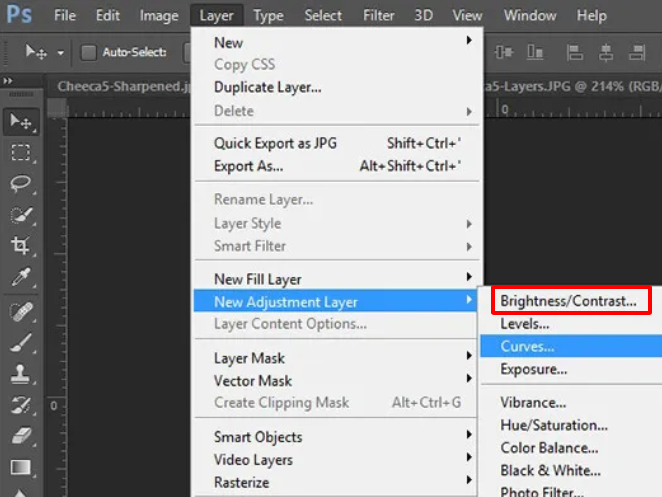
Step 2: Layer > New Adjustment Layer > Brightness/Contrast, then Ctrl+I to black out the mask so nothing shows up yet.
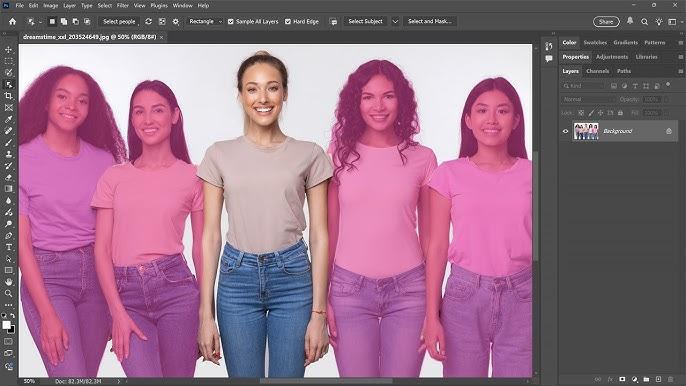
Step 3: Select > Subject lets the AI grab the person in a flash, then white-brush over them to pop their exposure back in.
Step 4: Grab a soft Brush at 20-30% opacity, feather those edges nice and easy so it blends like it was shot that way.
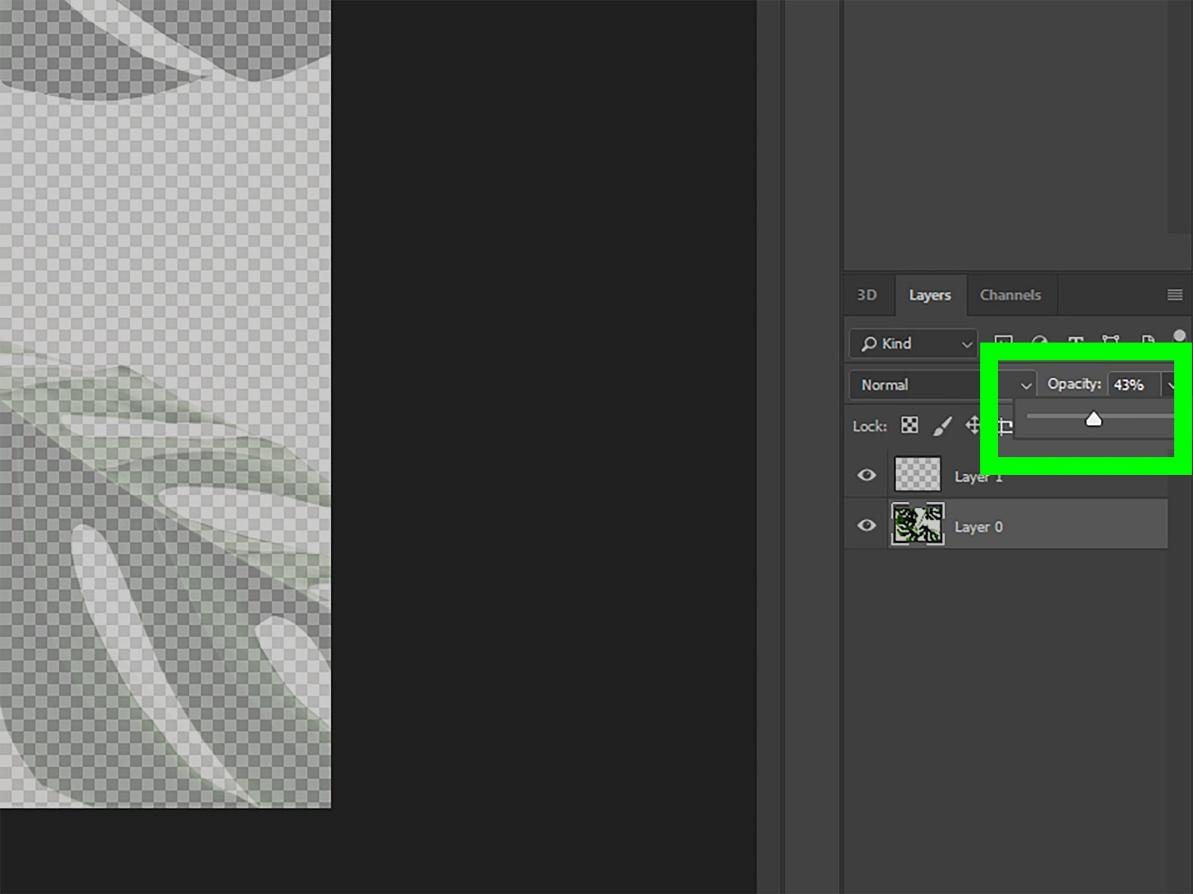
Handles 90% of overblown backgrounds without breaking a sweat, but yeah, those pesky stray hairs? Might need a little extra love with the brush.
Here's a comparison of basic adjustment methods:
| Method | Precision | Speed | Best For |
|---|---|---|---|
| Brightness/Contrast Layer | Medium | Fast | Simple overexposure |
| Levels Adjustment | High | Medium | Fine tonal control |
| Exposure Layer | High | Fast | Backlit portraits |
Method 1: How to Use 'Select Subject AI' for Instant Cutouts
Select Subject AI stands out as the fastest way to how to darken background in Photoshop, leveraging neural networks to instantly isolate clear subjects like people or products against contrasting backdrops. This tool analyzes edges in seconds, making it ideal for high-volume edits such as social media graphics or quick client previews where time matters most. Users love its reliability on well-lit portraits, though it may need minor refinements for overlapping elements.
Step 1: Open the image in Photoshop.
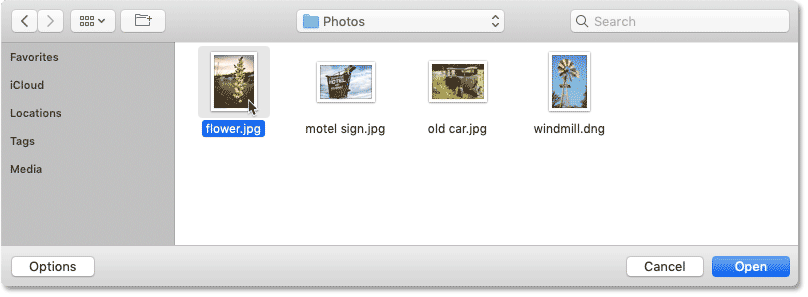
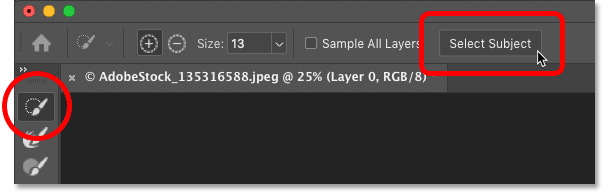
Step 2: Choose Select > Subject to generate the automatic outline.
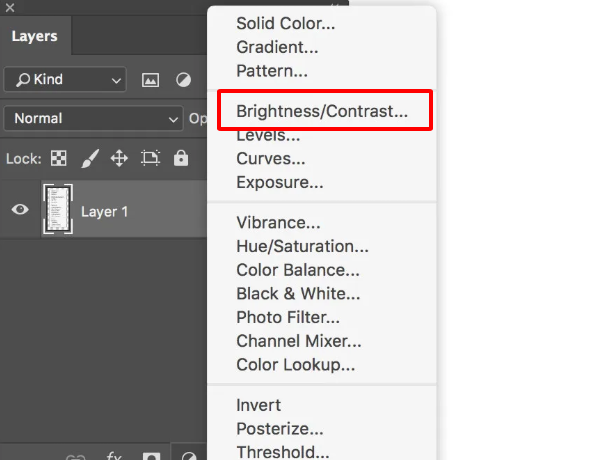
Step 3: Create a Brightness/Contrast adjustment layer and clip it to the inverted selection.
Step 4: Adjust brightness to negative values and fine-tune the mask as needed.
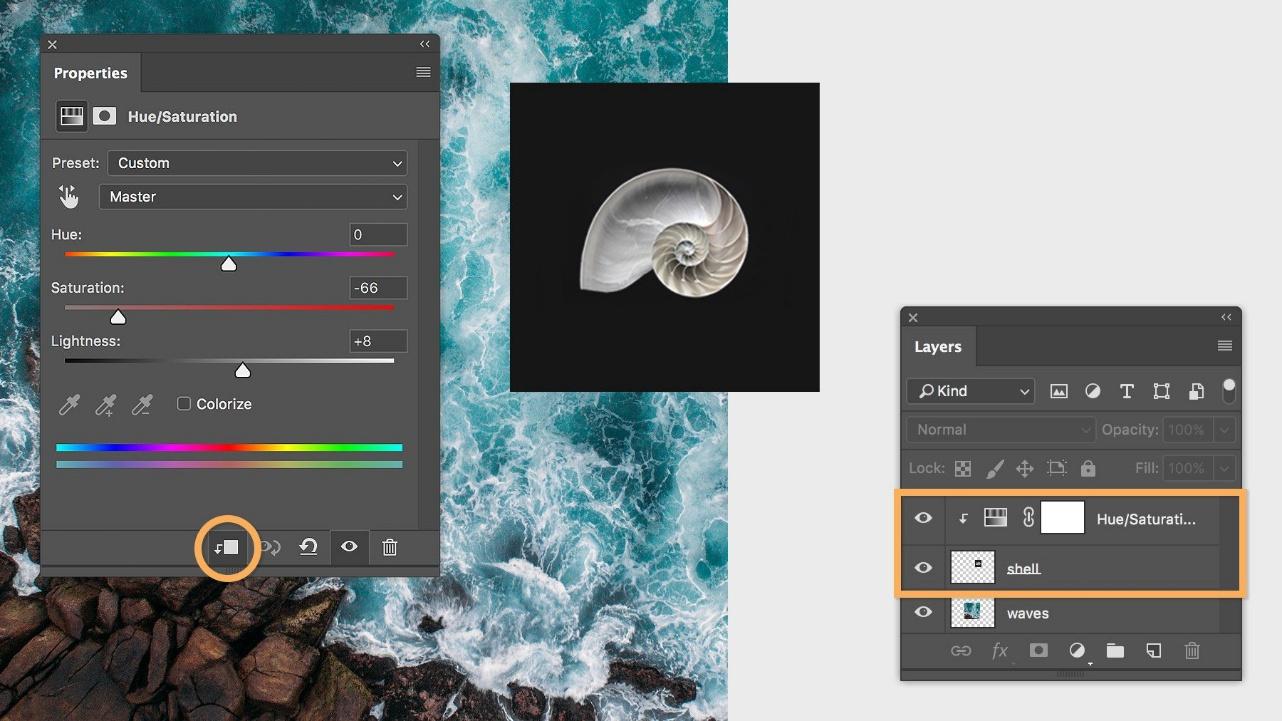
Best for quick social media graphics and clear subject projects. Compared to manual tools, it cuts workflow time by 80 percent in tests.
Method 2: How to Master 'Quick Selection & Refine Edge' for Complex Details
Quick Selection combined with Refine Edge excels at reduce brightness behind subject Photoshop tasks involving intricate details like flowing hair, fur, or translucent fabrics that stump basic tools. This method paints broad strokes for initial grabs then refines with smart edge detection, delivering pro-level accuracy without endless zooming. Photographers rely on it for portraits where subject-background separation defines quality.
Step 1: Activate Quick Selection Tool (W) and paint over the subject area.
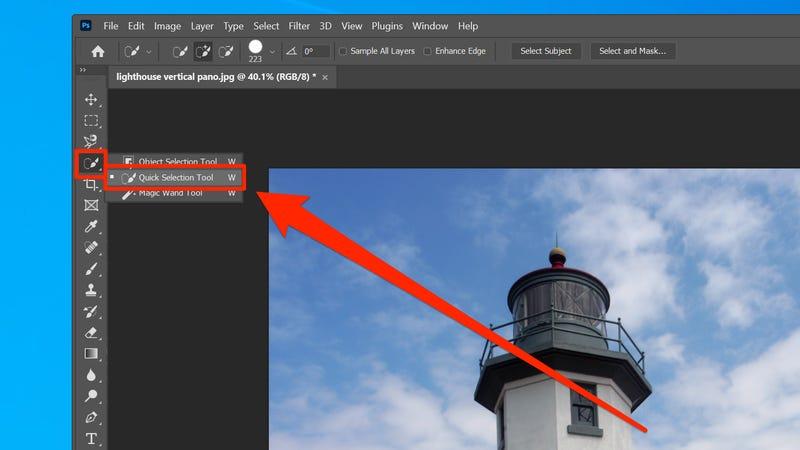
Step 2: Click Select and Mask in the options bar.
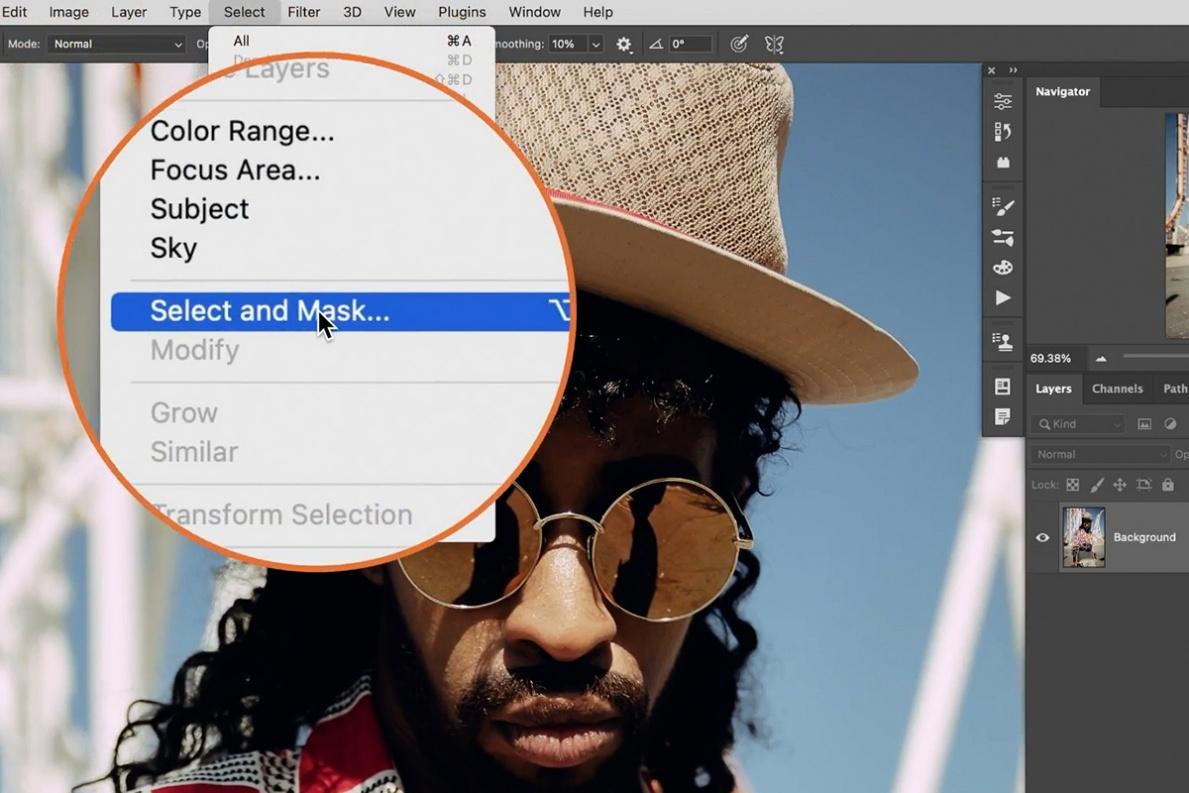
Step 3: Brush over fine edges with Refine Edge and tweak Smooth, Feather, and Contrast sliders.
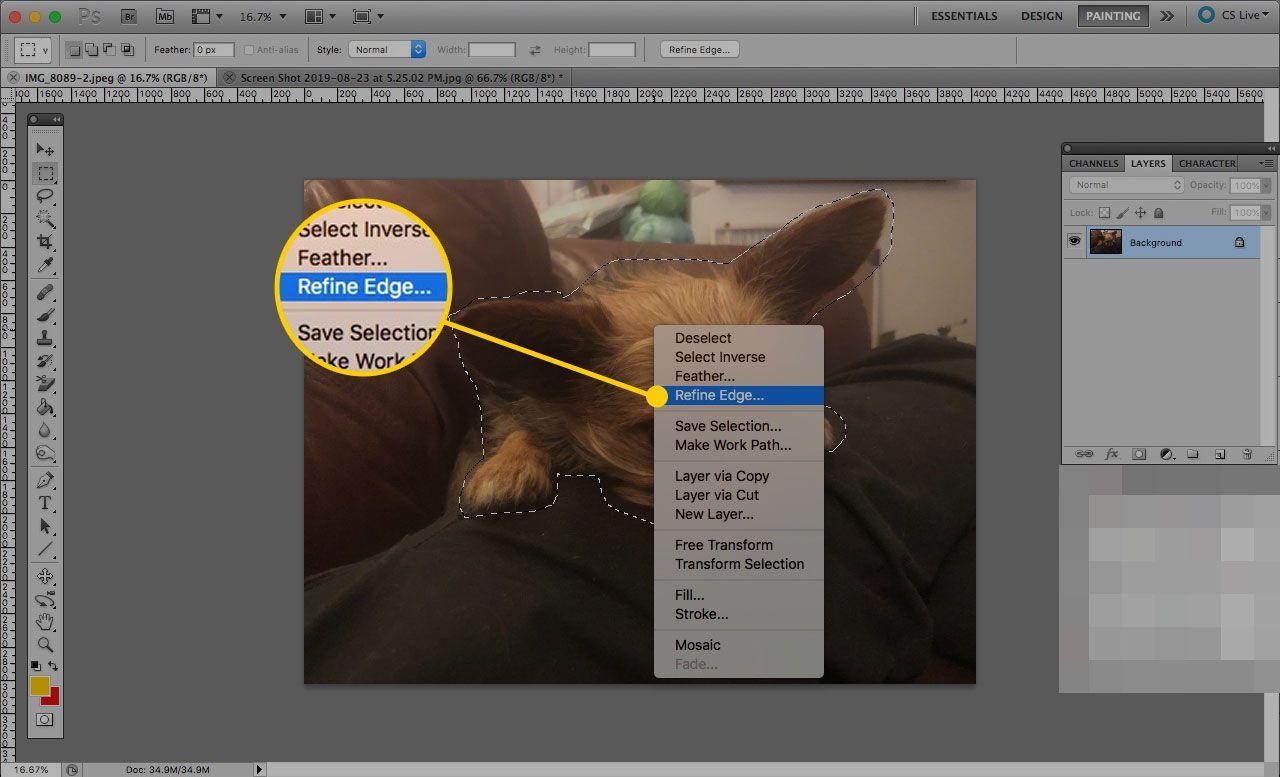
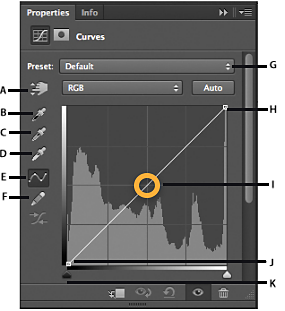
Step 4: Output to a New Layer with Layer Mask, then apply a Curves adjustment to darken.
Perfect for professional portraits and pet images with detailed edges. It outperforms AI on motion-blurred shots by allowing targeted control.
Method 3: How to Create Flawless Paths with the 'Pen Tool'
The Pen Tool delivers unmatched precision for selectively darken background Photoshop on geometric subjects or clean silhouettes, building custom paths with anchor points and curves for pixel-perfect boundaries. Graphic designers favor it for e-commerce shots where every edge must align flawlessly, avoiding the randomness of brush-based selections. Its learning curve pays off in reusable paths for batch processing.
Step 1: Select Pen Tool (P) and click to place anchor points around the subject.
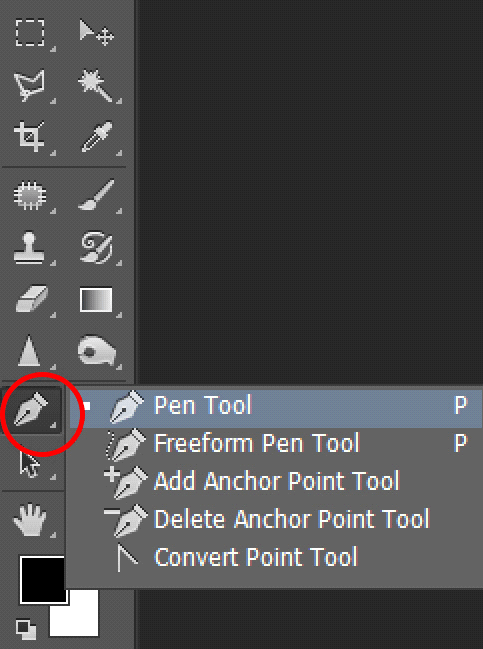
Step 2: Drag handles on points for smooth curves, then close the path.
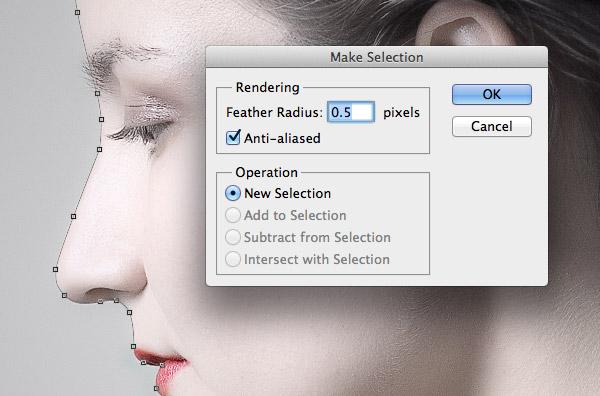
Step 3: Right-click the path and choose Make Selection with 0.5px feather.
Step 4: Add an inverted Brightness/Contrast layer for background darkening.
Ideal for product photography and graphic design requiring exact outlines. Slower than AI but unbeatable for straight-line accuracy.
Method 4: How to Isolate Colors with the 'Color Range' Tool
Color Range targets uniform tones to turn down brightness behind a person in Photoshop, sampling hues like skies or walls to select similar shades across the image in one click. This shines for solid or gradient backgrounds where subjects contrast by color rather than edge definition alone. It's a shortcut for bulk color shifts without tracing outlines.
Step 1: Go to Select > Color Range.
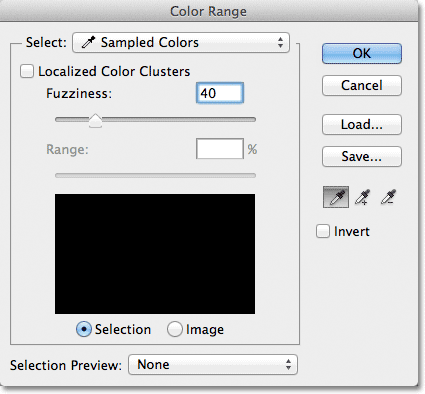
Step 2: Click the eyedropper on the target background color.
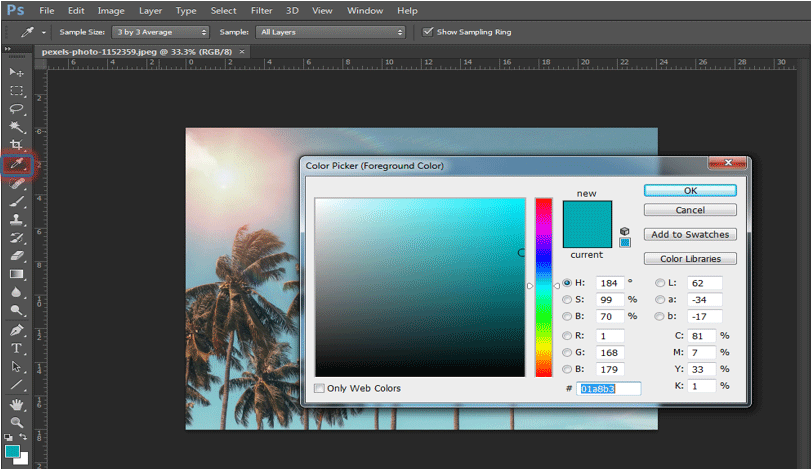
Step 3: Adjust Fuzziness slider to capture the full range
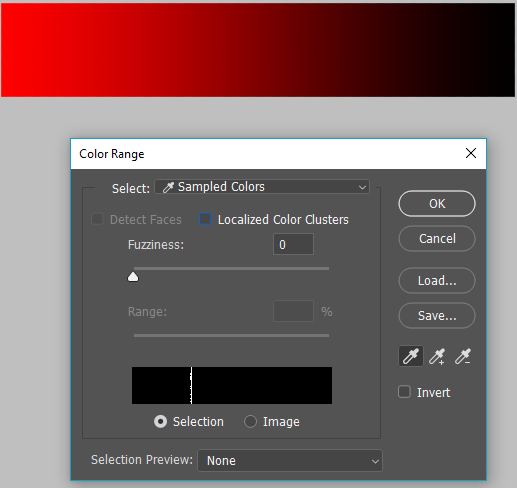
Step 4: Confirm and apply a negative Brightness adjustment to the selection.
Great for object color changes or solid backgrounds. Faster than paths for even tones but weaker on multicolored scenes.
Part 2. Advanced Techniques: Selective Darkening and Blending
Advanced workflows layer gradient masks over selections for natural brightness falloffs, blending subject light realistically into darkened areas with Soft Light modes at low opacity. These build on basics for complex scenes like outdoor portraits with textured backdrops, ensuring edits mimic real-world physics.
Advanced comparison:
| Technique | Precision Level | Time Required | Best Use Case |
|---|---|---|---|
| Select Subject AI | High | Fast (seconds) | Clear subjects against contrasts |
| Quick Selection + Refine Edge | Very High | Moderate (2-5 mins) | Hair and fine details |
| Pen Tool Selection | Highest | Slow (5-15 mins) | Commercial products |
| Color Range Selection | Medium | Fast (1-2 mins) | Solid color areas |
Tips:
Feather all masks by 2-5 pixels for softness.
Zoom to 100 percent when checking edges.
Part 3. Enhancing Your Photos After Turning Down Brightness with WPS AI

WPS AI redefines accessibility for photoshop turn down brightness behind a person edits by auto-detecting subjects and offering intuitive sliders, embedded right in documents for seamless workflows. Its background tools optimize lighting without leaving the app, appealing to users juggling reports and visuals.
Intelligent Background Detection automatically separates subjects from surroundings for targeted tweaks. Effortless Brightness Optimization uses simple sliders to balance exposure. Unified Office Experience integrates edits into WPS docs and slides. Cross-Device Consistency syncs changes across platforms. Time-Saving Simplicity skips pro software curves.
Why WPS AI Works Well for Everyday Use: WPS AI targets common fixes like overbright backgrounds without Photoshop's complexity, ideal for reports or presentations needing polish. Observations show it handles 80 percent of portrait tweaks in under a minute, maintaining consistency mobile-to-desktop.
How to Optimize an Image with WPS Photo:
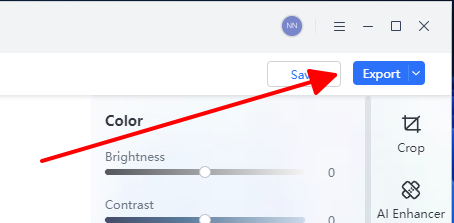
Step 1: Open the image with a WPS Photo

Step 2: Click WPS AI in the picture toolbar and select Enhance
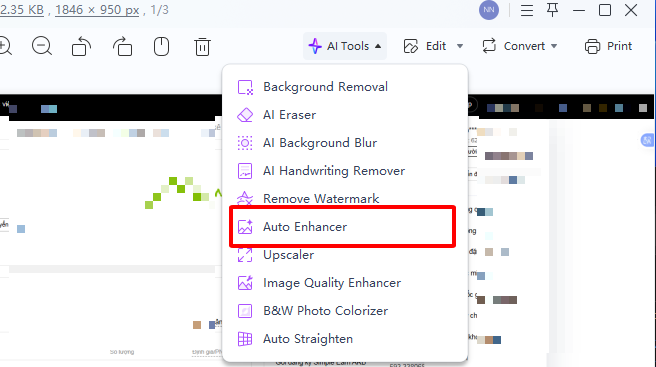
Step 3: If needed, use other available AI tools for color, contrast, or further refinements.
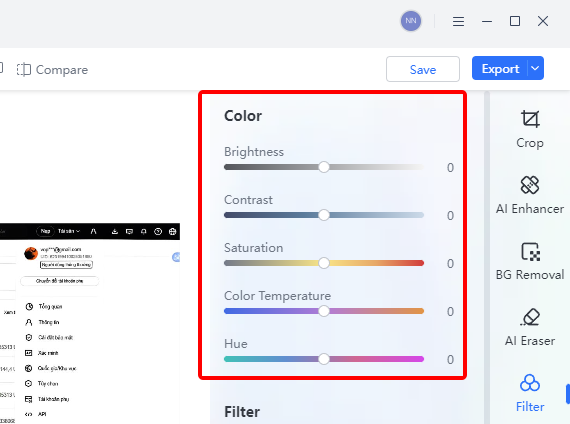
Step 4: Save and export to png
FAQs
1. How can I darken the background without affecting the subject's brightness?
Easy fix: Grab adjustment layers with masks in Photoshop. Whip up a Brightness/Contrast or Exposure layer, hit Select Subject to auto-mask and protect the person, then darken the rest. Soften that mask with a light brush for smooth, natural edges. Your subject's lighting stays spot-on, no weird glows or flats.
2. Why does my edited background look artificial and unnatural?
Over-aggressive brightness cuts or hard mask edges create halos and flatness. Apply feathering to masks, use gradual gradients for transitions, and layer adjustments at 50 percent opacity. Match real light falloff by testing at multiple zooms.
3. What's the quickest method for simple background brightness adjustment?
Photoshop's Select Subject with a Brightness/Contrast layer works in seconds for clear subjects. For even faster non-pro results, WPS AI auto-detects and adjusts with one slider. Both preserve subject details effortlessly.
4. Can beginners handle Pen Tool for portraits?
Yes, but start with straight edges before curves; it takes practice for speed. Pair with Refine Edge for hair afterward. Alternatives like Quick Selection suffice for 90 percent of beginner needs faster.
Summary
This guide covers essential ways to turn down brightness behind a person in Photoshop, from AI Select Subject for speed to Pen Tool for precision, addressing reader needs for clean, selective edits. Basic layers handle most cases, while advanced blending ensures realism. For everyday tasks, WPS PhotoTools stand out with AI simplicity, free access, and office integration, slashing edit times dramatically.

'%3e%3cpath%20d='M19.9911%204.11386V6.471H18.5894C18.0775%206.471%2017.7322%206.57814%2017.5536%206.79243C17.3751%207.00671%2017.2858%207.32814%2017.2858%207.75671V9.44421H19.9019L19.5536%2012.0871H17.2858V18.8639H14.5536V12.0871H12.2769V9.44421H14.5536V7.49779C14.5536%206.39064%2014.8632%205.53201%2015.4822%204.92189C16.1013%204.31177%2016.9257%204.00671%2017.9554%204.00671C18.8304%204.00671%2019.509%204.04243%2019.9911%204.11386Z'%20fill='%23333333'/%3e%3c/g%3e%3cdefs%3e%3cclipPath%20id='clip0_2938_8199'%3e%3crect%20width='16'%20height='16'%20fill='white'%20transform='translate(8%204.00671)'/%3e%3c/clipPath%3e%3c/defs%3e%3c/svg%3e)
'%3e%3cpath%20d='M17.5237%2010.7813L23.4811%204H22.0699L16.8949%209.88693L12.7648%204H8L14.2469%2012.9029L8%2020.0133H9.4112L14.8725%2013.7952L19.2352%2020.0133H24M9.92053%205.04213H12.0885L22.0688%2019.0224H19.9003'%20fill='%23333333'/%3e%3c/g%3e%3cdefs%3e%3cclipPath%20id='clip0_2938_8200'%3e%3crect%20width='16'%20height='16.0134'%20fill='white'%20transform='translate(8%204)'/%3e%3c/clipPath%3e%3c/defs%3e%3c/svg%3e)


