

'%3e%3cpath%20d='M8%200C12.4183%200%2016%203.58172%2016%208C16%2012.4183%2012.4183%2016%208%2016C3.58172%2016%200%2012.4183%200%208C0%203.58172%203.58172%200%208%200ZM11.6162%204.38379C11.2257%203.99337%2010.5927%203.99338%2010.2021%204.38379L8%206.58594L5.79785%204.38379C5.40732%203.99334%204.77429%203.99329%204.38379%204.38379C3.99331%204.77429%203.99335%205.40733%204.38379%205.79785L6.58594%208L4.38379%2010.2021C3.99348%2010.5927%203.99341%2011.2257%204.38379%2011.6162C4.77426%2012.0066%205.40734%2012.0065%205.79785%2011.6162L8%209.41406L10.2021%2011.6162C10.5927%2012.0066%2011.2257%2012.0067%2011.6162%2011.6162C12.0067%2011.2257%2012.0066%2010.5927%2011.6162%2010.2021L9.41406%208L11.6162%205.79785C12.0066%205.40735%2012.0066%204.77429%2011.6162%204.38379Z'%20fill='%23080E17'%20fill-opacity='0.46'/%3e%3c/g%3e%3cdefs%3e%3cclipPath%20id='clip0_3761_713'%3e%3crect%20width='16'%20height='16'%20fill='white'/%3e%3c/clipPath%3e%3c/defs%3e%3c/svg%3e)



'%3e%3cpath%20fill-rule='evenodd'%20clip-rule='evenodd'%20d='M21.4999%2010.9993C21.4999%205.20009%2016.7986%200.498901%2010.9993%200.498901C5.19994%200.498901%200.498657%205.20009%200.498657%2010.9993C0.498657%2016.2404%204.33858%2020.5844%209.35855%2021.3722V14.0346H6.69238V10.9993H9.35855V8.68594C9.35855%206.05427%2010.9262%204.60062%2013.3248%204.60062C14.4736%204.60062%2015.6753%204.80571%2015.6753%204.80571V7.38979H14.3512C13.0468%207.38979%2012.64%208.19921%2012.64%209.0296V10.9993H15.5523L15.0867%2014.0346H12.64V21.3722C17.66%2020.5844%2021.4999%2016.2404%2021.4999%2010.9993Z'%20fill='%231568EA'/%3e%3c/g%3e%3c/svg%3e)


'%3e%3cpath%20d='M2.42045%2022.1876H6.31818V12.7217L0.75%208.54553V20.5171C0.75%2021.4414%201.49892%2022.1876%202.42045%2022.1876Z'%20fill='%234285F4'/%3e%3cpath%20d='M19.682%2022.1876H23.5797C24.5041%2022.1876%2025.2502%2021.4387%2025.2502%2020.5171V8.54553L19.682%2012.7217'%20fill='%2334A853'/%3e%3cpath%20d='M19.682%205.48293V12.7216L25.2502%208.54543V6.31816C25.2502%204.25236%2022.8921%203.07469%2021.2411%204.31361'%20fill='%23FBBC04'/%3e%3cpath%20d='M6.31824%2012.7217V5.48303L13.0001%2010.4944L19.6819%205.48303V12.7217L13.0001%2017.733'%20fill='%23EA4335'/%3e%3cpath%20d='M0.75%206.31816V8.54543L6.31818%2012.7216V5.48293L4.75909%204.31361C3.10534%203.07469%200.75%204.25236%200.75%206.31816Z'%20fill='%23C5221F'/%3e%3c/g%3e%3cdefs%3e%3cclipPath%20id='clip0_2954_7305'%3e%3crect%20width='24.5'%20height='18.375'%20fill='white'%20transform='translate(0.75%203.8125)'/%3e%3c/clipPath%3e%3c/defs%3e%3c/svg%3e)


Readers often search for iOS 26's Liquid Glass because they crave that fresh, dynamic interface after years of the same old look. But the transparency can blur text on notifications or menus, making quick glances frustrating during busy days. You might wonder if it's worth the update or how to tweak it for clarity without losing the cool effect. This guide delivers step-by-step help for updating ios 26 liquid glass safely, plus easy fixes for readability. And to amp up your workflow, we'll tie in WPS Office for seamless editing on the go. Let's turn your iPhone into a productivity powerhouse.


What Is Apple’s Liquid Glass in iOS 26?
Apple’s Liquid Glass in iOS 26 shakes things up big time. It's the first major UI refresh since iOS 7 back in 2013, ditching flat designs for something more alive. Imagine translucent layers where light bounces off icons and menus, creating a real-glass vibe that shifts as you tilt your phone. Apps like Safari get frosted navigation bars that blend with your wallpaper, while Messages shows off rounded, glassy buttons for a smoother flow.
Debuted at WWDC on June 9, 2025, it hit developer betas right away, with public ones in July. Now, it spans iOS 26, iPadOS 26, and macOS Tahoe for that unified feel across devices. But user buzz is split, some rave about the immersive depth, others gripe that the blur hides text on busy screens.
From my time testing betas on an iPhone 13, the reflections add fun to simple tasks like scrolling Photos. Yet, in dim light, it took tweaks to read emails clearly. It's bold, but Apple's already patching based on feedback, promising refinements by launch.
How to Update Liquid Glass in iOS 26
Updating to ios 26 liquid glass means grabbing iOS 26 itself, out September 15, 2025, after betas polished it up. The liquid glass control center update comes baked in, but patches keep it sharp. Back up first, betas or not, since glitches like app crashes can pop up. Check Apple’s iOS page for your model's fit, like iPhone 11 and up.
If you're on an older iOS, start with the public beta for a safer taste. I always snag betas on a spare device, but the full release feels rock-solid for daily use. Here's how to dive in.
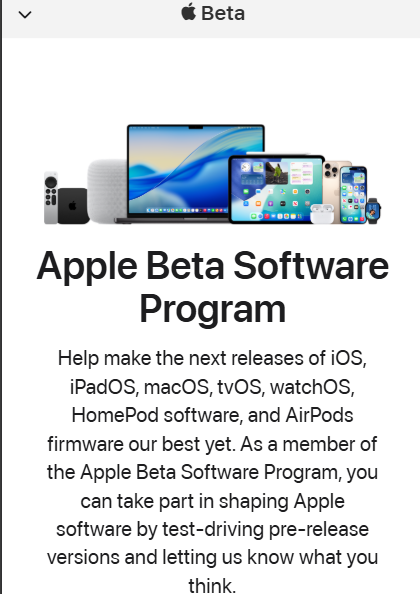
Step 1: Enroll in Apple Beta Program Head to beta.apple.com in Safari. Sign up with your Apple ID, no cost involved. It takes seconds, and you'll get emails on new builds.
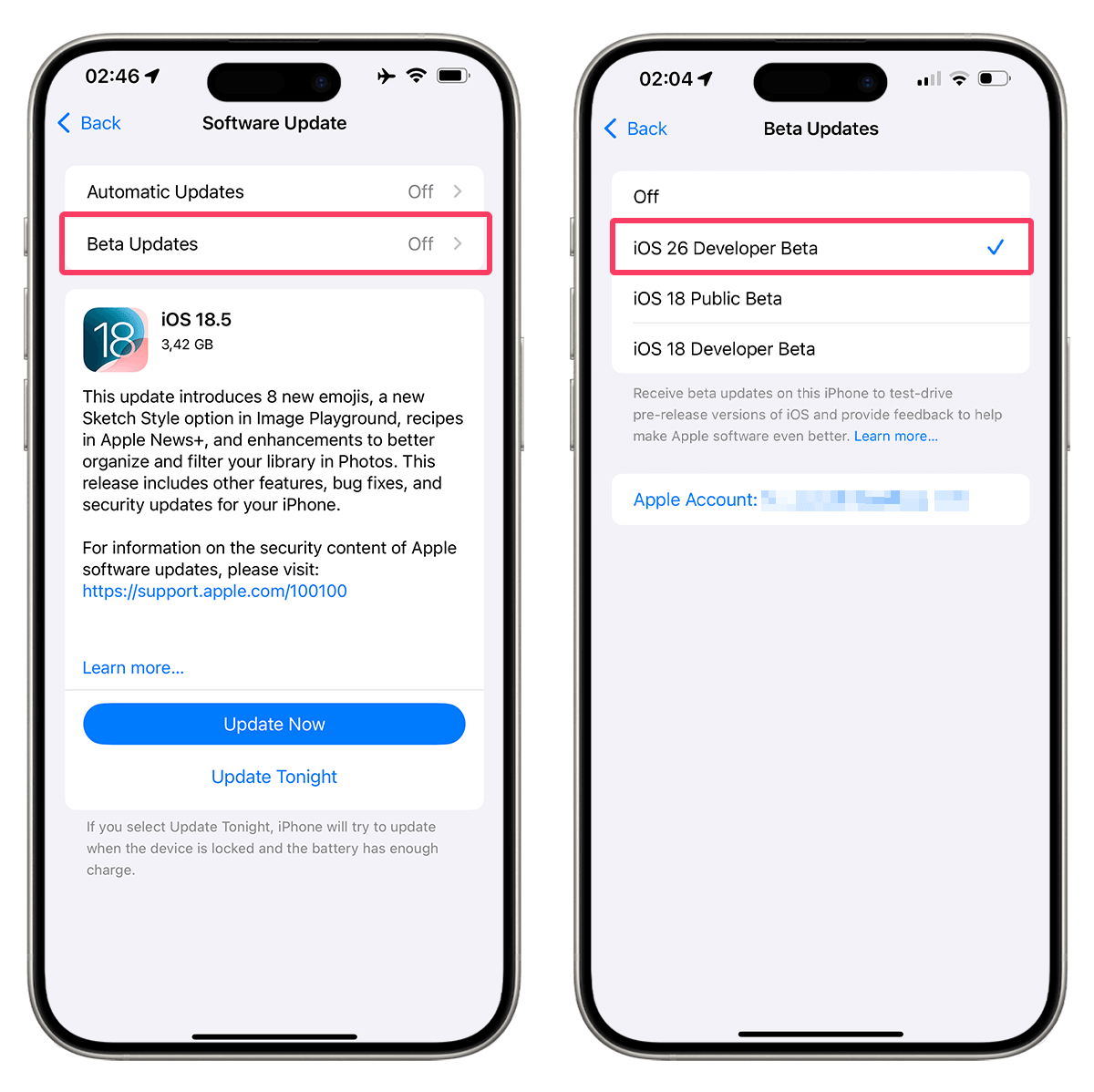
Step 2: Download Beta Profile On your iPhone, go to Settings > General > Software Update. Pull down to refresh, then tap Beta Updates. Pick iOS 26 Public Beta to enable it.
Step 3: Install the Beta Back in Software Update, tap Download and Install when it shows. Plug in your charger, stay on Wi-Fi, it's around 3GB so grab coffee. Your phone restarts once done.
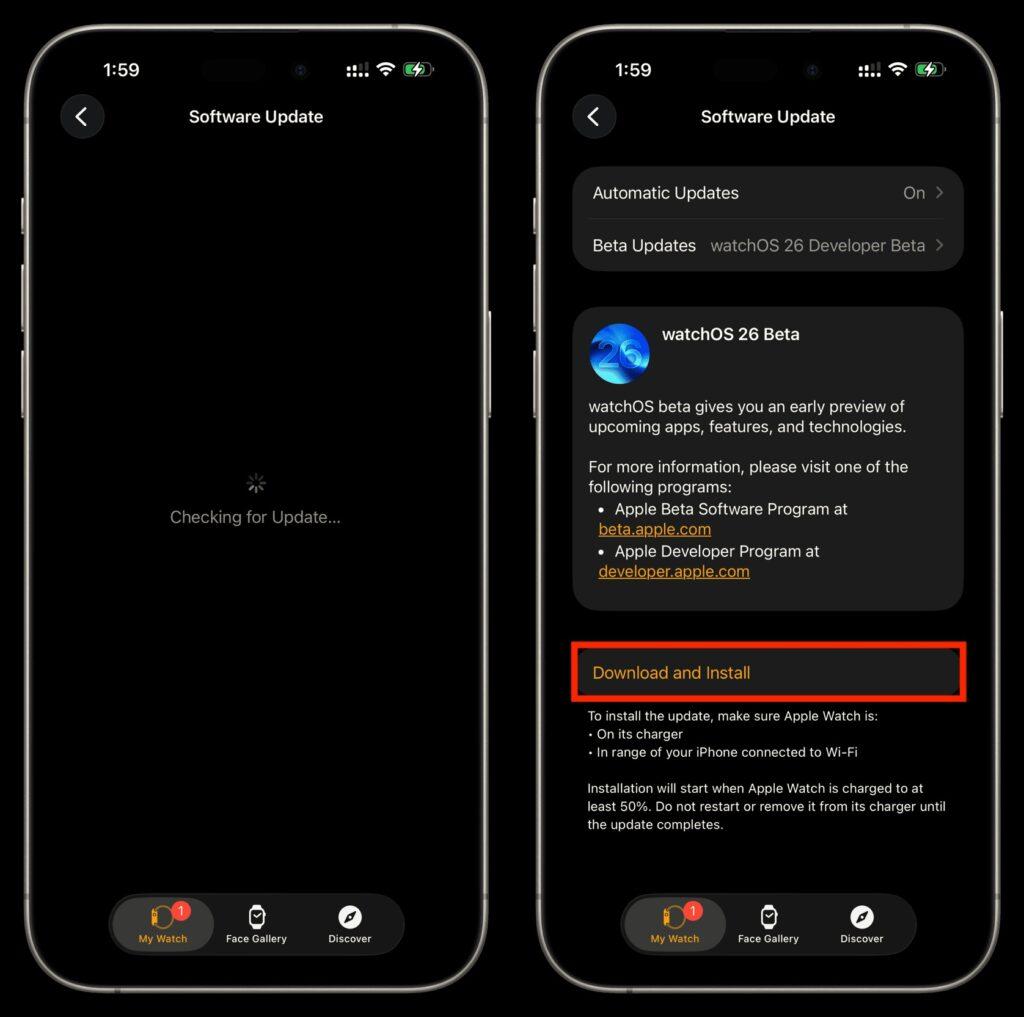
Step 4: Update Liquid Glass After reboot, revisit Settings > General > Software Update. Grab any patches listed, they often fix Liquid Glass quirks like menu lag.
Step 5: Enable in Control Center Swipe down from the top-right corner. Long-press a blank spot, then toggle the Glass option on. Watch buttons turn translucent, pulling in your wallpaper's hues.
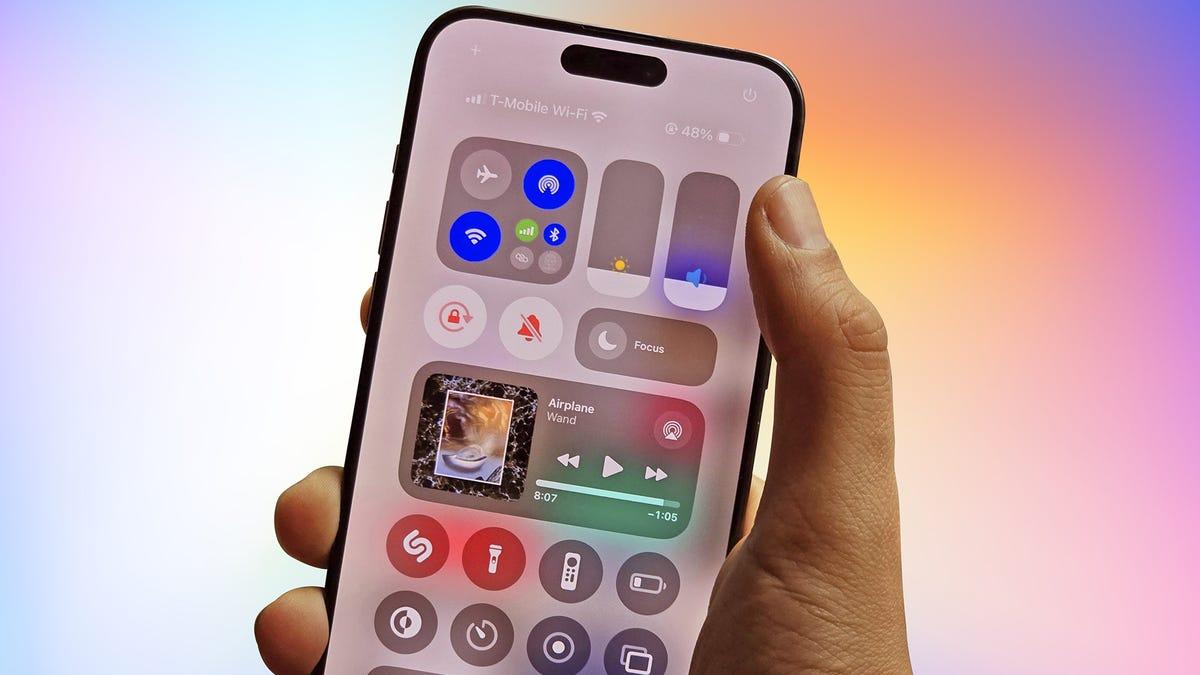
I've run every iOS 26 beta on my iPhone 13, and the first one had Control Center flickering, but by beta 6, it smoothed out. The apple liquid glass release date hype was real, but manual patch checks beat waiting, especially for that liquid glass control center update. Compared to iOS 18's tweaks, this feels more transformative, though I wished for a quick-disable toggle early on.
How to Adjust Liquid Glass Transparency for Better Readability
That ios 26 liquid glass transparency dazzles at first, but on a vibrant wallpaper, notifications fade into the background, straining your eyes during commutes or late nights. It's common feedback from beta testers, and Apple's accessibility tools fix it fast. These changes keep the glassy charm but sharpen text for real-world use. Great for iPhone 12 or older models where screens aren't as punchy. Dive into Apple’s Accessibility page for deeper customizations like bold text.
Step 1: Open Accessibility Settings Launch Settings and scroll to Accessibility. It's your one-stop for visual tweaks that make Liquid Glass play nice.
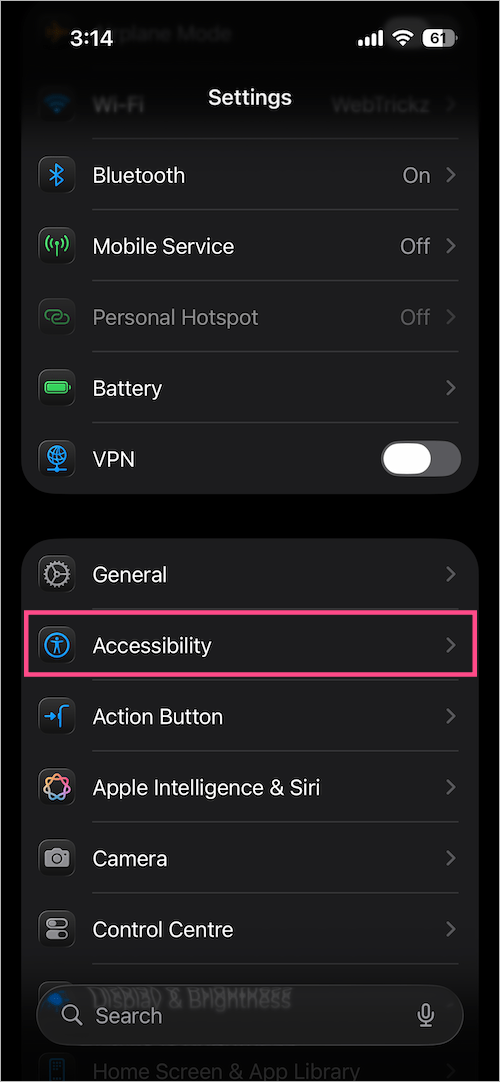
Step 2: Access Display & Text Size Under the Vision header, tap Display & Text Size. Here, you'll find sliders and toggles for contrast and blur.
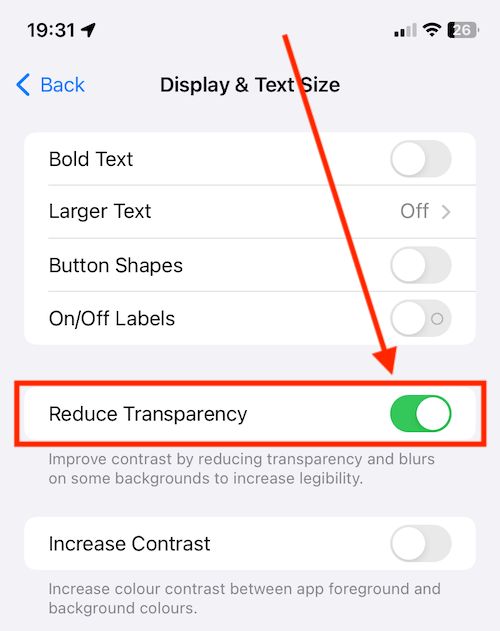
Step 3: Adjust Transparency Flip on Reduce Transparency for solid backdrops behind menus. Or enable Increase Contrast to make icons pop without the haze. Test both for your setup.
Step 4: Fine-Tune Notifications Back out, then go to Notifications > Customize. Dial down blur here for lock screen alerts that stay crisp, even on one page only.
On my iPhone 12, the default ios 26 liquid glass washed out Messages in sunlight, but Reduce Transparency fixed it instantly, like flipping a switch from foggy to clear. Increase Contrast added edge without killing the vibe, unlike full dark mode which felt too stark. It's quicker than Apple's beta evolutions, and now I toggle it based on lighting, saving battery too.
Maximize iPhone Efficiency with WPS Office in iOS 26
Tinkering with ios 26 liquid glass sparks ideas for smoother workflows, right? That's where WPS Office shines, a free powerhouse from Kingsoft packing word processing, spreadsheets, presentations, and PDF tools into one iOS app. Its AI perks, like Chat PDF for summaries or auto-translation, mesh perfectly with Liquid Glass's fluid menus, letting you edit on the fly without app-hopping. Syncs flawlessly across Windows, macOS, Linux, Android, and web, with 1GB free cloud storage to boot. Grab it from the App Store and watch your iPhone become a mini office.
Beyond basics, it scans docs via camera, repairs corrupted files, and offers templates for resumes or slides. No ads in core tools, and PDF basics like annotations are gratis, with pro edits at $29/year, cheaper than Adobe. I lean on its memo feature for quick notes during iOS tweaks.
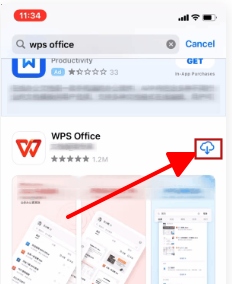
Step 1: Download and Launch Search WPS Office in the App Store, install, and open. Sign in or skip for guest mode, it pulls files from iCloud right away.
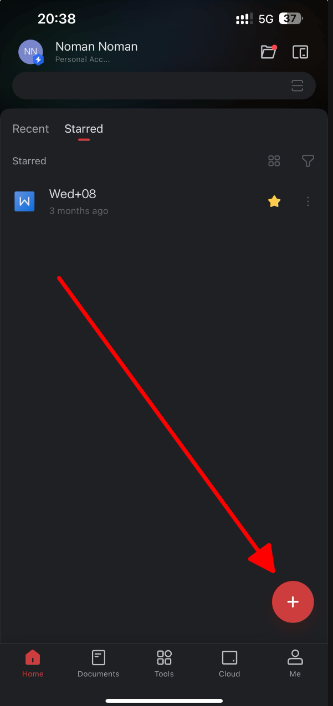
Step 2: Import a Doc Tap the + icon, choose from device or cloud. It handles .docx, .xlsx, .pptx seamlessly, even converting PDFs to editable text.
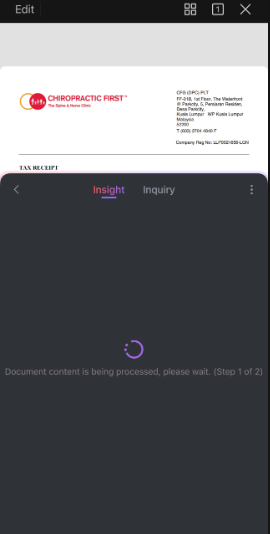
Step 3: Edit with AI Help Select text, hit the AI button for rewrites or summaries. For spreadsheets, auto-formulas save hours on budgets.
Step 4: Collaborate and Share Invite via link for real-time edits, or export to email. The tabbed interface keeps multiple files open, Liquid Glass-style.
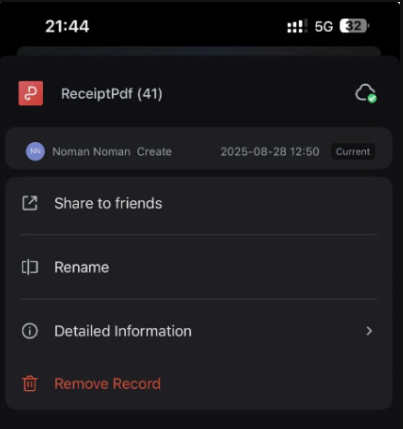
WPS Office's interface hugs iOS 26's curves, with glassy tabs that don't clash, and its 214MB footprint sips battery on my iPhone 13. I edited a client report mid-beta test, syncing to my Mac without hiccups, unlike Google Docs' lag. The free PDF scanner beat Apple's clunky one, and AI polishing turned rough drafts pro fast, though I miss VBA for heavy Excel, but macros work fine for most.
FAQs
Q1: Does Liquid Glass affect battery life or device performance?
It uses real-time rendering for those reflections, but optimizations keep drain low, around 2-3% extra on betas. Newer chips like A17 handle it best, but I saw minor hits on iPhone 12 during heavy scrolling.
Q2: Which Apple apps have the most noticeable Liquid Glass interface updates?
Safari's bars refract light beautifully, Photos gets layered menus, and Camera's pop-outs feel immersive. Messages on one page only shines with frosted chats.
Q3: How do I update Liquid Glass on my iPhone?
Hit Settings > General > Software Update for iOS 26 patches, then toggle Glass in Control Center. It's automatic post-install, but check weekly.
Q4: Why install WPS Office with iOS 26 features?
It layers AI tools over Liquid Glass for fluid editing, free PDF perks, and cross-device sync, turning your glassy iPhone into a full office without subscriptions.

'%3e%3cpath%20d='M19.9911%204.11386V6.471H18.5894C18.0775%206.471%2017.7322%206.57814%2017.5536%206.79243C17.3751%207.00671%2017.2858%207.32814%2017.2858%207.75671V9.44421H19.9019L19.5536%2012.0871H17.2858V18.8639H14.5536V12.0871H12.2769V9.44421H14.5536V7.49779C14.5536%206.39064%2014.8632%205.53201%2015.4822%204.92189C16.1013%204.31177%2016.9257%204.00671%2017.9554%204.00671C18.8304%204.00671%2019.509%204.04243%2019.9911%204.11386Z'%20fill='%23333333'/%3e%3c/g%3e%3cdefs%3e%3cclipPath%20id='clip0_2938_8199'%3e%3crect%20width='16'%20height='16'%20fill='white'%20transform='translate(8%204.00671)'/%3e%3c/clipPath%3e%3c/defs%3e%3c/svg%3e)
'%3e%3cpath%20d='M17.5237%2010.7813L23.4811%204H22.0699L16.8949%209.88693L12.7648%204H8L14.2469%2012.9029L8%2020.0133H9.4112L14.8725%2013.7952L19.2352%2020.0133H24M9.92053%205.04213H12.0885L22.0688%2019.0224H19.9003'%20fill='%23333333'/%3e%3c/g%3e%3cdefs%3e%3cclipPath%20id='clip0_2938_8200'%3e%3crect%20width='16'%20height='16.0134'%20fill='white'%20transform='translate(8%204)'/%3e%3c/clipPath%3e%3c/defs%3e%3c/svg%3e)


