Free All-in-One Office Suite with PDF Editor

Edit Word, Excel, and PPT for FREE.
Read, edit, and convert PDFs with the powerful PDF toolkit.
Microsoft-like interface, easy to use.
Windows • MacOS • Linux • iOS • Android

Catalog
How to Extract Text From Image Using WPS AI Document Generator [2026]
As our world shifts towards digitized documents and files, many users look for quick ways to extract text from images. However, most people struggle to find reliable solutions that deliver polished results while preserving the original formatting of the image. So, is there a way to eliminate the hassle from the process without losing any content? In this guide, I’ll be covering the entire step-by-step process of extracting text from images using WPS AI Document Generator.
What is WPS AI Writer?
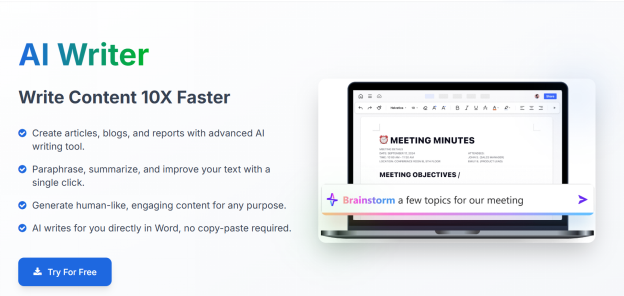
Whether you’re a student, a content creator, a working professional, or simply a casual user working with documents and digital files regularly, having the right tools by your side can be a great help. WPS AI Writer is an AI-powered word processing software offered as part of WPS Office’s Tool Suite. It’s a completely free-to-use solution to your productivity needs, offering powerful features to ensure a smooth workflow and professional results every single time.
Features
AI Spell Check: Keep track of your grammatical and spelling mistakes easily.
Smart Summarizer: Generate instant summaries of large documents to save time.
Writing Suggestions: Receive smart AI-based suggestions for your content for polished writing.
Cross-Platform & Cloud Sync: Supports Windows, macOS, Linux, iOS, and Android.
Pros
Beginner-friendly and intuitive interface
Clean and ad-free experience
Lightweight and cross-platform
Fast processing speeds
Cons
Requires an active internet connection for some features.
Some advanced features locked behind a subscription.
How to Extract Text from Image with WPS AI (Step-by-Step)
Whether you’re a student looking to digitize your tests and assignments, or a professional trying to archive your reports on your computer, reliable text extraction tools are essential. WPS AI Document Generator is built to scan the content out of images and give them to you in an editable format. It allows me to simply upload the picture I want to use and instantly delivers the content I need, eliminating the hassle to manually convert everything to a digital format myself. I found it to work incredibly well even with unclear images, making sure the original formatting and text stays preserved.
Extract Text from Exam Papers Using WPS AI (Example)
Converting your exam papers into a document can be a smart way to keep a record of them for future usage. However, editing and formatting everything manually can be too inconvenient and time-consuming for most people. Below I’ve highlighted a detailed step-by-step process to help you eliminate the hassle and simplify the process by directly converting your images to a document.
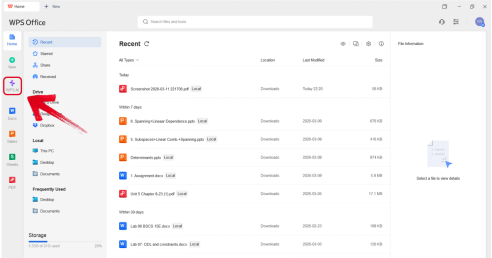
Step 1: Launch WPS Office on your computer and navigate to the WPS AI Tab.
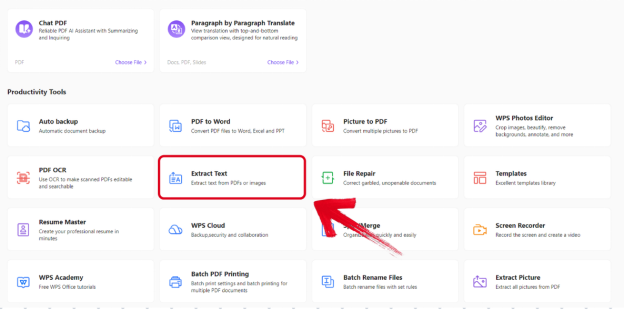
Step 2: Scroll down to the Productivity Tools section, then select Extract Text to get started.
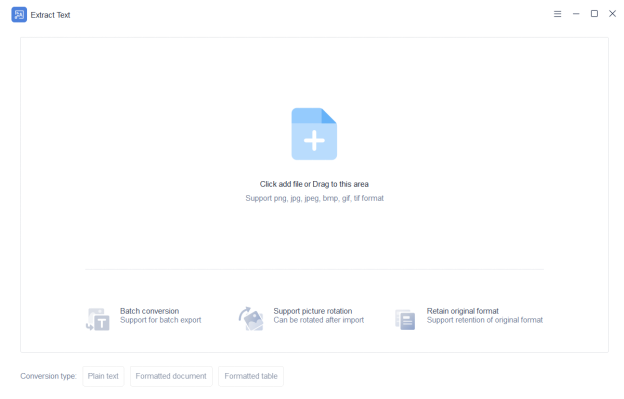
Step 3: Once you’re there, simply drag and drop the image you want to use on the space provided to continue.
Step 4: After the image has been uploaded, simply press Preview to start extracting your text.
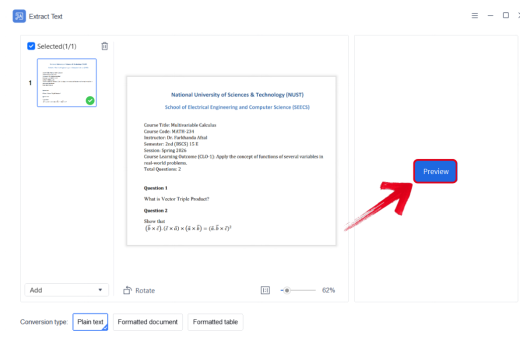
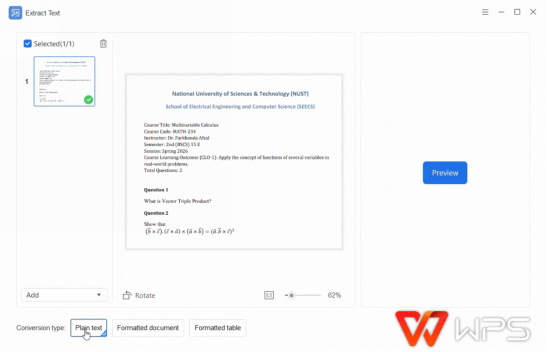
Tip: You can also change the conversion type to Formatted document or Formatted table for better results.
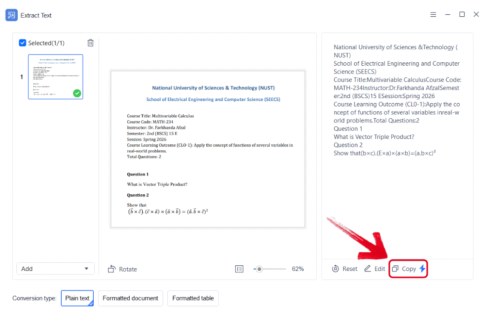
Step 5: Your results will now be displayed in the preview section, make any changes if you want, then press Copy to add the extracted text to your clipboard.
Common Text Extraction Mistakes
For beginners who don’t have any experience dealing with text extraction or OCR-based tools, dealing with issues for the first time may feel overwhelming. I’ve been there myself and I know how stressful it can be. But if you know what’s causing your problem, fixing it is incredibly straightforward. In this section, I’ll highlight some of the most common issues users face when using text extraction tools, walking you through quick fixes to solve them.
Mistakes to Avoid
Low-Quality Images: Uploading blurry and unclear images is one of the biggest causes of inaccurate text extraction. Make sure your image is clear and well-lit, so it can be scanned properly.
Wrong Output Format: If your content is in the form of a formatted document or a table, the AI will not preserve the original layout by default. To fix this, simply specify the format you want your output to have before extracting.
Handwritten Text: Most OCR-based tools are made to read printed content and struggle to deal with handwritten documents. Avoid using documents with handwriting, or make sure the writing is neat enough to be processed.
Why Use WPS Office for Image Text Extraction
If you’re a student, working professional, or just a casual user working with documents regularly, having the right tools by your side can make a big difference in helping you be more efficient. But I’ve found most options to be incredibly unreliable, making me deal with confusing menus and slow processing speeds that delay my work. This is why I use WPS Office for all my professional and creative needs. It provides me with a complete tool suite filled with every smart feature I need for an efficient and streamlined workflow, including the AI-powered image to document generator.
Features
Vast Free Template Library: Offers a massive collection of high-quality professional templates.
Excellent Format Compatibility: Compatibility with formats like .docx, .xlsx, and even .pptx, ensuring a hassle-free editing process.
Integrated Editing Experience: All-in-one solution for all your document editing needs.
Cross-Platform & Cloud Sync: Supports Windows, macOS, Linux, iOS, and Android.
Accurate Text Extraction: Convert your images into fully editable text with the built-in AI document generator.
While professional tools like Adobe Acrobat lock their OCR features behind a paywall, WPS AI Document Generator provides it for completely free, while keeping the original formatting preserved. It’s an ideal option for users who need a quick text extraction without having to learn how to use a completely new tool, making it an effective alternative for beginners.
FAQs
Q1: Is WPS AI Document Generator free to use?
WPS AI Document Generator is free to use for basic text extraction needs. However, some advanced OCR features such as enhanced accuracy and bulk processing are reserved for WPS Pro subscribers. For most casual users and students, the free version delivers more than enough to get the job done.
Q2: What image formats does WPS AI Document Generator support?
WPS AI Document Generator supports all the most commonly used image formats, including JPG, PNG, and PDF. This makes it a versatile option regardless of how your image was captured or saved, whether it's a scanned document, a screenshot, or a photo taken on your phone.
Q3: How accurate is the text extraction?
The accuracy of WPS AI Document Generator is generally very high for printed, typed text in clear images. Results may vary depending on the quality of the image, the font used, and the complexity of the layout. For best results, always use high-resolution images with good lighting and minimal background noise.
Q4: Can WPS AI Document Generator handle handwritten text?
WPS AI Document Generator is primarily optimized for printed and typed text, so results with handwritten content can be inconsistent. Neatly written text in clear images may extract reasonably well, but heavily stylized or cursive handwriting is likely to produce errors. For handwritten notes, a dedicated handwriting recognition tool like Google Lens may deliver better results.
Simplifying Text Extraction
Not everyone can afford to buy expensive subscriptions for smart functionality like text extraction from image, and the free options out there tend to be incredibly ineffective and delivering polished results. In this WPS AI Document Generator guide, I’ve provided an all-in-one alternative to help you extract text from images with ease. Text extraction is just one of the countless features offered by WPS Office’s Tool Suite, including a vast library of AI-powered tools to help you streamline your workflow effectively.
Also Read:
- 1. Edit Text in Image: Modify Embedded Text Directly with WPS
- 2. Text to Image Generator: Creating Visual Content with WPS AI
- 3. AI Document Generator: Writing, OCR, and Editing Explained [2026]
- 4. How to Extract Text Before Character in Excel
- 5. How to extract text before character
- 6. How to Extract Text from Image with WPS AI



15 years of office industry experience, tech lover and copywriter. Follow me for product reviews, comparisons, and recommendations for new apps and software.


