Catalog
How to set the slide size in WPS Presentation
Uploaded time: September 18, 2026 Difficulty Beginner
How to set the slide size in WPS Presentation

How to set the slide size in WPS Presentation
When using WPS Presentation to make slides, we need to set the slide size first. So how can we set the slide size?
First, click the Design tab above, and then click the Slide Size button. Here, we can quickly adjust the slide size, such as the commonly used Standard Screen 4:3 or Wide Screen size 16:9.

If we need to set other sizes, we can click Custom Size to open the Page Setup dialog box for more detailed slide settings. By clicking the Page Setup button in the Design tab, we can also open the Page Setup dialog box.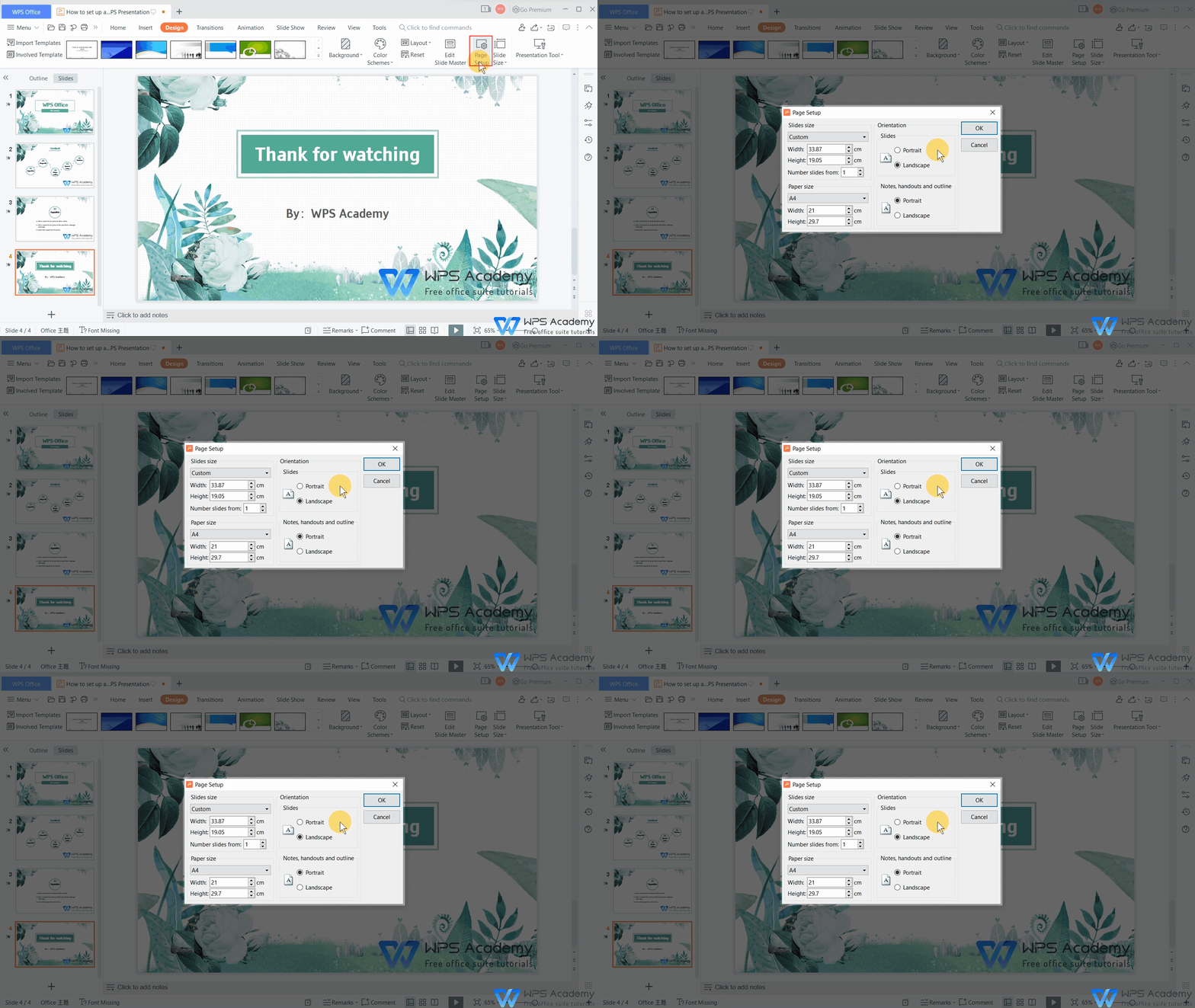
Here, we can select multiple preset sizes of the slides. Or we can also manually modify the Weight and Hight. Generally, the starting number of the slides is 1, but we can modify the starting number in Number slides from according to our needs. If we want to start on the third page, enter the number 3 and click OK. Now we see that the starting number of the slide has been changed.

Paper Size refers to the page size of the paper we use when printing slides. In addition, we can also set the slides as Portrait or Landscape in the Orientation according to actual needs.

So these are the ways to set the slide size in WPS Presentation. To be office advancers, you could learn how to use WPS Presentation online in WPS Academy. Did you get it?



15 years of office industry experience, tech lover and copywriter. Follow me for product reviews, comparisons, and recommendations for new apps and software.


Does this video help you?