What Is WPS Office? Free Writer, Sheets, Slides & PDF
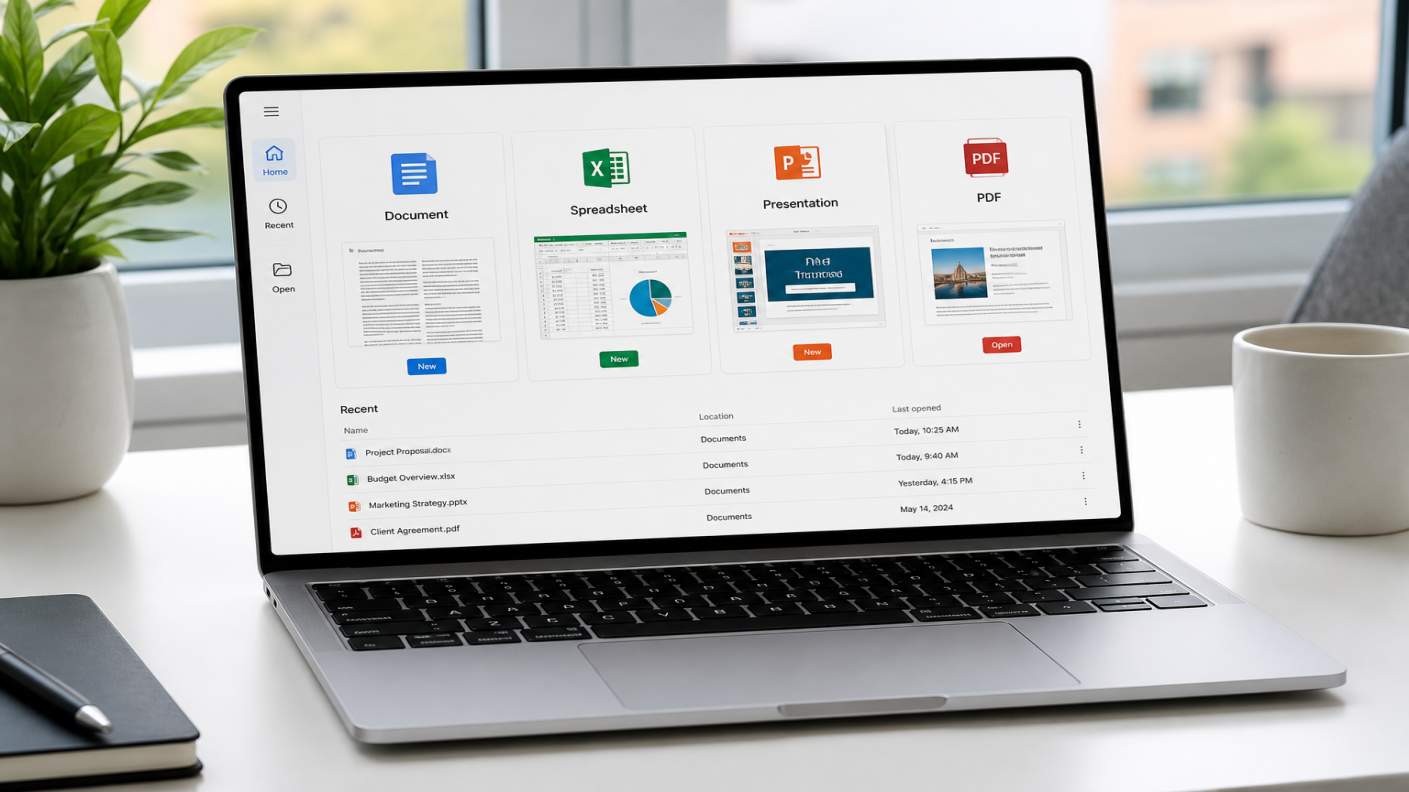
WPS Office is a free office suite from Kingsoft/WPS for documents, spreadsheets, presentations, and PDFs. It includes Writer, Spreadsheet, Presentation, and PDF in one install, so you can open common Word, Excel, and PowerPoint files without buying Microsoft 365 for everyday work.
Note: “WPS” can also mean Wi-Fi Protected Setup on routers. On a computer or phone, WPS usually means WPS Office.
This guide covers what WPS means, what each module does, platforms and file types, free vs paid limits, and how WPS compares with Microsoft Office.
Want a short product tour after this definition? See the Introduction to WPS Office.
What does WPS mean?
In WPS materials, WPS usually stands for Writer, Presentation, and Spreadsheets. That matches the three classic office jobs: documents, slides, and sheet data.
The product line later added PDF tools. Today WPS Office is the full package: Writer, Spreadsheet, Presentation, and PDF. The letters still point to the original three modules. The product name covers the full suite.
What can you do with WPS Office?
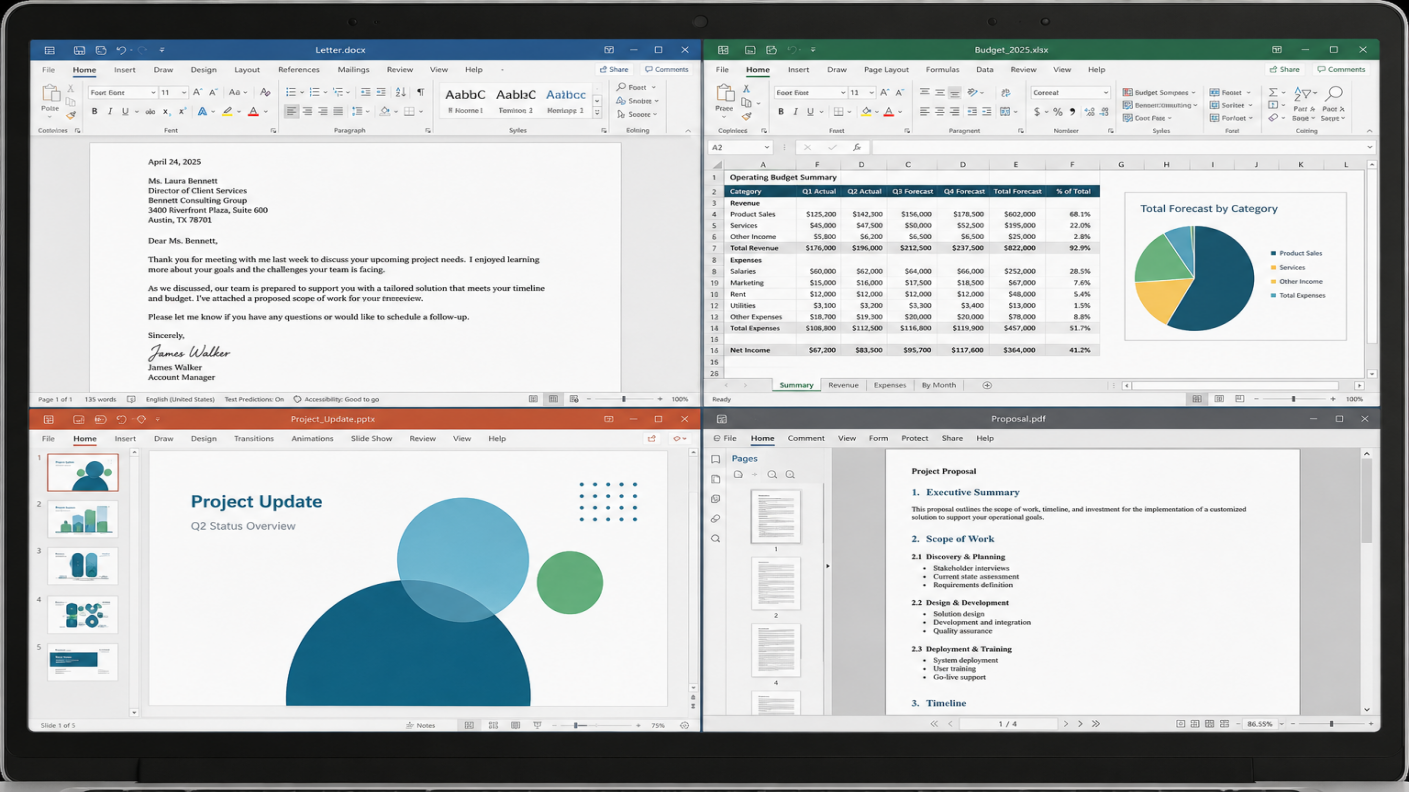
Most everyday work sits in four modules. The practical advantage is one install and one workflow: draft in Writer, pull numbers in Spreadsheet, finish slides in Presentation, then export or edit PDF without buying separate apps for routine tasks.
| Module | Purpose |
| Writer | Word-style documents for reports, resumes, proposals, and school papers. Opens DOC/DOCX with a familiar ribbon layout. |
| Spreadsheet | Excel-compatible sheets for budgets, trackers, charts, and everyday formulas. Opens XLS/XLSX. Advanced macros or heavy models may still need Microsoft 365. Related: XLSX Viewer |
| Presentation | Class decks, team updates, and training slides. Share PPT/PPTX with PowerPoint users. |
| Read, edit, convert, compress, merge, split, sign, and annotate PDFs in the same suite. Parallel Translate shows original and translation side by side on supported plans. Related: PDF Converter |
Collaboration and AI
On supported plans, WPS includes cloud sync, sharing, co-editing, comments, and permissions. Some versions add AI for drafting, summaries, slides, sheet help, and PDF tasks. Exact tools depend on account, app version, and region.
Where can you use WPS Office?
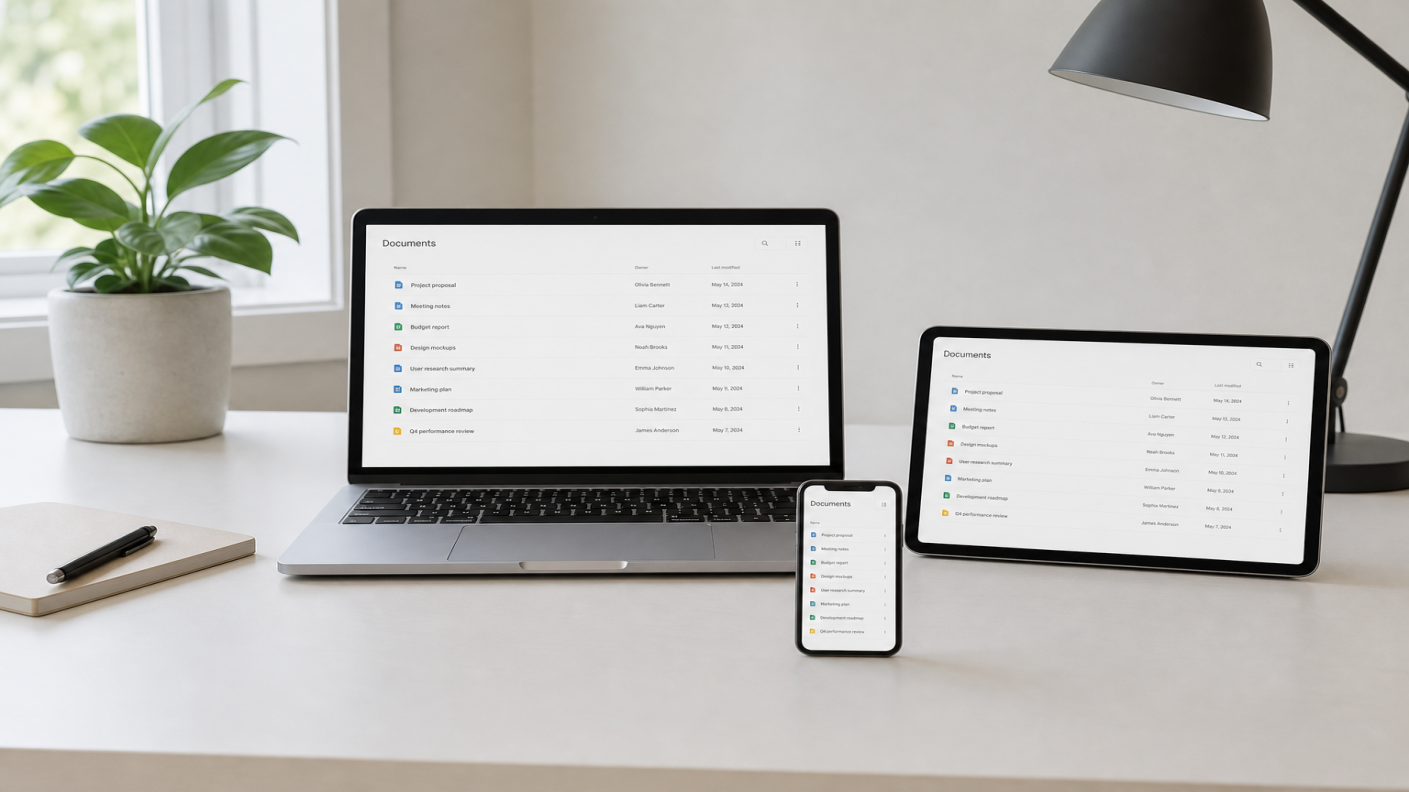
WPS Office runs on Windows, macOS, Linux, Android, and iOS. Features are not identical on every platform. Check the listing for your device, OS version, and plan.
Desktop covers Windows, Mac (Apple silicon and Intel), and Linux packages for supported distributions. On mobile, install from official WPS channels, Google Play, or the App Store. WPS also offers web tools for some tasks. They do not replace every desktop or mobile feature.


What file types can WPS Office work with?
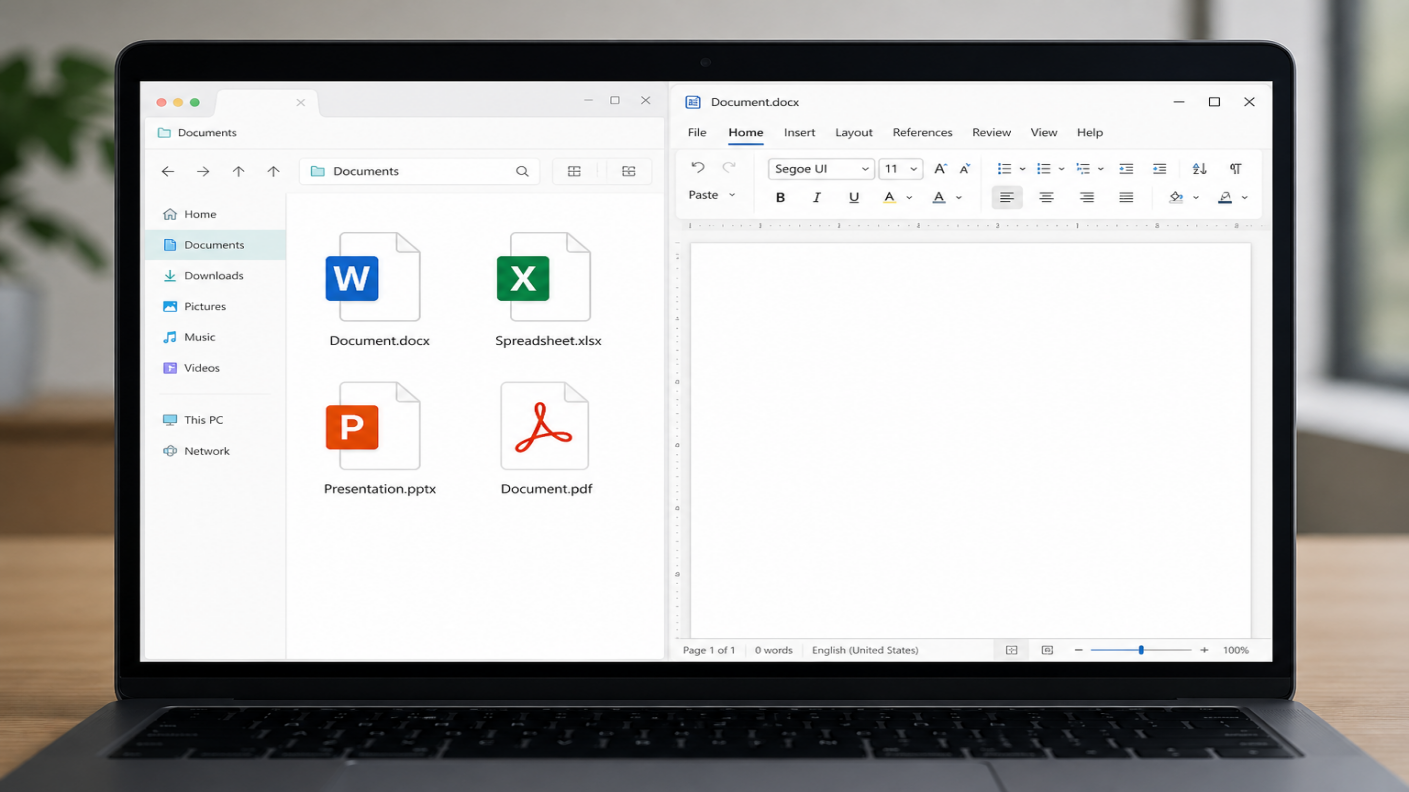
| Work area | Common supported formats |
| Documents | DOCX, DOC, RTF |
| Spreadsheets | XLSX, XLS, CSV |
| Presentations | PPTX, PPT, PPSX |
| PDFs | PDF workflows |
Opening a Microsoft Office file is not the same as perfect layout or feature parity. Macros, complex formatting, add-ins, and embedded objects may behave differently. Review important files after you open them. More detail: Is WPS Office compatible with Microsoft Office.
Is WPS Office free?
Yes, you can download WPS Office free from official WPS pages. On the free tier, core Writer, Spreadsheet, and Presentation tools are available.
Not every feature is free. Some PDF tools, AI options, cloud limits, and templates may need a paid plan. Mobile apps may show ads or offer in-app purchases by store and region.
For install steps, use WPS Office free download or simply download from the button below.
WPS Office vs Microsoft Office
| WPS Office | Microsoft Office / 365 | |
| Core work | Writer, Spreadsheet, Presentation, PDF | Word, Excel, PowerPoint (+ ecosystem apps) |
| Pricing | Free core tools + optional premium | Mostly subscription |
| Formats | Common DOC/DOCX, XLS/XLSX, PPT/PPTX | Industry standard |
| Built into the same suite | Often needs extra tools or services | |
| Best fit | Everyday files + one-suite workflow | Teams deep in Microsoft ecosystem |
WPS Office and Microsoft Office are separate products with different apps, pricing, and services. Both cover documents, spreadsheets, and presentations; WPS also bundles PDF tools in the same suite.
WPS opens common Word, Excel, and PowerPoint formats (DOC/DOCX, XLS/XLSX, PPT/PPTX). For a longer look at format support, see WPS Office compatibility with Microsoft Office. Files from colleagues who use Microsoft Office often open without issue; complex files still deserve a quick check.
Microsoft Office fits teams already deep in its ecosystem. WPS Office is an option when you want Word-, Excel-, and PowerPoint-style work plus PDF in one install, often with a free tier. For a direct comparison, read WPS Office vs Microsoft Office.
Who is WPS Office best for?
Students writing papers, building slides, or tracking budgets
Freelancers and small teams on proposals, invoices, and client files
Anyone who receives DOCX, XLSX, or PPTX and needs to edit them
People who want a free download first and upgrade only if needed
Weaker fit: heavy Excel modeling, enterprise add-ins, or full Microsoft 365 workflows. Test critical files first.
FAQ
What is WPS Office?
An office suite from Kingsoft/WPS with Writer, Spreadsheet, Presentation, and PDF in one package.
What does WPS stand for?
Writer, Presentation, and Spreadsheets. The suite now includes PDF tools as a fourth core module.
Is WPS Office free?
Core apps are free to download and use on the free tier. Some PDF, AI, cloud, and template features may need a paid plan.
Is WPS Office the same as Microsoft Office?
No. They are different products. WPS can work with many Office file types, but apps, pricing, and features are not the same. More detail: Is WPS Office Compatible With Microsoft Office?
Can WPS Office open Word, Excel, and PowerPoint files?
Yes, for common formats: DOCX/DOC in Writer, XLSX/XLS in Spreadsheet, PPTX/PPT in Presentation. Layout, macros, and add-ins may not transfer perfectly.
Is WPS Office available on Windows, Mac, Android, and iOS?
Yes, plus Linux. Exact features vary by OS, app version, account, and region.
Is WPS Office safe to download?
Get it from wps.com, wps.com/download, or your device official app store. Read the privacy, security, and support information before you install.
Who should use WPS Office?
Students, home users, freelancers, and small teams who mainly need documents, spreadsheets, slides, PDFs, and basic sharing.
Getting started with WPS Office
Go to the official download page https://www.wps.com/download/ or your platform app store. Avoid third-party APK or mirror sites.
Install WPS Office and open Writer, Spreadsheet, Presentation, or PDF.
Open a real DOCX, XLSX, PPTX, or PDF you already have and check formatting.
Sign in only if you want cloud sync or plan-based features. Before you subscribe, check which PDF or AI tools cost extra on your device.
For a fuller product tour, see Introduction to WPS Office
Also read
Ready to try WPS Office after this definition? Free Download for
Windows, Mac, Linux, Android, or iOS, then open a real file you already
have.
Also Read:



15 years of office industry experience, tech lover and copywriter. Follow me for product reviews, comparisons, and recommendations for new apps and software.


