

'%3e%3cpath%20d='M8%200C12.4183%200%2016%203.58172%2016%208C16%2012.4183%2012.4183%2016%208%2016C3.58172%2016%200%2012.4183%200%208C0%203.58172%203.58172%200%208%200ZM11.6162%204.38379C11.2257%203.99337%2010.5927%203.99338%2010.2021%204.38379L8%206.58594L5.79785%204.38379C5.40732%203.99334%204.77429%203.99329%204.38379%204.38379C3.99331%204.77429%203.99335%205.40733%204.38379%205.79785L6.58594%208L4.38379%2010.2021C3.99348%2010.5927%203.99341%2011.2257%204.38379%2011.6162C4.77426%2012.0066%205.40734%2012.0065%205.79785%2011.6162L8%209.41406L10.2021%2011.6162C10.5927%2012.0066%2011.2257%2012.0067%2011.6162%2011.6162C12.0067%2011.2257%2012.0066%2010.5927%2011.6162%2010.2021L9.41406%208L11.6162%205.79785C12.0066%205.40735%2012.0066%204.77429%2011.6162%204.38379Z'%20fill='%23080E17'%20fill-opacity='0.46'/%3e%3c/g%3e%3cdefs%3e%3cclipPath%20id='clip0_3761_713'%3e%3crect%20width='16'%20height='16'%20fill='white'/%3e%3c/clipPath%3e%3c/defs%3e%3c/svg%3e)


'%3e%3cpath%20fill-rule='evenodd'%20clip-rule='evenodd'%20d='M21.4999%2010.9993C21.4999%205.20009%2016.7986%200.498901%2010.9993%200.498901C5.19994%200.498901%200.498657%205.20009%200.498657%2010.9993C0.498657%2016.2404%204.33858%2020.5844%209.35855%2021.3722V14.0346H6.69238V10.9993H9.35855V8.68594C9.35855%206.05427%2010.9262%204.60062%2013.3248%204.60062C14.4736%204.60062%2015.6753%204.80571%2015.6753%204.80571V7.38979H14.3512C13.0468%207.38979%2012.64%208.19921%2012.64%209.0296V10.9993H15.5523L15.0867%2014.0346H12.64V21.3722C17.66%2020.5844%2021.4999%2016.2404%2021.4999%2010.9993Z'%20fill='%231568EA'/%3e%3c/g%3e%3c/svg%3e)


'%3e%3cpath%20d='M2.42045%2022.1876H6.31818V12.7217L0.75%208.54553V20.5171C0.75%2021.4414%201.49892%2022.1876%202.42045%2022.1876Z'%20fill='%234285F4'/%3e%3cpath%20d='M19.682%2022.1876H23.5797C24.5041%2022.1876%2025.2502%2021.4387%2025.2502%2020.5171V8.54553L19.682%2012.7217'%20fill='%2334A853'/%3e%3cpath%20d='M19.682%205.48293V12.7216L25.2502%208.54543V6.31816C25.2502%204.25236%2022.8921%203.07469%2021.2411%204.31361'%20fill='%23FBBC04'/%3e%3cpath%20d='M6.31824%2012.7217V5.48303L13.0001%2010.4944L19.6819%205.48303V12.7217L13.0001%2017.733'%20fill='%23EA4335'/%3e%3cpath%20d='M0.75%206.31816V8.54543L6.31818%2012.7216V5.48293L4.75909%204.31361C3.10534%203.07469%200.75%204.25236%200.75%206.31816Z'%20fill='%23C5221F'/%3e%3c/g%3e%3cdefs%3e%3cclipPath%20id='clip0_2954_7305'%3e%3crect%20width='24.5'%20height='18.375'%20fill='white'%20transform='translate(0.75%203.8125)'/%3e%3c/clipPath%3e%3c/defs%3e%3c/svg%3e)


If you work with spreadsheets, you’ve probably experienced the frustration of a broken formula, especially when managing a complex dataset. Fortunately, AI Excel tools in 2026 can help solve that problem. But with so many options available, figuring out which one actually fits your workflow takes some sorting through. This guide looks at 4 of the best AI tools for Excel and how to use AI in Excel to get the most out of each one.
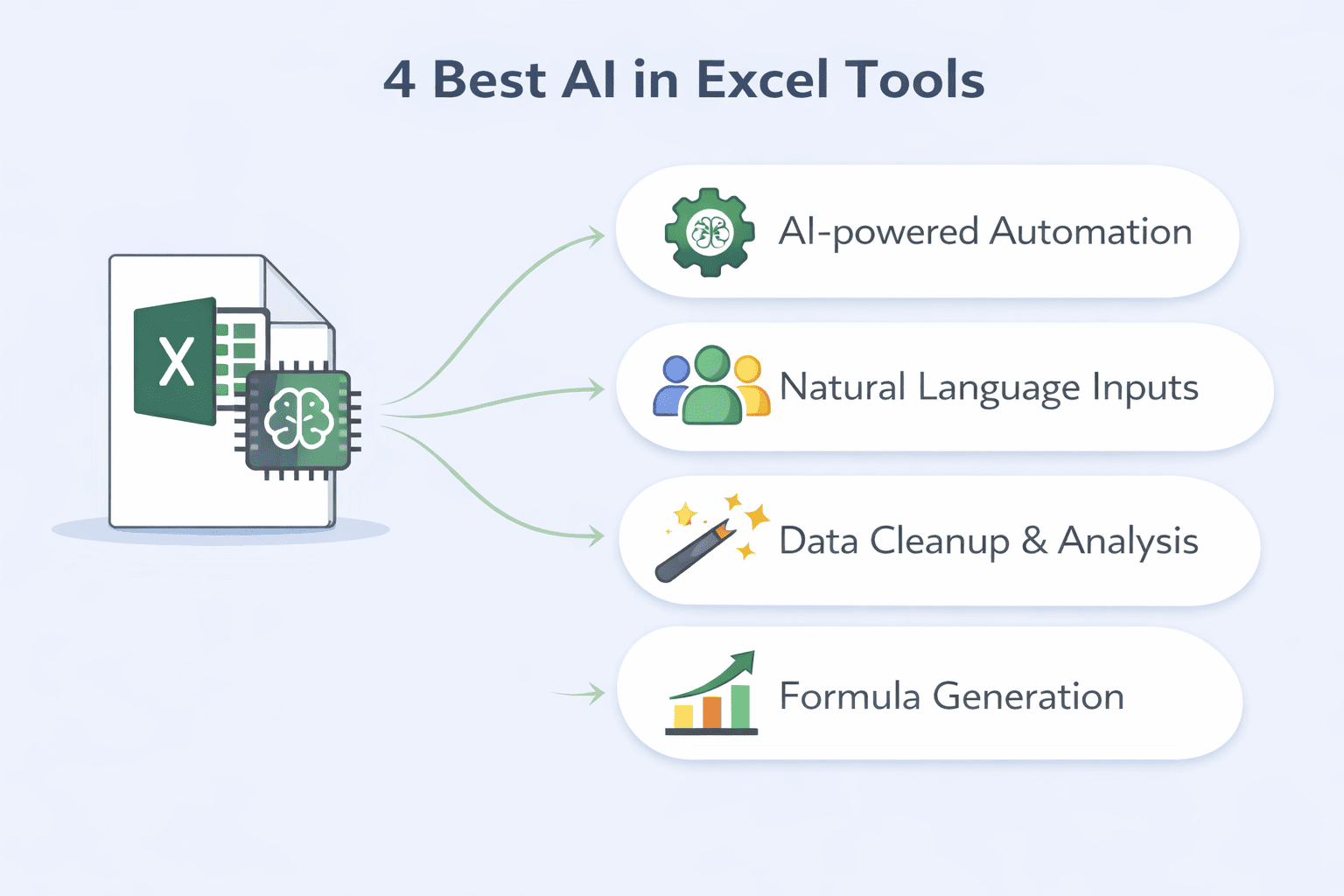
4 Best AI in Excel Tools
AI has quietly become a standard part of how people work in spreadsheets. The integration of AI in Excel sheets has made datasets less complex, turnaround times shorter, and workflows more productive.
Starting off with the tool most recommended to me by Excelprofessionals, the four tools below take different approaches to the same basic problem: less time wasted, fewer formula errors, so the right pick depends on how you actually work.
1. WPS AI Sheet
WPS AI Sheet is built for students and professionals alike. The WPS AI tool is built directly inside the spreadsheet, not a separate browser tab, making it the most accessible tool in the list. WPS AI allows you to describe what you need in plain English and does all the work for you. It writes the formula, cleans the data, and builds your tables, all without you leaving the file.
For anyone working with Excel files daily, WPS AI removes the part that makes every external tool annoying: constantly copying outputs and pasting them back in. Moreover, WPS AI can explain formulas you didn't write, run batch AI tasks across entire columns, and pull chartsstraight from selected data ranges.
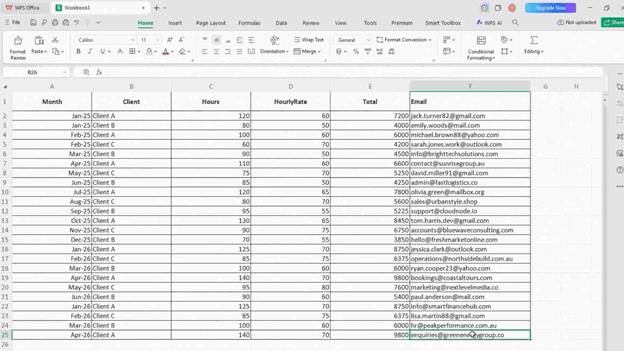
Features
AI Formula Writing: You can generate working formulas from plain-language descriptions directly inside the spreadsheet
Formula Semantic Translation: You can paste any formula and receive a plain-English explanation of what it does
AI Data Analysis: You can ask questions about selected data ranges and get written insights plus auto-generated charts
WPSAI Cell Function: You can call AI directly inside cells for batch classification, content generation, and data extraction
AI Sheet Assistant: You can control spreadsheet operations using natural language commands (example: merge rows, fill colors, extract data)
Lingxi Sidebar: You can have a full-conversation with the AI panel for complex multi-step operations, accessible in a single sidebar
Pros
AI works inside the spreadsheet, no switching tabs or copying outputs
Formula generation, explanation, data analysis, and automation all in one place
More cost-effective than Microsoft 365; AI plan is over 50% cheaper
Free plan available with 1GB cloud storage and support for 47 file formats
Formula explanation feature helps users actually learn, not just produce outputs
Cons
All AI features require an internet connection, no offline access
Some advanced features, including AI Sheet Assistant, are currently limited to Windows desktop
Support for highly niche functions is limited
Pricing: Monthly plan starts at $14.16/month, which includes Pro benefits. A free version is available with core spreadsheet features and limited AI access.
2. Microsoft 365 Copilot
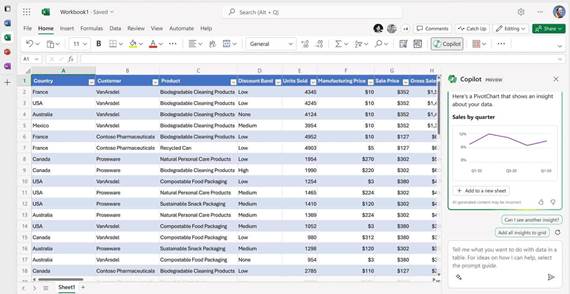
Microsoft 365 Copilot is Microsoft's own AI inside Excel. It shows up as a chat pane, and you talk to it like a colleague. Ask it to write a formula, flag duplicates, summarizea dataset, or build a report, and it handles it without you touching a function key. For teams already on Microsoft 365, there's nothing extra to set up; it's already in the ribbon waiting.
Features
Complex Formula Generation: You can ask Copilot to suggest or generate formulas based on your data context
Data Cleaning: The AI can automatically detect inconsistencies, duplicates, and formatting issues across large datasets
Trend Identification: You can analyze data to surface patterns and generate charts or graphs automatically
Smart Suggestions: The AI gives context-aware recommendations as you work, including PivotTable shortcuts and workflow improvements
Automated Reports: You can generate professionally formatted summaries, visualizations, and insights based on your spreadsheet content
Works on files stored in OneDrive or SharePoint:The full Copilot features require files to be saved in the Microsoft cloud ecosystem
Pros
Deeply integrated into the existing Microsoft 365 environment, no setup for current subscribers
Handles complex formulas, large datasets, and multi-step tasks with strong accuracy
Consistent with the Office interface, reducing the learning curve for Excel users
Works across financial analysis, HR analytics, marketing, and sales forecasting use cases
Backed by Microsoft's security and compliance infrastructure
Cons
Requires Microsoft 365 Copilot subscription, not available on standard Microsoft 365 plans
Files must be stored in OneDrive or SharePoint for full Copilot access
Pricing makes it less practical for individuals or small teams not already on Microsoft 365
No meaningful free tier for AI features
Pricing: Microsoft 365 Personal starts at $9.99/month. Copilot features require Microsoft 365 Copilot, which is available as an add-on for business plans, pricing varies by organization size and agreement.
3. GPTExcel
GPTExcel runs entirely online, no installation, no Excel add-in, just open it and type. It started as a formula generator and has since added pivot tables, charts, SQL queries, VBA scripts, and basic data analysis. Over 40 million formulasgenerated and 1.4 million users means it's well past the point of being a novelty. The catch is the same one every web tool has: you still have to copy everything back into your spreadsheet yourself.
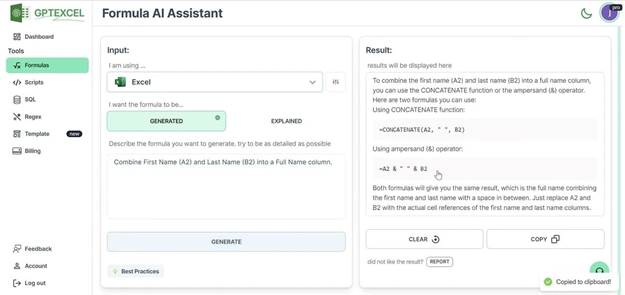
Features
Excel Formula Generator AI: You can generate formulas for Excel, Google Sheets, LibreOffice Calc, and Airtable from plain language
Formula Explanation: You can paste any formula and receive a plain-English breakdown of its logic
Pivot Table Builder: You can generate and modify pivot tables using AI prompts
Script Generator: You can create VBA scripts for Excel, Apps Scripts for Google Workspace, and Airtable automation scripts
SQL Query Generator: You can build and debug SQL queries using natural language
Data Analysis and Reports: You can upload Excel or CSV files and receive AI-generated insights and summaries
Image to Table Conversion: You can upload an image containing a table and convert it to an editable spreadsheet
Pros
No installation required, fully browser-based and works immediately
Supports multiple spreadsheet platforms including Excel, Sheets, LibreOffice, and Airtable
Free plan available with no credit card required
Trusted by professionals at major organizations including Google, Spotify, and the University of Michigan
Covers formula generation, automation scripting, SQL, and data analysis in one platform
Cons
Web-based only, requires copy-pasting results back into the spreadsheet
Free plan is limited to 4 tool uses per 12-hour period
No direct integration with Excel files, manual transfer of all outputs
Data analysis features require file upload rather than working inside an open spreadsheet
Pricing: Pro plan starts at $6.30/month and Pro Plus is $12.60/month
4. GPT for Work
GPT for Work is an add-in that drops an AI sidebar directly into Excel, with support for OpenAI, Claude, Gemini, Perplexity, Deepseek, and local models if you'd rather keep data off the cloud. Where it actually stands apart is bulk processing; instead of working cell by cell, it runs AI tasks across thousands of rows at once. If you're translating a product catalog, classifying customer feedback, or extracting data from messy text columns, tasks that would otherwise take hours to work through manually.
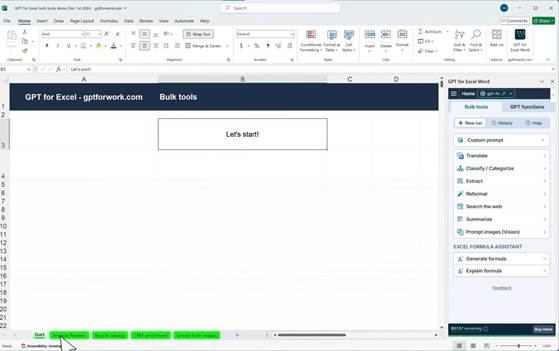
Features
Bulk AI Processing: You can run AI tasks across thousands of rows at once, translate, classify, extract, summarize, and generate content in bulk
Multiple AI Provider Support: You can connect OpenAI, Anthropic Claude, Gemini, Perplexity, Deepseek, and local Ollama or LM Studio models
Translate Tool: You can translate cell content across 50+ languages with custom glossary support for consistent terminology
Classify Tool: You categorize data by sentiment, topic, or custom criteria across entire columns
Extract Tool: You can pull specific entities, topics, or data points from unstructured text in bulk
Web Search Integration via Perplexity: You can run AI tasks that reference current, real-world information
ISO 27001 Certified and GDPR Compliant: It is built for organizations with data security and privacy requirements
Pros
Best-in-class tool for bulk AI processing, handles 1 million rows across 16,000 columns
Supports multiple AI providers, giving flexibility to choose the best model for each task
Works directly inside Excel as a sidebar add-in, no separate browser tab needed
Strong enterprise credentials: ISO 27001 certified, GDPR compliant, Google Cloud partner
Particularly effective for e-commerce, market research, SEO content, and feedback analysis use cases
Cons
Requires API keys from external AI providers, involves additional setup and separate subscription costs
Not a formula generator, primarily designed for bulk text tasks, not formula writing or data analysis
Higher learning curve compared to simpler formula-focused tools
No free plan
Pricing: Paid plans start at $19/month. API costs from AI providers are separate. A free trial is available for new users.
AI in Excel Tools Comparison Table
After spending real timewith each of these tools, here's how they compare across the dimensions that matter most for practical spreadsheet work:
| Feature | WPS AI Sheet | Microsoft 365 Copilot | GPTExcel | GPT for Work |
|---|---|---|---|---|
| AI Type | Built-in (native) | Built-in (native) | External web tool | Excel add-in |
| Excel Integration | Full (native) | Full (native) | Copy-paste | Sidebar/add-in |
| Formula Generation | Yes | Yes | Yes | Yes |
| Formula Explanation | Yes | Yes | Yes | No |
| Data Analysis | Yes | Yes | Yes | Yes |
| Ease of Use | Very easy | Easy | Easy | Moderate |
| Platforms | Windows, Mac, Mobile, Web | Windows, Mac, Web | Web browser | Excel (Windows/Mac) |
| Free Plan | Yes | No | Yes (limited) | No |
| Paid Pricing | $14.16/month | From $9.99 /month (1 user) | From $6.30/month | From $19/month |
| Best Fit | Individuals, small teams, students | Enterprise, Microsoft 365 users | Solo users, freelancers | Power users, bulk tasks |
All in all, each tool here fits a different situation. Already on Microsoft 365? Copilot is built in and ready. Processing thousands of rows of messy data? GPT for Work handles that better than anything else here. Need a formula fast with nothing to install? GPTExcel gets it done. For everyone else, the student, the analyst, the small team without an IT budget, WPS AISheet is where I'd point them. It works inside the spreadsheet, the price is reasonable, and it doesn't require an enterprise contract to unlock the most useful features.
A More Practical Way to Use AI in Excel — WPS AI Sheet
There's a reason I keep coming back to WPS AI Sheet as my primary recommendation: it doesn't just add AI to a spreadsheet; it changes how the spreadsheet itself works. Here's why that matters in practice:
Why Built-in AI Inside Spreadsheets Matters
Every external AI tool follows the same basic loop: open your spreadsheet, describe what you need somewhere else, copy the output, come back, paste it in, and repeat. This type of workflow works fine for occasional use, but it adds friction every single time. WPS AI Sheet removes this entirely.
The AI is already inside the spreadsheet, working in the same interface where your data lives. There's no switching, no copying, no context switching. When you're in the middle of building a report or cleaning a dataset, that seamlessness adds up.
Writing Formulas Using Plain Language
One of the most immediate benefits of using AI in Excel is formula generation, and this is where WPS AI Sheet delivers best. Instead of looking up syntax or debugging a nested IF statement for 20 minutes, you describe what you want. WPS AI handles the formula from there. This works for basic functions and more complex logic involving VLOOKUP, INDEX-MATCH, array formulas, and conditional aggregations. For users who find themselves constantly checking guides or syntax for formula help, this alone justifies the tool.
Helping Users Understand Formulas, Not Just Generate Them
Most formula tools just generate. WPS AI Sheet also explains. Paste in a formula you didn't write and it tells you in plain English what it actually does. This is especially useful when you get handed a spreadsheet from a colleague or when you're trying to audit something built months ago. For newer Excel users, especially, that explanation layer is worth more than another formula shortcut. It's the difference between getting an answer and understanding one.
Data Analysis and Automation Within the Sheet
Formulas are only one piece. Select a data range, type a question: "What drove revenue this quarter?" and WPS AI writes out the insight and generates the chart on the spot. The WPSAI cell function takes it further: drop it directly into a cell and use it to classify a column of customer reviews, extract specific data from messy text, or write product descriptions row by row. The results go straight into the spreadsheet. No copying from a sidebar, no pasting from another tab, it's just there in the cells when it's done.
Accessible for Both Beginners and Advanced Users
One thing I appreciate about WPS AI Sheet is that it doesn't force you to learn a new interface or workflow. Beginners can simply describe what they want in natural language and get working results immediately, no formula syntax, no scripting, no learning curve.
Experienced users get something different: a way to accelerate the parts of spreadsheet work that are repetitive or time-consuming, so they can stay focused on higher-level analysis. Whether you're building your first budget tracker or running quarterly business reviews, the tool adapts to where you are.
Strong Value for Everyday Spreadsheet Users
Compared to tools that require separate subscriptions, browser tabs, or complex API configuration, WPS AI Sheet is straightforward and genuinely cost-effective. The free version covers basic spreadsheet needs with 1GB of cloud storage and compatibility with 47 file formats.
The AI plan comes in at over 50% less than Microsoft 365 Copilot for comparable functionality. For individuals and small teams who want practical Excel artificial intelligence without enterprise pricing, WPS AI Sheet is easily the most accessible entry point on the market right now.
FAQs
Q1: Is using AI in Excel suitable for non-technical users or beginners?
Yes, but the experience depends on the tool. Some AI in Excel solutions still assume the user has a working knowledge of formulas and data structures, which can be a barrier for newer users. Others are built around plain-language input from the ground up. For beginners, the more practical options are those that explain their outputs, not just generate a formula, but walk through what it does and why.
Q2: How reliable is AI when generating Excel formulas?
For standard functions such as, SUM, AVERAGE, IF, VLOOKUP, INDEX-MATCH, AI gets it right most of the time. For complex nested logic or domain-specific calculations, results vary and errors aren't always obvious. Reviewing any AI-generated formula before it goes into a workbook is worth the extra minute, particularly for financial or reporting data where a wrong cell reference can quietly throw off everything downstream.
Q3: Do AI in Excel tools work well with large or messy datasets?
AI can help with both data cleaning and summarization, but results depend heavily on what you're working with. Inconsistently formatted columns, mixed data types, and large unstructured text fields often still need a manual check after processing, AI narrows the work, it doesn't always finish it. It performs best when the data is reasonably structured and the task is clearly defined.
Q4: Are AI in Excel tools worth the cost for individual users or small teams?
It comes down to how often you actually use spreadsheets and what you're willing to pay for that use. Tools tied to enterprise subscriptions or requiring separate API keys from multiple providers can get expensive fast, especially for someone who doesn't live in Excel every day. For individuals and small teams, WPS AI Sheet is the most cost-accessible option in this comparison. The free plan covers genuine functionality, and the paid tier comes in well below what Microsoft 365 Copilot runs.
Picking the Right AI Tool for Your Spreadsheets
Each tool here fits a different situation, but I know most of you are looking for the perfect one. Copilot makes sense inside an existing Microsoft 365 setup. GPT for Work earns its place when bulk processing is the main job. GPTExcel works for quick, no-install formula help. But if I'm recommending a single tool for most everyday spreadsheet users,WPS AI Sheetcovers more ground. Simply put, it’s the difference between reaching for a tool and the tool already being in your hand with WPS AI.

'%3e%3cpath%20d='M19.9911%204.11386V6.471H18.5894C18.0775%206.471%2017.7322%206.57814%2017.5536%206.79243C17.3751%207.00671%2017.2858%207.32814%2017.2858%207.75671V9.44421H19.9019L19.5536%2012.0871H17.2858V18.8639H14.5536V12.0871H12.2769V9.44421H14.5536V7.49779C14.5536%206.39064%2014.8632%205.53201%2015.4822%204.92189C16.1013%204.31177%2016.9257%204.00671%2017.9554%204.00671C18.8304%204.00671%2019.509%204.04243%2019.9911%204.11386Z'%20fill='%23333333'/%3e%3c/g%3e%3cdefs%3e%3cclipPath%20id='clip0_2938_8199'%3e%3crect%20width='16'%20height='16'%20fill='white'%20transform='translate(8%204.00671)'/%3e%3c/clipPath%3e%3c/defs%3e%3c/svg%3e)
'%3e%3cpath%20d='M17.5237%2010.7813L23.4811%204H22.0699L16.8949%209.88693L12.7648%204H8L14.2469%2012.9029L8%2020.0133H9.4112L14.8725%2013.7952L19.2352%2020.0133H24M9.92053%205.04213H12.0885L22.0688%2019.0224H19.9003'%20fill='%23333333'/%3e%3c/g%3e%3cdefs%3e%3cclipPath%20id='clip0_2938_8200'%3e%3crect%20width='16'%20height='16.0134'%20fill='white'%20transform='translate(8%204)'/%3e%3c/clipPath%3e%3c/defs%3e%3c/svg%3e)


