

'%3e%3cpath%20d='M8%200C12.4183%200%2016%203.58172%2016%208C16%2012.4183%2012.4183%2016%208%2016C3.58172%2016%200%2012.4183%200%208C0%203.58172%203.58172%200%208%200ZM11.6162%204.38379C11.2257%203.99337%2010.5927%203.99338%2010.2021%204.38379L8%206.58594L5.79785%204.38379C5.40732%203.99334%204.77429%203.99329%204.38379%204.38379C3.99331%204.77429%203.99335%205.40733%204.38379%205.79785L6.58594%208L4.38379%2010.2021C3.99348%2010.5927%203.99341%2011.2257%204.38379%2011.6162C4.77426%2012.0066%205.40734%2012.0065%205.79785%2011.6162L8%209.41406L10.2021%2011.6162C10.5927%2012.0066%2011.2257%2012.0067%2011.6162%2011.6162C12.0067%2011.2257%2012.0066%2010.5927%2011.6162%2010.2021L9.41406%208L11.6162%205.79785C12.0066%205.40735%2012.0066%204.77429%2011.6162%204.38379Z'%20fill='%23080E17'%20fill-opacity='0.46'/%3e%3c/g%3e%3cdefs%3e%3cclipPath%20id='clip0_3761_713'%3e%3crect%20width='16'%20height='16'%20fill='white'/%3e%3c/clipPath%3e%3c/defs%3e%3c/svg%3e)


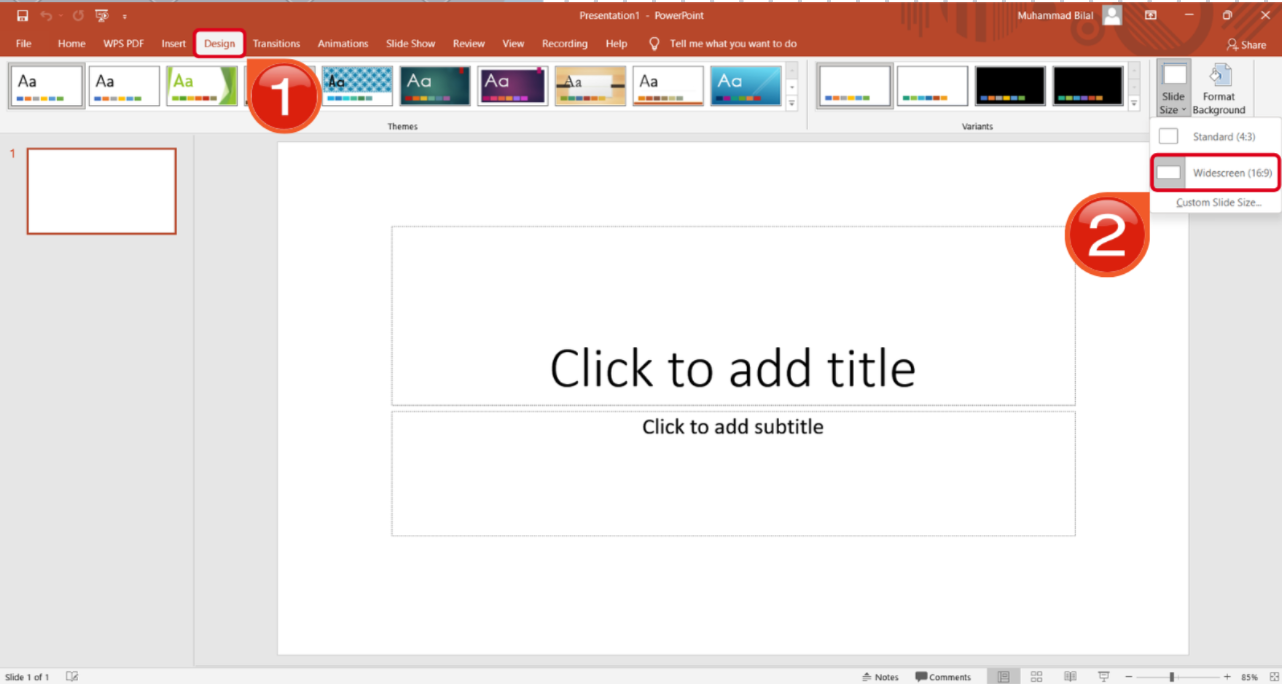
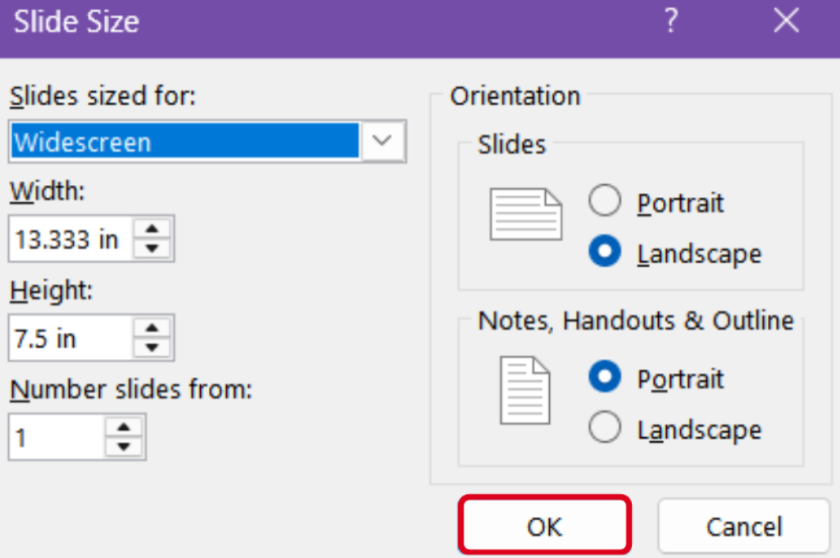
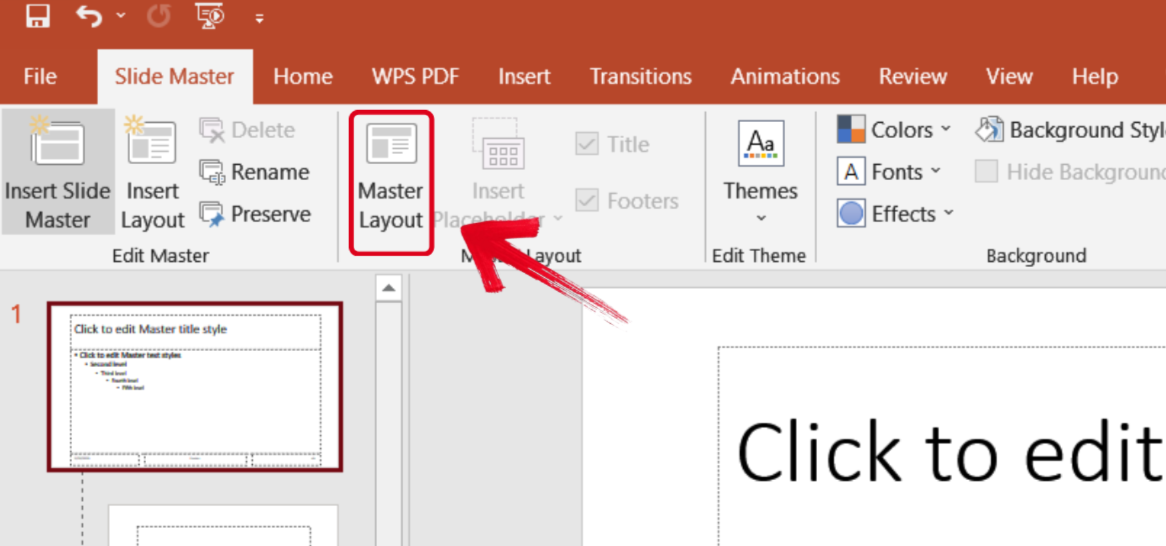
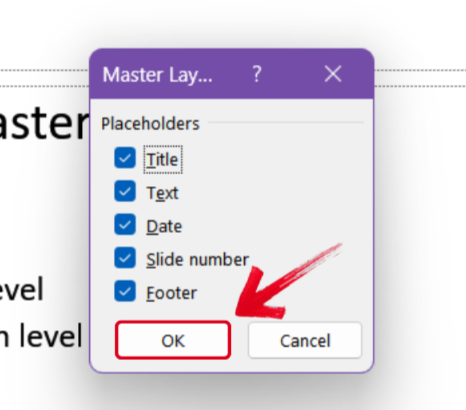
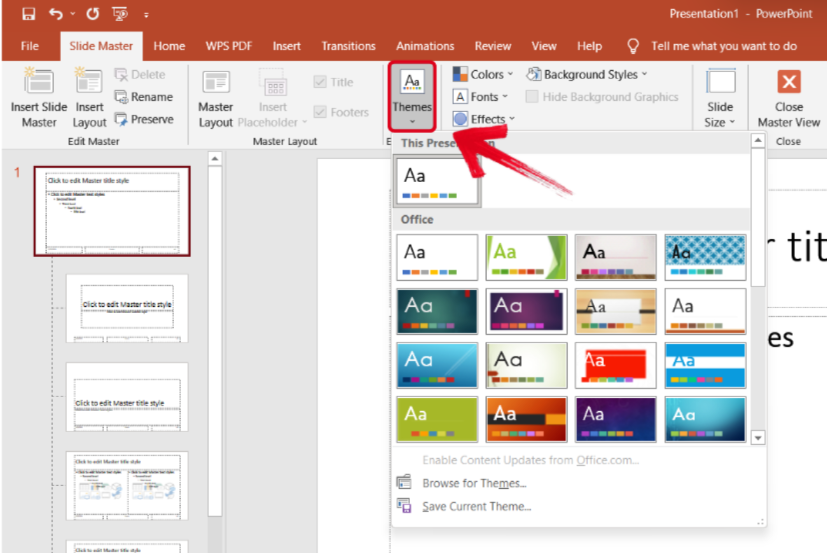
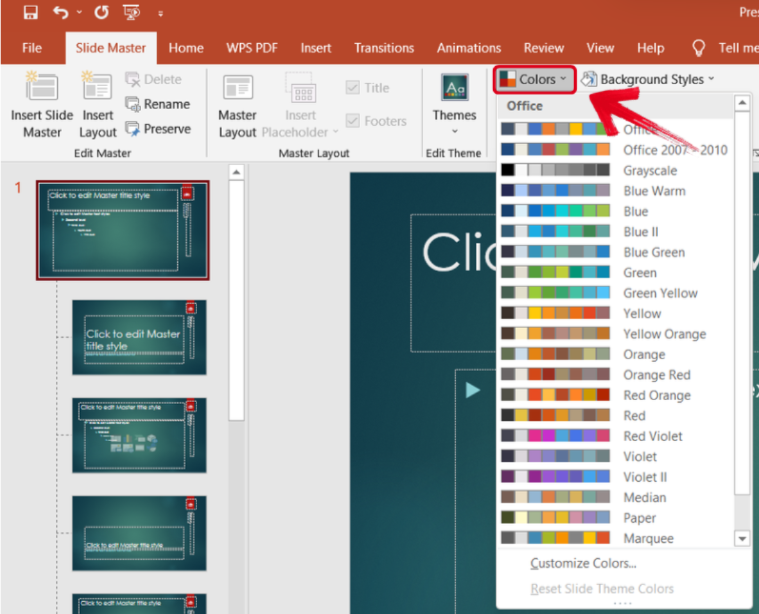
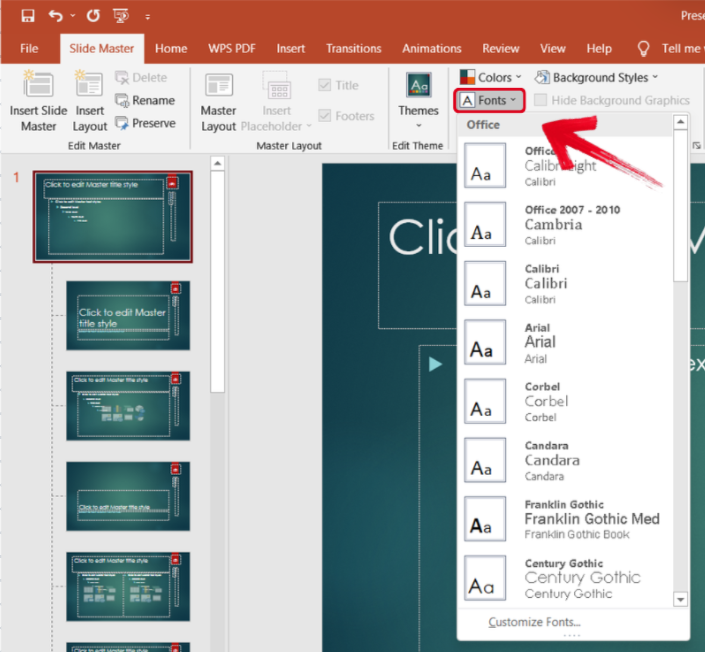
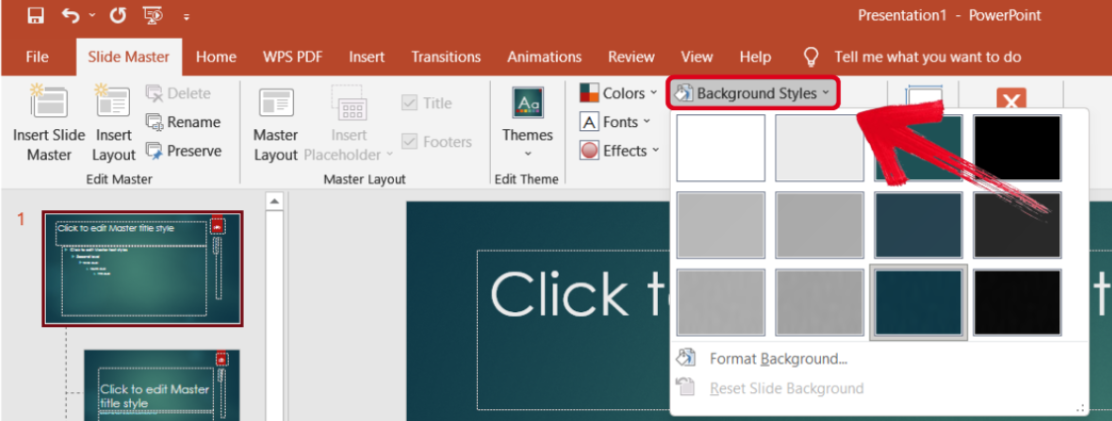
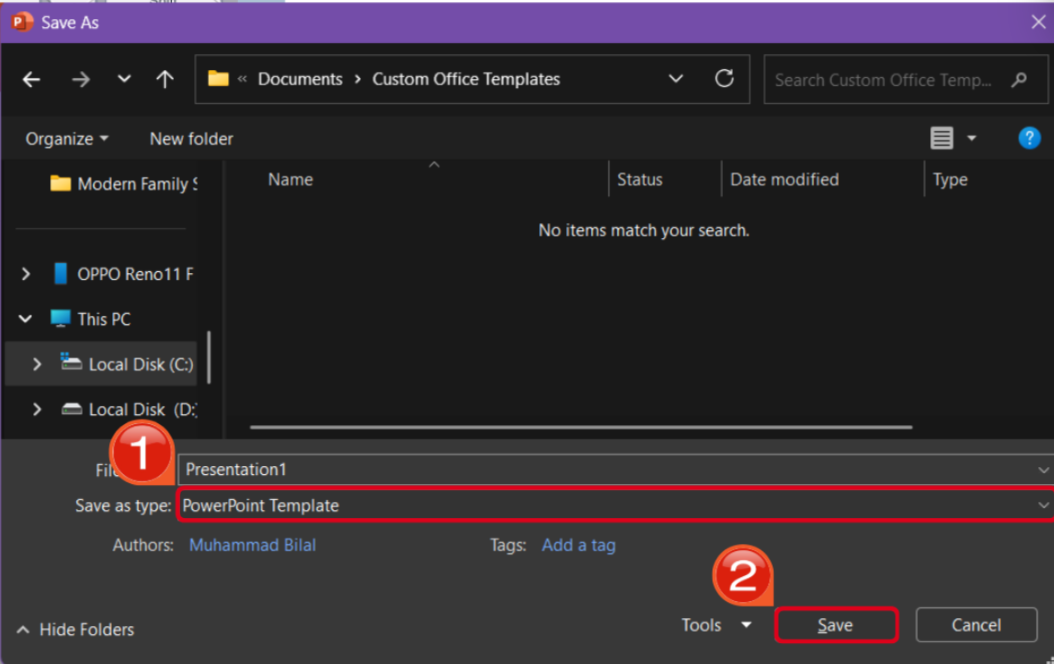
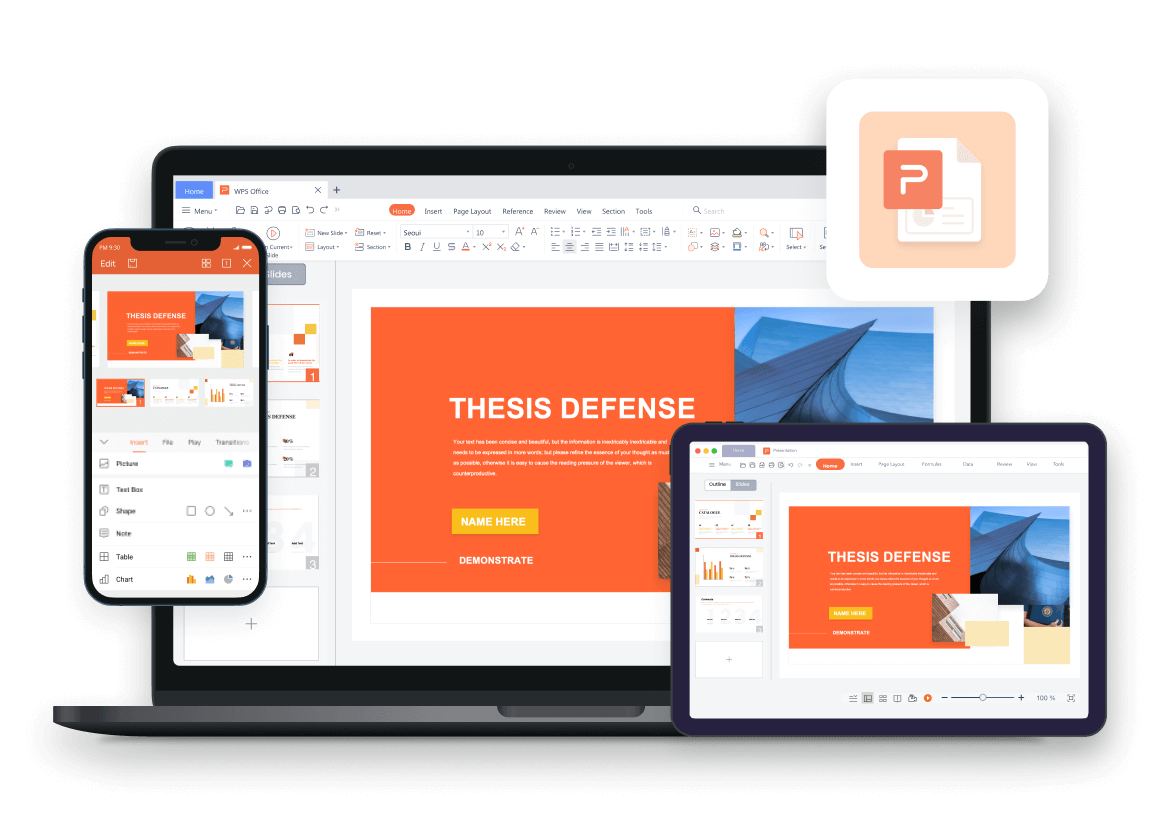
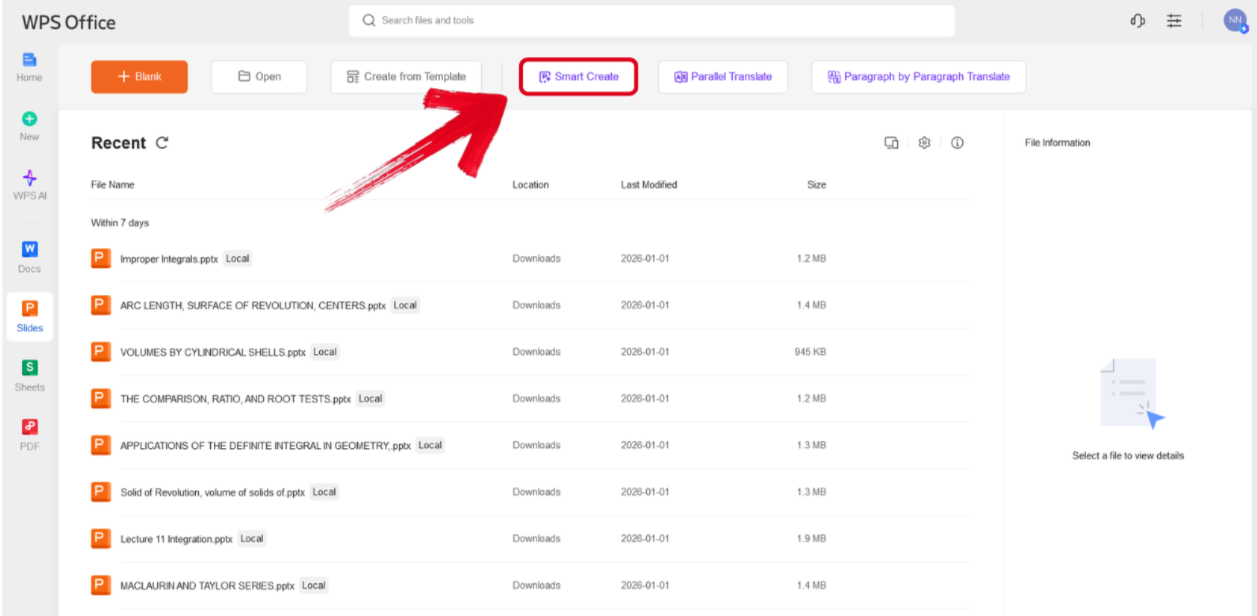
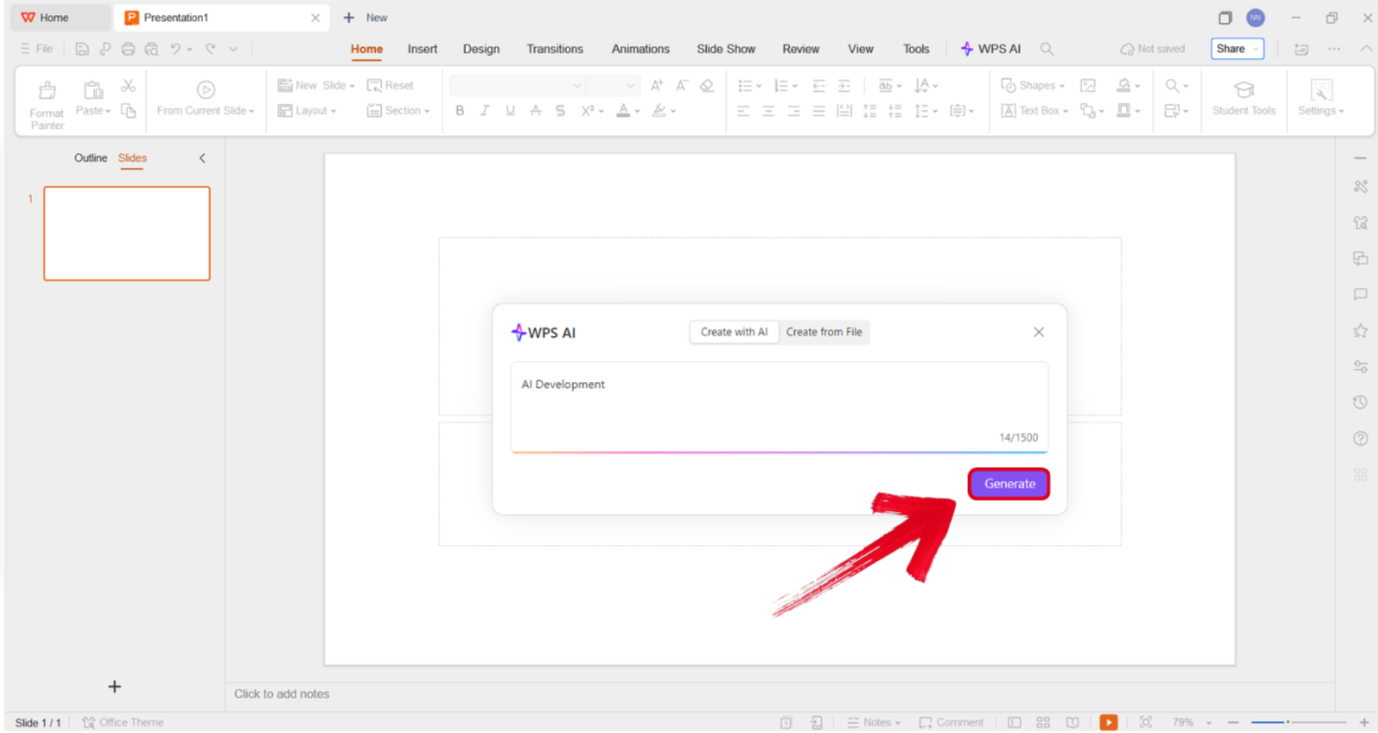
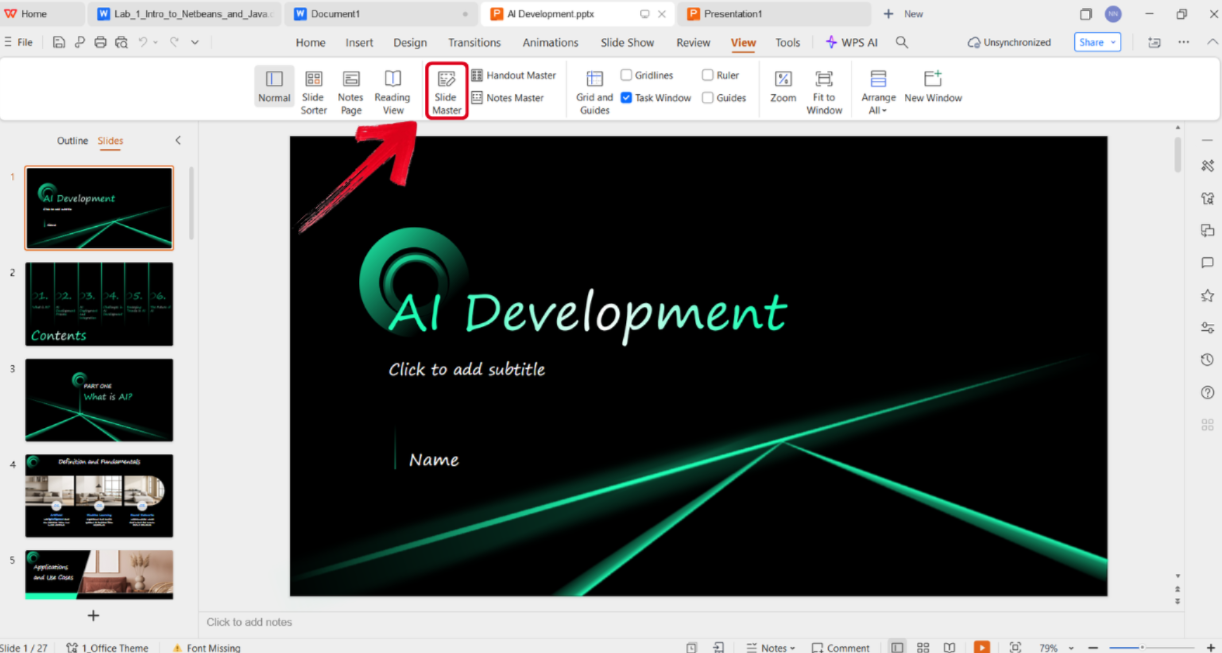
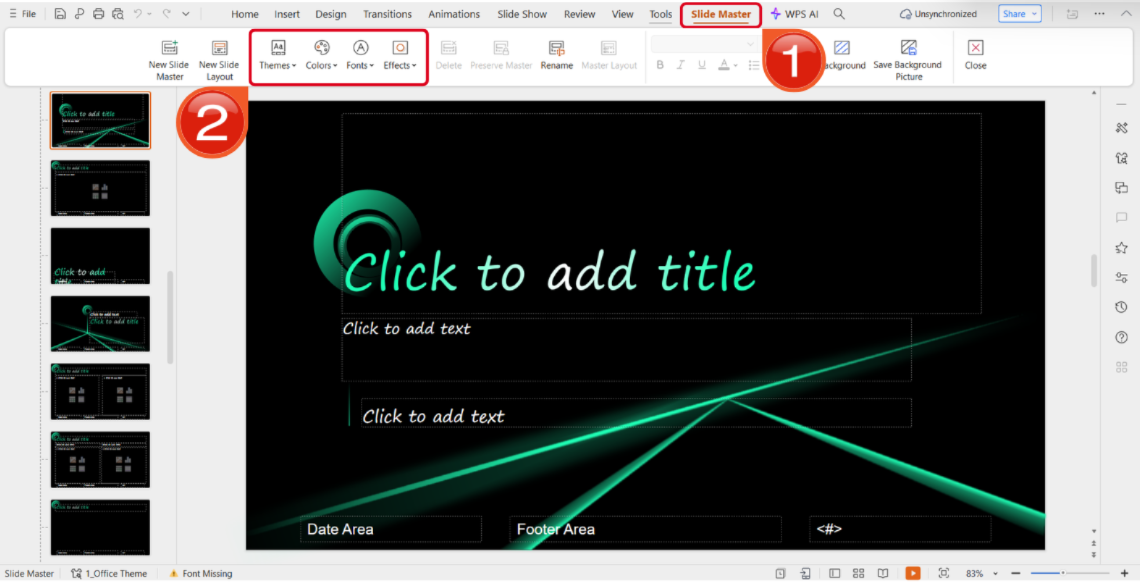
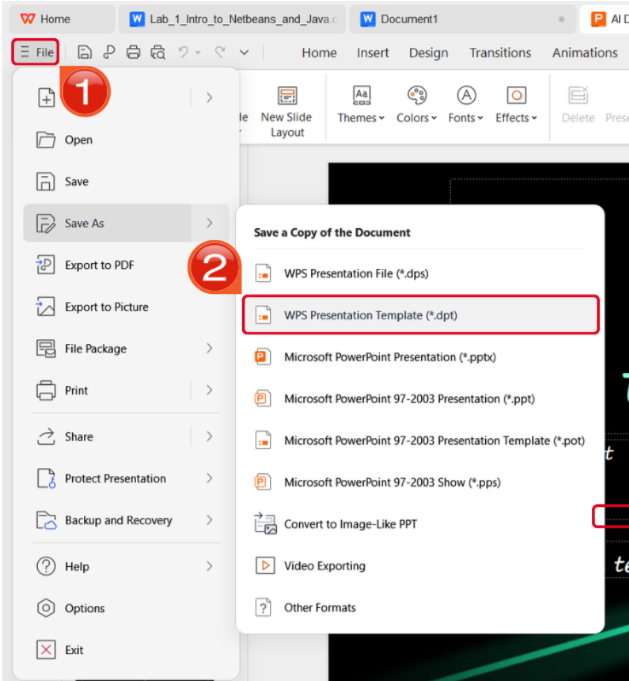
A well-designed PowerPoint template is the foundation of every professional presentation. However, creating one from scratch takes a lot of design skill, time, and an in-depth understanding of PowerPoint’s Slide Master, that most users lack. So, what is the most efficient and reliable way to create a custom PowerPoint template? In this guide, I’ll walk you through how to create a PowerPoint template with multiple step-by-step methods. Not everyone can find the right pre-made template for themselves and learning how to create PowerPoint template is not something everyone can do easily, especially for someone with no prior design experience. I know how confusing and overwhelming it may seem, but once you know the exact steps you need to follow, everything gets incredibly straightforward. In this section, I’ll walk you through how to make PowerPoint templates with the Slide Master tool. Step 1: The first thing you need to do is open PowerPoint and set your slide size. In the Design Tab, navigate to the Slide Size Menu and select your preferred size. Optional Step: If you want a custom size, simply press the Custom Slide Size option and adjust your dimensions however you like, then press OK. Step 2: The next thing you need to do is open Slide Master for in-depth customization. In the View Tab, select the Slide Master button. Step 3: To edit the placeholders on your Slide Master, navigate to the Slide Master Tab and select Master Layout. Step 4: A dialog window will appear on your screen. Simply check all the placeholders you want to include in your template, then press OK. Step 5: Select the theme you want to add in your template from the Themes Menu. Step 6: Select the color scheme of your template by going into the Colors Menu. Step 6: Select the font you want for your PowerPoint theme in the Fonts Menu. Step 7: If you want a different background for a particular slide, you can customize it with the Background Styles Menu. Step 8: Once you’ve finalized your template design, press Ctrl + Shift + S to open the Save as Window. Select PowerPoint Template in the type options, then press Save. While Microsoft PowerPoint offers you all the features you need for professional PPT template design, making everything from scratch can be incredibly time-consuming. I personally simplify the process for myself by using AI-powered solutions like WPS AI Slides. It’s completely free to use and incredibly efficient for designing templates and complete presentations with minimal effort, making it one of the best options for professionals and students looking for a seamless tool to save a lot of time. Features AI-Powered Slide Generation: Generate complete presentations from prompts, outlines, or documents in seconds. Designed for Content & Design: Combines structured content creation with polished slide layouts. Seamless Office Integration: Works natively within the WPS Office ecosystem for documents, spreadsheets, and PDFs. Offline and Cross-Platform Support: Edit and present anytime without relying on a browser. Cost-Effective for Teams and Individuals: Powerful AI features are included within the WPS Office suite. Designing your PPT templates on WPS AI Slides is incredibly convenient and straightforward, even if you’re a complete beginner. I’ll highlight each step of the process down below to help you along the way. Step 1: Open WPS Presentation and select the Smart Create button to get started. Step 2: Type out the prompt of the presentation template you want to design and press Generate. Tip: Make sure your presentation prompt is detailed, including the title, sub-titles, and any other details you want to include. Step 3: Once the template base has been generated, navigate to the View Tab and select Slide Master to customize it further. Step 4: In the Slide Master Tab, adjust the visual elements of your template, including the theme, color, font, and any effects you want to add. Step 5: Once you’ve finalized the design, navigate to the File Tab and select the Save As Menu, then press WPS Presentation Template to save it. While Microsoft PowerPoint and WPS AI Slides are both incredibly effective options designed to simplify template design for all users, both of them have their own unique advantages that benefit certain users. If you’re trying to decide on the right option for your own workflow, it all depends on your requirements. In this section, I’ll be comparing both of these tools side by side to give you a better idea of each one and help you narrow it down for yourself. In conclusion, WPS AI Slides changes the way you create templates from a manual, time-consuming task into an intelligent and quick creative process, significantly lowering the barrier to producing professional and consistent PowerPoint templates for all users. Key Advantages Dramatically Reduced Time & Effort Professional Quality Assurance Seamless Bridge Between AI and Precision Cost-Effective & Accessible Save the template as a .potx file from WPS Presentation. PowerPoint opens it normally and you can also add it to the Custom Office Templates folder for quick access. No. You only need to describe your goal or style in a prompt and the AI handles layout, colors, and fonts automatically. Yes. You can fully customize slides, colors, fonts, and layouts just like a standard PowerPoint template. The secret to any professional presentation is a well-formatted and clean template, yet most users don’t know how to create one from scratch. You can either go for the traditional approach using Microsoft PowerPoint, which takes a lot of time and requires design expertise. Or you could opt for the automated, WPS AI Slides method which removes the entire hassle out of the process. In this guide, I’ve covered both options in detail, walking you through how to create a PowerPoint template step by step. 
How to Create a PowerPoint Template
Creating a Template with WPS AI Slides & Finalizing in Slide Master
A Comparison of Efficiency and Output: WPS AI Slides
FAQs
Q1: Can I use the template I create in WPS Office in Microsoft PowerPoint?
Q2: Do I need design experience to create templates with WPS AI?
Q3: Can I edit the AI generated template after it is created?
Simplifying Template Creation

Table of Content

Share Article
'%3e%3cpath%20fill-rule='evenodd'%20clip-rule='evenodd'%20d='M21.4999%2010.9993C21.4999%205.20009%2016.7986%200.498901%2010.9993%200.498901C5.19994%200.498901%200.498657%205.20009%200.498657%2010.9993C0.498657%2016.2404%204.33858%2020.5844%209.35855%2021.3722V14.0346H6.69238V10.9993H9.35855V8.68594C9.35855%206.05427%2010.9262%204.60062%2013.3248%204.60062C14.4736%204.60062%2015.6753%204.80571%2015.6753%204.80571V7.38979H14.3512C13.0468%207.38979%2012.64%208.19921%2012.64%209.0296V10.9993H15.5523L15.0867%2014.0346H12.64V21.3722C17.66%2020.5844%2021.4999%2016.2404%2021.4999%2010.9993Z'%20fill='%231568EA'/%3e%3c/g%3e%3c/svg%3e)


'%3e%3cpath%20d='M2.42045%2022.1876H6.31818V12.7217L0.75%208.54553V20.5171C0.75%2021.4414%201.49892%2022.1876%202.42045%2022.1876Z'%20fill='%234285F4'/%3e%3cpath%20d='M19.682%2022.1876H23.5797C24.5041%2022.1876%2025.2502%2021.4387%2025.2502%2020.5171V8.54553L19.682%2012.7217'%20fill='%2334A853'/%3e%3cpath%20d='M19.682%205.48293V12.7216L25.2502%208.54543V6.31816C25.2502%204.25236%2022.8921%203.07469%2021.2411%204.31361'%20fill='%23FBBC04'/%3e%3cpath%20d='M6.31824%2012.7217V5.48303L13.0001%2010.4944L19.6819%205.48303V12.7217L13.0001%2017.733'%20fill='%23EA4335'/%3e%3cpath%20d='M0.75%206.31816V8.54543L6.31818%2012.7216V5.48293L4.75909%204.31361C3.10534%203.07469%200.75%204.25236%200.75%206.31816Z'%20fill='%23C5221F'/%3e%3c/g%3e%3cdefs%3e%3cclipPath%20id='clip0_2954_7305'%3e%3crect%20width='24.5'%20height='18.375'%20fill='white'%20transform='translate(0.75%203.8125)'/%3e%3c/clipPath%3e%3c/defs%3e%3c/svg%3e)


How to Create a Professional PowerPoint Template in 2026: A Step-by-Step Guide
Posted by Algirdas Jasaitis

2026-04-29

873

4

'%3e%3cpath%20d='M19.9911%204.11386V6.471H18.5894C18.0775%206.471%2017.7322%206.57814%2017.5536%206.79243C17.3751%207.00671%2017.2858%207.32814%2017.2858%207.75671V9.44421H19.9019L19.5536%2012.0871H17.2858V18.8639H14.5536V12.0871H12.2769V9.44421H14.5536V7.49779C14.5536%206.39064%2014.8632%205.53201%2015.4822%204.92189C16.1013%204.31177%2016.9257%204.00671%2017.9554%204.00671C18.8304%204.00671%2019.509%204.04243%2019.9911%204.11386Z'%20fill='%23333333'/%3e%3c/g%3e%3cdefs%3e%3cclipPath%20id='clip0_2938_8199'%3e%3crect%20width='16'%20height='16'%20fill='white'%20transform='translate(8%204.00671)'/%3e%3c/clipPath%3e%3c/defs%3e%3c/svg%3e)
'%3e%3cpath%20d='M17.5237%2010.7813L23.4811%204H22.0699L16.8949%209.88693L12.7648%204H8L14.2469%2012.9029L8%2020.0133H9.4112L14.8725%2013.7952L19.2352%2020.0133H24M9.92053%205.04213H12.0885L22.0688%2019.0224H19.9003'%20fill='%23333333'/%3e%3c/g%3e%3cdefs%3e%3cclipPath%20id='clip0_2938_8200'%3e%3crect%20width='16'%20height='16.0134'%20fill='white'%20transform='translate(8%204)'/%3e%3c/clipPath%3e%3c/defs%3e%3c/svg%3e)


15 years of office industry experience, tech lover and copywriter. Follow me for product reviews, comparisons, and recommendations for new apps and software.