

'%3e%3cpath%20d='M8%200C12.4183%200%2016%203.58172%2016%208C16%2012.4183%2012.4183%2016%208%2016C3.58172%2016%200%2012.4183%200%208C0%203.58172%203.58172%200%208%200ZM11.6162%204.38379C11.2257%203.99337%2010.5927%203.99338%2010.2021%204.38379L8%206.58594L5.79785%204.38379C5.40732%203.99334%204.77429%203.99329%204.38379%204.38379C3.99331%204.77429%203.99335%205.40733%204.38379%205.79785L6.58594%208L4.38379%2010.2021C3.99348%2010.5927%203.99341%2011.2257%204.38379%2011.6162C4.77426%2012.0066%205.40734%2012.0065%205.79785%2011.6162L8%209.41406L10.2021%2011.6162C10.5927%2012.0066%2011.2257%2012.0067%2011.6162%2011.6162C12.0067%2011.2257%2012.0066%2010.5927%2011.6162%2010.2021L9.41406%208L11.6162%205.79785C12.0066%205.40735%2012.0066%204.77429%2011.6162%204.38379Z'%20fill='%23080E17'%20fill-opacity='0.46'/%3e%3c/g%3e%3cdefs%3e%3cclipPath%20id='clip0_3761_713'%3e%3crect%20width='16'%20height='16'%20fill='white'/%3e%3c/clipPath%3e%3c/defs%3e%3c/svg%3e)


'%3e%3cpath%20fill-rule='evenodd'%20clip-rule='evenodd'%20d='M21.4999%2010.9993C21.4999%205.20009%2016.7986%200.498901%2010.9993%200.498901C5.19994%200.498901%200.498657%205.20009%200.498657%2010.9993C0.498657%2016.2404%204.33858%2020.5844%209.35855%2021.3722V14.0346H6.69238V10.9993H9.35855V8.68594C9.35855%206.05427%2010.9262%204.60062%2013.3248%204.60062C14.4736%204.60062%2015.6753%204.80571%2015.6753%204.80571V7.38979H14.3512C13.0468%207.38979%2012.64%208.19921%2012.64%209.0296V10.9993H15.5523L15.0867%2014.0346H12.64V21.3722C17.66%2020.5844%2021.4999%2016.2404%2021.4999%2010.9993Z'%20fill='%231568EA'/%3e%3c/g%3e%3c/svg%3e)


'%3e%3cpath%20d='M2.42045%2022.1876H6.31818V12.7217L0.75%208.54553V20.5171C0.75%2021.4414%201.49892%2022.1876%202.42045%2022.1876Z'%20fill='%234285F4'/%3e%3cpath%20d='M19.682%2022.1876H23.5797C24.5041%2022.1876%2025.2502%2021.4387%2025.2502%2020.5171V8.54553L19.682%2012.7217'%20fill='%2334A853'/%3e%3cpath%20d='M19.682%205.48293V12.7216L25.2502%208.54543V6.31816C25.2502%204.25236%2022.8921%203.07469%2021.2411%204.31361'%20fill='%23FBBC04'/%3e%3cpath%20d='M6.31824%2012.7217V5.48303L13.0001%2010.4944L19.6819%205.48303V12.7217L13.0001%2017.733'%20fill='%23EA4335'/%3e%3cpath%20d='M0.75%206.31816V8.54543L6.31818%2012.7216V5.48293L4.75909%204.31361C3.10534%203.07469%200.75%204.25236%200.75%206.31816Z'%20fill='%23C5221F'/%3e%3c/g%3e%3cdefs%3e%3cclipPath%20id='clip0_2954_7305'%3e%3crect%20width='24.5'%20height='18.375'%20fill='white'%20transform='translate(0.75%203.8125)'/%3e%3c/clipPath%3e%3c/defs%3e%3c/svg%3e)


Do you remember when surveys meant someone walking around with a clipboard, asking people if they had a few minutes to answer some questions? It was slow, inconvenient, and collecting the responses afterward was even more time-consuming. Even today, some people still rely on that method, despite tools like Google Forms making the process much easier. You can create a form, share it through a link, and collect all responses automatically in one place. Teachers use it for quizzes, students for research surveys, and businesses for feedback or orders. In this guide, I’ll show how to create a Google Form link step by step.
What is Google Forms
Google Forms is a digital form tool where you are either at the end of creating and sharing the form, or on the end of receiving it and answering it. At some point, you have probably filled out a Google Form yourself. It is one of the most widely used platforms for creating and sharing forms online, used by businesses, NGOs, students, and teachers for everything from collecting feedback to conducting surveys and quizzes.
Essentially, it allows you to gather responses in one place, which makes collecting and organizing information much easier and more efficient. You also get a range of options for how those responses are collected. You can build fully customizable surveys using short answer fields, paragraph responses, multiple choice questions, checkboxes, and several other response formats. Once you get the general overview of Google Forms and how to create one, it can feel just as simple as filling one out.
Features
Deep Response Customization
Seamless Google Integration
Real-Time Collaboration
Intuitive Form Builder
Automated Data Collection
Pros
Completely free to use
Unlimited usage
Easy sharing
Access to pre-designed templates
Cons
Limited design customization
Lacking advanced analytical tools
File upload restrictions
How to Create Google Form and Share Link: Step-by-Step Guide
A marketing campaign’s first course of action usually involves researching your audience. The most direct way to understand people’s preferences, choices, and expectations is simply to ask them. That’s exactly what surveys help with. Instead of guessing what your audience wants, you collect answers directly from them and use that information to shape your decisions.
This is where tools like Google Forms become useful. You can quickly put together a survey, share it with your audience, and have all the responses collected in one place. It keeps the whole process simple, whether you’re gathering customer feedback, testing an idea, or trying to understand what your audience actually prefers. If you’re planning to do this yourself, learning how to create a Google Form and share link is one of the first things you should know.
Desktop
For users with direct access to a computer, creating and sharing Google Forms is precise and easy. Just follow the steps highlighted below, and you’ll be done in just a few minutes.
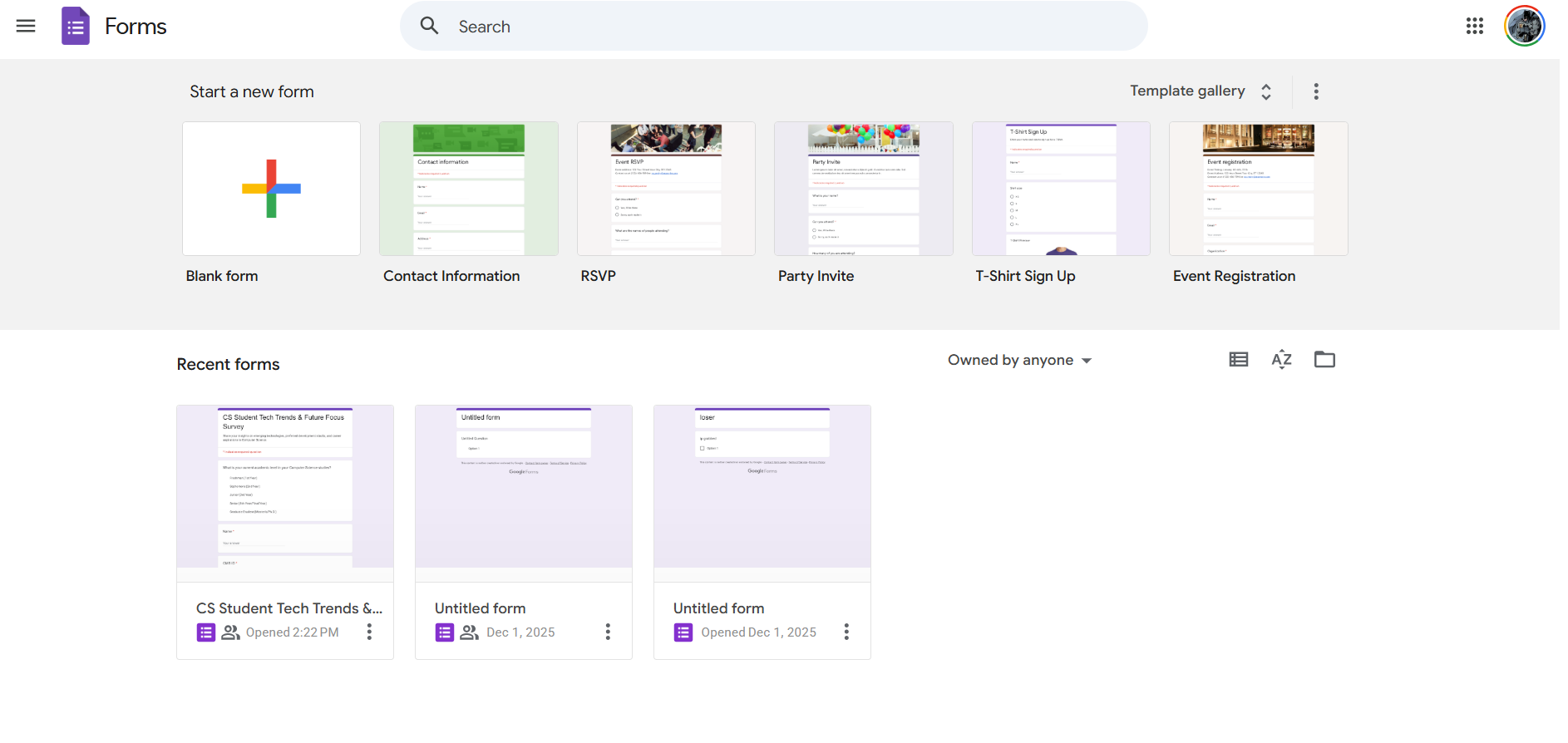
Step 1: Visit Google Forms and start a new form. You can start from scratch using a blank form, or select a pre-made template to customize for yourself.
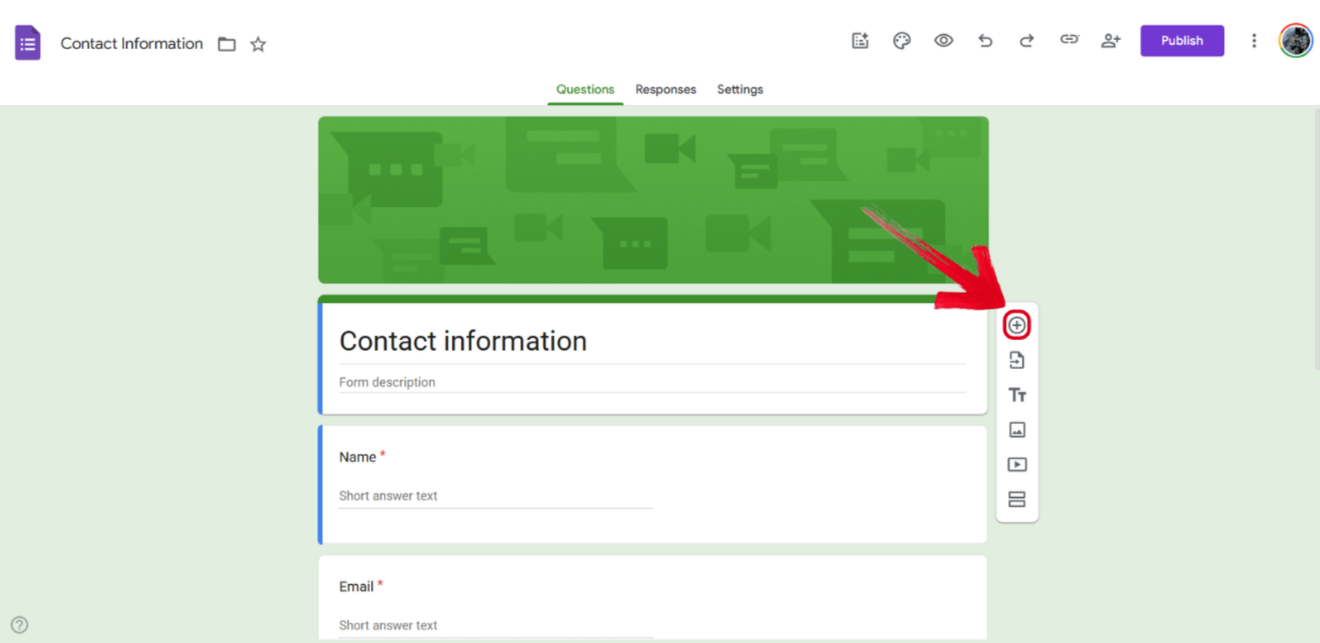
Step 2: Once you have your form open, press Add Question to start customizing your form.
Step 3: Type out your question and then click on the Response Options to select the type of answer you want your responders to give.
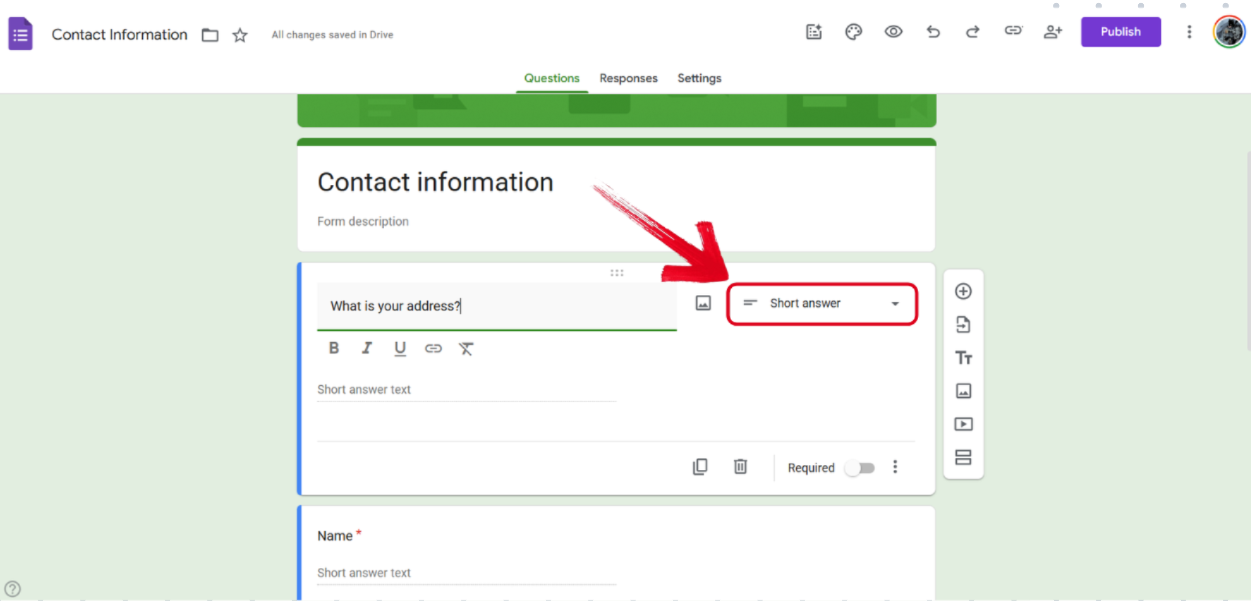
Note: You can choose from a variety of options, including:
Multiple Choice
Short Answer
Paragraph
Checkboxes
Dropdown
Linear scale
Multiple Choice Grid
Checkbox Grid
Date
Time
File Upload
Step 4: Once you’re done adding all your questions, press Publish to post your form.
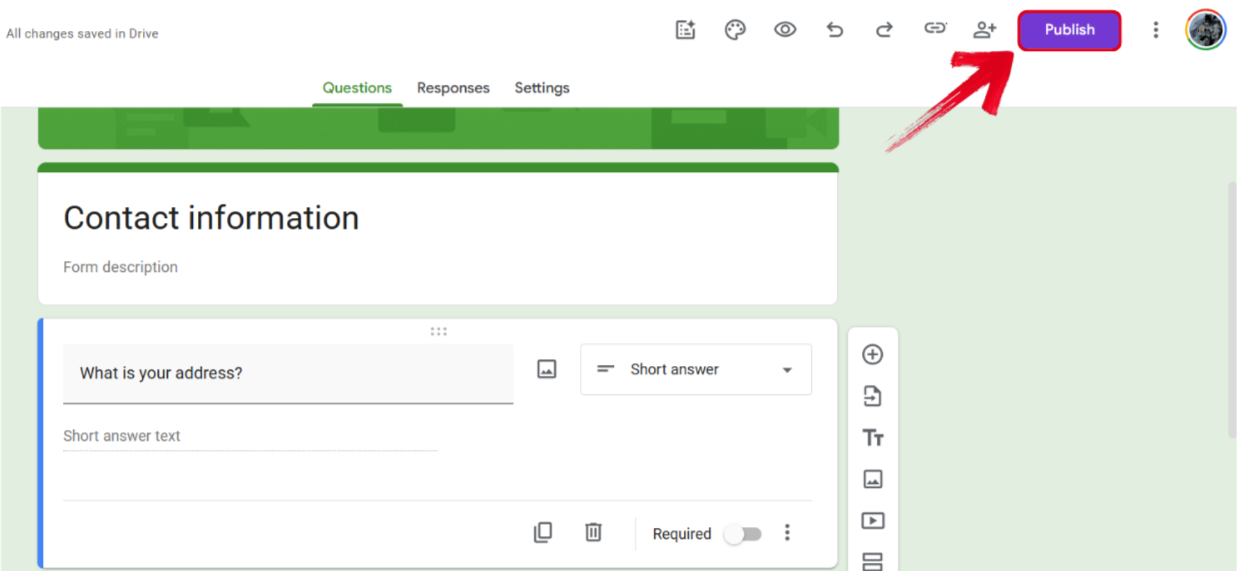
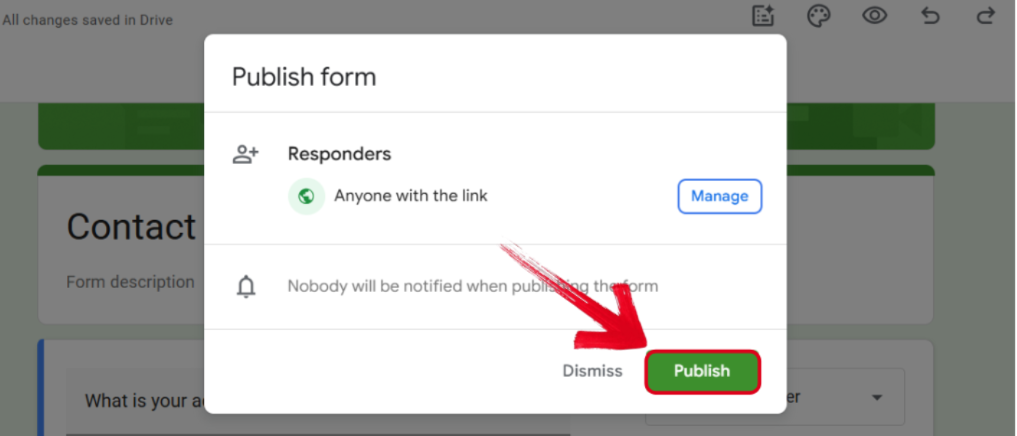
Step 5: Adjust your responder settings and then press Publish.
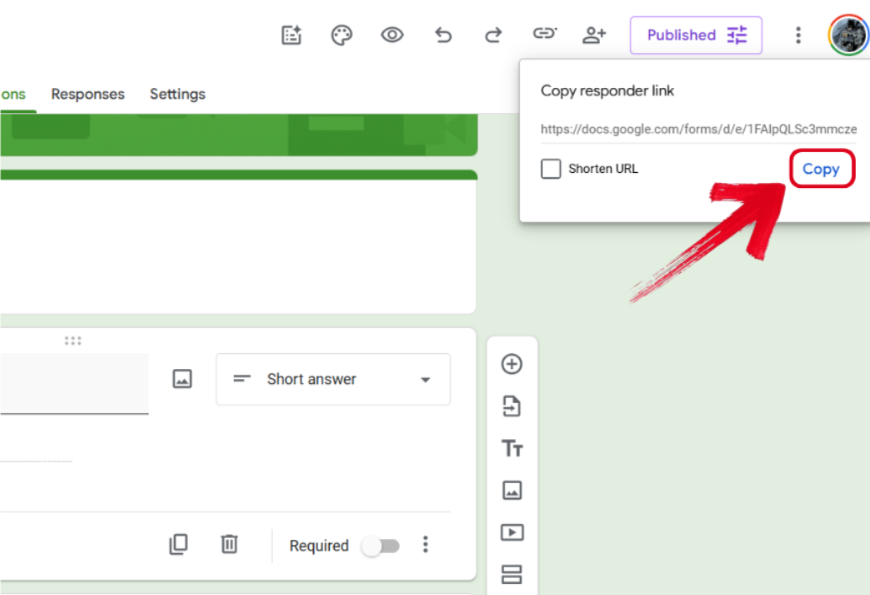
Step 6: A new Copy responder link pop-up will now appear. Press Copy to save the link to your clipboard. You can now paste it and share it with anyone you want.
Mobile
If you need to make a quick form on the go and don’t have access to a computer, you can learn how to create Google Form on mobile. While I didn’t find the experience to be nearly as smooth as desktop, it was still a viable option whenever I needed to make a quick form without having to hop on a bulkier device.
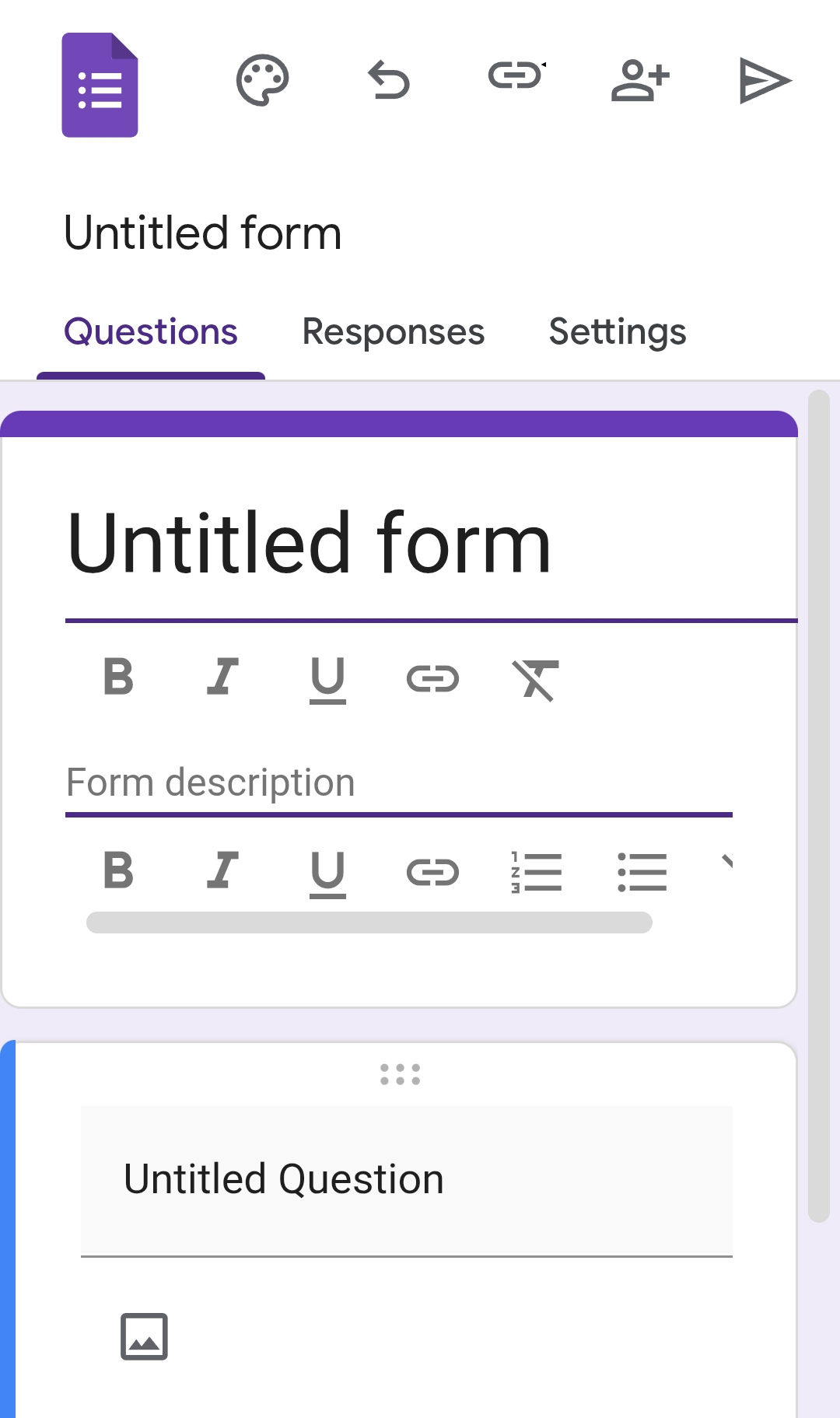
Step 1: Visit Google Forms on your web browser and edit the name and description to get started.
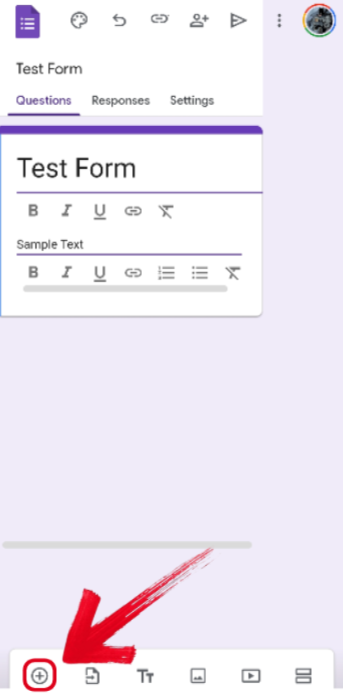
Step 2: Next, press the Add Question button at the bottom of your screen.
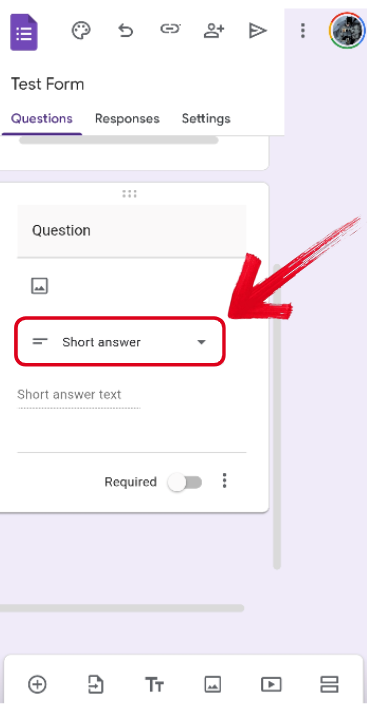
Step 3: Add in your question and select the appropriate Response Type for it.
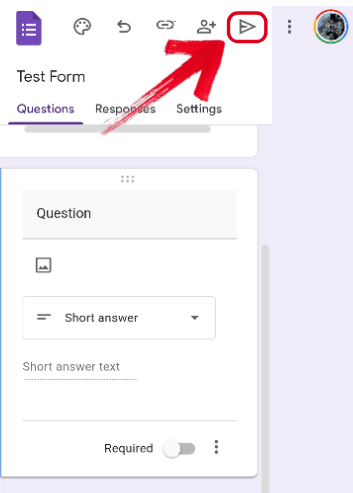
Step 4: Once you’re done adding all your questions, press the Publish button at the top of your screen.
Step 5: A pop-up window will open asking you to adjust responder settings. Make any changes you’d like and then press Publish.
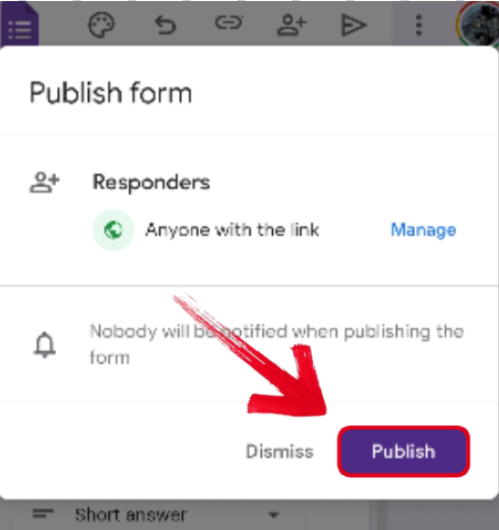
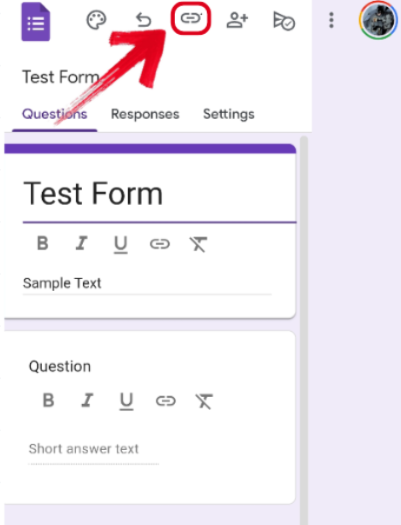
Step 6: Once your form has been published, press the Copy Link button at the top of your screen to add it to your clipboard.
The Faster Alternative: How to Create a Professional Form Link with WPS Forms
While Google Forms works well when I need to set up a quick survey, some of its limitations start to show once you begin managing a lot of forms or collecting responses regularly. In some cases, forms can run into regional access issues, and the template options can feel a bit limited when you want more flexibility in how your surveys look or function. Because of that, I’ve gradually started using WPS Forms for handling surveys more often.
It works as a professional data collection tool that’s integrated directly into the WPS Office ecosystem, which makes it easier to collect responses and then work with that data in the same environment used for documents, spreadsheets, and presentations. Having everything connected like that makes the process of managing and analyzing survey data much smoother.
Features
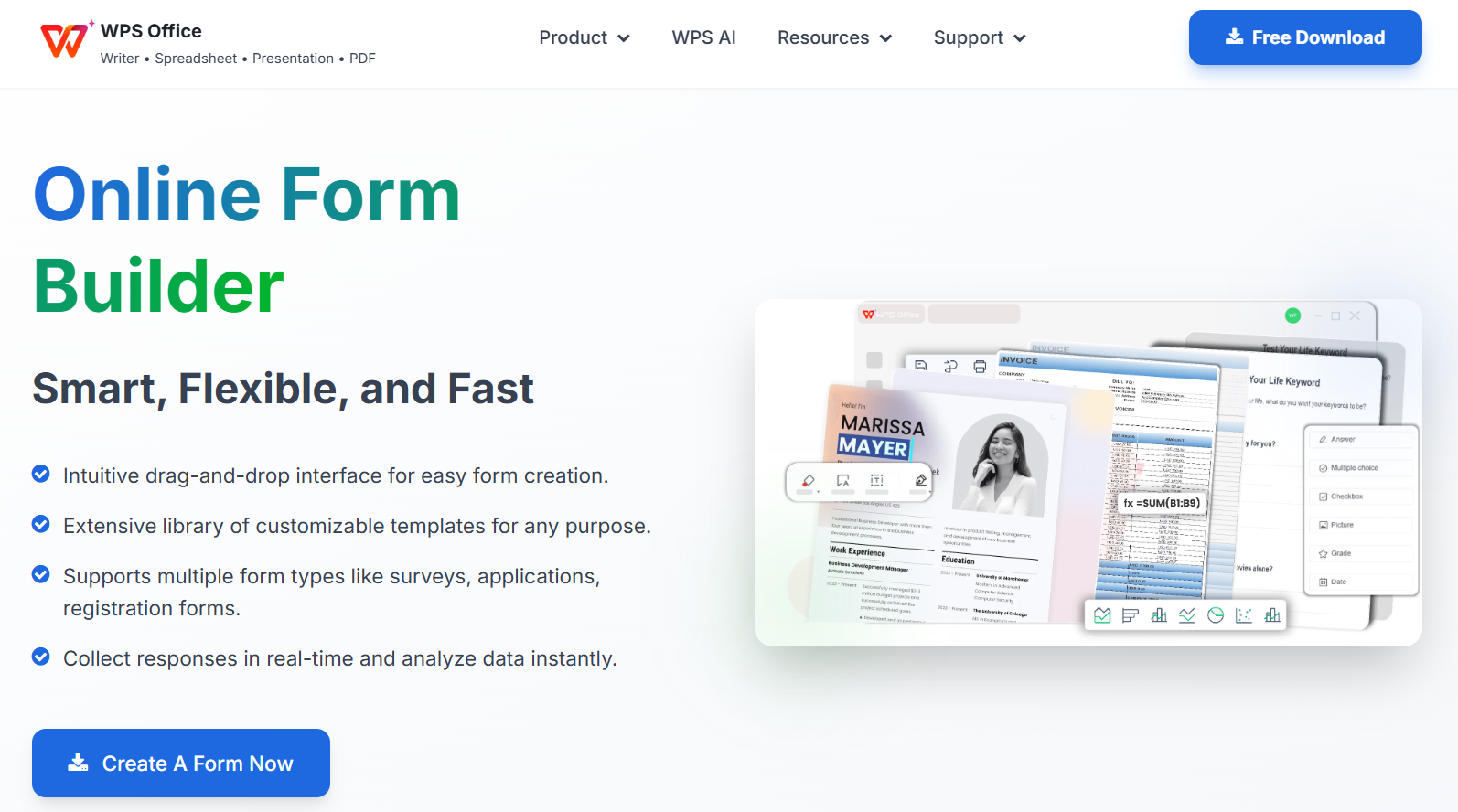
WPS AI Integration: Generate an entire form with a single text prompt using the built-in AI support.
Native QR Code Support: Integrated QR code support for physical signage, menus, or event check-ins.
Direct-to-Excel Synchronization: Live responses update in real-time directly in a WPS Excel spreadsheet.
Rich Template Library: Offers a vast library filled with hundreds of diverse industry-specific templates.
Cross-Platform Mobility: Create, edit, and check responses on the go with full support for sharing through WhatsApp, WeChat, and even email.
If WPS Forms feels like the suitable option for your work needs, creating and sharing a form is incredibly simple. All you need to do is follow these steps to ensure a smooth and hassle-free process.
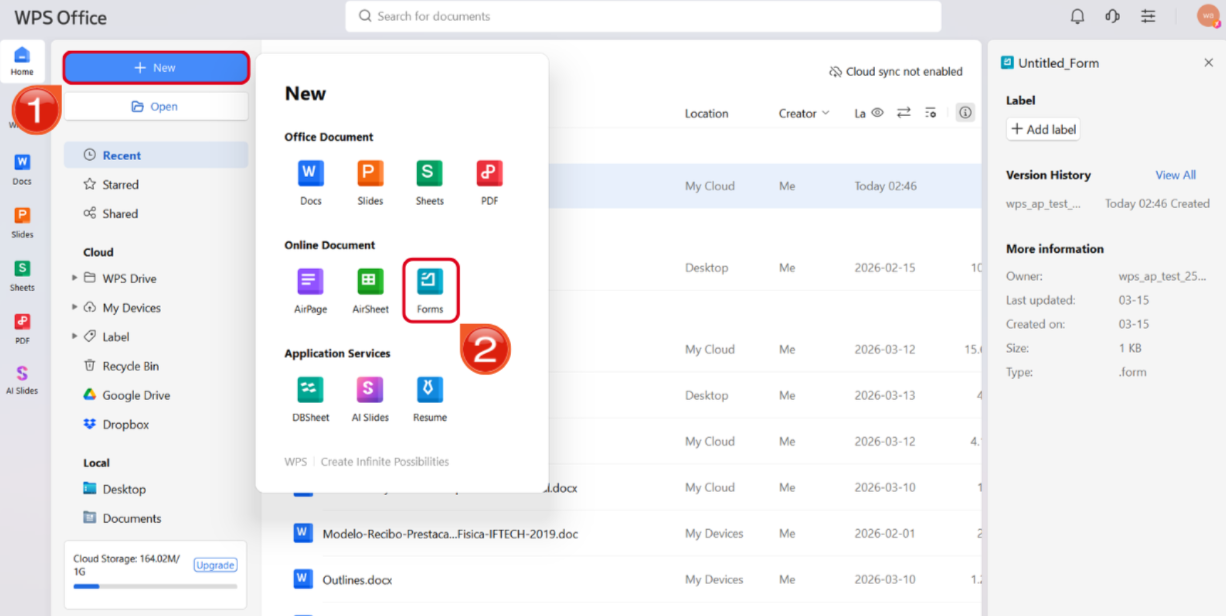
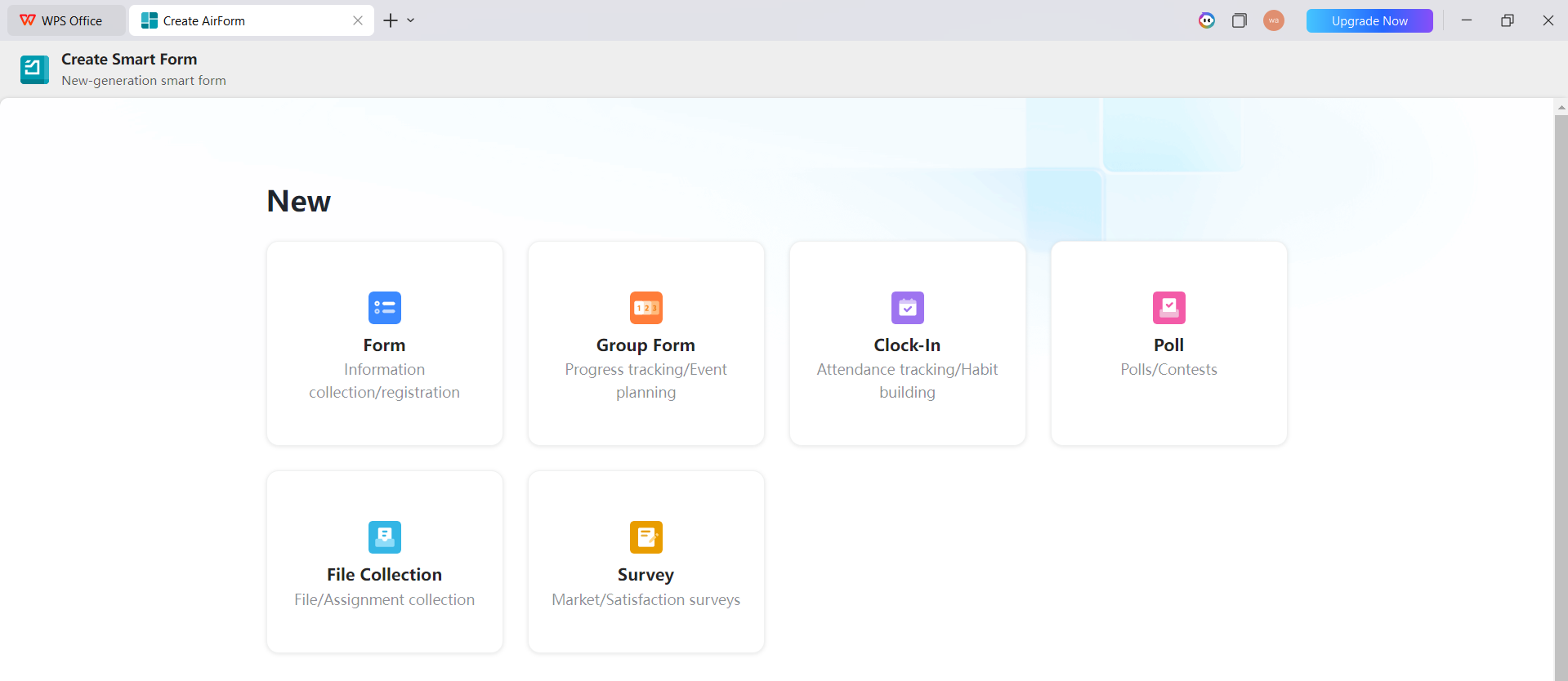
Step 1: Open WPS Office and select New, then press Forms to generate a new blank form.
Step 2: The next thing you need to do is select the type of form you’re looking for. WPS will give you a bunch of different options to choose from.
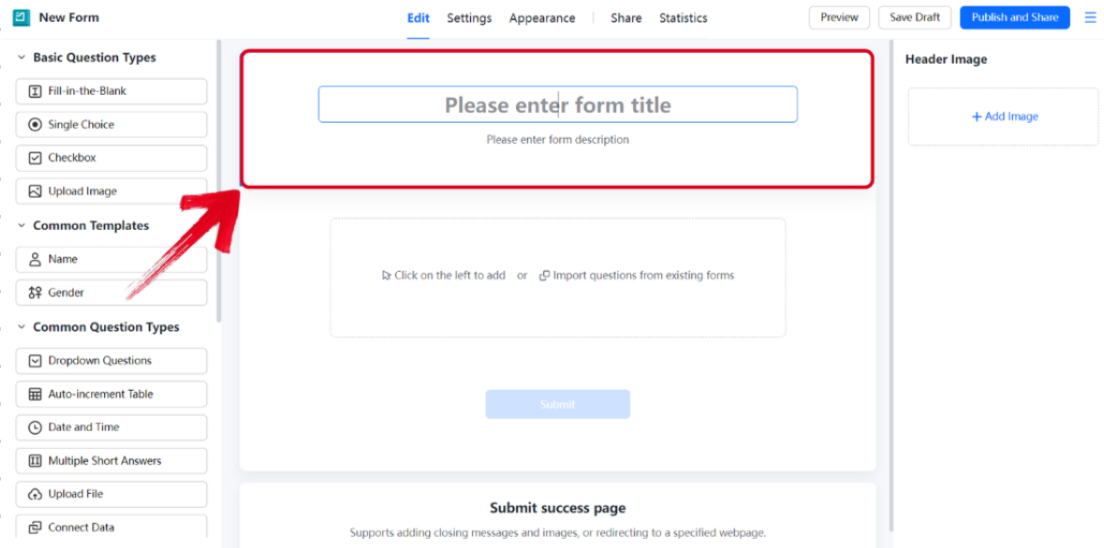
Step 3: Once you’re on the form editor screen, enter your form title and description.
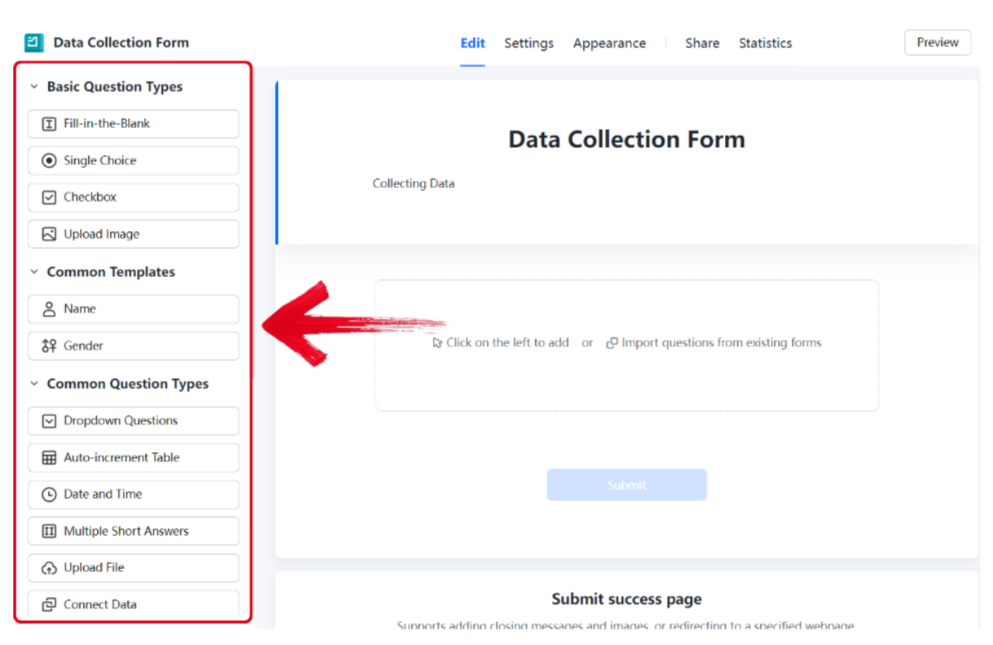
Step 4: Select the type of question you want to add to your form using the options provided.
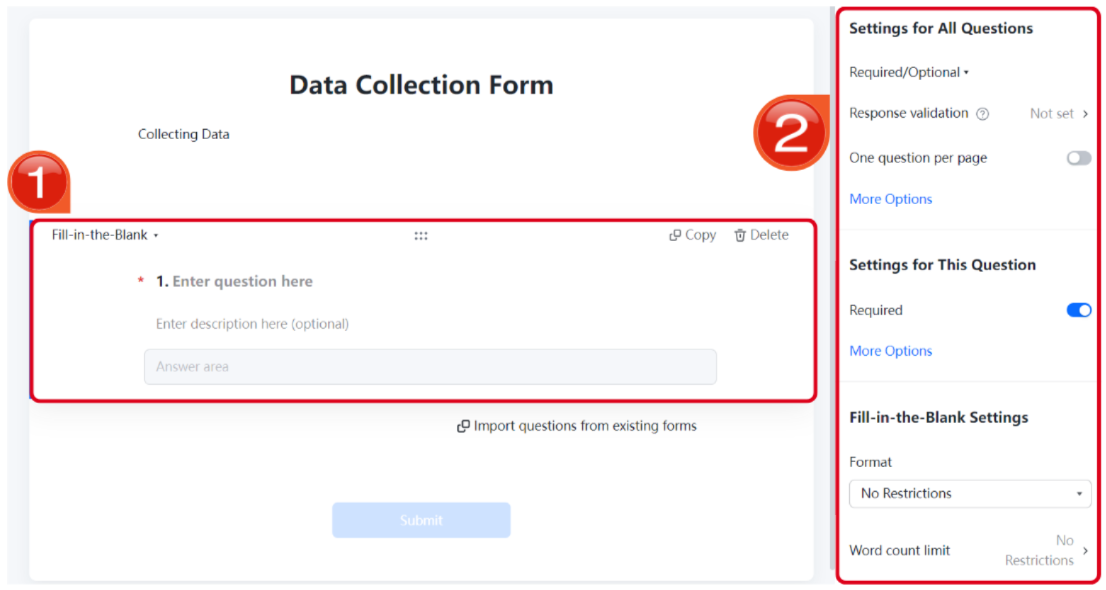
Step 5: Add a name and description to your question, then adjust any other settings you’d like to change for it.
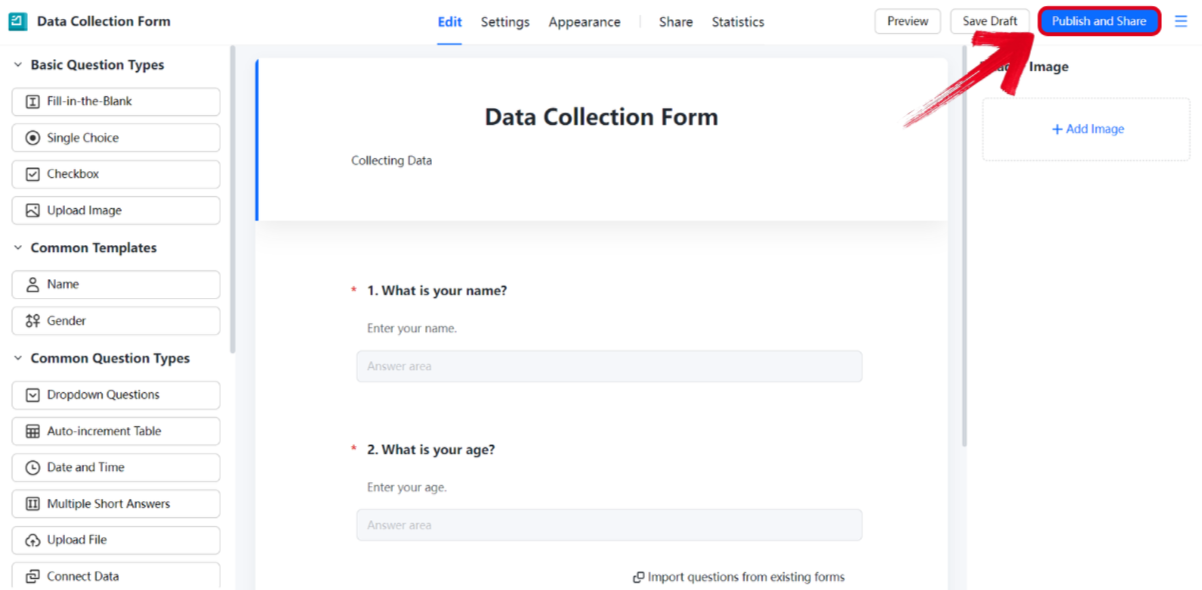
Step 6: If you’re done adding all your questions, press Publish & Share to continue.
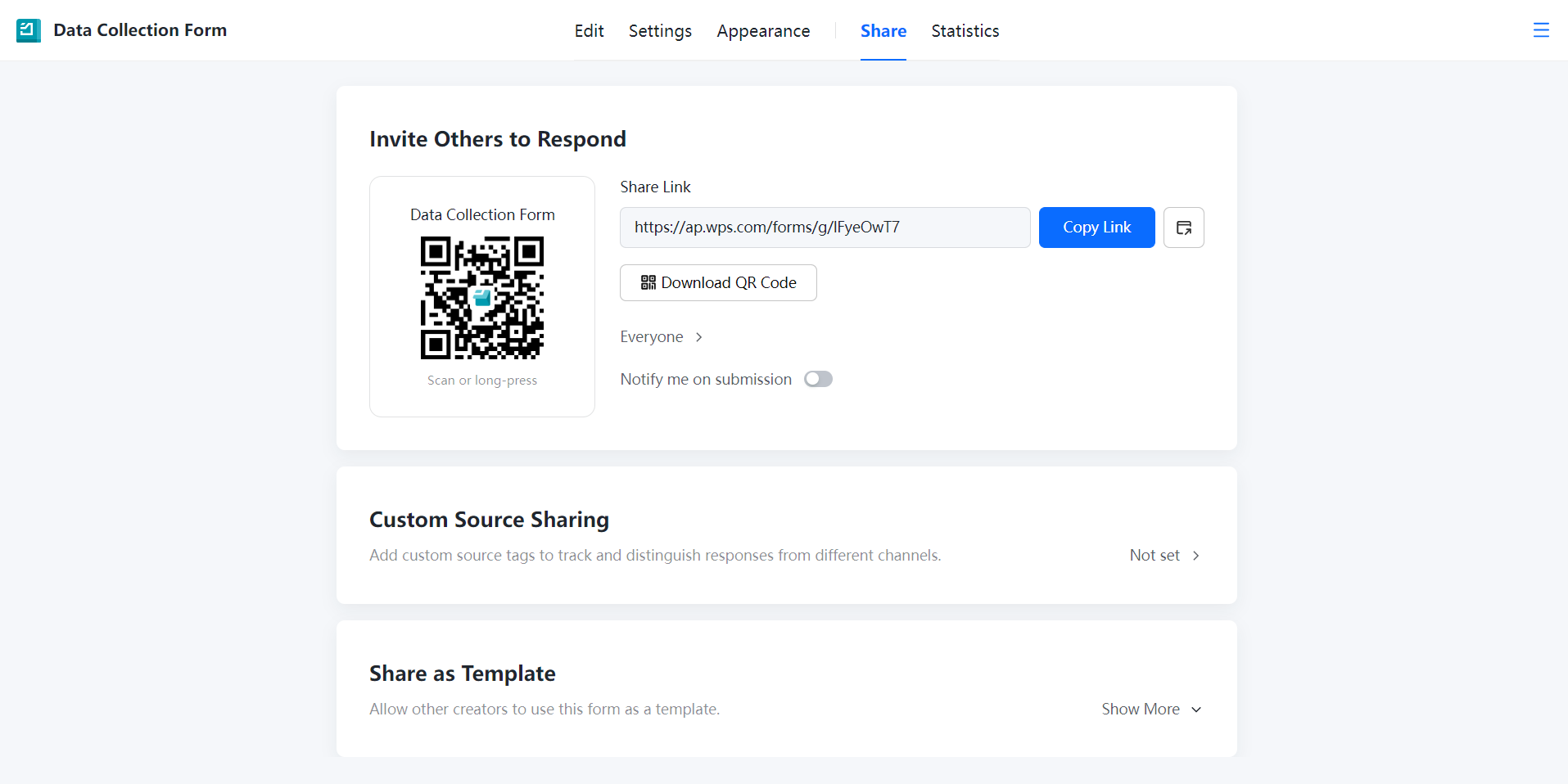
Step 7: You can now press Copy Link to add it to your clipboard, or simply Download QR Code for easy sharing.
WPS Forms makes form management much more dynamic as well as convenient. You can quickly create surveys, registration forms, or event check-ins without spending time setting everything up from scratch. It even comes with Excel integration, which means your responses can update directly in the spreadsheet in real time, so you can start reviewing or organizing the data immediately without having to export it manually every time. When you’re working with multiple forms, that kind of setup saves a lot of unnecessary back and forth.
WPS Forms vs. Google Forms
Both WPS Forms and Google Forms are reliable options for creating online forms, and each does the job well. Google Forms is widely used and works perfectly for basic surveys and quick data collection. WPS Forms, on the other hand, offers a bit more flexibility and all-in-one functionality when you’re already working within the WPS Office environment. Since the forms connect directly with spreadsheets and other tools, it becomes easier to move from collecting responses to actually working with the data. The right choice ultimately depends on how you plan to use it, so comparing the two side by side can help you decide which one fits your workflow better.
FAQs
Q1. Can I track who clicked my form link?
Google Forms only tracks responses, not link clicks. WPS Forms shows visit counts and submission rates directly in your dashboard.
Q2. Why is my Google Form link not working for others?
Usually, a permissions issue. Check if "Restrict to users in [Your Organization]" is enabled. WPS Forms avoids this with simpler one-click sharing settings.
Q3. Is it possible to customize the form link URL?
Google Forms only offers a shortened but still random URL. WPS Forms provides cleaner sharing options better suited for client-facing use.
Q4. Can I accept form responses without a Google account?
Yes, but you need to uncheck "Limit to 1 response" and disable organization restrictions. WPS Forms allows public submissions by default with no account required from respondents.
Q5. Can I set a deadline for my form to stop accepting responses?
Google Forms has no built-in deadline feature. You have to manually close it. WPS Forms lets you schedule an automatic closing date and time from the settings.
Simplifying Form Management
Learning to communicate with your students or customers using forms is a crucial skill in modern-day workflows. But most people have to deal with many issues trying to share Google Forms, especially when dealing with users across the globe. In this guide, I’ve walked you through how to create Google Form link in a few simple steps. If you’re looking to skip the hassle, you can streamline the process using WPS Forms. It’s an incredibly reliable tool that equips you with powerful features to eliminate any potential challenges to ensure a smooth form creation and sharing process.

'%3e%3cpath%20d='M19.9911%204.11386V6.471H18.5894C18.0775%206.471%2017.7322%206.57814%2017.5536%206.79243C17.3751%207.00671%2017.2858%207.32814%2017.2858%207.75671V9.44421H19.9019L19.5536%2012.0871H17.2858V18.8639H14.5536V12.0871H12.2769V9.44421H14.5536V7.49779C14.5536%206.39064%2014.8632%205.53201%2015.4822%204.92189C16.1013%204.31177%2016.9257%204.00671%2017.9554%204.00671C18.8304%204.00671%2019.509%204.04243%2019.9911%204.11386Z'%20fill='%23333333'/%3e%3c/g%3e%3cdefs%3e%3cclipPath%20id='clip0_2938_8199'%3e%3crect%20width='16'%20height='16'%20fill='white'%20transform='translate(8%204.00671)'/%3e%3c/clipPath%3e%3c/defs%3e%3c/svg%3e)
'%3e%3cpath%20d='M17.5237%2010.7813L23.4811%204H22.0699L16.8949%209.88693L12.7648%204H8L14.2469%2012.9029L8%2020.0133H9.4112L14.8725%2013.7952L19.2352%2020.0133H24M9.92053%205.04213H12.0885L22.0688%2019.0224H19.9003'%20fill='%23333333'/%3e%3c/g%3e%3cdefs%3e%3cclipPath%20id='clip0_2938_8200'%3e%3crect%20width='16'%20height='16.0134'%20fill='white'%20transform='translate(8%204)'/%3e%3c/clipPath%3e%3c/defs%3e%3c/svg%3e)


