

'%3e%3cpath%20d='M8%200C12.4183%200%2016%203.58172%2016%208C16%2012.4183%2012.4183%2016%208%2016C3.58172%2016%200%2012.4183%200%208C0%203.58172%203.58172%200%208%200ZM11.6162%204.38379C11.2257%203.99337%2010.5927%203.99338%2010.2021%204.38379L8%206.58594L5.79785%204.38379C5.40732%203.99334%204.77429%203.99329%204.38379%204.38379C3.99331%204.77429%203.99335%205.40733%204.38379%205.79785L6.58594%208L4.38379%2010.2021C3.99348%2010.5927%203.99341%2011.2257%204.38379%2011.6162C4.77426%2012.0066%205.40734%2012.0065%205.79785%2011.6162L8%209.41406L10.2021%2011.6162C10.5927%2012.0066%2011.2257%2012.0067%2011.6162%2011.6162C12.0067%2011.2257%2012.0066%2010.5927%2011.6162%2010.2021L9.41406%208L11.6162%205.79785C12.0066%205.40735%2012.0066%204.77429%2011.6162%204.38379Z'%20fill='%23080E17'%20fill-opacity='0.46'/%3e%3c/g%3e%3cdefs%3e%3cclipPath%20id='clip0_3761_713'%3e%3crect%20width='16'%20height='16'%20fill='white'/%3e%3c/clipPath%3e%3c/defs%3e%3c/svg%3e)



'%3e%3cpath%20fill-rule='evenodd'%20clip-rule='evenodd'%20d='M21.4999%2010.9993C21.4999%205.20009%2016.7986%200.498901%2010.9993%200.498901C5.19994%200.498901%200.498657%205.20009%200.498657%2010.9993C0.498657%2016.2404%204.33858%2020.5844%209.35855%2021.3722V14.0346H6.69238V10.9993H9.35855V8.68594C9.35855%206.05427%2010.9262%204.60062%2013.3248%204.60062C14.4736%204.60062%2015.6753%204.80571%2015.6753%204.80571V7.38979H14.3512C13.0468%207.38979%2012.64%208.19921%2012.64%209.0296V10.9993H15.5523L15.0867%2014.0346H12.64V21.3722C17.66%2020.5844%2021.4999%2016.2404%2021.4999%2010.9993Z'%20fill='%231568EA'/%3e%3c/g%3e%3c/svg%3e)


'%3e%3cpath%20d='M2.42045%2022.1876H6.31818V12.7217L0.75%208.54553V20.5171C0.75%2021.4414%201.49892%2022.1876%202.42045%2022.1876Z'%20fill='%234285F4'/%3e%3cpath%20d='M19.682%2022.1876H23.5797C24.5041%2022.1876%2025.2502%2021.4387%2025.2502%2020.5171V8.54553L19.682%2012.7217'%20fill='%2334A853'/%3e%3cpath%20d='M19.682%205.48293V12.7216L25.2502%208.54543V6.31816C25.2502%204.25236%2022.8921%203.07469%2021.2411%204.31361'%20fill='%23FBBC04'/%3e%3cpath%20d='M6.31824%2012.7217V5.48303L13.0001%2010.4944L19.6819%205.48303V12.7217L13.0001%2017.733'%20fill='%23EA4335'/%3e%3cpath%20d='M0.75%206.31816V8.54543L6.31818%2012.7216V5.48293L4.75909%204.31361C3.10534%203.07469%200.75%204.25236%200.75%206.31816Z'%20fill='%23C5221F'/%3e%3c/g%3e%3cdefs%3e%3cclipPath%20id='clip0_2954_7305'%3e%3crect%20width='24.5'%20height='18.375'%20fill='white'%20transform='translate(0.75%203.8125)'/%3e%3c/clipPath%3e%3c/defs%3e%3c/svg%3e)


New iPhone users often feel lost in the setup maze, juggling data transfers and app choices while fearing lost photos or contacts. You want a smooth path to get your phone ready for calls, work, and fun without hours of tweaks. This guide tackles how to set up new iPhone step by step, from eSIM activation to data migration and custom settings. We'll highlight quick start iPhone setup for speed, plus tips to integrate WPS Office right away. Let's make your device feel like home fast.


Activate Your iPhone with eSIM
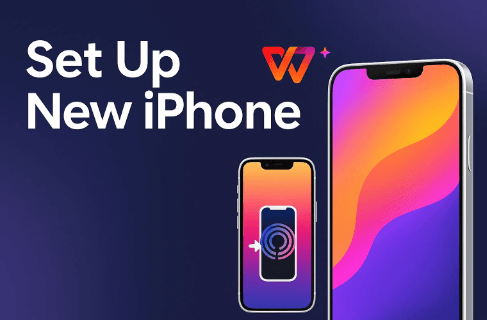
Hey, let's kick off how to set up new iPhone with cellular activation. Modern iPhones like the 16 series rely on eSIM, a digital SIM that skips the physical card drama. It's built in, so you connect to your carrier in minutes via QR code or app. In 2025, with iOS 18, it's even smoother, supporting multiple lines without Wi-Fi for iPhone 14 and up. I always grab my carrier's details first; it saves headaches. No SIM tray fumbling means you're texting sooner.
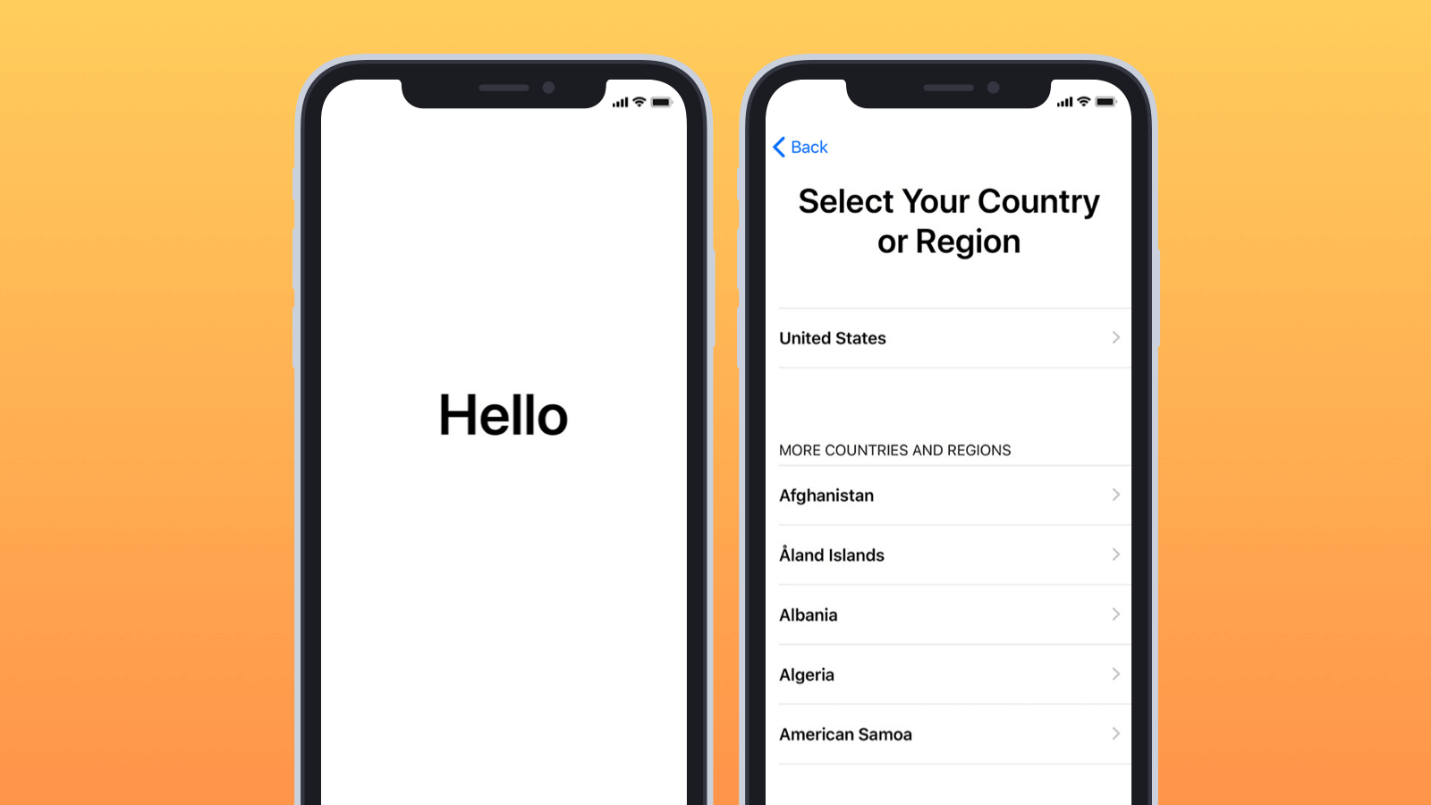
Step 1: Power On Device Press the side button to start your iPhone. Swipe up on the Hello screen for language and region picks.
Step 2: Reach Cellular Screen Follow prompts to the Set Up Cellular option. Tap Add Cellular Plan for eSIM setup.
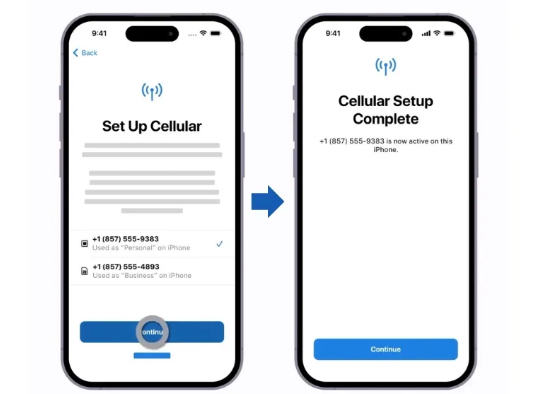
Step 3: Scan QR or Enter Code Use your camera to scan the carrier QR code from their app or email. Or tap Enter Details Manually for code input.
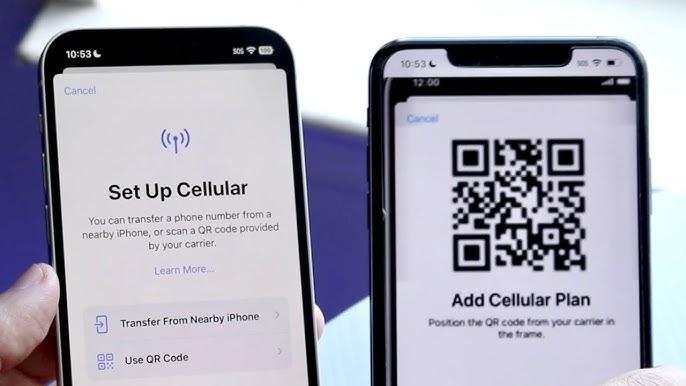
Step 4: Verify and Activate Enter any confirmation code if prompted. Wait 1-2 minutes as the network connects; restart if needed.
Step 5: Test the Line Open Safari for a quick search or send a text. Check bars in the status bar for full signal.
Setting up eSIM on my iPhone 16 with T-Mobile took four minutes via QR scan, no store run required. Beats old SIM swaps that scratched trays, but once a code glitched on weak Wi-Fi; switching networks fixed it quick. Compared to physical SIMs, eSIM's flexibility wins for travelers, though double-check carrier support for globals.
Quick Start iPhone Setup
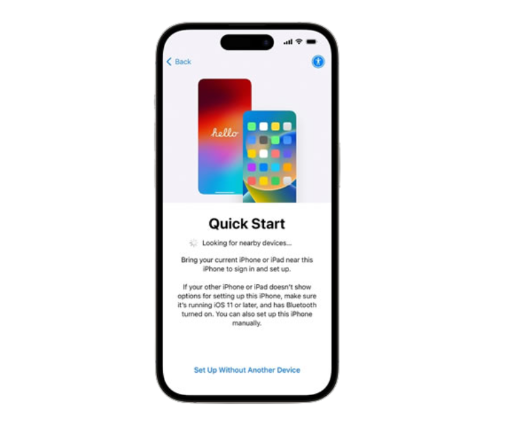
Quick start iPhone setup is Apple's secret weapon for effortless how to set up new iPhone. It uses Bluetooth to mirror your old device's settings, apps, and data wirelessly. Needs iOS 11 or later on both phones, but in 2025's iOS 18, it handles 100GB libraries in under 30 minutes on good Wi-Fi. Place phones side by side, and it auto-starts. I skip cables entirely now; it's that simple.
Step 1: Prep Old Device Update your old iPhone to latest iOS. Turn on Bluetooth and Wi-Fi; keep it charged over 50%.
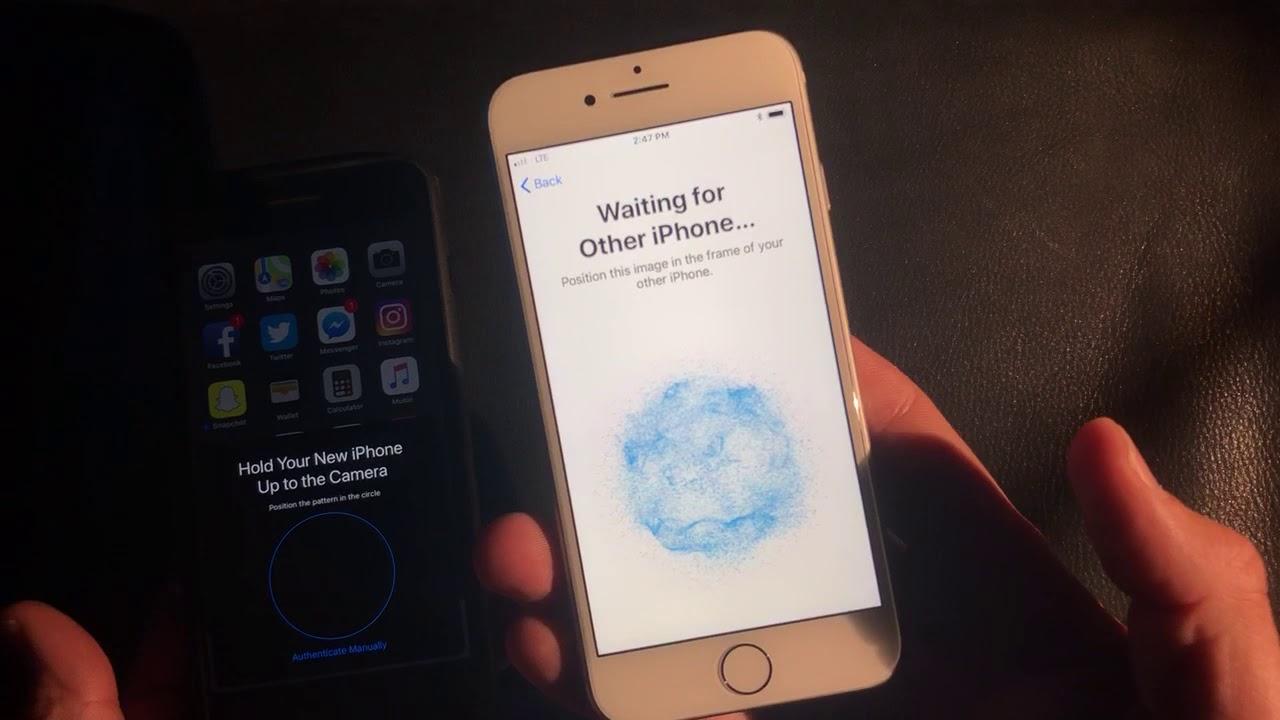
Step 2: Turn On New iPhone Press side button on the new one. Bring it near the old; Quick Start animation appears on the new screen.
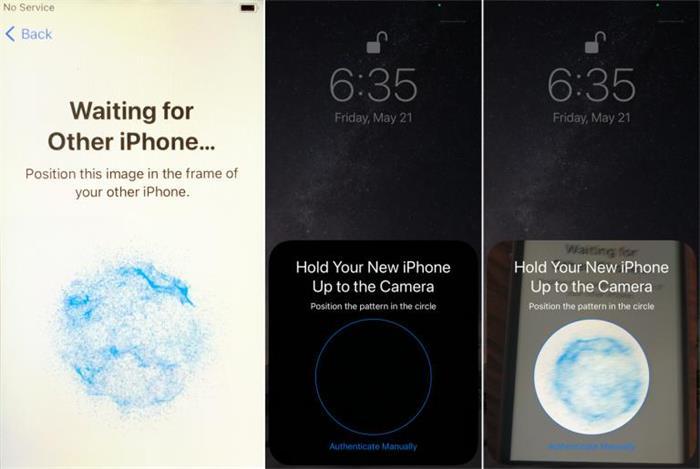
Step 3: Scan and Authenticate Use old iPhone's camera to scan the new's pattern. Enter Apple ID and passcode for verification.
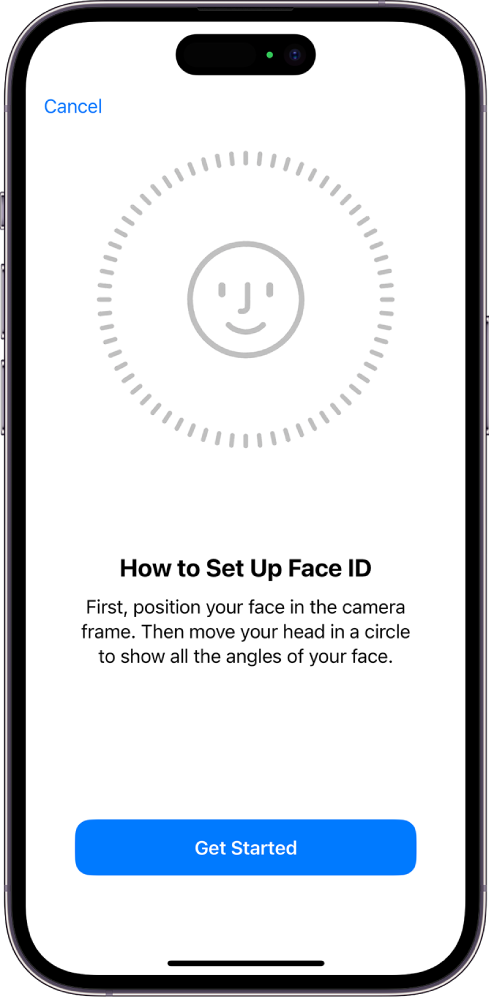
Step 4: Set Security Follow prompts for Face ID or Touch ID. Create a six-digit passcode; enable two-factor auth.
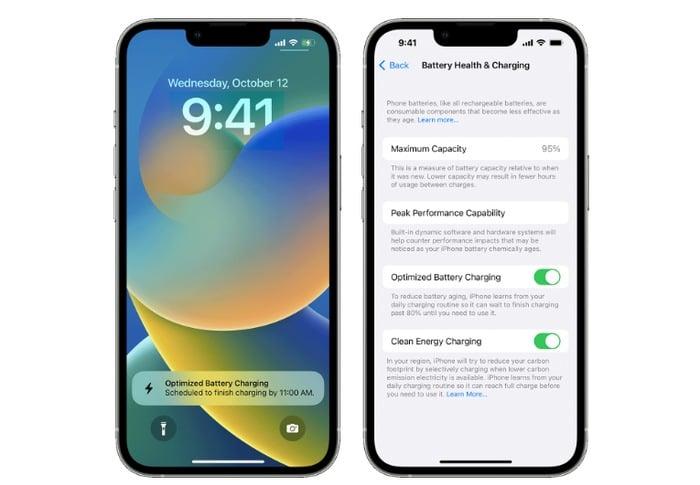
Step 5: Optimize Early Toggle Optimized Battery in setup. Connect to Wi-Fi; agree to terms for full access.
Quick start iPhone setup cloned my iPhone 14's 80GB to a 16 in 22 minutes, apps popping up live. No data hiccups like iCloud's old lags, but a beta glitch once froze it; restarting both fixed that. Versus manual setup, it's a time-saver, though I verify Health data post-transfer since it needs extra encryption.
Transfer Data and Apps
Data transfer makes how to set up new iPhone feel personal, pulling over messages, photos, and apps without starting from scratch. Options include Quick Start for direct copy, iCloud for cloud ease, Finder for wired control, or Move to iOS for Android jumps. Prioritize WPS install early to grab work files. In 2025, iOS 18 speeds these up, but back up first always.
Quick Start Transfer
Step 1: Align Devices Position old and new iPhones inches apart after initial power-on.
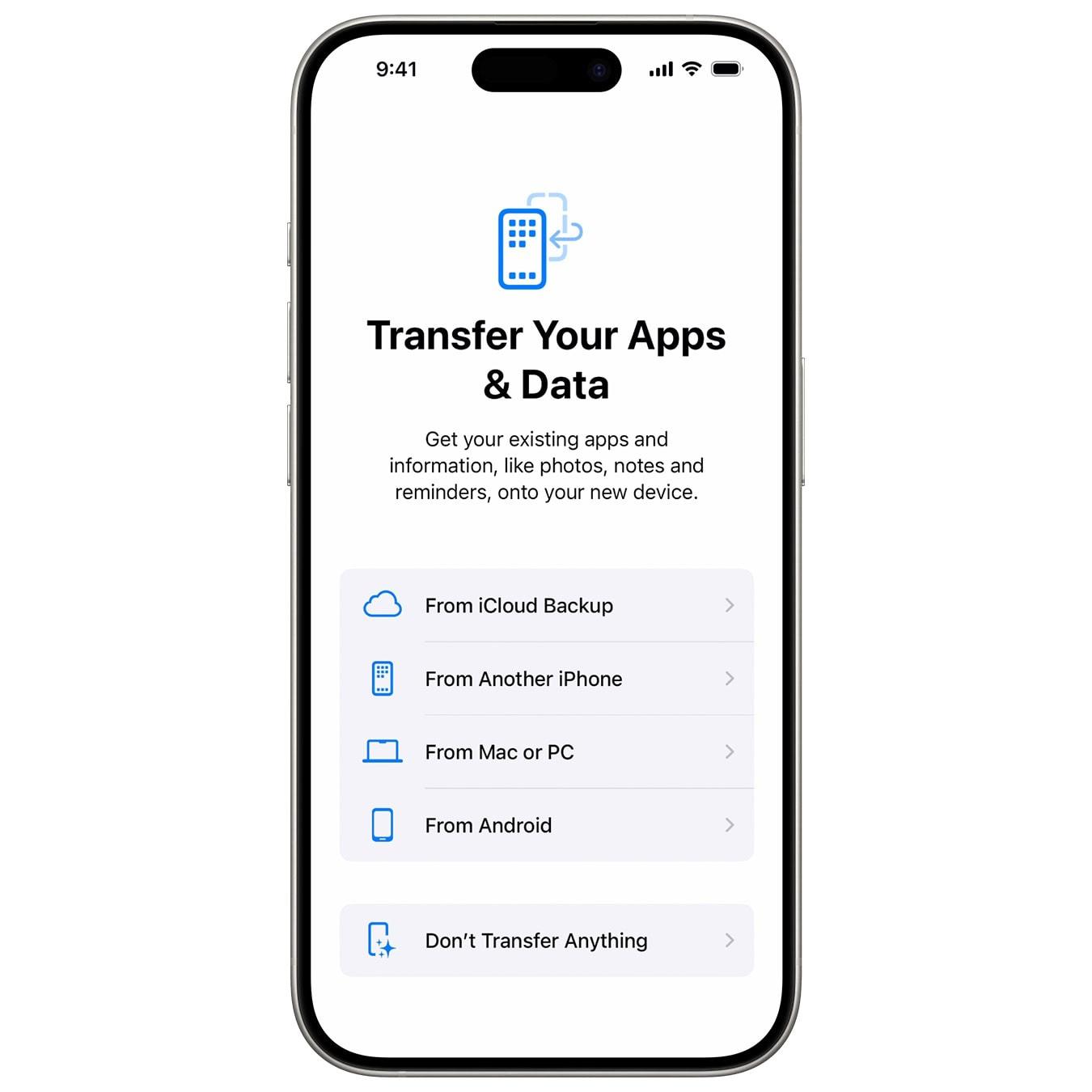
Step 2: Select Items On new iPhone, choose Transfer from iPhone. Pick apps, photos, settings to include.
Step 3: Monitor Progress Keep plugged in; bar shows time left. Apps download in background post-finish.
Quick Start transferred my 60GB photo library flawlessly, but skipped one app due to version mismatch; App Store fixed it later. Faster than iCloud for big hauls, yet Android users miss out here, pushing them to Move to iOS.
iCloud Backup
Step 1: Back Up Source On old iPhone, Settings > [Name] > iCloud > iCloud Backup > Back Up Now.
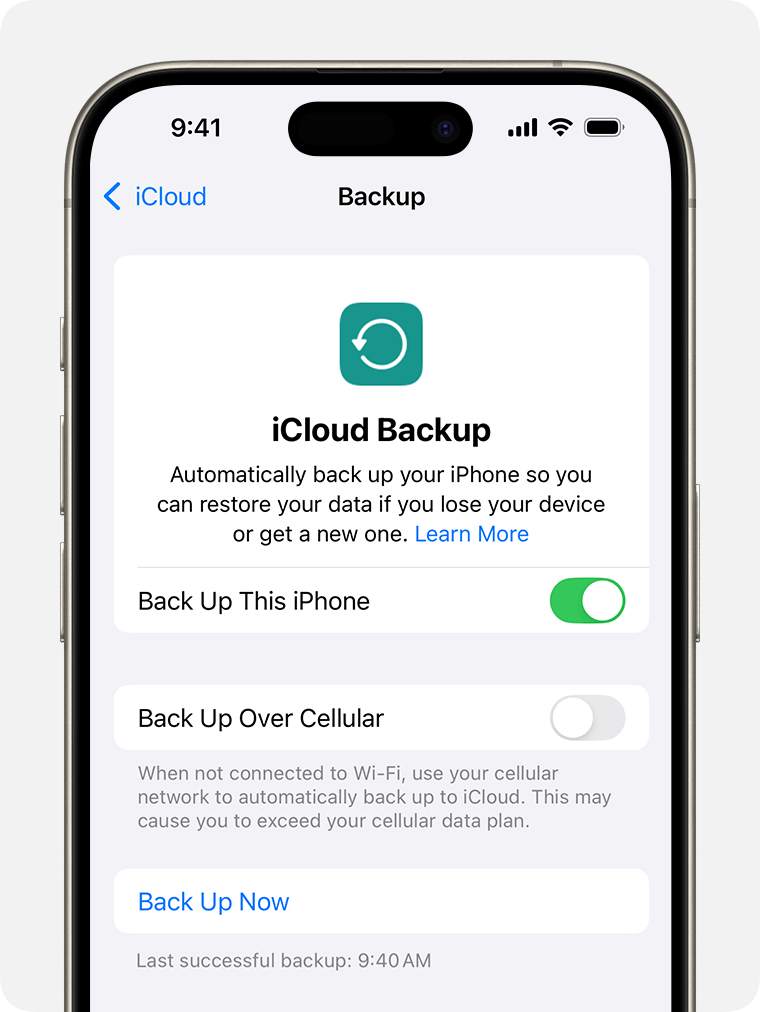
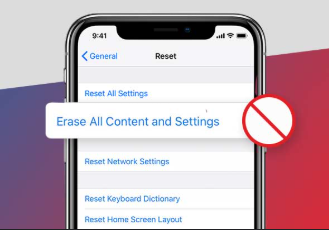
Step 2: Erase Target If Set Up New iPhone: Settings > General > Transfer or Reset > Erase All Content.
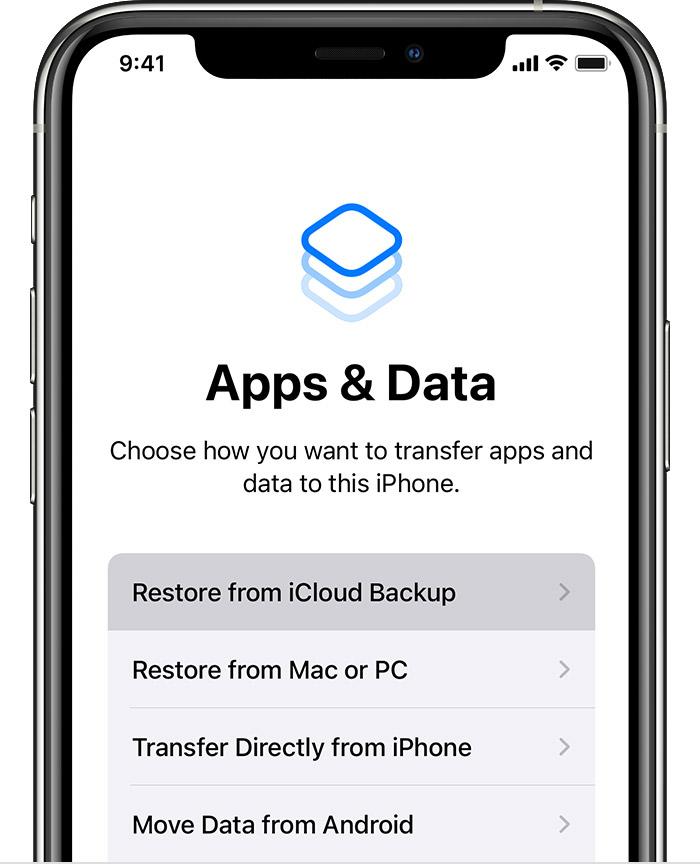
Step 3: Restore During Setup At Apps & Data, tap Restore from iCloud Backup. Select recent one; enter passcode.
Step 4: Sync Files Wait for photos and apps; WPS in iCloud pulls docs automatically if installed.
iCloud handled my 70GB restore in 90 minutes on fiber, but hotel Wi-Fi stretched it to four hours once. Great for remote setups versus Quick Start's proximity need, though storage upgrades like 200GB plan are musts for heavy users.
iTunes/Finder Backup
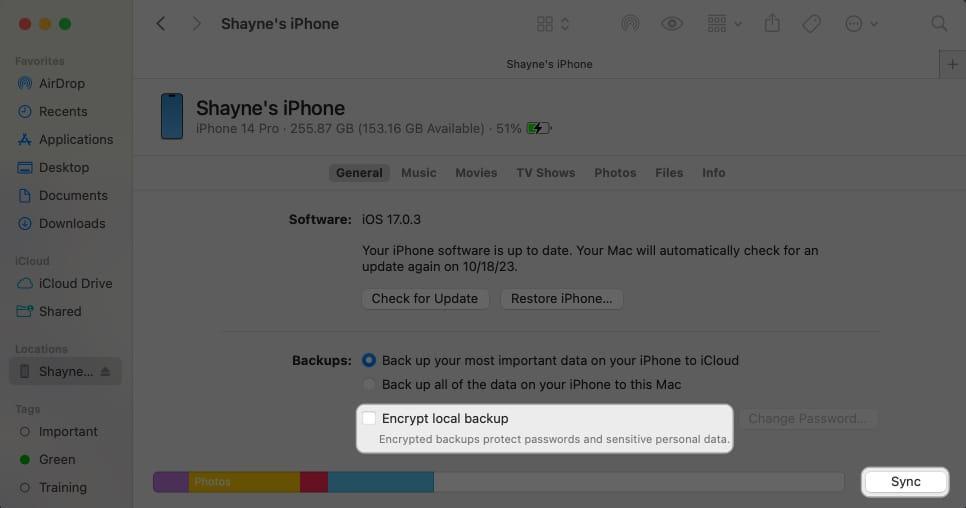
Step 1: Connect and Encrypt Plug old iPhone to Mac/PC. In Finder/iTunes, select device > Encrypt Backup > Back Up Now.
Step 2: Reset New Device Settings > General > Transfer or Reset > Erase All.
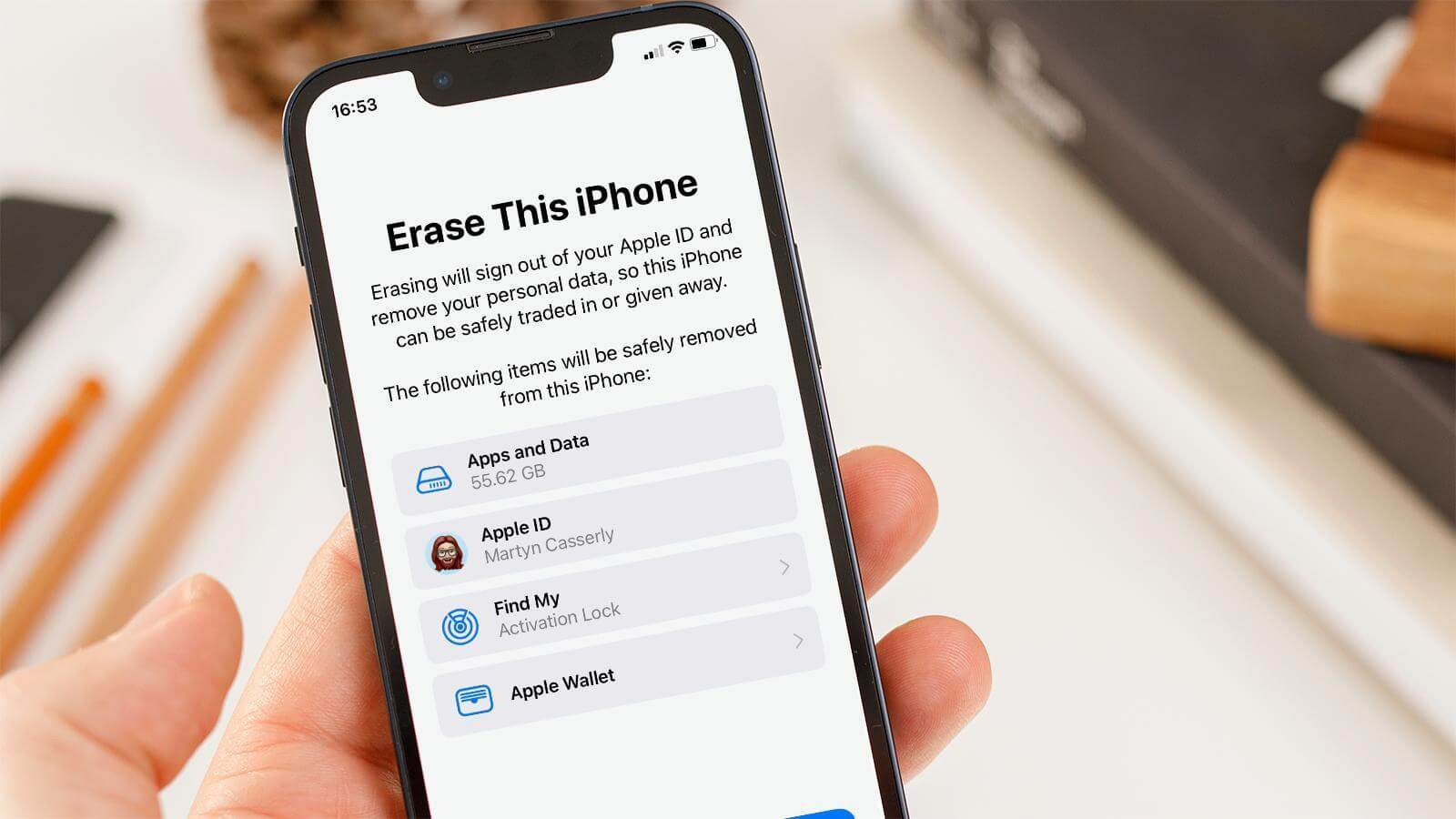
Step 3: Restore Connection Plug new iPhone; select Restore Backup in Finder/iTunes, pick file, enter password.
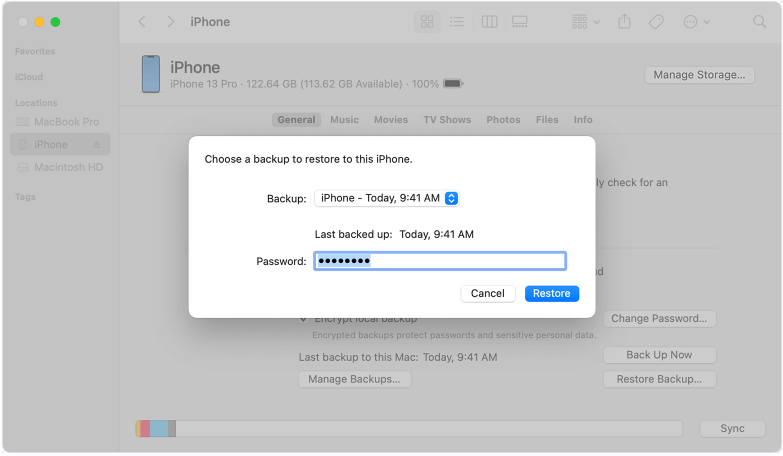
Finder zipped 90GB in 18 minutes offline, capturing Health data iCloud skipped. Ideal for no-net scenarios unlike iCloud, but cable tangles annoy; WPS desktop bridged local PDFs smoothly.
Android to iPhone
Step 1: Install Move to iOS Download app on Android from Play Store.
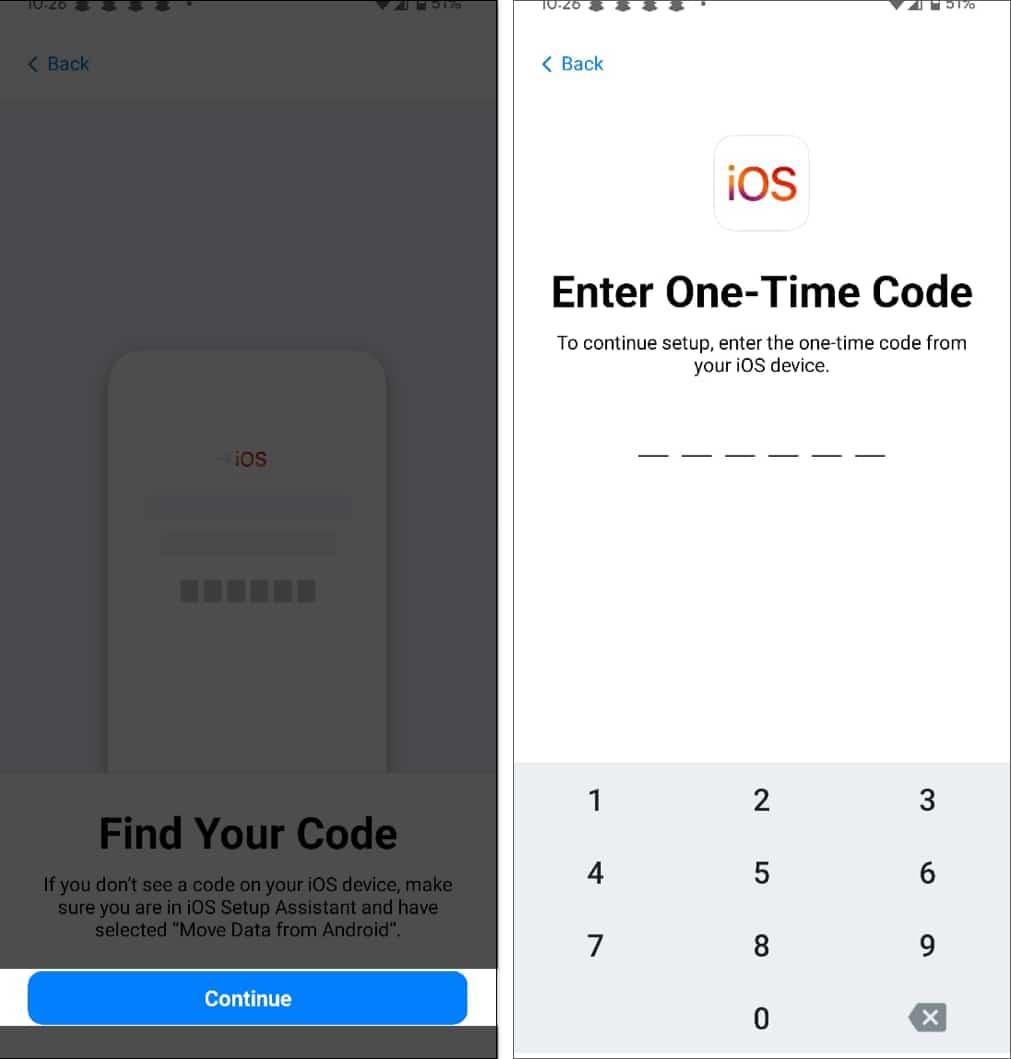
Step 2: Start on New iPhone During setup, select Move Data from Android; generate code.
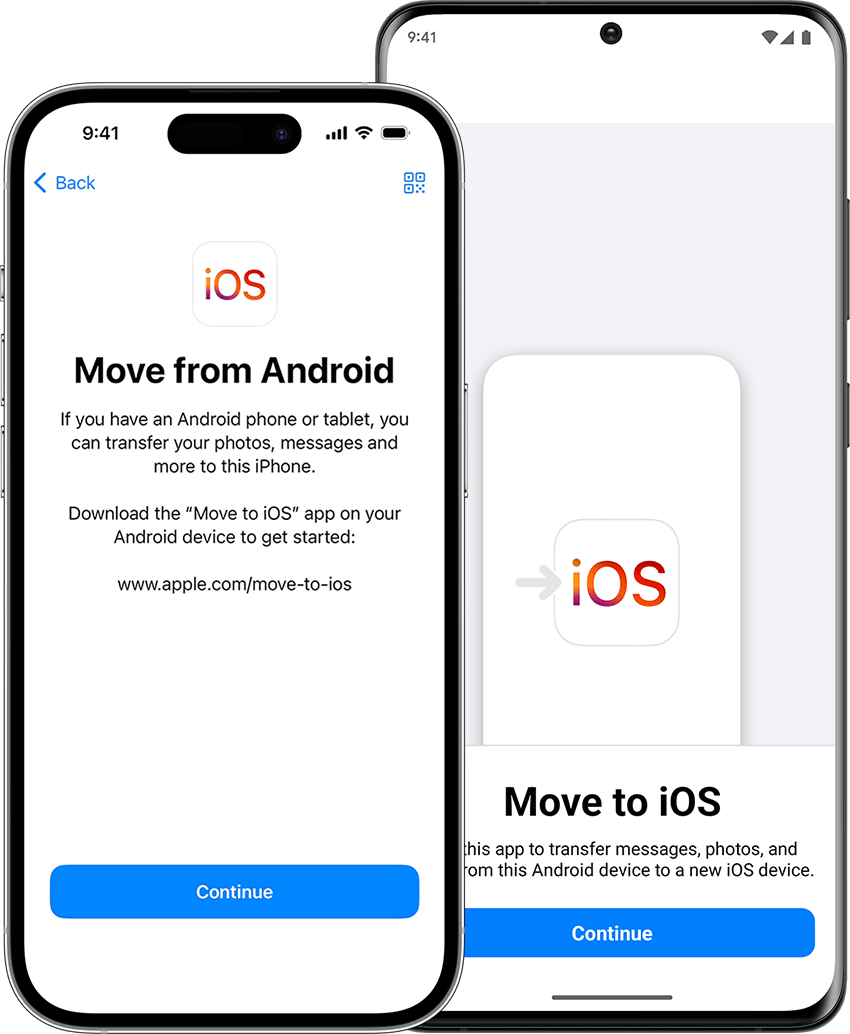
Step 3: Enter Code and Transfer Input code on Android; choose contacts, photos, messages for 10-40 minute move.
Guided a buddy's Galaxy to iPhone 16; 25GB took 35 minutes, but some apps needed manual redownloads. Cleaner than old methods, yet WPS grabbed his spreadsheets faster than Google Docs sync.
Set Up iPhone Preferences
Preferences turn how to set up new iPhone into tailoring your daily flow. Adjust display for comfort, notifications to cut noise, and privacy for peace. iOS 18 adds easy toggles, but I always enable Find My first. Folders and widgets organize chaos; spend 10 minutes here for big gains.
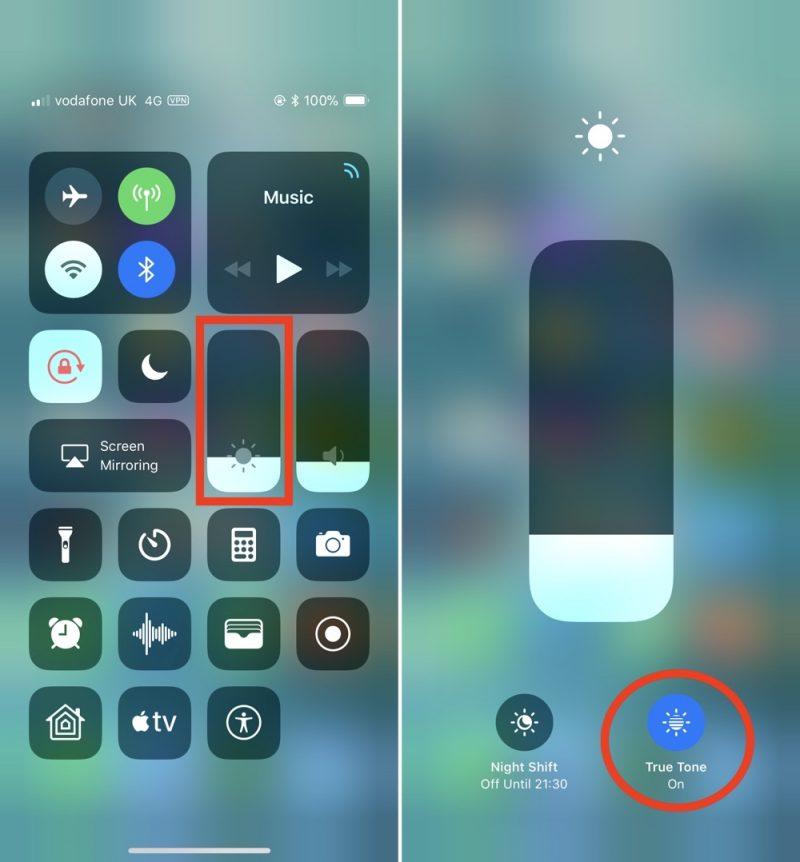
Step 1: Display Tweaks Settings > Display & Brightness. Enable auto-brightness and True Tone.
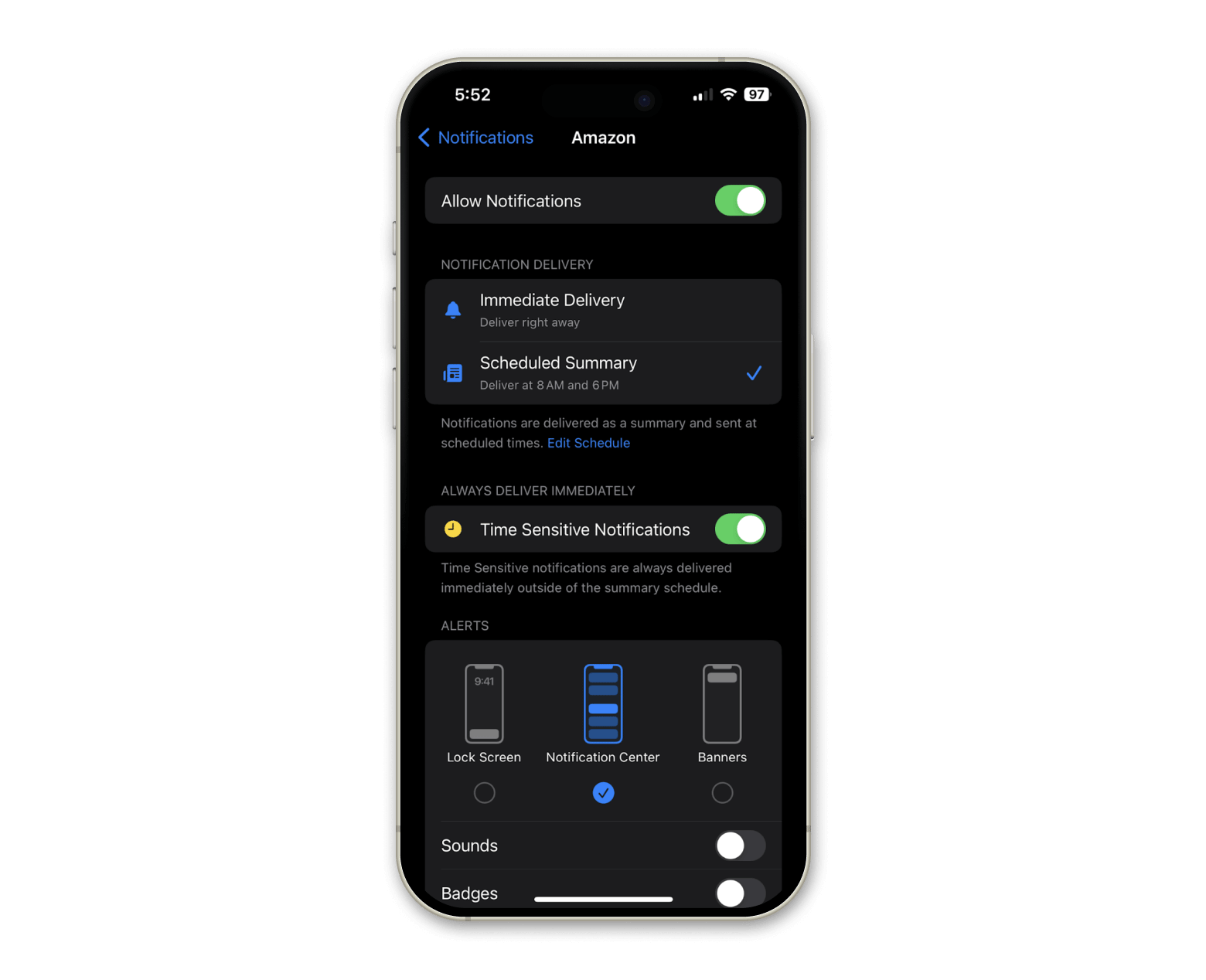
Step 2: Notification Control Settings > Notifications. Group by app; disable badges for low-priority ones.
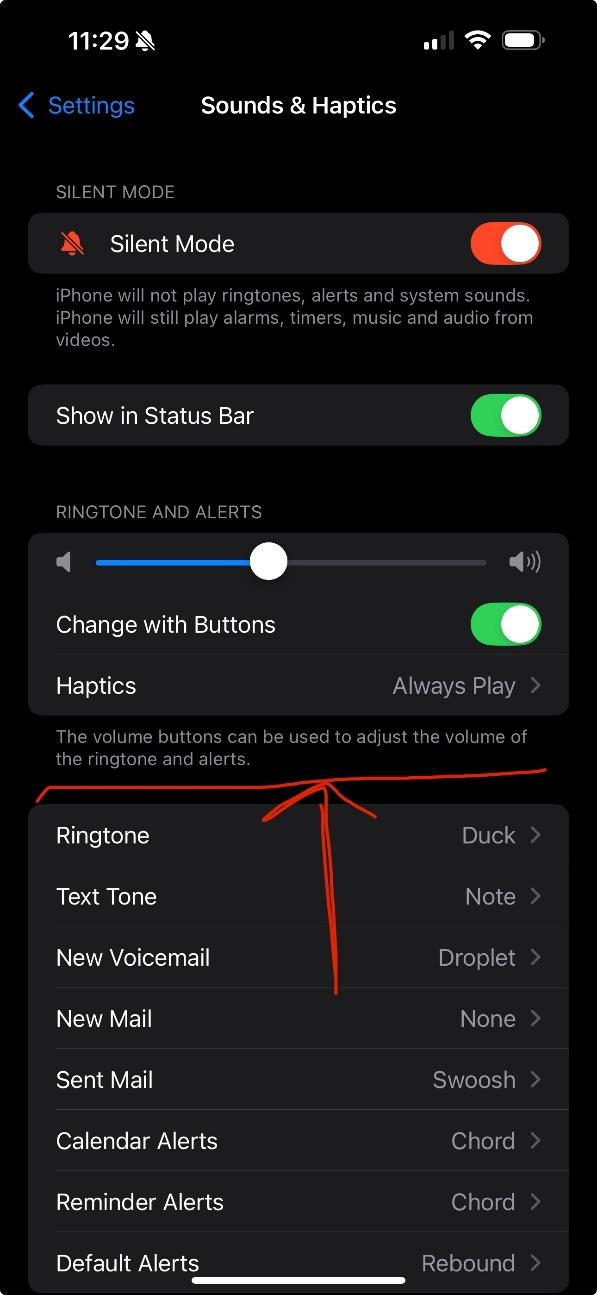
Step 3: Sound Adjustments Settings > Sounds & Haptics. Set ringer low; pick vibration patterns.
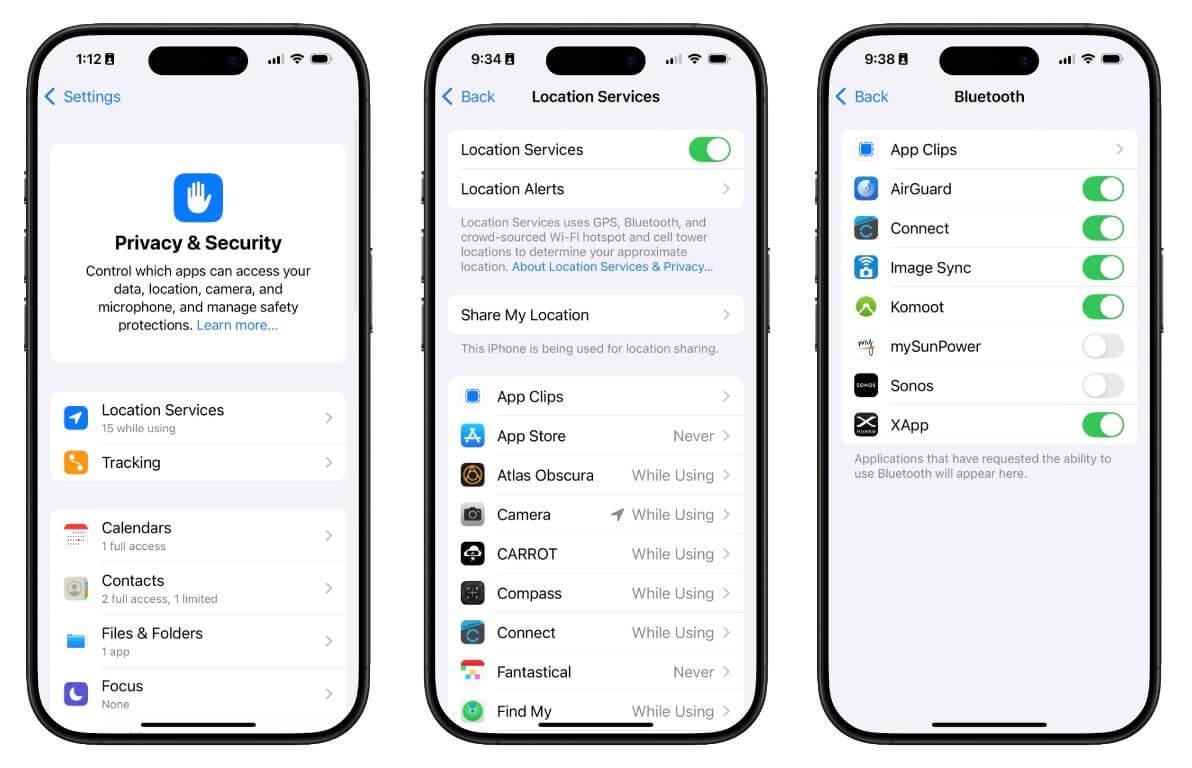
Step 4: Privacy Boost Settings > Privacy & Security. Turn on Find My; audit app accesses.
Step 5: Home Screen Sort Long-press icons to folder or widget add. Prioritize work apps up top.
Grouping notifications on iOS 18 slashed my pings from 60 to 20 daily, focusing work calls. True Tone beat harsh screens for night reads, unlike iPhone 13's glare; widgets glance weather without opens.
Set Up WPS on Your iPhone for Maximum Productivity
Wrap how to set up new iPhone with WPS Office, Kingsoft's free suite since 1988, hitting 600M users and 4.8 Trustpilot stars. It packs Writer, Spreadsheet, Presentation, PDF tools, plus AI like Chat PDF, syncing via 1GB cloud across iOS, Android, Mac. Pro PDF at $29/year undercuts Adobe; no ads in basics.
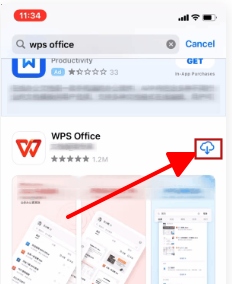
Step 1: App Store Grab Search WPS Office; tap Get for 214MB download.
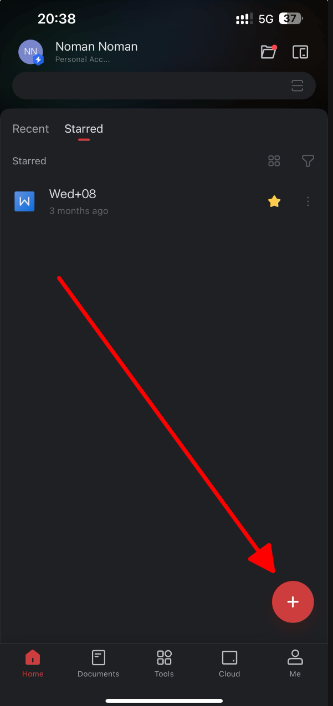
Step 2: Launch and Import Open app; + icon pulls iCloud or local files like .docx, PDFs.
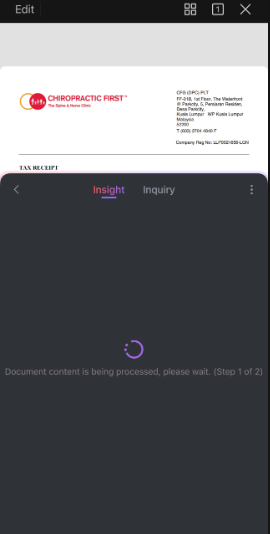
Step 3: AI Edits Highlight for rewrites or summaries; Spreadsheet auto-fills data.
Step 4: Cloud Share Save to WPS Cloud; link teams for real-time tweaks.
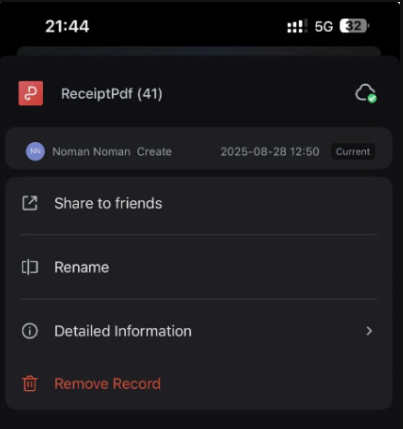
Step 5: Template Boost Browse store for resumes or slides; customize quick.
WPS on iPhone 16 edited a 40-page deck post-setup, AI summarizing in seconds without Microsoft bloat. Offline shines over Google Docs flights; sync to Linux seamless, though VBA gaps hit advanced Excel rarely.
FAQs
Q: Do I need a SIM card to set up a new iPhone?
No, eSIM or Wi-Fi activates it; physical SIM optional for older models.
Q: How does Quick Start work for iPhone setup?
Phones near each other transfer data via Bluetooth; follows prompts for apps, settings.
Q: How do I secure my new iPhone?
Face ID/Touch ID, passcode, Find My, privacy reviews in Settings.
Q: How can I make my new iPhone ready for work efficiently?
eSIM activate, Quick Start data, preferences tweak, WPS Office for docs.

'%3e%3cpath%20d='M19.9911%204.11386V6.471H18.5894C18.0775%206.471%2017.7322%206.57814%2017.5536%206.79243C17.3751%207.00671%2017.2858%207.32814%2017.2858%207.75671V9.44421H19.9019L19.5536%2012.0871H17.2858V18.8639H14.5536V12.0871H12.2769V9.44421H14.5536V7.49779C14.5536%206.39064%2014.8632%205.53201%2015.4822%204.92189C16.1013%204.31177%2016.9257%204.00671%2017.9554%204.00671C18.8304%204.00671%2019.509%204.04243%2019.9911%204.11386Z'%20fill='%23333333'/%3e%3c/g%3e%3cdefs%3e%3cclipPath%20id='clip0_2938_8199'%3e%3crect%20width='16'%20height='16'%20fill='white'%20transform='translate(8%204.00671)'/%3e%3c/clipPath%3e%3c/defs%3e%3c/svg%3e)
'%3e%3cpath%20d='M17.5237%2010.7813L23.4811%204H22.0699L16.8949%209.88693L12.7648%204H8L14.2469%2012.9029L8%2020.0133H9.4112L14.8725%2013.7952L19.2352%2020.0133H24M9.92053%205.04213H12.0885L22.0688%2019.0224H19.9003'%20fill='%23333333'/%3e%3c/g%3e%3cdefs%3e%3cclipPath%20id='clip0_2938_8200'%3e%3crect%20width='16'%20height='16.0134'%20fill='white'%20transform='translate(8%204)'/%3e%3c/clipPath%3e%3c/defs%3e%3c/svg%3e)


