

'%3e%3cpath%20d='M8%200C12.4183%200%2016%203.58172%2016%208C16%2012.4183%2012.4183%2016%208%2016C3.58172%2016%200%2012.4183%200%208C0%203.58172%203.58172%200%208%200ZM11.6162%204.38379C11.2257%203.99337%2010.5927%203.99338%2010.2021%204.38379L8%206.58594L5.79785%204.38379C5.40732%203.99334%204.77429%203.99329%204.38379%204.38379C3.99331%204.77429%203.99335%205.40733%204.38379%205.79785L6.58594%208L4.38379%2010.2021C3.99348%2010.5927%203.99341%2011.2257%204.38379%2011.6162C4.77426%2012.0066%205.40734%2012.0065%205.79785%2011.6162L8%209.41406L10.2021%2011.6162C10.5927%2012.0066%2011.2257%2012.0067%2011.6162%2011.6162C12.0067%2011.2257%2012.0066%2010.5927%2011.6162%2010.2021L9.41406%208L11.6162%205.79785C12.0066%205.40735%2012.0066%204.77429%2011.6162%204.38379Z'%20fill='%23080E17'%20fill-opacity='0.46'/%3e%3c/g%3e%3cdefs%3e%3cclipPath%20id='clip0_3761_713'%3e%3crect%20width='16'%20height='16'%20fill='white'/%3e%3c/clipPath%3e%3c/defs%3e%3c/svg%3e)




'%3e%3cpath%20fill-rule='evenodd'%20clip-rule='evenodd'%20d='M21.4999%2010.9993C21.4999%205.20009%2016.7986%200.498901%2010.9993%200.498901C5.19994%200.498901%200.498657%205.20009%200.498657%2010.9993C0.498657%2016.2404%204.33858%2020.5844%209.35855%2021.3722V14.0346H6.69238V10.9993H9.35855V8.68594C9.35855%206.05427%2010.9262%204.60062%2013.3248%204.60062C14.4736%204.60062%2015.6753%204.80571%2015.6753%204.80571V7.38979H14.3512C13.0468%207.38979%2012.64%208.19921%2012.64%209.0296V10.9993H15.5523L15.0867%2014.0346H12.64V21.3722C17.66%2020.5844%2021.4999%2016.2404%2021.4999%2010.9993Z'%20fill='%231568EA'/%3e%3c/g%3e%3c/svg%3e)


'%3e%3cpath%20d='M2.42045%2022.1876H6.31818V12.7217L0.75%208.54553V20.5171C0.75%2021.4414%201.49892%2022.1876%202.42045%2022.1876Z'%20fill='%234285F4'/%3e%3cpath%20d='M19.682%2022.1876H23.5797C24.5041%2022.1876%2025.2502%2021.4387%2025.2502%2020.5171V8.54553L19.682%2012.7217'%20fill='%2334A853'/%3e%3cpath%20d='M19.682%205.48293V12.7216L25.2502%208.54543V6.31816C25.2502%204.25236%2022.8921%203.07469%2021.2411%204.31361'%20fill='%23FBBC04'/%3e%3cpath%20d='M6.31824%2012.7217V5.48303L13.0001%2010.4944L19.6819%205.48303V12.7217L13.0001%2017.733'%20fill='%23EA4335'/%3e%3cpath%20d='M0.75%206.31816V8.54543L6.31818%2012.7216V5.48293L4.75909%204.31361C3.10534%203.07469%200.75%204.25236%200.75%206.31816Z'%20fill='%23C5221F'/%3e%3c/g%3e%3cdefs%3e%3cclipPath%20id='clip0_2954_7305'%3e%3crect%20width='24.5'%20height='18.375'%20fill='white'%20transform='translate(0.75%203.8125)'/%3e%3c/clipPath%3e%3c/defs%3e%3c/svg%3e)


AI tools have grown fast, but many still fail when tasks get long or complex. Professionals often face lost context, broken logic, and unreliable answers. This raises simple questions about trust, accuracy, and real-world use. So what is Kimi AI, how does it work, and is there a better free option? This guide explains the tool clearly and shows a smarter alternative.

Part 1. What is Kimi AI?
Overview of Kimi AI
Kimi AI is an advanced reasoning chatbot developed by Moonshot AI. It is known for handling extremely long documents and performing deep logical analysis. Instead of quick replies, it focuses on step-by-step thinking and accuracy, even with complex inputs.

Features
Reads and understands very large files, including books and codebases
Strong reasoning using the K2 Thinking model
Advanced math support through the k0-math engine
Live web search with cited sources
Supports documents, spreadsheets, images, and links

Pricing
Kimi follows a freemium model. Basic usage is available at no cost, while advanced reasoning consumes usage points. This makes Free Kimi AI appealing to students and researchers who need serious analysis without upfront payment.
Part 2. Pros and Cons of Kimi AI
| Aspect | Evaluation |
|---|---|
| Handles long context | √ |
| Advanced reasoning | √ |
| Live web research | √ |
| Easy for beginners | × |
| Strong design tools | × |
| Offline support | × |
In short, Kimi AI shines in logic and research but is not built for visual or creative presentation work.
Part 3. How to Use Kimi AI: Step by Step
This section explains how to use Kimi AI in a simple workflow.
Step 1: Open the platform
Visit the official
site and log in using your email or social login. Android users
can also access Kimi through its official apk, which is useful if you
prefer installing apps outside the Play Store.

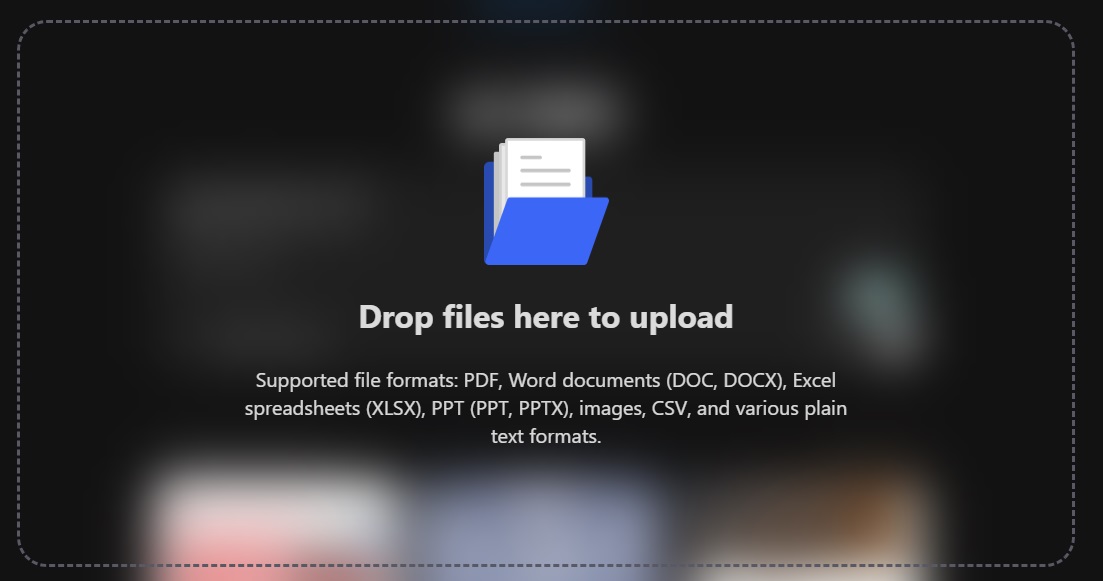
Step 2: Upload or paste content
You can drop in long documents, code files, or links. The
system immediately scans them.
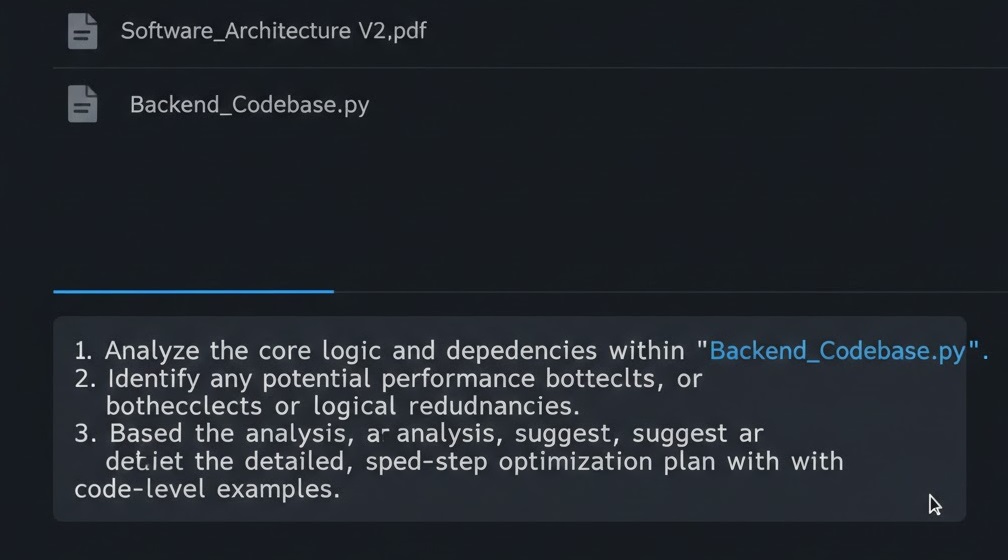
Step 3: Ask structured questions
Instead of short prompts, ask clear, layered questions. This
helps the reasoning engine stay accurate.
Step 4: Review and refine
Check the response, then ask follow-up questions to go deeper
or correct direction.
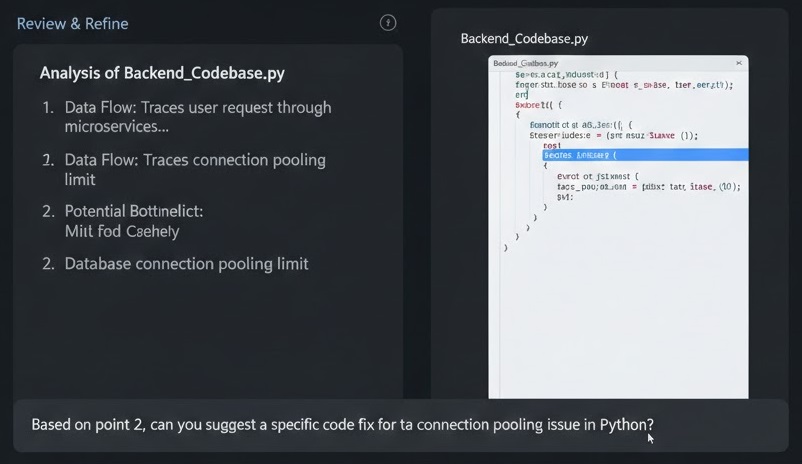
You will see a clean interface where results appear alongside your uploaded content, making review easier.
Part 4. The Best Helper for Presenting Your Ideas: WPS AI Slides
Overview
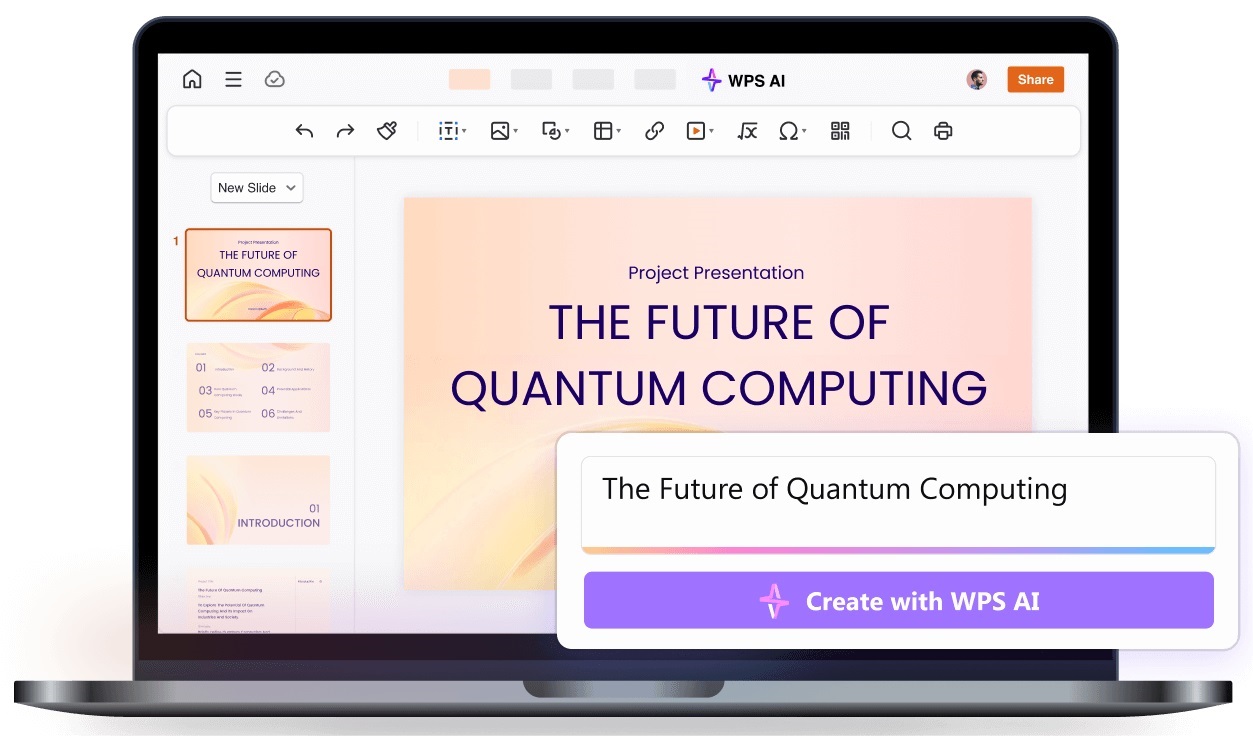
WPS AI Slides is designed for turning ideas, documents, and outlines into polished presentations. Unlike research-focused tools, it prioritizes clarity, structure, and visual balance. WPS AI Slides works as a full AI presentation maker that focuses on clarity, structure, and professional design.
Unique Advantage
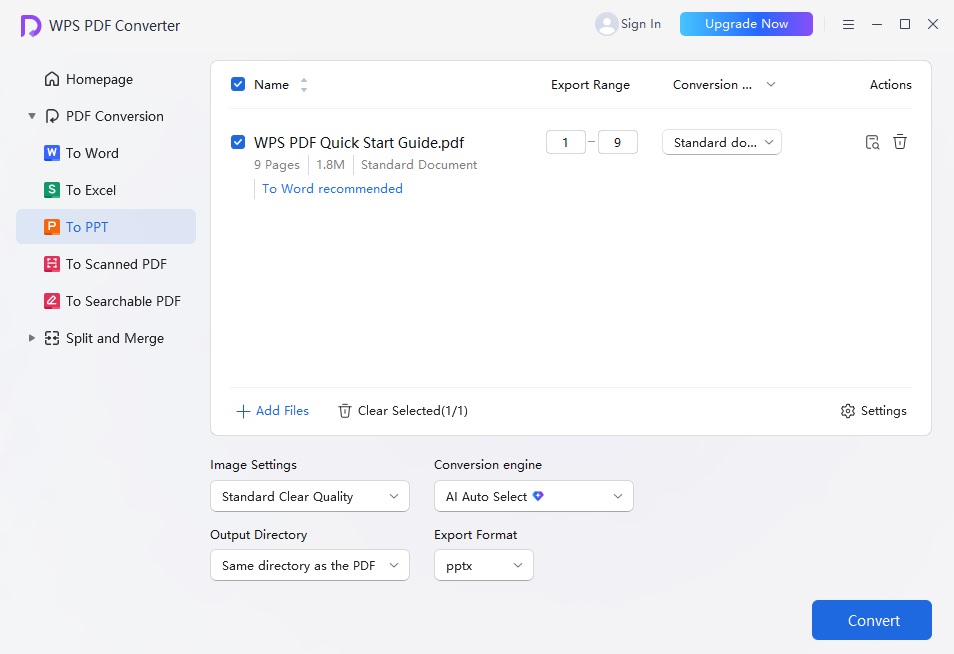
Its biggest strength is direct document-to-slide conversion while keeping full editing control.
Functions and Features
Converts Word, PDF, and text into slides
Large library of professional templates
Built-in image editing and layout tools
Works natively with PPTX across devices

How to Create a Presentation
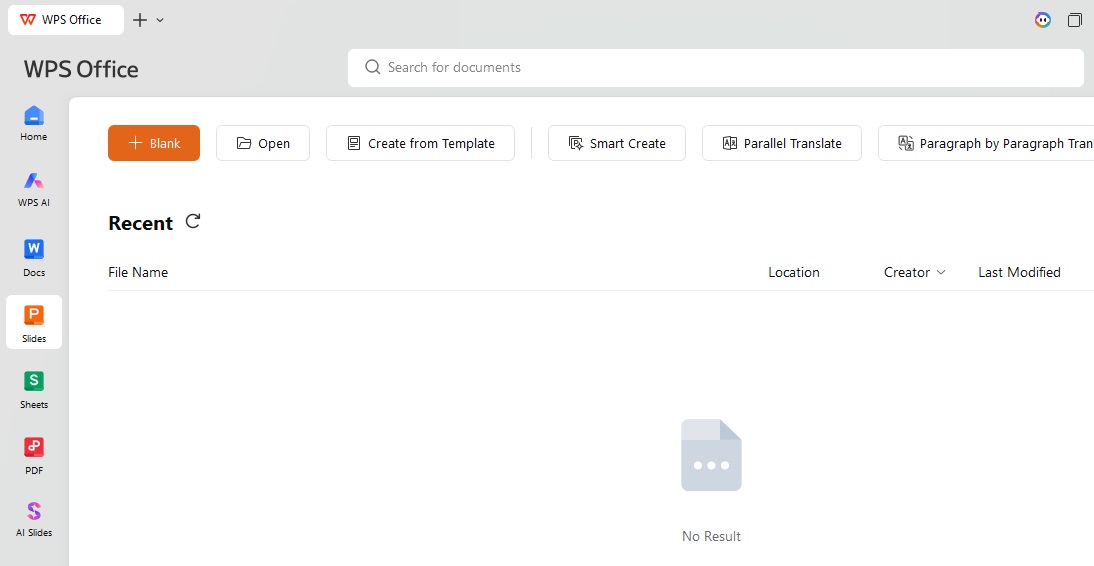
Open WPS Slides
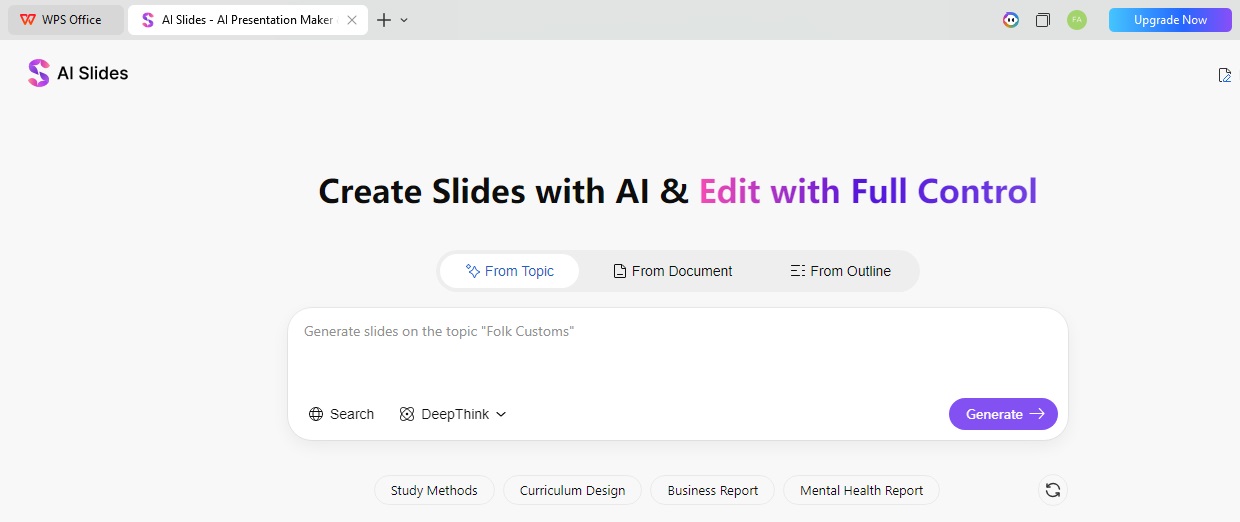
Upload your document or paste text
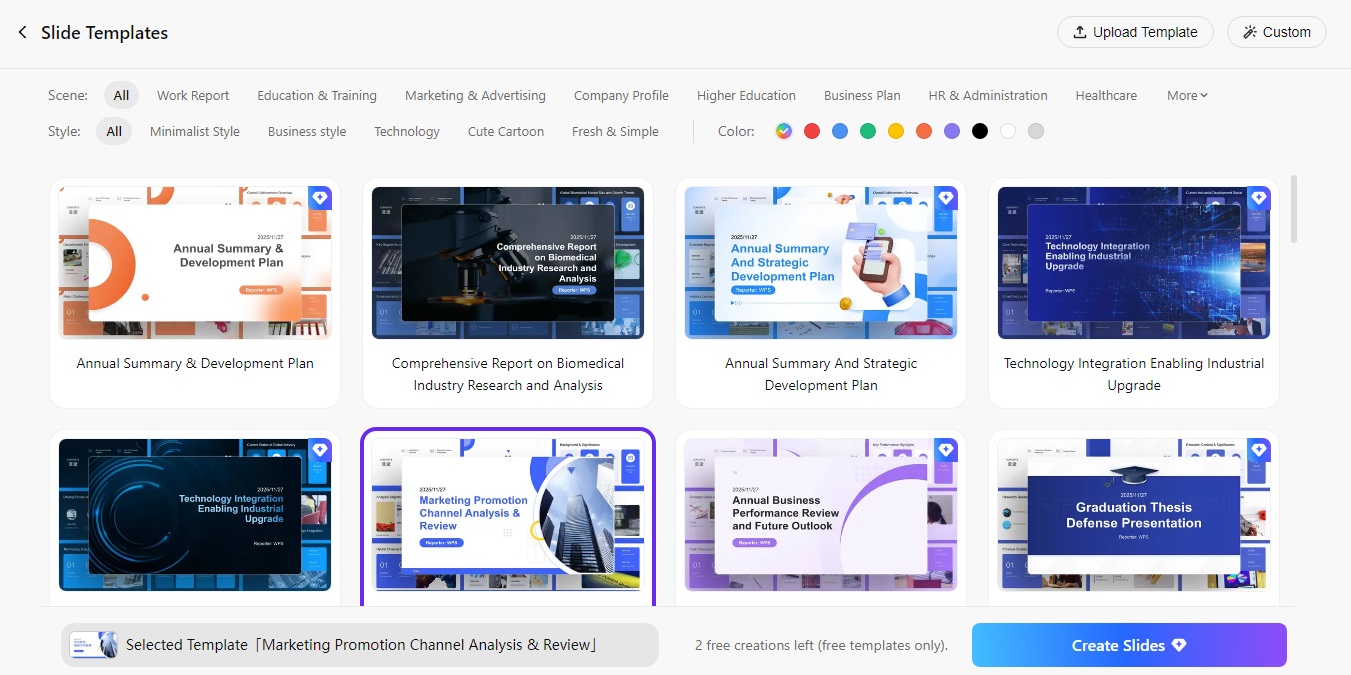
Choose a presentation style
Let AI generate slide structure
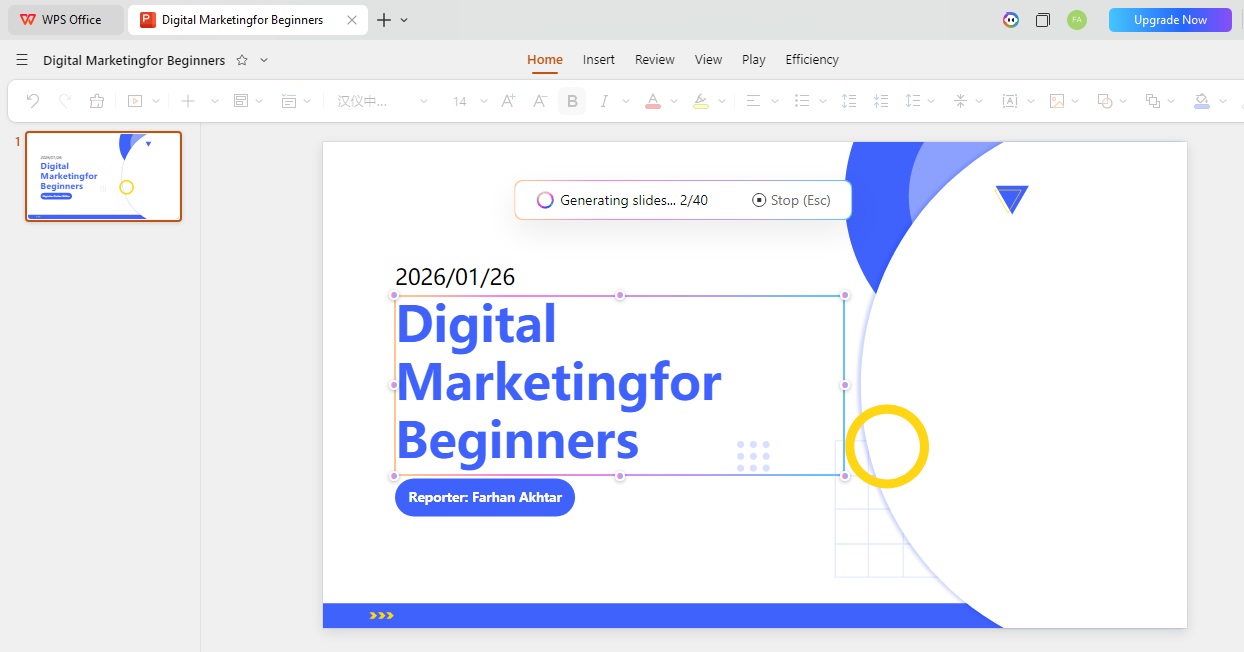
Edit freely with full design control
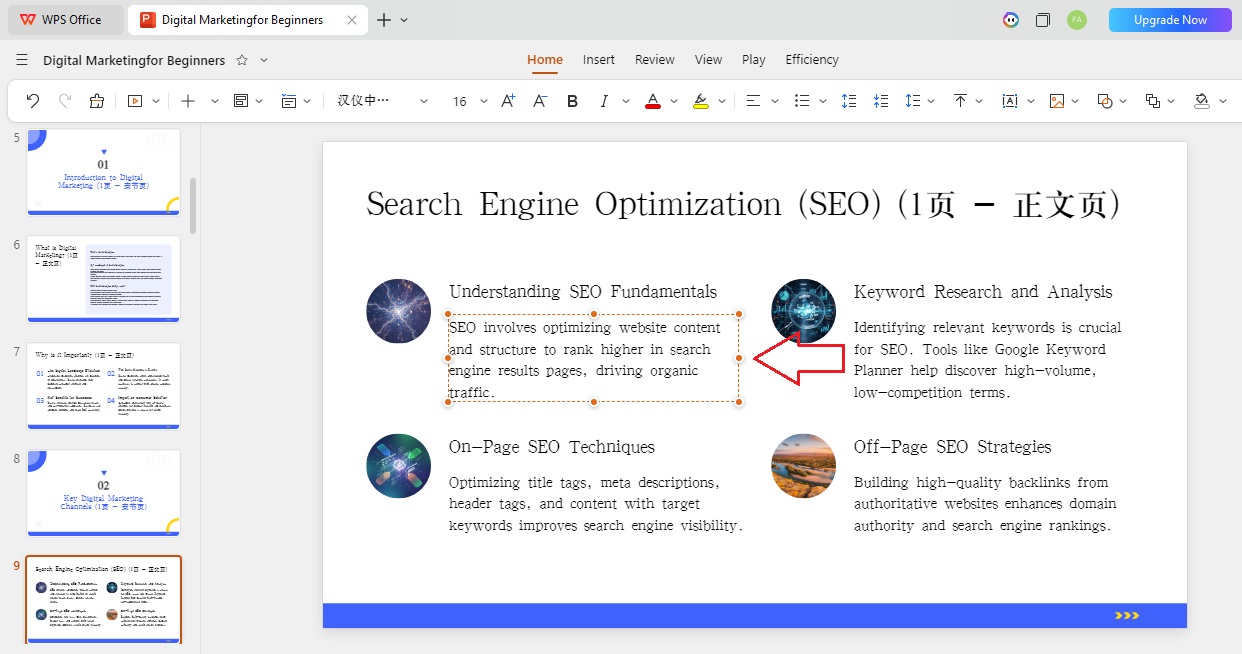
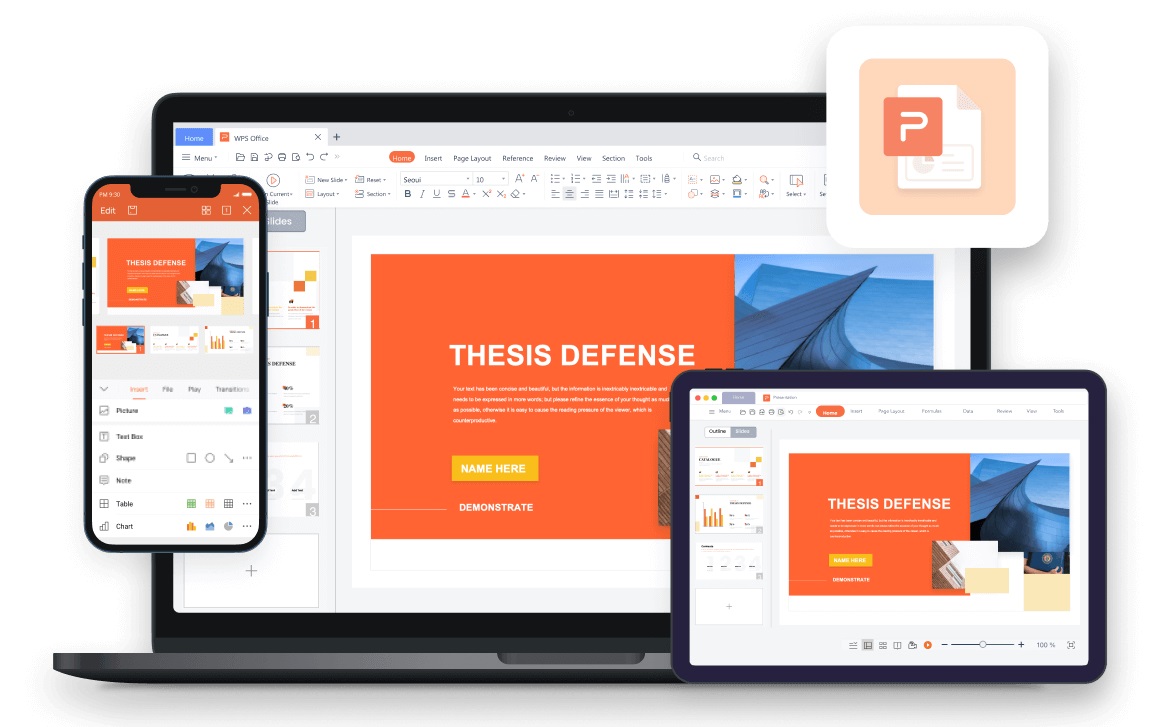
After a quick app download, you can start creating and editing presentations across desktop and mobile without extra setup. I am using WPS Slides for making official presentations. It feels faster and more flexible than most slide generators, especially when branding matters.
Part 5. Competitive Comparison
If you are trying to decide which tool fits your workflow, this comparison should help. Instead of just listing specs, I am sharing how each tool actually feels to use in real projects.
| Feature | WPS AI Slides | Kimi AI | Microsoft Copilot | Beautiful.ai |
|---|---|---|---|---|
| Core AI | Doc-to-PPT specialist | Deep reasoning agent | Office ecosystem AI | Auto design engine |
| Design resources | 400+ pro themes | Basic slides | Standard templates | Locked templates |
| Customization | Full control | Limited | Traditional tools | Restricted |
| Compatibility | Full PPTX native | Web-first | M365 required | Web-based |
| Key advantage | Best value and flexibility | Massive context | Enterprise integration | Speed |
| Limitations | Some pro features are paid | Weak design control | High cost | Creative limits |
| Pricing | Free to low-cost | Freemium | Expensive | Mid-tier |
How These Tools Feel in Real Use
WPS AI Slides
This is the one I keep coming back to for blog work and client
presentations. It handles most of the work for me, but I still have room
to fine tune the details. That balance makes it feel useful and
flexible, not boxed in.
Kimi AI
Working with Kimi AI feels like having a calm, thoughtful
assistant by your side. It really helps when I need to unpack long
documents or tricky concepts, but I usually treat the slides it creates
as a first pass, not something I would present as is.

Microsoft Copilot
Copilot is comfortable if you already work inside Microsoft
tools all day. For me, it feels powerful but expensive, and sometimes
slower than lighter tools when I just want to build a quick deck.
Beautiful.ai
This is great when you want something that looks decent with
minimal effort. The downside is that once the layout is chosen, you have
to accept its rules, which can be frustrating if you like creative
control.

FAQs
1. Can Kimi AI generate PowerPoint presentations?
Yes. It offers Kimi Slides, which can turn documents into slide
drafts. Many users then move the content into WPS AI Slides for better
design control.
2. What is Kimi Explorer mode?
It is a live web research feature that scans multiple sources
and produces a cited summary.
3. Which file formats does Kimi support?
PDF, Word, TXT, Markdown, Excel, CSV, images, and web
links.
4. Is Kimi suitable for coding projects?
Yes, especially for large repositories where long-context
understanding is required.
5. Does Kimi replace human reasoning?
No. It supports analysis but still works best when guided by
clear human intent.
Summary
This article explained what Kimi AI is and why it stands out in reasoning tasks. It covered features, pricing, strengths, and real limitations. You also learned how to use it effectively without confusion. For turning ideas into polished presentations, WPS AI Slides is the stronger choice. Used together, they create a balanced workflow for thinking and presenting. You can download WPS AI from its official website for free.

'%3e%3cpath%20d='M19.9911%204.11386V6.471H18.5894C18.0775%206.471%2017.7322%206.57814%2017.5536%206.79243C17.3751%207.00671%2017.2858%207.32814%2017.2858%207.75671V9.44421H19.9019L19.5536%2012.0871H17.2858V18.8639H14.5536V12.0871H12.2769V9.44421H14.5536V7.49779C14.5536%206.39064%2014.8632%205.53201%2015.4822%204.92189C16.1013%204.31177%2016.9257%204.00671%2017.9554%204.00671C18.8304%204.00671%2019.509%204.04243%2019.9911%204.11386Z'%20fill='%23333333'/%3e%3c/g%3e%3cdefs%3e%3cclipPath%20id='clip0_2938_8199'%3e%3crect%20width='16'%20height='16'%20fill='white'%20transform='translate(8%204.00671)'/%3e%3c/clipPath%3e%3c/defs%3e%3c/svg%3e)
'%3e%3cpath%20d='M17.5237%2010.7813L23.4811%204H22.0699L16.8949%209.88693L12.7648%204H8L14.2469%2012.9029L8%2020.0133H9.4112L14.8725%2013.7952L19.2352%2020.0133H24M9.92053%205.04213H12.0885L22.0688%2019.0224H19.9003'%20fill='%23333333'/%3e%3c/g%3e%3cdefs%3e%3cclipPath%20id='clip0_2938_8200'%3e%3crect%20width='16'%20height='16.0134'%20fill='white'%20transform='translate(8%204)'/%3e%3c/clipPath%3e%3c/defs%3e%3c/svg%3e)


