

'%3e%3cpath%20d='M8%200C12.4183%200%2016%203.58172%2016%208C16%2012.4183%2012.4183%2016%208%2016C3.58172%2016%200%2012.4183%200%208C0%203.58172%203.58172%200%208%200ZM11.6162%204.38379C11.2257%203.99337%2010.5927%203.99338%2010.2021%204.38379L8%206.58594L5.79785%204.38379C5.40732%203.99334%204.77429%203.99329%204.38379%204.38379C3.99331%204.77429%203.99335%205.40733%204.38379%205.79785L6.58594%208L4.38379%2010.2021C3.99348%2010.5927%203.99341%2011.2257%204.38379%2011.6162C4.77426%2012.0066%205.40734%2012.0065%205.79785%2011.6162L8%209.41406L10.2021%2011.6162C10.5927%2012.0066%2011.2257%2012.0067%2011.6162%2011.6162C12.0067%2011.2257%2012.0066%2010.5927%2011.6162%2010.2021L9.41406%208L11.6162%205.79785C12.0066%205.40735%2012.0066%204.77429%2011.6162%204.38379Z'%20fill='%23080E17'%20fill-opacity='0.46'/%3e%3c/g%3e%3cdefs%3e%3cclipPath%20id='clip0_3761_713'%3e%3crect%20width='16'%20height='16'%20fill='white'/%3e%3c/clipPath%3e%3c/defs%3e%3c/svg%3e)




'%3e%3cpath%20fill-rule='evenodd'%20clip-rule='evenodd'%20d='M21.4999%2010.9993C21.4999%205.20009%2016.7986%200.498901%2010.9993%200.498901C5.19994%200.498901%200.498657%205.20009%200.498657%2010.9993C0.498657%2016.2404%204.33858%2020.5844%209.35855%2021.3722V14.0346H6.69238V10.9993H9.35855V8.68594C9.35855%206.05427%2010.9262%204.60062%2013.3248%204.60062C14.4736%204.60062%2015.6753%204.80571%2015.6753%204.80571V7.38979H14.3512C13.0468%207.38979%2012.64%208.19921%2012.64%209.0296V10.9993H15.5523L15.0867%2014.0346H12.64V21.3722C17.66%2020.5844%2021.4999%2016.2404%2021.4999%2010.9993Z'%20fill='%231568EA'/%3e%3c/g%3e%3c/svg%3e)


'%3e%3cpath%20d='M2.42045%2022.1876H6.31818V12.7217L0.75%208.54553V20.5171C0.75%2021.4414%201.49892%2022.1876%202.42045%2022.1876Z'%20fill='%234285F4'/%3e%3cpath%20d='M19.682%2022.1876H23.5797C24.5041%2022.1876%2025.2502%2021.4387%2025.2502%2020.5171V8.54553L19.682%2012.7217'%20fill='%2334A853'/%3e%3cpath%20d='M19.682%205.48293V12.7216L25.2502%208.54543V6.31816C25.2502%204.25236%2022.8921%203.07469%2021.2411%204.31361'%20fill='%23FBBC04'/%3e%3cpath%20d='M6.31824%2012.7217V5.48303L13.0001%2010.4944L19.6819%205.48303V12.7217L13.0001%2017.733'%20fill='%23EA4335'/%3e%3cpath%20d='M0.75%206.31816V8.54543L6.31818%2012.7216V5.48293L4.75909%204.31361C3.10534%203.07469%200.75%204.25236%200.75%206.31816Z'%20fill='%23C5221F'/%3e%3c/g%3e%3cdefs%3e%3cclipPath%20id='clip0_2954_7305'%3e%3crect%20width='24.5'%20height='18.375'%20fill='white'%20transform='translate(0.75%203.8125)'/%3e%3c/clipPath%3e%3c/defs%3e%3c/svg%3e)


Need to combine images into PDF for a school packet, travel photos, receipts, or a client handout? Putting JPG or PNG files into one PDF keeps page order clear, makes sharing simpler, and avoids sending a messy folder of loose pictures.
This guide shows practical ways to combine images into PDF for free—starting with WPS Office on your computer, then a quick browser option when you only need a one-off job, and Adobe Acrobat when your team already pays for it. You will also get quality tips and a short FAQ for common edge cases.
If you later need to stack finished PDFs (not just images), the same suite can help you merge pdf files in a separate step.
Which method should you use?
WPS Office (desktop) — best everyday free path when you want local processing, reorder control, and Office tools nearby.
Free online converter — fine for small, non-sensitive JPG/PNG batches when you are on a shared PC.
Adobe Acrobat — strong Combine Files workflow if you already have a Pro subscription; not the cheapest option for occasional use.
Method 1: Combine images into PDF with WPS Office
WPS Office includes free-to-start PDF tools that make it easy to combine images into PDF on Windows or Mac without uploading private photos to a random website. After install, many users can convert selected pictures straight from File Explorer / Finder context menus.
Steps
Select the images you want to include (JPG, PNG, and similar formats). Hold Ctrl (Windows) or Cmd (Mac) to multi-select.
Right-click the selection and choose Picture to PDF (this option appears when WPS Office is installed).

In the pop-up, check page size, orientation, and output settings so pages look consistent.
Click Convert, then open the new PDF and confirm page order.

Why this path works well: files stay on your device, the flow is fast for batches, and you can keep editing or converting inside the same suite afterward. If you mainly work with JPEG photos, also see our related guide on how to merge jpegs into one pdf.
Tip: Rename files 01-, 02-, 03- before converting when order matters. A clean file name sort prevents “page 3 became page 1” surprises.
Method 2: Combine images into PDF online for free
Browser tools match the common search intent “free online JPG/PNG to PDF.” They are useful when you cannot install software—but upload limits, daily quotas, and privacy trade-offs are real.
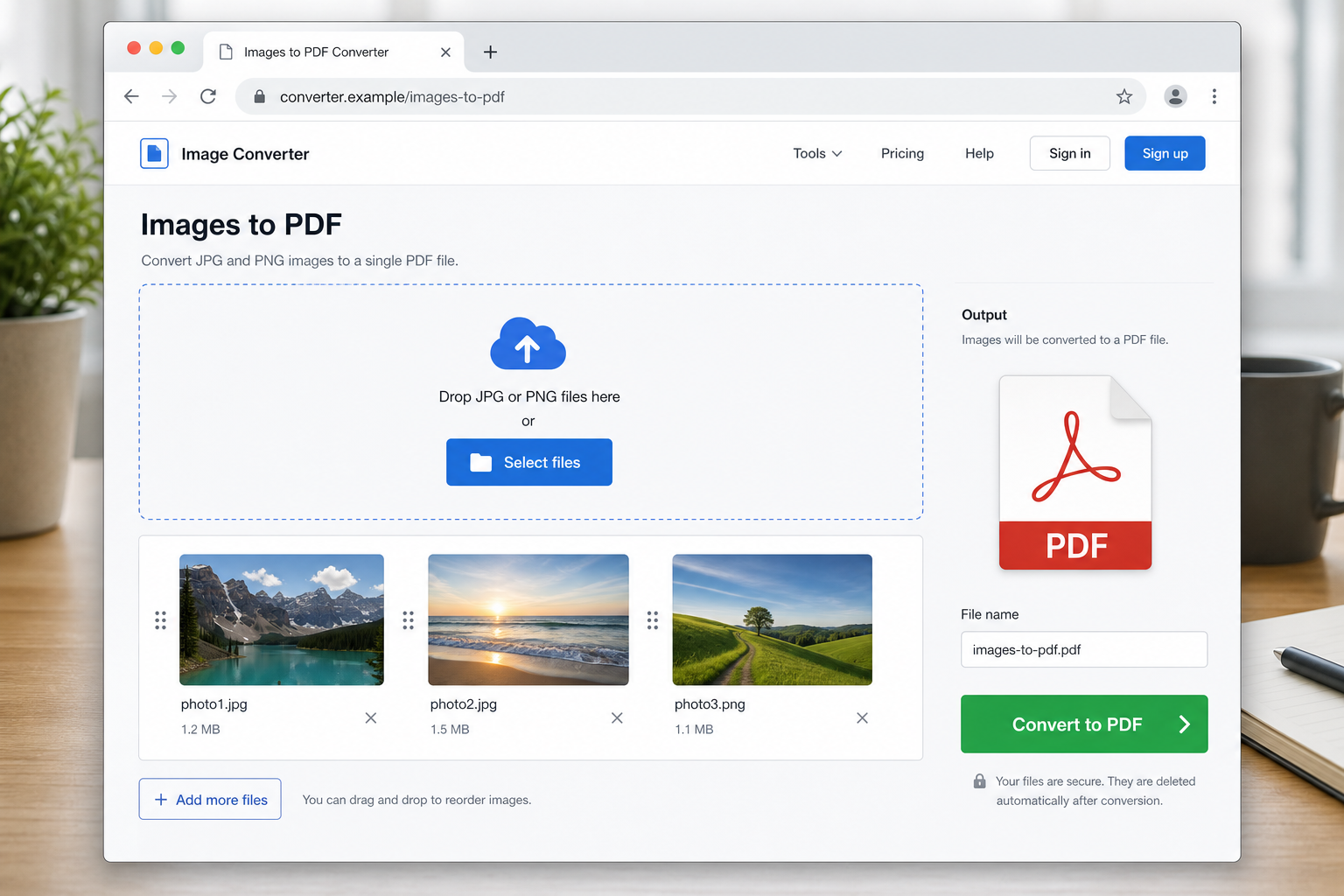
Typical online steps
Open a trusted JPG/PNG-to-PDF or “images to PDF” tool in your browser (examples people often try: iLovePDF, Smallpdf, or similar converters).
Upload the images you want to combine.
Drag thumbnails into the correct order.
Convert / create the PDF, then download and open it to verify pages.
Use online when: the files are small, non-confidential, and you need a result in under a minute.
Prefer desktop when: you are combining ID scans, contracts, medical photos, or large albums you do not want on a third-party server.
Online converters can finish a quick combine images into PDF job, but they rarely replace a local suite if you also need compression, OCR, or Office conversion next.
Method 3: Combine images into PDF with Adobe Acrobat
Adobe Acrobat remains a professional standard for PDF work. The Combine Files tool can pull images and other documents into one PDF with solid preview controls.
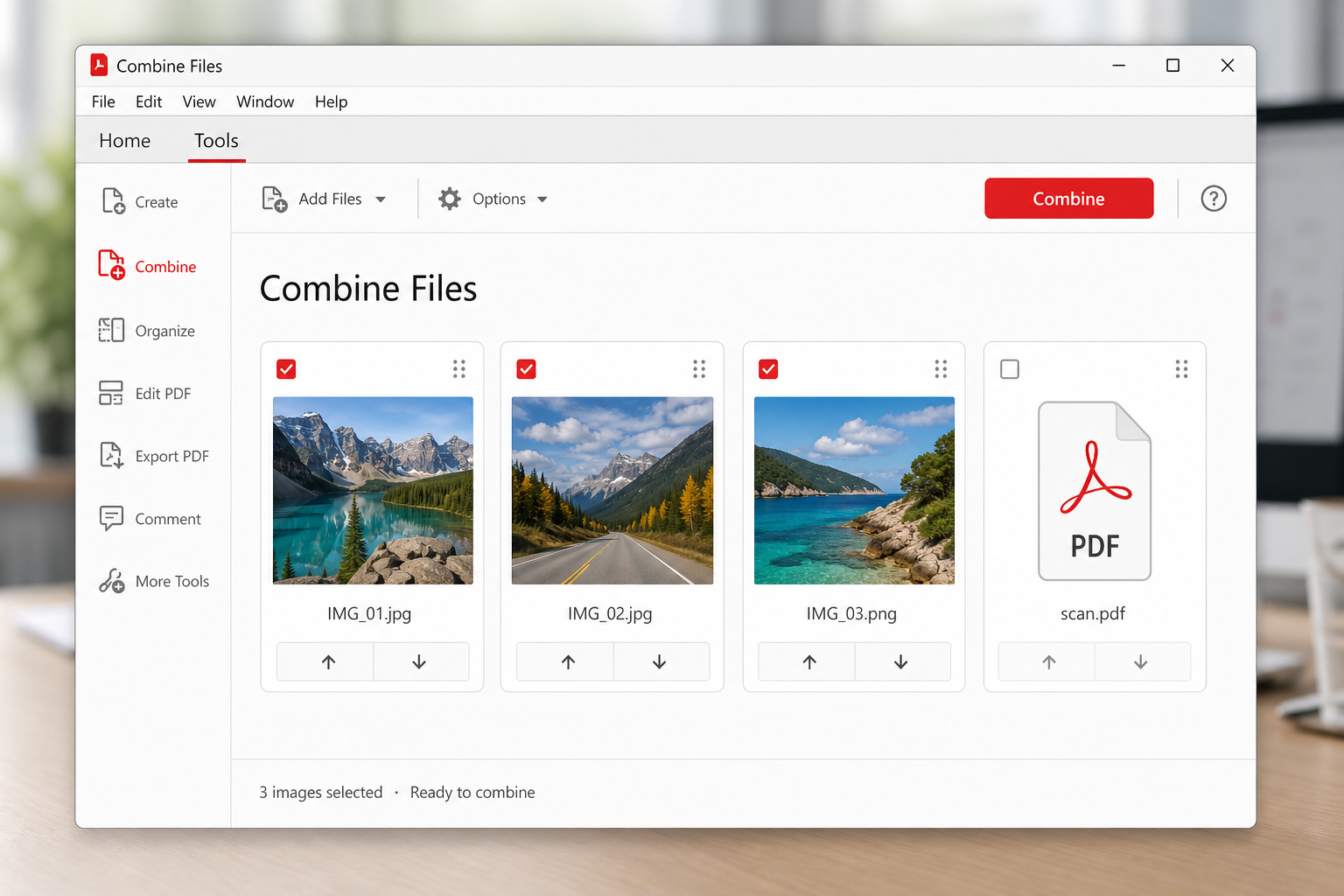
Steps
Open Acrobat and go to Tools → Combine Files.
Click Add Files and select your images.
Drag items to set the final page order.
Click Combine / Combine Files, then save the PDF.
Honest trade-off: Acrobat Pro is powerful, but it usually sits behind a paid subscription. For occasional image-to-PDF tasks, a free WPS or limited online path is often enough. Choose Acrobat when your workplace already standardizes on it or you need advanced enterprise PDF features beyond a simple combine.
Quick comparison: which tool is best?
Use this table to pick the right way to combine images into PDF based on cost, privacy, and how complete the toolkit is.
| Tool | Cost | Privacy | Best for | Feature coverage |
|---|---|---|---|---|
| WPS Office | Free to start | Local / offline friendly | Everyday JPG/PNG batches | Full suite + PDF tools |
| Online converter | Free tier (limits) | Uploads to server | One-off public files | Convert only |
| Adobe Acrobat | Usually paid | Local (desktop) | Enterprise / Pro workflows | Advanced PDF features |
Why we recommend WPS Office
If you want one free-friendly path that stays comprehensive, start with WPS Office. You can combine images into PDF on your computer without paying for Acrobat, keep private photos offline, and continue with edit, compress, OCR, or merge PDF work in the same suite. Online tools are fine for tiny public jobs; Acrobat is strong when your workplace already pays for it. For most users, WPS is the balanced free and full-featured choice.

Tips for a cleaner combined PDF
Match orientation — mixing portrait phone photos and landscape scans can look uneven; rotate first when needed.
Watch resolution — very large photos create heavy PDFs; compress images or the final PDF if email size matters.
One topic per file — receipts in one PDF, portfolio images in another, so recipients can find things faster.
Check the output — open page thumbnails before sharing; missing or duplicated pages are easier to catch early.
Stay offline for private files — desktop convert/merge keeps sensitive images off public upload queues.
After images become a PDF, you may still need to merge multiple pdf into one with other documents. Keep that as a second step so image order stays intentional.
FAQ
Can I combine images into PDF for free?
Yes. WPS Office offers a free-to-start desktop path, and many browser tools provide a free tier for small batches. Paid Acrobat is optional, not required.
What image formats can I convert?
Most workflows accept common formats such as JPG/JPEG and PNG. If a file fails, convert it to JPG/PNG first, then run the combine again.
Is an online tool safe for private photos?
For public or low-risk images, usually fine. For IDs, contracts, or personal albums, prefer a local desktop method so files never leave your device.
How do I keep the correct page order?
Sort or rename files before conversion, then use drag-and-drop reorder in the tool preview. Always skim thumbnails in the finished PDF.
Can I combine JPG and PNG in the same PDF?
Yes. Most converters accept mixed image types in one job. Just confirm each page renders clearly after export.
What if I need to combine PDFs later, not images?
Use a PDF merge tool after the image conversion. WPS can merge pdf documents once your image packet is ready.



'%3e%3cpath%20d='M19.9911%204.11386V6.471H18.5894C18.0775%206.471%2017.7322%206.57814%2017.5536%206.79243C17.3751%207.00671%2017.2858%207.32814%2017.2858%207.75671V9.44421H19.9019L19.5536%2012.0871H17.2858V18.8639H14.5536V12.0871H12.2769V9.44421H14.5536V7.49779C14.5536%206.39064%2014.8632%205.53201%2015.4822%204.92189C16.1013%204.31177%2016.9257%204.00671%2017.9554%204.00671C18.8304%204.00671%2019.509%204.04243%2019.9911%204.11386Z'%20fill='%23333333'/%3e%3c/g%3e%3cdefs%3e%3cclipPath%20id='clip0_2938_8199'%3e%3crect%20width='16'%20height='16'%20fill='white'%20transform='translate(8%204.00671)'/%3e%3c/clipPath%3e%3c/defs%3e%3c/svg%3e)
'%3e%3cpath%20d='M17.5237%2010.7813L23.4811%204H22.0699L16.8949%209.88693L12.7648%204H8L14.2469%2012.9029L8%2020.0133H9.4112L14.8725%2013.7952L19.2352%2020.0133H24M9.92053%205.04213H12.0885L22.0688%2019.0224H19.9003'%20fill='%23333333'/%3e%3c/g%3e%3cdefs%3e%3cclipPath%20id='clip0_2938_8200'%3e%3crect%20width='16'%20height='16.0134'%20fill='white'%20transform='translate(8%204)'/%3e%3c/clipPath%3e%3c/defs%3e%3c/svg%3e)


