



'%3e%3cpath%20fill-rule='evenodd'%20clip-rule='evenodd'%20d='M21.4999%2010.9993C21.4999%205.20009%2016.7986%200.498901%2010.9993%200.498901C5.19994%200.498901%200.498657%205.20009%200.498657%2010.9993C0.498657%2016.2404%204.33858%2020.5844%209.35855%2021.3722V14.0346H6.69238V10.9993H9.35855V8.68594C9.35855%206.05427%2010.9262%204.60062%2013.3248%204.60062C14.4736%204.60062%2015.6753%204.80571%2015.6753%204.80571V7.38979H14.3512C13.0468%207.38979%2012.64%208.19921%2012.64%209.0296V10.9993H15.5523L15.0867%2014.0346H12.64V21.3722C17.66%2020.5844%2021.4999%2016.2404%2021.4999%2010.9993Z'%20fill='%231568EA'/%3e%3c/g%3e%3c/svg%3e)


'%3e%3cpath%20d='M2.42045%2022.1876H6.31818V12.7217L0.75%208.54553V20.5171C0.75%2021.4414%201.49892%2022.1876%202.42045%2022.1876Z'%20fill='%234285F4'/%3e%3cpath%20d='M19.682%2022.1876H23.5797C24.5041%2022.1876%2025.2502%2021.4387%2025.2502%2020.5171V8.54553L19.682%2012.7217'%20fill='%2334A853'/%3e%3cpath%20d='M19.682%205.48293V12.7216L25.2502%208.54543V6.31816C25.2502%204.25236%2022.8921%203.07469%2021.2411%204.31361'%20fill='%23FBBC04'/%3e%3cpath%20d='M6.31824%2012.7217V5.48303L13.0001%2010.4944L19.6819%205.48303V12.7217L13.0001%2017.733'%20fill='%23EA4335'/%3e%3cpath%20d='M0.75%206.31816V8.54543L6.31818%2012.7216V5.48293L4.75909%204.31361C3.10534%203.07469%200.75%204.25236%200.75%206.31816Z'%20fill='%23C5221F'/%3e%3c/g%3e%3cdefs%3e%3cclipPath%20id='clip0_2954_7305'%3e%3crect%20width='24.5'%20height='18.375'%20fill='white'%20transform='translate(0.75%203.8125)'/%3e%3c/clipPath%3e%3c/defs%3e%3c/svg%3e)


Need to merge jpegs into one pdf without paying for Acrobat Pro? This guide covers four free methods that actually work: Windows Print to PDF, Mac Preview, free WPS JPG to PDF online, and another quick online converter.
If you only need to convert one photo, a dedicated jpg to pdf tool is enough. If you already have several PDF files and want to stack those, use merge pdf instead. This page focuses on JPG/JPEG images going into one multi-page PDF.
The 4 free methods at a glance
| # | Method | Best for | Watch-outs |
|---|---|---|---|
| 1 | Windows Print to PDF | Quick local merge on Windows | Limited layout control after export |
| 2 | Mac Preview | Reorder pages before export | macOS only |
| 3 | WPS JPG to PDF online (free) | Free browser convert, no install | Files upload to the online tool |
| 4 | Online JPG to PDF tools | No install, shared PCs | Upload privacy / file-size limits |

Method 1: Combine JPEGs into one PDF on Windows
Windows can combine jpegs into one pdf with the built-in Microsoft Print to PDF printer. No extra paid software required.
Select the JPEG files. Hold Ctrl and click each image you want in the PDF.

Right-click the selection and choose Print.

Set the printer to Microsoft Print to PDF, then click Print.

Name the file, choose a folder, and save. You now have one PDF containing those JPEGs.
Tip: Rename files as 01.jpg, 02.jpg first if page order matters. File Explorer print order can follow filename sorting.
Method 2: Combine JPEGs into one PDF on Mac (Preview)
On macOS, Preview is the simplest free way to merge JPEG to PDF and reorder pages before you save.
Open Preview → File → Open, then select multiple JPEGs (hold Command).
Choose View → Thumbnails so pages appear in the sidebar.
Drag thumbnails into the order you want.
Go to File → Print (or Export options, depending on macOS version), then choose Save as PDF / PDF destination.

Save the merged PDF to your desktop or Documents folder.
Method 3: Combine JPEGs into one PDF with WPS Online (Free)
Want a free way to combine JPEGs into one PDF without installing software and without paying to remove a watermark? Use the free online tool at pdf.wps.com/convert-jpg-to-pdf. It converts JPG/JPEG images to PDF in your browser—ideal for homework packs, receipts, or photo sets.
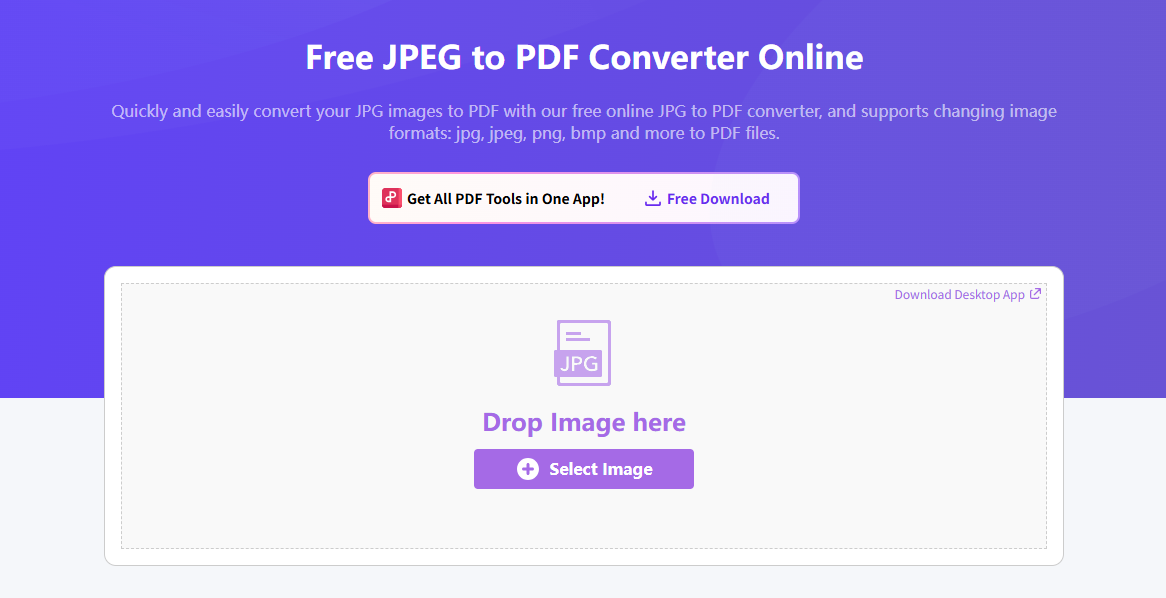
Steps (free online):
Open Convert JPG to PDF on pdf.wps.com.
Upload the JPEG files you want to include (you can add multiple images in one job).
Arrange the image order so pages appear the way you want in the final PDF.
Start the conversion and wait until processing finishes.
Download the free PDF result. No paid “remove watermark” step is required for this free online workflow.
Why this method: It is free to start in the browser, needs no desktop install, and keeps the focus on converting JPG to one PDF quickly. For private IDs or medical photos, prefer a local Windows/Mac method instead of uploading.
Method 4: Combine JPEGs into one PDF online
Browser converters are fine for small, non-sensitive photos when you cannot install software. Typical flow:
Open a reputable JPG→PDF / images-to-PDF page.
Upload the JPEG files and drag thumbnails into order.
Create the PDF and download it.
Privacy note: Online tools usually upload files to a server. Skip this method for IDs, contracts, medical photos, or school submissions with personal data. Prefer Windows or Mac Preview for local processing when files are sensitive.
For mixed formats (PNG + JPG + WEBP), see our broader guide on how to combine images into pdf.
When merging JPEGs into a PDF helps
Homework photo sets or receipt packs that need one file
Client deliverables that look cleaner as a single PDF
Email limits that reject a folder of separate JPGs
Portfolios where page order matters
PDF is usually better for sharing than a ZIP of images, but it does not automatically “look more professional” unless you order pages, check orientation, and avoid huge uncompressed exports.
Practical tips before you merge
Set order first. Rename files or drag thumbnails before export.
Watch orientation. Mixing portrait and landscape is fine, but preview the result.
Normalize sizes when needed. Wildly different resolutions can look uneven; an image resizer helps before conversion.
Compress after merge if the PDF is too large for email portals.
FAQ
How do I merge jpegs into one pdf for free?
Use Windows Print to PDF, Mac Preview, free WPS JPG to PDF online, or another free online JPG-to-PDF tool. Windows and Mac keep files on your device.
Can Adobe Acrobat Reader combine JPEGs into a PDF for free?
Not in the way many guides claim. Adobe Acrobat Reader is mainly for viewing and commenting. Creating or combining files into a new PDF usually requires Adobe Acrobat (paid) or another free method above. Do not rely on Reader alone for a free merge.
Is there a free JPG to PDF converter?
Yes. Use the free WPS JPG to PDF tool online, or other free browser converters for light jobs—without paying to remove a watermark.
How do I combine JPEGs into one PDF on my phone?
Use a mobile app such as WPS Office mobile or a trusted scanner/converter app. Import the photos, set page order, then export as PDF. Avoid uploading sensitive images to unknown web tools.
What is the difference between merge JPEGs and merge PDF?
Merge JPEGs turns image files into one PDF. Merge PDF combines existing PDF documents. Use this page for photos/scans; use the merge pdf feature when your inputs are already PDFs.



Final takeaway
To merge jpegs into one pdf without paying for Acrobat Pro, start with the built-in Windows or Mac path. Choose free WPS JPG to PDF online when you want a no-install convert. Use local Windows/Mac tools for private files.
Pick the method that matches your device and privacy needs—then check page order once before you send the file.
'%3e%3cpath%20d='M19.9911%204.11386V6.471H18.5894C18.0775%206.471%2017.7322%206.57814%2017.5536%206.79243C17.3751%207.00671%2017.2858%207.32814%2017.2858%207.75671V9.44421H19.9019L19.5536%2012.0871H17.2858V18.8639H14.5536V12.0871H12.2769V9.44421H14.5536V7.49779C14.5536%206.39064%2014.8632%205.53201%2015.4822%204.92189C16.1013%204.31177%2016.9257%204.00671%2017.9554%204.00671C18.8304%204.00671%2019.509%204.04243%2019.9911%204.11386Z'%20fill='%23333333'/%3e%3c/g%3e%3cdefs%3e%3cclipPath%20id='clip0_2938_8199'%3e%3crect%20width='16'%20height='16'%20fill='white'%20transform='translate(8%204.00671)'/%3e%3c/clipPath%3e%3c/defs%3e%3c/svg%3e)
'%3e%3cpath%20d='M17.5237%2010.7813L23.4811%204H22.0699L16.8949%209.88693L12.7648%204H8L14.2469%2012.9029L8%2020.0133H9.4112L14.8725%2013.7952L19.2352%2020.0133H24M9.92053%205.04213H12.0885L22.0688%2019.0224H19.9003'%20fill='%23333333'/%3e%3c/g%3e%3cdefs%3e%3cclipPath%20id='clip0_2938_8200'%3e%3crect%20width='16'%20height='16.0134'%20fill='white'%20transform='translate(8%204)'/%3e%3c/clipPath%3e%3c/defs%3e%3c/svg%3e)


