

'%3e%3cpath%20d='M8%200C12.4183%200%2016%203.58172%2016%208C16%2012.4183%2012.4183%2016%208%2016C3.58172%2016%200%2012.4183%200%208C0%203.58172%203.58172%200%208%200ZM11.6162%204.38379C11.2257%203.99337%2010.5927%203.99338%2010.2021%204.38379L8%206.58594L5.79785%204.38379C5.40732%203.99334%204.77429%203.99329%204.38379%204.38379C3.99331%204.77429%203.99335%205.40733%204.38379%205.79785L6.58594%208L4.38379%2010.2021C3.99348%2010.5927%203.99341%2011.2257%204.38379%2011.6162C4.77426%2012.0066%205.40734%2012.0065%205.79785%2011.6162L8%209.41406L10.2021%2011.6162C10.5927%2012.0066%2011.2257%2012.0067%2011.6162%2011.6162C12.0067%2011.2257%2012.0066%2010.5927%2011.6162%2010.2021L9.41406%208L11.6162%205.79785C12.0066%205.40735%2012.0066%204.77429%2011.6162%204.38379Z'%20fill='%23080E17'%20fill-opacity='0.46'/%3e%3c/g%3e%3cdefs%3e%3cclipPath%20id='clip0_3761_713'%3e%3crect%20width='16'%20height='16'%20fill='white'/%3e%3c/clipPath%3e%3c/defs%3e%3c/svg%3e)




'%3e%3cpath%20fill-rule='evenodd'%20clip-rule='evenodd'%20d='M21.4999%2010.9993C21.4999%205.20009%2016.7986%200.498901%2010.9993%200.498901C5.19994%200.498901%200.498657%205.20009%200.498657%2010.9993C0.498657%2016.2404%204.33858%2020.5844%209.35855%2021.3722V14.0346H6.69238V10.9993H9.35855V8.68594C9.35855%206.05427%2010.9262%204.60062%2013.3248%204.60062C14.4736%204.60062%2015.6753%204.80571%2015.6753%204.80571V7.38979H14.3512C13.0468%207.38979%2012.64%208.19921%2012.64%209.0296V10.9993H15.5523L15.0867%2014.0346H12.64V21.3722C17.66%2020.5844%2021.4999%2016.2404%2021.4999%2010.9993Z'%20fill='%231568EA'/%3e%3c/g%3e%3c/svg%3e)


'%3e%3cpath%20d='M2.42045%2022.1876H6.31818V12.7217L0.75%208.54553V20.5171C0.75%2021.4414%201.49892%2022.1876%202.42045%2022.1876Z'%20fill='%234285F4'/%3e%3cpath%20d='M19.682%2022.1876H23.5797C24.5041%2022.1876%2025.2502%2021.4387%2025.2502%2020.5171V8.54553L19.682%2012.7217'%20fill='%2334A853'/%3e%3cpath%20d='M19.682%205.48293V12.7216L25.2502%208.54543V6.31816C25.2502%204.25236%2022.8921%203.07469%2021.2411%204.31361'%20fill='%23FBBC04'/%3e%3cpath%20d='M6.31824%2012.7217V5.48303L13.0001%2010.4944L19.6819%205.48303V12.7217L13.0001%2017.733'%20fill='%23EA4335'/%3e%3cpath%20d='M0.75%206.31816V8.54543L6.31818%2012.7216V5.48293L4.75909%204.31361C3.10534%203.07469%200.75%204.25236%200.75%206.31816Z'%20fill='%23C5221F'/%3e%3c/g%3e%3cdefs%3e%3cclipPath%20id='clip0_2954_7305'%3e%3crect%20width='24.5'%20height='18.375'%20fill='white'%20transform='translate(0.75%203.8125)'/%3e%3c/clipPath%3e%3c/defs%3e%3c/svg%3e)


Adobe OCR is the text-recognition engine inside Acrobat, Adobe Scan, and the free online OCR tool: it adds a text layer under the scan so the page can be searched, copied, and highlighted. Pick the entry point that matches the file you have, run it once, and check the layer before you rely on it.
The 30-second version:
Desktop (paid): open the PDF, choose Tools > Scan & OCR > Recognize Text > In This File, then Recognize.
Phone (free, 5 pages): Adobe Scan recognizes text automatically as you capture, and keeps the searchable layer in the PDF.
Browser (free): upload to Adobe’s online OCR tool, sign in to download the searchable PDF. Files are deleted from Adobe’s servers if you do not sign in.
Adobe OCR: 3 Ways to Make a Scanned PDF Searchable
Where Adobe OCR Lives and What Each Version Costs You
The name “Adobe OCR” covers four different entry points, and only one of them is free without a page cap on the desktop. Match the tool to the job before you start.
| Entry point | Best for | Free limit |
|---|---|---|
| Acrobat Pro (desktop) | Batches, tables, precise output settings | Paid subscription |
| Adobe Scan (phone) | Capturing paper with the camera | OCR on 5 pages; premium raises it to 100 |
| Acrobat online OCR | One file, no install | Free to run, sign in to download |
| Acrobat Reader (free) | Reading and commenting only | No OCR — it is a viewer |
That last row answers the most common question about this keyword: Adobe Reader itself does not recognize text. To OCR a PDF for free you either use the online tool, or the mobile app within its page allowance, or a desktop suite that includes OCR.
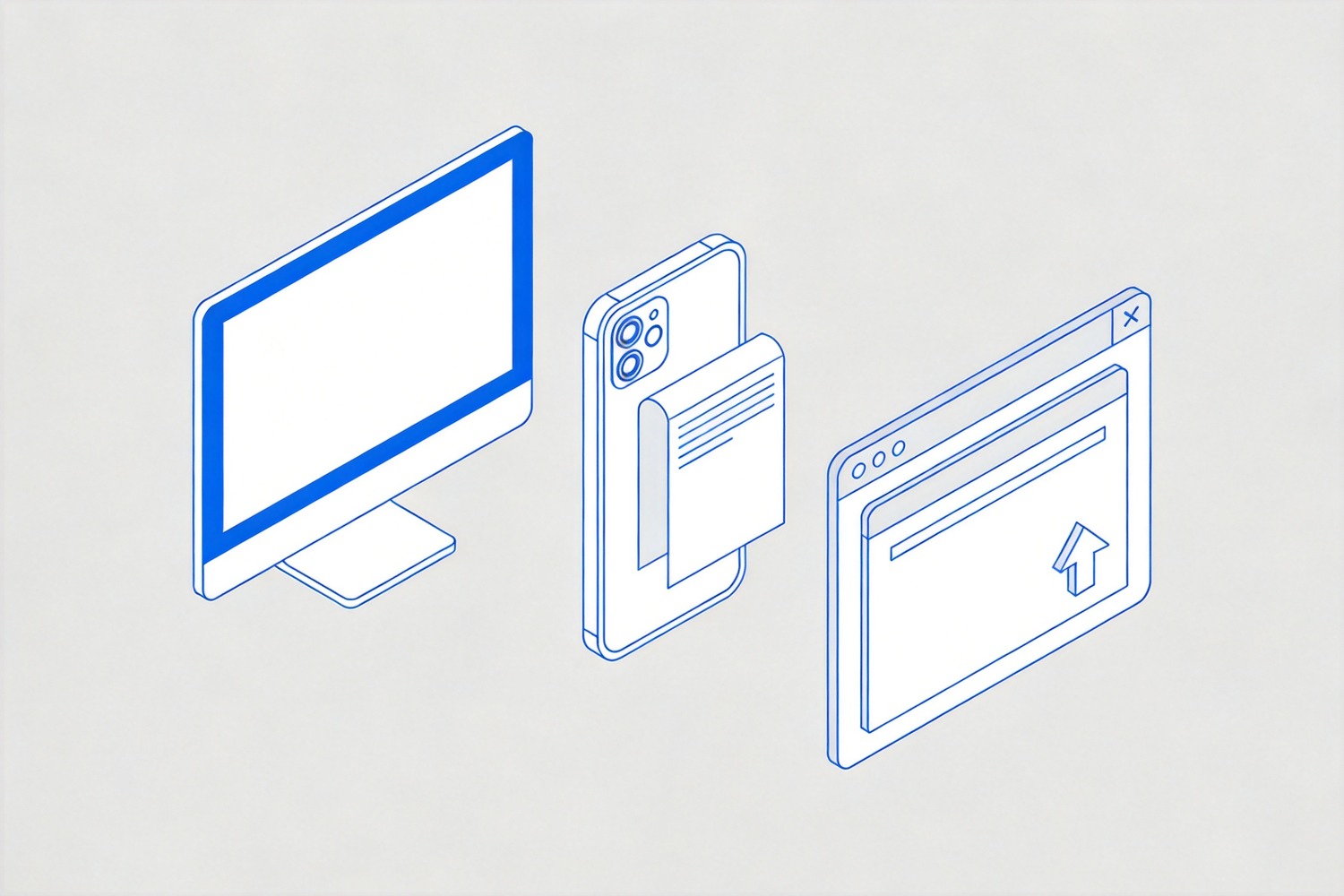
Adobe OCR entry points compared
How to Run Adobe OCR in Acrobat Step by Step
Acrobat Pro gives you the controls that matter on a real document: output type, language, and image downsampling. Work in this order.
Open the scanned PDF in Acrobat and check that the page really is an image. If you can already select text, it has a layer and you can skip OCR.
Choose Tools > Scan & OCR, then Recognize Text > In This File for a single document, or In Multiple Files for a batch.
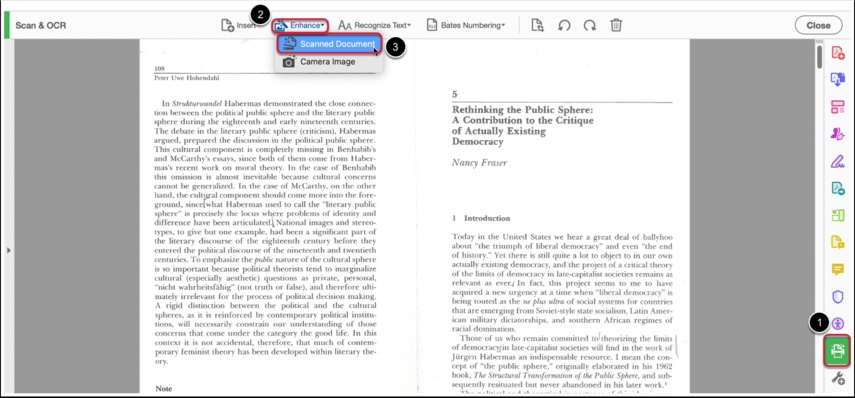
Choose Scanned Document in Adobe OCR
Set the output to Searchable Image when the layout must not change, or Editable Text and Images when you plan to rewrite the page. Pick the document language, and leave downsampling off for archival scans.
Click Recognize and watch the progress bar per page. A 40-page scan takes a few minutes on a laptop.
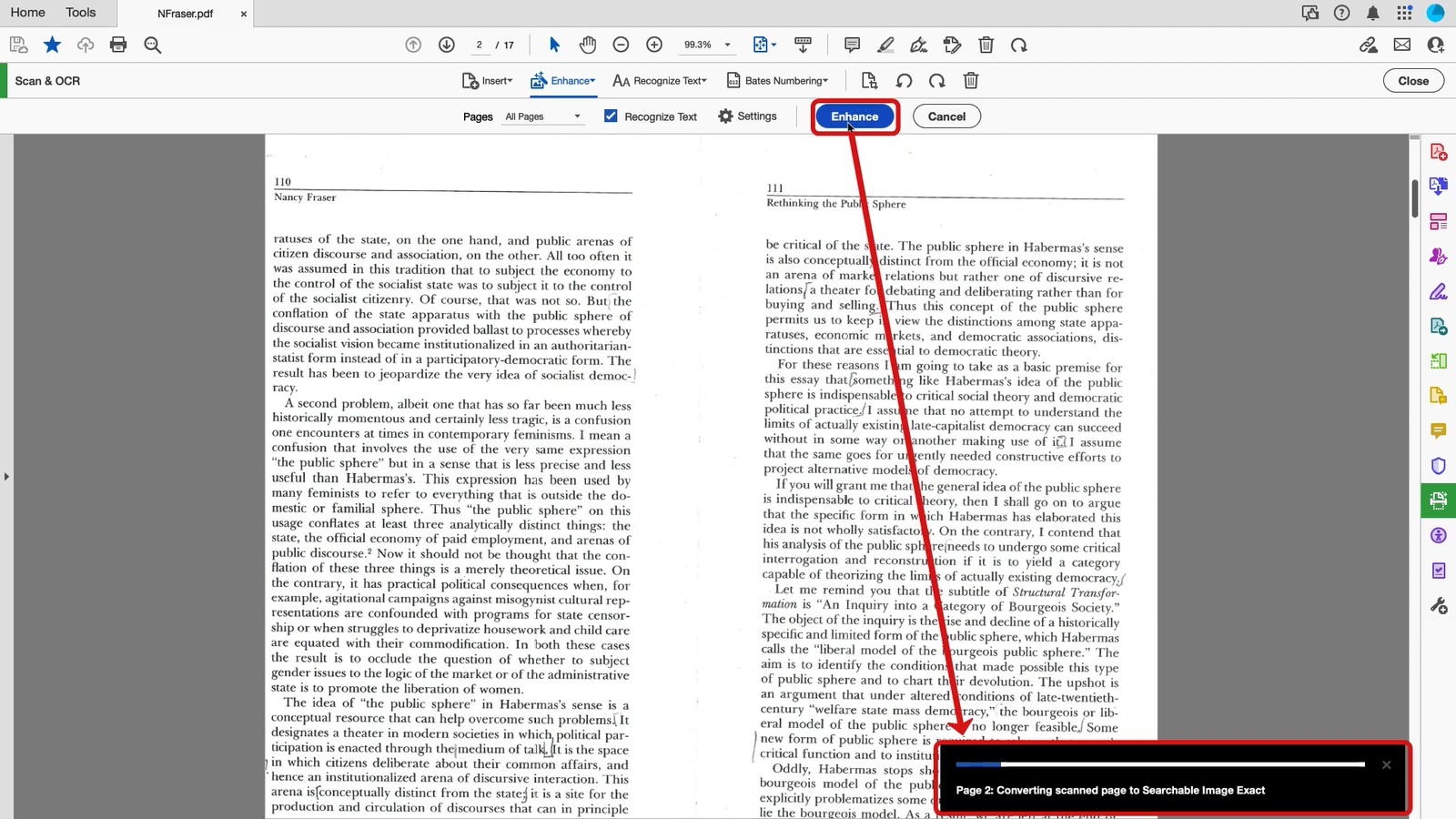
Running OCR inside Adobe Acrobat
Test the layer with Ctrl + F: search a word you can see on the page. No result means the language was wrong or the page was too degraded.
Save as a new file so the untouched original stays available for comparison.
For the long version of this walkthrough, including Acrobat’s pricing tiers and a side-by-side accuracy test, see the Acrobat OCR deep dive.


What Adobe OCR Gets Wrong on Real Scans
OCR fails in predictable places. Knowing them saves you from shipping a document that looks searchable but returns nothing.
Handwriting. Printed text converts well; cursive signatures and margin notes come back as noise or disappear.
Tables. Cells merge and columns interleave, so a scanned invoice becomes a paragraph of numbers. Convert to a spreadsheet rather than trusting the PDF text.
Skew and shadows. A page photographed at an angle produces skewed lines and missed words; straighten and clean the scan first.
Wrong language. Accented characters, Cyrillic, or CJK text fall apart if the language box is set to English.
Searchable Image only. The page stays a picture: you can search it, but you cannot edit a sentence.
The fix is in the source file, not in the OCR engine. Scan at 300 dpi, straighten the page, raise the contrast, and re-run. A clean 300 dpi scan beats a 600 dpi photo of a crumpled page every time.
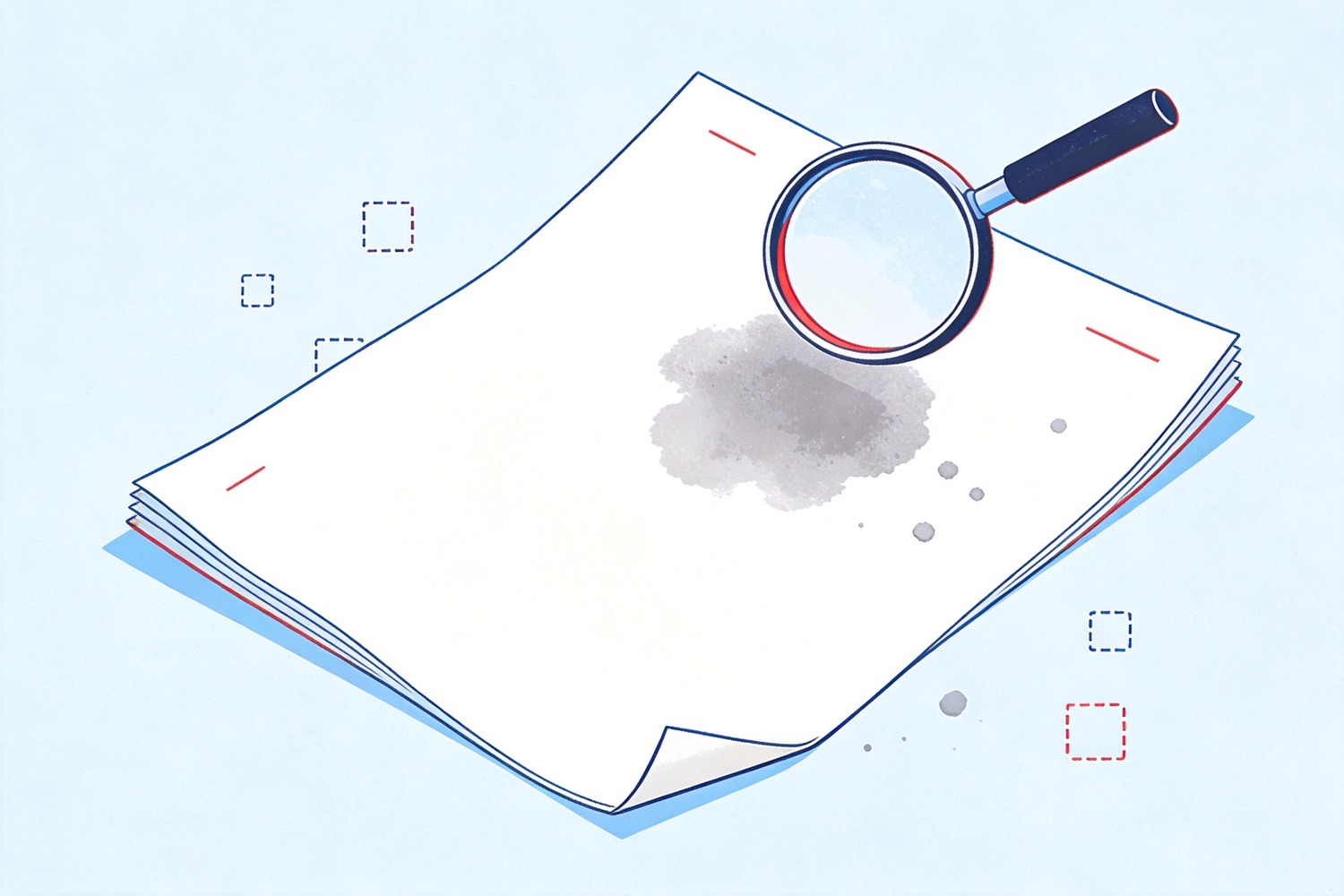
Common OCR failures on skewed scans
Free Adobe OCR Limits and When to OCR in WPS Instead
Adobe’s free routes are fine for one document. They get awkward when you process a folder of scans, need to edit the text, or want the result in Word or Excel rather than a searchable PDF.
| Task | Adobe free route | WPS PDF |
|---|---|---|
| OCR one scan | Online tool or Adobe Scan | OCR PDF on the Home tab |
| OCR a batch | Acrobat Pro subscription | Same OCR action across files you open |
| Edit the recognised text | Editable Text output in Pro | OCR then edit, or convert to Word |
| Move the result into Office | Export in Pro | PDF to Word or PDF to Excel built in |
WPS runs OCR from the same PDF window you already opened, and the recognised text can go straight into a Word or spreadsheet file. That is the practical difference when the scan is the start of a job rather than the end of one.
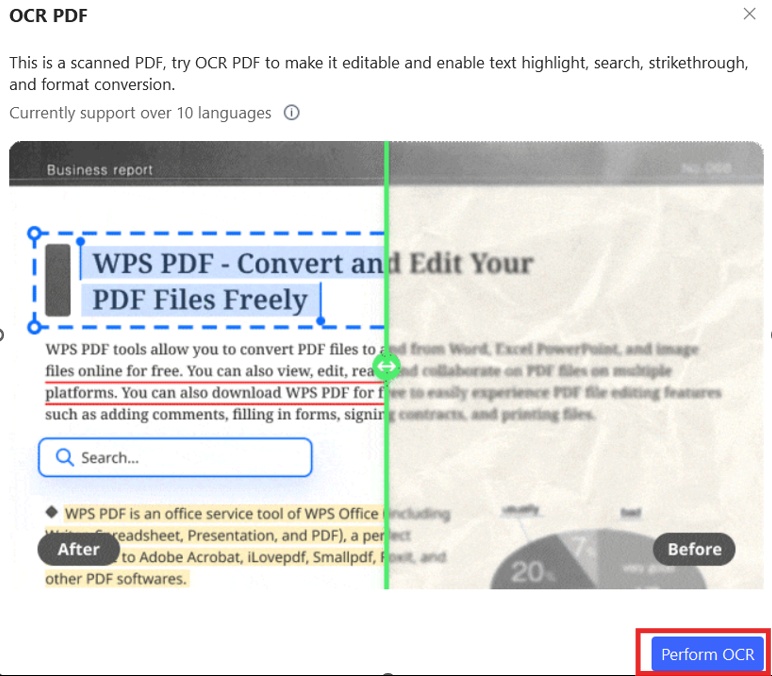
Running OCR in WPS PDF
The Best Free PDF Alternative: WPS Office
Scanned paperwork rarely needs one OCR run. It needs scan, recognize, correct, convert, and sign — in that order, on the same file.
OCR inside the PDF window: open the file, run OCR PDF, and save a searchable copy without switching apps.
Convert what you recognised: send the text into Writer for editing or Spreadsheet for tables, then export back to PDF.
No subscription to start: the PDF toolkit and Writer run free on Windows, macOS, Android, and iOS.
Take the scan you already have, run it through OCR once, and search for a word on page two. If it comes back, the layer is real. If it does not, the fix is usually the scan, not the software — the scanned PDF cleanup guide covers straightening and contrast.
FAQs
Is OCR free in Adobe Acrobat Reader?
No. Acrobat Reader is a viewer: it opens, comments on, and signs PDFs, but text recognition belongs to Acrobat Pro or the free online OCR tool on Adobe’s site.
How many pages can Adobe Scan OCR for free?
The free app recognises text on up to five pages. A premium subscription raises that to 100 pages and unlocks export, merge, compression, and text editing.
Does Adobe OCR make a PDF editable?
Only if you choose the editable output. “Searchable Image” keeps the page as a picture with a text layer underneath, which is searchable but not editable; “Editable Text and Images” rebuilds the page so you can type in it.
Why is my OCR text garbled?
Usually the scan, not the engine: low resolution, a skewed page, a shadow across the text, or the wrong document language. Clean the page, set the language, and run it again.
Can Adobe OCR read handwriting?
Partly. Neat block printing sometimes converts; cursive is unreliable in any OCR engine. Treat handwritten names and dates as fields to verify by eye.



'%3e%3cpath%20d='M19.9911%204.11386V6.471H18.5894C18.0775%206.471%2017.7322%206.57814%2017.5536%206.79243C17.3751%207.00671%2017.2858%207.32814%2017.2858%207.75671V9.44421H19.9019L19.5536%2012.0871H17.2858V18.8639H14.5536V12.0871H12.2769V9.44421H14.5536V7.49779C14.5536%206.39064%2014.8632%205.53201%2015.4822%204.92189C16.1013%204.31177%2016.9257%204.00671%2017.9554%204.00671C18.8304%204.00671%2019.509%204.04243%2019.9911%204.11386Z'%20fill='%23333333'/%3e%3c/g%3e%3cdefs%3e%3cclipPath%20id='clip0_2938_8199'%3e%3crect%20width='16'%20height='16'%20fill='white'%20transform='translate(8%204.00671)'/%3e%3c/clipPath%3e%3c/defs%3e%3c/svg%3e)
'%3e%3cpath%20d='M17.5237%2010.7813L23.4811%204H22.0699L16.8949%209.88693L12.7648%204H8L14.2469%2012.9029L8%2020.0133H9.4112L14.8725%2013.7952L19.2352%2020.0133H24M9.92053%205.04213H12.0885L22.0688%2019.0224H19.9003'%20fill='%23333333'/%3e%3c/g%3e%3cdefs%3e%3cclipPath%20id='clip0_2938_8200'%3e%3crect%20width='16'%20height='16.0134'%20fill='white'%20transform='translate(8%204)'/%3e%3c/clipPath%3e%3c/defs%3e%3c/svg%3e)


