

'%3e%3cpath%20d='M8%200C12.4183%200%2016%203.58172%2016%208C16%2012.4183%2012.4183%2016%208%2016C3.58172%2016%200%2012.4183%200%208C0%203.58172%203.58172%200%208%200ZM11.6162%204.38379C11.2257%203.99337%2010.5927%203.99338%2010.2021%204.38379L8%206.58594L5.79785%204.38379C5.40732%203.99334%204.77429%203.99329%204.38379%204.38379C3.99331%204.77429%203.99335%205.40733%204.38379%205.79785L6.58594%208L4.38379%2010.2021C3.99348%2010.5927%203.99341%2011.2257%204.38379%2011.6162C4.77426%2012.0066%205.40734%2012.0065%205.79785%2011.6162L8%209.41406L10.2021%2011.6162C10.5927%2012.0066%2011.2257%2012.0067%2011.6162%2011.6162C12.0067%2011.2257%2012.0066%2010.5927%2011.6162%2010.2021L9.41406%208L11.6162%205.79785C12.0066%205.40735%2012.0066%204.77429%2011.6162%204.38379Z'%20fill='%23080E17'%20fill-opacity='0.46'/%3e%3c/g%3e%3cdefs%3e%3cclipPath%20id='clip0_3761_713'%3e%3crect%20width='16'%20height='16'%20fill='white'/%3e%3c/clipPath%3e%3c/defs%3e%3c/svg%3e)




'%3e%3cpath%20fill-rule='evenodd'%20clip-rule='evenodd'%20d='M21.4999%2010.9993C21.4999%205.20009%2016.7986%200.498901%2010.9993%200.498901C5.19994%200.498901%200.498657%205.20009%200.498657%2010.9993C0.498657%2016.2404%204.33858%2020.5844%209.35855%2021.3722V14.0346H6.69238V10.9993H9.35855V8.68594C9.35855%206.05427%2010.9262%204.60062%2013.3248%204.60062C14.4736%204.60062%2015.6753%204.80571%2015.6753%204.80571V7.38979H14.3512C13.0468%207.38979%2012.64%208.19921%2012.64%209.0296V10.9993H15.5523L15.0867%2014.0346H12.64V21.3722C17.66%2020.5844%2021.4999%2016.2404%2021.4999%2010.9993Z'%20fill='%231568EA'/%3e%3c/g%3e%3c/svg%3e)


'%3e%3cpath%20d='M2.42045%2022.1876H6.31818V12.7217L0.75%208.54553V20.5171C0.75%2021.4414%201.49892%2022.1876%202.42045%2022.1876Z'%20fill='%234285F4'/%3e%3cpath%20d='M19.682%2022.1876H23.5797C24.5041%2022.1876%2025.2502%2021.4387%2025.2502%2020.5171V8.54553L19.682%2012.7217'%20fill='%2334A853'/%3e%3cpath%20d='M19.682%205.48293V12.7216L25.2502%208.54543V6.31816C25.2502%204.25236%2022.8921%203.07469%2021.2411%204.31361'%20fill='%23FBBC04'/%3e%3cpath%20d='M6.31824%2012.7217V5.48303L13.0001%2010.4944L19.6819%205.48303V12.7217L13.0001%2017.733'%20fill='%23EA4335'/%3e%3cpath%20d='M0.75%206.31816V8.54543L6.31818%2012.7216V5.48293L4.75909%204.31361C3.10534%203.07469%200.75%204.25236%200.75%206.31816Z'%20fill='%23C5221F'/%3e%3c/g%3e%3cdefs%3e%3cclipPath%20id='clip0_2954_7305'%3e%3crect%20width='24.5'%20height='18.375'%20fill='white'%20transform='translate(0.75%203.8125)'/%3e%3c/clipPath%3e%3c/defs%3e%3c/svg%3e)


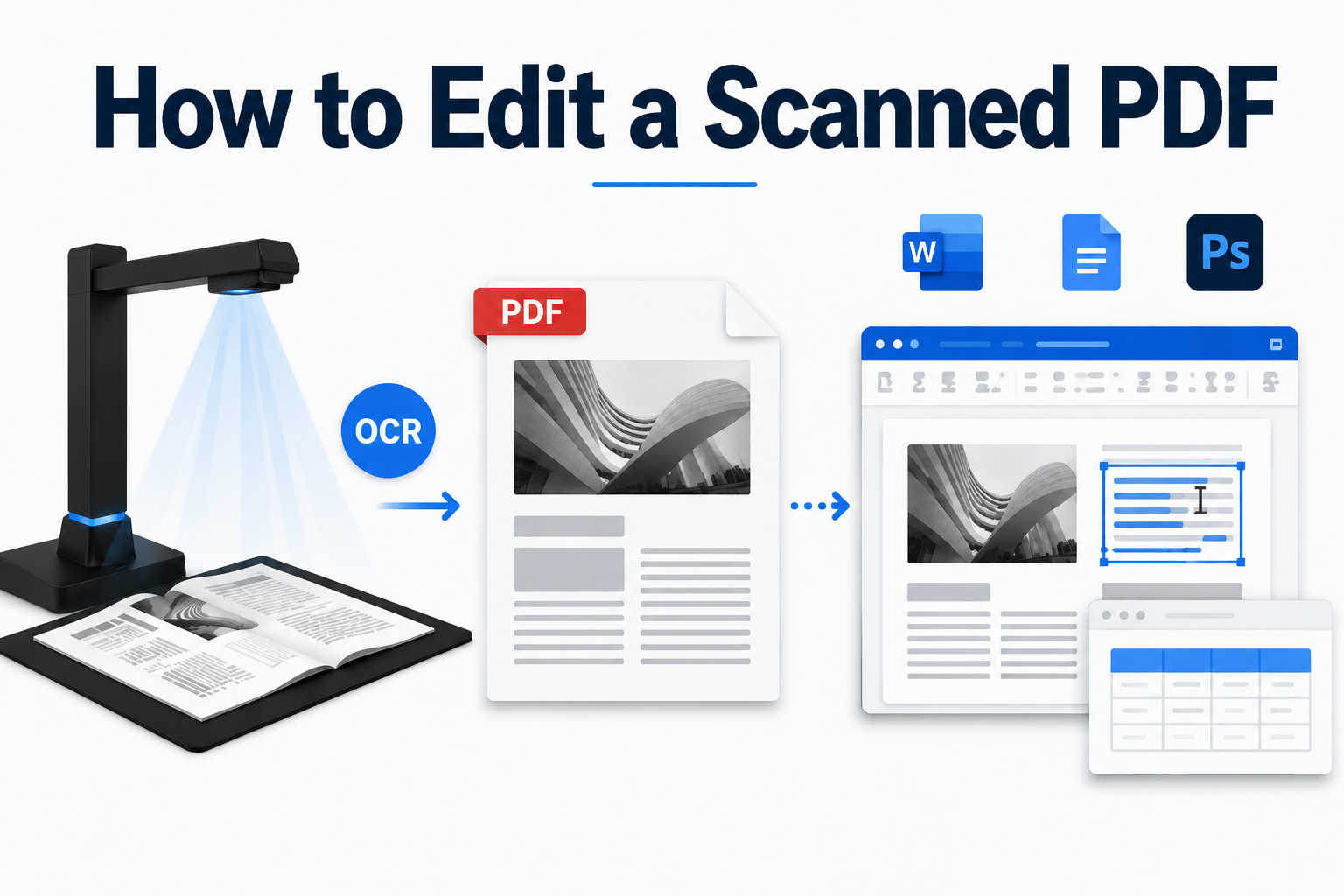
Most of the time, you won't edit a scanned document in just one place. Depending on the job, you may bounce between a PDF editor, Photoshop, Word, Google Docs, or a dedicated OCR tool. If you use a smart scanner, editing can even start during the scan itself.
That's because a scanned page begins as an image, not as text you can click. You can't simply place the cursor and rewrite a sentence. During conversion, content often shifts: tables move, lines wrap the wrong way, and if the scan isn't sharp enough, characters may not recognize cleanly at all.
Some modern scanners handle part of that work upfront. Devices like the CZUR ET Max can turn a scan into an editable file right away, which cuts down on cleanup later. Still, most people end up with a flat PDF and need a clear path for how to edit scanned PDF files after the fact. Here's what a scanned document actually is and four practical ways to fix uneditable scans.
What Is a Scanned Document?
A scanned document is a digital copy of a paper page. You create one when you run that page through a scanner, or capture it with a phone camera, and save the result as a file.
How they work:Most scans are stored as images. The words you see are baked into the picture, so they aren't searchable or editable by default. Common formats such as PDF, JPG, or TIFF keep the original layout and visual detail, which is why the file can look almost identical to the paper original.
Why people use them:
Teams digitize paper so they can:
Preserve records for the long term
Send files quickly to someone else
Keep a copy that still looks like the original page
That's different from a file you create in Word. A document typed on a computer contains live text you can edit immediately. A scan is usually a fixed image-useful for archiving, stubborn when you need to change a date, name, or clause.


How to Edit a Scanned PDF: 4 Practical Ways That Actually Work
Method 1: Online PDF Editors for How to Edit Scanned PDF Quickly
If you only need a one-page tweak and you're comfortable uploading the file, online tools such as Smallpdf or PDFfiller can get you moving in minutes.
Here, we'll use PDFFiller as an example (see also our guide on how to edit PDFs with pdfFiller), but in general, you can do similar steps with any online PDF scanner. Typical steps:
Upload your scanned PDF to the site.
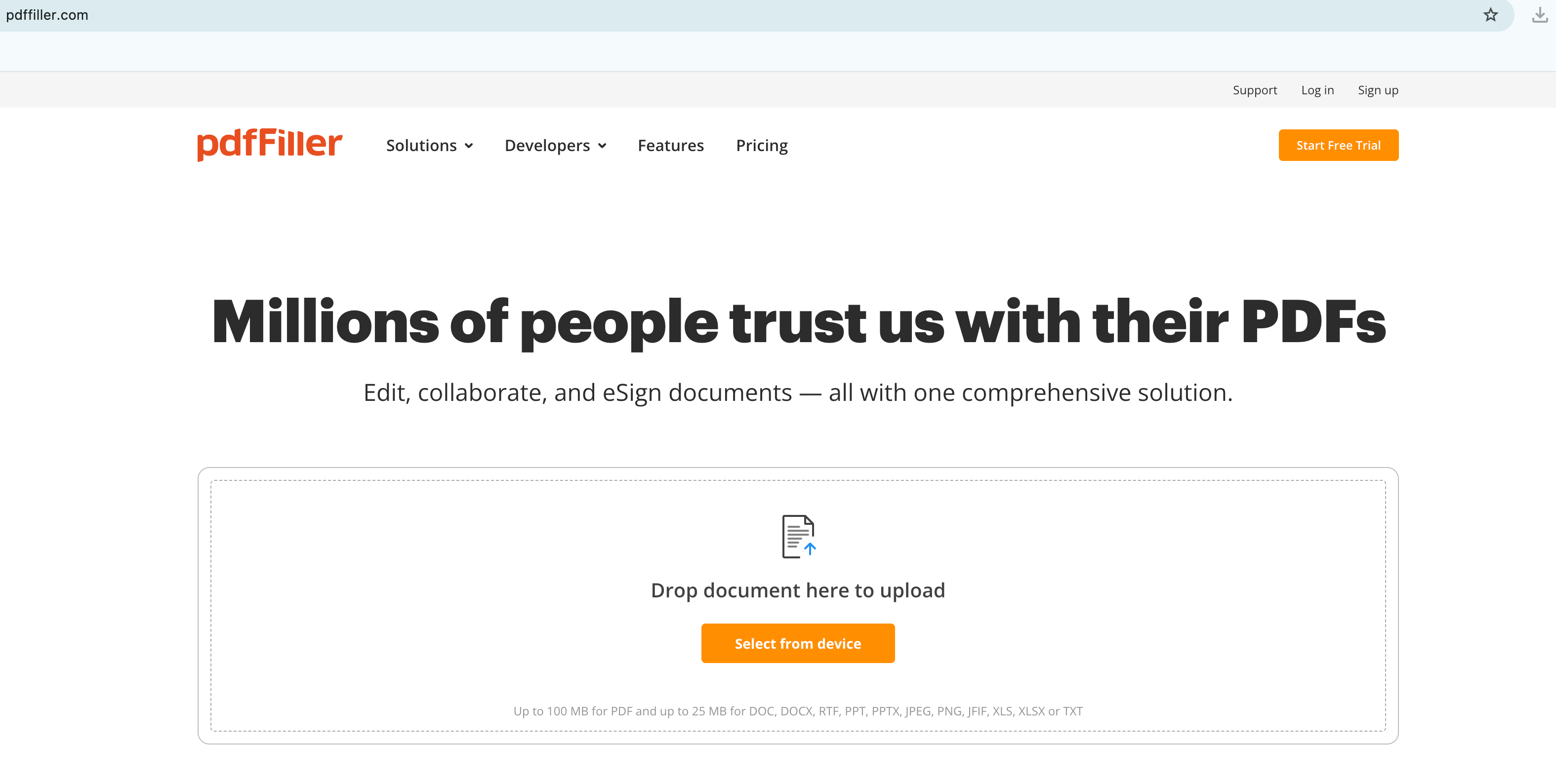
Once the file is uploaded, press the “Start editing” button.
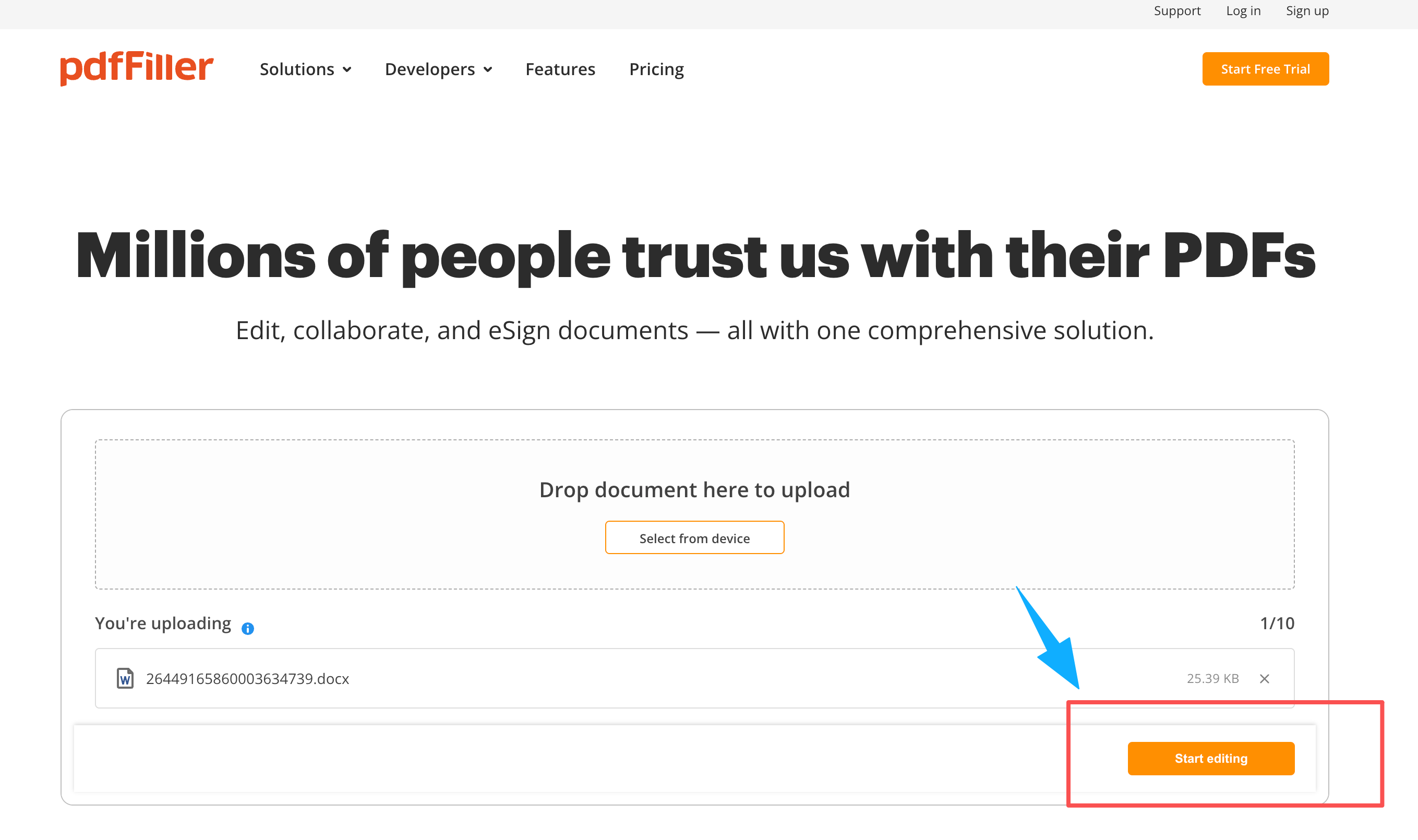
Click Start editing on a scanned PDF in an online PDF editor Overlay or wipe the old text, then type your corrections.
Download the updated file.
If privacy, multi-page control, or cleaner formatting matters more than a one-click online PDF edit, the next option is to stay inside desktop word processors you already know.
Method 2: Microsoft Word & Google Docs for How to Edit Scanned PDF
Microsoft Word can open a scan and turn it into editable text through OCR. Google Docs does the same when you open a Drive PDF as a Doc. Because the file starts as an image, columns, tables, and spacing often shift during conversion—so plan to clean up the layout after the text appears.
Here are the basic steps for both.
Microsoft Word
Open the scanned PDF directly in Microsoft Word, or run it through a PDF-to-Word converter first if you want a cleaner conversion.
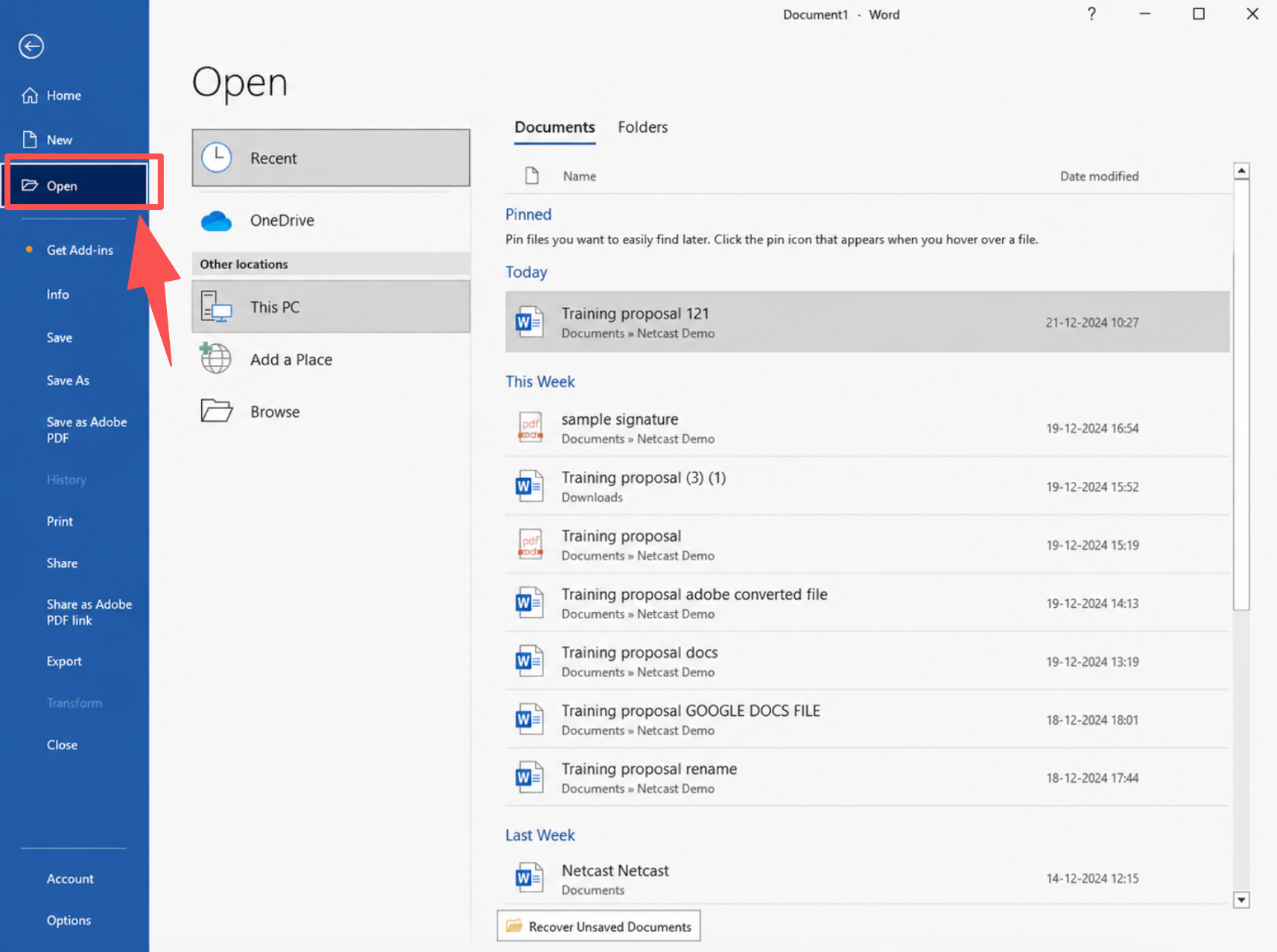
Let Word convert the file with OCR, then wait until the document finishes loading.
Review the text and fix obvious OCR mistakes—wrong words, broken lines, or missing characters.
Clean up the layout. Adjust spacing, alignment, and page breaks so the page is readable again.
Edit the content by typing over text, changing fonts, or removing sections you no longer need.
Re-type anything that did not convert properly.
Save the file as a Word document, or export it back to PDF when you are done.
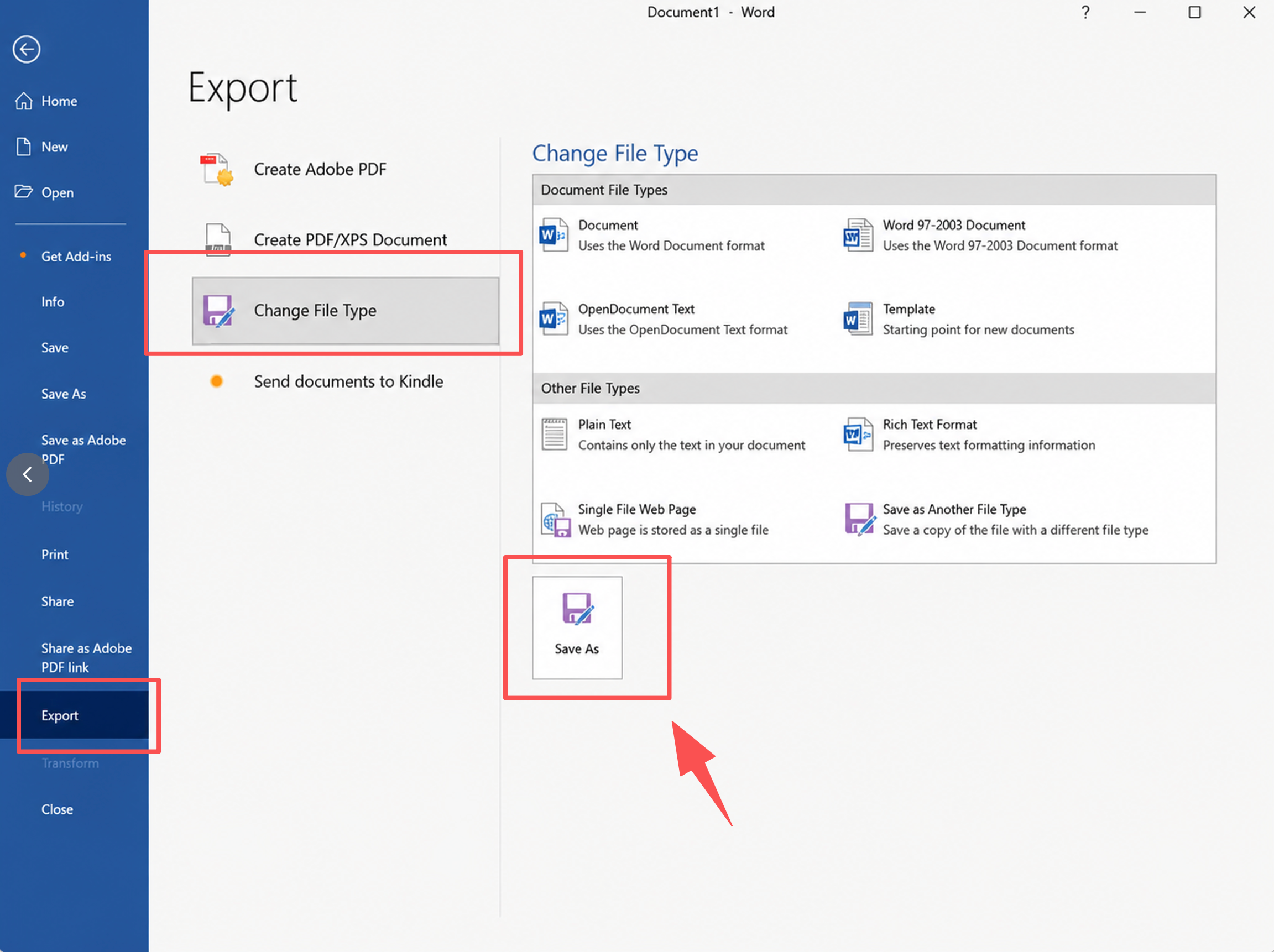
Save the OCR-converted document in Microsoft Word or export to PDF
Google Docs
Upload the scanned PDF to Google Drive, then open it with Google Docs to trigger OCR.
Open a scanned PDF with Google Docs from Google Drive for OCR Wait for the file to convert into an editable document.
Review the text and fix errors such as wrong characters or missing lines.
Adjust formatting—spacing and structure usually shift during conversion.
Edit the text directly, just like a normal document.
Fill in any parts that did not convert by typing them again.
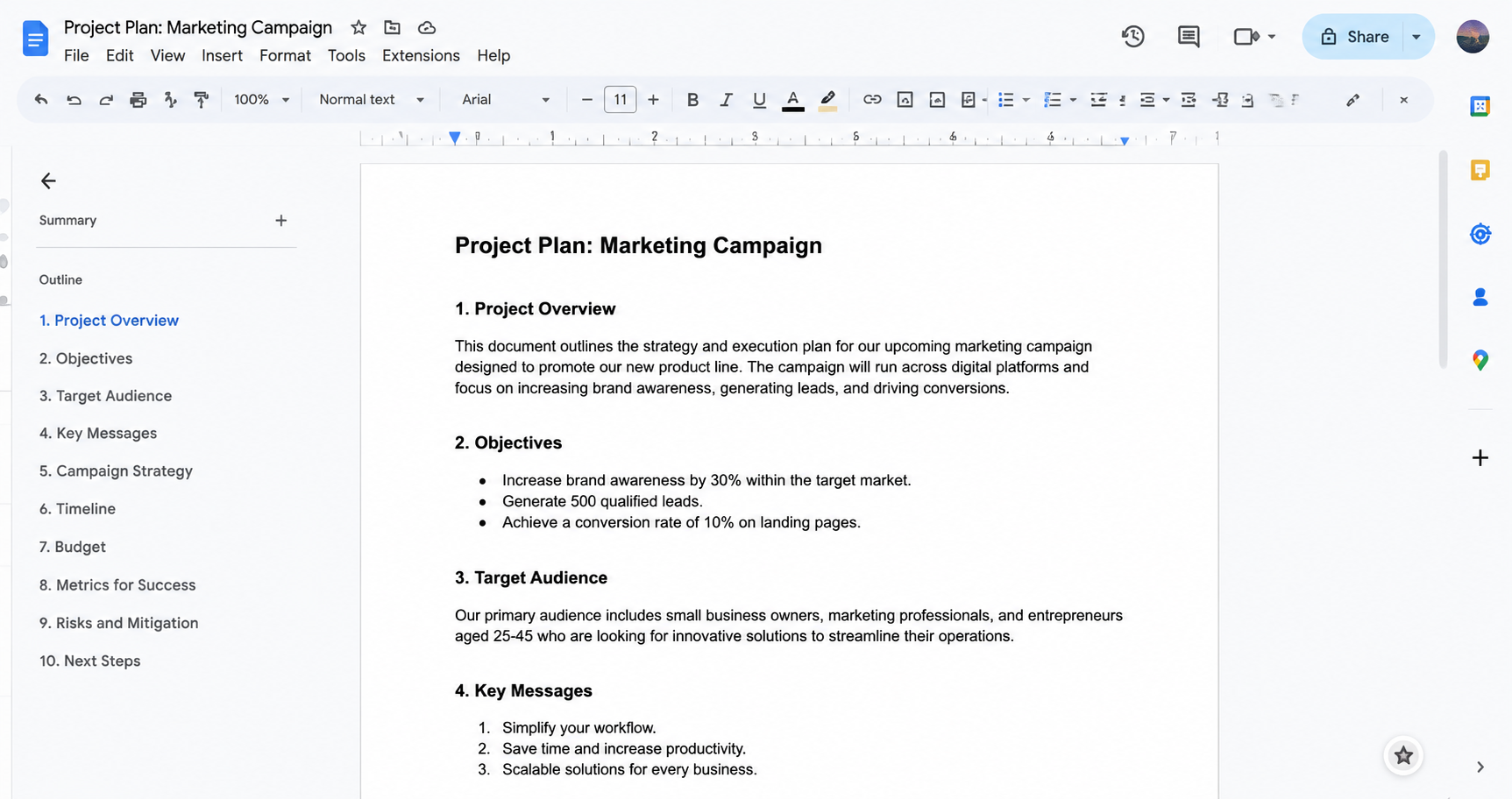
Download the result as a PDF or Word file, or keep it saved in Google Docs.
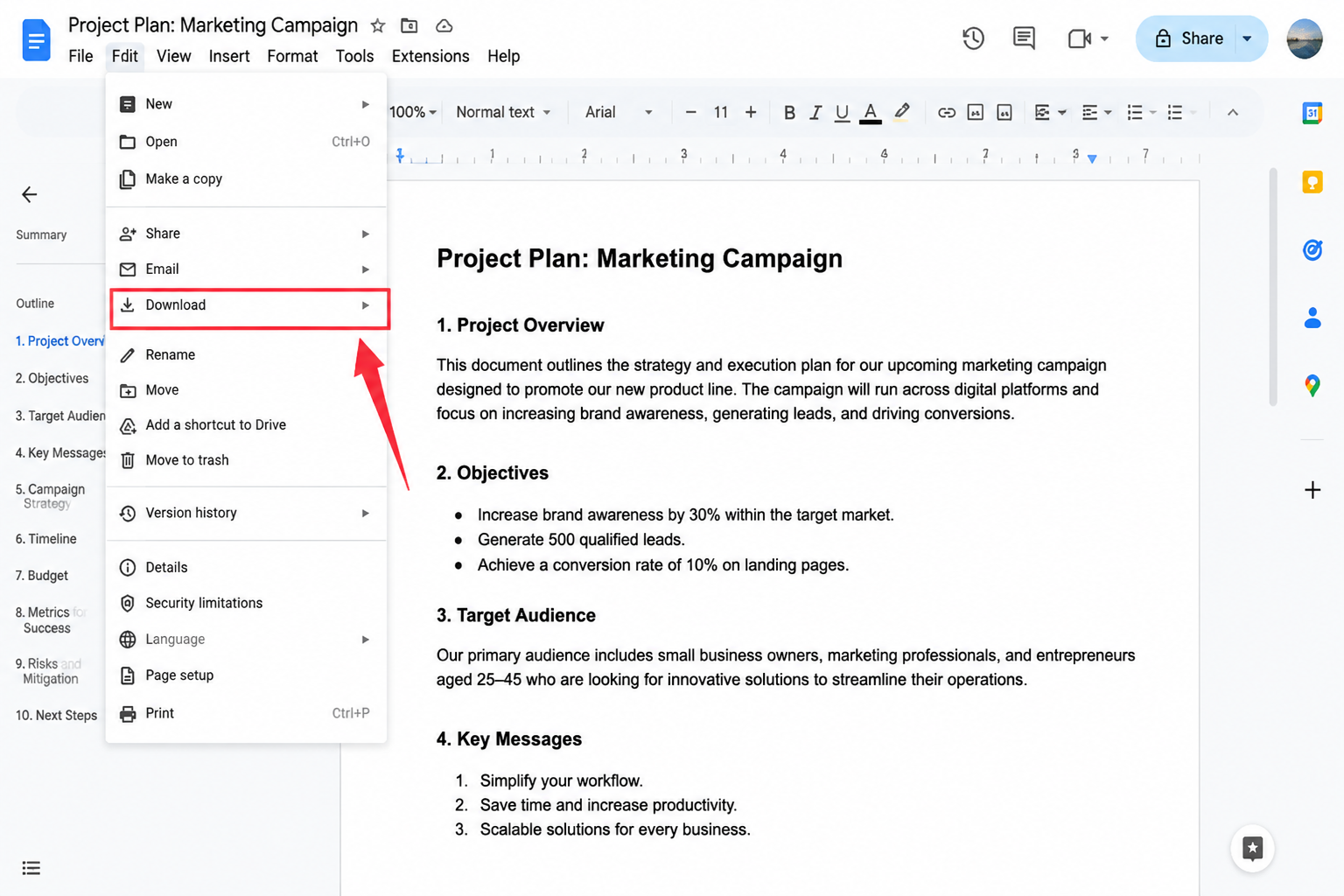
Download the edited Google Docs file as PDF or Word
The main catch is the formatting cleanup. Columns can shift, tables can break, and margins can wander. You may successfully convert scanned PDF to Word, but you often spend more time repairing the design than fixing the original typo. This path works well when you mainly need the words; it gets painful when appearance still matters.
When the final look must stay close to the original scan—and a broken layout after OCR is not acceptable—professional design software is the next path, though it comes with a steeper learning curve and cost.
Method 3: Professional Design Software for How to Edit Scanned PDF
Photoshop opens a scanned page as an image layer, not as live text. That gives you precise visual control—erase a line, match the paper texture, and retype a corrected word so the page still looks original—but it takes more time than OCR-based editors.
Here is the process:
Open Photoshop and go to File > Open, then pick your scanned PDF or image from your computer.
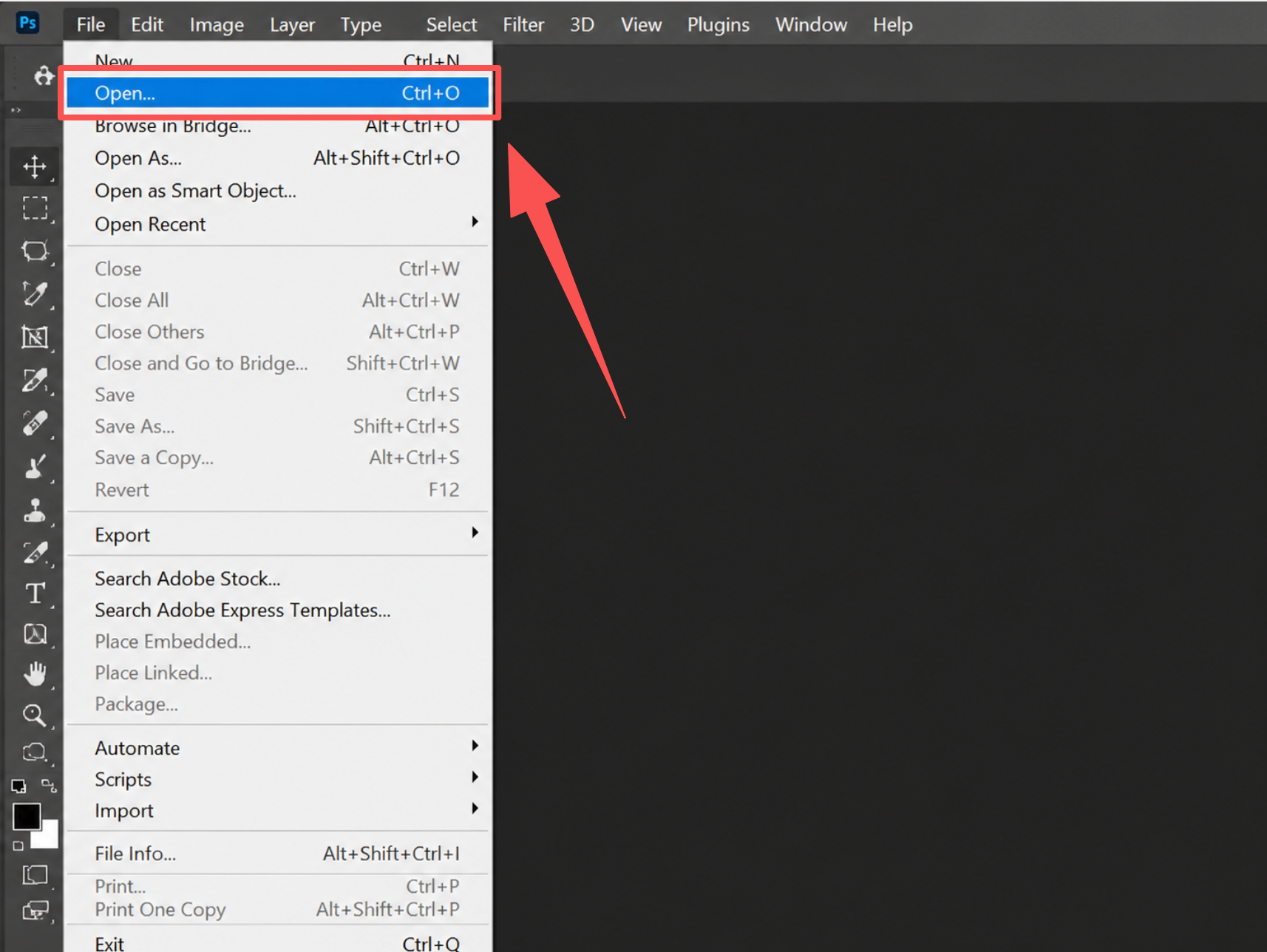
Open a scanned PDF in Photoshop as an image layer Wait for the file to load into Photoshop as an image or PDF layer.
Zoom in on the text you want to change so you can see it clearly.
Note the font style. If you need a close match, crop that text area and check a font finder such as WhatTheFont, then install the font if you do not already have it.
Open the Layers panel and duplicate the background layer with Ctrl + J (Windows) or Cmd + J (Mac) so you keep a backup.
Use the Lasso Tool or a box select tool to mark the text you want to remove.
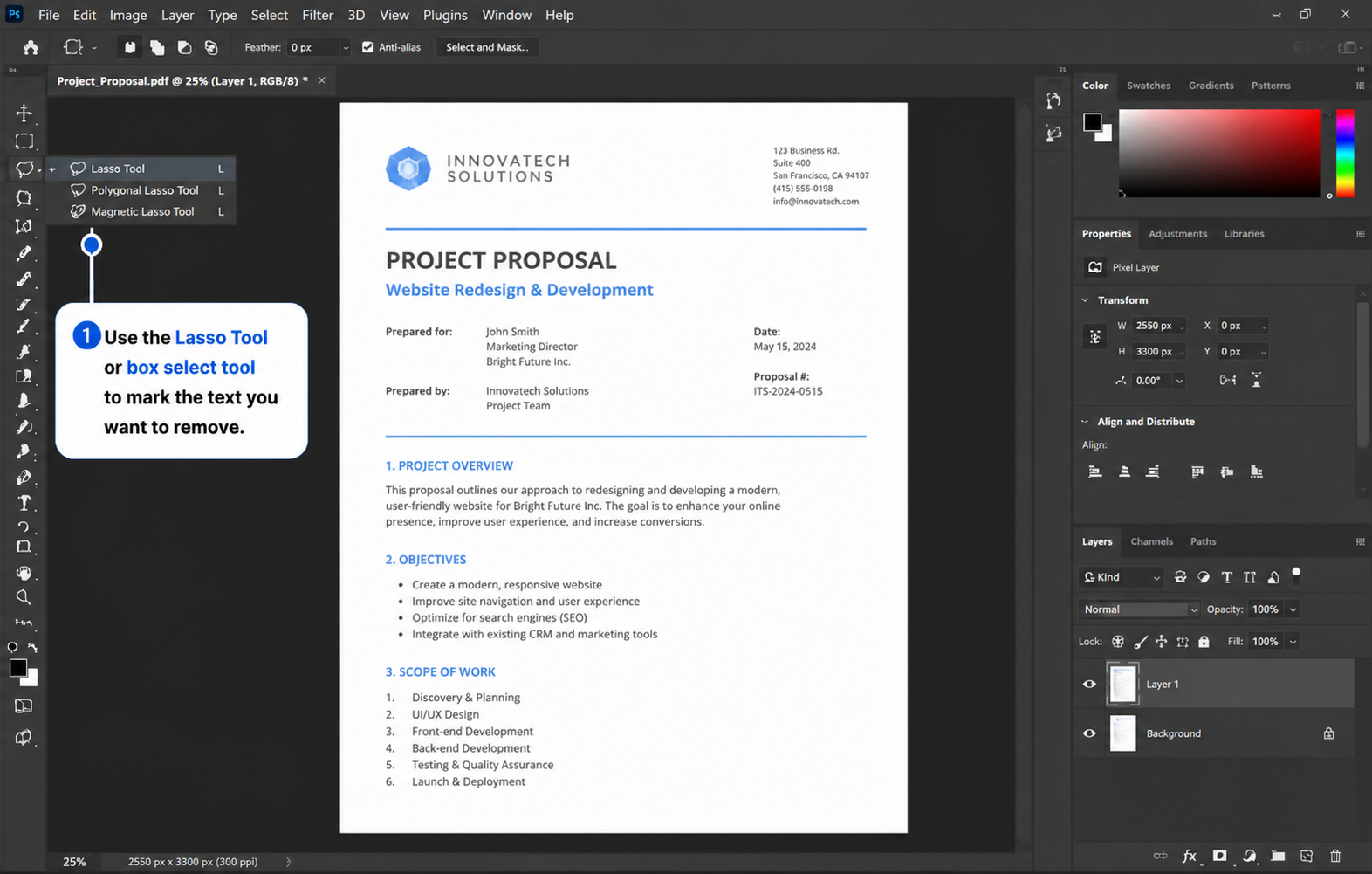
Go to Edit > Content-Aware Fill (or press Shift + Backspace / Shift + Delete, then choose Content-Aware). Photoshop fills the selected area with nearby paper texture. Click OK.
Pick the Text Tool (T) and click on the cleaned area to add new text.
Type your replacement text and set the font, size, and spacing to match the original.
Move the text until it lines up with the rest of the page.
Save the file as a PSD if you want to edit later, or export it as a PDF/image when done.
You can get near-perfect visuals—but the cost is steep. The process is slow, the learning curve is real, and professional design licenses add up. For most office edits, it is overkill.
If you want OCR-backed edits without uploading sensitive files or rebuilding pages in Photoshop, the fourth method keeps recognition and editing inside one free office suite.
Method 4: How to Edit Scanned PDF Directly in WPS Office
If you want to know how to make a scanned PDF editable without bouncing between upload sites, Word conversions, and design apps, WPS Office provides a straightforward way to solve this problem by running OCR and text editing in the same workspace. Unlike Word or Photoshop workflows, you stay inside one office suite: recognize the scan, edit the text, and save—without rebuilding the page by hand.
Pricing tip: Basic PDF editing in WPS is free, which covers everyday text and layout changes for many users. More advanced PDF features may require a paid plan, but the overall value is typically strong compared with buying a standalone premium PDF editor.
Option A: Edit the Scanned PDF directly in WPS (best when you need PDF output)
Choose this path if your final file should remain a PDF—contracts, forms, reports, or any document you plan to share back as PDF. Native PDF editing avoids unnecessary round-trips between formats.
Open WPS Office, click Menu > Open, and open your scanned PDF file directly inside the application.
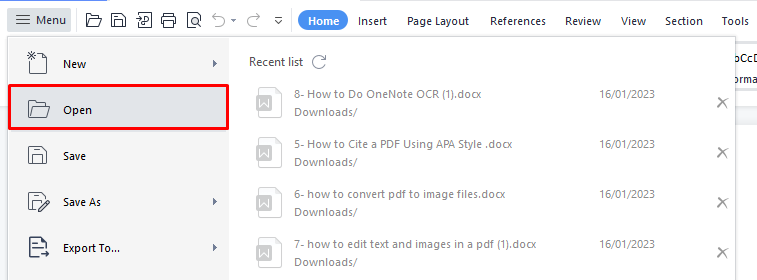
Go to the PDF tab and choose Edit Content (or the equivalent edit tools in the PDF ribbon).
Update text, fonts, images, and paragraphs directly in the PDF—similar to editing a Word document—then save your file as PDF.
This is the smoothest option when PDF is your end format and you only need practical edits rather than a full Word rewrite.
Option B: Convert Scanned PDF to Word in WPS, then edit (best when you need Word output)
Choose this path if your final deliverable is a Word document—for deeper rewriting, collaboration, or long-form edits. WPS includes a free built-in PDF to Word converter that keeps files local and produces high-fidelity results, so you can edit pdf in word without uploading to a third-party site.
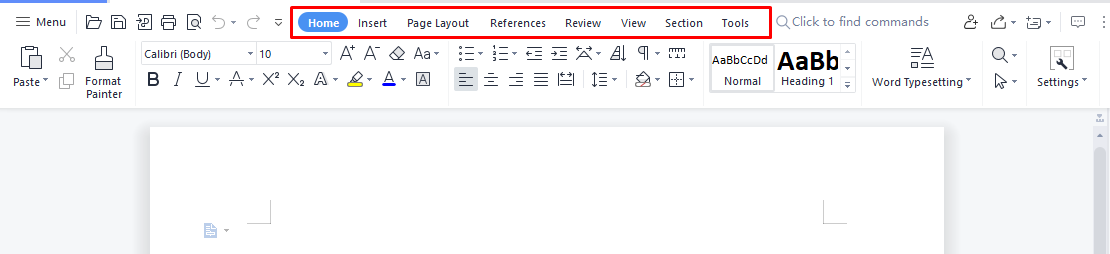
Open WPS Office on your computer, then go to the Tools tab in the left sidebar.

Click PDF to Word to start the free built-in conversion.

In the converter window, click to add your Scanned PDF file (or drag and drop it into the upload area).

Choose your conversion settings (enable OCR if the text is inside a scanned image or photo), then click Convert.

WPS generates an editable Word document. From there, you can edit the scanned pdf in word instantly—update text, fix tables, and adjust formatting with ease—then save as
.docx(or convert back to PDF later if needed).
With the WPS steps covered, it helps to put all four approaches side by side. A quick comparison makes the trade-offs—and the recurring pain points—much clearer before you choose a default workflow.
Comparing the 4 Methods: Which One Fits Your Workflow?
Each method above can edit a scanned PDF, but they solve different jobs—and they fail in different ways. Use this comparison to match the tool to your document, privacy needs, and how much layout cleanup you can tolerate.
Side-by-side comparison
| Method | What to expect |
|---|---|
| Online PDF editors | Fastest for a one-page fix, but your file leaves your device. Weak privacy, weak multi-page control, and limited layout precision. |
| Microsoft Word & Google Docs | Convenient when you only need the words. OCR often breaks columns, tables, and spacing, so “editable” can still mean a long cleanup session. |
| Professional design software | Best visual fidelity for stamps, logos, or pixel-perfect patches. Slow, skill-heavy, and expensive for everyday office edits. |
| WPS Office | Keeps OCR and editing in one local workspace. You can edit the PDF directly or convert to Word—without juggling upload sites, broken layouts, and design-suite overhead. |
Put simply, the common pain points stack up quickly: privacy risk online, formatting damage after OCR, and overkill cost in design tools. If your goal is a practical, free way to make a scanned PDF editable without those detours, that gap is exactly where WPS Office stands out.
Best Free Alternative: WPS Office
For most people searching how to edit a scanned PDF, the best free alternative is not another browser uploader or a full design suite—it is an office suite that already includes OCR-backed PDF tools. WPS Office fits that role: basic PDF editing is free, files can stay on your computer, and you can finish the job in one place.More advanced PDF features may require a paid plan, but the overall value is typically strong compared with buying a standalone premium PDF editor.
Choose WPS when you need to:
Fix text in a scanned contract, form, or report without uploading it to a third-party site
Run OCR once, then edit like a normal document—either keep PDF output or convert to Word
Avoid paying for a standalone premium PDF editor just to correct a few lines
Reduce the formatting repair cycle that often follows Word/Google Docs conversions
If you have not tried it yet, download WPS Office for free, open your scan, and use Edit Content or the built-in PDF to Word converter with OCR enabled. In most day-to-day cases, that single workflow replaces the patchwork of online editors, layout cleanup, and design-software workarounds.
Still have a specific edge case? The FAQs below cover free editing limits, OCR failures, and converting scanned tables into Excel.
FAQs
Can I edit a scanned PDF for free?
Yes-many tools offer limited free PDF OCR or trial edits. Online editors often cap pages or features; WPS Office lets you start with free OCR-backed editing in a full desktop workflow without paying just to fix a few lines.
Why is my OCR failing to recognize text?
Usually the scan is too low-resolution, skewed, low-contrast, or using the wrong language setting. Rescan sharper, straighten the page, improve lighting, and confirm the OCR language matches the document.
Can WPS convert scanned PDFs into editable Excel tables?
Yes. After OCR recognizes the content, you can convert structured data into editable spreadsheet format-useful when a scanned invoice or form needs real cells, not a static picture of a table.

'%3e%3cpath%20d='M19.9911%204.11386V6.471H18.5894C18.0775%206.471%2017.7322%206.57814%2017.5536%206.79243C17.3751%207.00671%2017.2858%207.32814%2017.2858%207.75671V9.44421H19.9019L19.5536%2012.0871H17.2858V18.8639H14.5536V12.0871H12.2769V9.44421H14.5536V7.49779C14.5536%206.39064%2014.8632%205.53201%2015.4822%204.92189C16.1013%204.31177%2016.9257%204.00671%2017.9554%204.00671C18.8304%204.00671%2019.509%204.04243%2019.9911%204.11386Z'%20fill='%23333333'/%3e%3c/g%3e%3cdefs%3e%3cclipPath%20id='clip0_2938_8199'%3e%3crect%20width='16'%20height='16'%20fill='white'%20transform='translate(8%204.00671)'/%3e%3c/clipPath%3e%3c/defs%3e%3c/svg%3e)
'%3e%3cpath%20d='M17.5237%2010.7813L23.4811%204H22.0699L16.8949%209.88693L12.7648%204H8L14.2469%2012.9029L8%2020.0133H9.4112L14.8725%2013.7952L19.2352%2020.0133H24M9.92053%205.04213H12.0885L22.0688%2019.0224H19.9003'%20fill='%23333333'/%3e%3c/g%3e%3cdefs%3e%3cclipPath%20id='clip0_2938_8200'%3e%3crect%20width='16'%20height='16.0134'%20fill='white'%20transform='translate(8%204)'/%3e%3c/clipPath%3e%3c/defs%3e%3c/svg%3e)


