

'%3e%3cpath%20d='M8%200C12.4183%200%2016%203.58172%2016%208C16%2012.4183%2012.4183%2016%208%2016C3.58172%2016%200%2012.4183%200%208C0%203.58172%203.58172%200%208%200ZM11.6162%204.38379C11.2257%203.99337%2010.5927%203.99338%2010.2021%204.38379L8%206.58594L5.79785%204.38379C5.40732%203.99334%204.77429%203.99329%204.38379%204.38379C3.99331%204.77429%203.99335%205.40733%204.38379%205.79785L6.58594%208L4.38379%2010.2021C3.99348%2010.5927%203.99341%2011.2257%204.38379%2011.6162C4.77426%2012.0066%205.40734%2012.0065%205.79785%2011.6162L8%209.41406L10.2021%2011.6162C10.5927%2012.0066%2011.2257%2012.0067%2011.6162%2011.6162C12.0067%2011.2257%2012.0066%2010.5927%2011.6162%2010.2021L9.41406%208L11.6162%205.79785C12.0066%205.40735%2012.0066%204.77429%2011.6162%204.38379Z'%20fill='%23080E17'%20fill-opacity='0.46'/%3e%3c/g%3e%3cdefs%3e%3cclipPath%20id='clip0_3761_713'%3e%3crect%20width='16'%20height='16'%20fill='white'/%3e%3c/clipPath%3e%3c/defs%3e%3c/svg%3e)




'%3e%3cpath%20fill-rule='evenodd'%20clip-rule='evenodd'%20d='M21.4999%2010.9993C21.4999%205.20009%2016.7986%200.498901%2010.9993%200.498901C5.19994%200.498901%200.498657%205.20009%200.498657%2010.9993C0.498657%2016.2404%204.33858%2020.5844%209.35855%2021.3722V14.0346H6.69238V10.9993H9.35855V8.68594C9.35855%206.05427%2010.9262%204.60062%2013.3248%204.60062C14.4736%204.60062%2015.6753%204.80571%2015.6753%204.80571V7.38979H14.3512C13.0468%207.38979%2012.64%208.19921%2012.64%209.0296V10.9993H15.5523L15.0867%2014.0346H12.64V21.3722C17.66%2020.5844%2021.4999%2016.2404%2021.4999%2010.9993Z'%20fill='%231568EA'/%3e%3c/g%3e%3c/svg%3e)


'%3e%3cpath%20d='M2.42045%2022.1876H6.31818V12.7217L0.75%208.54553V20.5171C0.75%2021.4414%201.49892%2022.1876%202.42045%2022.1876Z'%20fill='%234285F4'/%3e%3cpath%20d='M19.682%2022.1876H23.5797C24.5041%2022.1876%2025.2502%2021.4387%2025.2502%2020.5171V8.54553L19.682%2012.7217'%20fill='%2334A853'/%3e%3cpath%20d='M19.682%205.48293V12.7216L25.2502%208.54543V6.31816C25.2502%204.25236%2022.8921%203.07469%2021.2411%204.31361'%20fill='%23FBBC04'/%3e%3cpath%20d='M6.31824%2012.7217V5.48303L13.0001%2010.4944L19.6819%205.48303V12.7217L13.0001%2017.733'%20fill='%23EA4335'/%3e%3cpath%20d='M0.75%206.31816V8.54543L6.31818%2012.7216V5.48293L4.75909%204.31361C3.10534%203.07469%200.75%204.25236%200.75%206.31816Z'%20fill='%23C5221F'/%3e%3c/g%3e%3cdefs%3e%3cclipPath%20id='clip0_2954_7305'%3e%3crect%20width='24.5'%20height='18.375'%20fill='white'%20transform='translate(0.75%203.8125)'/%3e%3c/clipPath%3e%3c/defs%3e%3c/svg%3e)


Working with a PDF file is often a nightmare.
Direct editing of a PDF is usually inconvenient-especially when you need to fill forms, resume edit pdf, fix wording, add annotations, or reuse content without rebuilding the document from scratch.
Looking for a quick pdfFiller workflow? pdfFiller is one of the most visible online PDF editors for this job-and this guide covers online first, then offline/app options, Web vs app differences, and a freer alternative.
Below you'll learn how to edit pdf files with pdfFiller online (including which devices the online tool supports), how to work offline with the pdfFiller app, how Web vs app compares, and why WPS PDF is a strong free alternative when pdfFiller's limits get in the way.
1. Edit PDFs With pdfFiller
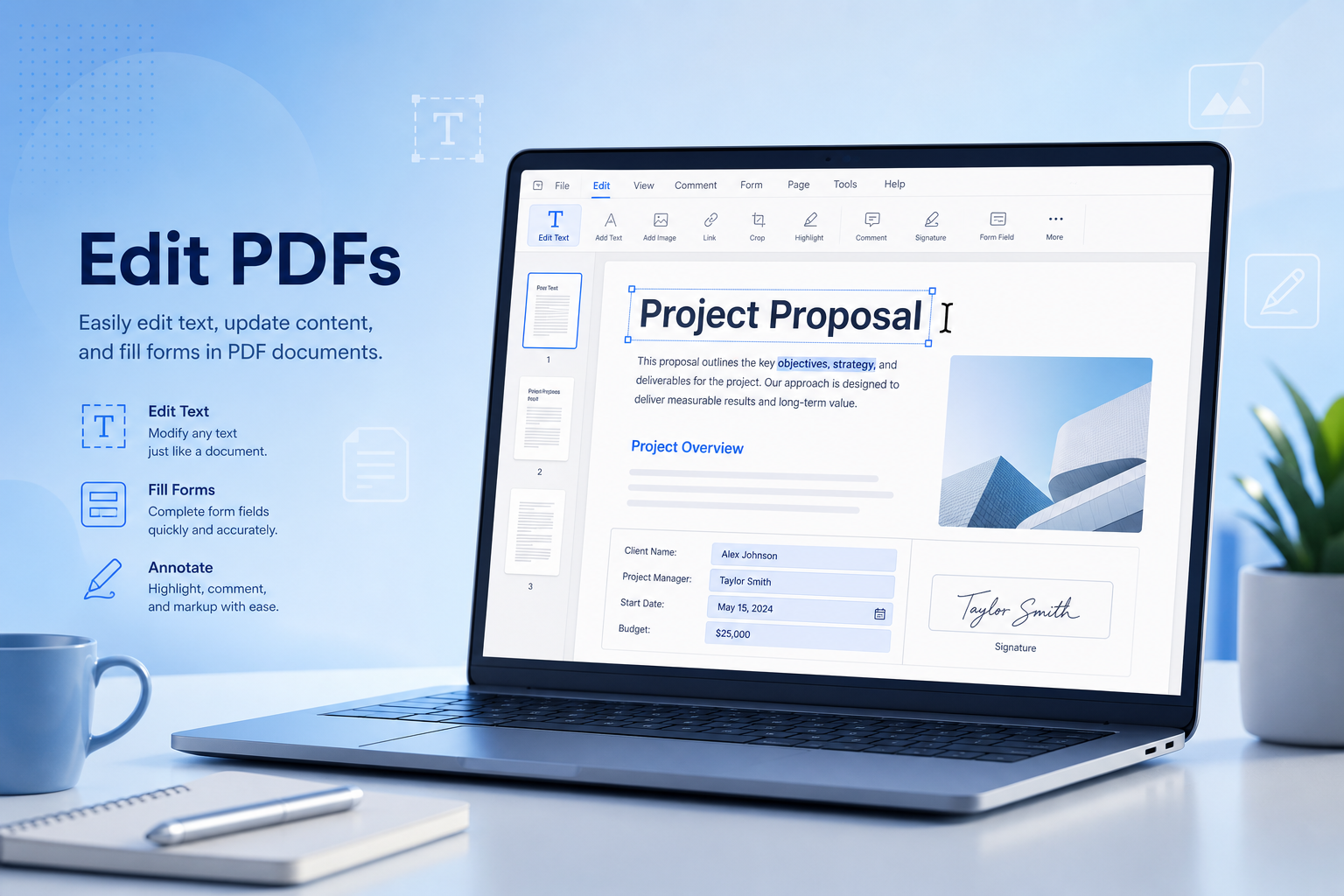
pdfFiller workflows stay approachable because pdfFiller focuses on everyday PDF tasks-fill forms, type over content, sign, annotate, and export-without forcing you into a bloated desktop suite first.
pdfFiller offers two practical ways to do the same job:
pdfFiller Web (online): Works in a browser on Windows PC, Mac, Linux, and mobile browsers on iPhone/Android.
pdfFiller app (offline-friendly): Mobile/desktop-style app access for editing when you prefer working from a device app instead of a browser tab.
Beyond basic editing, pdfFiller also supports related PDF tasks such as form filling, e-signing, annotations, document sharing, and export to common formats.
Pros:
Beginner-friendly pdfFiller experience for forms and light edits
Online access in any modern browser-including mobile browsers
Helpful for fillable forms, signatures, and quick text overlays
Cloud imports/exports commonly available for everyday document workflows
Useful when you need a finished PDF for submission, not a full redesign
Cons:
Web editing depends on a third-party online service
Free/trial limits and feature gates can interrupt heavier editing work; if you need to edit pdf online free without login, a quick web editor may fit better
Complex layouts may still need cleanup after advanced edits
Scanned or image-only PDFs may require OCR or overlay workarounds
Frequent office users may want a freer all-in-one PDF + Word workflow
In short, pdfFiller is a convenient starting point for quick pdfFiller tasks-especially online-if the document type fits and you stay within plan limits.


2. How to Edit PDFs Online With pdfFiller?
For most searches around pdfFiller, the online editor is the primary solution. pdfFiller Web runs in your browser-no desktop install required.
Which versions/devices support pdfFiller online?
Windows / Mac / Linux PC: Chrome, Edge, Firefox, Safari, or another modern browser
iPhone: Safari (or Chrome) ? pdfFiller editor page
Android: Chrome (or another browser) ? pdfFiller editor page
There is no separate full native workflow required for basic online editing-mobile users can use the same pdfFiller Web tool in the browser.
Steps: Edit a PDF free online (PC or mobile browser)
Step 1: Open pdfFiller in your browser and upload your PDF. On PC, click upload (or drag and drop). On iPhone/Android, tap upload and pick a file from storage, Files, Google Drive, or Dropbox.
Step 2: Confirm whether the PDF has real form fields. If fields are available, click into them and type. If the PDF is flattened, use text tools to place content where needed.
Step 3: Make your edits-fill forms, edit pdf text, add annotations, or place a signature as needed. Keep font size and alignment consistent so the page still looks professional.
Step 4: Review every edited page. Check names, dates, checkboxes, and any overlay text that might shift at normal zoom.
Step 5: Export or download the finished PDF. On mobile, open it in WPS Office, Microsoft Word (if converted), or another viewer if you need a final check before submitting.
Note: Online editors are best for non-sensitive, everyday files. If your PDF contains confidential information, prefer a local workflow-or at least confirm the platform's retention/deletion policy before uploading.
3. How to Edit PDFs Offline With pdfFiller?
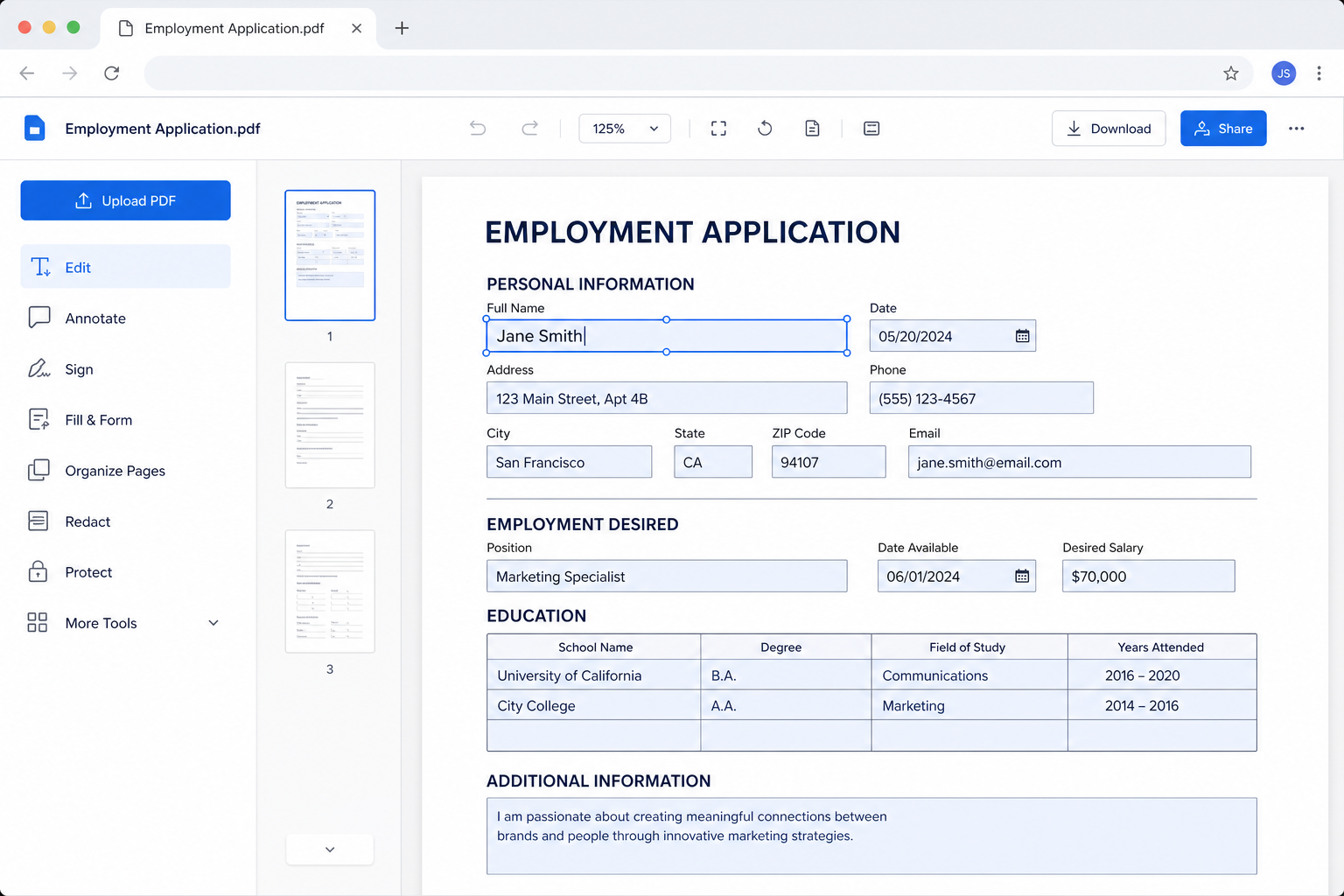
Prefer not to keep everything in a browser tab? Use the pdfFiller app workflow for more device-based editing. This is useful when you repeatedly edit forms on the same phone or tablet, or when you want a more app-like experience than a mobile browser.
Step 1: Install the pdfFiller app from your device's app store (or open the desktop/app entry point offered for your platform).
Step 2: Sign in and open the PDF editor tool.
Step 3: Import or choose the PDF file you want to edit.
Step 4: Fill fields, add text, annotate, or sign as needed.
Step 5: Save/export the finished PDF and verify the result before sharing.
If your priority is true local processing with no cloud dependency, keep reading-WPS PDF is often the cleaner long-term option for frequent office work.
4. pdfFiller Web vs pdfFiller App
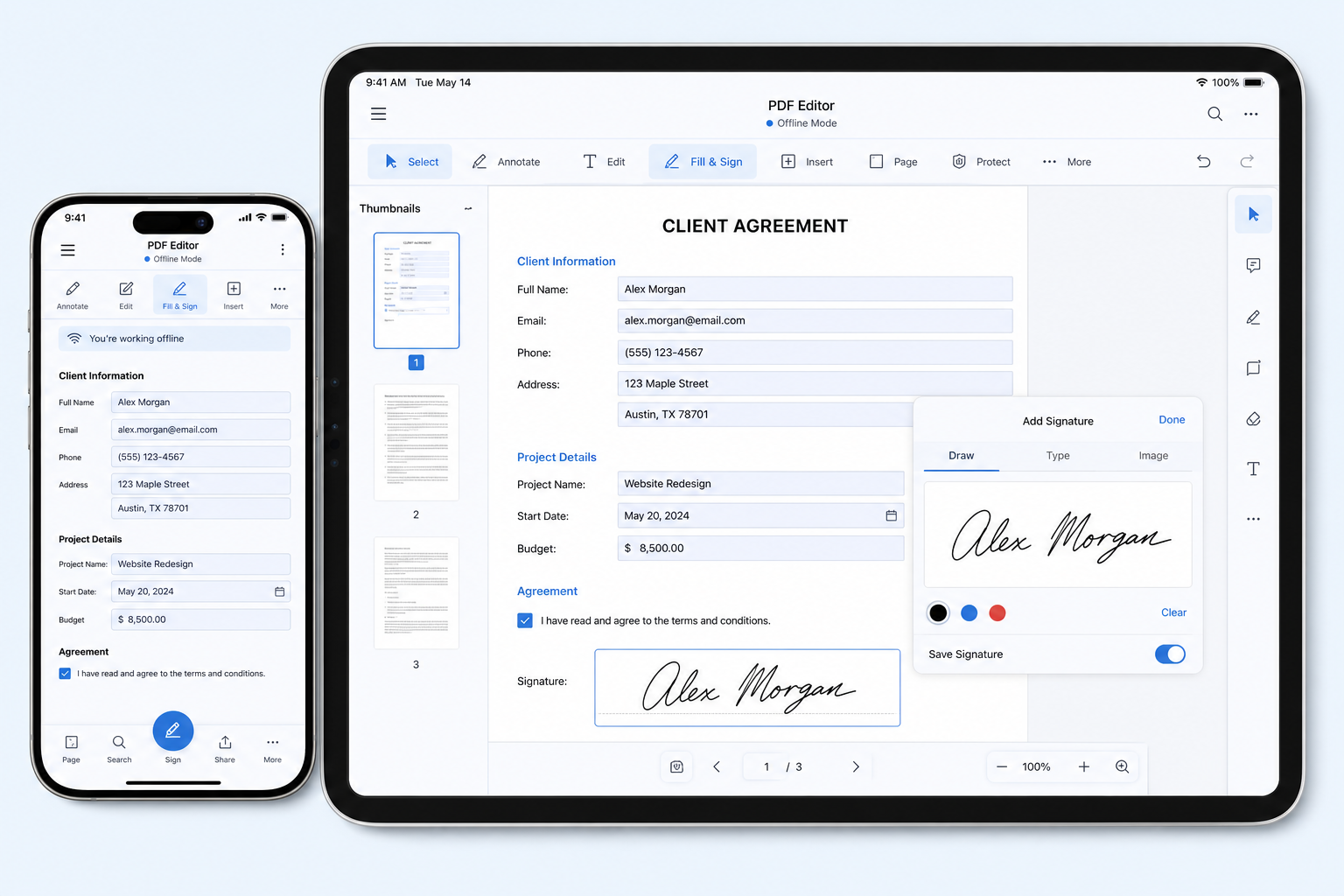
On everyday devices, you can use either pdfFiller Web or the pdfFiller app. The app feels better for repeated mobile work; the Web tool is better for quick one-off edits on a PC.
| Feature | pdfFiller Web (Online) | pdfFiller App |
|---|---|---|
| Installation | No install required | Requires app install |
| File handling | Processed through the online service | More device-centered workflow |
| Best platforms | Any modern browser on PC or mobile | Phone/tablet app use cases |
| Best for | Quick one-off edits | Repeated form work on the same device |
Quick tip: Use pdfFiller Web for fast online jobs. Switch to the app when you edit the same kinds of forms regularly on mobile. If free limits or missing office follow-up editing become the problem, consider WPS PDF.
5. Best Alternative to pdfFiller: WPS Office
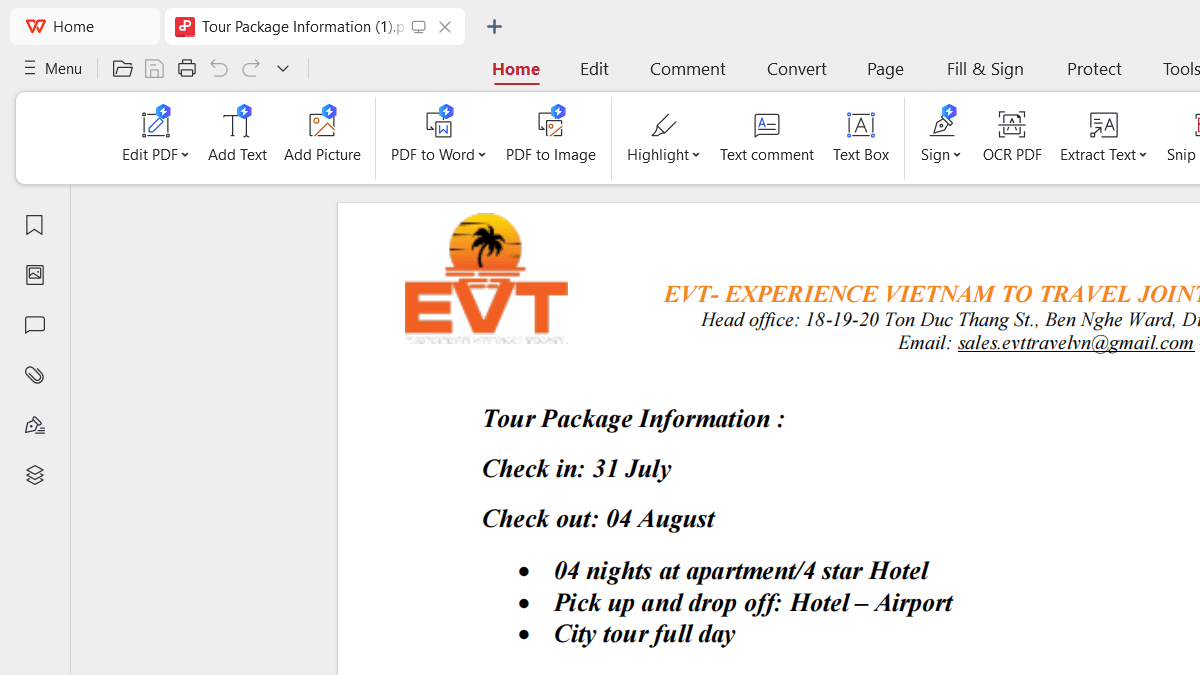
If pdfFiller's plan limits interrupt your work-or you need freer everyday PDF editing plus office document follow-up-WPS Office is a strong alternative to a pdfFiller workflow, especially with WPS PDF tools and free Word editing afterward.
Here is how WPS advantages map against common pdfFiller friction points:
Everyday free PDF work: WPS PDF tools are built for practical conversion and editing without turning every job into a gated online session.
Free editing after conversion: Convert PDF to Word when needed, then open the .docx in WPS Writer to edit text, layout, and formatting for free.
Online free convenience: Handle common PDF tasks in the browser without jumping between multiple one-off tools.
All-in-one follow-up: Stay in WPS to continue writing, formatting, and exporting-instead of bouncing between a form filler and another editor.
How to Edit or Convert PDFs Online Free With WPS
Step 1: Open WPS PDF Tools Online in your browser (for example, PDF to Word or PDF editing tools, depending on your task).
Step 2: Click upload / Select File and choose your PDF.
Step 3: Start the task and download the result when ready.
Step 4: Open the file in WPS Writer or WPS PDF to continue editing for free.
Frequently Asked Questions (FAQs)
Q: Are there any limitations when using a pdfFiller?
A: Yes. Online PDF editors often limit free tasks, advanced features, or heavy document handling. For freer everyday conversion plus free Word editing afterward, use WPS PDF Tools Online and WPS Writer.
Q: Does pdfFiller online work on iPhone and Android?
A: Yes. pdfFiller online works in mobile browsers. Use Safari/Chrome, upload your PDF, edit, then download. For deeper mobile editing afterward, open the result in WPS Office.
Q: How do you keep formatting intact when editing a PDF?
A: Edit only what you must, keep font sizes consistent, and review at 100% zoom before export. If the PDF is scanned or heavily designed, convert to Word in WPS and clean up spacing there.
Q: When should I use the pdfFiller app instead of pdfFiller Web?
A: Use the app when you repeatedly edit forms on the same phone or tablet. Use Web for quick one-off jobs on a PC. Use WPS when you need a more complete office PDF workflow.
Q: Is pdfFiller free for basic PDF editing?
A: Basic online editing is often available with plan limits. If those limits block you, WPS Office online free conversion plus free editing after conversion is usually the more complete workflow.



'%3e%3cpath%20d='M19.9911%204.11386V6.471H18.5894C18.0775%206.471%2017.7322%206.57814%2017.5536%206.79243C17.3751%207.00671%2017.2858%207.32814%2017.2858%207.75671V9.44421H19.9019L19.5536%2012.0871H17.2858V18.8639H14.5536V12.0871H12.2769V9.44421H14.5536V7.49779C14.5536%206.39064%2014.8632%205.53201%2015.4822%204.92189C16.1013%204.31177%2016.9257%204.00671%2017.9554%204.00671C18.8304%204.00671%2019.509%204.04243%2019.9911%204.11386Z'%20fill='%23333333'/%3e%3c/g%3e%3cdefs%3e%3cclipPath%20id='clip0_2938_8199'%3e%3crect%20width='16'%20height='16'%20fill='white'%20transform='translate(8%204.00671)'/%3e%3c/clipPath%3e%3c/defs%3e%3c/svg%3e)
'%3e%3cpath%20d='M17.5237%2010.7813L23.4811%204H22.0699L16.8949%209.88693L12.7648%204H8L14.2469%2012.9029L8%2020.0133H9.4112L14.8725%2013.7952L19.2352%2020.0133H24M9.92053%205.04213H12.0885L22.0688%2019.0224H19.9003'%20fill='%23333333'/%3e%3c/g%3e%3cdefs%3e%3cclipPath%20id='clip0_2938_8200'%3e%3crect%20width='16'%20height='16.0134'%20fill='white'%20transform='translate(8%204)'/%3e%3c/clipPath%3e%3c/defs%3e%3c/svg%3e)


