

'%3e%3cpath%20d='M8%200C12.4183%200%2016%203.58172%2016%208C16%2012.4183%2012.4183%2016%208%2016C3.58172%2016%200%2012.4183%200%208C0%203.58172%203.58172%200%208%200ZM11.6162%204.38379C11.2257%203.99337%2010.5927%203.99338%2010.2021%204.38379L8%206.58594L5.79785%204.38379C5.40732%203.99334%204.77429%203.99329%204.38379%204.38379C3.99331%204.77429%203.99335%205.40733%204.38379%205.79785L6.58594%208L4.38379%2010.2021C3.99348%2010.5927%203.99341%2011.2257%204.38379%2011.6162C4.77426%2012.0066%205.40734%2012.0065%205.79785%2011.6162L8%209.41406L10.2021%2011.6162C10.5927%2012.0066%2011.2257%2012.0067%2011.6162%2011.6162C12.0067%2011.2257%2012.0066%2010.5927%2011.6162%2010.2021L9.41406%208L11.6162%205.79785C12.0066%205.40735%2012.0066%204.77429%2011.6162%204.38379Z'%20fill='%23080E17'%20fill-opacity='0.46'/%3e%3c/g%3e%3cdefs%3e%3cclipPath%20id='clip0_3761_713'%3e%3crect%20width='16'%20height='16'%20fill='white'/%3e%3c/clipPath%3e%3c/defs%3e%3c/svg%3e)



'%3e%3cpath%20fill-rule='evenodd'%20clip-rule='evenodd'%20d='M21.4999%2010.9993C21.4999%205.20009%2016.7986%200.498901%2010.9993%200.498901C5.19994%200.498901%200.498657%205.20009%200.498657%2010.9993C0.498657%2016.2404%204.33858%2020.5844%209.35855%2021.3722V14.0346H6.69238V10.9993H9.35855V8.68594C9.35855%206.05427%2010.9262%204.60062%2013.3248%204.60062C14.4736%204.60062%2015.6753%204.80571%2015.6753%204.80571V7.38979H14.3512C13.0468%207.38979%2012.64%208.19921%2012.64%209.0296V10.9993H15.5523L15.0867%2014.0346H12.64V21.3722C17.66%2020.5844%2021.4999%2016.2404%2021.4999%2010.9993Z'%20fill='%231568EA'/%3e%3c/g%3e%3c/svg%3e)


'%3e%3cpath%20d='M2.42045%2022.1876H6.31818V12.7217L0.75%208.54553V20.5171C0.75%2021.4414%201.49892%2022.1876%202.42045%2022.1876Z'%20fill='%234285F4'/%3e%3cpath%20d='M19.682%2022.1876H23.5797C24.5041%2022.1876%2025.2502%2021.4387%2025.2502%2020.5171V8.54553L19.682%2012.7217'%20fill='%2334A853'/%3e%3cpath%20d='M19.682%205.48293V12.7216L25.2502%208.54543V6.31816C25.2502%204.25236%2022.8921%203.07469%2021.2411%204.31361'%20fill='%23FBBC04'/%3e%3cpath%20d='M6.31824%2012.7217V5.48303L13.0001%2010.4944L19.6819%205.48303V12.7217L13.0001%2017.733'%20fill='%23EA4335'/%3e%3cpath%20d='M0.75%206.31816V8.54543L6.31818%2012.7216V5.48293L4.75909%204.31361C3.10534%203.07469%200.75%204.25236%200.75%206.31816Z'%20fill='%23C5221F'/%3e%3c/g%3e%3cdefs%3e%3cclipPath%20id='clip0_2954_7305'%3e%3crect%20width='24.5'%20height='18.375'%20fill='white'%20transform='translate(0.75%203.8125)'/%3e%3c/clipPath%3e%3c/defs%3e%3c/svg%3e)


Adobe Acrobat has long been a foundational tool for handling PDFs, and its OCR feature has become a reference point for text recognition accuracy. When users encounter scanned PDFs, image-only files, or documents that require conversion into editable formats, Adobe Acrobat OCR naturally appears to be the most reliable option.
However, practical challenges often surface. Many users find that OCR is locked behind a paid subscription, large files may process slowly, and the software feels heavier than necessary for straightforward tasks.
So, how exactly does Adobe Acrobat OCR operate, and is it worth the subscription fee? In this article, I outline what Adobe Acrobat OCR offers, how it performs, and where it fits into modern workflows.
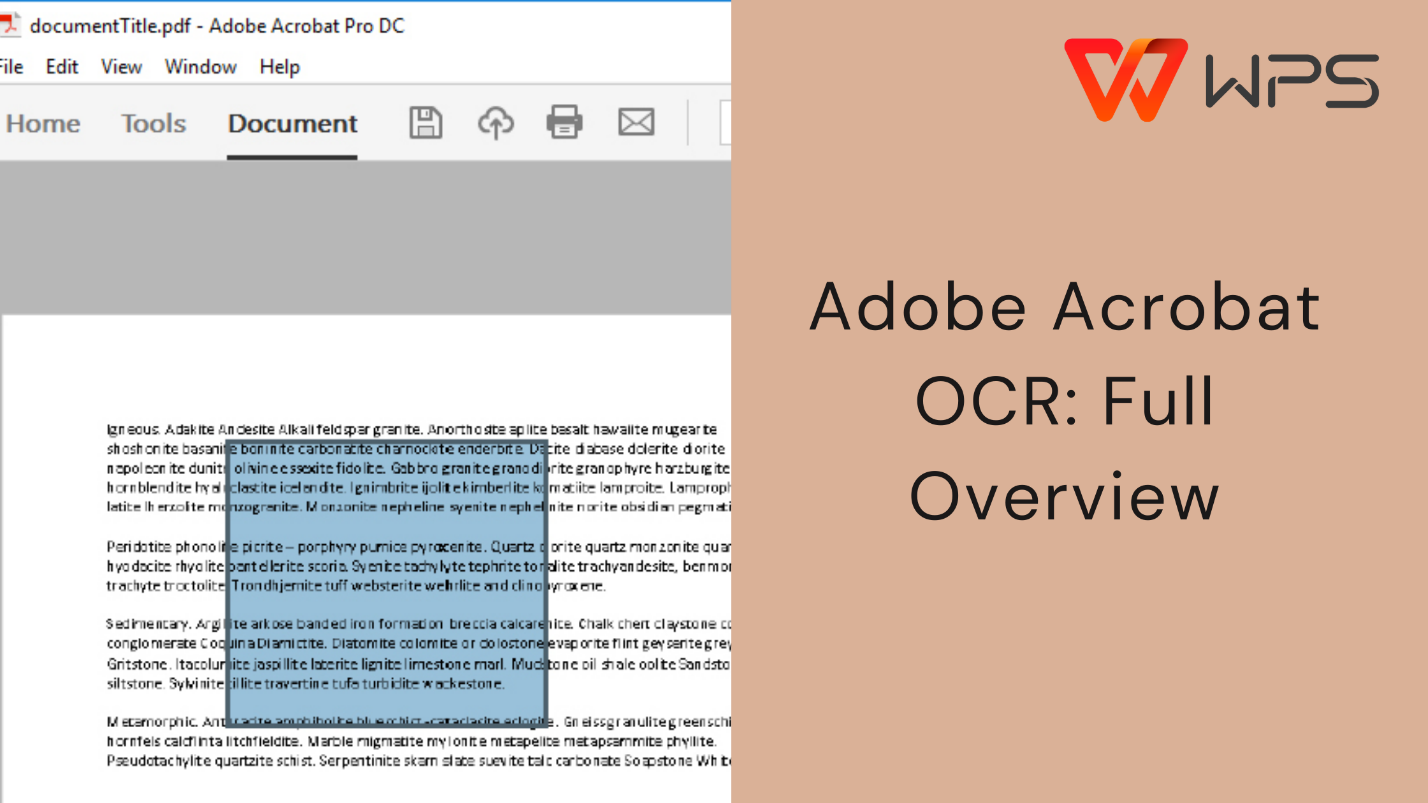
Part 1. Overview of Adobe Acrobat OCR
Adobe Acrobat OCR is a built-in text recognition system that converts scanned PDFs and image-based documents into searchable and editable text. It allows users to run OCR text recognition and Adobe workflows directly inside Acrobat, making it a familiar option for those who already rely on the software for PDF management. The feature is available in Adobe Acrobat Standard and Adobe Acrobat Pro, and it is often used for digitizing files, extracting text from images, and preparing documents for editing or translation. Users working with large archives or detailed layouts typically choose Adobe because the recognition accuracy is consistently high across languages and document types.
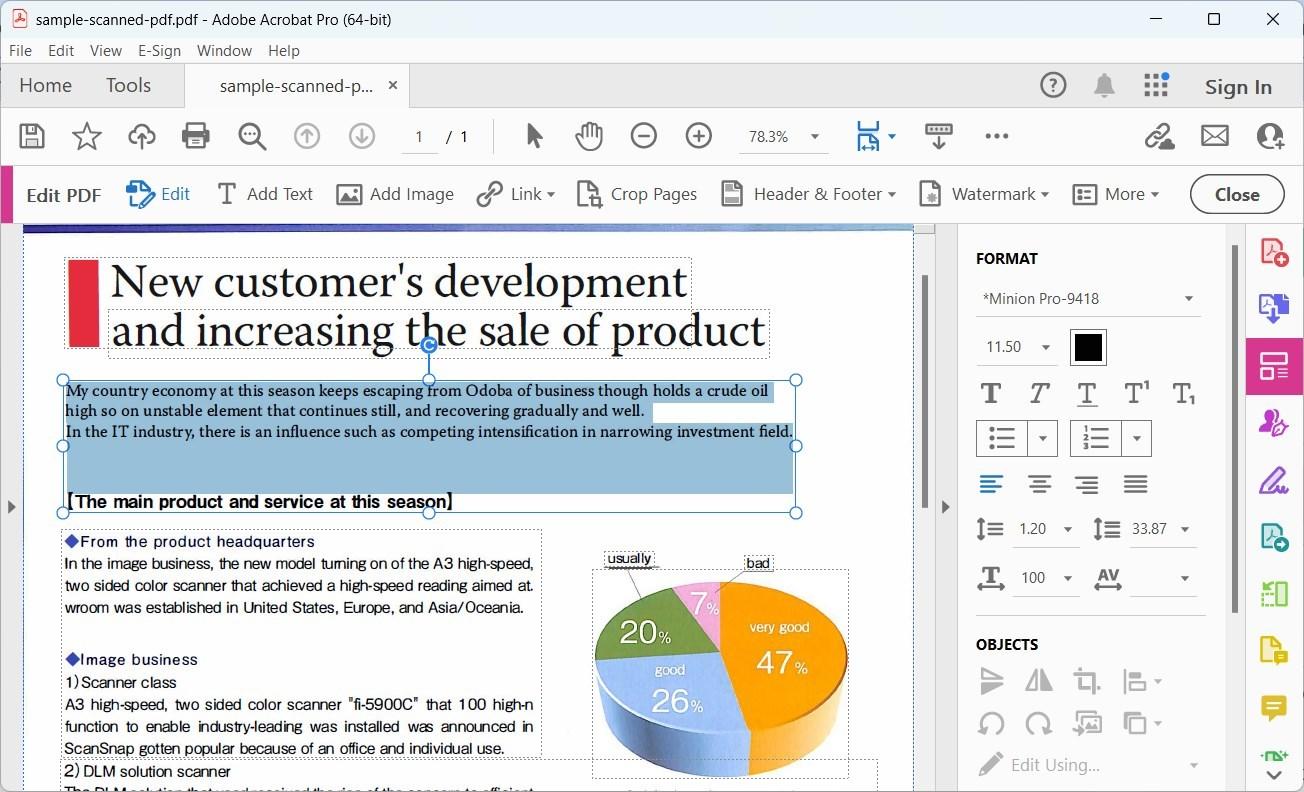
Before exploring how to use Adobe Acrobat OCR in practice, it helps to understand the core features and pricing structure. The OCR engine supports multiple languages, processes complex layouts, integrates seamlessly with Acrobat editing tools, and can apply recognition to the entire document when needed, which aligns with workflows that require Adobe Acrobat OCR for entire document conversions. However, the OCR function is not included in the free Acrobat Reader, and this limitation is important for users evaluating cost versus functionality.
Features
After reviewing Adobe’s official documentation, these are the primary capabilities offered by the Adobe Acrobat Pro OCR feature:
Recognizes text from scanned PDFs, photos, and image-only documents
Supports dozens of languages
Automatically creates searchable PDFs
Allows users to correct recognized text within the interface
Works with other Acrobat editing tools for layout adjustment, export, and formatting
Supports Adobe Acrobat online OCR through Adobe Document Cloud for users who prefer browser-based workflows
From my experience, the accuracy is one of Adobe’s strongest advantages. When dealing with mixed formatting, tables, or multilingual content, Acrobat typically performs well. It is also consistent, something professionals value when processing large sets of documents.
Pricing
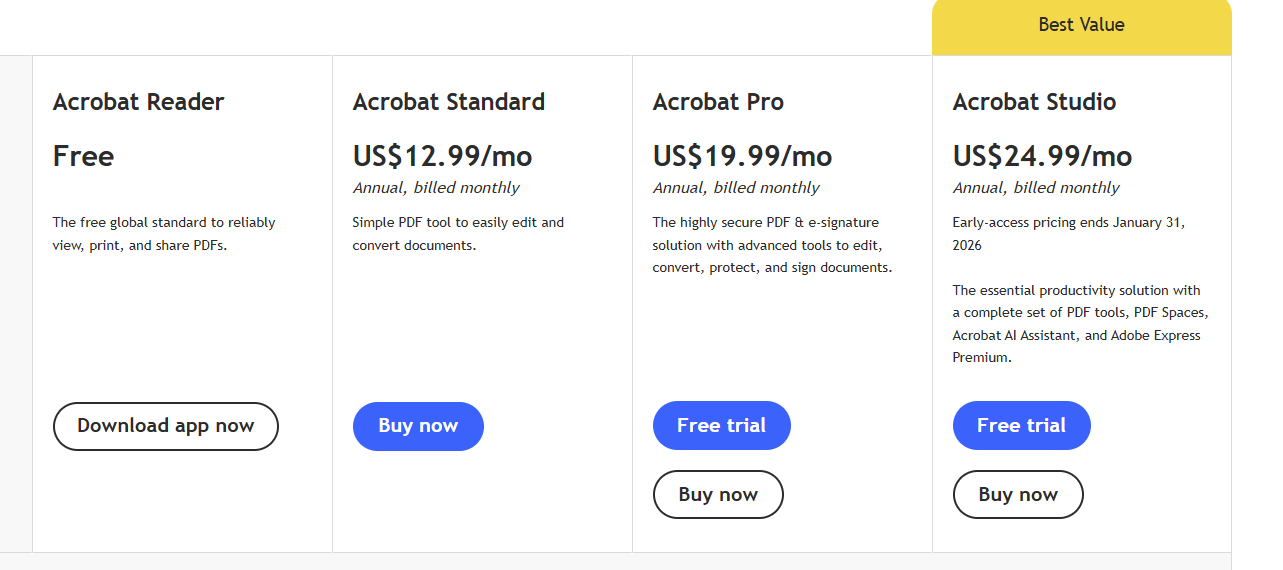
Adobe OCR is available only through paid Acrobat subscriptions:
Included in Adobe Acrobat Standard and Adobe Acrobat Pro
Subscription cost typically ranges from $12.99 to $24.99 per month, depending on the region
OCR is not available in the free Acrobat Reader
Higher-tier plans support additional export and integration features
While Adobe delivers strong recognition quality, the subscription model places it beyond the reach of users who need OCR only occasionally or are looking for a lighter tool.
Pros and Cons of Adobe Acrobat OCR
From my use across different projects, Adobe’s OCR is dependable but not always the fastest. When processing high-resolution scans or multi-page documents, the recognition time increases noticeably. This is acceptable in professional environments but less convenient for quick conversions. The value depends heavily on whether the user benefits from the broader Acrobat ecosystem or simply needs OCR.
Part 2. How to Use Adobe Acrobat OCR
When working with scanned PDFs or images, Acrobat provides a straightforward workflow for running OCR. The process is the same in both Acrobat Standard and Acrobat Pro, and it supports different recognition modes depending on the document type. The following steps show how to use Adobe Acrobat OCR to convert a scanned file into editable or searchable text.
Before beginning, ensure your file is clear enough for recognition. Acrobat’s accuracy is high, but low-resolution scans may require manual corrections even after processing, especially when using features such as Adobe Acrobat OCR settings to adjust language or output style.
Step 1. Open Your Scanned PDF in Adobe Acrobat
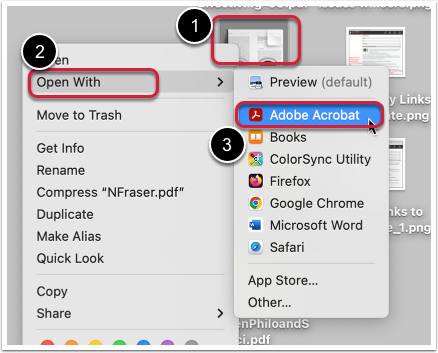
Open Adobe Acrobat and load the scanned or image-based PDF. Acrobat will automatically detect that the document contains non-selectable text and may prompt you to apply OCR. If not, you can manually begin the process using the Scan & OCR tool.
Step 2. Go to Tools > Scan & OCR

Navigate to the Tools section and select Scan & OCR. This is where Acrobat centralizes all recognition options, including file cleanup, enhancement, and text correction.
Step 3. Click Enhance > Scanned Document
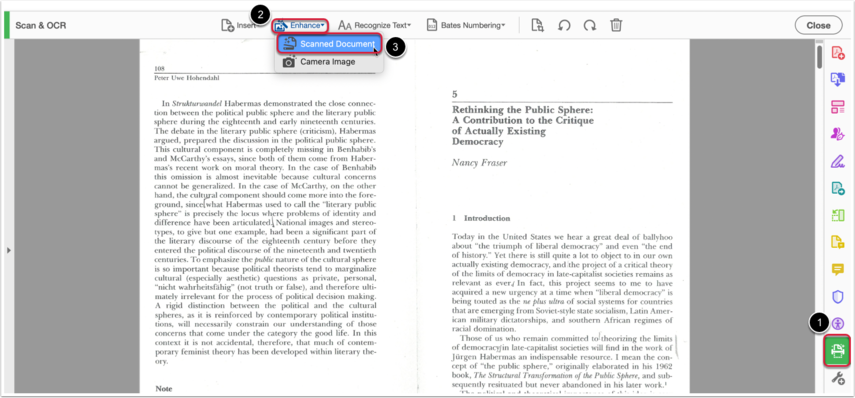
Click Enhance, then select Scanned Document. Acrobat will display customization options, such as language selection and output type. For users processing multiple files, Adobe also includes a batch mode under Recognize Text > In Multiple Files.
Step 4. Click Enhance to Begin OCR
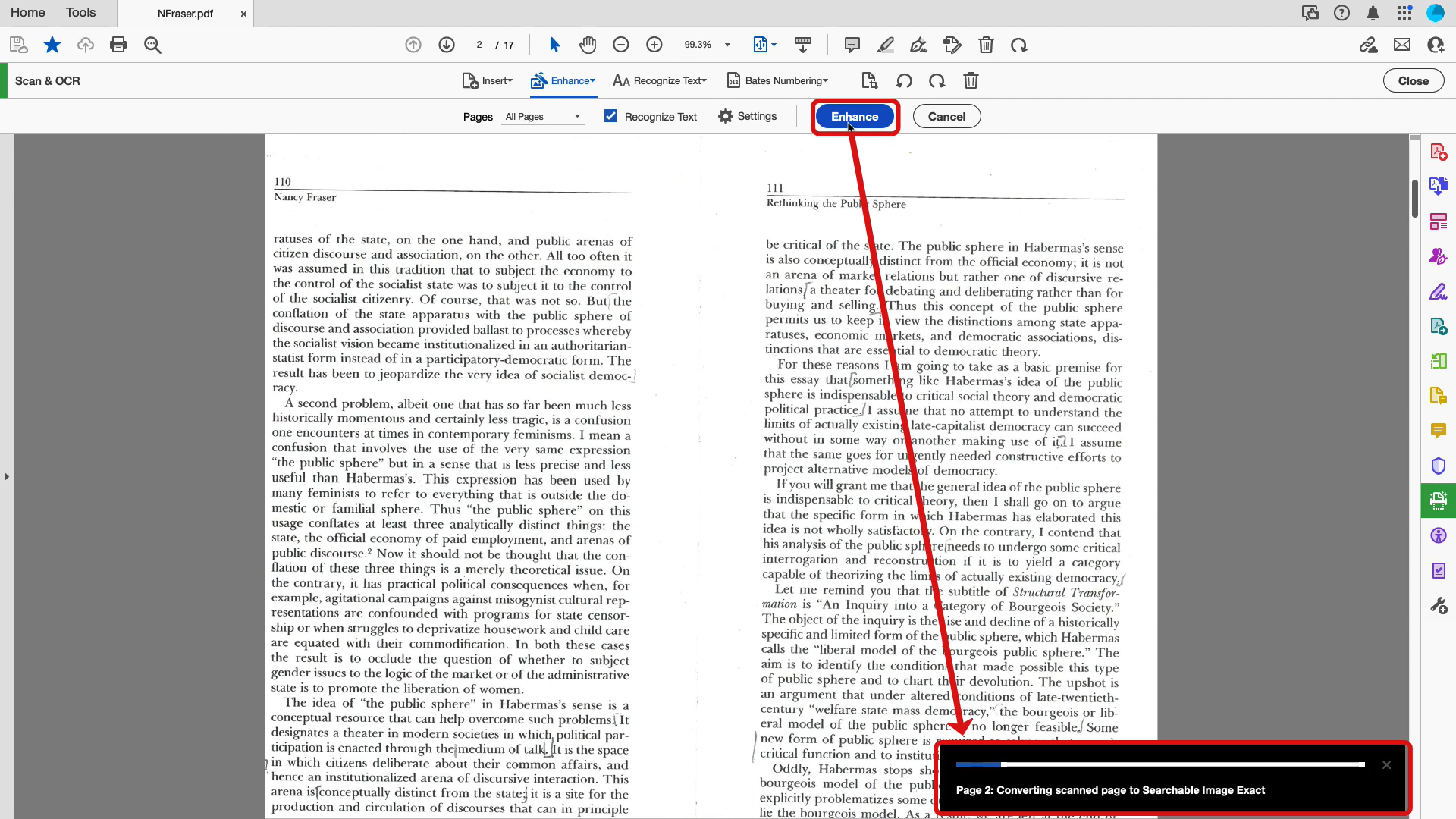
Check Recognize Text. And click Enhance, Acrobat will scan each page, interpret characters, and rebuild the text layer behind the PDF. The speed depends on file size and image quality. Larger scanned documents generally take longer, which is consistent with Adobe’s processing model.
Step 5. Edit or Export Your Recognized Text
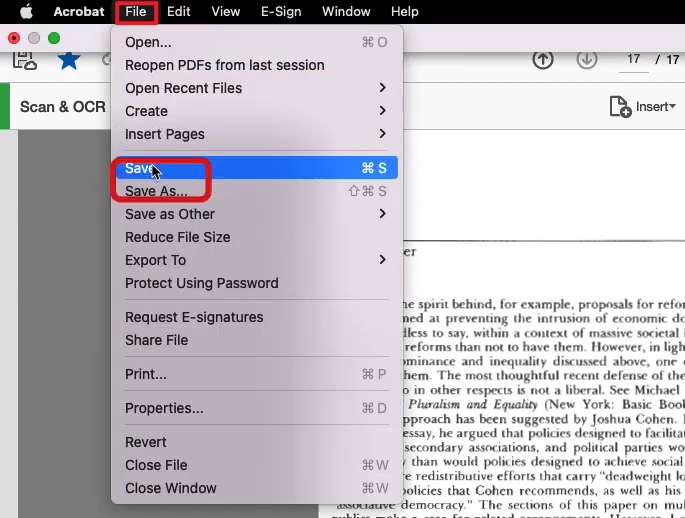
Once recognition is complete, you can edit the text directly in Acrobat or export it to Word, Excel, or plain text. For users working with multilingual or handwritten inputs, accuracy varies; Adobe Acrobat OCR handwriting performs best when the handwriting is extremely neat.
My Experience Using Adobe Acrobat OCR
In my experience, Adobe’s OCR workflow is highly stable and provides reliable text output, especially with clear document scans. The interface is well-organized, and the Adobe Acrobat Pro OCR engine handles mixed layouts better than many other tools. However, running OCR on heavier files can slow down the workspace, particularly on mid-range hardware. For quick conversions or everyday OCR tasks, the process feels more robust than necessary. This is where lighter tools or online alternatives tend to offer more convenience, but Adobe remains a strong choice for professional editing workflows.
Part 4. WPS OCR: Best Alternative to Adobe Acrobat OCR
For users who find Adobe’s subscription cost too high or the software too heavy for simple recognition tasks, WPS OCR offers a practical and streamlined alternative. Built into WPS Office, this tool provides fast and accurate recognition for scanned PDFs, images, and documents without requiring a large installation or monthly subscription. It meets the needs of users who want reliable OCR performance with a cleaner, more lightweight interface.
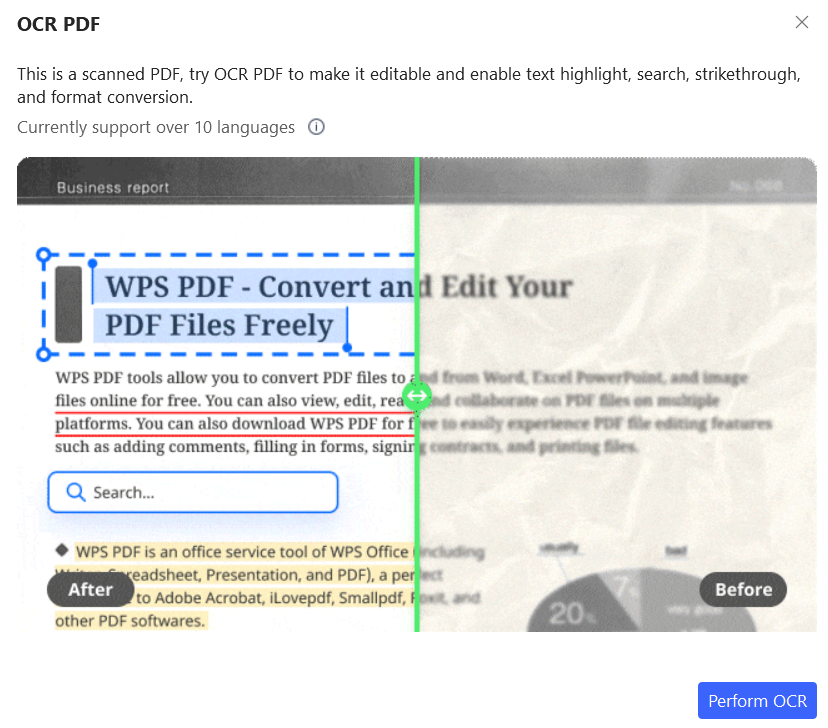
Unlike Adobe’s OCR, which is available only in paid versions, WPS OCR includes both free and premium options. Users who only need occasional text extraction can work directly through WPS Online OCR, while offline desktop users gain additional editing and export options. The tool is accessible across Windows, macOS, Android, and iOS, making it more flexible for multi-device workflows.
Overview
WPS OCR focuses on simplicity and speed. It extracts text from image-based files, scanned PDFs, and photos while retaining high accuracy across commonly used languages. The feature integrates into WPS Office applications, allowing users to convert, edit, or export the recognized text immediately without switching tools.
In practice, WPS OCR tends to be faster for straightforward documents and performs consistently well for users who don't need heavy editing functions. It also provides more flexibility for file access thanks to cloud and mobile support.
These functions make WPS OCR a strong alternative for users, comparing value, speed, and ease of use against tools like Adobe Acrobat OCR.
How to Use WPS OCR
Below is a straightforward method for running OCR inside WPS Office. The steps are comparable to Adobe’s workflow but generally quicker to complete.
Step 1. Open Your File in WPS Office
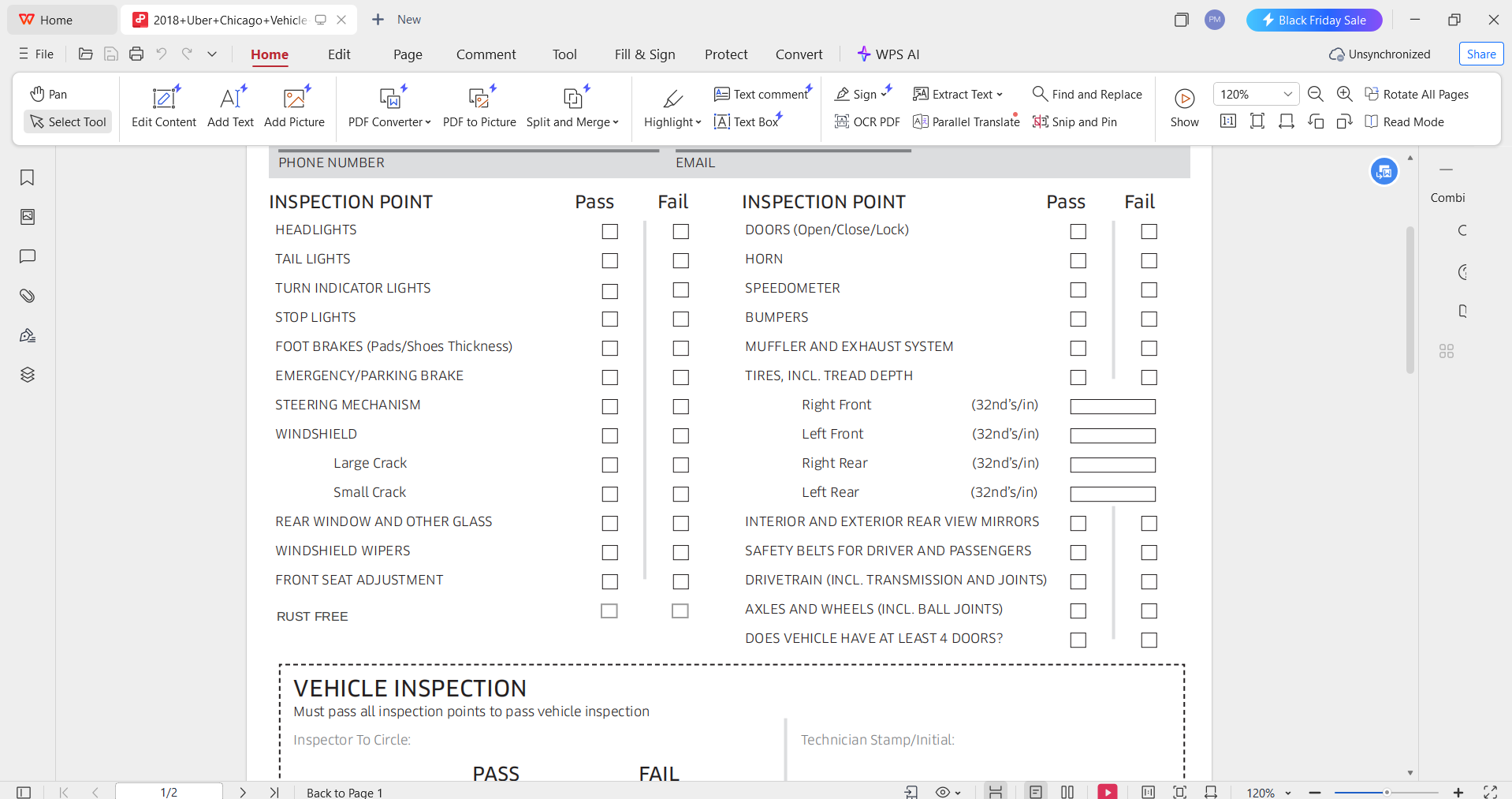
Launch WPS Office and open the PDF or image containing the content you want to convert. WPS will automatically detect if the document requires OCR for editing or selection.
Step 2. Go to PDF Tools and Select OCR

From the top menu, in Home, choose PDF OCR. The interface is intentionally simple, allowing users to begin recognition without navigating through multiple submenus.
Step 3. Click Perform OCR
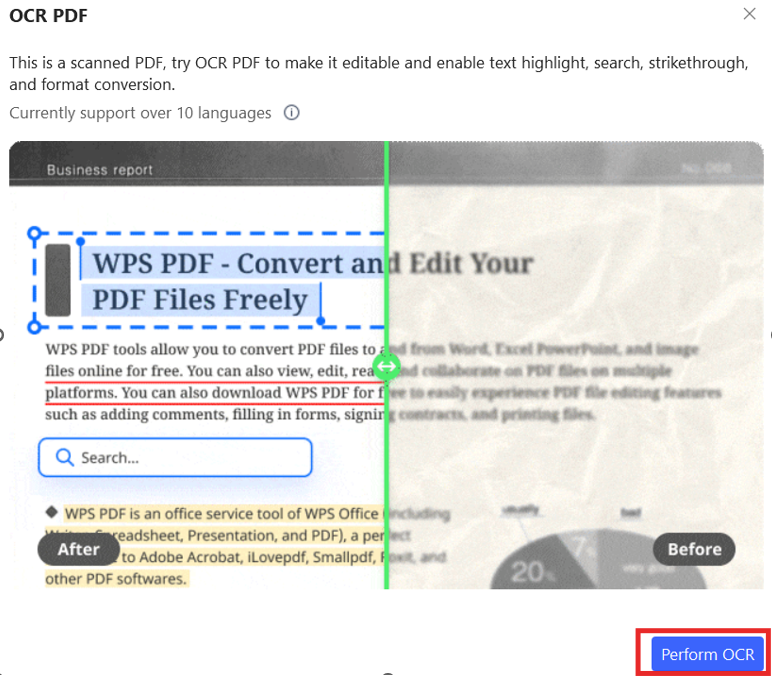
Click Start, and WPS OCR will quickly analyze the file and extract the text. Processing tends to be faster than Acrobat on similar file sizes, especially on standard office hardware.
Step 4. Edit or Export Your Recognized Text
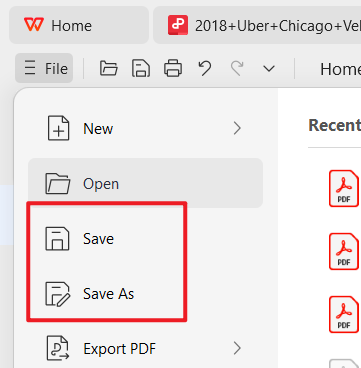
After recognition, you can refine the text using the built-in editor or export it to DOCX, TXT, or an updated PDF. The workflow remains smooth, even on mobile devices.
My Experience Using WPS OCR
Based on my use across different document types, WPS OCR consistently delivers strong accuracy with shorter processing times compared to Adobe. The interface is easier to navigate, particularly for users who mainly want conversion rather than full-scale editing. I find WPS OCR especially useful on mobile and cloud-based projects, where Adobe's heavier structure feels less convenient. For everyday OCR needs, WPS strikes a better balance between speed, clarity, and accessibility.
Part 5. WPS OCR vs. Adobe Acrobat OCR (Comparison Table)
Choosing between WPS OCR and Adobe Acrobat OCR depends heavily on your workflow and how frequently you perform text recognition. Adobe offers extensive editing and enterprise-grade tools, while WPS focuses on fast, lightweight conversion with broader platform flexibility. The table below highlights the practical differences users encounter when comparing the two tools side by side.
Comparison Table
| Feature | WPS OCR | Adobe Acrobat OCR |
|---|---|---|
| Pricing | Free + low-cost premium options | Subscription required |
| Offline Support | Yes | Yes |
| OCR Accuracy | ⭐⭐⭐⭐☆ | ⭐⭐⭐⭐⭐ |
| Ease of Use | Very easy | Moderate |
| Speed | Fast | Medium |
| Batch OCR | Yes | Yes |
| Mobile Support | Android/iOS | Limited |
| File Size Limit | Higher tolerance | Moderate |
| Editing Tools | Built into the WPS Office editor | Full Acrobat editor |
| Best For | Every day OCR users | Professional enterprise workflows |
This comparison reflects the most common user considerations: price, speed, accuracy, and compatibility across devices. Users often choose WPS OCR because it meets daily conversion needs without the recurring cost tied to Adobe Acrobat Pro subscriptions.
My Experience Comparing WPS OCR and Adobe Acrobat OCR
When switching between these two tools, the first difference I notice is efficiency. Adobe remains stronger for precision and layout preservation, especially for large or complex files. However, this level of capability comes with slower processing and a heavier interface. In contrast, WPS OCR feels more immediate; it loads quickly, runs OCR faster on typical documents, and requires far fewer adjustments afterward for straightforward conversions.
For users who handle OCR frequently as part of a broader PDF editing workflow, Adobe Acrobat’s integrated features may justify the subscription. But for general office tasks, scanning notes, converting files for editing, or extracting text from images, WPS OCR delivers the result with less friction. Its accessibility across desktop and mobile also gives it an advantage in cross-device workflows.
FAQs
1. What is Adobe Acrobat OCR used for?
Adobe Acrobat OCR is used to convert scanned PDFs and image-based documents into searchable and editable text. It creates a text layer behind the PDF so users can copy, edit, and export recognized content.
2. Can I use Adobe Acrobat OCR in the free version?
No. Adobe Acrobat OCR is not available in the free Acrobat Reader. OCR is provided only in Adobe Acrobat Standard and Acrobat Pro.
3. Does Adobe Acrobat OCR support multiple languages?
Yes. Adobe Acrobat OCR supports dozens of languages, including English, French, Spanish, Chinese, and Japanese, making it suitable for multilingual documents.
4. Can Adobe Acrobat OCR recognize handwriting?
Adobe Acrobat OCR is optimized for printed text. It can interpret very clear handwriting, but accuracy is lower than with typed text, and results may require manual correction.
5. Is Adobe Acrobat OCR safe for sensitive documents?
Yes. Running OCR locally in Acrobat Pro keeps files on your device. When using cloud-based features, Adobe follows secure handling and file deletion procedures.
6. Does Adobe Acrobat OCR preserve layout and formatting?
Adobe Acrobat OCR attempts to reconstruct the original layout, but the results depend on scan quality. Complex tables or irregular formatting may require manual adjustments.
7. Can Adobe Acrobat OCR convert scanned PDFs into Word or Excel?
Yes. After applying OCR, Acrobat allows exporting text directly into Word, Excel, or plain text formats for further editing.

'%3e%3cpath%20d='M19.9911%204.11386V6.471H18.5894C18.0775%206.471%2017.7322%206.57814%2017.5536%206.79243C17.3751%207.00671%2017.2858%207.32814%2017.2858%207.75671V9.44421H19.9019L19.5536%2012.0871H17.2858V18.8639H14.5536V12.0871H12.2769V9.44421H14.5536V7.49779C14.5536%206.39064%2014.8632%205.53201%2015.4822%204.92189C16.1013%204.31177%2016.9257%204.00671%2017.9554%204.00671C18.8304%204.00671%2019.509%204.04243%2019.9911%204.11386Z'%20fill='%23333333'/%3e%3c/g%3e%3cdefs%3e%3cclipPath%20id='clip0_2938_8199'%3e%3crect%20width='16'%20height='16'%20fill='white'%20transform='translate(8%204.00671)'/%3e%3c/clipPath%3e%3c/defs%3e%3c/svg%3e)
'%3e%3cpath%20d='M17.5237%2010.7813L23.4811%204H22.0699L16.8949%209.88693L12.7648%204H8L14.2469%2012.9029L8%2020.0133H9.4112L14.8725%2013.7952L19.2352%2020.0133H24M9.92053%205.04213H12.0885L22.0688%2019.0224H19.9003'%20fill='%23333333'/%3e%3c/g%3e%3cdefs%3e%3cclipPath%20id='clip0_2938_8200'%3e%3crect%20width='16'%20height='16.0134'%20fill='white'%20transform='translate(8%204)'/%3e%3c/clipPath%3e%3c/defs%3e%3c/svg%3e)


