

'%3e%3cpath%20d='M8%200C12.4183%200%2016%203.58172%2016%208C16%2012.4183%2012.4183%2016%208%2016C3.58172%2016%200%2012.4183%200%208C0%203.58172%203.58172%200%208%200ZM11.6162%204.38379C11.2257%203.99337%2010.5927%203.99338%2010.2021%204.38379L8%206.58594L5.79785%204.38379C5.40732%203.99334%204.77429%203.99329%204.38379%204.38379C3.99331%204.77429%203.99335%205.40733%204.38379%205.79785L6.58594%208L4.38379%2010.2021C3.99348%2010.5927%203.99341%2011.2257%204.38379%2011.6162C4.77426%2012.0066%205.40734%2012.0065%205.79785%2011.6162L8%209.41406L10.2021%2011.6162C10.5927%2012.0066%2011.2257%2012.0067%2011.6162%2011.6162C12.0067%2011.2257%2012.0066%2010.5927%2011.6162%2010.2021L9.41406%208L11.6162%205.79785C12.0066%205.40735%2012.0066%204.77429%2011.6162%204.38379Z'%20fill='%23080E17'%20fill-opacity='0.46'/%3e%3c/g%3e%3cdefs%3e%3cclipPath%20id='clip0_3761_713'%3e%3crect%20width='16'%20height='16'%20fill='white'/%3e%3c/clipPath%3e%3c/defs%3e%3c/svg%3e)



'%3e%3cpath%20fill-rule='evenodd'%20clip-rule='evenodd'%20d='M21.4999%2010.9993C21.4999%205.20009%2016.7986%200.498901%2010.9993%200.498901C5.19994%200.498901%200.498657%205.20009%200.498657%2010.9993C0.498657%2016.2404%204.33858%2020.5844%209.35855%2021.3722V14.0346H6.69238V10.9993H9.35855V8.68594C9.35855%206.05427%2010.9262%204.60062%2013.3248%204.60062C14.4736%204.60062%2015.6753%204.80571%2015.6753%204.80571V7.38979H14.3512C13.0468%207.38979%2012.64%208.19921%2012.64%209.0296V10.9993H15.5523L15.0867%2014.0346H12.64V21.3722C17.66%2020.5844%2021.4999%2016.2404%2021.4999%2010.9993Z'%20fill='%231568EA'/%3e%3c/g%3e%3c/svg%3e)


'%3e%3cpath%20d='M2.42045%2022.1876H6.31818V12.7217L0.75%208.54553V20.5171C0.75%2021.4414%201.49892%2022.1876%202.42045%2022.1876Z'%20fill='%234285F4'/%3e%3cpath%20d='M19.682%2022.1876H23.5797C24.5041%2022.1876%2025.2502%2021.4387%2025.2502%2020.5171V8.54553L19.682%2012.7217'%20fill='%2334A853'/%3e%3cpath%20d='M19.682%205.48293V12.7216L25.2502%208.54543V6.31816C25.2502%204.25236%2022.8921%203.07469%2021.2411%204.31361'%20fill='%23FBBC04'/%3e%3cpath%20d='M6.31824%2012.7217V5.48303L13.0001%2010.4944L19.6819%205.48303V12.7217L13.0001%2017.733'%20fill='%23EA4335'/%3e%3cpath%20d='M0.75%206.31816V8.54543L6.31818%2012.7216V5.48293L4.75909%204.31361C3.10534%203.07469%200.75%204.25236%200.75%206.31816Z'%20fill='%23C5221F'/%3e%3c/g%3e%3cdefs%3e%3cclipPath%20id='clip0_2954_7305'%3e%3crect%20width='24.5'%20height='18.375'%20fill='white'%20transform='translate(0.75%203.8125)'/%3e%3c/clipPath%3e%3c/defs%3e%3c/svg%3e)


Canon’s CR3 format delivers exceptional RAW image quality, but its limited compatibility often creates friction during everyday workflows. Many users struggle to find a reliable solution, as countless free tools reduce image quality, add watermarks, or complicate batch processing. This becomes frustrating when all you need is a clean, accurate JPG for quick editing or sharing.
So, how do you convert CR3 to JPG easily, without paying, and without losing quality? In this guide, I explore the most efficient free converters and introduce an integrated editing solution that simplifies the entire post-conversion workflow.


Part 1. How to Convert CR3 to JPG Online
Online converters are the fastest solution for occasional users who simply want to turn a CR3 file into a widely compatible JPG without installing software. These tools work directly in your browser and support quick uploads, making them ideal if you need a free CR3 to JPG converter online that doesn’t require registration or complex setup. Most importantly, they maintain good output quality for general use while offering basic batch conversion options.

Below is a step-by-step tutorial on how to convert CR3 to JPG using FreeConvert, followed by a comparison table of three popular CR3 conversion platforms.
How to Convert CR3 to JPG Using FreeConvert
FreeConvert is a general-purpose online converter known for its straightforward interface and reliable output quality. It supports CR3 files well and is accessible on both desktop and mobile browsers.
Step 1: Visit the FreeConvert CR3 to JPG page
Go to: https://www.freeconvert.com/cr3-to-jpg
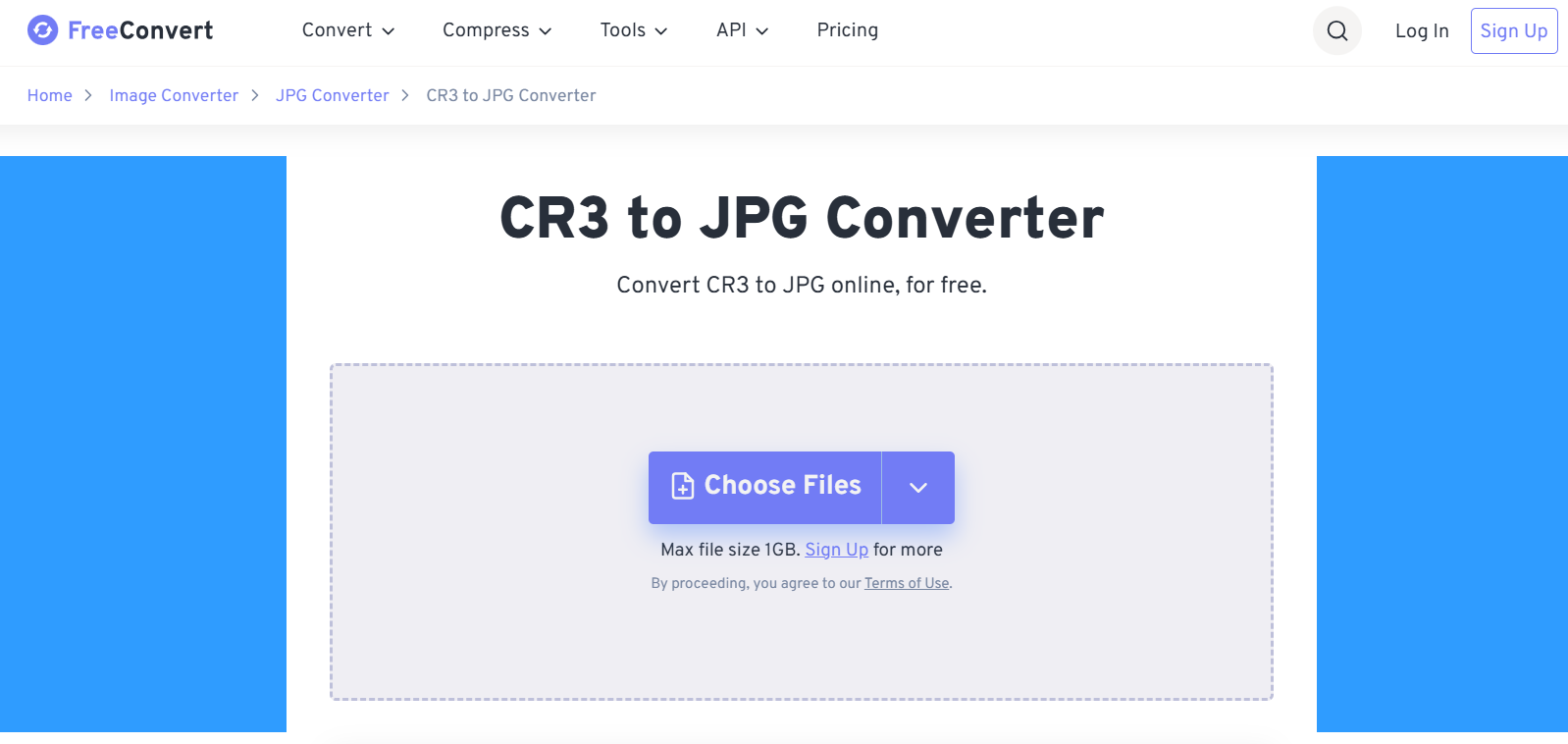
Step 2: Upload your CR3 file
Click Choose Files and select your Canon CR3 image from your computer or device.
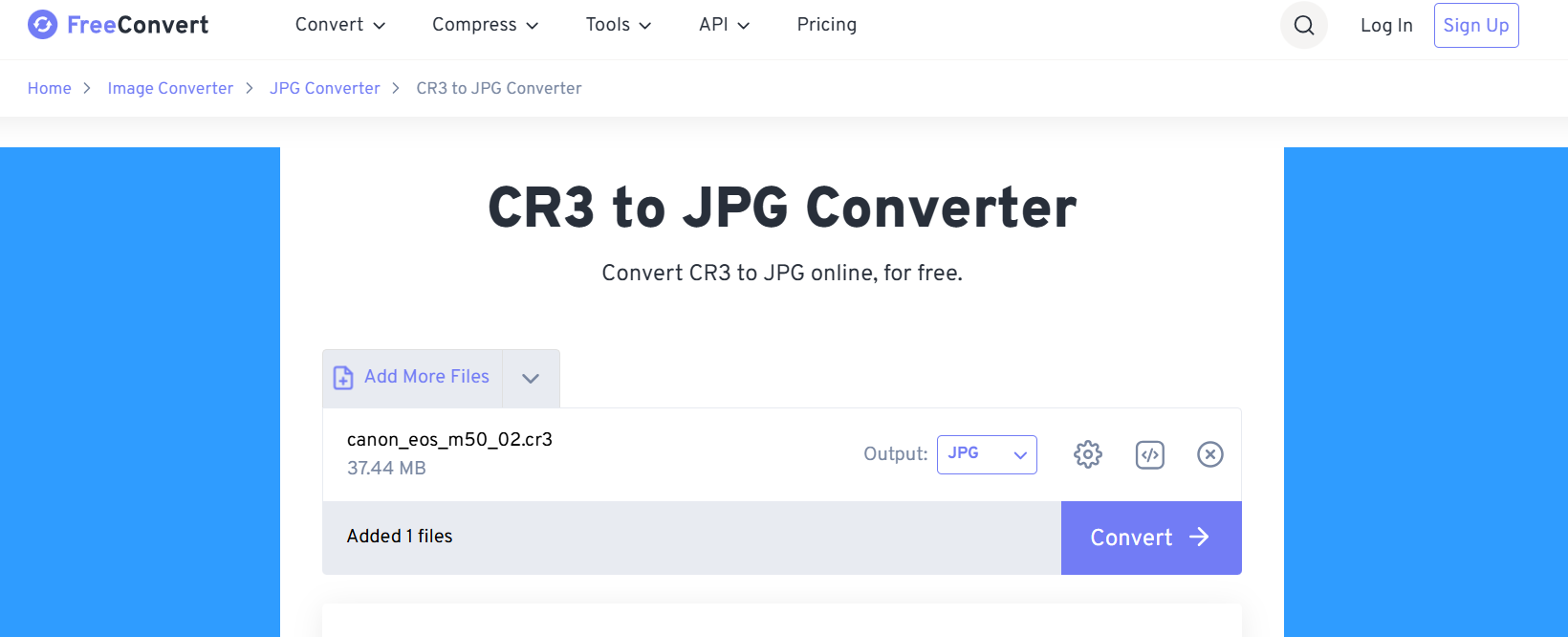
Step 3: Convert the file
Press Convert to JPG and wait for FreeConvert to process your upload.
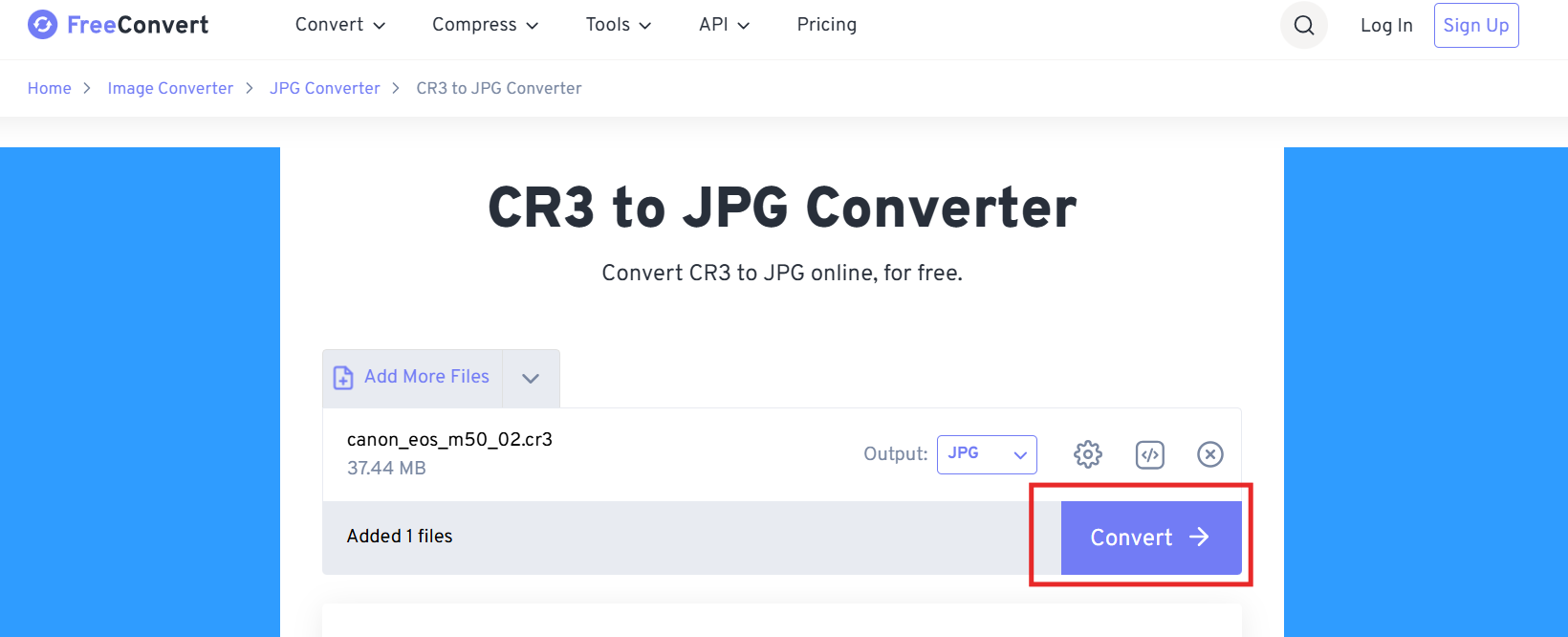
Step 4: Download your JPG
Once the conversion completes, click Download to save the JPG version to your device.
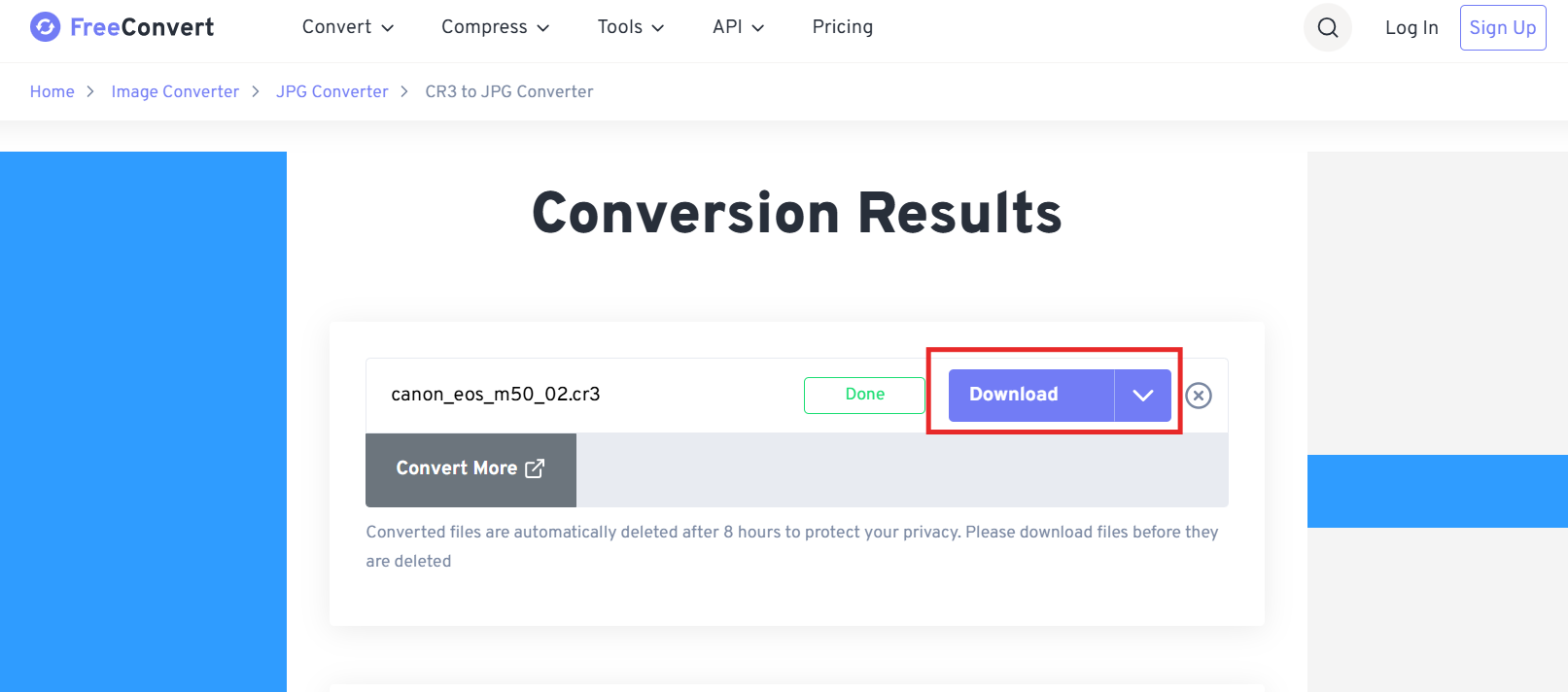
Comparison of Popular Online CR3 Converters
| Tool | Ease of Use | Output Quality | Batch Conversion | File Size Limits | Processing Speed |
|---|---|---|---|---|---|
| FreeConvert | Very easy | High | Yes | Generous limits | Fast |
| CloudConvert | Easy but more settings | Excellent | Yes | Limited for free users | Medium |
| Zamzar | Easy | Good | Yes | Lower free-tier limits | Medium |
These platforms offer reliable conversion capabilities and work well when your goal is purely to convert CR3 to JPG. However, they lack integrated editing features. If you want to improve your JPGs, enhance their quality, remove objects, or prepare them for presentations and documents, you will need a separate tool. This sets the stage for a more efficient workflow using WPS AI Photo Editor.
My Experience with Online Converters
When I convert CR3 to JPG for quick sharing, online tools like FreeConvert and CloudConvert are usually my first choice because they require no setup and handle RAW files better than expected. However, I often find myself needing simple edits afterward, adjusting exposure, removing background distractions, or preparing the image for professional use. This is where the process becomes fragmented, which is why having an integrated editing solution becomes valuable. I’ll explain this workflow improvement in the next section.
Part 2. How to Edit the Converted JPG with WPS AI Photo Editor
While dedicated CR3 converters are useful for quick file processing, many users need more than simple conversion. After getting the JPG output, it is common to adjust lighting, improve clarity, remove unwanted elements, or prepare the image for documents and presentations. This is where an integrated solution becomes more efficient than using standalone converters.

WPS Office, widely known as a lightweight and versatile office suite, offers an AI Photo Editor that brings advanced image enhancement tools directly into your workspace. By combining file conversion (via an online service) with powerful AI-driven editing in WPS, you get a streamlined workflow without switching between multiple applications. This is particularly helpful for users working on Windows or Android, where traditional CR3 to JPG converter software for Windows 10 can feel heavy or overly complex.
Below is a clear guide on how to edit your converted JPG using the WPS AI Photo Editor.
How to Edit Your Converted JPG Using WPS AI Photo Editor
You can start this process after using any method from Part 1 to convert CR3 to JPG.
Step 1: Open your JPG image
Open the converted image in WPS Photos.
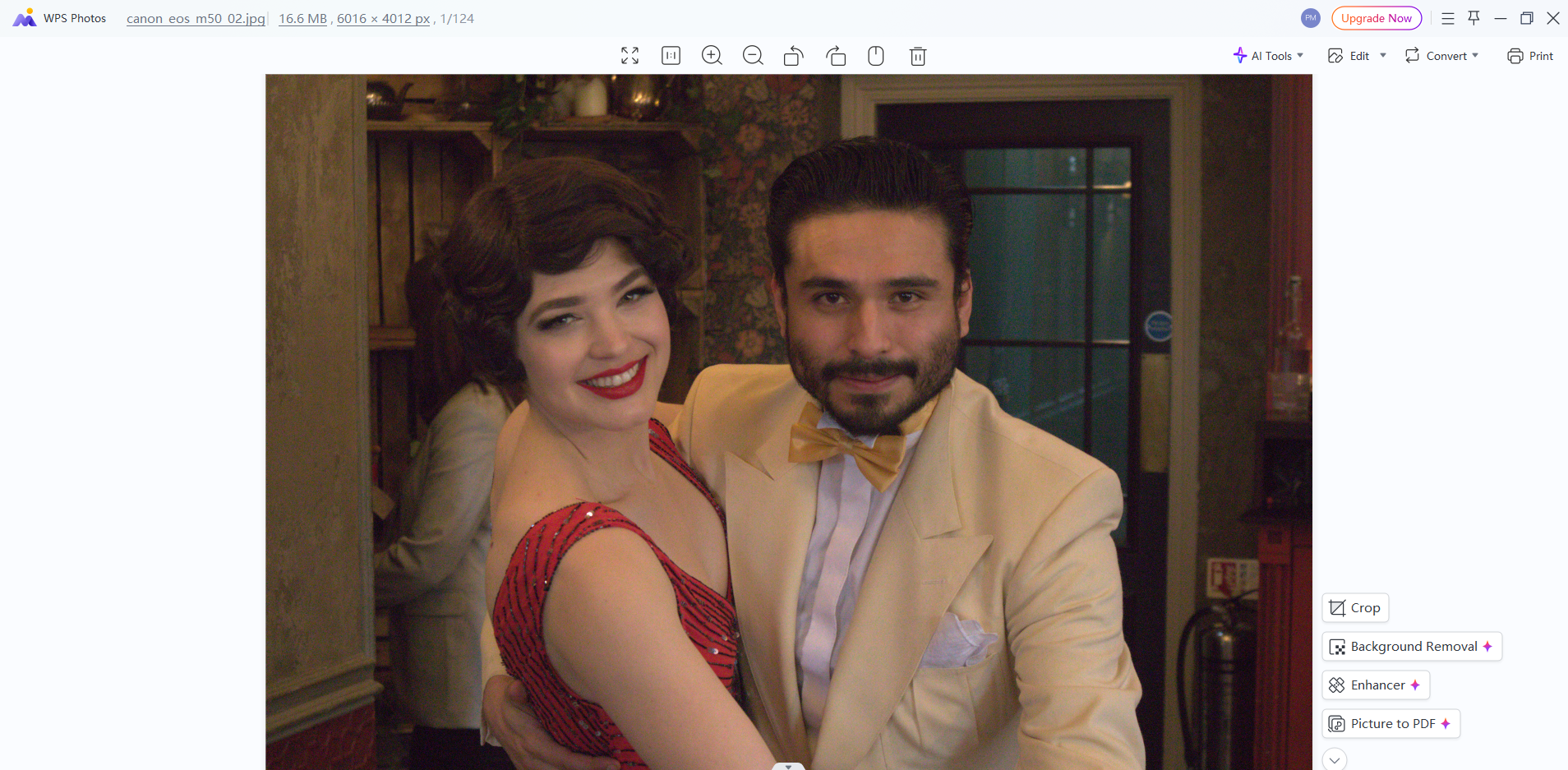
Step 2: Apply the AI enhancements
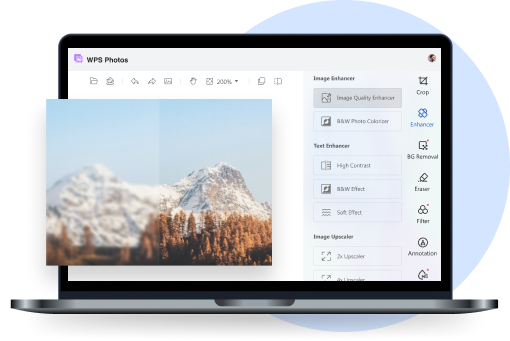
Click Edit and use features such as Enhance, Background Removal, Object Eraser, and Style Transfer depending on your editing needs.
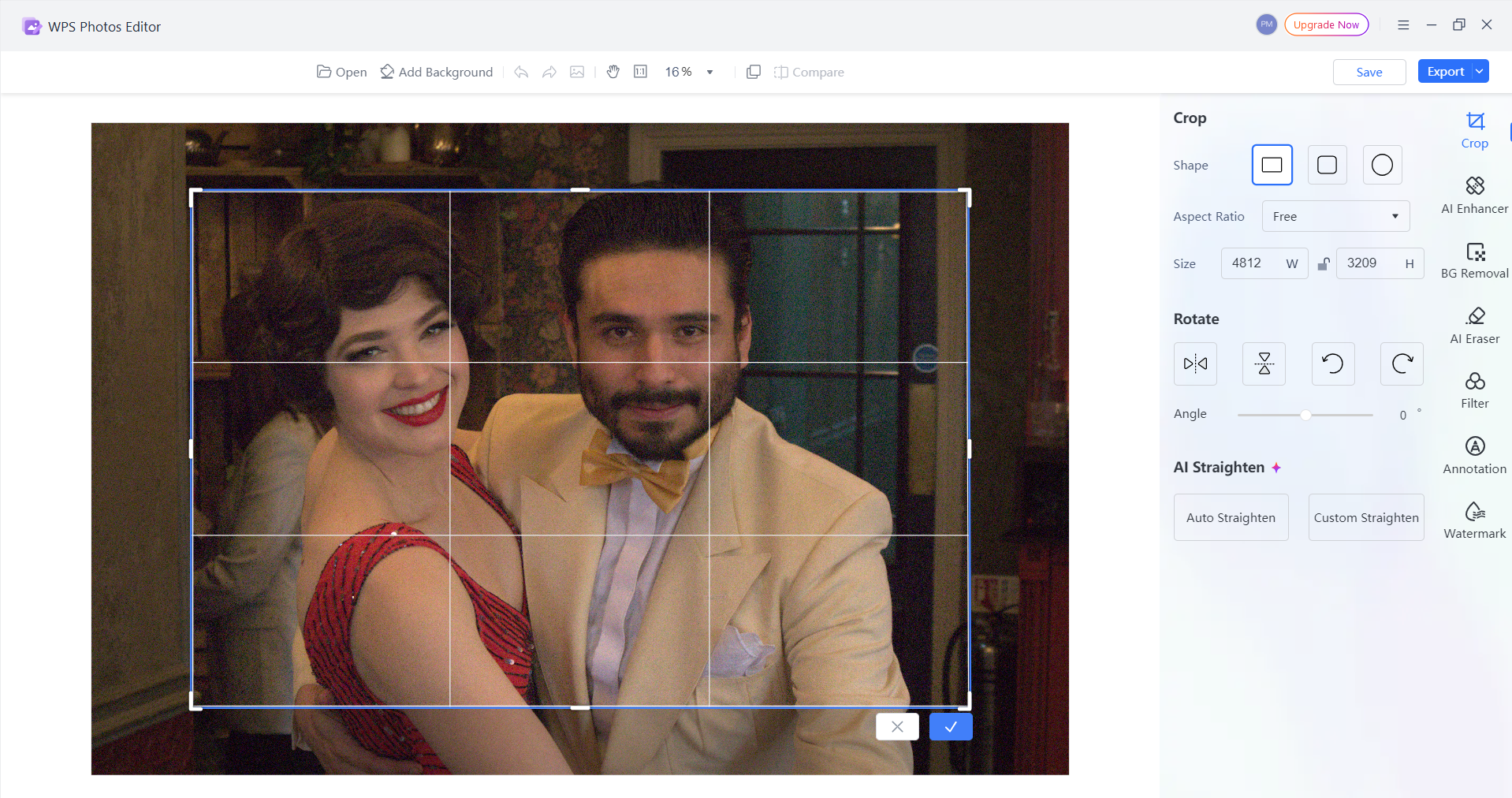
Step 3: Download the edited image
Save the final result and use it directly in WPS Writer, WPS Presentation, or WPS Spreadsheets.
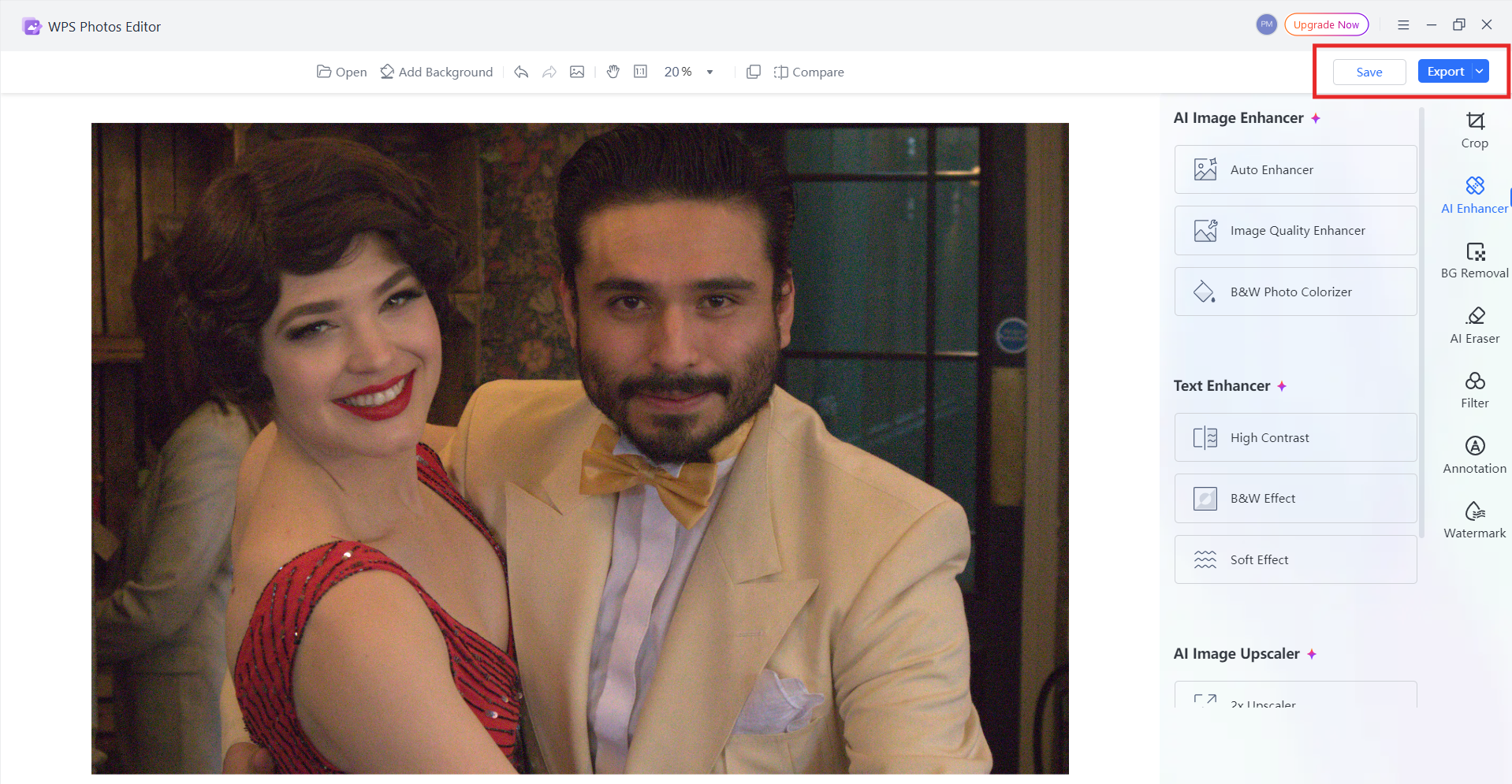
Comparison of WPS AI Photo Editor vs Other Editing Tools
| Tool | Focus | Key Strength | AI Features | Cost |
|---|---|---|---|---|
| WPS AI Photo Editor | Editing & document workflow | Integrated with office tools | Enhance, Object Removal, Background AI, Style Transfer | Cost-effective |
| Adobe Lightroom | Professional photo editing | Advanced color and RAW control | AI masking, adaptive presets | Paid subscription |
| PicFlow | Basic conversion + light editing | Easy browser use | Limited enhancement options | Free / Paid tiers |
WPS stands out because it blends editing capabilities with everyday office tasks. After converting CR3 to JPG, you can enhance your image and insert it directly into documents without shifting platforms, a benefit for students, professionals, and content creators.
My Experience with WPS AI Photo Editor
Once I started using WPS AI for post-conversion edits, I realized how much time I had been wasting jumping between separate tools. Even for simple adjustments, like fixing lighting or removing small distractions, the AI features handle the work quickly without overwhelming the user with technical controls. I also appreciate how seamlessly edited images drop into WPS Writer or Presentation, which is especially useful when preparing reports or slides immediately after converting my CR3 files.
Part 3. Why Choose WPS AI for Your Post-Conversion Workflow
After converting a CR3 file into JPG using an online converter, the next challenge is refining the image for practical use, whether that means enhancing quality, removing distractions, or preparing visuals for reports and presentations. This is where WPS AI Photo Editor becomes a valuable part of your workflow. As part of the WPS Office ecosystem, it offers AI-powered editing directly inside a platform already used for writing, presenting, and data management.
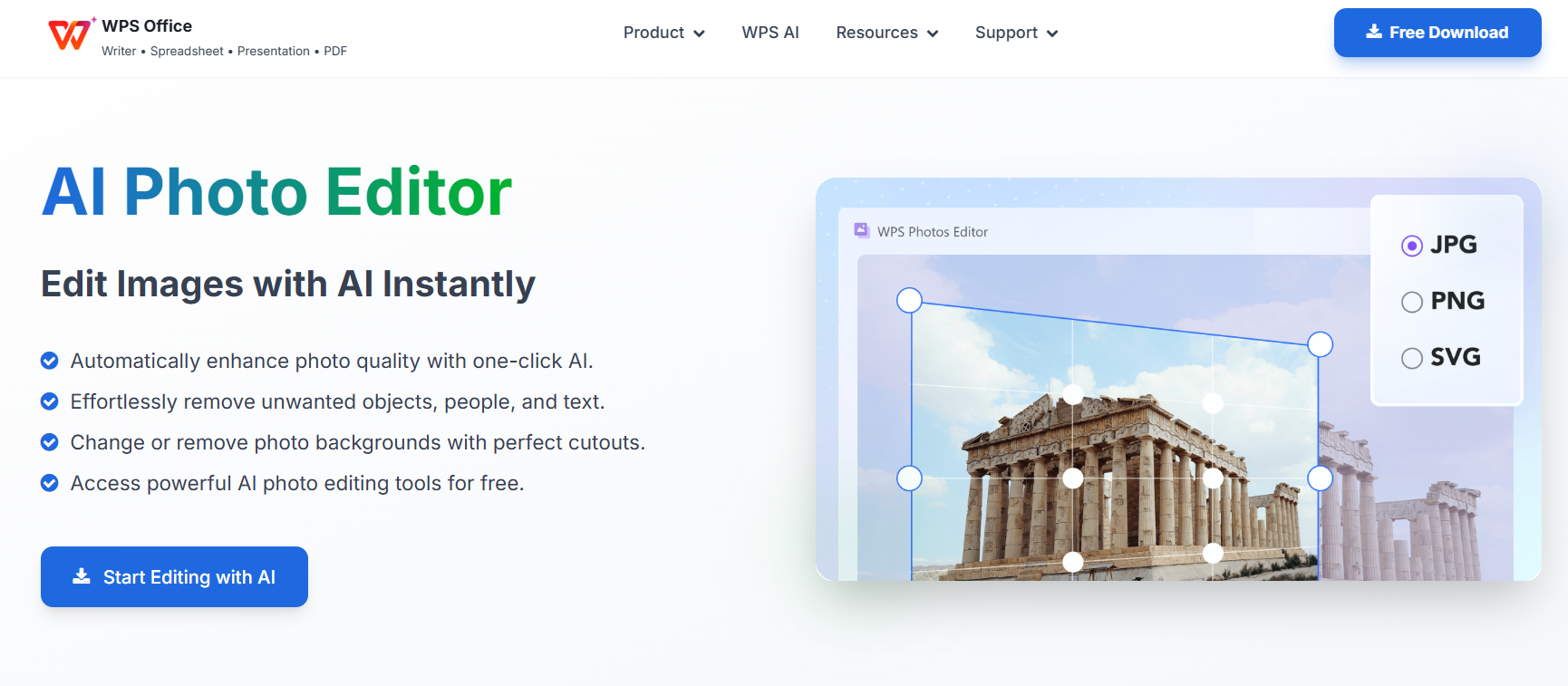
This integrated approach solves a common problem: relying on one tool for conversion, another for editing, and yet another for inserting visuals into documents. With WPS, you perform your edits and continue your work in the same environment, without needing bulky CR3 to JPG converter software free download packages or professional editing platforms that may feel excessive for everyday needs.
Overview of WPS AI Photo Editor
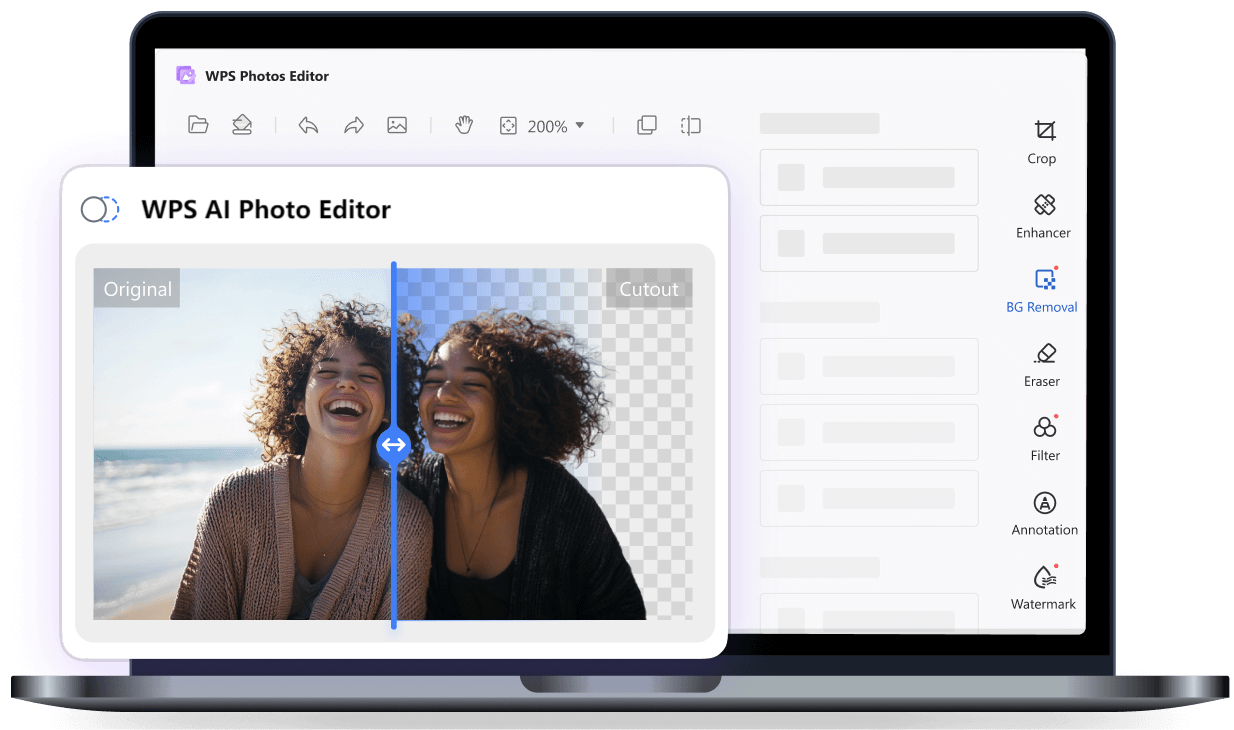
WPS AI Photo Editor is designed to simplify post-conversion tasks for users who frequently transform RAW files, whether they come from Canon cameras or other sources, into polished JPGs ready for use. Since it runs in the browser, it works smoothly across devices, including Windows and Android, creating a more accessible editing experience than many traditional tools discussed in cr3 to jpg reddit communities.
Key Advantages
AI-Powered Enhancements
WPS AI automates improvements like quality enhancement, background removal, object erasure, and artistic style transfer. Once you convert CR3 to JPG, these one-click tools help you refine results without requiring deep editing knowledge.
Seamless Office Integration
Because WPS AI lives inside the WPS Office ecosystem, edited JPGs can be used directly in WPS Writer, Presentation, or Spreadsheets. This cuts down on the friction of switching between separate applications.
Web-Based Convenience
Unlike many CR3 to JPG converter software for Windows 10 that require installation, WPS AI Photo Editor runs fully online. You get instant access without burdening your device with large applications.
User-Friendly Interface
The interface is designed for simplicity. Even users who are not familiar with editing tools can enhance their converted JPGs quickly.
Cost-Effective Performance
For casual users and professionals preparing visuals for documents, the value of WPS AI is hard to beat. It offers practical AI features without the high subscription fees of specialized editing tools.
Overall, if your workflow involves converting CR3 to JPG and then preparing the image for real-world use, WPS provides an efficient path from conversion to polished results.
My Experience with WPS AI Photo Editor
What stands out to me the most is how WPS consolidates tasks that would typically require multiple programs. After converting my CR3 files, I no longer have to move between standalone editors or install heavy software just to make simple improvements. The AI tools handle most adjustments cleanly, and the ability to drop edited images straight into a document saves a significant amount of time when I’m working under deadlines. It’s a refreshing change from juggling separate apps that interrupt the flow of creative or professional work.
FAQs
1. Can I convert CR3 to JPG for free without losing quality?
Yes. Several online converters offer free tiers that maintain excellent image quality, including FreeConvert and CloudConvert. As long as you begin with a high-quality CR3 file and choose a converter that avoids aggressive compression, you can achieve strong JPG results without paying.
2. Why can’t I open my CR3 file in Windows Photos or basic image viewers?
CR3 is a Canon RAW format that contains extensive image data. Most standard photo viewers, including Windows Photos, lack built-in support for CR3 to JPG Windows codecs. This is why many users resort to conversion tools or dedicated RAW-processing programs before they can preview the file.
3. Is there a way to batch convert multiple CR3 files to JPG at once?
Yes. Many online tools support batch processing, including CloudConvert and FreeConvert. These services allow you to convert dozens of CR3 files at the same time, which is especially helpful for photographers managing large shoots.
4. Can I convert CR3 to JPG on Android?
Yes. Several mobile-friendly tools allow CR3 to JPG Android conversion directly from your phone’s browser. FreeConvert and CloudConvert both function well on Android devices, making it easy to process RAW images on the go.
5. Is desktop software better than online converters for CR3 to JPG conversion?
Desktop software can offer more advanced control, but many CR3 to JPG converter software free download programs are heavy, require installation, or have dated interfaces. For most users needing quick, one-off conversions, online tools are faster and more convenient. If you need editing afterward, pairing an online converter with WPS AI Photo Editor provides a strong overall workflow.

'%3e%3cpath%20d='M19.9911%204.11386V6.471H18.5894C18.0775%206.471%2017.7322%206.57814%2017.5536%206.79243C17.3751%207.00671%2017.2858%207.32814%2017.2858%207.75671V9.44421H19.9019L19.5536%2012.0871H17.2858V18.8639H14.5536V12.0871H12.2769V9.44421H14.5536V7.49779C14.5536%206.39064%2014.8632%205.53201%2015.4822%204.92189C16.1013%204.31177%2016.9257%204.00671%2017.9554%204.00671C18.8304%204.00671%2019.509%204.04243%2019.9911%204.11386Z'%20fill='%23333333'/%3e%3c/g%3e%3cdefs%3e%3cclipPath%20id='clip0_2938_8199'%3e%3crect%20width='16'%20height='16'%20fill='white'%20transform='translate(8%204.00671)'/%3e%3c/clipPath%3e%3c/defs%3e%3c/svg%3e)
'%3e%3cpath%20d='M17.5237%2010.7813L23.4811%204H22.0699L16.8949%209.88693L12.7648%204H8L14.2469%2012.9029L8%2020.0133H9.4112L14.8725%2013.7952L19.2352%2020.0133H24M9.92053%205.04213H12.0885L22.0688%2019.0224H19.9003'%20fill='%23333333'/%3e%3c/g%3e%3cdefs%3e%3cclipPath%20id='clip0_2938_8200'%3e%3crect%20width='16'%20height='16.0134'%20fill='white'%20transform='translate(8%204)'/%3e%3c/clipPath%3e%3c/defs%3e%3c/svg%3e)


