


'%3e%3cpath%20fill-rule='evenodd'%20clip-rule='evenodd'%20d='M21.4999%2010.9993C21.4999%205.20009%2016.7986%200.498901%2010.9993%200.498901C5.19994%200.498901%200.498657%205.20009%200.498657%2010.9993C0.498657%2016.2404%204.33858%2020.5844%209.35855%2021.3722V14.0346H6.69238V10.9993H9.35855V8.68594C9.35855%206.05427%2010.9262%204.60062%2013.3248%204.60062C14.4736%204.60062%2015.6753%204.80571%2015.6753%204.80571V7.38979H14.3512C13.0468%207.38979%2012.64%208.19921%2012.64%209.0296V10.9993H15.5523L15.0867%2014.0346H12.64V21.3722C17.66%2020.5844%2021.4999%2016.2404%2021.4999%2010.9993Z'%20fill='%231568EA'/%3e%3c/g%3e%3c/svg%3e)


'%3e%3cpath%20d='M2.42045%2022.1876H6.31818V12.7217L0.75%208.54553V20.5171C0.75%2021.4414%201.49892%2022.1876%202.42045%2022.1876Z'%20fill='%234285F4'/%3e%3cpath%20d='M19.682%2022.1876H23.5797C24.5041%2022.1876%2025.2502%2021.4387%2025.2502%2020.5171V8.54553L19.682%2012.7217'%20fill='%2334A853'/%3e%3cpath%20d='M19.682%205.48293V12.7216L25.2502%208.54543V6.31816C25.2502%204.25236%2022.8921%203.07469%2021.2411%204.31361'%20fill='%23FBBC04'/%3e%3cpath%20d='M6.31824%2012.7217V5.48303L13.0001%2010.4944L19.6819%205.48303V12.7217L13.0001%2017.733'%20fill='%23EA4335'/%3e%3cpath%20d='M0.75%206.31816V8.54543L6.31818%2012.7216V5.48293L4.75909%204.31361C3.10534%203.07469%200.75%204.25236%200.75%206.31816Z'%20fill='%23C5221F'/%3e%3c/g%3e%3cdefs%3e%3cclipPath%20id='clip0_2954_7305'%3e%3crect%20width='24.5'%20height='18.375'%20fill='white'%20transform='translate(0.75%203.8125)'/%3e%3c/clipPath%3e%3c/defs%3e%3c/svg%3e)


Removing a distracting background can make a document, report, or presentation look cleaner in seconds. If you want to remove the background of a picture in Office, the built-in picture tools can help you isolate the main subject without editing the original file.
This guide explains the common desktop workflow, how to refine an imperfect selection, and how to save the result for reuse. Menu names and availability can vary by Office edition, so use the steps as a guide and check your installed version.
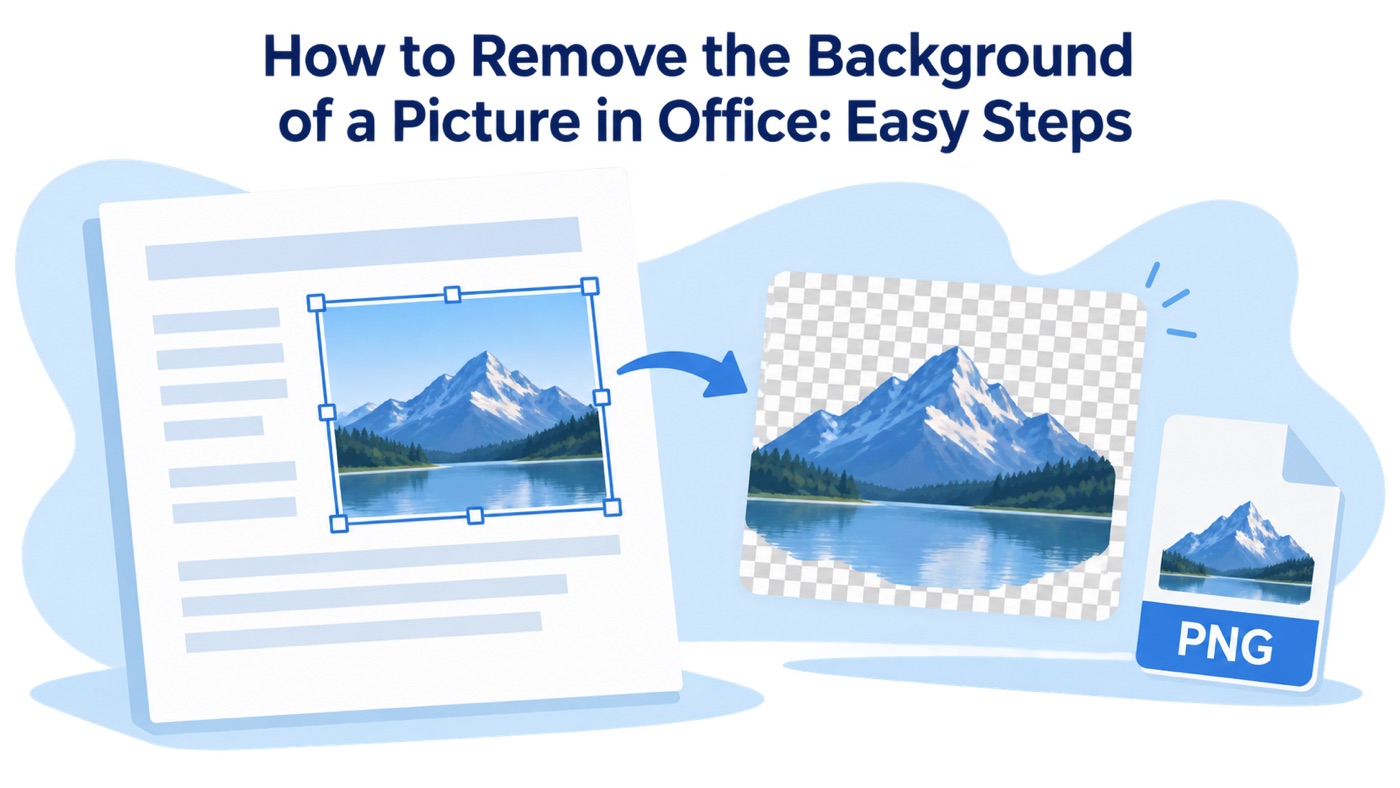
How to Remove the Background of a Picture in Office: Easy Steps
What Removing a Picture Background in Office Does
Background removal separates the visible subject from the surrounding pixels. The result may look like a cutout over a transparent background, but it is still part of the document until you save or copy it. This is useful for product images, profile graphics, diagrams, and presentation visuals.
The automatic selection works best when the subject is clearly different from its surroundings. Fine hair, glass, shadows, and backgrounds with colors similar to the subject may need manual refinement.
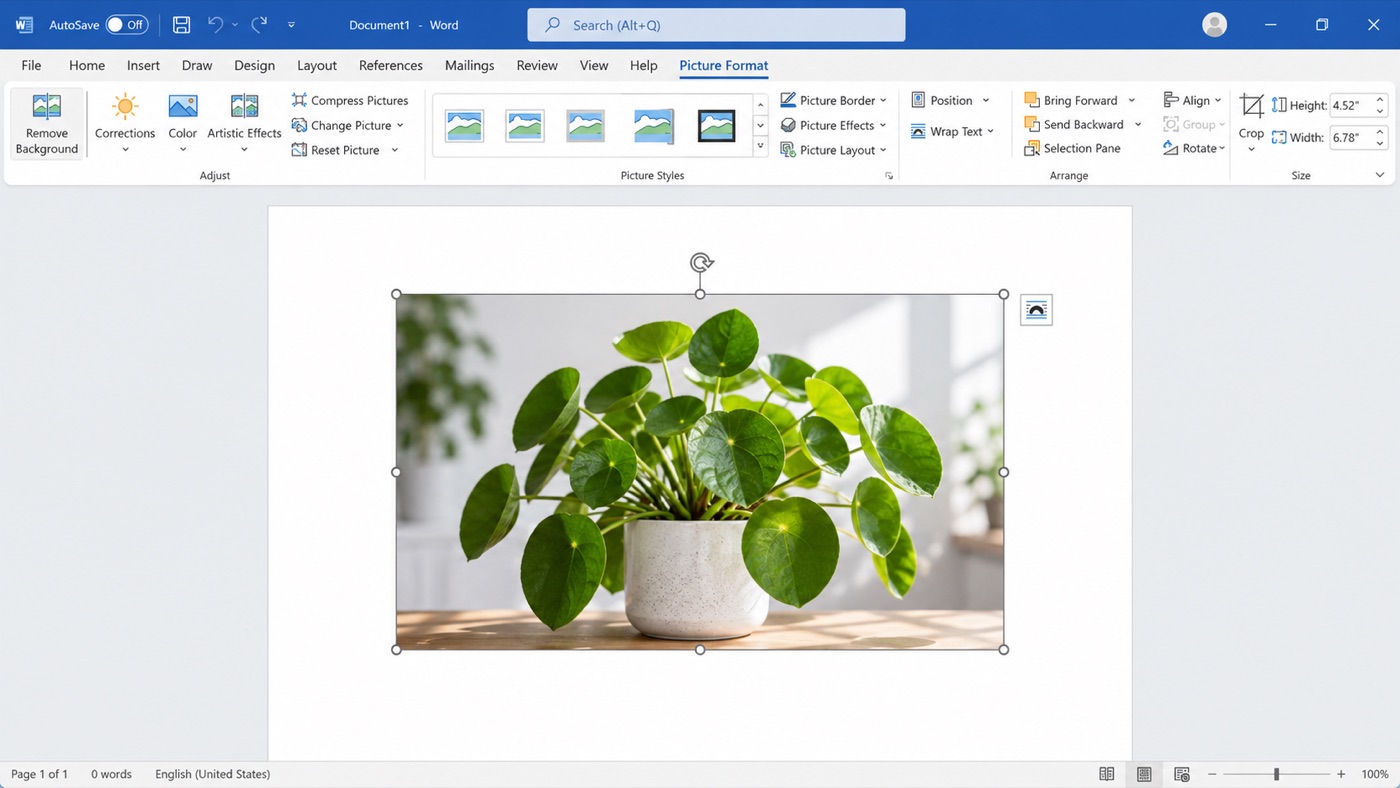
Word Picture Format background removal


How to Remove the Background of a Picture in Office
Insert the picture. Open your Word, PowerPoint, or another supported Office document, then choose Insert and add the image.
Select the image. Click the picture to display the contextual Picture Format tab.
Start background removal. Choose Remove Background in the Adjust group. Office will mark the area it plans to remove.
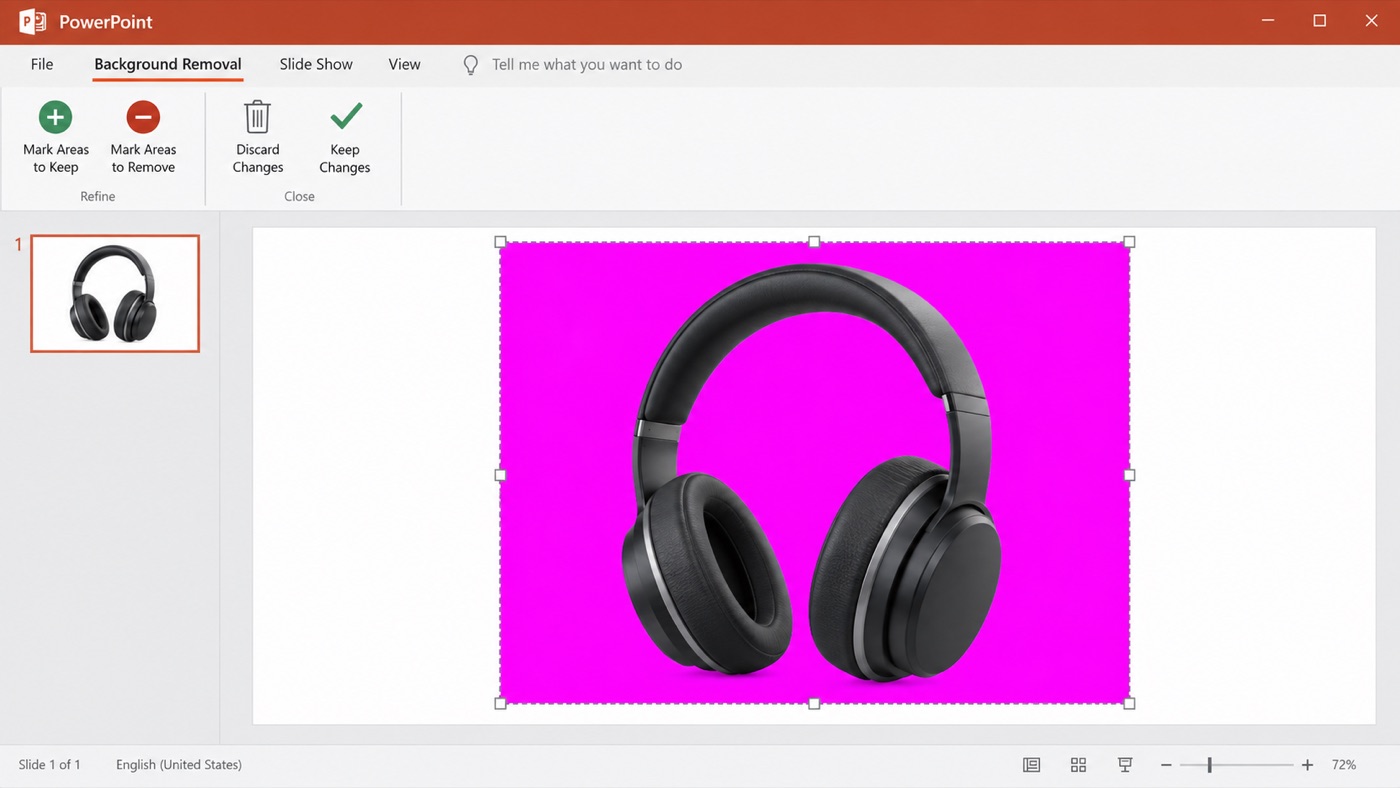
PowerPoint background removal preview
Review the preview carefully. The tinted area represents the portion Office intends to remove; it is not part of the final image.
Refine the Selection Before Keeping Changes
Choose Mark Areas to Keep, then draw short marks over subject details that were missed.
Choose Mark Areas to Remove, then mark background fragments that remain.
Resize or reposition the selection boundary if the subject is partly outside it.
Click Keep Changes when the preview looks correct. Use Discard Changes to return to the unedited picture.
The Best Free Office Alternative: WPS Office
If you want to remove a picture background and finish the surrounding document in one workspace, WPS Office is a practical free alternative. Writer, Presentation, Spreadsheet, PDF, and picture tools reduce the need to switch between separate apps.
After selecting a picture, use the current picture-editing tools available in your WPS platform to refine the image, place it in a document or slide, and continue formatting the file. Feature names and availability can vary by platform and version, so confirm the options shown in your installation.
| Workflow need | How WPS Office helps |
|---|---|
| Quick access | Picture actions stay close to the selected object, reducing menu hunting. |
| One workspace | Continue editing Writer, Presentation, Spreadsheet, or PDF files after the image step. |
| Reuse and export | Place the edited picture into multiple files and choose an output format that suits the project. |
| Everyday accessibility | Start with a free office suite for common document and presentation work. |
Key Advantages of WPS Office
Fewer workflow interruptions: keep image and document tasks together.
Flexible editing: adjust size, position, and surrounding content after the cutout.
Practical value: use a familiar office suite before adding a separate image editor.
Explore WPS Office to continue editing your document.
WPS Office product overview page
How to Remove the Background of a Picture in WPS Office
WPS Office keeps the picture workflow inside the document or presentation. Use these steps to remove a picture background and refine the result:
Open the picture. Open the file in WPS Writer or WPS Presentation and select the picture.
Open Picture Tools. Choose Picture Tools or the picture-formatting tab for the selected image.
Choose Remove Background. Start the background-removal command and review the preview.
Refine and apply. Mark areas to keep or remove as needed, then apply the changes.
Save as PNG. Export a copy as PNG when you need transparent areas to remain transparent.
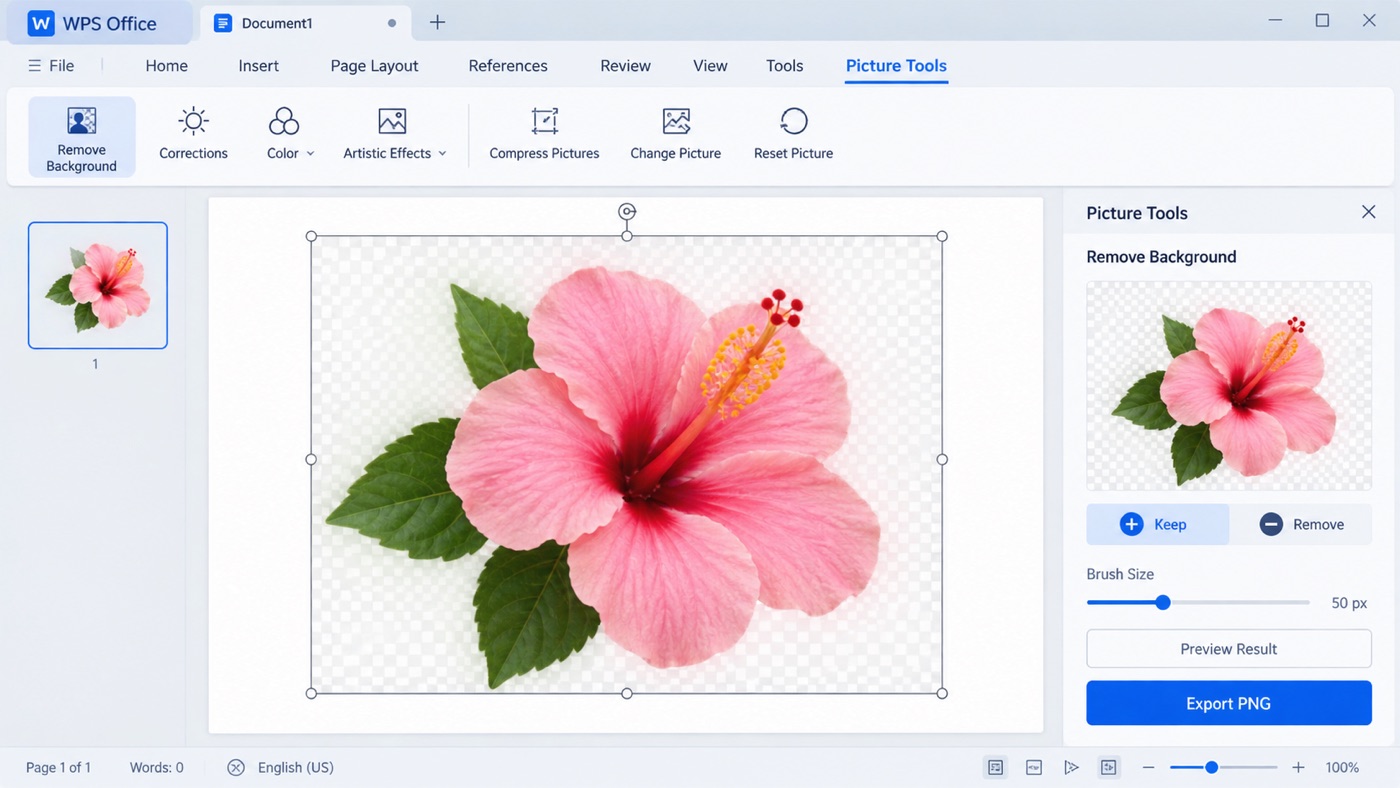
WPS Office background removal panel
FAQs
Can I remove a picture background in Word?
In supported desktop editions, select the picture, open Picture Format, and choose Remove Background. The exact command can vary by edition.
Does background removal delete the original image?
It normally changes the copy placed in the document. Save a separate file if you want to preserve an untouched original.
Why does Office remove part of my subject?
Automatic selection can confuse low contrast, fine details, or similar colors. Use the keep and remove marking tools to correct the preview.
Which format keeps a transparent background?
PNG is the usual choice when you need transparency preserved. Confirm the exported result by placing it over a contrasting color.
Can I do this workflow in WPS Office?
WPS Office supports document and presentation editing, and available image tools may vary by platform and version. Open the selected picture and check the current picture-editing options.


'%3e%3cpath%20d='M19.9911%204.11386V6.471H18.5894C18.0775%206.471%2017.7322%206.57814%2017.5536%206.79243C17.3751%207.00671%2017.2858%207.32814%2017.2858%207.75671V9.44421H19.9019L19.5536%2012.0871H17.2858V18.8639H14.5536V12.0871H12.2769V9.44421H14.5536V7.49779C14.5536%206.39064%2014.8632%205.53201%2015.4822%204.92189C16.1013%204.31177%2016.9257%204.00671%2017.9554%204.00671C18.8304%204.00671%2019.509%204.04243%2019.9911%204.11386Z'%20fill='%23333333'/%3e%3c/g%3e%3cdefs%3e%3cclipPath%20id='clip0_2938_8199'%3e%3crect%20width='16'%20height='16'%20fill='white'%20transform='translate(8%204.00671)'/%3e%3c/clipPath%3e%3c/defs%3e%3c/svg%3e)
'%3e%3cpath%20d='M17.5237%2010.7813L23.4811%204H22.0699L16.8949%209.88693L12.7648%204H8L14.2469%2012.9029L8%2020.0133H9.4112L14.8725%2013.7952L19.2352%2020.0133H24M9.92053%205.04213H12.0885L22.0688%2019.0224H19.9003'%20fill='%23333333'/%3e%3c/g%3e%3cdefs%3e%3cclipPath%20id='clip0_2938_8200'%3e%3crect%20width='16'%20height='16.0134'%20fill='white'%20transform='translate(8%204)'/%3e%3c/clipPath%3e%3c/defs%3e%3c/svg%3e)


