

'%3e%3cpath%20d='M8%200C12.4183%200%2016%203.58172%2016%208C16%2012.4183%2012.4183%2016%208%2016C3.58172%2016%200%2012.4183%200%208C0%203.58172%203.58172%200%208%200ZM11.6162%204.38379C11.2257%203.99337%2010.5927%203.99338%2010.2021%204.38379L8%206.58594L5.79785%204.38379C5.40732%203.99334%204.77429%203.99329%204.38379%204.38379C3.99331%204.77429%203.99335%205.40733%204.38379%205.79785L6.58594%208L4.38379%2010.2021C3.99348%2010.5927%203.99341%2011.2257%204.38379%2011.6162C4.77426%2012.0066%205.40734%2012.0065%205.79785%2011.6162L8%209.41406L10.2021%2011.6162C10.5927%2012.0066%2011.2257%2012.0067%2011.6162%2011.6162C12.0067%2011.2257%2012.0066%2010.5927%2011.6162%2010.2021L9.41406%208L11.6162%205.79785C12.0066%205.40735%2012.0066%204.77429%2011.6162%204.38379Z'%20fill='%23080E17'%20fill-opacity='0.46'/%3e%3c/g%3e%3cdefs%3e%3cclipPath%20id='clip0_3761_713'%3e%3crect%20width='16'%20height='16'%20fill='white'/%3e%3c/clipPath%3e%3c/defs%3e%3c/svg%3e)



'%3e%3cpath%20fill-rule='evenodd'%20clip-rule='evenodd'%20d='M21.4999%2010.9993C21.4999%205.20009%2016.7986%200.498901%2010.9993%200.498901C5.19994%200.498901%200.498657%205.20009%200.498657%2010.9993C0.498657%2016.2404%204.33858%2020.5844%209.35855%2021.3722V14.0346H6.69238V10.9993H9.35855V8.68594C9.35855%206.05427%2010.9262%204.60062%2013.3248%204.60062C14.4736%204.60062%2015.6753%204.80571%2015.6753%204.80571V7.38979H14.3512C13.0468%207.38979%2012.64%208.19921%2012.64%209.0296V10.9993H15.5523L15.0867%2014.0346H12.64V21.3722C17.66%2020.5844%2021.4999%2016.2404%2021.4999%2010.9993Z'%20fill='%231568EA'/%3e%3c/g%3e%3c/svg%3e)


'%3e%3cpath%20d='M2.42045%2022.1876H6.31818V12.7217L0.75%208.54553V20.5171C0.75%2021.4414%201.49892%2022.1876%202.42045%2022.1876Z'%20fill='%234285F4'/%3e%3cpath%20d='M19.682%2022.1876H23.5797C24.5041%2022.1876%2025.2502%2021.4387%2025.2502%2020.5171V8.54553L19.682%2012.7217'%20fill='%2334A853'/%3e%3cpath%20d='M19.682%205.48293V12.7216L25.2502%208.54543V6.31816C25.2502%204.25236%2022.8921%203.07469%2021.2411%204.31361'%20fill='%23FBBC04'/%3e%3cpath%20d='M6.31824%2012.7217V5.48303L13.0001%2010.4944L19.6819%205.48303V12.7217L13.0001%2017.733'%20fill='%23EA4335'/%3e%3cpath%20d='M0.75%206.31816V8.54543L6.31818%2012.7216V5.48293L4.75909%204.31361C3.10534%203.07469%200.75%204.25236%200.75%206.31816Z'%20fill='%23C5221F'/%3e%3c/g%3e%3cdefs%3e%3cclipPath%20id='clip0_2954_7305'%3e%3crect%20width='24.5'%20height='18.375'%20fill='white'%20transform='translate(0.75%203.8125)'/%3e%3c/clipPath%3e%3c/defs%3e%3c/svg%3e)


A 500 KB limit turns up on visa portals, job applications and marketplace listings, and a phone photo is usually 2 to 8 MB, so you have to reduce image size by roughly ninety per cent without wrecking the detail. The quickest fix is a target-size compressor that searches for the highest JPEG quality that still fits under 500 KB, and you can reach the same result by hand with a quality slider.
How to Compress a JPG to 500 KB: Free Methods That Keep Quality
Compress a JPG to 500 KB with a Target-Size Tool
Guessing a quality number and re-exporting until the file fits is the slow way to work. A target-size tool helps you reduce image size by adjusting compression settings until the file fits under the limit. On a normal photo, this can take just a few seconds while preserving acceptable image quality.
To reduce image size, open a compressor with a target field. Browser tools and desktop utilities both offer one; prefer a tool that processes the image locally.
Drop the JPG in. A tool that runs inside the tab never uploads your photo, which matters for ID scans and documents.
Type 500 KB and use 490 KB when the form rejects a file that sits exactly on the limit.
Download and inspect the result. Check the size in your file manager and open the image at 100 per cent before you send it anywhere.
Keep the original file. Compression is a one-way trip, so when the first attempt is too soft, go back to the source rather than compressing an already compressed copy, which stacks artefacts on top of artefacts.
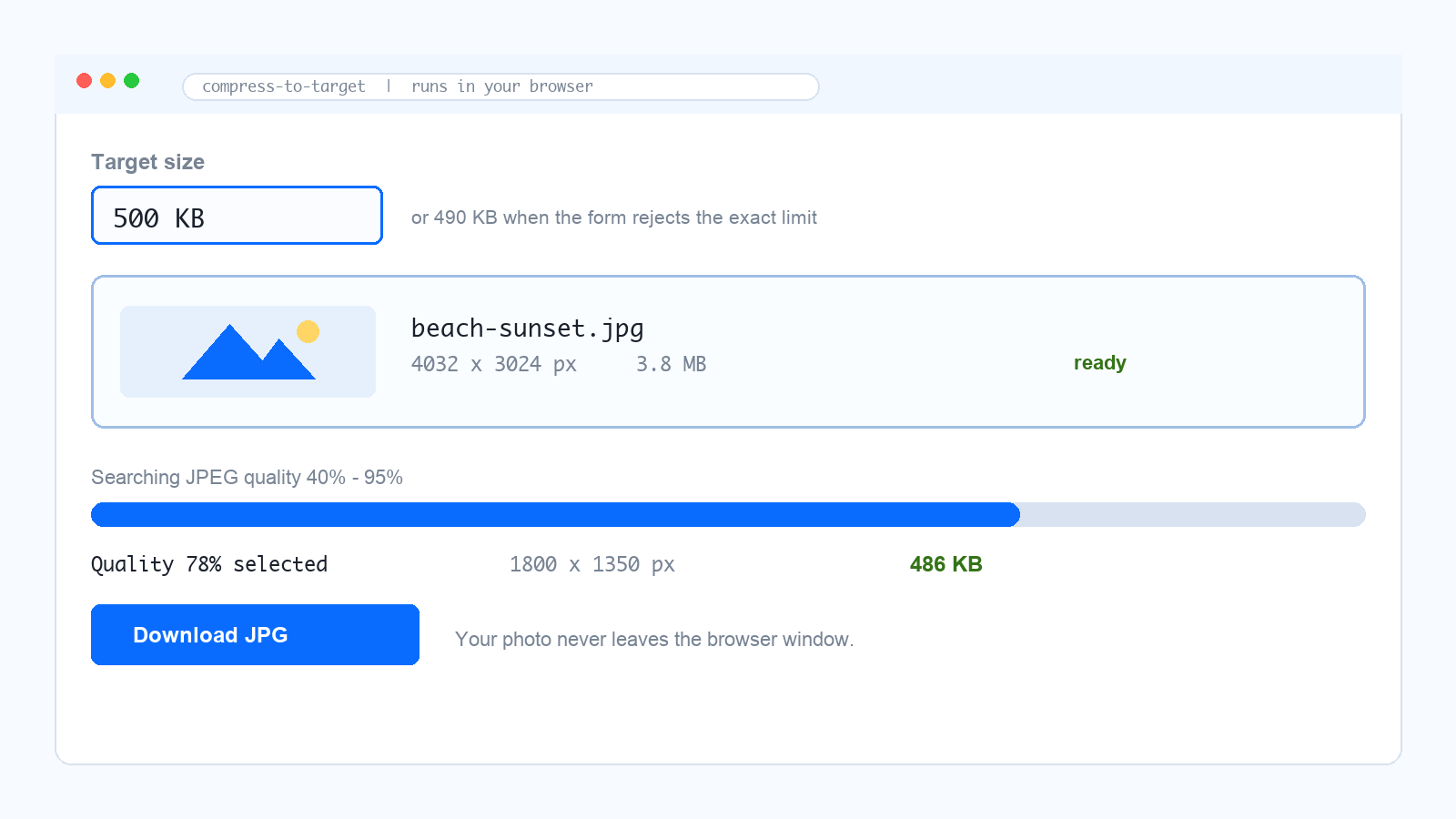
Target size JPG compressor with 500 KB


Shrink the File by Hand in Preview, Photos or an Editor
Every desktop already has a JPEG quality control, and using one by hand lets you judge the trade-off yourself instead of trusting a slider position.
macOS Preview: open the image, choose File, then Export, pick JPEG and drag the Quality slider down until the size shown fits your limit.
Windows Photos and Paint: both can save a smaller copy, but neither gives you a quality percentage, so reach for an editor such as GIMP. Its File, Export As dialog has a quality slider and shows the resulting size before you commit.
Photoshop and similar editors: File, then Export As, puts Quality and Dimensions in one dialog, with a live preview, which is the fastest way to compare 70 per cent at full size against 90 per cent at a smaller size.
Push the quality down in steps and stop before the image starts to look cheap. Around 70 to 80 per cent most photos are visually identical to the original at normal viewing size, while below roughly 60 per cent the blocking becomes obvious on text, faces and hard edges.
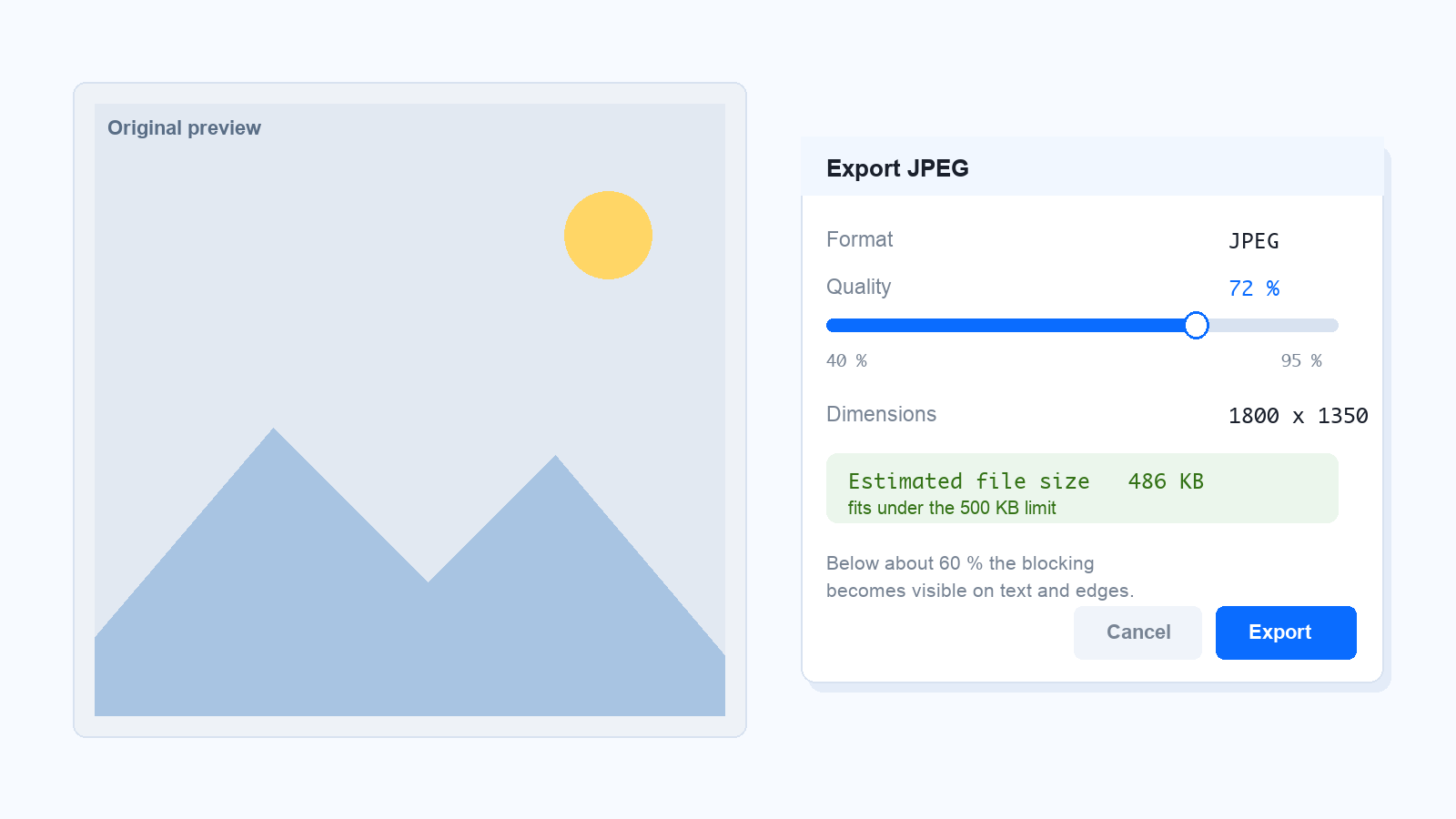
Export JPEG dialog with quality slider
When Quality Drops Too Far: Resize Before You Compress
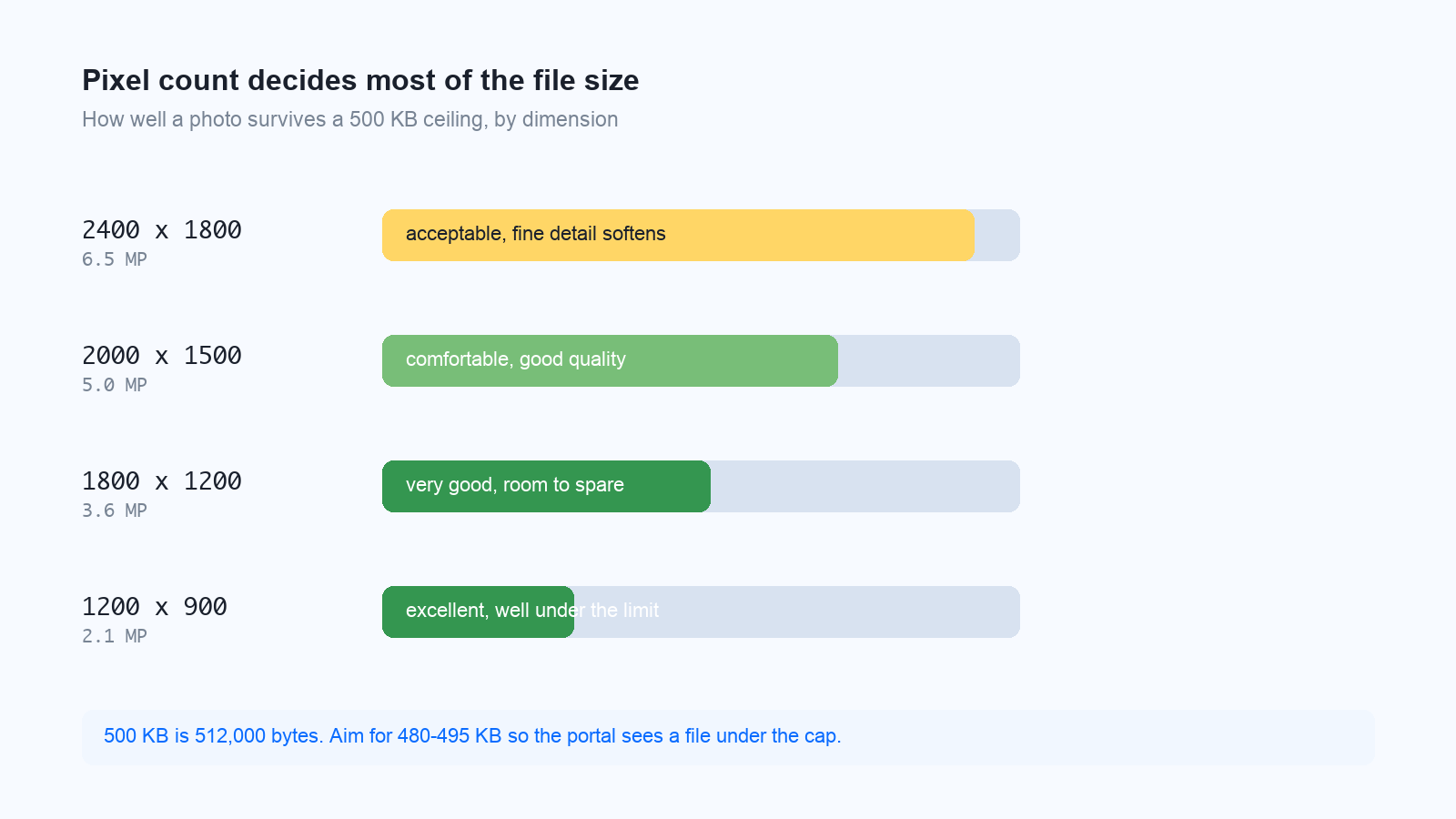
File size follows pixel count as much as quality, so the single most effective move is to make the image smaller before you touch the quality slider at all. Halving the width and the height removes three quarters of the pixels, which buys back a lot of quality at the same 500 KB ceiling.
2,400 x 1,800 px: acceptable at 500 KB, though fine detail softens.
2,000 x 1,500 px: comfortable, with good quality throughout.
1,800 x 1,200 px: very good, with room to spare.
1,200 x 900 px: excellent, and comfortably under the limit.
Remember that 500 KB means 512,000 bytes, and most portals read it as under the limit, so aim for 480 to 495 KB and leave yourself some headroom. Cropping matters too: you can crop image to remove unwanted areas before compressing, giving the remaining image more of the file-size budget.
JPEG dimension and file size comparison
Check the Result Before You Upload
Five seconds of checking saves a rejected upload, especially on portals that validate the file before a human ever sees it.
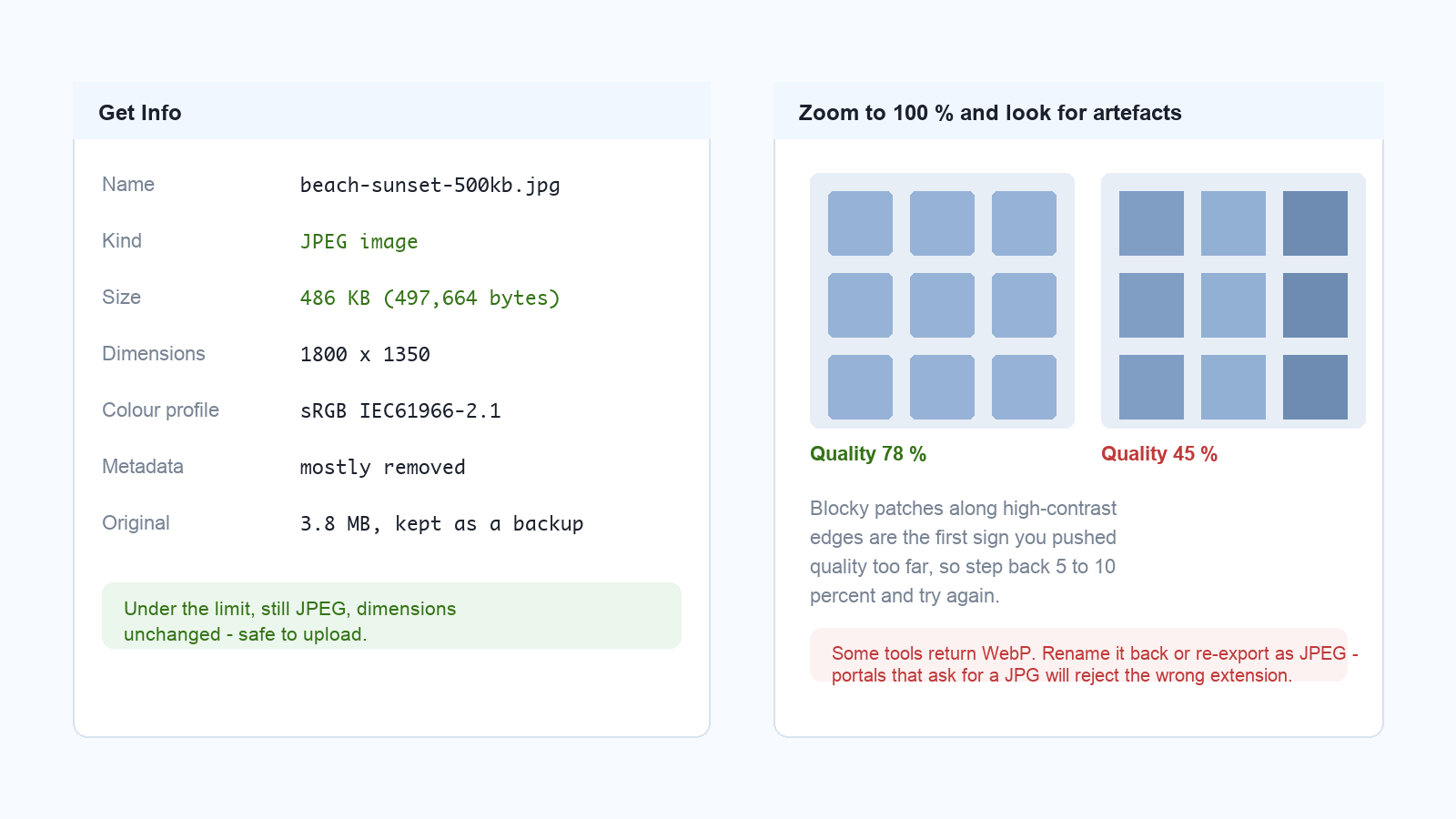
Size: under the cap, with a few kilobytes of headroom rather than exactly on it.
Format: still .jpg or .jpeg. Some compressors quietly hand back a WebP file, which forms that ask for a JPEG will reject.
Dimensions: unchanged, unless the form specified a size and you meant to resize. Many visa and job portals require both a file-size ceiling and a minimum pixel size.
Sharpness: zoom to 100 per cent and look along high-contrast edges for blocky patches. If they are obvious, step the quality back up 5 to 10 per cent and resize a little harder instead.
Metadata: exporting usually strips EXIF, including location data, which is good for privacy and bad only if the receiving system asked for it.
Compressed JPEG size and quality check
Compress a Whole Folder of JPGs to 500 KB
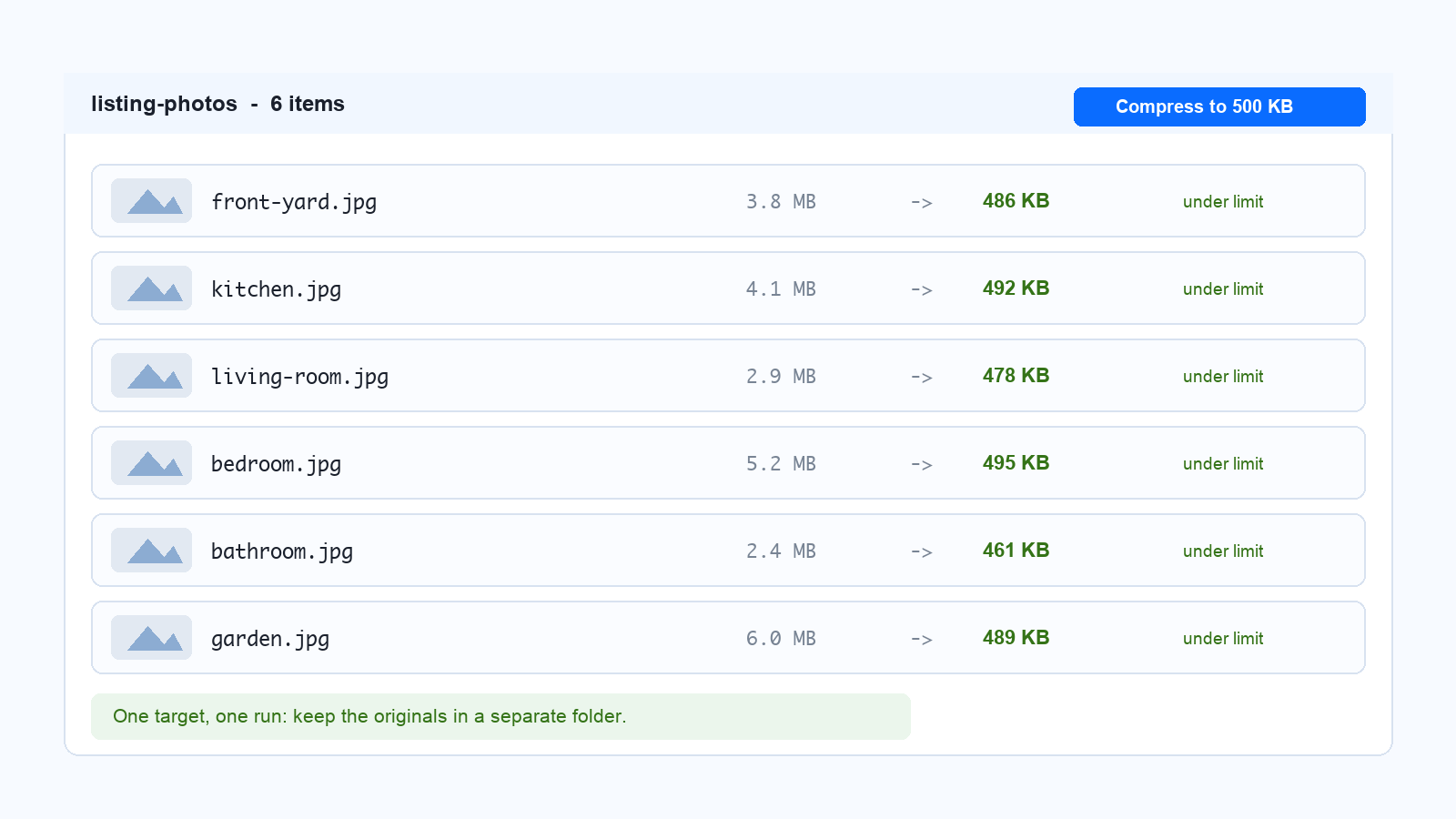
A real-estate agent, a student or anyone filling in a long form rarely has one photo to fix. Batch processing solves the whole folder in one run, provided you set the target before you start rather than after.
Copy the originals into a new folder so the untouched files stay available for a second attempt at a different size.
Add the whole folder to the compressor and set the target to 500 KB once, not per file.
Sort by the resulting size and open the two or three largest results, because they are the ones closest to looking soft.
Re-run only the failures at a smaller dimension instead of lowering quality across the whole set.
Batch compressing JPG files to 500 KB
The Best Free Alternative: WPS Office
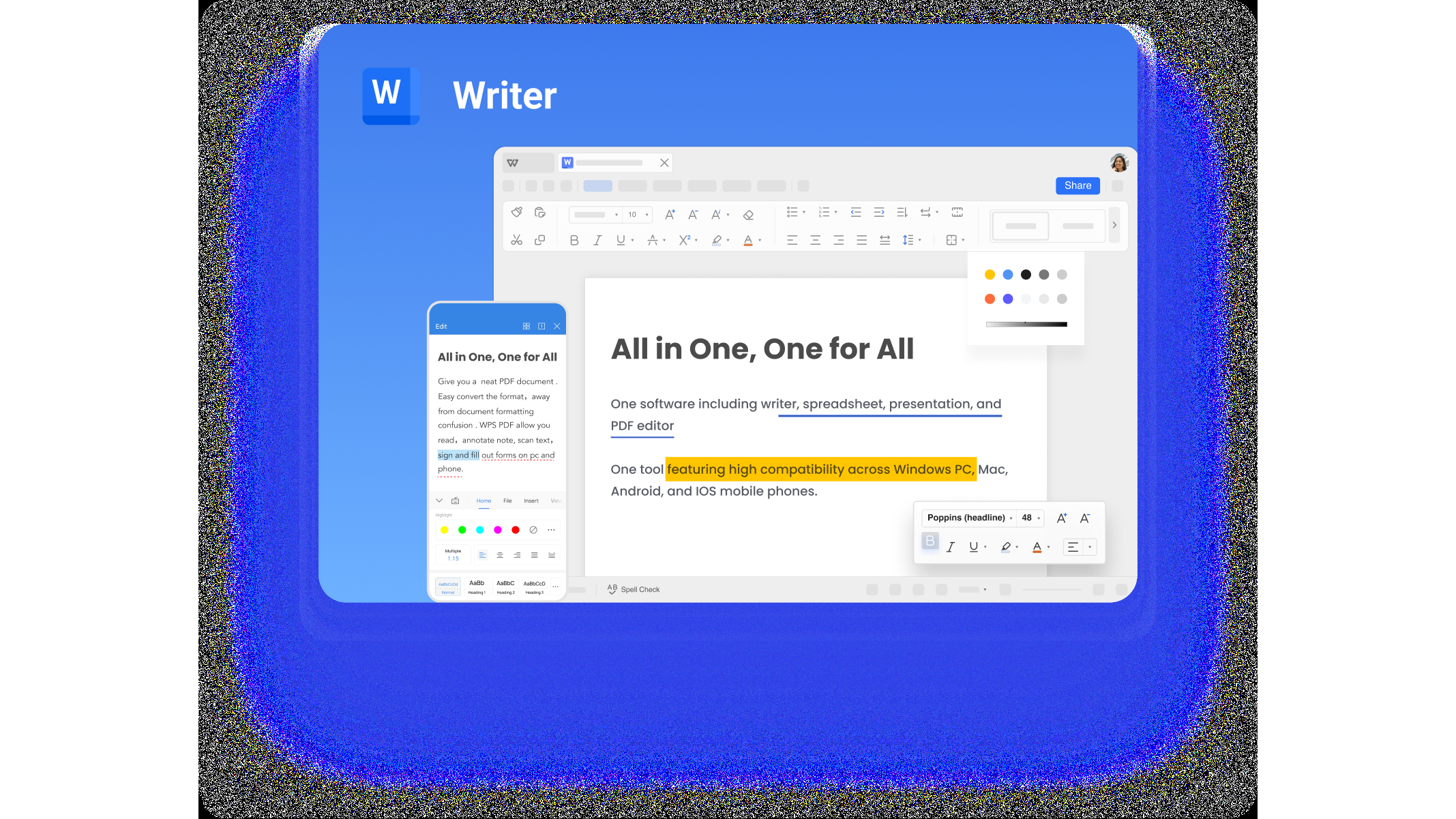
WPS Office is free on Windows, macOS, Android and iOS, and it is useful twice over when a 500 KB image has to turn into a document. WPS Writer and WPS Presentation can compress the pictures already inside a file, which keeps a report or a slide deck small enough to email, and the PDF compression tool shrinks the document that carries your photo when the portal accepts a PDF instead of a JPEG. There is no per-file charge and no watermark, and the step-by-step compression guide shows the levels worth using before you send anything.
WPS Writer document with picture compression tools
FAQs
1. How do I compress a JPG to exactly 500 KB?
Use a target-size compressor to reduce image size. Instead of you guessing a quality percentage, the tool tests quality settings and picks the highest one whose output stays under 500 KB, which lands the file a few kilobytes below the limit. Aim for 480 to 495 KB so a strict form does not reject a file that rounds up.
2. Does compressing a JPG reduce quality?
Yes, slightly, because JPEG compression discards some colour detail permanently. Kept at 70 to 80 per cent quality most photos look identical at normal size, and the losses only become visible below about 60 per cent, or when you compress the same file repeatedly instead of starting again from the original.
3. Why can I not get my JPG under 500 KB?
Pixel count is usually the reason. A 24 megapixel photo from a modern phone still holds too much data no matter how low you push the quality. Resize it to around 1,800 x 1,200 px first, then compress; the image stays sharp and the file drops well under the limit.
4. Will compressing a JPG remove its location data?
Usually yes. Exporting from an editor or a compressor rewrites the file and drops most EXIF metadata, including GPS coordinates. That is helpful for privacy on public listings, but check first if the receiving system expects the metadata to be intact.
5. Can I compress several JPGs to 500 KB at once?
Yes. Batch compressors accept a whole folder, let you set one target size, and then list the before-and-after size for every file. Keep the originals in a separate folder so you can run the batch again at a different target if a form asks for something smaller.


'%3e%3cpath%20d='M19.9911%204.11386V6.471H18.5894C18.0775%206.471%2017.7322%206.57814%2017.5536%206.79243C17.3751%207.00671%2017.2858%207.32814%2017.2858%207.75671V9.44421H19.9019L19.5536%2012.0871H17.2858V18.8639H14.5536V12.0871H12.2769V9.44421H14.5536V7.49779C14.5536%206.39064%2014.8632%205.53201%2015.4822%204.92189C16.1013%204.31177%2016.9257%204.00671%2017.9554%204.00671C18.8304%204.00671%2019.509%204.04243%2019.9911%204.11386Z'%20fill='%23333333'/%3e%3c/g%3e%3cdefs%3e%3cclipPath%20id='clip0_2938_8199'%3e%3crect%20width='16'%20height='16'%20fill='white'%20transform='translate(8%204.00671)'/%3e%3c/clipPath%3e%3c/defs%3e%3c/svg%3e)
'%3e%3cpath%20d='M17.5237%2010.7813L23.4811%204H22.0699L16.8949%209.88693L12.7648%204H8L14.2469%2012.9029L8%2020.0133H9.4112L14.8725%2013.7952L19.2352%2020.0133H24M9.92053%205.04213H12.0885L22.0688%2019.0224H19.9003'%20fill='%23333333'/%3e%3c/g%3e%3cdefs%3e%3cclipPath%20id='clip0_2938_8200'%3e%3crect%20width='16'%20height='16.0134'%20fill='white'%20transform='translate(8%204)'/%3e%3c/clipPath%3e%3c/defs%3e%3c/svg%3e)


