Photopea is widely known as a free Photoshop-style editor that runs
in a browser. Many users want offline access, better speed, and
desktop-style control. Many users search for the Photopea
download for PC, looking for offline access to the web editor.
The problem is that Photopea itself is not officially downloadable. So,
where do these installers come from, and are they safe to use? This
guide explains different options clearly and offers a safer
alternative.
Use Word, Excel, and PPT for FREE
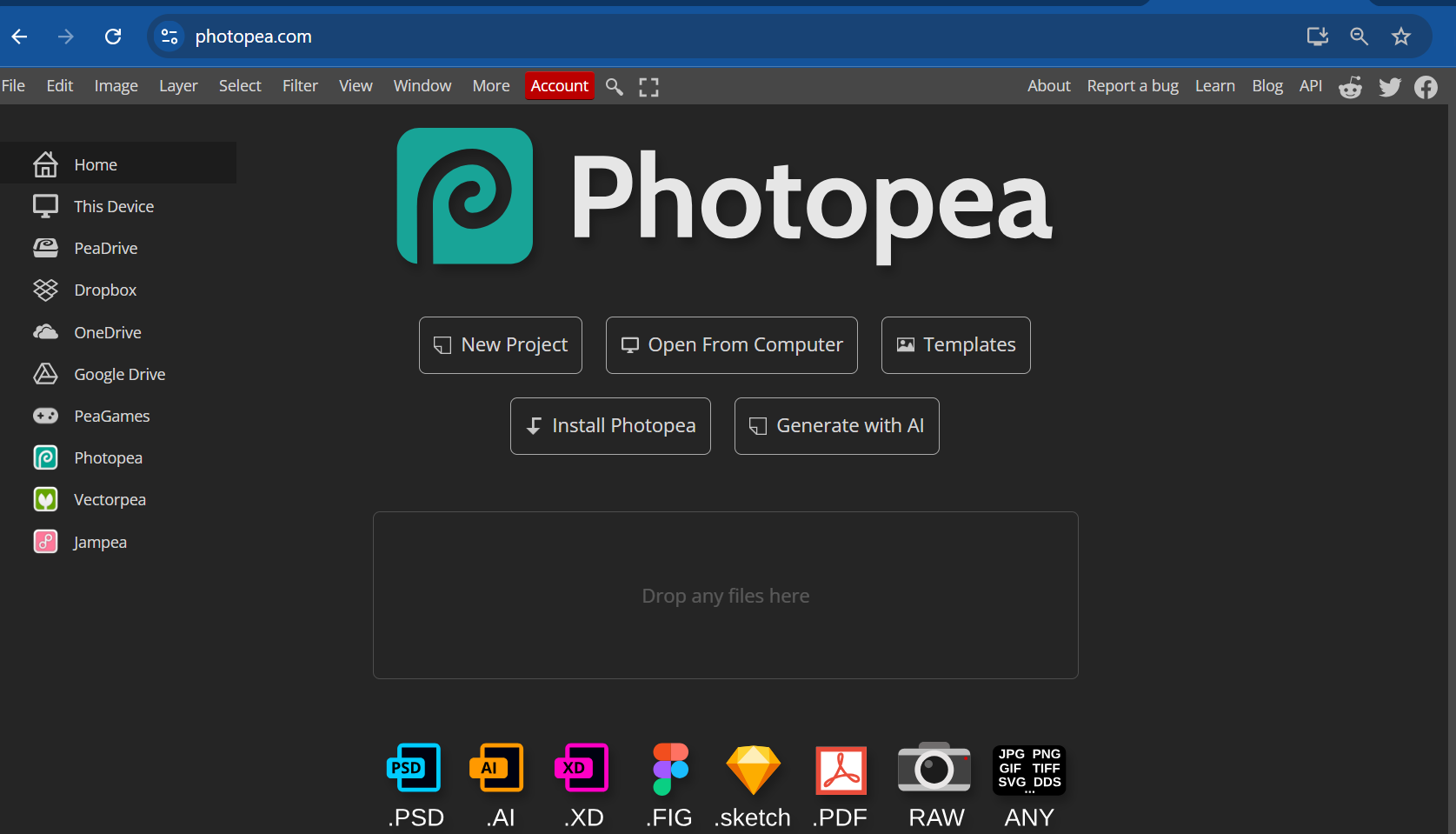
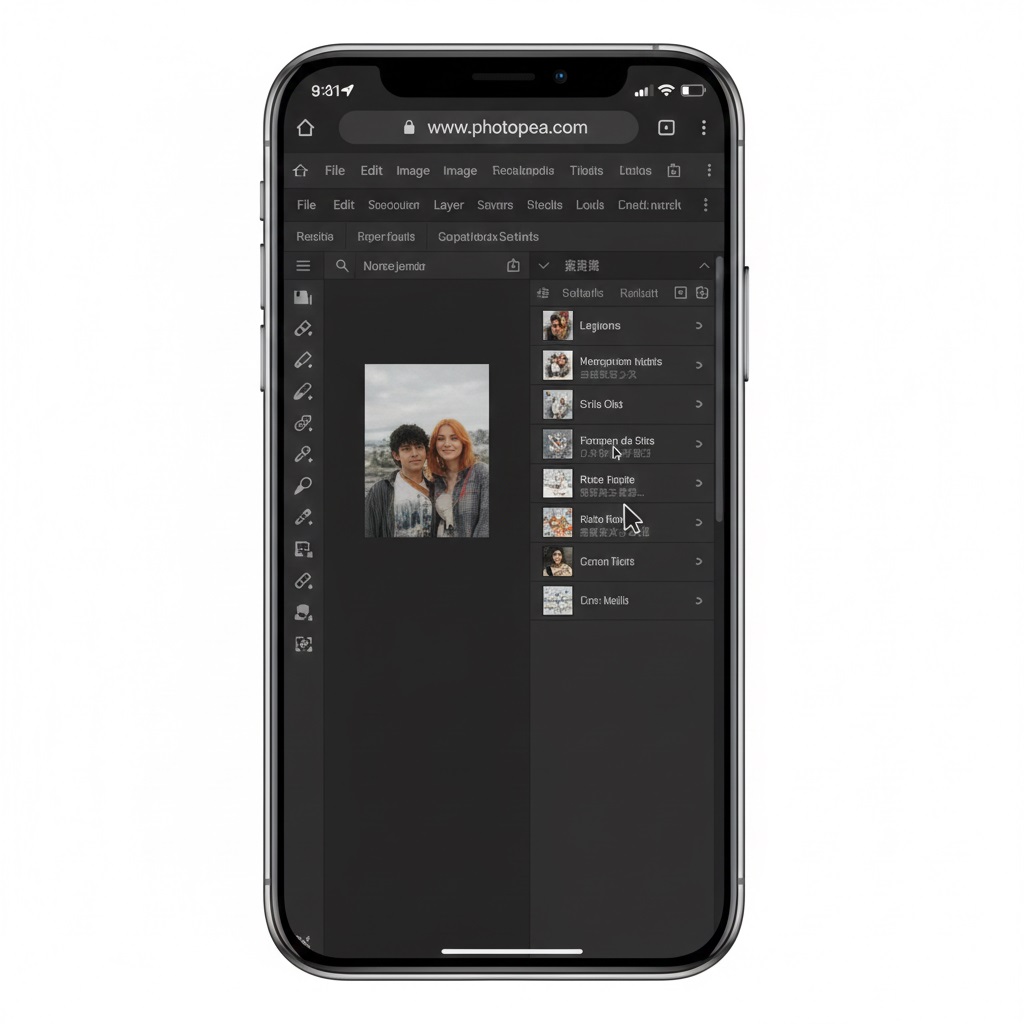
Photopea
Part 1.
How to Download Photopea for Windows
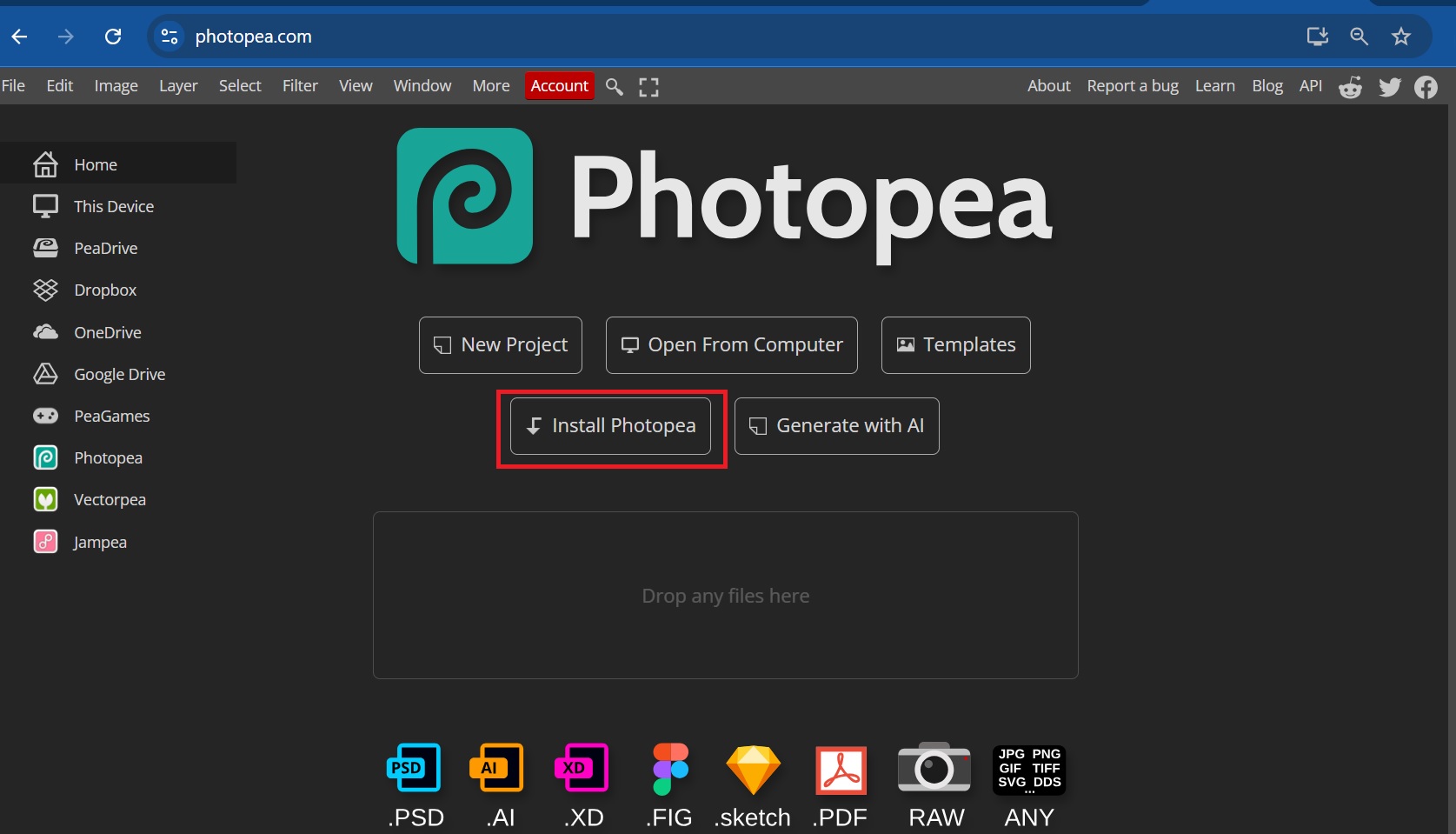
Photopea works best when used as a desktop-style app through your
browser. This setup provides a clean workspace, faster access, and an
experience that is very close to a traditional photo editor, without
requiring the installation of risky third-party software. Here is how to
access Photopea as a desktop app step by step:
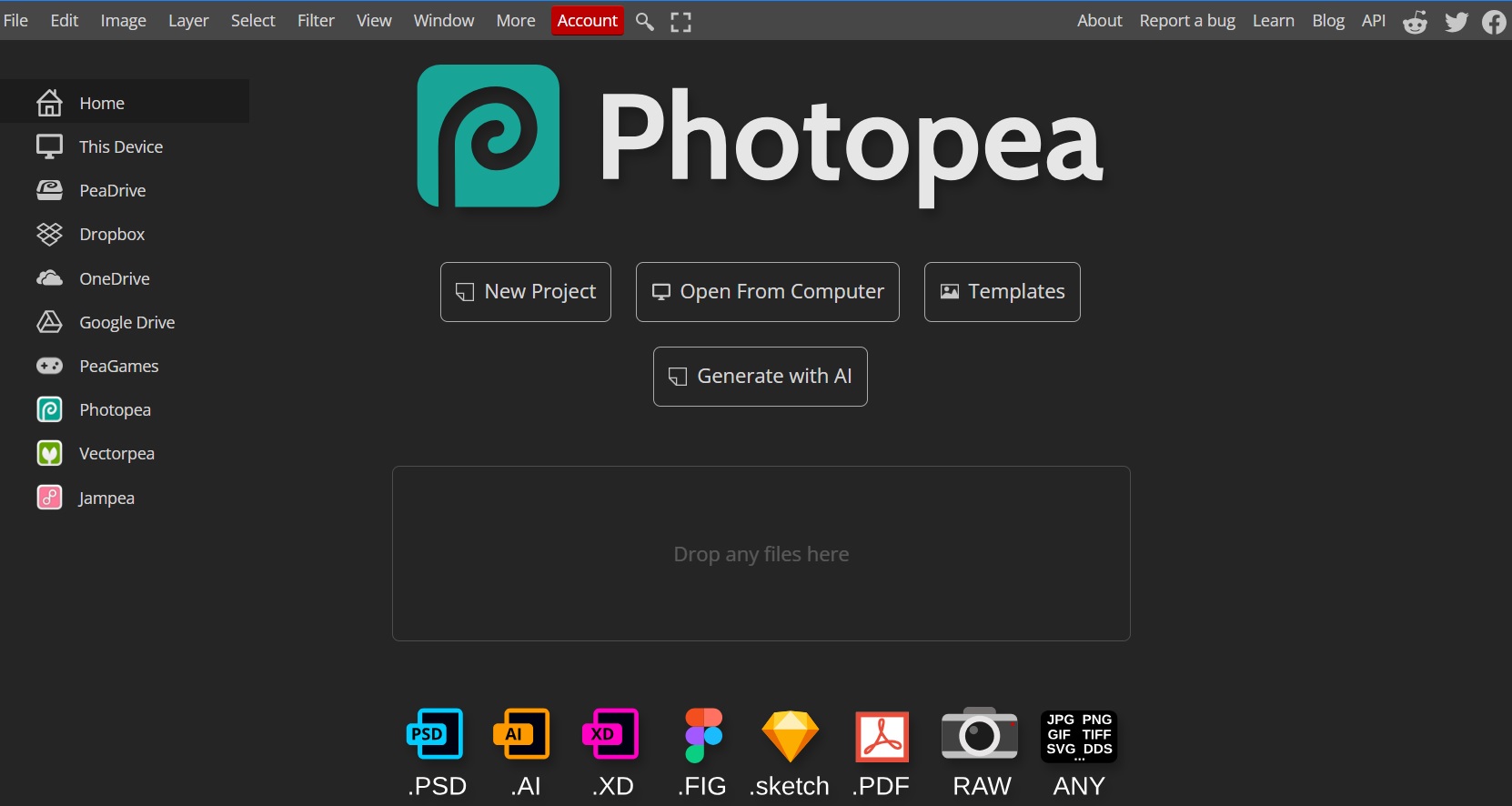
Photopea will now open in a separate window and appear like a
normal desktop app. You can pin it to your taskbar or dock for quick
access.
Photopea desktop app
This method is safe, official, and recommended if you want a smooth
desktop editing experience without downloading any installers.
However, if you search for a Photopea download on
Windows, you will only find third-party packaged versions. These wrap
the web app into a desktop-style program. Keep in mind, these versions
are not maintained by the original developer. There is no official EXE,
DMG, or APK file for Photopea. Any site offering a direct installer is
not legitimate and should be avoided.
Download Sources
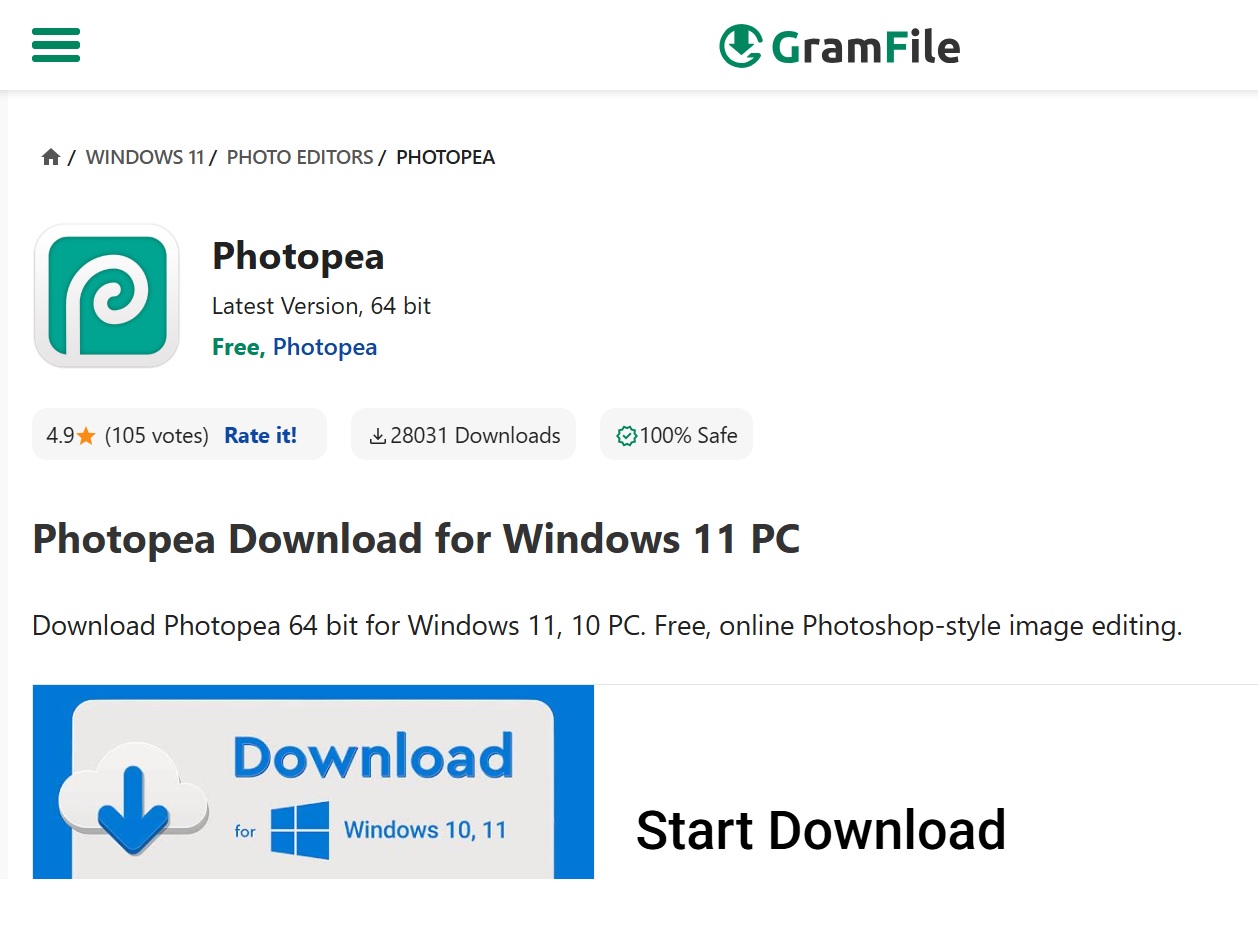
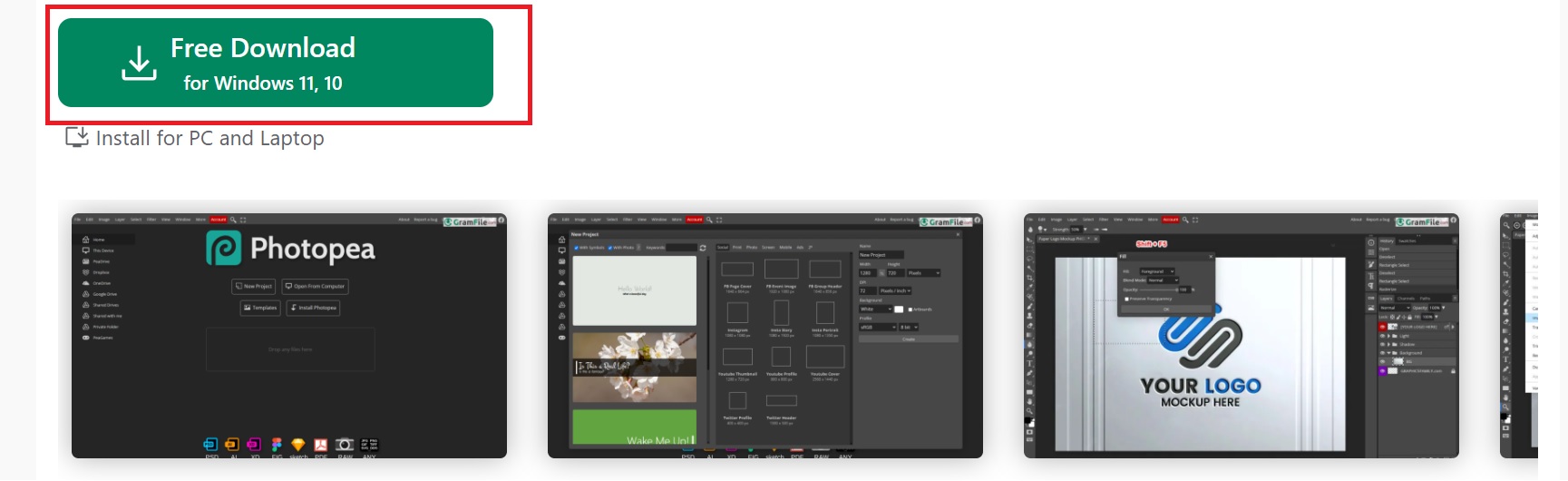
You can download Photopea either as a direct Windows installer from Gramfile or
as a Desktop-style packaged app from WebCatalog.
This is where users usually search for the Photopea download
for Mac.
Installation Steps
Mac users also rely on third-party DMG files. However, the safest
method for using Photopia on Mac is to install the web app from the
official Photopia website.
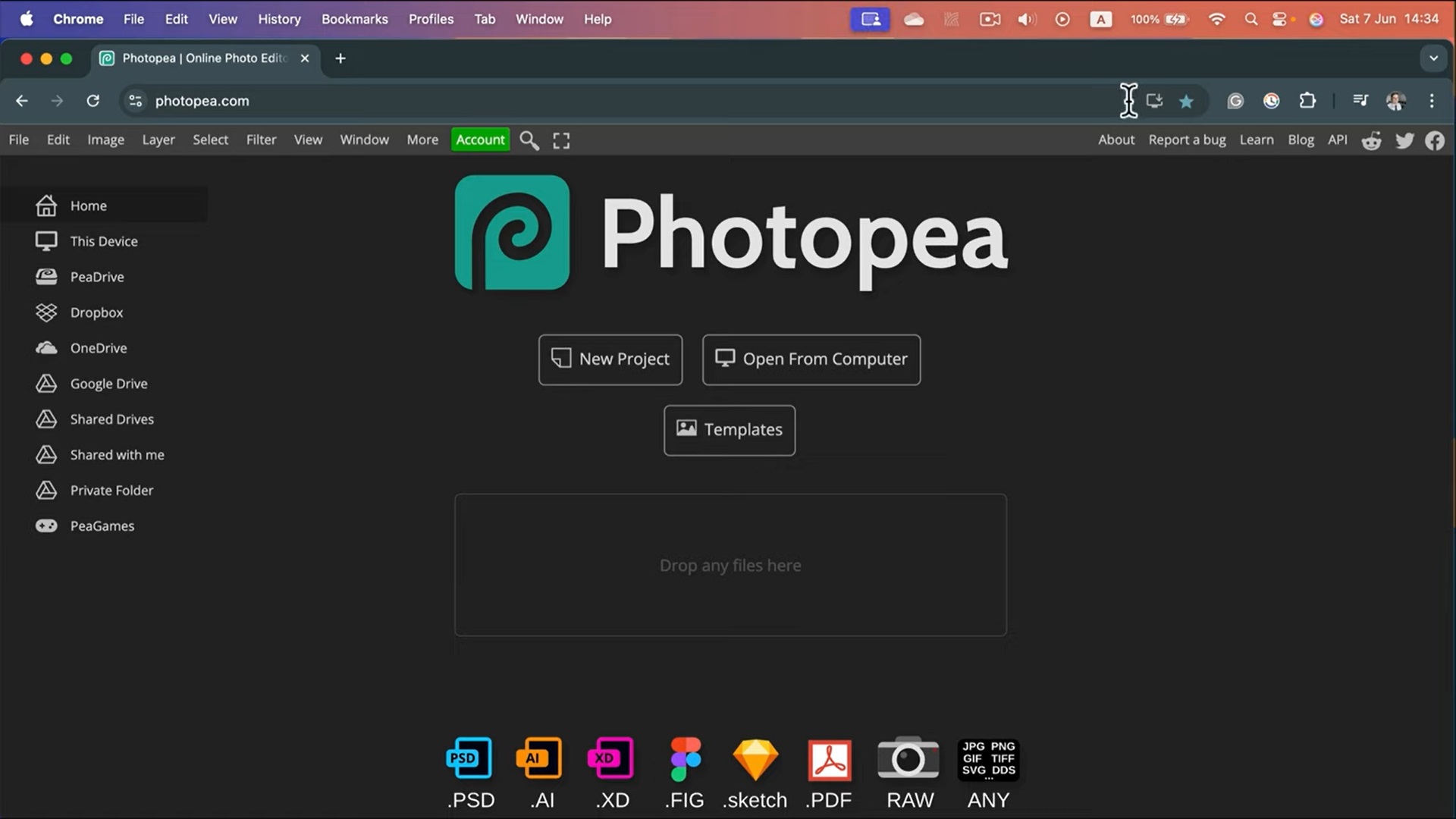
Open Safari or Chrome and visit the official Photopia website.
Photopia on Mac
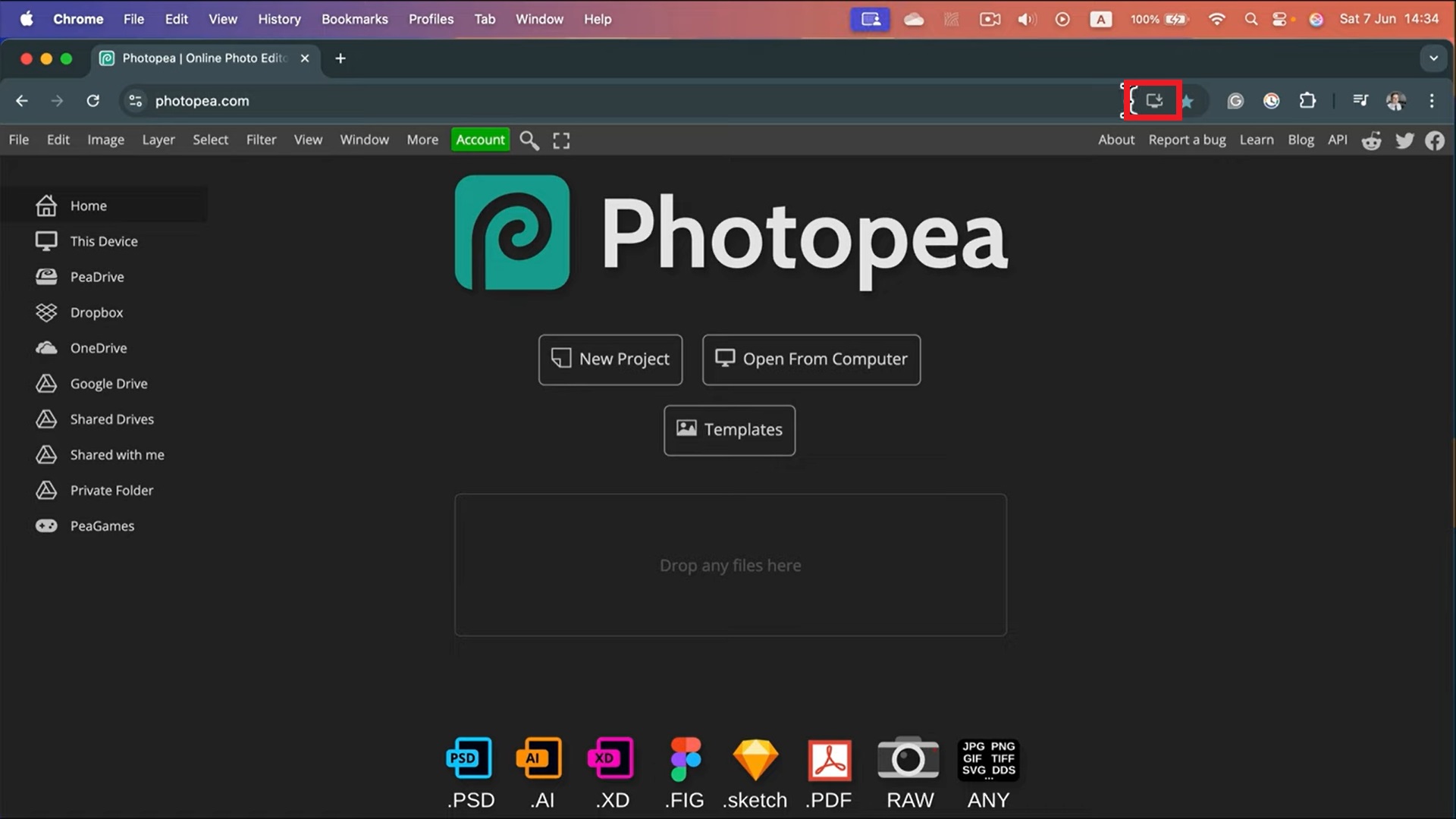
Click the Install App icon appearing on the
right side of the address bar.
Click the Install App icon
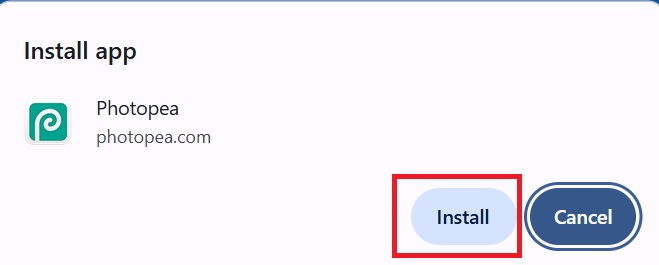
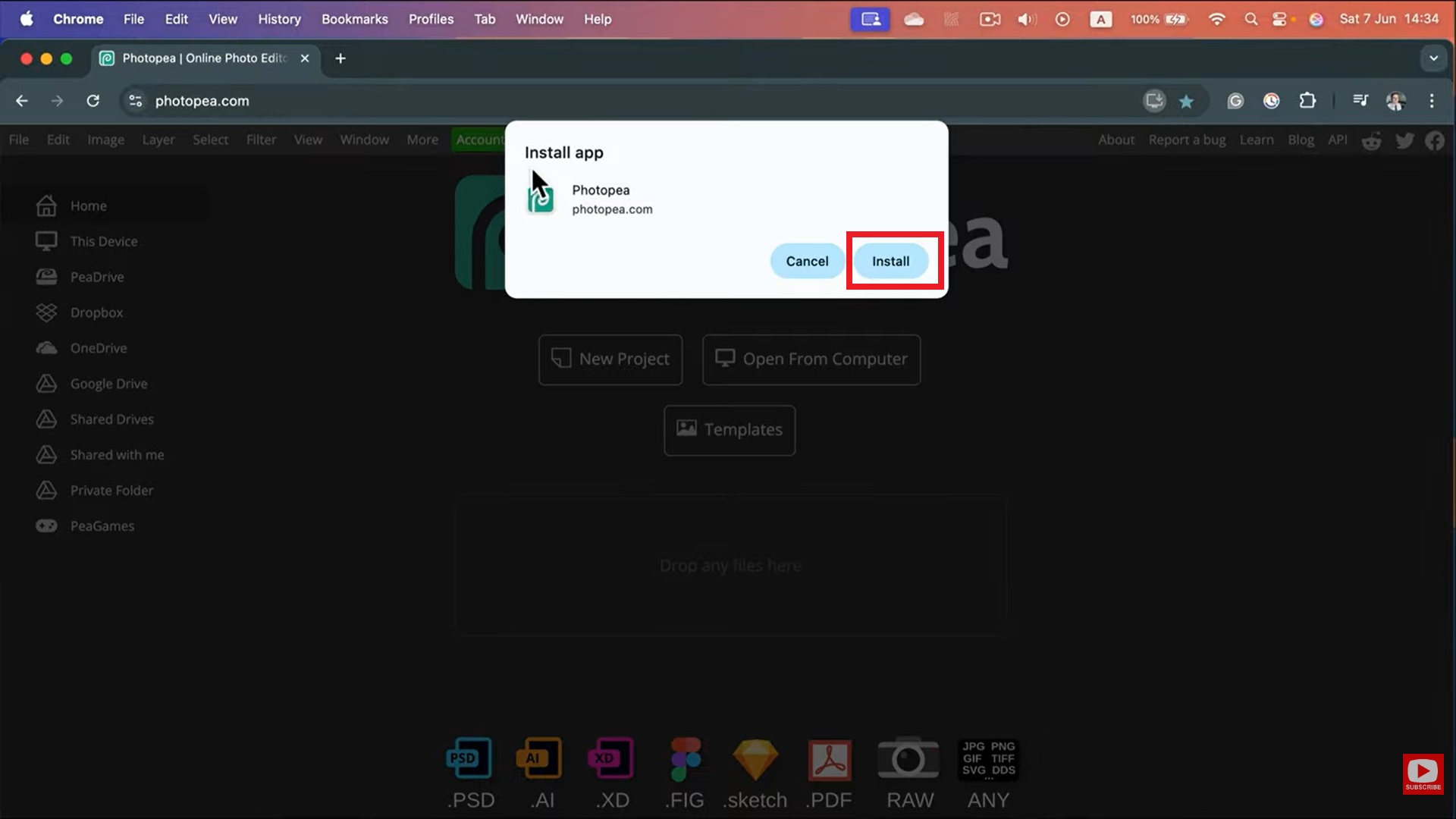
Click the Install button in the pop-up
window.
Click the Install button
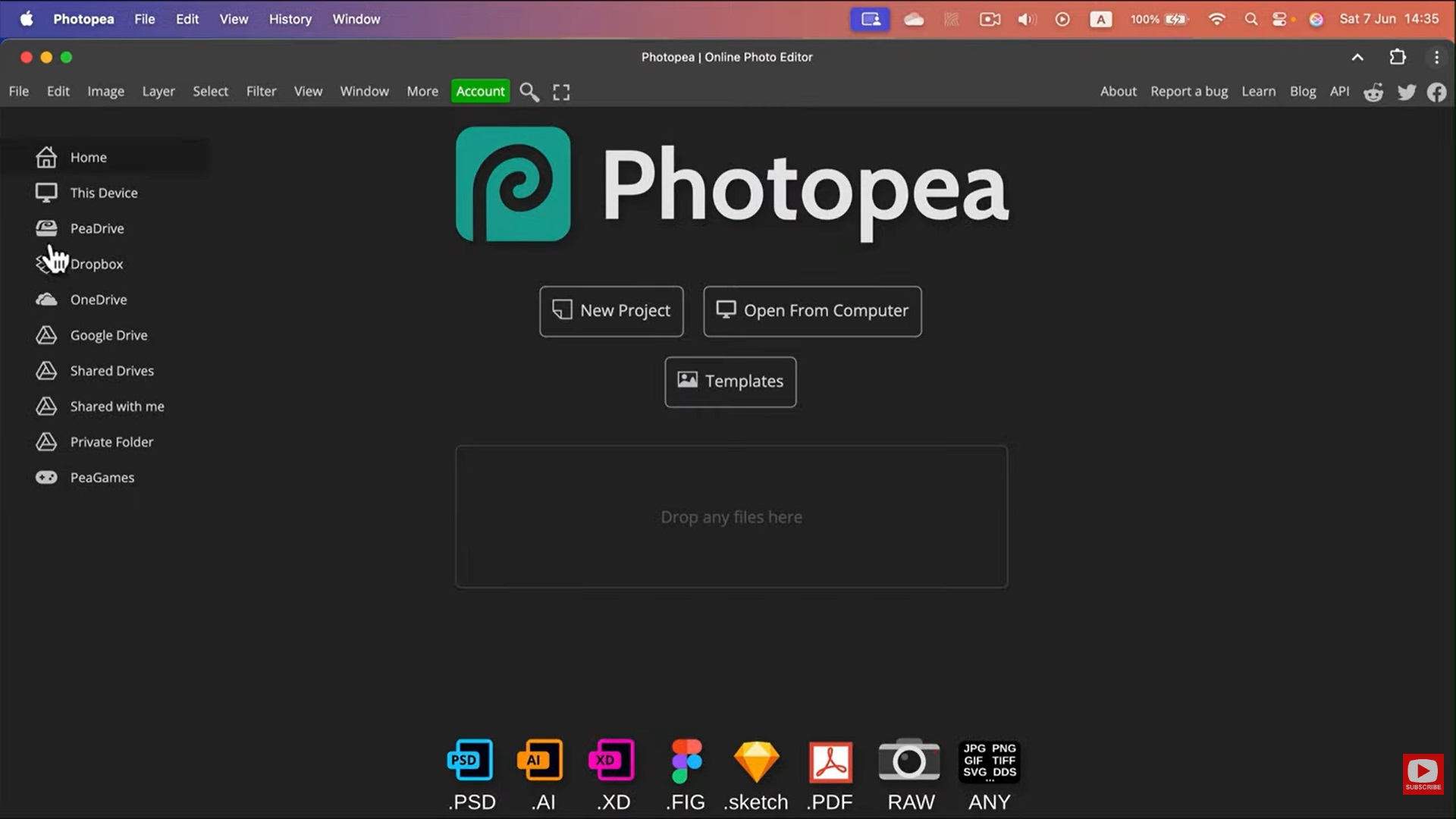
Photopia will be added to Chrome Apps on your Mac. You can now
use Photopea as a web app.
Photopea on Mac
Mac-Specific Notes
Optimized for Retina displays
Supports Mac keyboard shortcuts
Works well with trackpads
Uses native menu bar layout
Again, updates depend on the site you download from.
Part 3.
How to Download Photopea for Android
To install on Android, follow these steps for the Photopea
download for mobile apk. On Android, Photopea is usually
installed as an APK file rather than from Google Play.
This option is commonly called Photopea download Android
apk. Installation Steps
This method installs Photopea as a standalone app on Android
devices.
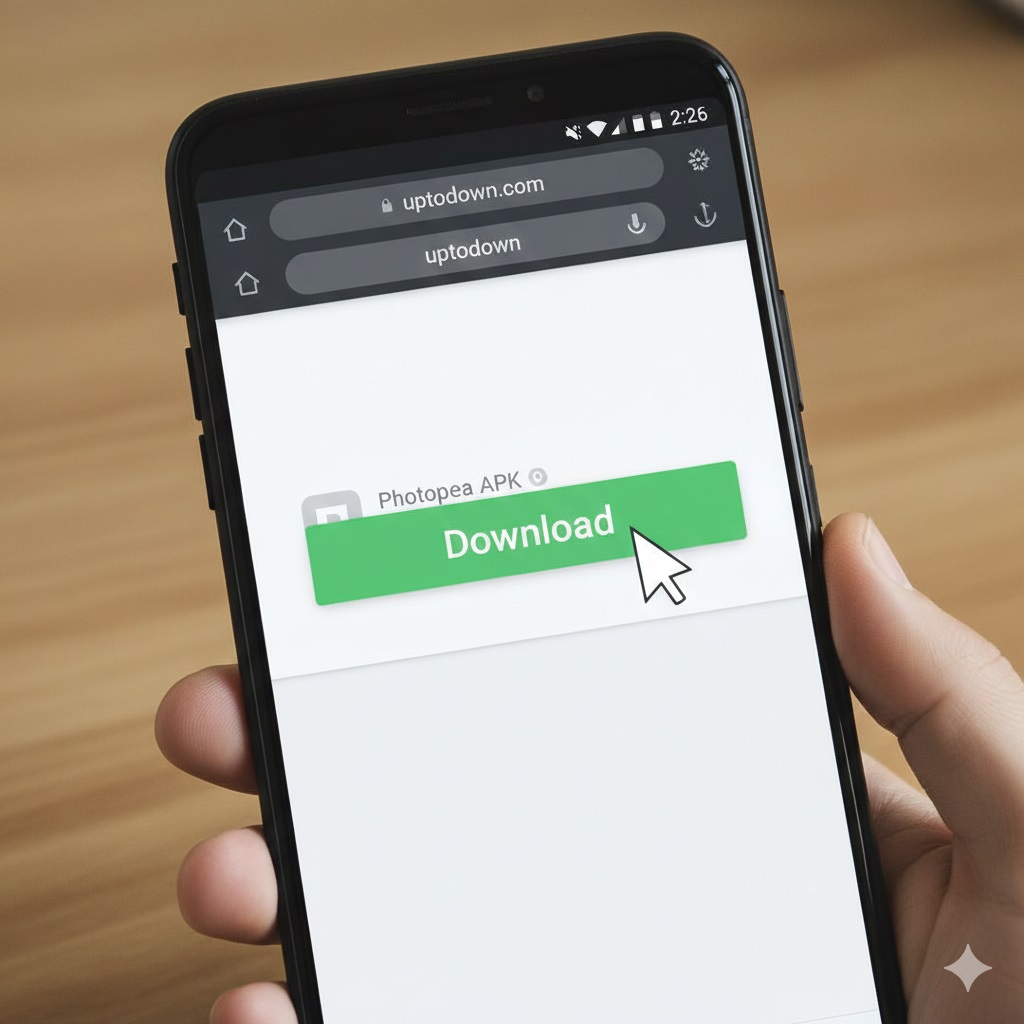
Open your browser and go to a trusted APK site like Uptodown. Tap
the Download button and wait for the APK file.
Download Photopea APK
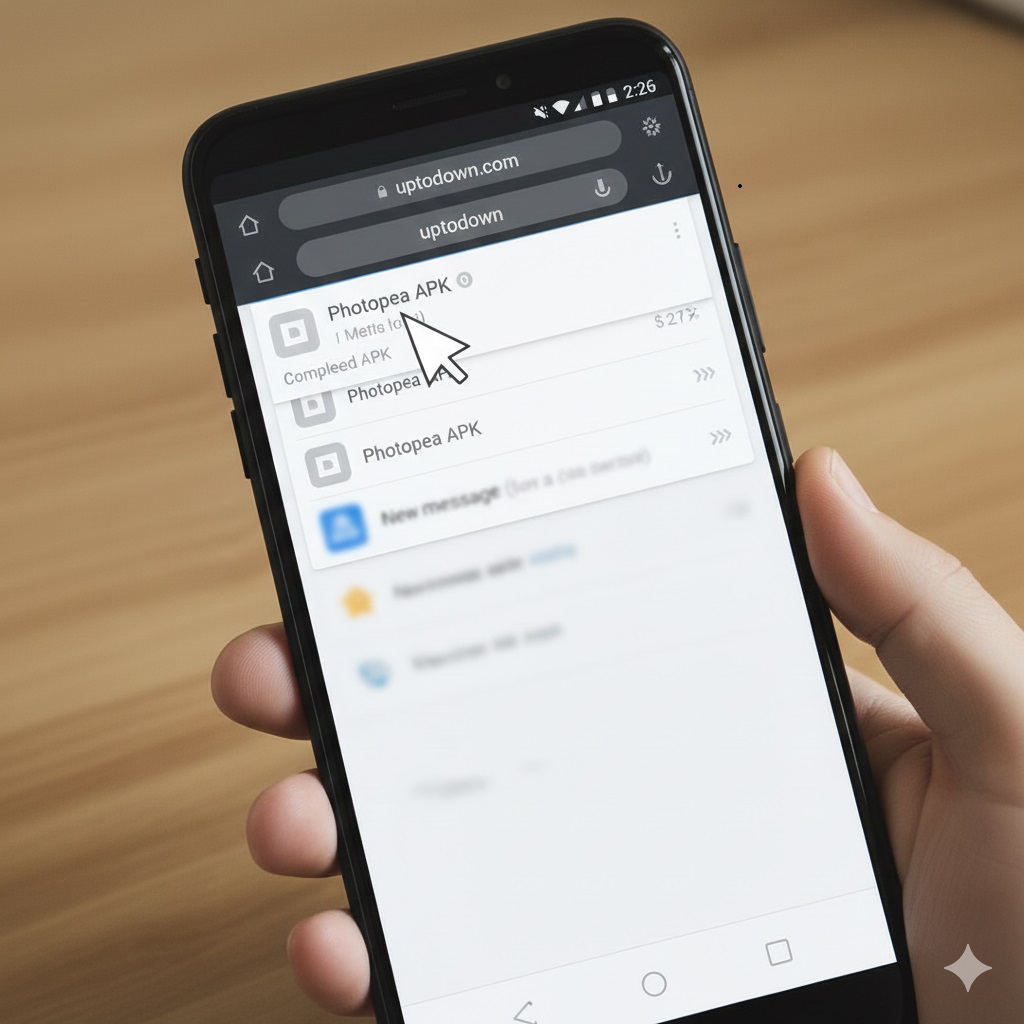
Once downloaded, tap the file from the notification bar or the
Downloads folder.
tap the file from the notification bar
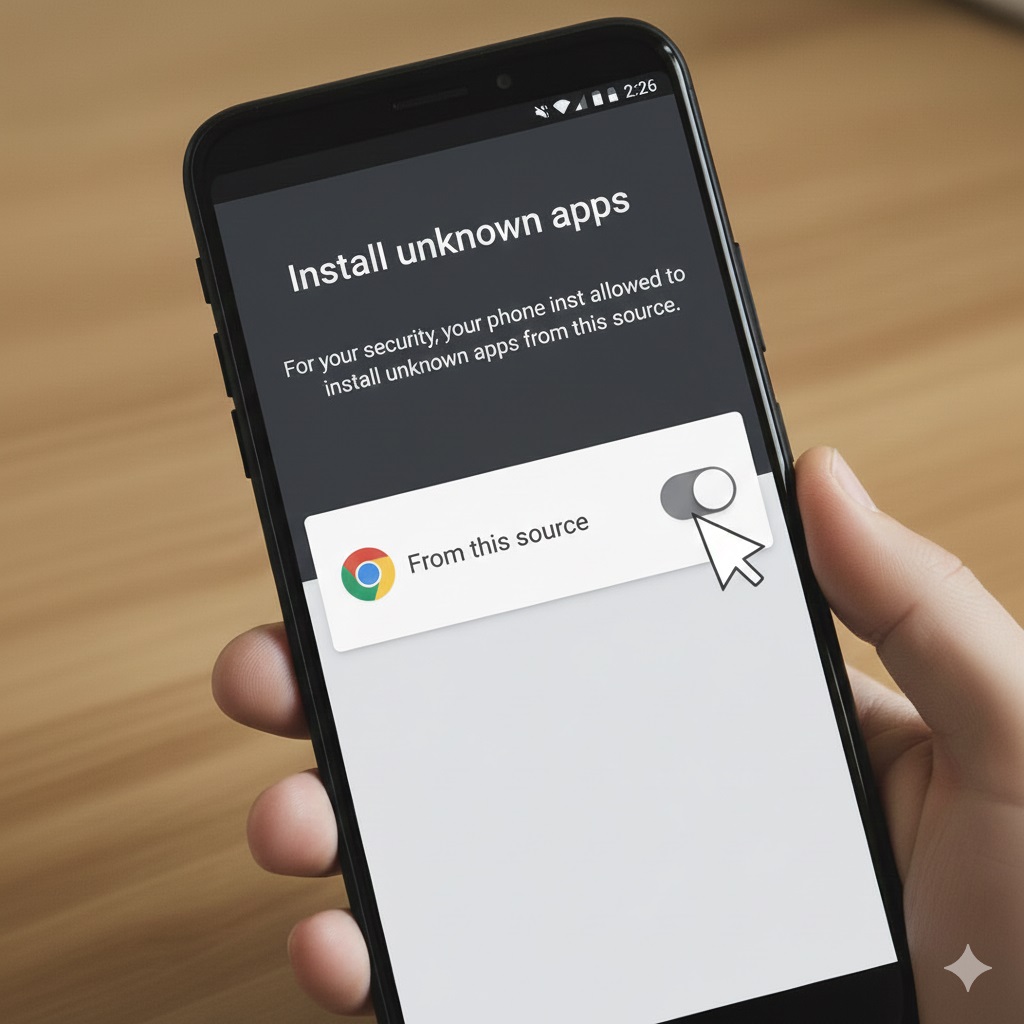
If prompted, open Settings and enable Install unknown apps for your browser.
open Settings and enable Install unknown apps
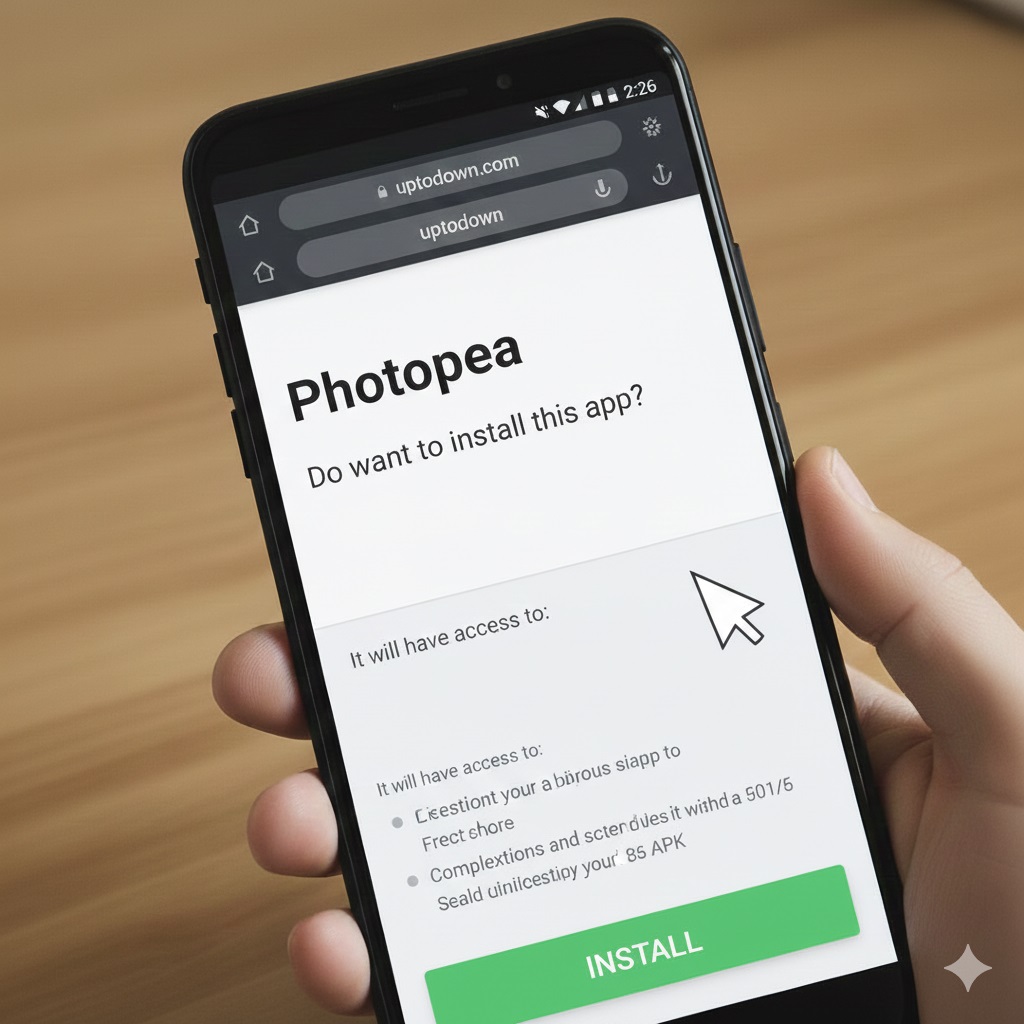
Return to the APK file and tap Install.
Tap the Install button
Wait for the installation to complete and tap Open or find Photopea in your app drawer. Launch the
app and allow only necessary permissions.
Photopea on Android
Mobile Limitations
Simplified interface
Fewer tools than a desktop
Performance varies by device
File handling can feel limited
Security Tips
Use trusted websites only
Scan APK files with an antivirus
Avoid unnecessary permissions
Use the web version for sensitive work
Part 4. Best Easy
Helper – WPS Photo
For many users searching for the Photopea download,
WPS Photo provides a safer and more reliable alternative. It combines
online convenience with powerful editing tools and works across all
major platforms.
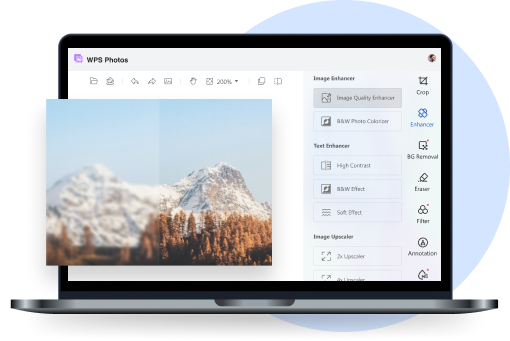
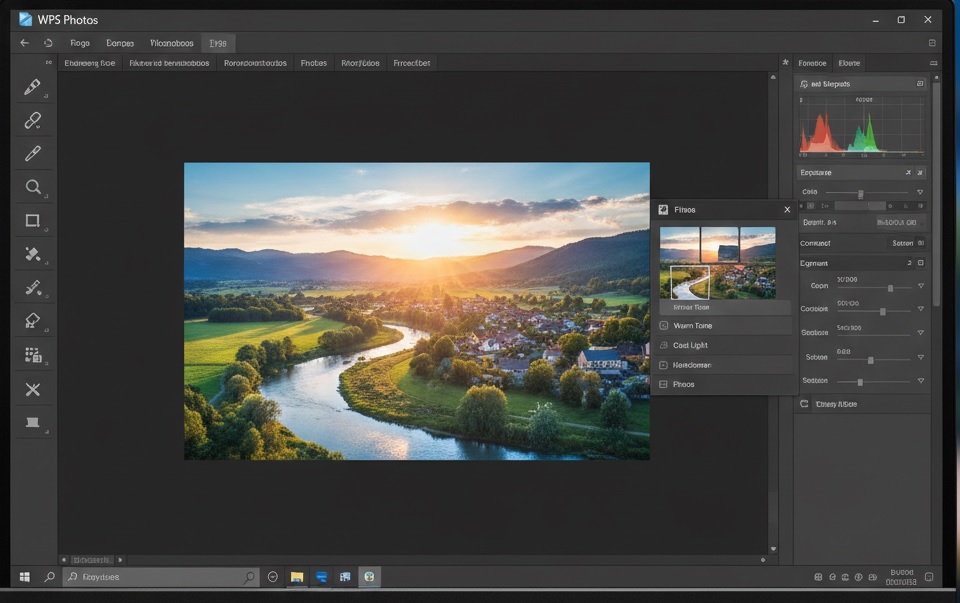
WPS Photos
Key Advantages of WPS
Photo
Official Cross-Platform Apps: Available for
Windows, Mac, Linux, iOS, and Android. Unlike third-partyPhotopea desktop app download packages, these apps are
secure and regularly updated.
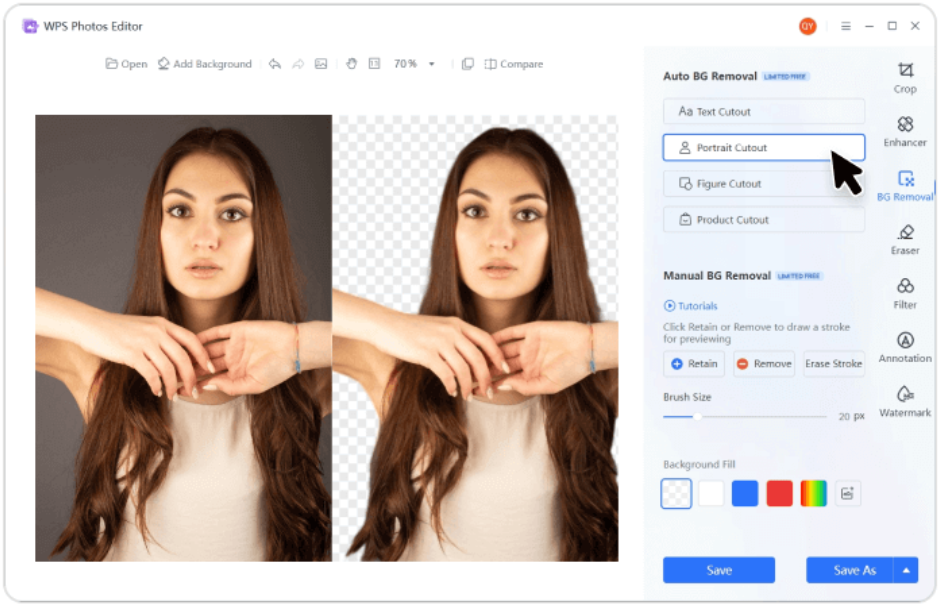
Integrated AI Photo Tools: Includes AI Enhance,
Background Remover, and Object Remover for professional-quality
edits.
Remove the background with one click
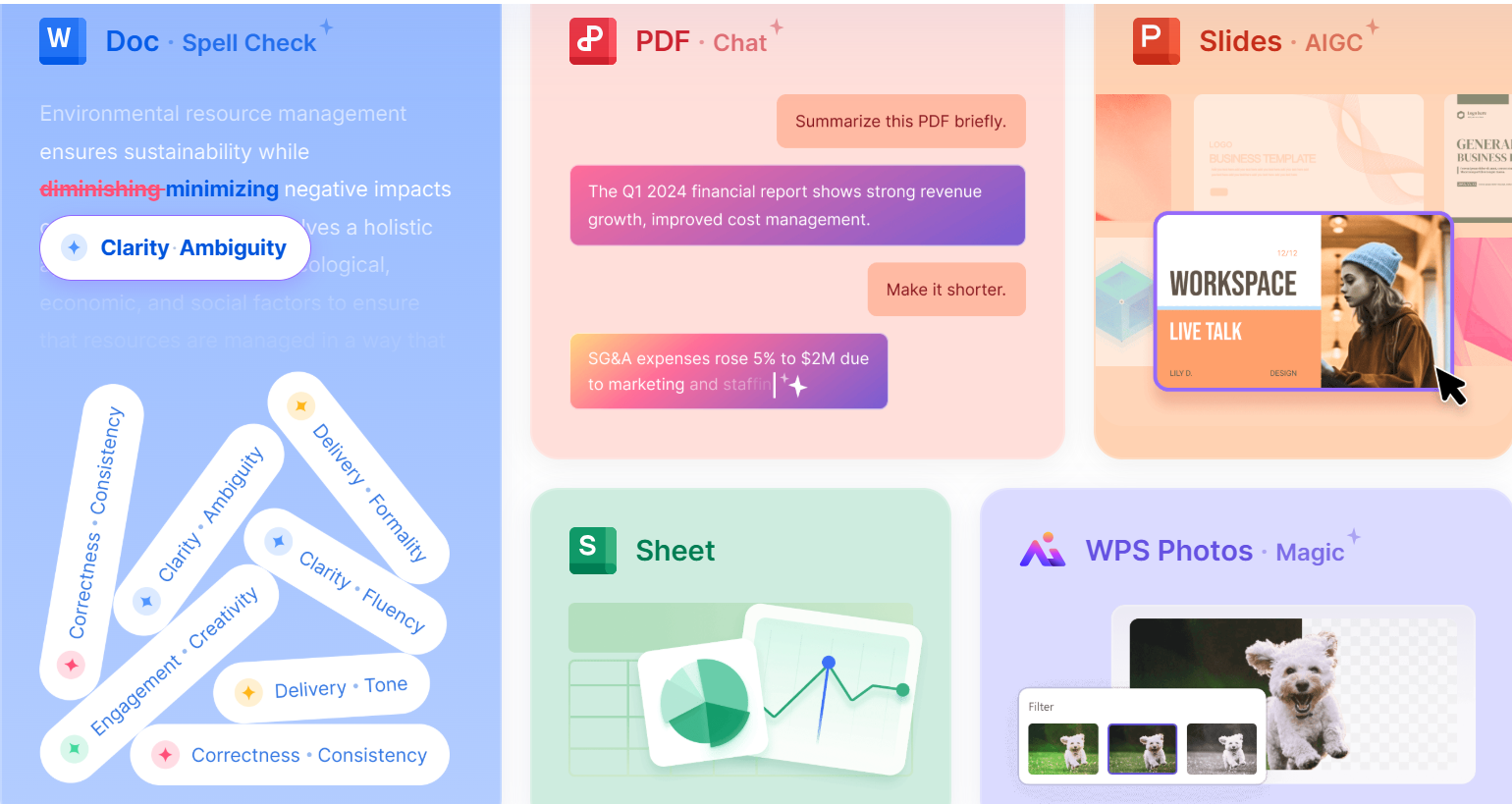
Complete Office Suite Integration: Use edited
images directly in documents, presentations, and spreadsheets.
Complete Office Suite Integration
Automatic Updates & Cloud Sync: Always
access the latest features and work seamlessly across devices.
How to Download WPS
Office
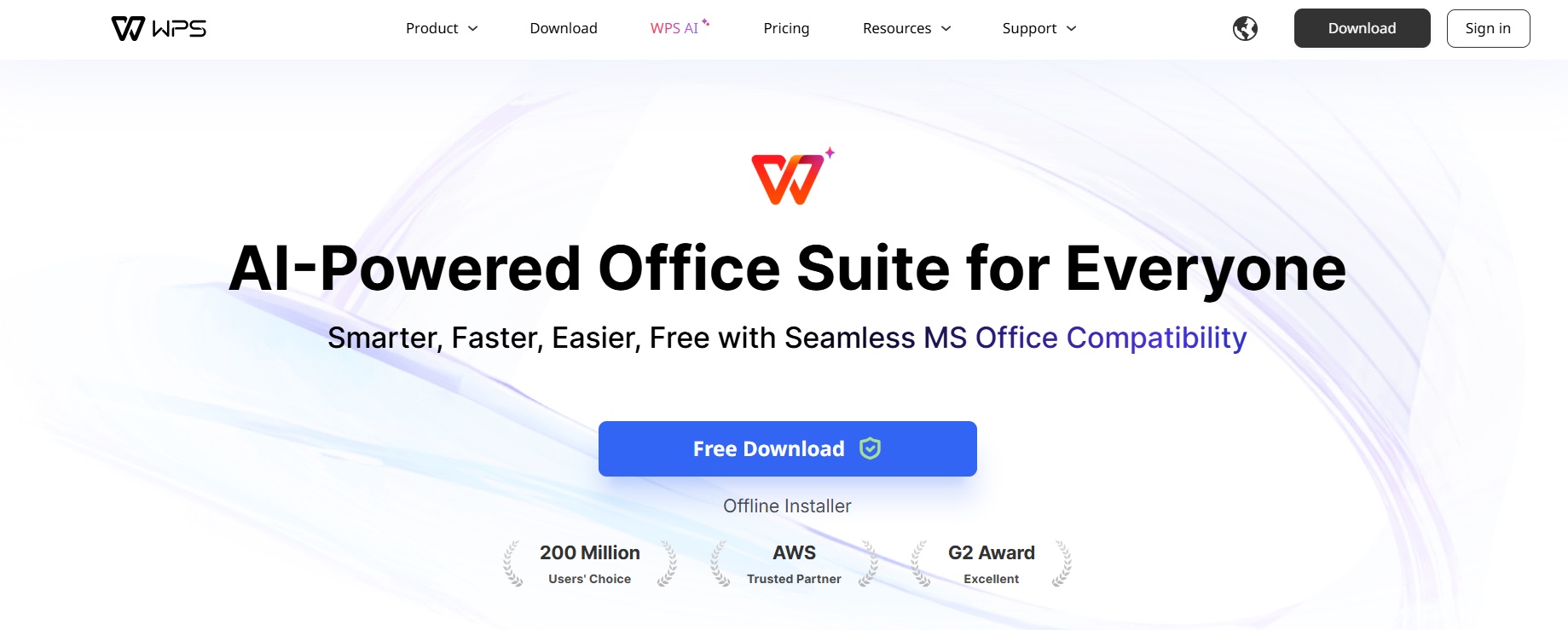
Open your browser and visit the official WPS website. Click Download WPS Office and select your operating
system.
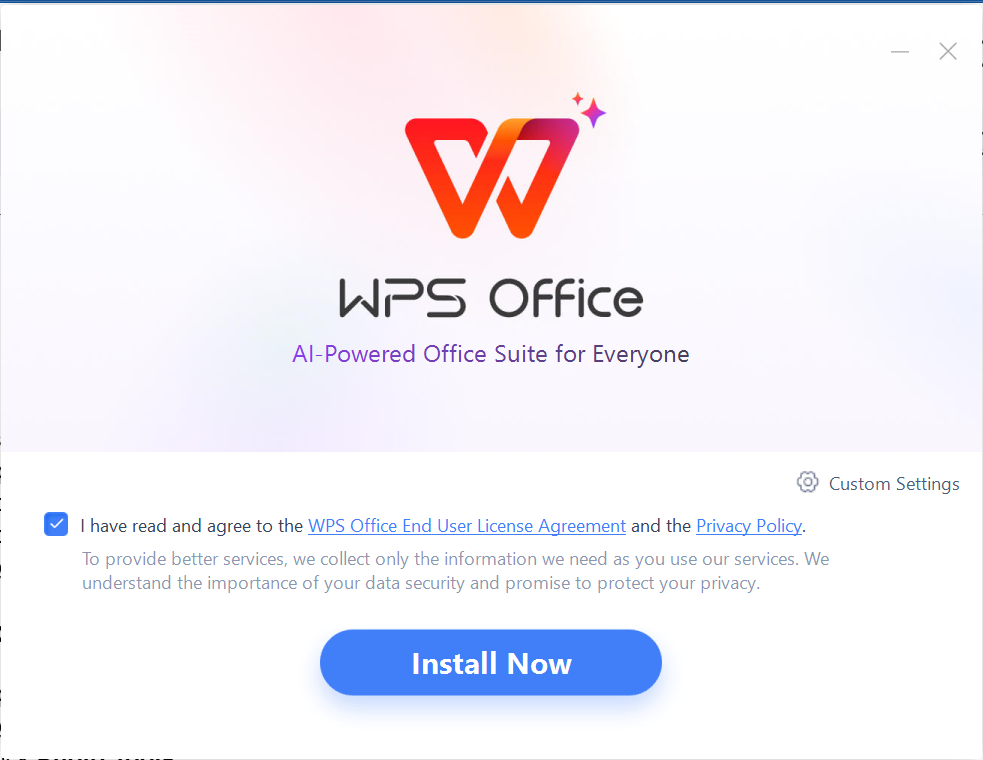
Wait for the installer file to download. Open the file and follow
the on-screen setup instructions.
Install WPS Office
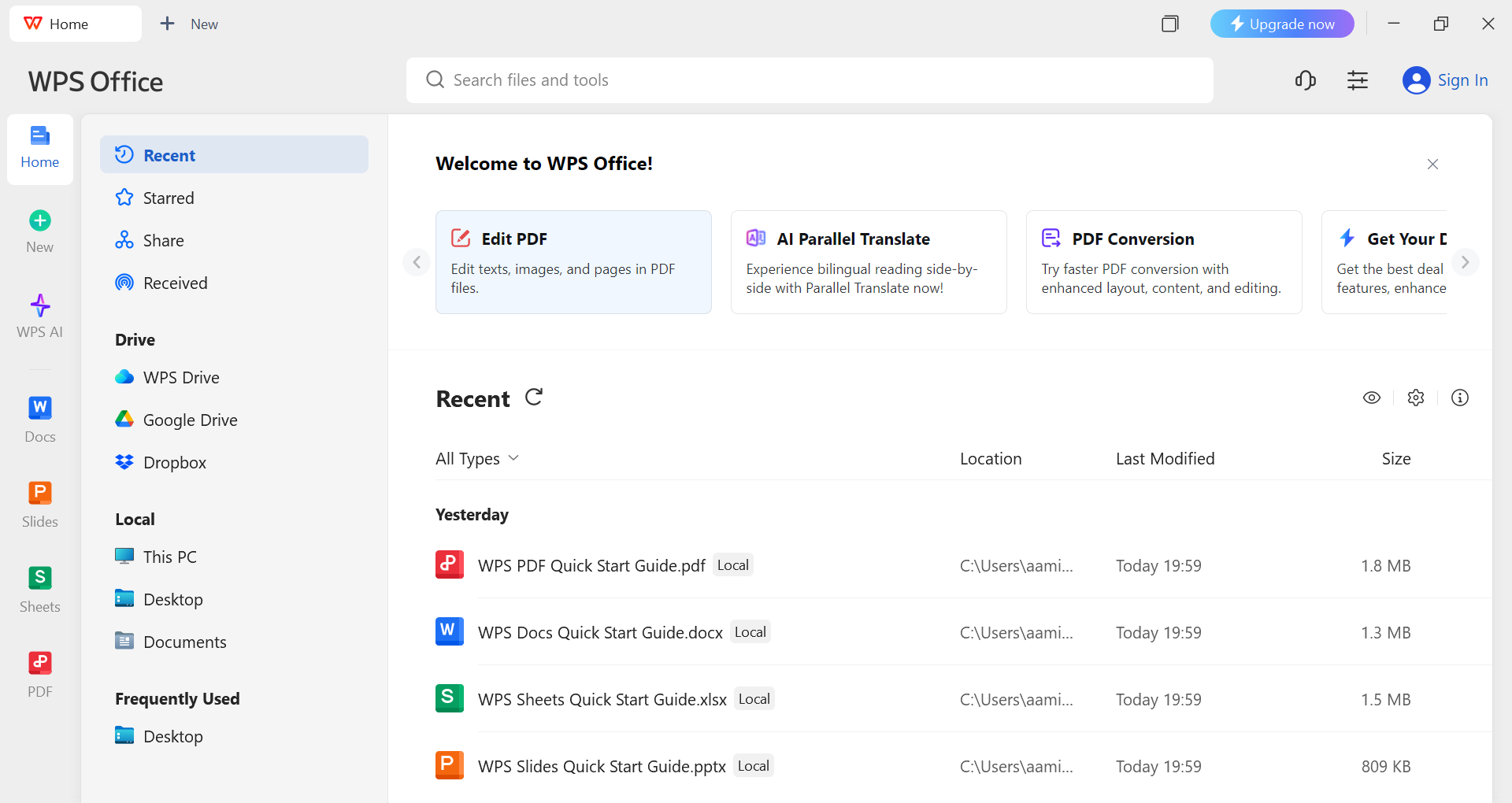
Complete the installation and launch WPS Office.
WPS Office home screen
How to Use WPS Photo
Editing Tools
For users looking for a safe alternative to chasing Photopea
download links, WPS Photo offers full-featured editing online
and on desktop. Here’s how to use it step by step.
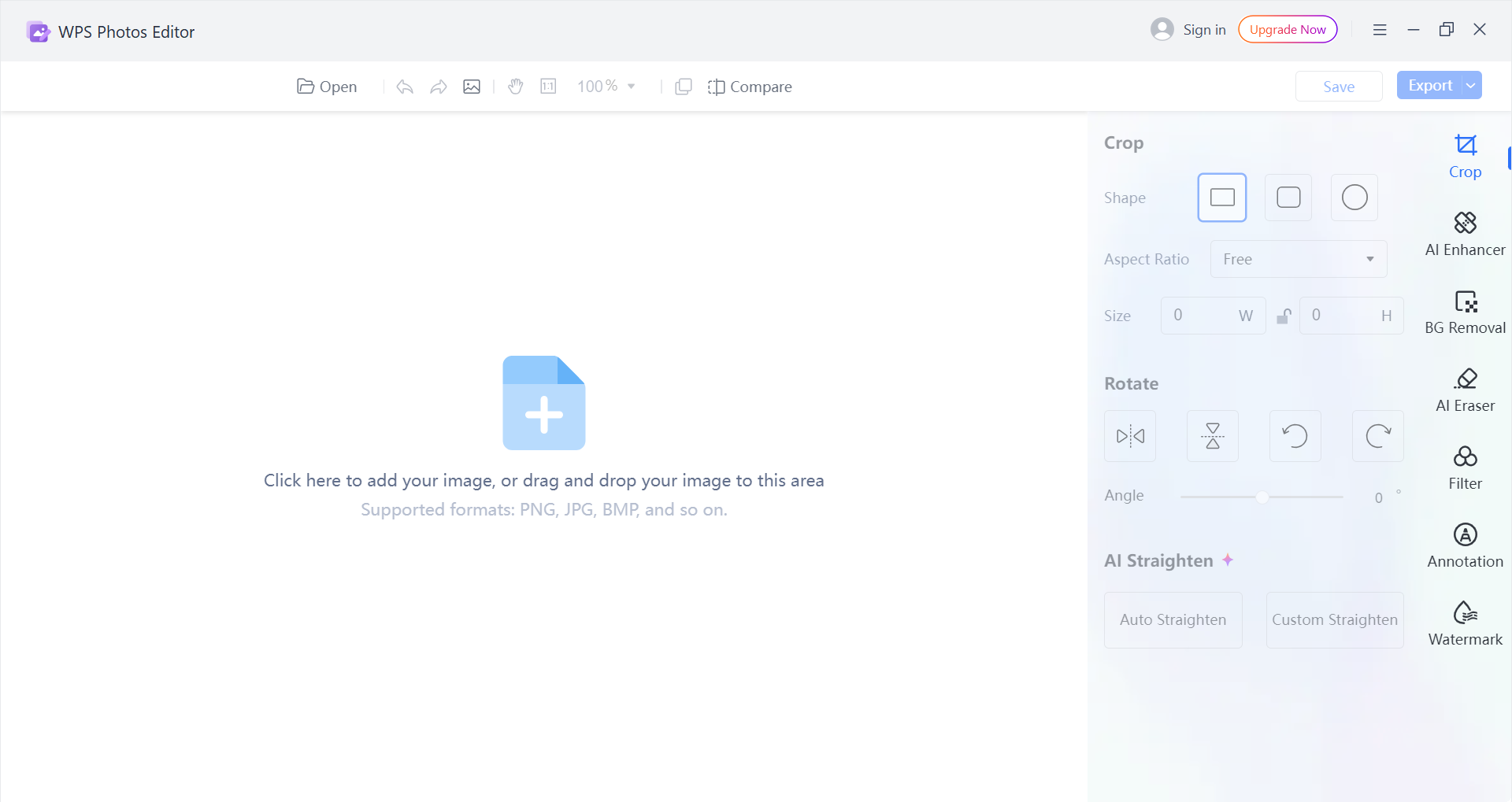
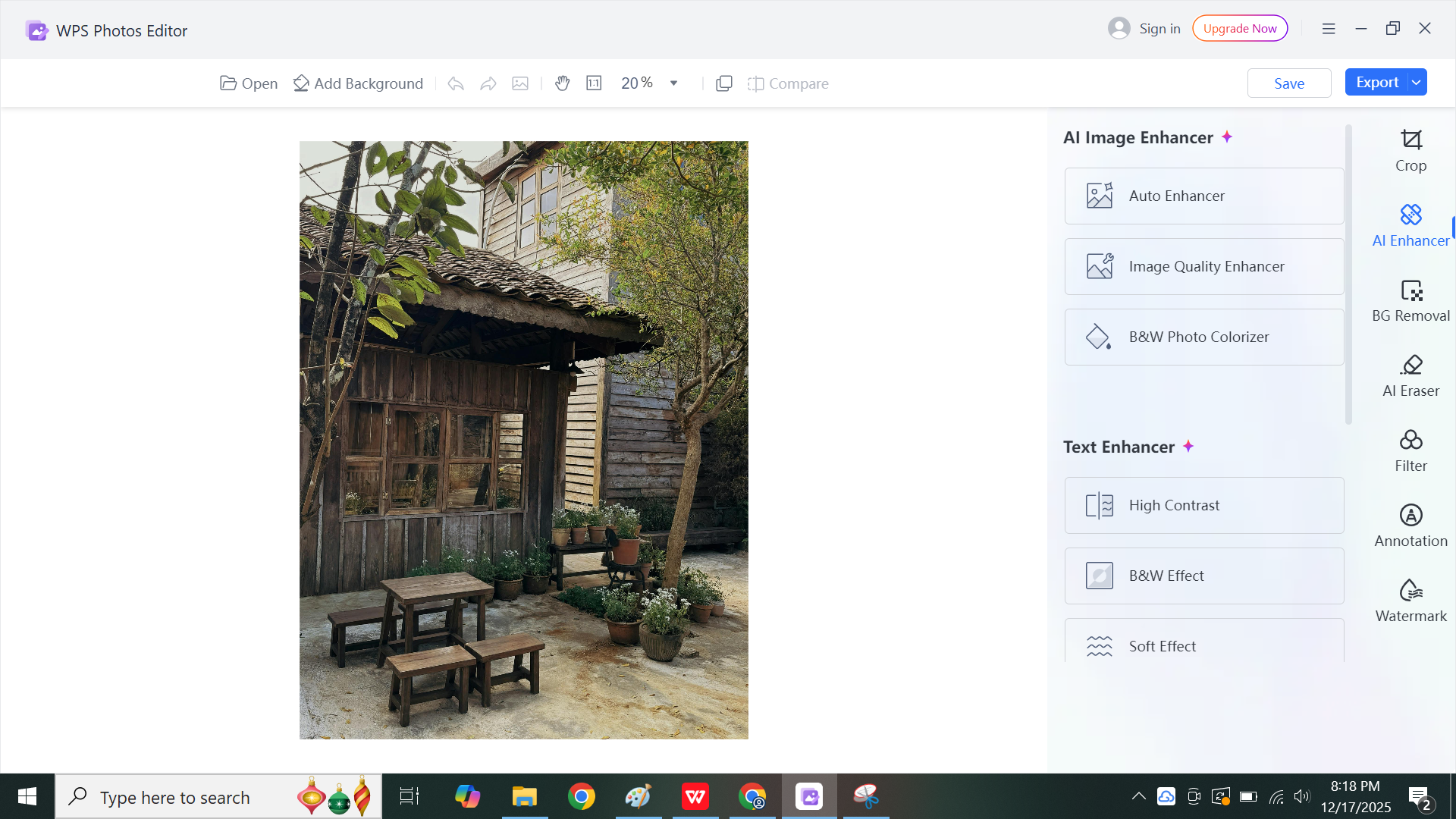
Step 1: Open WPS Photo
Tools
Launch the WPS Photo app. Desktop apps work offline and sync
automatically.
WPS Photo app
Step 2: Upload Your
Image
Click the Open button, the plus(+) icon, or drag your photo into the
workspace directly. WPS supports common formats like JPG and PNG,
providing instant previews.
Upload your image in WPS Photos
Step 3: Enhance Image
Quality
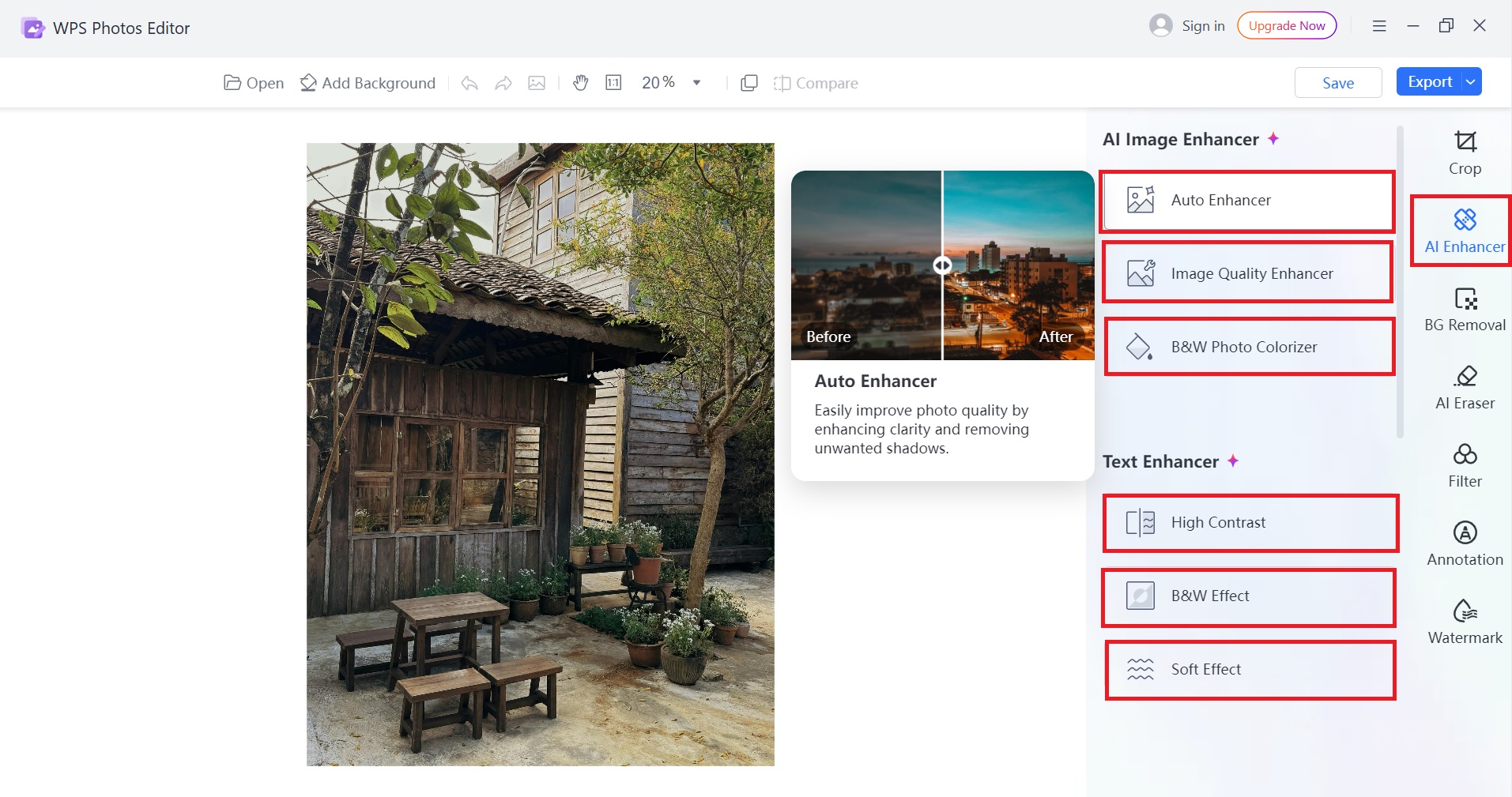
Use AI Enhance to automatically adjust sharpness,
brightness, and color. Simple sliders allow fine-tuning without extra
effort.
AI Image enhancer
Step 4: Remove
Backgrounds and Objects
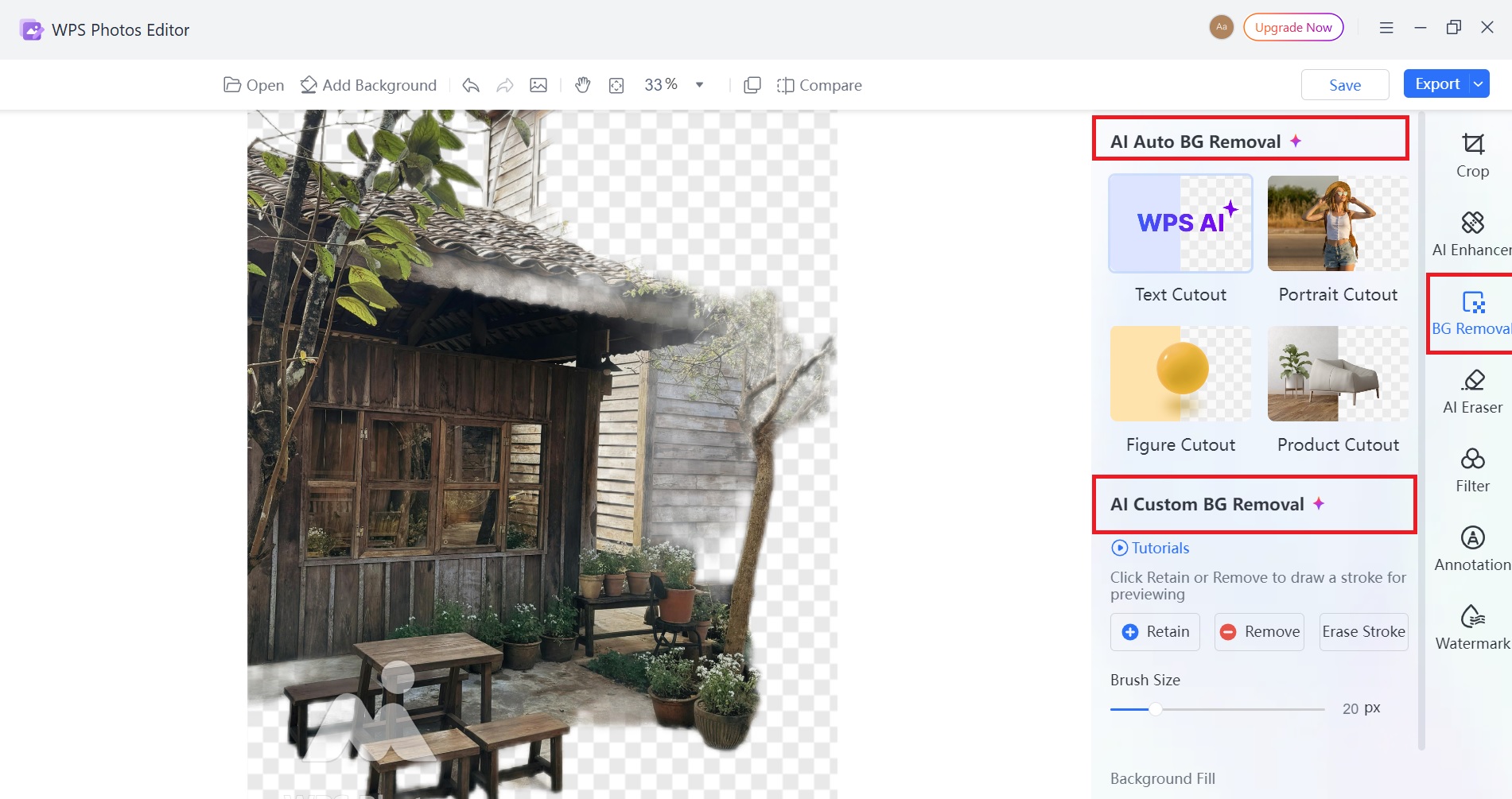
Select Background Remover to isolate subjects or
replace backgrounds. Use Object Remover to clean up
unwanted items from your image quickly.
AI Background removal
Step 5: Apply Filters
and Effects
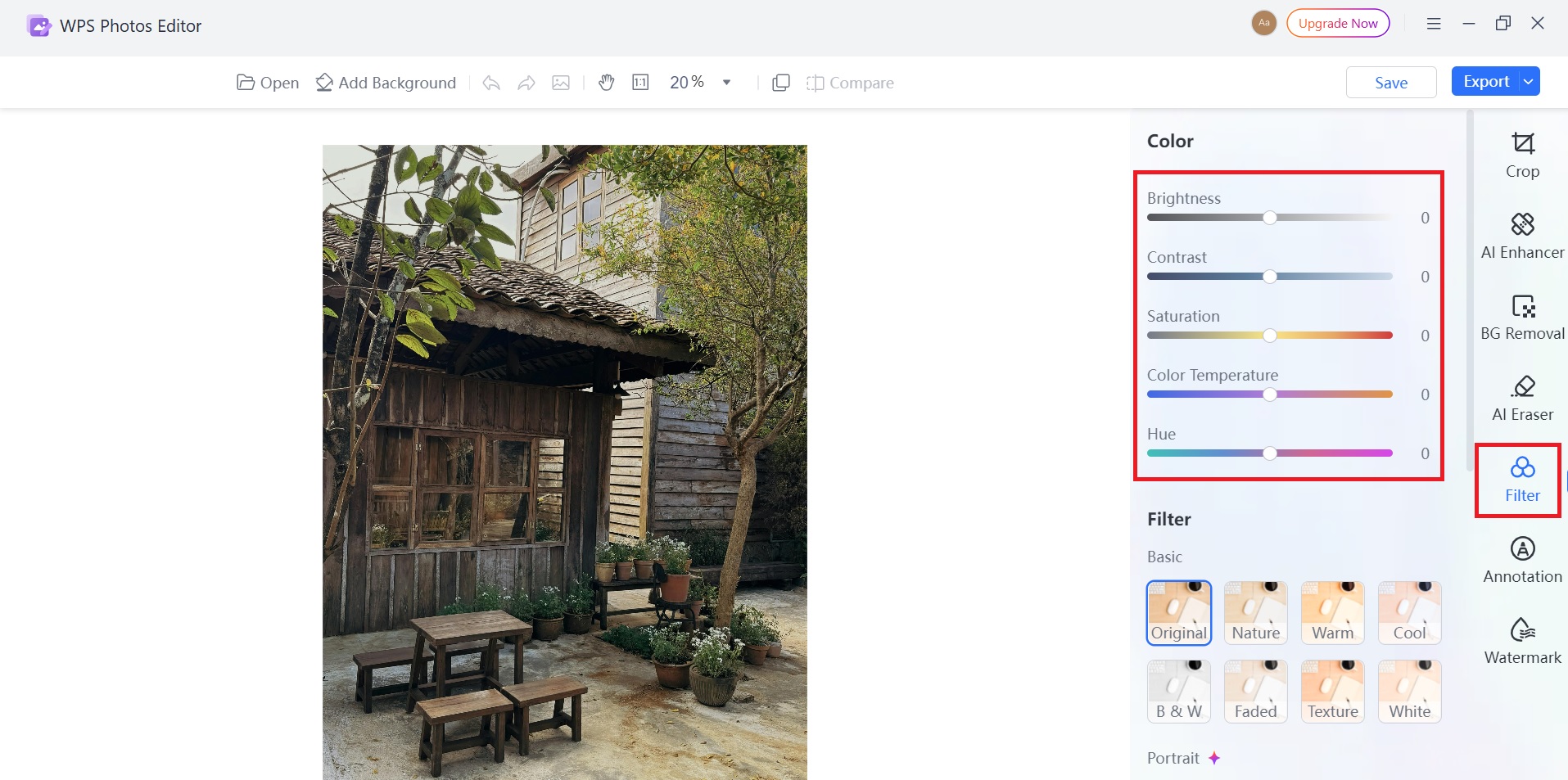
Adjust brightness, contrast, saturation and apply filters for a
polished, professional look.
Apply Filters and Effects
Step 6: Save or
Export
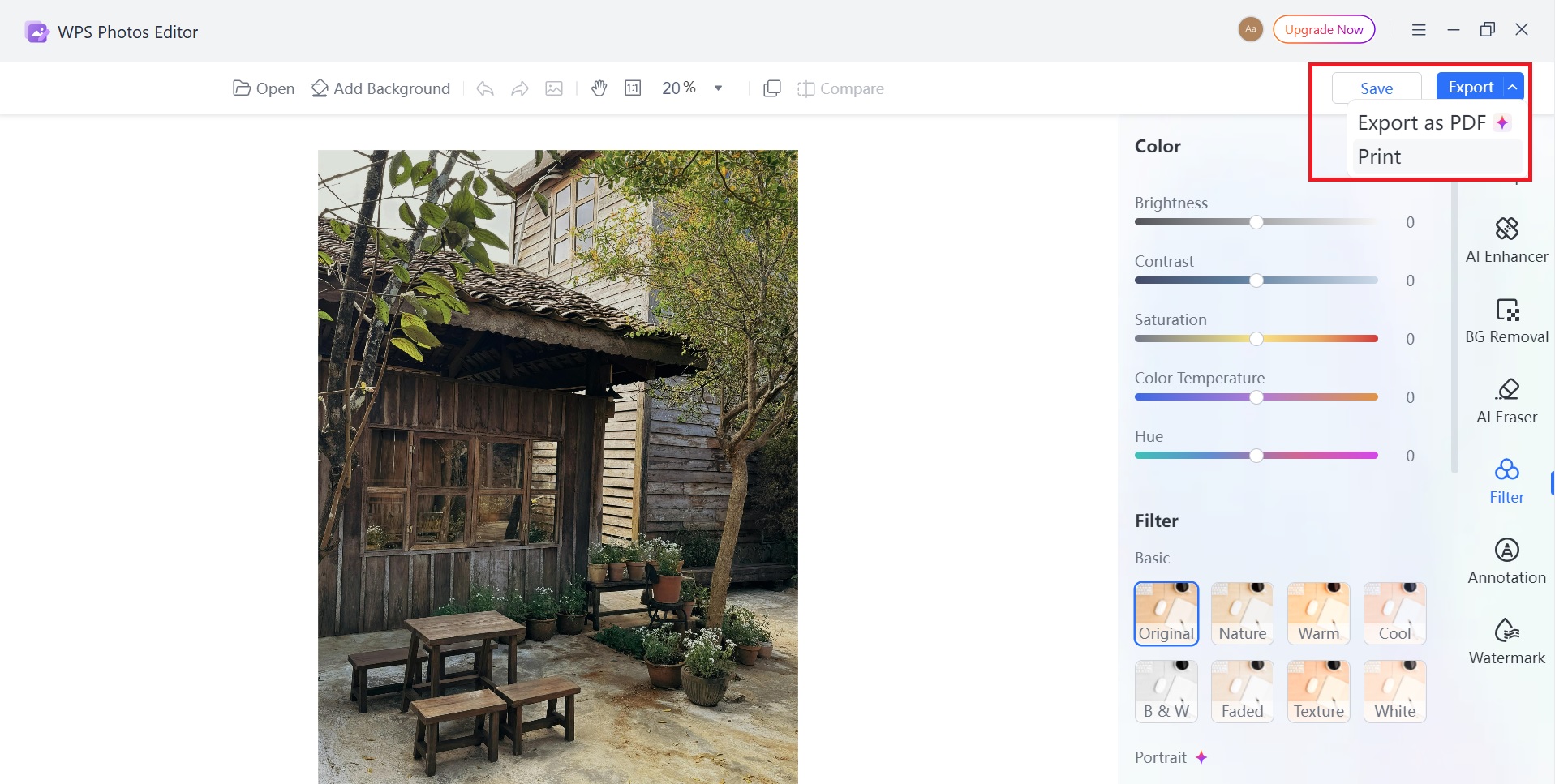
Click Save or Export to save your
image locally, or insert it directly into WPS documents, presentations,
or spreadsheets.
Save or Export
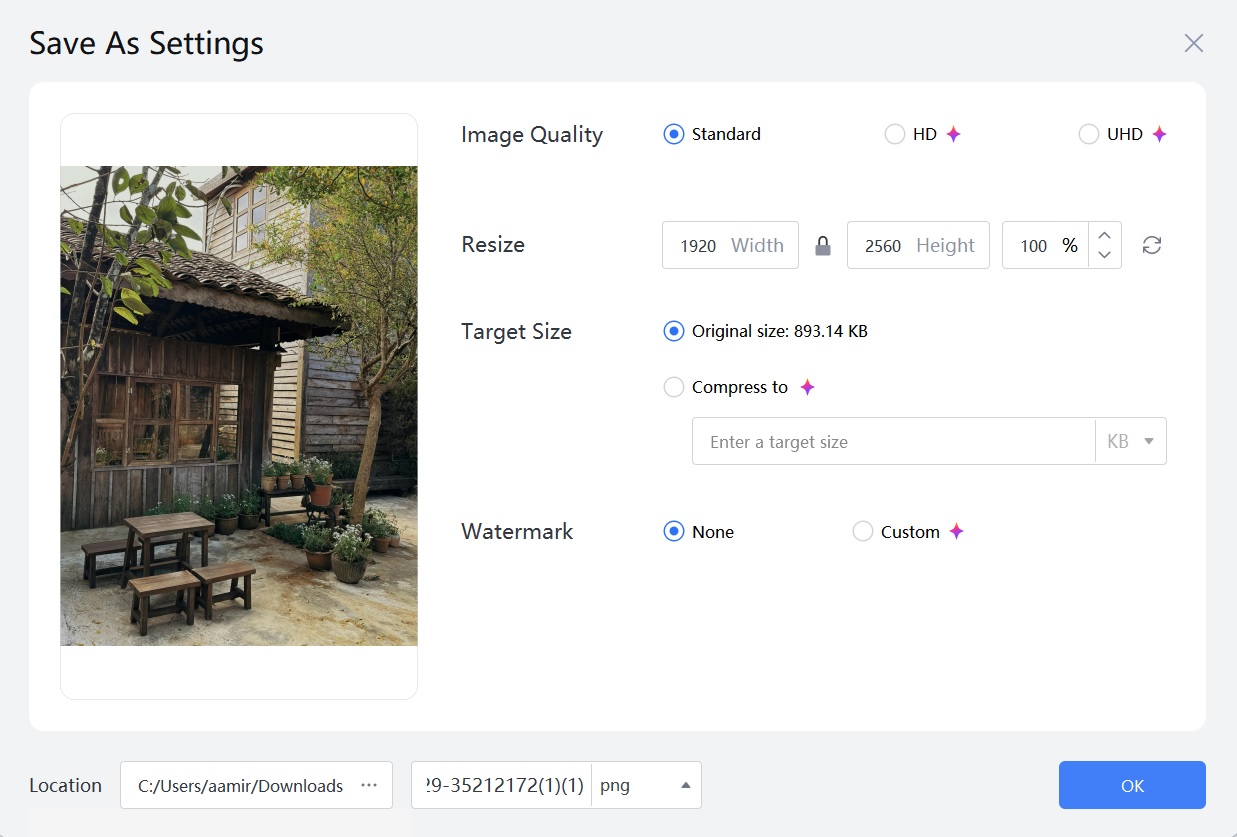
You can also customize the quality, size, type, and watermark of the
output image on the Save As window.
Save or Export
Mobile Usage
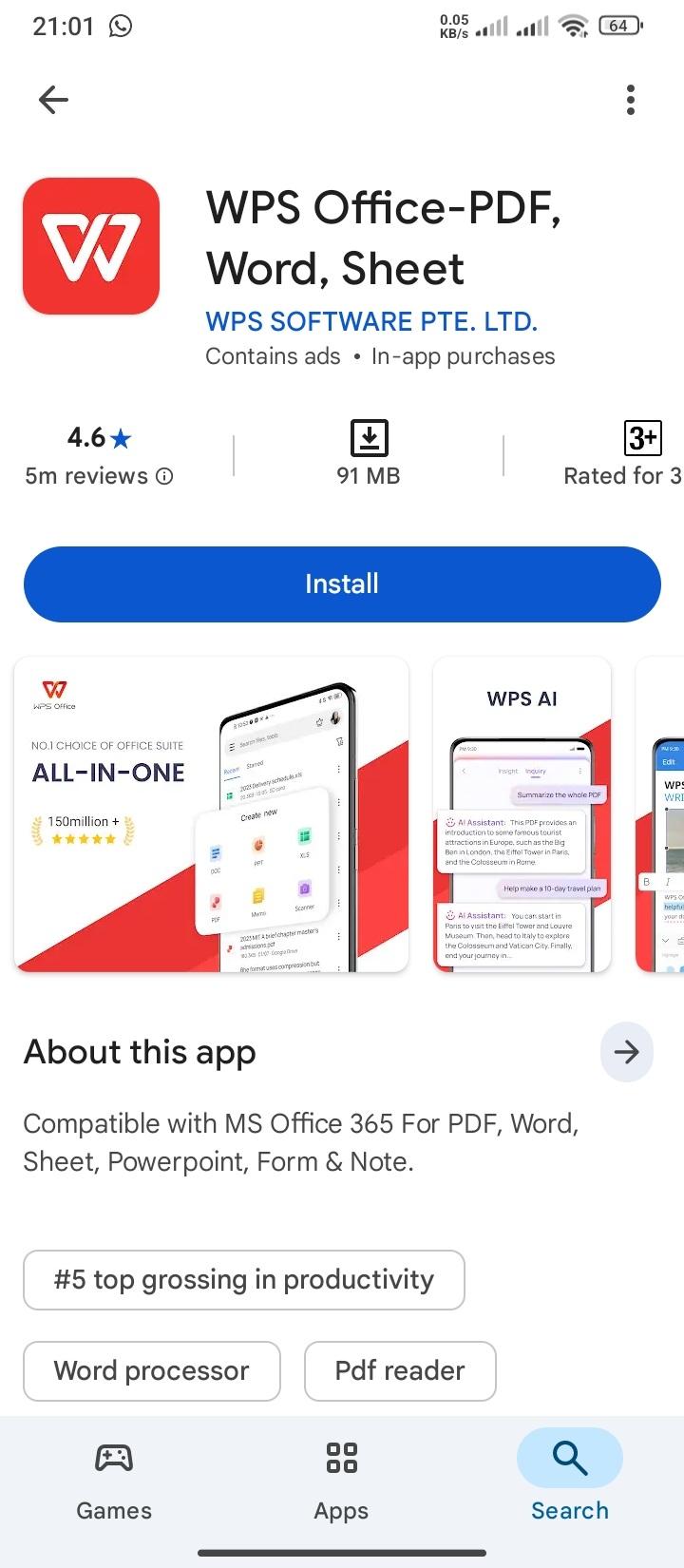
Install WPS Office from the App Store or Google Play.
Install WPS Office on Android
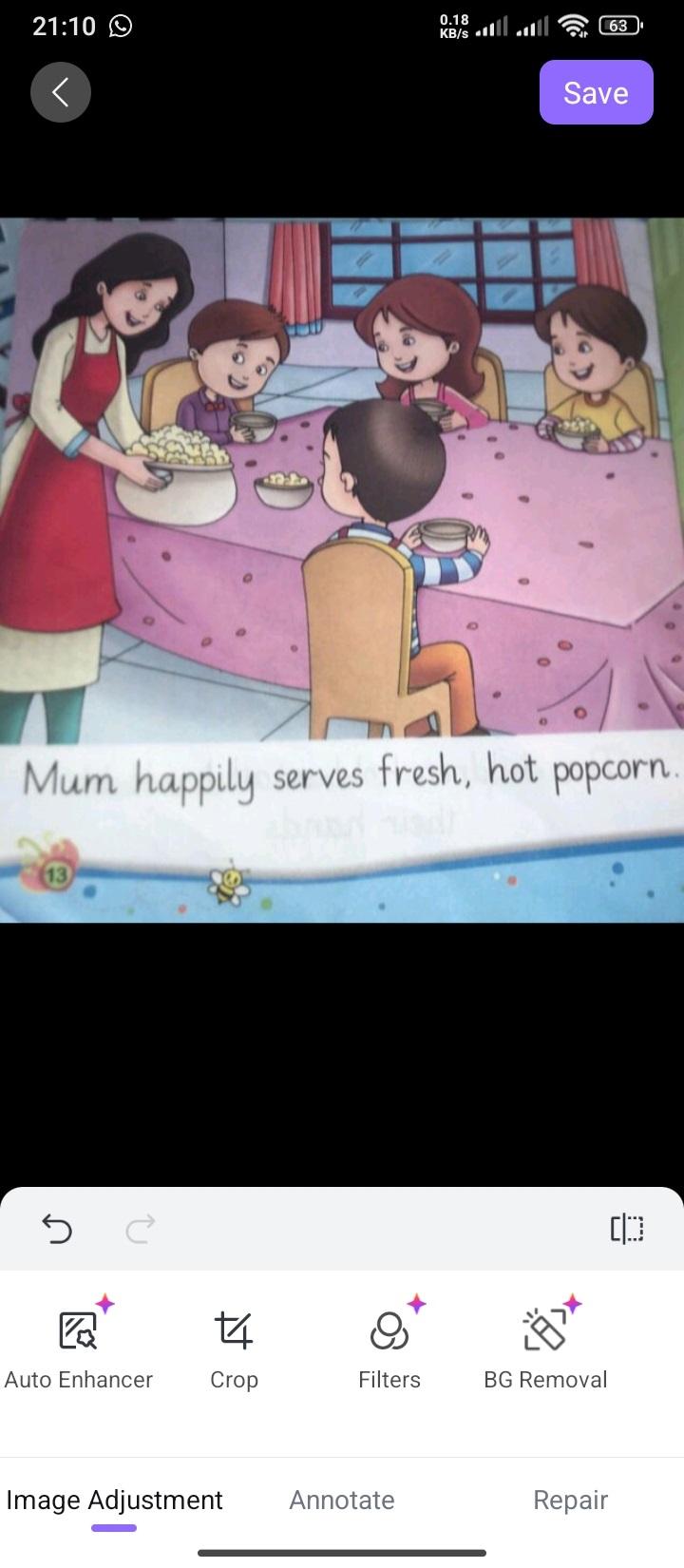
Edit photos on your phone
WPS Office on Android
Sync changes instantly across devices
Part 5. Why
WPS Office Is the Better Choice
Comparison
Table: WPS Office vs Photopea Downloads
Aspect
WPS Office
Photopea Downloads
Download Source
Official website and app stores
Mostly third-party websites
Security
Verified, safe, and regularly updated
Risk of outdated or unsafe installers
Offline Access
Full offline support on desktop apps
Depends on third-party packaging
Photo Editing Tools
Built-in AI tools for enhancement and cleanup
Basic tools mainly designed for browser use
Platform Support
Windows, Mac, Linux, Android, iOS, Web
Varies by installer and platform
Workflow toggle
Edit photos and use them instantly in documents
Requires switching between apps
Updates
Automatic updates
Manual re-download required
Long-Term Reliability
Actively developed and improved
Third-party versions may stop working
Key Benefits of Using WPS Office
Official and trusted software with no dependency on unofficial sources
No need to search for risky desktop or APK installers
One platform for photo editing, documents, spreadsheets, and presentations
Saves time by reducing app switching
Works smoothly across devices with cloud sync
Key Benefits of Using WPS Office
Key Features That Make WPS Stand Out
AI Enhance for instant image quality improvement
Background Remover for clean cutouts
Object Remover to erase unwanted elements
Web-Based Editing with no installation required
Desktop and Mobile Apps for offline and on-the-go editing
Cloud Storage to access proofed files anywhere
WPS Photo features
From my personal experience, the WPS desktop app offers a reliable
and well-organized photo editing environment. The tools are easy to
access, perform consistently, and require no additional setup. This
makes it simple to edit images and use them directly in documents
without interruptions.
100% secure
FAQs
1. Is there an official Photopea desktop app? No. Photopea is mainly a web app. Third parties create desktop
versions.
2. Are third-party Photopea installers safe? Some are, but risks exist. Always scan files and use trusted
sites. Some users search for photopea download on Reddit, but these
links are not always safe.
3. Can WPS photo tools be used without downloading
anything? Yes. You can edit photos directly in the browser with full
features.
4. Does WPS support offline editing? Yes. Desktop apps allow offline work with syncing when you
reconnect.
5. Is WPS suitable for beginners? Yes. The tools are simple, labeled clearly, and easy to
learn.
Summary
This guide explained how Photopea installers work across devices. You learned the risks of third-party desktop and mobile packages. We covered Windows, Mac, and Android installation options clearly. WPS Photo offers a safer and more complete alternative. For most users, WPS delivers better results with less effort.
With 12 years of hands-on experience in Office tools, productivity software, and emerging technology trends, my passion lies in exploring the latest tech solutions and simplifying them for everyday use.


'%3e%3cpath%20d='M8%200C12.4183%200%2016%203.58172%2016%208C16%2012.4183%2012.4183%2016%208%2016C3.58172%2016%200%2012.4183%200%208C0%203.58172%203.58172%200%208%200ZM11.6162%204.38379C11.2257%203.99337%2010.5927%203.99338%2010.2021%204.38379L8%206.58594L5.79785%204.38379C5.40732%203.99334%204.77429%203.99329%204.38379%204.38379C3.99331%204.77429%203.99335%205.40733%204.38379%205.79785L6.58594%208L4.38379%2010.2021C3.99348%2010.5927%203.99341%2011.2257%204.38379%2011.6162C4.77426%2012.0066%205.40734%2012.0065%205.79785%2011.6162L8%209.41406L10.2021%2011.6162C10.5927%2012.0066%2011.2257%2012.0067%2011.6162%2011.6162C12.0067%2011.2257%2012.0066%2010.5927%2011.6162%2010.2021L9.41406%208L11.6162%205.79785C12.0066%205.40735%2012.0066%204.77429%2011.6162%204.38379Z'%20fill='%23080E17'%20fill-opacity='0.46'/%3e%3c/g%3e%3cdefs%3e%3cclipPath%20id='clip0_3761_713'%3e%3crect%20width='16'%20height='16'%20fill='white'/%3e%3c/clipPath%3e%3c/defs%3e%3c/svg%3e)



'%3e%3cpath%20fill-rule='evenodd'%20clip-rule='evenodd'%20d='M21.4999%2010.9993C21.4999%205.20009%2016.7986%200.498901%2010.9993%200.498901C5.19994%200.498901%200.498657%205.20009%200.498657%2010.9993C0.498657%2016.2404%204.33858%2020.5844%209.35855%2021.3722V14.0346H6.69238V10.9993H9.35855V8.68594C9.35855%206.05427%2010.9262%204.60062%2013.3248%204.60062C14.4736%204.60062%2015.6753%204.80571%2015.6753%204.80571V7.38979H14.3512C13.0468%207.38979%2012.64%208.19921%2012.64%209.0296V10.9993H15.5523L15.0867%2014.0346H12.64V21.3722C17.66%2020.5844%2021.4999%2016.2404%2021.4999%2010.9993Z'%20fill='%231568EA'/%3e%3c/g%3e%3c/svg%3e)


'%3e%3cpath%20d='M2.42045%2022.1876H6.31818V12.7217L0.75%208.54553V20.5171C0.75%2021.4414%201.49892%2022.1876%202.42045%2022.1876Z'%20fill='%234285F4'/%3e%3cpath%20d='M19.682%2022.1876H23.5797C24.5041%2022.1876%2025.2502%2021.4387%2025.2502%2020.5171V8.54553L19.682%2012.7217'%20fill='%2334A853'/%3e%3cpath%20d='M19.682%205.48293V12.7216L25.2502%208.54543V6.31816C25.2502%204.25236%2022.8921%203.07469%2021.2411%204.31361'%20fill='%23FBBC04'/%3e%3cpath%20d='M6.31824%2012.7217V5.48303L13.0001%2010.4944L19.6819%205.48303V12.7217L13.0001%2017.733'%20fill='%23EA4335'/%3e%3cpath%20d='M0.75%206.31816V8.54543L6.31818%2012.7216V5.48293L4.75909%204.31361C3.10534%203.07469%200.75%204.25236%200.75%206.31816Z'%20fill='%23C5221F'/%3e%3c/g%3e%3cdefs%3e%3cclipPath%20id='clip0_2954_7305'%3e%3crect%20width='24.5'%20height='18.375'%20fill='white'%20transform='translate(0.75%203.8125)'/%3e%3c/clipPath%3e%3c/defs%3e%3c/svg%3e)





'%3e%3cpath%20d='M19.9911%204.11386V6.471H18.5894C18.0775%206.471%2017.7322%206.57814%2017.5536%206.79243C17.3751%207.00671%2017.2858%207.32814%2017.2858%207.75671V9.44421H19.9019L19.5536%2012.0871H17.2858V18.8639H14.5536V12.0871H12.2769V9.44421H14.5536V7.49779C14.5536%206.39064%2014.8632%205.53201%2015.4822%204.92189C16.1013%204.31177%2016.9257%204.00671%2017.9554%204.00671C18.8304%204.00671%2019.509%204.04243%2019.9911%204.11386Z'%20fill='%23333333'/%3e%3c/g%3e%3cdefs%3e%3cclipPath%20id='clip0_2938_8199'%3e%3crect%20width='16'%20height='16'%20fill='white'%20transform='translate(8%204.00671)'/%3e%3c/clipPath%3e%3c/defs%3e%3c/svg%3e)
'%3e%3cpath%20d='M17.5237%2010.7813L23.4811%204H22.0699L16.8949%209.88693L12.7648%204H8L14.2469%2012.9029L8%2020.0133H9.4112L14.8725%2013.7952L19.2352%2020.0133H24M9.92053%205.04213H12.0885L22.0688%2019.0224H19.9003'%20fill='%23333333'/%3e%3c/g%3e%3cdefs%3e%3cclipPath%20id='clip0_2938_8200'%3e%3crect%20width='16'%20height='16.0134'%20fill='white'%20transform='translate(8%204)'/%3e%3c/clipPath%3e%3c/defs%3e%3c/svg%3e)


