Converting pages from HTML to JPG is extremely important when you
need to share webpages or archive them for future use. But most tools
either fail to produce high-quality, formatted output, or if they do,
they are extremely expensive. So in this guide we have put together a
guide on how to convert HTML to JPG for free using both online and
desktop methods.
Use Word, Excel, and PPT for FREE
HTML to JPG
How to Convert HTML to JPG
Online
Before looking into each tool, it is important to understand why
online converters are necessary. If you need a quick result without setting up complex software, online tools are the most
practical method. They require no installation and are universally
compatible, making them very suitable for occasional use.
WPS Online Tools
WPS Online Tools is best
known as a versatile component of the comprehensive WPS Office
ecosystem, offering speed that rivals premium software. Unlike simple
standalone converters that often produce static, uneditable files, WPS
PDF Tools distinguishes itself by integrating closely with a broader
suite of editing tools, making it the ideal choice for professionals who
require high-quality output that can be further modified.
WPS PDF Tools
The platform operates as a secure, browser-based hub that requires no
software installation, making it accessible from any device. Beyond just
conversion, it offers a suite of integrated tools that allow for
immediate file management, such as compressing the final image or
merging multiple pages. Its best features include a strict privacy
policy where files are automatically deleted after processing, and the
ability to produce high-definition outputs without stamping intrusive
watermarks on the final image, even for free users.
Features:
High Precision: Excellent preservation of text fonts and image placement.
Secure: Files are automatically deleted from the server after processing.
Multi-format Support: Seamlessly handles HTML, JPG, Word, and Excel to PDF.
How to Convert:
This method ensures that your fonts and layout remain exactly as they
appeared on the web.
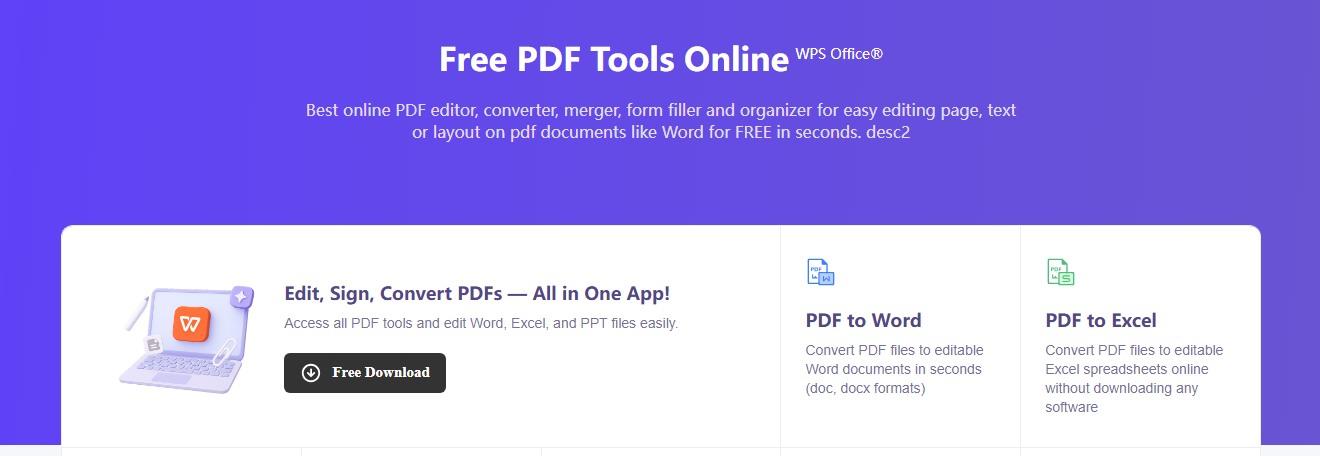
Step 1: First, head on over to the WPS HTML to
JPG tool website.
WPS HTML to JPG Interface
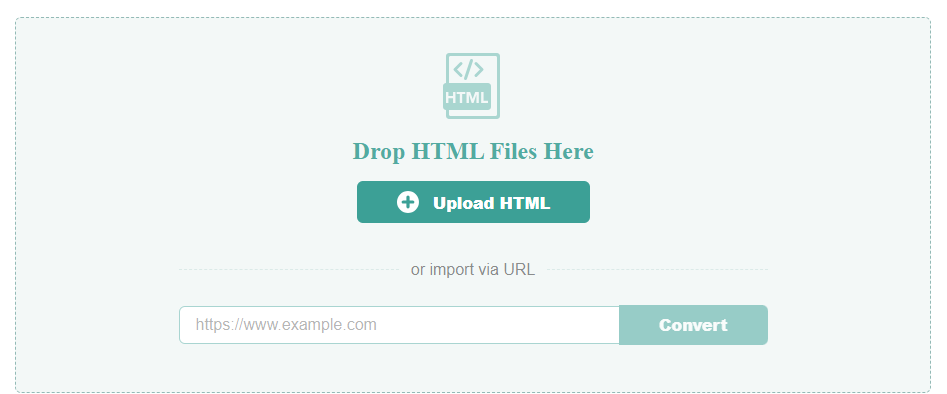
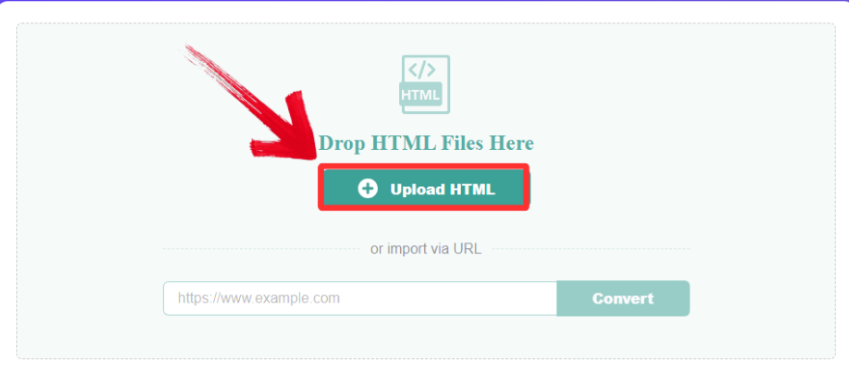
Step 2: Upload your HTML by dragging it or clicking
the “Upload HTML” button. You could also paste a web
URL directly.
Upload your Image
Step 3: Your file will be converted automatically,
then just click “Download” to save the extracted file
onto your device.
Download and save
Pros:
Exceptional Ease of Use: The minimalist interface requires no technical knowledge, allowing for simple copy-paste URL conversion.
High-Fidelity Output: It accurately preserves the original webpage's layout, text formatting, images, and hyperlinks.
No Watermarks: The service is completely free and produces clean, professional documents without intrusive watermarks.
No Installation Required: As a fully browser-based tool, it is instantly accessible from any device without downloading software.
Cons:
Internet Dependent: It requires an active internet connection and cannot work with locally saved HTML files.
Public URLs Only: The tool cannot convert content hidden behind login walls or within private intranets.
Limited Customization: It lacks advanced options for adjusting margins, page orientation, or selecting specific page ranges.
Dynamic Content Issues: It may struggle to capture highly interactive elements or content that relies heavily on JavaScript.
Quick Comparison Table
Selecting the ideal Free convert HTML to JPG often depends on
balancing specific project requirements against platform restrictions.
The comparison below outlines the distinct advantages and limitations of
each service.
Feature
WPS Online
CloudConvert
FreeConvert
Ease of Use
⭐⭐⭐⭐⭐ (Very Easy)
⭐⭐⭐⭐ (Easy)
⭐⭐⭐⭐ (Easy)
Format Preservation
Excellent (via PDF intermediate)
Good
Moderate
Conversion Speed
Fast
Average (Queue times)
Fast
File Limits
Generous Free Tier
25 conversions/day
1GB Limit (Generous)
System Compatibility
All Browsers
All Browsers
All Browsers
I work a lot with online converter tools, and I can comfortably say
I've used most of them. The biggest problem I would face with most of
these tools is that either they were limited or almost always had issues
with formatting.
CloudConvert worked well for text, but it often missed out on images or
more complex pages. WPS Online Tools maintained the format more than the
others, and it's the best convert HTML to JPG converter. Although
FreeConvert is the fastest out of the three, its accuracy is the lowest,
so if it's something sensitive that you’re working on it's rarely the
best choice.
How to Convert HTML to
JPG on Desktop
Sometimes, however, you’ll have projects where you’ll need privacy,
then desktop softwares are the best choice. Since these tools run
locally on your desktop, you don't have to worry about getting tracked
or your data being shared anywhere suspicious. These tools offer
enhanced privacy, faster processing speeds for heavy files, and the critical ability to edit content prior to final
image generation.
Unlike online tools that lock the file immediately, the desktop
process starts by treating your HTML file as an editable document,
giving you full control over the final look.
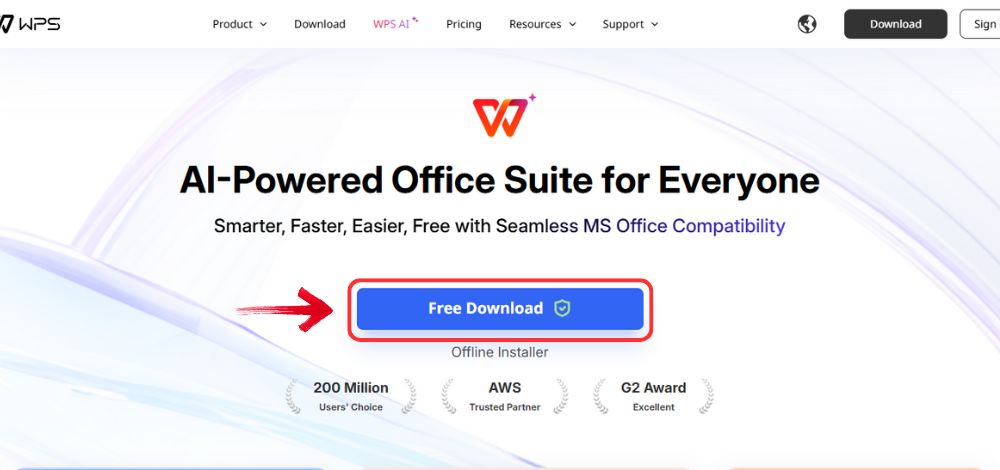
Step 1: Open your browser to visit WPS Office and click the "Free Download" button to start the download.
Download WPS Office
Step 2: The download will finish in a few seconds.
Once done, run the installation file like you would for any other app or
software.
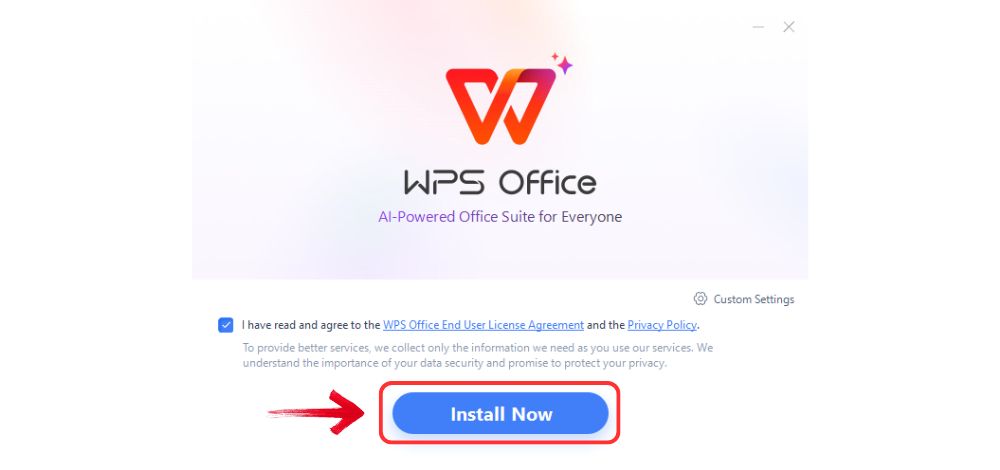
Step 3: WPS Office will show you a few simple terms
and conditions. Accept them, then click the "Install
Now" button to begin the installation.
Install WPS Office
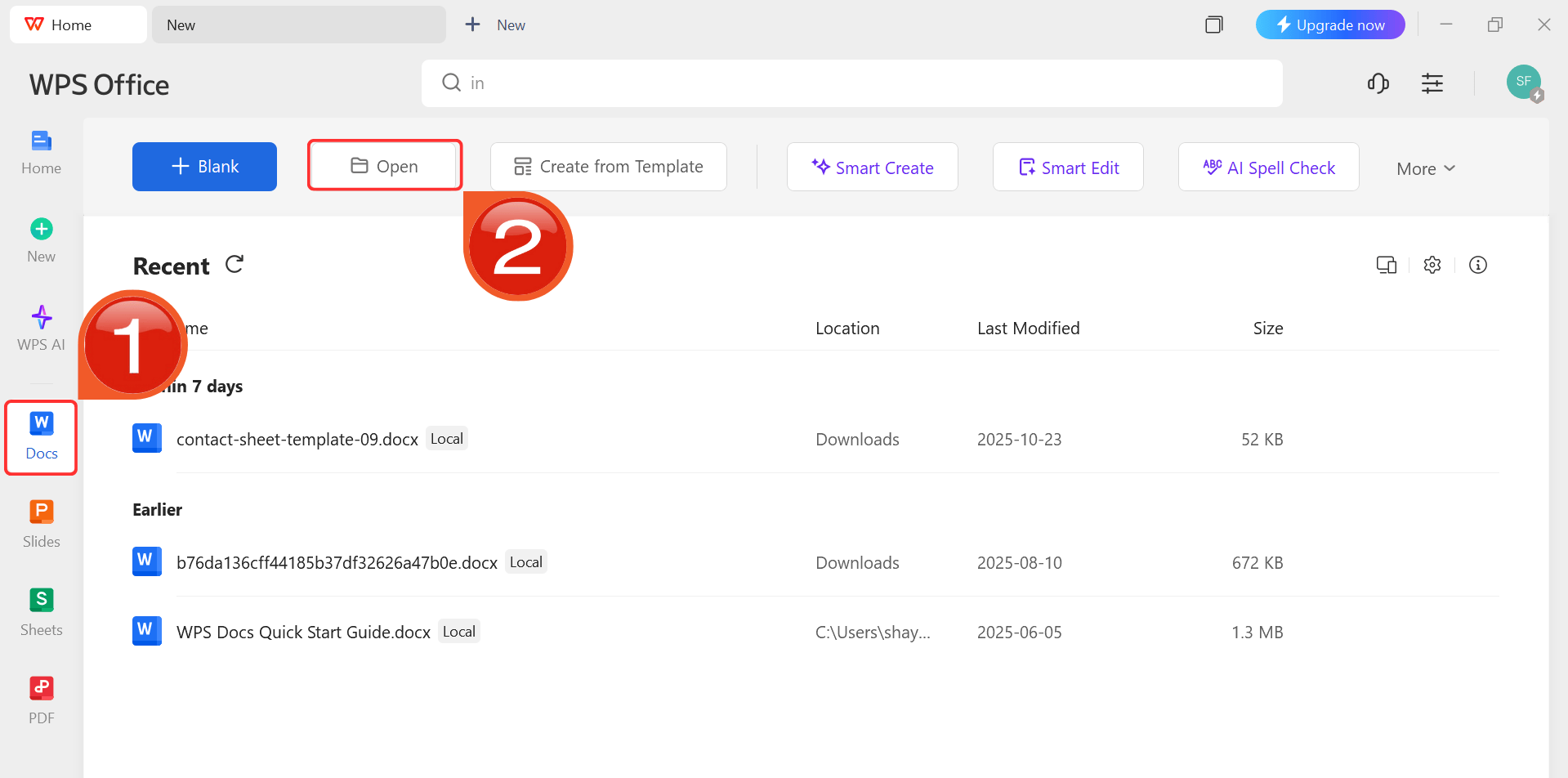
Step 4: After installation, in WPS Office, click “Docs” from the left sidebar and hit “Open” to select your HTML file in WPS Office.
WPS Docs Dashboard
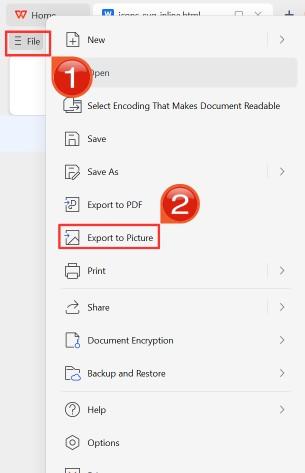
Step 5: After you’re done modifying, head to “File” and choose “Export to Picture” to save the HTML in PDF format.
Export as Photo
Quick Comparison Table:
Now, although WPS Office is excellent for most conversions, it is
helpful to compare the tool with Adobe Acrobat Pro and see how it
compares to it. The final decision to stick with a tool fully depends on
you and what your needs are.
Feature
WPS Office
(Desktop)
Adobe Acrobat Pro
Conversion Accuracy
High (Layout Editor available)
Very High
Layout Preservation
Excellent
Excellent
OCR Support
Yes (Built-in)
Yes (Built-in)
Post-Editing
Easy (Edit before converting)
Difficult (PDF editing only)
Processing Speed
Fast
Moderate
WPS Office offered the most convenient workflow. The standout feature
for me was the editing capability, being able to delete a footer or fix
a typo in the HTML file before exporting it to JPG saved me
from having to use photo editing software later. Adobe Acrobat is
powerful, but navigating the complex menus felt like overkill for a
simple JPG conversion and required a paid subscription.
Why Choose WPS
Office to Convert HTML to JPG
Many tools out there make this process harder than it needs to be.
Heavy software like Adobe requires a big payment and takes up a lot of
space on your hard drive. On the other hand, free online converters
often lower the quality of your image, making text look blurry or
pixelated. Plus, if you need to fix a typo or remove an ad from the web
page, you usually have to do it manually in a code editor before you
even start the conversion, which wastes time.
WPS Office
WPS
Office is a complete office suite that includes Writer,
Presentation, Spreadsheets, and PDF tools all in one lightweight app. It
is popular because it lets you open an HTML file, edit the text or
delete ads just like a Word document, and then save it as a high-quality
picture. This means you don't just convert the file; you can fix it
first. It is free to download and uses very little spaceon your computer, making it a great choice for students and
professionals.
Unique Advantages:
Edit First: You can open your HTML file in Writer to change fonts, remove broken links, or delete headers before you turn it into an image.
Privacy First: All the work happens on your own computer, so your private data never goes to a cloud server.
No Waiting: Since you don't have to upload files to the internet, you don't have to wait for server queues.
Functions/Features:
Export to Picture: A simple built-in tool that saves any document or PDF as a high-quality JPG.
All-in-One Design: Access PDF tools, document editing, and image export in a single window.
Batch Tools: Open multiple tabs to work on several files at the same time.
High-Resolution: Keeps your text sharp and clear for printing or presentations.
100% secure
FAQs
Q1.
What’s the easiest way to convert HTML to JPG online?
There are multiple methods to convert HTML to JPG, including online
converters, browser extensions, and document software with image export
capabilities. The suitable method depends on the specific use case, but
the WPS two-step online method (HTML to PDF to JPG) ensures the highest
layout accuracy by first locking the document format.
Q2. Why would I
need to convert HTML to JPG?
Users often convert webpages to images for sharing, printing,
presentations, or design previews without worrying about broken layouts.
A JPG is a frozen file that ensures the viewer sees exactly what you
see, regardless of their browser or internet connection.
Q3.
Will the HTML page’s design and fonts remain the same after conversion?
A good converter like WPS Office ensures accurate style rendering. By
treating the file as a document first, it locks in your text, fonts, and
colors so they look consistent in the final image.
Q4. Can I
convert multiple HTML files to JPG at once?
Yes, desktop tools like WPS Office allow you to open multiple
documents in tabs. You can process them individually or use batch
processing features available in the premium PDF toolkit to convert
multiple files efficiently.
Q5. Is converting HTML to
JPG secure?
If security is a concern, using desktop software like WPS Office is
safer because the conversion happens locally on your hard drive. Online
converters require uploading your file to a remote server, which might
not be ideal for sensitive data.
The Best Tool for Webpage Conversion
Converting HTML to JPG is a critical task for archiving and sharing web content effectively. For quick, on-the-go tasks, online tools provide a fast solution, though they may lack advanced formatting controls. However, for professional quality, WPS Office is the superior choice. Its unique ability to edit HTML files before conversion, combined with high-fidelity export options, ensures you get precise, clean images every time without the complexity of paid professional software.
Khadija Khan is a tech writer who explores office suites and creates content to simplify everyday tools. She teaches and inspires through clear, engaging writing.


'%3e%3cpath%20d='M8%200C12.4183%200%2016%203.58172%2016%208C16%2012.4183%2012.4183%2016%208%2016C3.58172%2016%200%2012.4183%200%208C0%203.58172%203.58172%200%208%200ZM11.6162%204.38379C11.2257%203.99337%2010.5927%203.99338%2010.2021%204.38379L8%206.58594L5.79785%204.38379C5.40732%203.99334%204.77429%203.99329%204.38379%204.38379C3.99331%204.77429%203.99335%205.40733%204.38379%205.79785L6.58594%208L4.38379%2010.2021C3.99348%2010.5927%203.99341%2011.2257%204.38379%2011.6162C4.77426%2012.0066%205.40734%2012.0065%205.79785%2011.6162L8%209.41406L10.2021%2011.6162C10.5927%2012.0066%2011.2257%2012.0067%2011.6162%2011.6162C12.0067%2011.2257%2012.0066%2010.5927%2011.6162%2010.2021L9.41406%208L11.6162%205.79785C12.0066%205.40735%2012.0066%204.77429%2011.6162%204.38379Z'%20fill='%23080E17'%20fill-opacity='0.46'/%3e%3c/g%3e%3cdefs%3e%3cclipPath%20id='clip0_3761_713'%3e%3crect%20width='16'%20height='16'%20fill='white'/%3e%3c/clipPath%3e%3c/defs%3e%3c/svg%3e)



'%3e%3cpath%20fill-rule='evenodd'%20clip-rule='evenodd'%20d='M21.4999%2010.9993C21.4999%205.20009%2016.7986%200.498901%2010.9993%200.498901C5.19994%200.498901%200.498657%205.20009%200.498657%2010.9993C0.498657%2016.2404%204.33858%2020.5844%209.35855%2021.3722V14.0346H6.69238V10.9993H9.35855V8.68594C9.35855%206.05427%2010.9262%204.60062%2013.3248%204.60062C14.4736%204.60062%2015.6753%204.80571%2015.6753%204.80571V7.38979H14.3512C13.0468%207.38979%2012.64%208.19921%2012.64%209.0296V10.9993H15.5523L15.0867%2014.0346H12.64V21.3722C17.66%2020.5844%2021.4999%2016.2404%2021.4999%2010.9993Z'%20fill='%231568EA'/%3e%3c/g%3e%3c/svg%3e)


'%3e%3cpath%20d='M2.42045%2022.1876H6.31818V12.7217L0.75%208.54553V20.5171C0.75%2021.4414%201.49892%2022.1876%202.42045%2022.1876Z'%20fill='%234285F4'/%3e%3cpath%20d='M19.682%2022.1876H23.5797C24.5041%2022.1876%2025.2502%2021.4387%2025.2502%2020.5171V8.54553L19.682%2012.7217'%20fill='%2334A853'/%3e%3cpath%20d='M19.682%205.48293V12.7216L25.2502%208.54543V6.31816C25.2502%204.25236%2022.8921%203.07469%2021.2411%204.31361'%20fill='%23FBBC04'/%3e%3cpath%20d='M6.31824%2012.7217V5.48303L13.0001%2010.4944L19.6819%205.48303V12.7217L13.0001%2017.733'%20fill='%23EA4335'/%3e%3cpath%20d='M0.75%206.31816V8.54543L6.31818%2012.7216V5.48293L4.75909%204.31361C3.10534%203.07469%200.75%204.25236%200.75%206.31816Z'%20fill='%23C5221F'/%3e%3c/g%3e%3cdefs%3e%3cclipPath%20id='clip0_2954_7305'%3e%3crect%20width='24.5'%20height='18.375'%20fill='white'%20transform='translate(0.75%203.8125)'/%3e%3c/clipPath%3e%3c/defs%3e%3c/svg%3e)




'%3e%3cpath%20d='M19.9911%204.11386V6.471H18.5894C18.0775%206.471%2017.7322%206.57814%2017.5536%206.79243C17.3751%207.00671%2017.2858%207.32814%2017.2858%207.75671V9.44421H19.9019L19.5536%2012.0871H17.2858V18.8639H14.5536V12.0871H12.2769V9.44421H14.5536V7.49779C14.5536%206.39064%2014.8632%205.53201%2015.4822%204.92189C16.1013%204.31177%2016.9257%204.00671%2017.9554%204.00671C18.8304%204.00671%2019.509%204.04243%2019.9911%204.11386Z'%20fill='%23333333'/%3e%3c/g%3e%3cdefs%3e%3cclipPath%20id='clip0_2938_8199'%3e%3crect%20width='16'%20height='16'%20fill='white'%20transform='translate(8%204.00671)'/%3e%3c/clipPath%3e%3c/defs%3e%3c/svg%3e)
'%3e%3cpath%20d='M17.5237%2010.7813L23.4811%204H22.0699L16.8949%209.88693L12.7648%204H8L14.2469%2012.9029L8%2020.0133H9.4112L14.8725%2013.7952L19.2352%2020.0133H24M9.92053%205.04213H12.0885L22.0688%2019.0224H19.9003'%20fill='%23333333'/%3e%3c/g%3e%3cdefs%3e%3cclipPath%20id='clip0_2938_8200'%3e%3crect%20width='16'%20height='16.0134'%20fill='white'%20transform='translate(8%204)'/%3e%3c/clipPath%3e%3c/defs%3e%3c/svg%3e)


