Google Slides is a go-to tool for presenting and sharing ideas, but
pulling clean, high-quality images out of it can be surprisingly
frustrating. You can run into blurry exports, unnecessary workarounds on
Mac or iPhone, or unclear options for saving images at full resolution.
If you’ve ever wondered how to download an image from Google Slides
without losing quality, you’re not alone. This guide breaks down the
most reliable methods, from Google Keep to browser extensions, and also
introduces a smarter, AI-powered alternative that makes working with
visuals far more efficient.
Use Word, Excel, and PPT for FREE
How to Download an Image from Google Slides
How to Download an
Image from Google Slides
It sounds like a simple task, yet in Google
Slides, this basic feature is missing, whether you are working
on a Mac, Chromebook, or PC. Instead of a straightforward Save As
button, you are often forced to take screenshots that ruin the quality.
Fortunately, there are smarter workarounds to extract your visuals as
images in high resolution, whether you need to transfer them to Canva for a design project or just save them locally. Below are 4 different
methods on how to download an image from Google Slides.
Method 1:
Copy and Paste (Quickest for Single Images)
This is the quickest option when you just need to move an image from
Google Slides into another app, like dropping a logo into Canva or
pasting a chart into a Word document. It skips file saving entirely and
lets you move fast without dealing with downloads or uploads. It does
not actually save the image to your computer or phone. It lives only in
your clipboard, so it is not useful if you need a standalone image
file.
Here’s how to download an image from Google Slides to Canva by simply
copying your images:
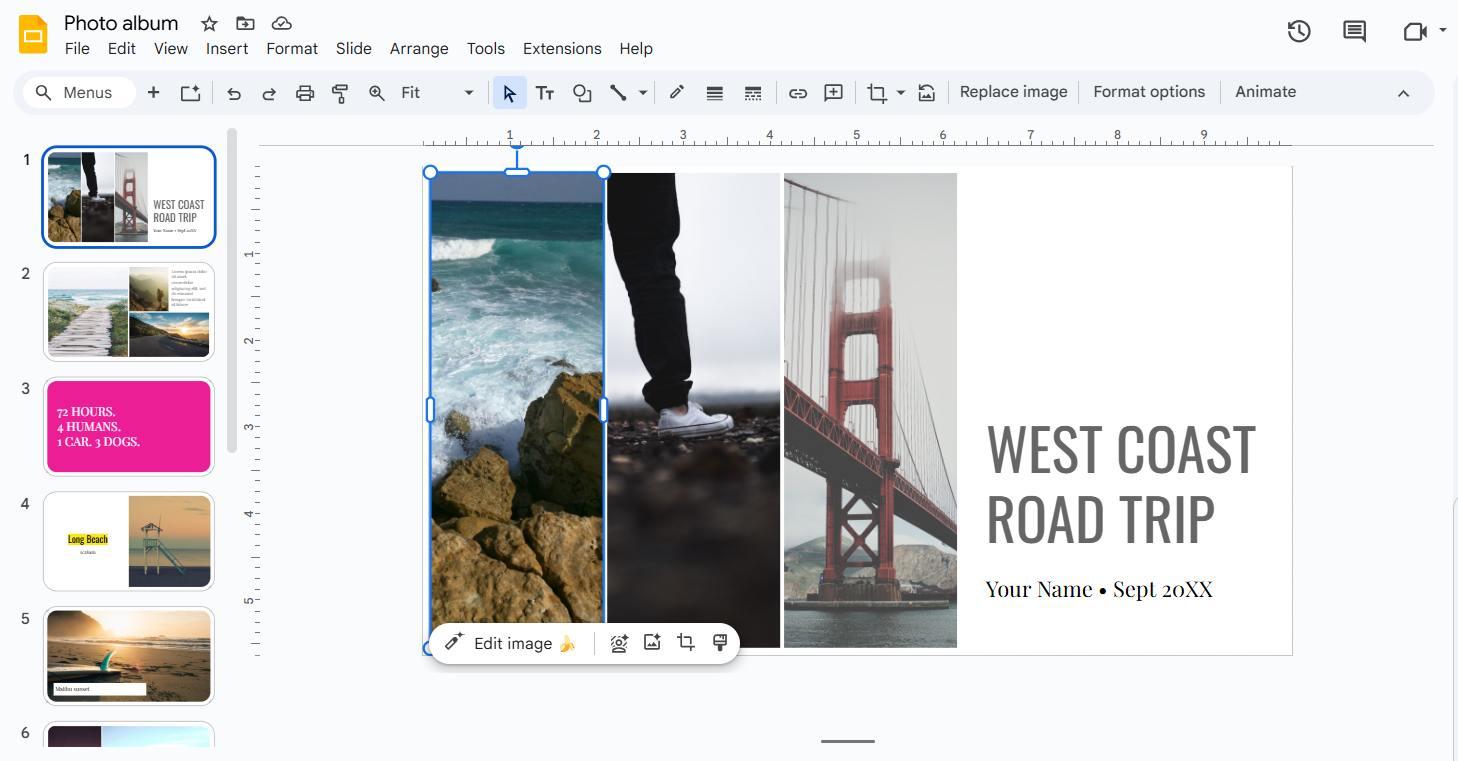
Step 1: Open your presentation and select the image
you want.
Google Slides Selected Image
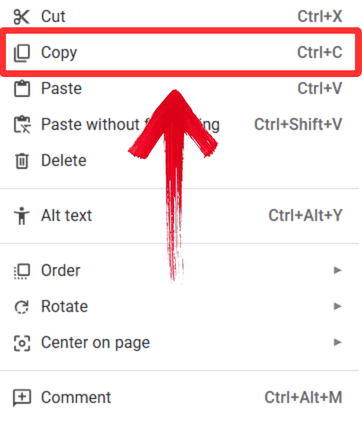
Step 2: Right-click and select
“Copy” (or press Ctrl + C / Cmd + C on
Mac).
Copy Image
Step 3: Open your destination app (like Canva,
Photoshop, or a text doc) and paste the image (Ctrl + V / Cmd + V).
Paste Image
Method 2:
Save Images from Google Slides Using Google Keep
This is one of the most reliable ways to download a single image
without losing quality, especially if you are working on an iPhone.
Google’s apps work well together, so sending an image from Slides to
Google Keep lets you save it cleanly from there. It takes a few extra
clicks, but it avoids blurry exports and works well when the mobile Slides app gives you limited
options.
Here’s how to download an image from Google Slides on iPhone/Mac
using Google Keep:
Step 1: Select the image in Google Slides.
Google Slides Selected Image
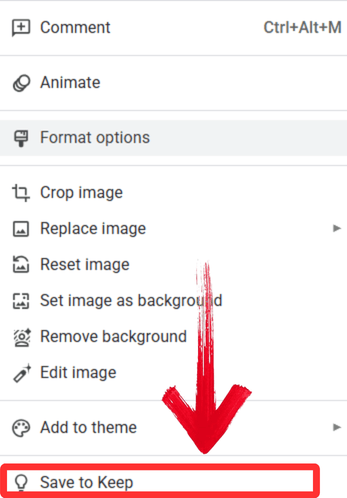
Step 2: Right-click the image and choose
“Save to Keep”. A sidebar will open on the right.
Save to Keep Option
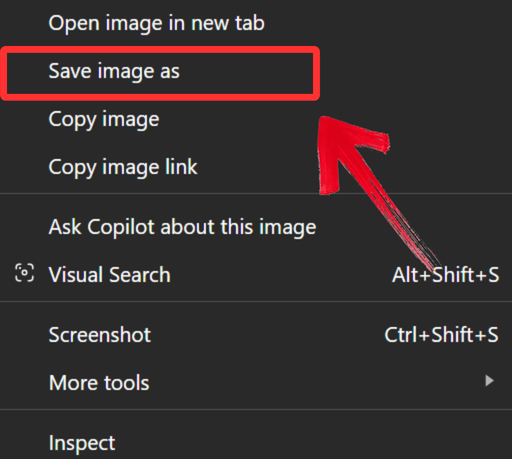
Step 3: In the Keep notes sidebar, right-click the
image thumbnail and select “Save image as”.
Save Image to Device
Step 4: Choose your folder and save. This acts as a
manual downloader for individual assets.
Method
3: Downloading Images from Google Slides via "Publish to Web" or
HTML
If you need every image from a presentation, this is the most
effective method. By publishing the deck to the web or exporting it as
HTML, Google breaks the file into folders that include all images at
full resolution. It works well on Mac and Chromebook and does not
require extra software. You can download all images at once in high
resolution this way.
Here’s how to download an image from Google Slides high
resolution:
Step 1: Open your presentation and select the image
you want. Right-click and select “Copy” (or press Ctrl
+ C / Cmd + C on Mac).
Copy Image
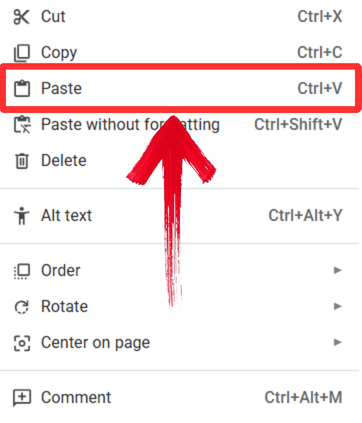
Step 2: Open a new Google Doc or an existing one
where you want the image saved. Right-click anywhere in the document and
select “Paste”.
Paste Image
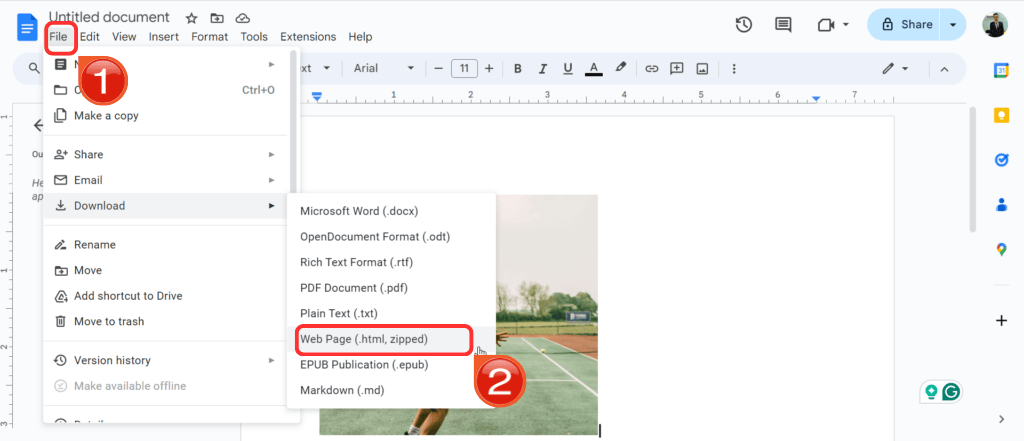
Step 3: First, go to “File”, then
find and click “Download” and then select “Web
Page (.html, zipped)” as the format.
Export as HTML
Step 4: A ZIP file will download to your computer.
Unzip the folder, and you will find a subfolder containing every image
from the presentation saved separately in high quality.
Method 4:
Downloading Images from Extension
For people who regularly extract images from Google Slides, browser
extensions can save a lot of time. These tools add a direct download
option inside Slides, cutting out the usual workarounds. They are
especially useful for frequent or bulk use, but they may not be allowed
on school or work accounts. As always, install extensions carefully and
stick to well-reviewed options.
Step 2: Install the extension and refresh your
Google Slides tab.
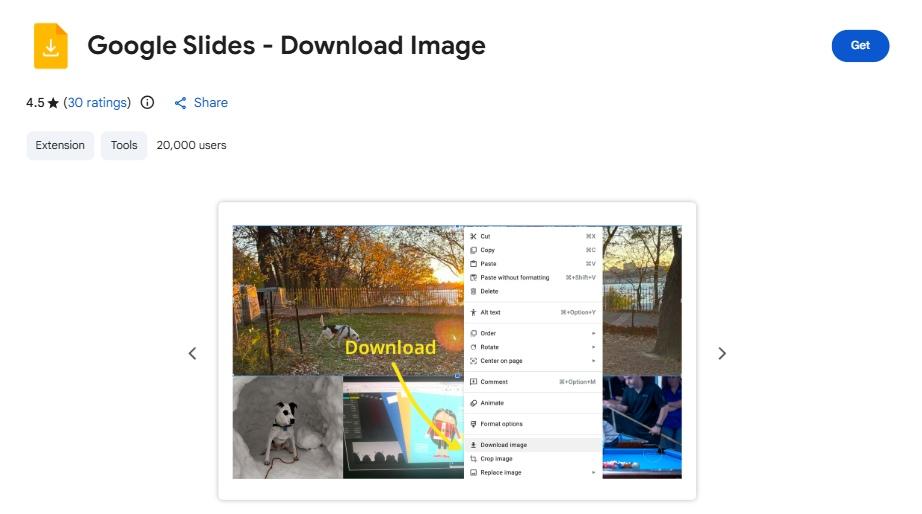
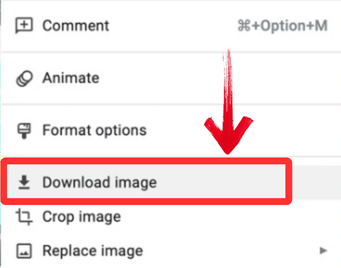
Step 3: This Image downloader will add a Download
image option to your right-click menu so you can just click “Download image” to save the image to your device.
Download image option
Best Way to
Optimize Your Slides—WPS AI Slides
Even though these methods let you extract images from Google Slides,
the process is still surprisingly slow. Constantly saving files to
Google Keep or digging through large ZIP folders just to grab a single
image can interrupt your workflow, and perhaps it might be time to
switch.
WPS AI
Slides works differently. Instead of forcing you to manage every
image and layout manually, it organizes your content into clear, professional
slides automatically. That means you can spend less time on
formatting and more time on crafting your message. Whether you’re
putting together a report, a pitch, or a lesson, WPS AI Slides turns
your ideas into polished, ready-to-share presentations with ease.
WPS AI Slides
Recommended Features for
Visual Design:
If your main goal is to get high-quality visuals or quickly make your
slides look polished, WPS AI Slides offers clear advantages over Google
Slides.
AI Image Generation Without Downloads: Instead
of spending time searching Google for the perfect image and uploading it
manually, WPS AI lets you create visuals directly in your slides. Just
describe what you need, and the AI generates high-resolution,
royalty-free images on the spot.
One-Click Asset Management: Managing images in
Google Slides often means going through multiple steps or hidden menus.
WPS Office simplifies this with a Resource Library where you can
organize, drag, and drop assets, then export them instantly. Everything is in one place, making visual management
faster and more intuitive.
Smart Layout and Instant Polishing: Once you
have your images, WPS AI helps place them perfectly. The Smart Layout
feature automatically snaps visuals into professional grids, so you
don’t have to resize or reposition anything manually. In seconds, your
slides go from raw images to boardroom-ready presentations.
How to Edit:
Getting started is easy. Instead of struggling with manual
formatting, you can let the AI handle the heavy lifting in just a few
clicks. Here’s how to use the AI pitch
deck generator:
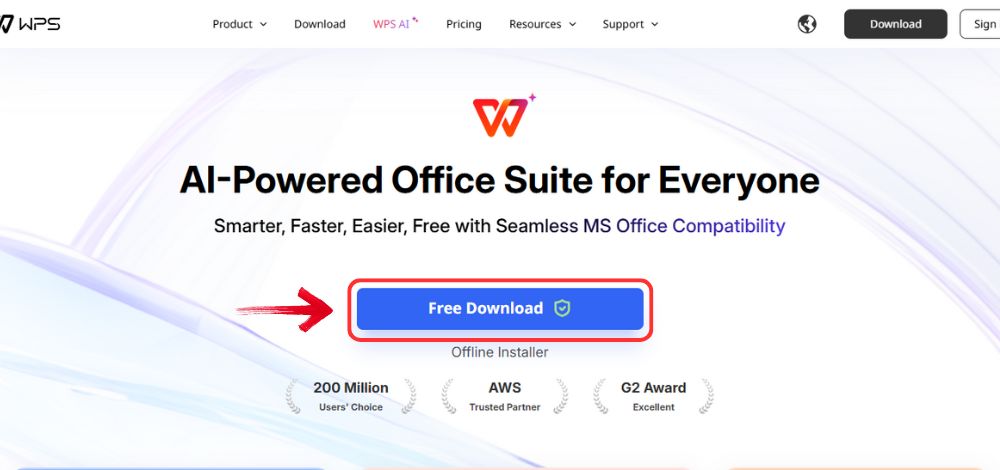
Step 1: Open your browser to visit WPS Office and click the "Free Download" button to start the download.
Download WPS Office
Step 2: The download will finish in a few seconds.
Once done, run the installation file like you would for any other app or
software.
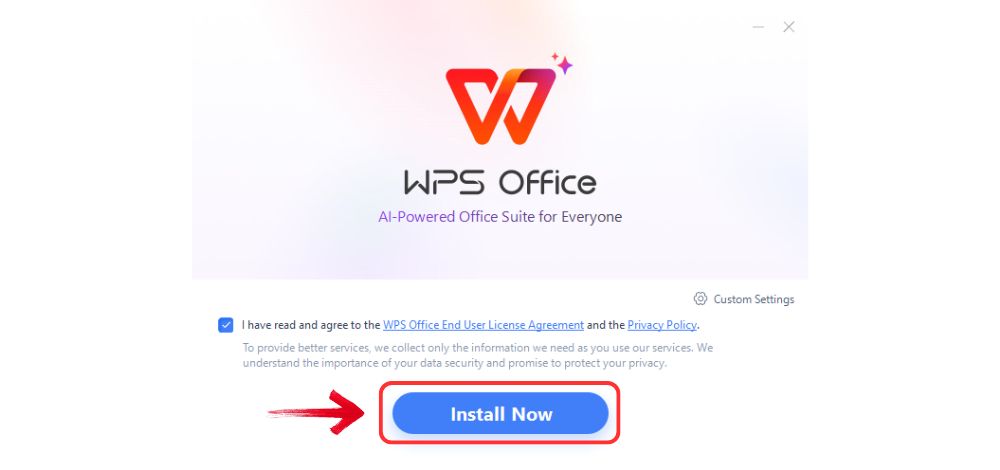
Step 3: WPS Office will show you a few simple terms
and conditions. Accept them, then click the "Install
Now" button to begin the installation.
Install WPS Office
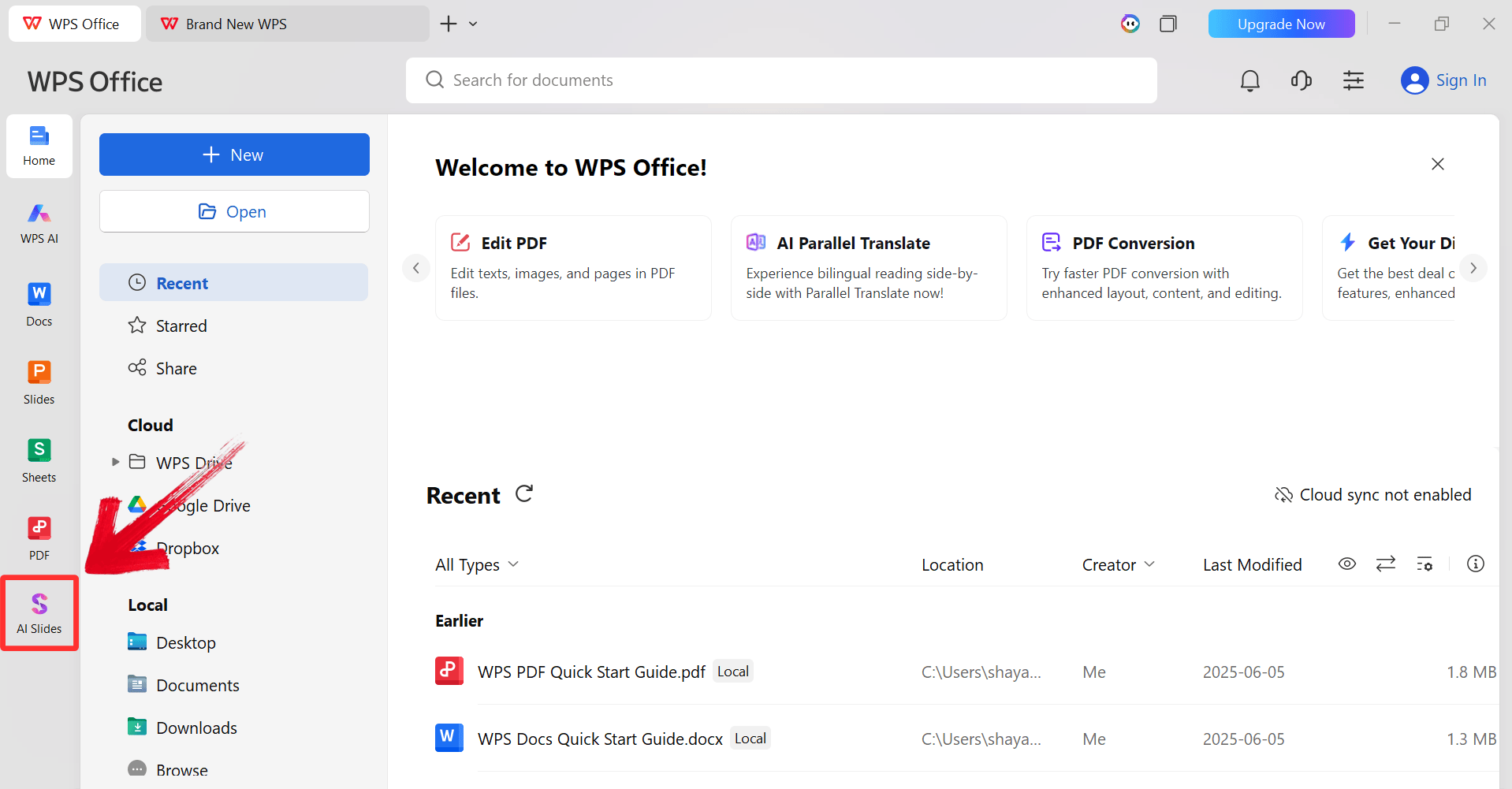
Step 4: After installation, in WPS Office, click “Slides” from the left sidebar.
WPS Slides Dashboard
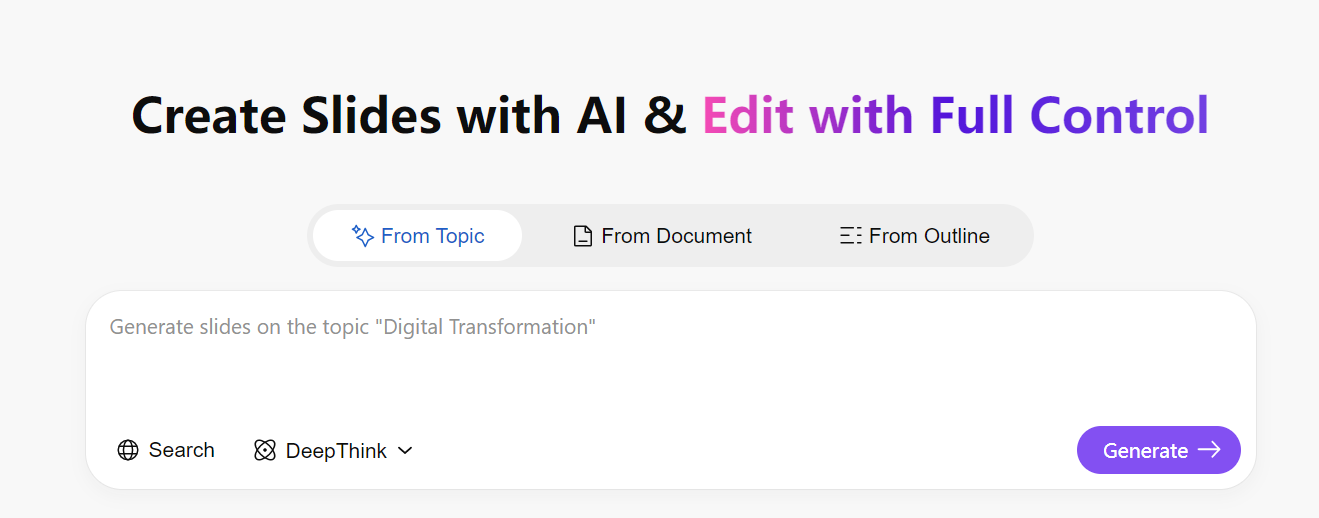
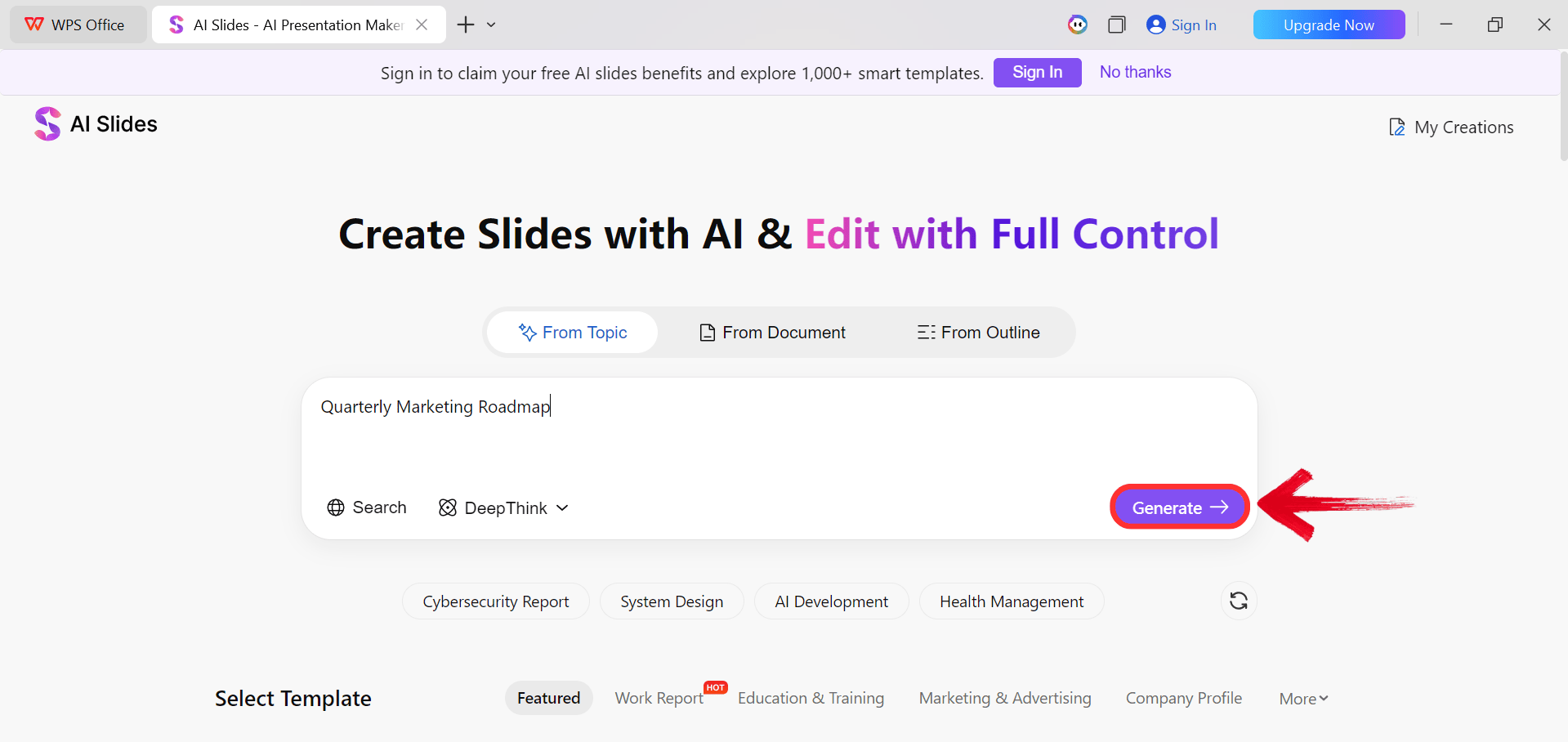
Step 5: Enter your presentation topic (e.g.,
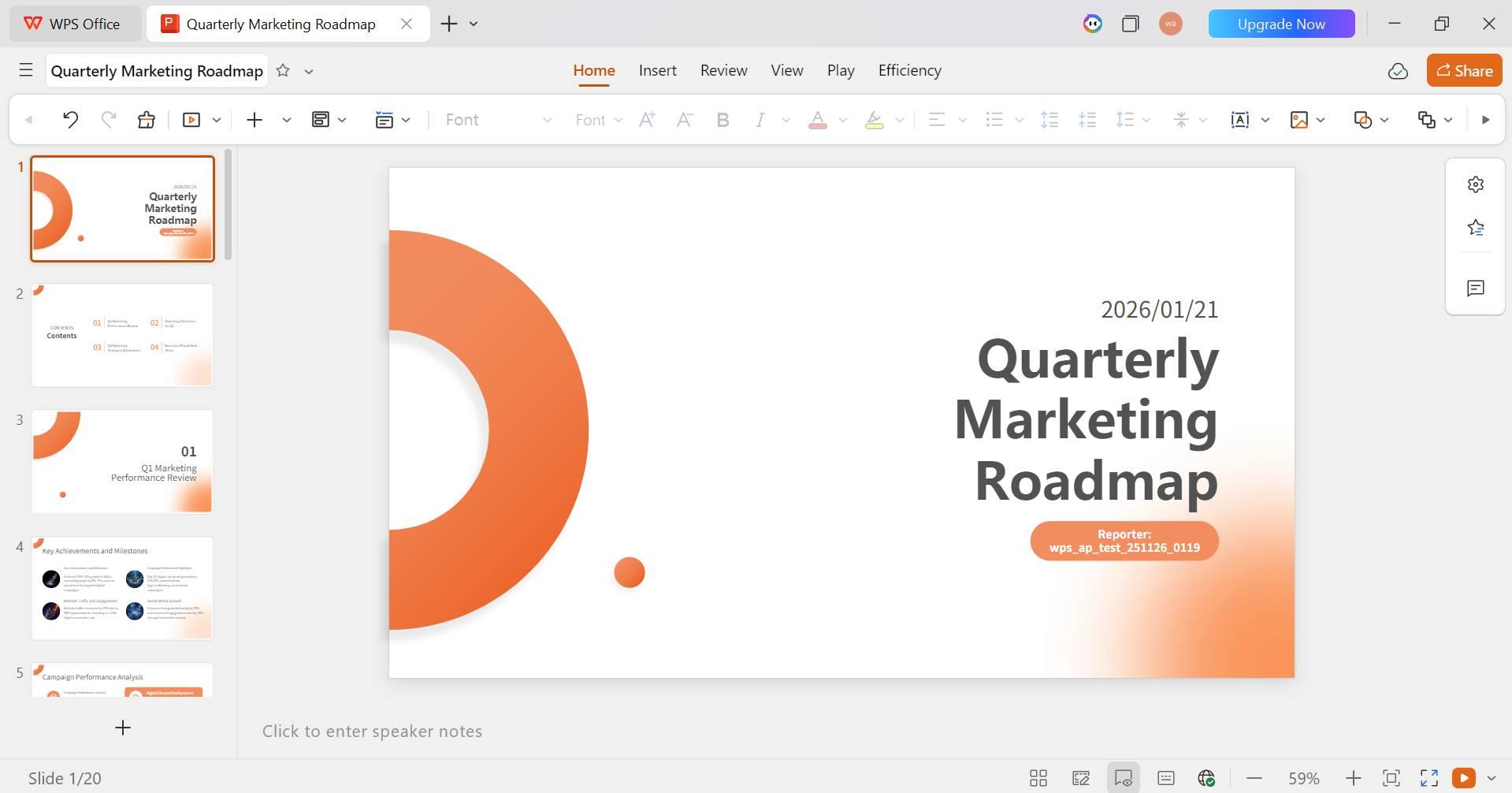
"Quarterly Marketing Roadmap") into the dialogue box and click “Generate” to create the outline.
Click Generate
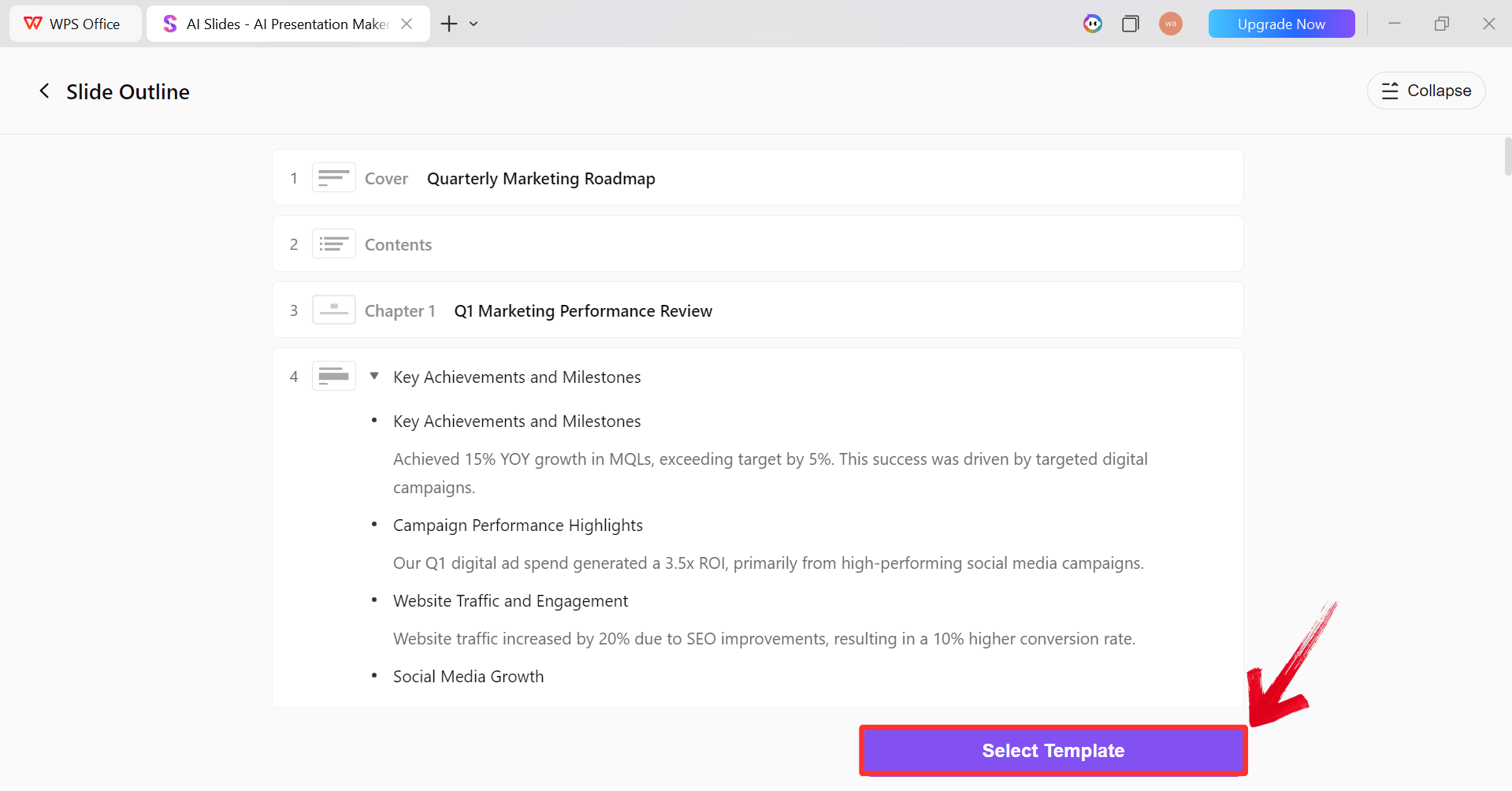
Step 6: After the AI creates the outline,
click “Select Template” to pick a template from the
already available ones.
AI Generated Outline
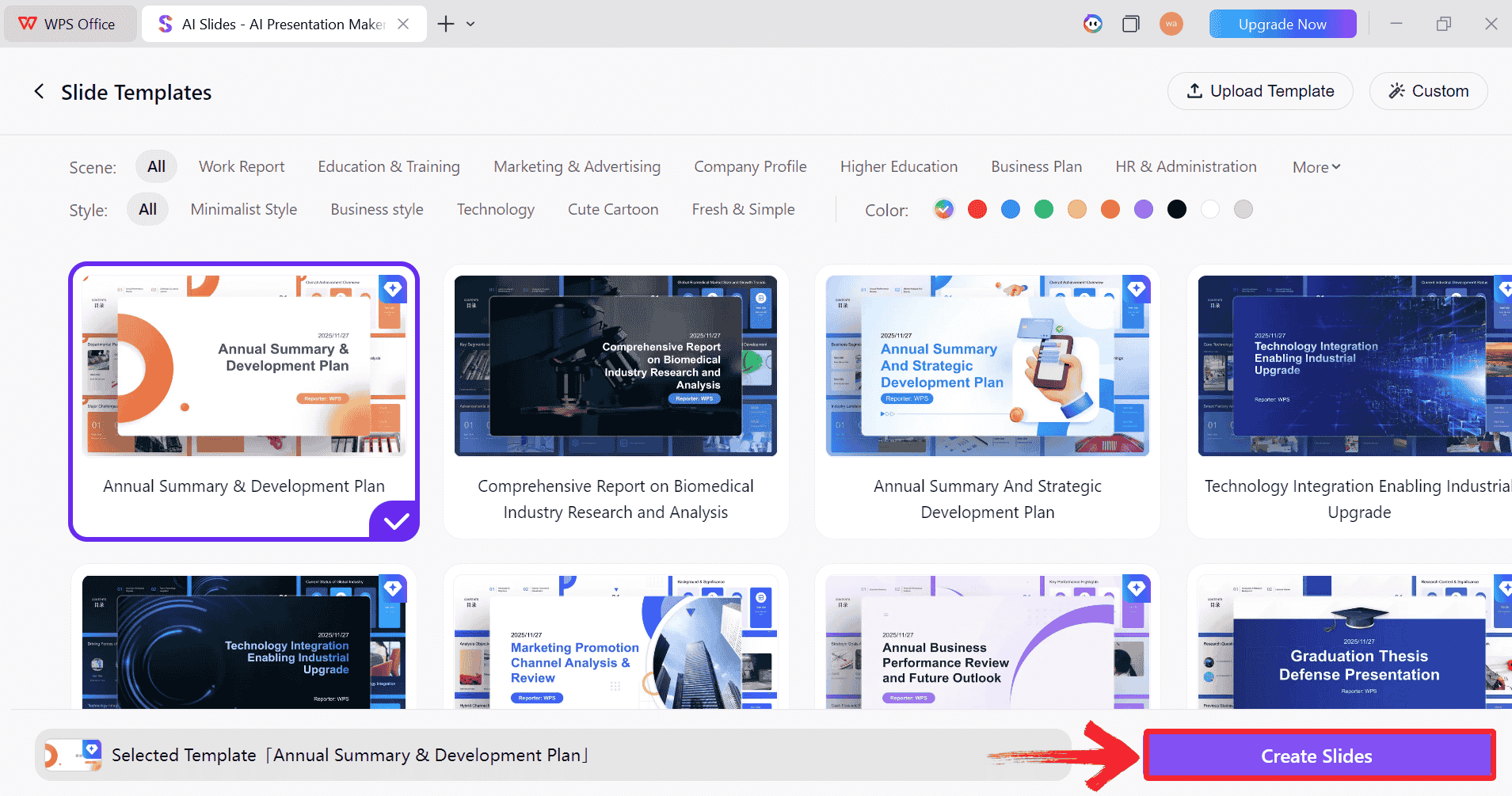
Step 7: Choose from the Wide template library and
click “Create Slides” to generate your
presentation.
Pick a Template
Step 8: Finally, your Slide deck will be generated
with the accurate content.
AI-generated PPT
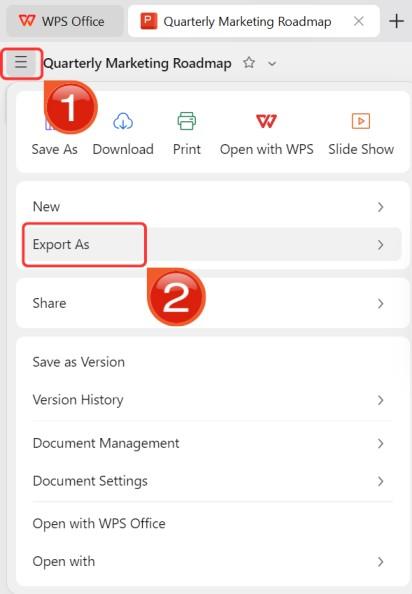
Step 9: Click on the File menu and then click “Export as” to download your PPT.
Export and Download
Comparison of WPS
AI Slides and Google Slides
Google Slides is the industry standard for collaboration, but its
lack of basic media tools, like a simple save button, can be frustrating. WPS AI Slides
offers a powerful alternative, focusing on automated creation and
seamless asset management. Here is a side-by-side look at how they stack
up.
Aspect
Google Slides
WPS AI Slides
Creation Approach
Manual editing
AI-assisted slide generation
Video Insertion
YouTube/Drive only
Direct local video support
Design Support
User-designed layouts
AI layout & template
suggestions
Workflow Speed
Step-by-step building
Faster automated drafting
Collaboration
Strong real-time collaboration
Basic collaboration
Device Flexibility
Browser-based
Desktop, Mobile, & Offline use
Best Use Cases
Simple team slides
Frequent, media-heavy presentations
100% secure
FAQs
Q1:
How can I save an image on the Google Slides mobile app/iPhone?
There is no direct save image button, but you can use the Google Keep
trick. Copy the image from your slide, paste it into a new note in the
Google Keep app on iPhone, then tap the image in Keep
and select Save image to download it to your Camera Roll.
Q2:
Does saving the image through Keep affect its quality?
It is possible. Google Keep may slightly compress the file to save
storage, which means the downloaded image might not be as sharp as the
original. For high resolution, using the "Download as
Web Page" method on a computer is safer.
Q3: Why are
downloaded images sometimes low quality?
If the original image was resized or compressed when it was first
inserted into the slide, the exported version will reflect that lower
quality. Taking screenshots instead of downloading the source file is
another common reason for pixelation.
Q4: How can WPS AI improve
my images?
WPS AI can auto-enhance image quality, remove backgrounds, and match
color tones between photos. This helps your cloud images blend naturally
when placed together, ensuring a professional look without external
editing software.
Why There’s a Better Alternative to Google Slides
Extracting visuals doesn't have to be a headache. While you can learn how to download an image from Google Slides using Google Keep or Download as HTML for high-resolution results, these methods are often slow. For a more efficient workflow that integrates image generation, easy asset management, and smart design, WPS AI Slides offers a professional alternative that keeps your focus on the presentation, not the file management.
Khadija Khan is a tech writer who explores office suites and creates content to simplify everyday tools. She teaches and inspires through clear, engaging writing.


'%3e%3cpath%20d='M8%200C12.4183%200%2016%203.58172%2016%208C16%2012.4183%2012.4183%2016%208%2016C3.58172%2016%200%2012.4183%200%208C0%203.58172%203.58172%200%208%200ZM11.6162%204.38379C11.2257%203.99337%2010.5927%203.99338%2010.2021%204.38379L8%206.58594L5.79785%204.38379C5.40732%203.99334%204.77429%203.99329%204.38379%204.38379C3.99331%204.77429%203.99335%205.40733%204.38379%205.79785L6.58594%208L4.38379%2010.2021C3.99348%2010.5927%203.99341%2011.2257%204.38379%2011.6162C4.77426%2012.0066%205.40734%2012.0065%205.79785%2011.6162L8%209.41406L10.2021%2011.6162C10.5927%2012.0066%2011.2257%2012.0067%2011.6162%2011.6162C12.0067%2011.2257%2012.0066%2010.5927%2011.6162%2010.2021L9.41406%208L11.6162%205.79785C12.0066%205.40735%2012.0066%204.77429%2011.6162%204.38379Z'%20fill='%23080E17'%20fill-opacity='0.46'/%3e%3c/g%3e%3cdefs%3e%3cclipPath%20id='clip0_3761_713'%3e%3crect%20width='16'%20height='16'%20fill='white'/%3e%3c/clipPath%3e%3c/defs%3e%3c/svg%3e)



'%3e%3cpath%20fill-rule='evenodd'%20clip-rule='evenodd'%20d='M21.4999%2010.9993C21.4999%205.20009%2016.7986%200.498901%2010.9993%200.498901C5.19994%200.498901%200.498657%205.20009%200.498657%2010.9993C0.498657%2016.2404%204.33858%2020.5844%209.35855%2021.3722V14.0346H6.69238V10.9993H9.35855V8.68594C9.35855%206.05427%2010.9262%204.60062%2013.3248%204.60062C14.4736%204.60062%2015.6753%204.80571%2015.6753%204.80571V7.38979H14.3512C13.0468%207.38979%2012.64%208.19921%2012.64%209.0296V10.9993H15.5523L15.0867%2014.0346H12.64V21.3722C17.66%2020.5844%2021.4999%2016.2404%2021.4999%2010.9993Z'%20fill='%231568EA'/%3e%3c/g%3e%3c/svg%3e)


'%3e%3cpath%20d='M2.42045%2022.1876H6.31818V12.7217L0.75%208.54553V20.5171C0.75%2021.4414%201.49892%2022.1876%202.42045%2022.1876Z'%20fill='%234285F4'/%3e%3cpath%20d='M19.682%2022.1876H23.5797C24.5041%2022.1876%2025.2502%2021.4387%2025.2502%2020.5171V8.54553L19.682%2012.7217'%20fill='%2334A853'/%3e%3cpath%20d='M19.682%205.48293V12.7216L25.2502%208.54543V6.31816C25.2502%204.25236%2022.8921%203.07469%2021.2411%204.31361'%20fill='%23FBBC04'/%3e%3cpath%20d='M6.31824%2012.7217V5.48303L13.0001%2010.4944L19.6819%205.48303V12.7217L13.0001%2017.733'%20fill='%23EA4335'/%3e%3cpath%20d='M0.75%206.31816V8.54543L6.31818%2012.7216V5.48293L4.75909%204.31361C3.10534%203.07469%200.75%204.25236%200.75%206.31816Z'%20fill='%23C5221F'/%3e%3c/g%3e%3cdefs%3e%3cclipPath%20id='clip0_2954_7305'%3e%3crect%20width='24.5'%20height='18.375'%20fill='white'%20transform='translate(0.75%203.8125)'/%3e%3c/clipPath%3e%3c/defs%3e%3c/svg%3e)




'%3e%3cpath%20d='M19.9911%204.11386V6.471H18.5894C18.0775%206.471%2017.7322%206.57814%2017.5536%206.79243C17.3751%207.00671%2017.2858%207.32814%2017.2858%207.75671V9.44421H19.9019L19.5536%2012.0871H17.2858V18.8639H14.5536V12.0871H12.2769V9.44421H14.5536V7.49779C14.5536%206.39064%2014.8632%205.53201%2015.4822%204.92189C16.1013%204.31177%2016.9257%204.00671%2017.9554%204.00671C18.8304%204.00671%2019.509%204.04243%2019.9911%204.11386Z'%20fill='%23333333'/%3e%3c/g%3e%3cdefs%3e%3cclipPath%20id='clip0_2938_8199'%3e%3crect%20width='16'%20height='16'%20fill='white'%20transform='translate(8%204.00671)'/%3e%3c/clipPath%3e%3c/defs%3e%3c/svg%3e)
'%3e%3cpath%20d='M17.5237%2010.7813L23.4811%204H22.0699L16.8949%209.88693L12.7648%204H8L14.2469%2012.9029L8%2020.0133H9.4112L14.8725%2013.7952L19.2352%2020.0133H24M9.92053%205.04213H12.0885L22.0688%2019.0224H19.9003'%20fill='%23333333'/%3e%3c/g%3e%3cdefs%3e%3cclipPath%20id='clip0_2938_8200'%3e%3crect%20width='16'%20height='16.0134'%20fill='white'%20transform='translate(8%204)'/%3e%3c/clipPath%3e%3c/defs%3e%3c/svg%3e)


