

'%3e%3cpath%20d='M8%200C12.4183%200%2016%203.58172%2016%208C16%2012.4183%2012.4183%2016%208%2016C3.58172%2016%200%2012.4183%200%208C0%203.58172%203.58172%200%208%200ZM11.6162%204.38379C11.2257%203.99337%2010.5927%203.99338%2010.2021%204.38379L8%206.58594L5.79785%204.38379C5.40732%203.99334%204.77429%203.99329%204.38379%204.38379C3.99331%204.77429%203.99335%205.40733%204.38379%205.79785L6.58594%208L4.38379%2010.2021C3.99348%2010.5927%203.99341%2011.2257%204.38379%2011.6162C4.77426%2012.0066%205.40734%2012.0065%205.79785%2011.6162L8%209.41406L10.2021%2011.6162C10.5927%2012.0066%2011.2257%2012.0067%2011.6162%2011.6162C12.0067%2011.2257%2012.0066%2010.5927%2011.6162%2010.2021L9.41406%208L11.6162%205.79785C12.0066%205.40735%2012.0066%204.77429%2011.6162%204.38379Z'%20fill='%23080E17'%20fill-opacity='0.46'/%3e%3c/g%3e%3cdefs%3e%3cclipPath%20id='clip0_3761_713'%3e%3crect%20width='16'%20height='16'%20fill='white'/%3e%3c/clipPath%3e%3c/defs%3e%3c/svg%3e)




'%3e%3cpath%20fill-rule='evenodd'%20clip-rule='evenodd'%20d='M21.4999%2010.9993C21.4999%205.20009%2016.7986%200.498901%2010.9993%200.498901C5.19994%200.498901%200.498657%205.20009%200.498657%2010.9993C0.498657%2016.2404%204.33858%2020.5844%209.35855%2021.3722V14.0346H6.69238V10.9993H9.35855V8.68594C9.35855%206.05427%2010.9262%204.60062%2013.3248%204.60062C14.4736%204.60062%2015.6753%204.80571%2015.6753%204.80571V7.38979H14.3512C13.0468%207.38979%2012.64%208.19921%2012.64%209.0296V10.9993H15.5523L15.0867%2014.0346H12.64V21.3722C17.66%2020.5844%2021.4999%2016.2404%2021.4999%2010.9993Z'%20fill='%231568EA'/%3e%3c/g%3e%3c/svg%3e)


'%3e%3cpath%20d='M2.42045%2022.1876H6.31818V12.7217L0.75%208.54553V20.5171C0.75%2021.4414%201.49892%2022.1876%202.42045%2022.1876Z'%20fill='%234285F4'/%3e%3cpath%20d='M19.682%2022.1876H23.5797C24.5041%2022.1876%2025.2502%2021.4387%2025.2502%2020.5171V8.54553L19.682%2012.7217'%20fill='%2334A853'/%3e%3cpath%20d='M19.682%205.48293V12.7216L25.2502%208.54543V6.31816C25.2502%204.25236%2022.8921%203.07469%2021.2411%204.31361'%20fill='%23FBBC04'/%3e%3cpath%20d='M6.31824%2012.7217V5.48303L13.0001%2010.4944L19.6819%205.48303V12.7217L13.0001%2017.733'%20fill='%23EA4335'/%3e%3cpath%20d='M0.75%206.31816V8.54543L6.31818%2012.7216V5.48293L4.75909%204.31361C3.10534%203.07469%200.75%204.25236%200.75%206.31816Z'%20fill='%23C5221F'/%3e%3c/g%3e%3cdefs%3e%3cclipPath%20id='clip0_2954_7305'%3e%3crect%20width='24.5'%20height='18.375'%20fill='white'%20transform='translate(0.75%203.8125)'/%3e%3c/clipPath%3e%3c/defs%3e%3c/svg%3e)


Shoeboxes of prints fade, stick together, and disappear when relatives move. Digitizing photos preserves the faces and dates behind them—but a rushed phone snap can look worse than the original print.
You will prep albums safely, choose a capture method, save master files with backups, and share copies without oversharing metadata. When you need archive-friendly PDFs, a desktop scanner workflow keeps resolution and naming consistent.
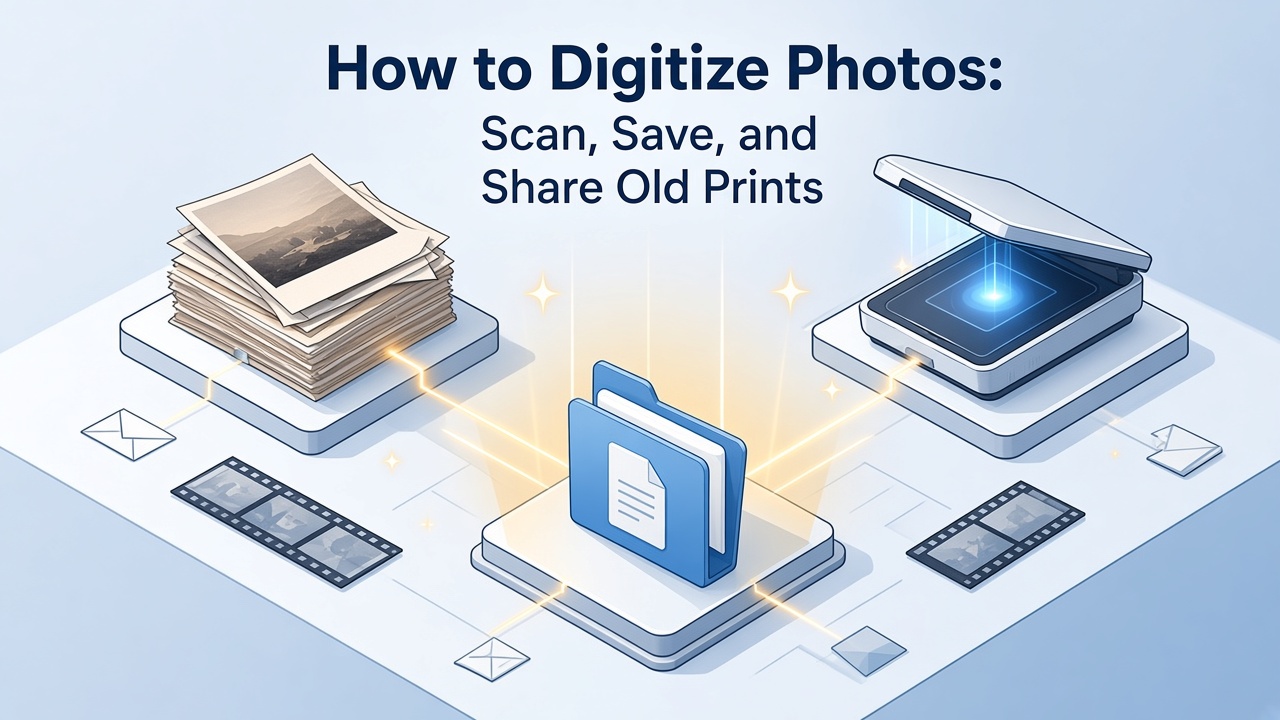
How to Digitize Photos: Scan, Save, and Share Old Prints
Prepare old prints before you digitize photos
Work on a clean, dry table. Wear cotton gloves for fragile emulsion prints. Gently dust with a soft brush—not compressed air that can scratch—and note names and years on an index card before you remove photos from albums so order is not lost.
If a print is stuck to glass, scan through the glass instead of prying. For curled photos, flatten under weight for a day rather than forcing them through a feeder, which cracks emulsion.
Work one envelope or album page at a time. Write the year and names on a slip that stays with that stack, then return the prints to the same sleeve before you start the next stack. Mixing two events is the mistake that makes a tidy scan folder useless later.
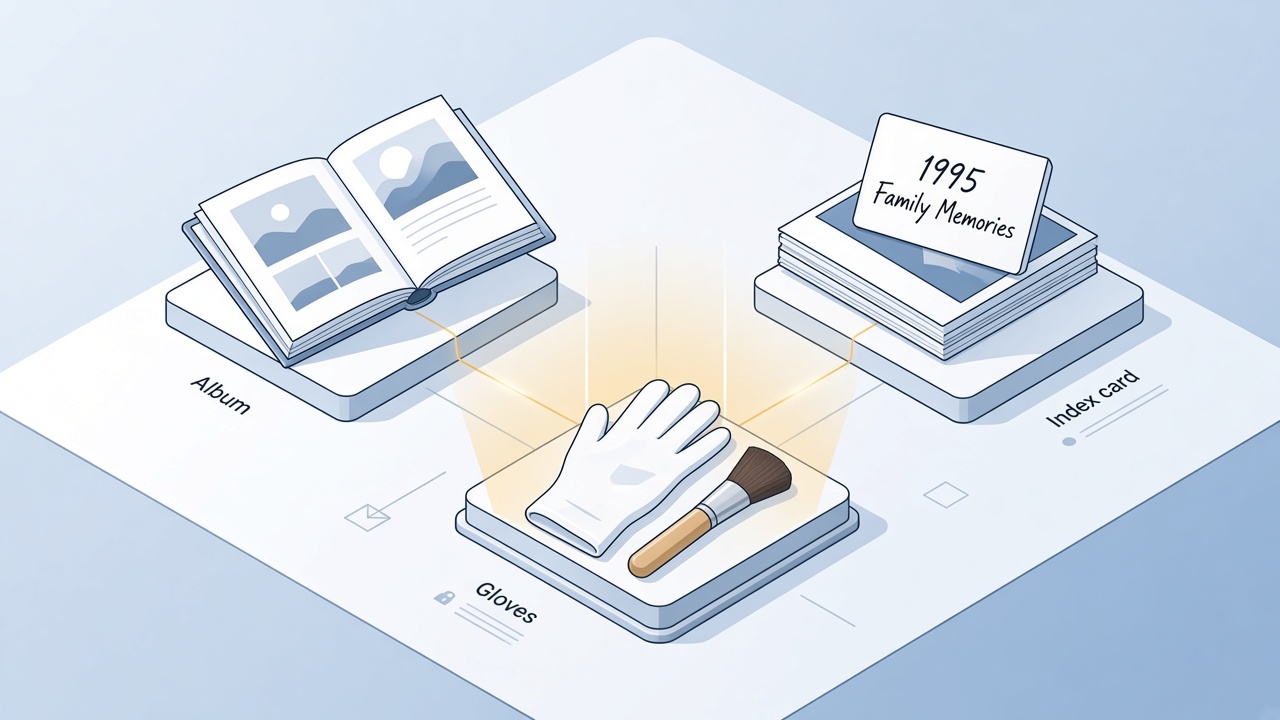
One stack names and sleeve before scanning


How to digitize photos with a scanner or phone
Flatbed scanners at 600 dpi TIFF capture detail for enlargements; 300 dpi JPEG is enough for sharing online. Disable aggressive auto-enhance until you see whether it blows highlights on faded color.
Place the print aligned to the scanner edge and preview. If the preview is darker than the print, raise exposure before the full pass—do not “fix it” with heavy auto-enhance.
On a phone, use a scanning app with edge detection in even daylight. Mixed lamp light turns faded color orange; glare on glossy prints hides faces.
Scan the back when relatives wrote dates or places. Save that file with the same base name plus
-backso it sorts next to the front.
Use 600 dpi TIFF when you may print an enlargement. Use 300 dpi JPEG for relatives and social posts. Scanning everything at the phone’s default, then discovering you cannot crop a face, means doing the box twice.
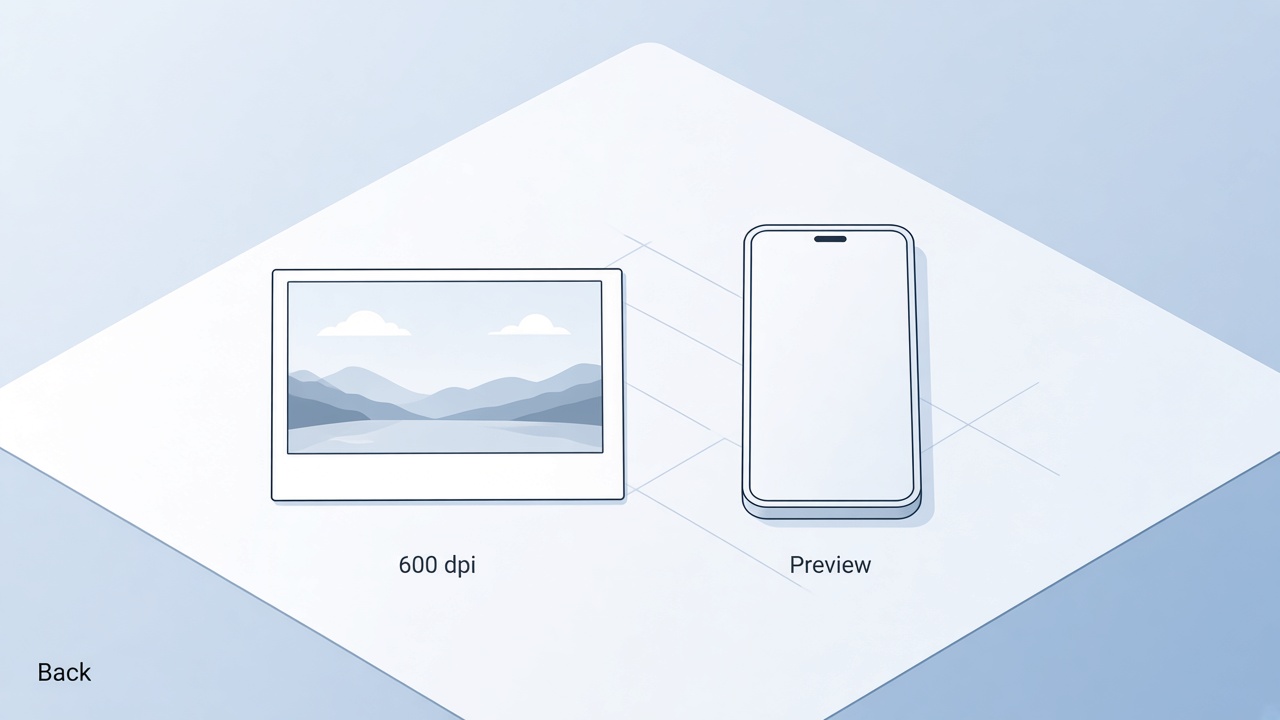
Flatbed scan preview at 600 dpi
Save and organize digitized photo files
Use a folder pattern like YYYY-Event-LastName and keep masters read-only. Store a second copy on an external drive or cloud account family members can reach. Rename files after import—camera defaults like IMG_0001 rarely help ten years later.
Strip GPS and device serials before a public post if the file came from a phone. A simple index—file name, year, people, place—beats renaming later from memory. Keep the master folder read-only so a “quick crop” does not overwrite the only high-resolution copy.
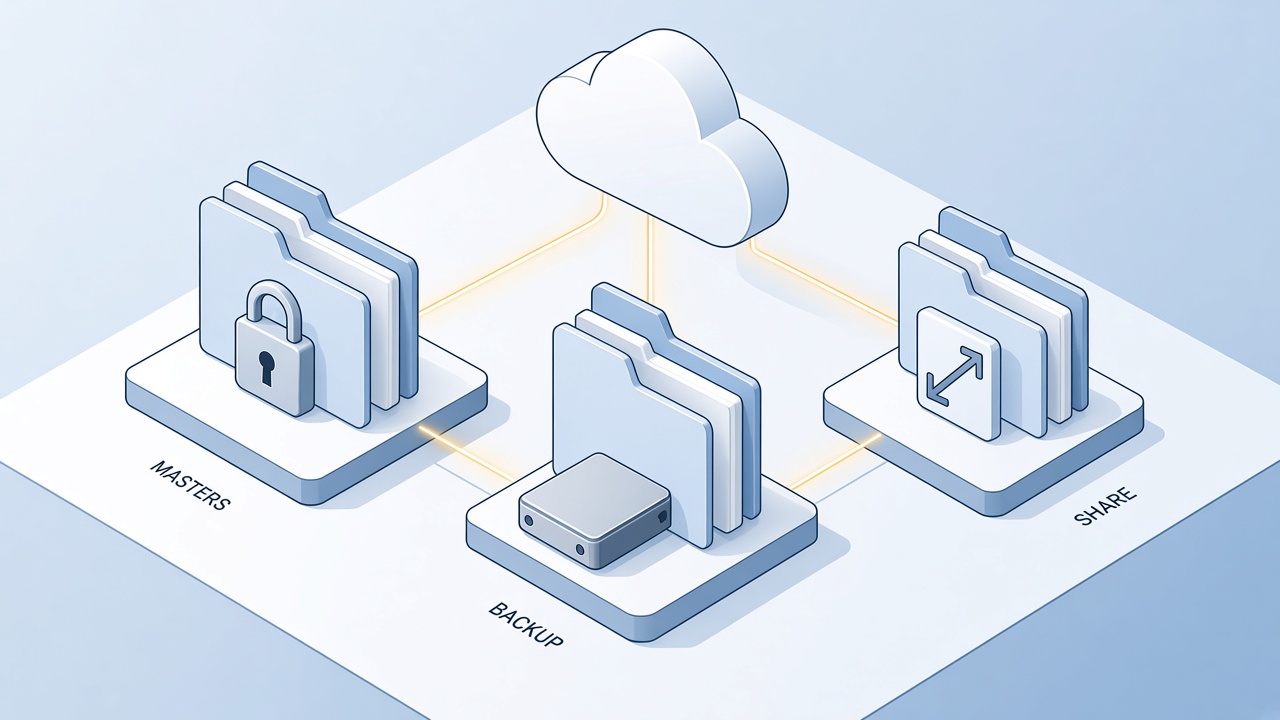
Master backup and share for photo files
Scan photos to PDF with WPS
When you need one file per album page or a PDF packet for insurance, merge the scanned JPEGs in WPS. Open Split and merger from Featured recommendations, or launch WPS PDF Converter and choose Merge PDF in the sidebar.
Open Split and merger (or Merge PDF under Split and Merge in WPS PDF Converter).
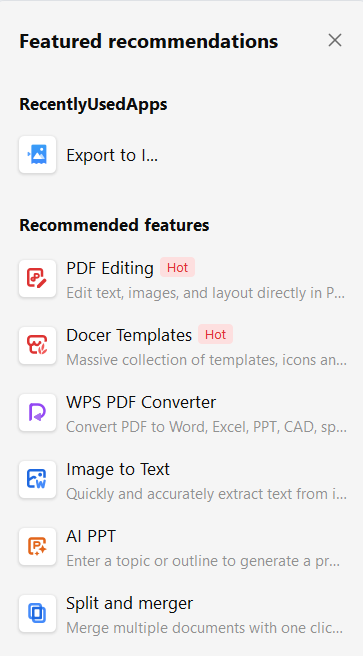
Split and merger in Featured recommendations
Click Add Files, select the scans from your album folder, drag pages into order, then export one PDF.
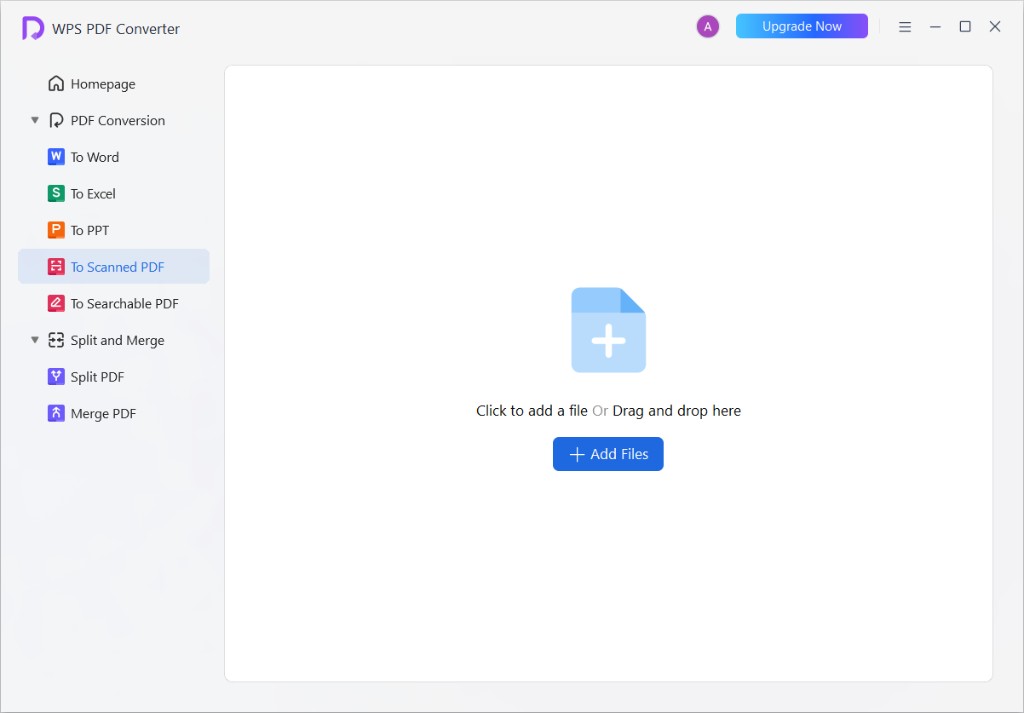
Merge PDF in WPS PDF Converter
Open the merged PDF in WPS PDF and run OCR when typed notes on the back of a print should be searchable.
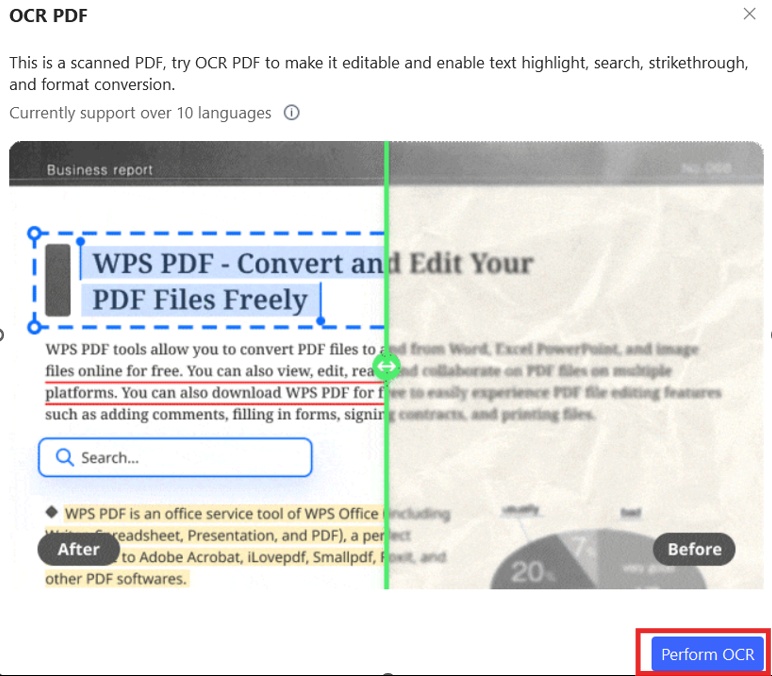
Running OCR in WPS PDF
Save with Menu → Save As and label the file with the event year and owner.
OCR reads printed captions well. Handwritten names on the back often stay an image, so keep the -back scan even after you run OCR.
Share digitized photos safely online
Resize a sharing copy—long edge about 2048 px is enough for most relatives—while the TIFF or PNG master stays offline. Use a private link, turn off open downloads if the album allows it, and ask before posting anyone who was a minor in the photo, even if they are an adult now and you are unsure they would want it public.
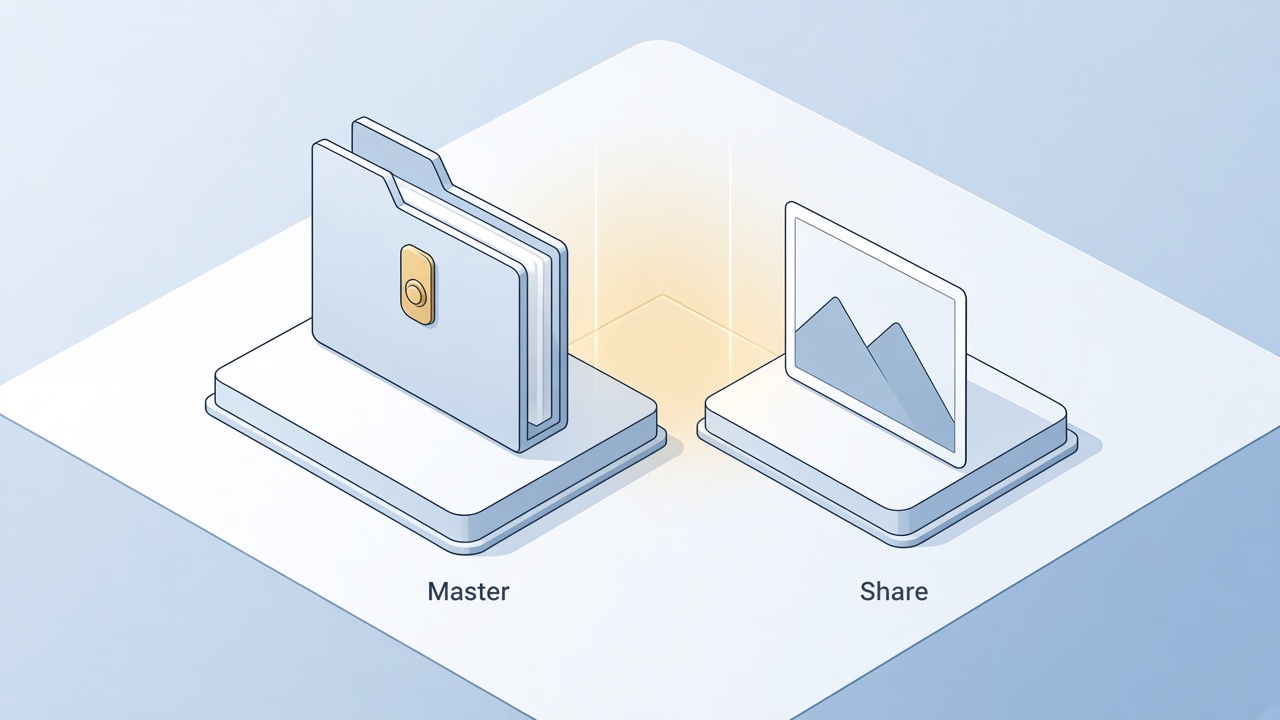
Keep the master and share a copy
The Best Free PDF Alternative: WPS Office
Photo projects rarely stop at JPEGs. WPS PDF merges album pages, compresses sharing copies, and applies OCR to captions—without paying for a separate PDF subscription.
WPS PDF document workspace for photo albums
FAQs
What is the best resolution to digitize photos?
600 dpi TIFF for preservation; 300 dpi JPEG for email and social sharing.
Is it better to scan or photograph old prints?
Flatbed scans usually win on even lighting; phones work for quick shares if you control glare and crop edges.
How do I digitize photos without a scanner?
Use a scanning app with perspective correction, or a DSLR copy stand setup with two soft lights.
What file format should I use for archives?
TIFF or PNG for masters; export JPEG copies for relatives. PDF bundles multi-page albums neatly.
Can WPS digitize photos from a scanner?
Import scanned images into WPS PDF, order pages, optionally run OCR, and export a single PDF for storage or insurance records.


'%3e%3cpath%20d='M19.9911%204.11386V6.471H18.5894C18.0775%206.471%2017.7322%206.57814%2017.5536%206.79243C17.3751%207.00671%2017.2858%207.32814%2017.2858%207.75671V9.44421H19.9019L19.5536%2012.0871H17.2858V18.8639H14.5536V12.0871H12.2769V9.44421H14.5536V7.49779C14.5536%206.39064%2014.8632%205.53201%2015.4822%204.92189C16.1013%204.31177%2016.9257%204.00671%2017.9554%204.00671C18.8304%204.00671%2019.509%204.04243%2019.9911%204.11386Z'%20fill='%23333333'/%3e%3c/g%3e%3cdefs%3e%3cclipPath%20id='clip0_2938_8199'%3e%3crect%20width='16'%20height='16'%20fill='white'%20transform='translate(8%204.00671)'/%3e%3c/clipPath%3e%3c/defs%3e%3c/svg%3e)
'%3e%3cpath%20d='M17.5237%2010.7813L23.4811%204H22.0699L16.8949%209.88693L12.7648%204H8L14.2469%2012.9029L8%2020.0133H9.4112L14.8725%2013.7952L19.2352%2020.0133H24M9.92053%205.04213H12.0885L22.0688%2019.0224H19.9003'%20fill='%23333333'/%3e%3c/g%3e%3cdefs%3e%3cclipPath%20id='clip0_2938_8200'%3e%3crect%20width='16'%20height='16.0134'%20fill='white'%20transform='translate(8%204)'/%3e%3c/clipPath%3e%3c/defs%3e%3c/svg%3e)


